





-
![]()
-
![]()
-
![]()
-
![]()
-
![]()
-
![]() Best Partition Recovery Software in 2026: Tested & Ranked (Top 10 Tools)
Best Partition Recovery Software in 2026: Tested & Ranked (Top 10 Tools) October 26,2026
 6 min read
 -
![]()
-
![]() Free Download MySQL Recovery Tool to Recover MySQL Database | 2026 FreeOctober 23,20266 min read
Free Download MySQL Recovery Tool to Recover MySQL Database | 2026 FreeOctober 23,20266 min read -
![]()
-
![]()
Page Table of Contents
Losing a partition after disk cloning usually happens when cloning software overwrites target-drive volumes, leaves remaining capacity as unallocated space, or the cloning process is interrupted. You can easily scan the disk sectors and recover missing files using EaseUS Data Recovery Wizard. After securing your data, you can recreate the missing partition or reassign drive letters in Windows Disk Management to restore full storage access safely.
PAGE CONTENT:
Many users clone their system drive to upgrade storage capacity, migrate Windows to a new NVMe SSD, or create a full backup. However, disk cloning doesn't always go smoothly. A common issue after cloning a drive is that one or more partitions disappear, leaving valuable data unreadable or showing up as unallocated space in Windows Disk Management.
If you recently completed a disk copy or OS migration and your secondary data partition (D drive) is missing, don't panic. The original files usually remain intact on the physical storage blocks. In this detailed guide, you will learn why partitions vanish after disk cloning and how to recover partition after disk clone.
Why Did My Partition Disappear After Disk Cloning
Understanding why a partition vanishes after cloning helps you choose the right fix and prevents accidental data loss during recovery. Disk cloning involves copying all sector structures or volume layouts from a source disk to a target disk. Several technical factors can cause partitions to go missing after the process finishes.
- Overwritten Target Disk Partition Table: Many disk cloning applications erase all existing partitions on the destination drive to match the source disk layout, overwriting existing target partitions.
- Unallocated Space Left on Larger Target Drives: When cloning a smaller hard drive to a larger SSD, the extra storage space is often left as unallocated space instead of creating a new usable volume.
- Drive Letter Loss: Windows may fail to assign a drive letter to a newly cloned partition, making it invisible in File Explorer even though the data is safe.
- Interrupted Cloning Process: Sudden power outages, loose cable connections, or bad sectors mid-process can corrupt the partition table metadata, leaving volumes unreadable.
- Mismatch Between MBR and GPT Partition Styles: Converting between Master Boot Record and GUID Partition Table formats during cloning can confuse partition layout pointers.

Lost Partition Recovery and Data Restore
Stop writing new data to your formatted hard drive or partition from now on. Then launch EaseUS Data Recovery Wizard and scan your formatted partition.
Method 1. Recover Missing Partition Data via EaseUS Data Recovery Wizard
When a partition is deleted or lost during cloning, Windows File Explorer can no longer read the master file allocation records. However, the raw data remains stored on the flash memory or disk platter sectors. Using specialized data recovery software is the safest, most reliable way to recover your missing files.
EaseUS Data Recovery Wizard is designed for users of all technical levels. It can scan unallocated space, RAW volumes, and lost partition paths without altering original file structures. Whether your partition disappeared after cloning an HDD to an SSD, migrating system drives, or encountering formatting errors, EaseUS Data Recovery Wizard safely recovers your photos, videos, documents, and archives.
This tool fully supports NVMe M.2 SSDs, SATA SSDs, external hard drives, USB flash drives, and memory cards.
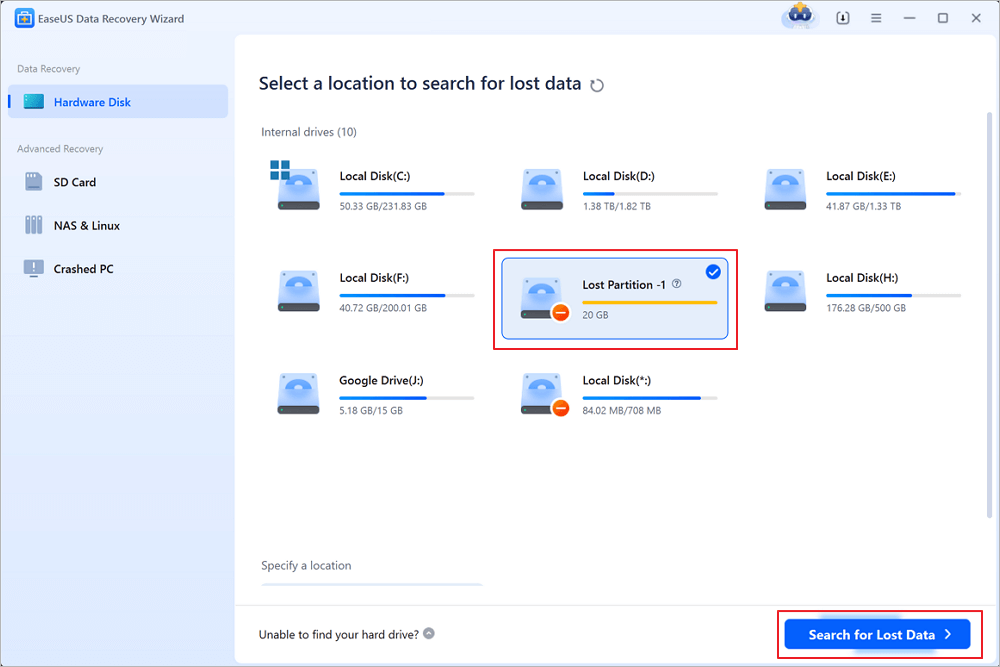
Step 1. Select and scan the lost partition
Launch EaseUS Data Recovery Wizard, select "Lost Partition" and click "Search for Lost Data" to search for all the lost data from your lost or deleted partition. If there are many lost partitions, you can identify them through its partition size.
Note: Since the Windows system doesn't support the Linux file system, the Ext2 or Ext3 partition will be recognized as lost partition with no drive letter in the software. If you want to recover data from Ext2/Ext3 partition, you can follow these steps.
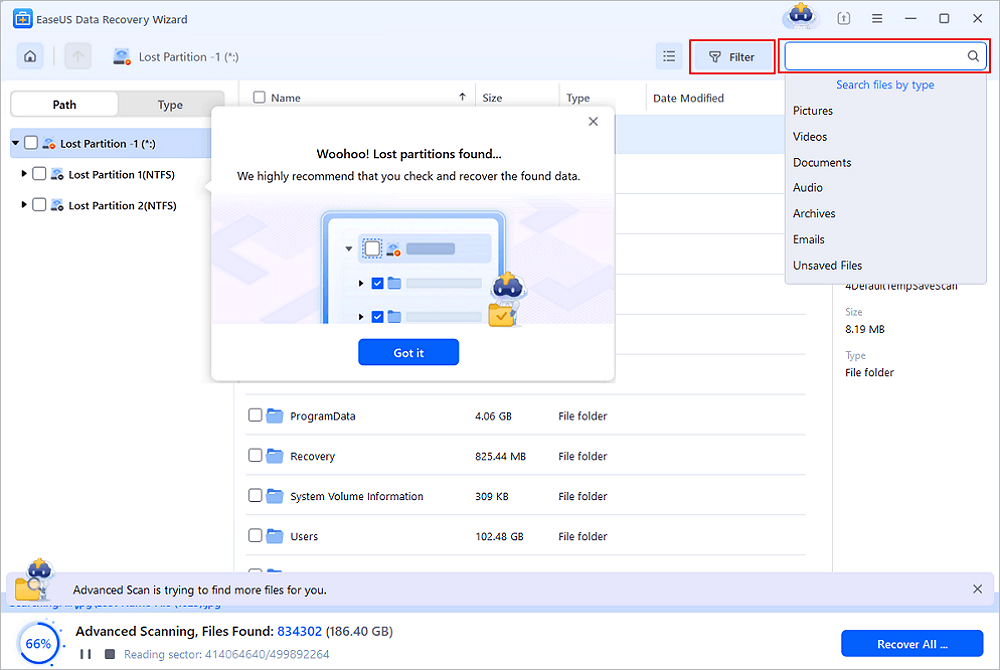
Step 2. Filter the scanned results
Because there will be a lot of scanned files, you can choose a file category for quick filtering, such as Pictures, Videos, Documents, Audio, and Others. Or if you remember the file name, you can just look it up in the search box in the upper right corner.
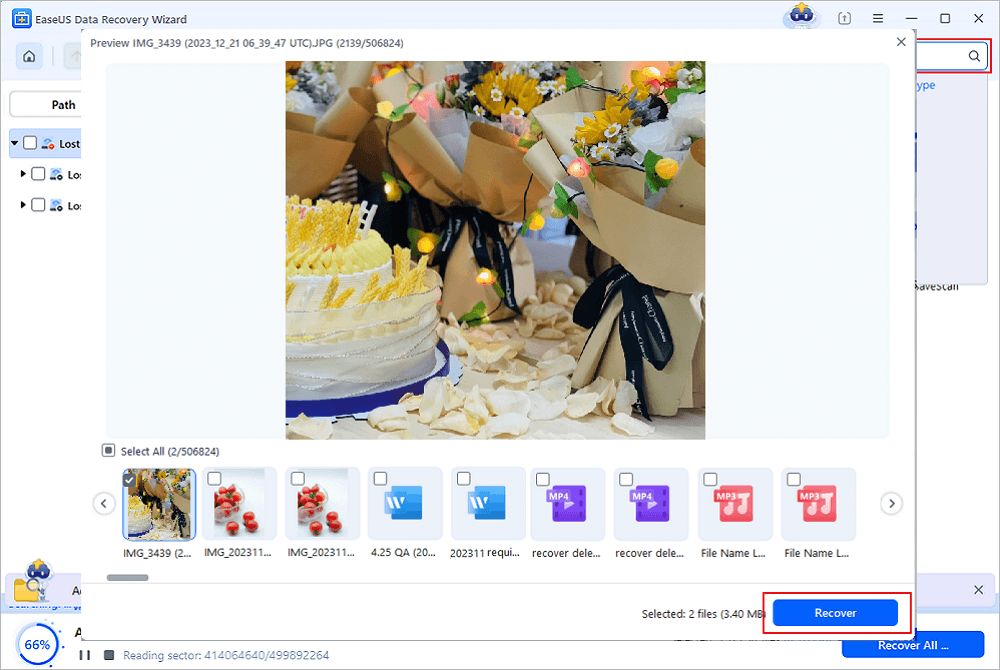
Step 3. Preview and recover data from the lost partition
Before recovery, you can preview the file to make sure it is the data you need. Choose all the files you need and click "Recover" to restore them. Choose a storage location (including cloud storage, such as OneDrive, Google Drive, etc.), and click "Save" to save your recovered files.
Many users have proven the efficacy of the tool. If you are interested in file recovery issue, share it on Facebook, Twitter, Linkedin, and other social media platforms!
Method 2. Assign a Drive Letter in Disk Management
Sometimes the cloning process succeeds, but Windows fails to assign a drive letter to the new partition volume. In this case, the partition exists, but it remains invisible in File Explorer.
Step 1. Press Windows Key + X, then select "Disk Management" from the menu.
Step 2. Locate your cloned disk in the list of drives below.
Step 3. Look for a volume with a healthy file system (NTFS or exFAT) but no assigned drive letter.
Step 4. Right-click the missing partition and choose "Change Drive Letter and Paths".
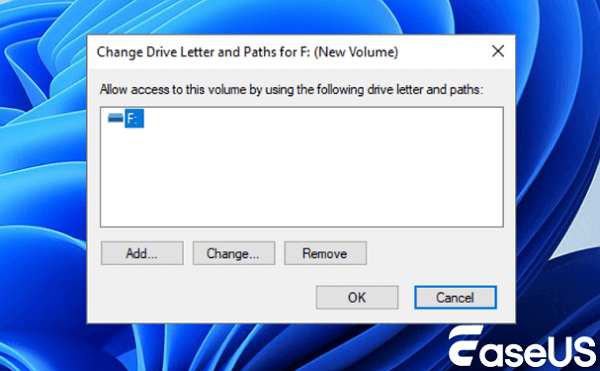
Step 5. Click "Add", select an available drive letter from the dropdown list, and click "OK".
Step 6. Open File Explorer to verify if your files and folders appear normally.
Method 3. Create a New Simple Volume from Unallocated Space
If you cloned a smaller drive to a larger SSD, the cloning software may have copied the original small partition size and left the remaining disk capacity as unallocated space. After you recover any lost data with EaseUS Data Recovery Wizard, you can turn that unallocated space into a new, usable partition.
Step 1. Press Windows Key + X and open "Disk Management".
Step 2. Scroll down to locate the drive displaying black unallocated space.
Step 3. Right-click the unallocated space region and select "New Simple Volume".
Step 4. Click "Next" inside the wizard, specify your desired volume size, and assign a preferred drive letter.
Step 5. Select "NTFS" as your file system, check "Perform a quick format", and click "Finish".
How to Prevent Partition Loss During Future Disk Cloning
Good preparation before cloning a disk reduces the risk of losing partitions or running into drive errors.
- Back Up Critical Data First: Always back up important documents, photos, and projects to cloud storage or an external drive before cloning.
- Verify Source and Target Drives Carefully: Double-check drive numbers and storage capacities inside your cloning application to ensure you do not clone an empty drive over a full one.
- Use Reliable Cloning Software: Choose trusted disk cloning applications that offer proportional partition resizing when cloning to larger or smaller drives.
- Keep System Power Connected: If you are cloning a laptop disk, keep the computer plugged into a wall power outlet to prevent mid-process power drops.
Conclusion
Losing or missing a partition after disk cloning can be alarming, but it doesn't mean your personal files are gone forever. Whether the cloning software overwrote partition pointers, failed to assign a drive letter, or left extra space unallocated, your data usually remains resting on the physical storage blocks. By avoiding new drive writes, verifying drive letters in Disk Management, and using EaseUS Data Recovery Wizard to scan raw sectors and recover missing files, you can recover the partition after a disk clone and restore seamless computer access.
Recover Partition After Disk Clone FAQs
Here are clear answers to common questions computer users ask when trying to recover partitions after cloning a hard drive or SSD.
1. Can disk cloning delete partitions on my target hard drive?
Yes. Most disk cloning utilities format or overwrite the destination drive so that its volume layout matches the source drive completely. Any pre-existing partitions on the target drive will be deleted during the cloning process.
2. What should I do if my cloned SSD shows unallocated space?
If your cloned SSD shows unallocated space, it means the source drive was smaller than the new SSD. You can right-click the unallocated space inside Windows Disk Management, choose New Simple Volume, and follow the setup wizard to create a new partition, or use EaseUS Data Recovery Wizard first if you suspect lost data resides in that area.
3. Is it possible to recover files from a partition that was overwritten during cloning?
Yes. As long as the physical memory clusters containing your original files have not been completely written over with new data blocks, EaseUS Data Recovery Wizard can perform a deep sector scan to recover lost files from overwritten or missing partitions.
4. Why does my computer fail to boot after cloning the system drive?
A computer may fail to boot after cloning if the boot order in BIOS or UEFI settings is pointing to the wrong drive, if the target drive uses a different partition style like MBR instead of GPT, or if system boot files were not included in the cloning mode selection.
Was this page helpful?
 Why Trust EaseUS
 Editor Reviews

20+
Years of experience

160+
Countries and regions

72 Million+
Downloads

4.9 +
Trustpilot Score





