





-
![]()
-
![]()
-
![]()
-
![]()
-
![]()
-
![]() How to Recover Data from 2TB External Hard Drive in Windows 11/10/8/7
How to Recover Data from 2TB External Hard Drive in Windows 11/10/8/7 February 12,2026
 6 min read
 -
![]() How to Recover Deleted Photos from Insta360? Find 3 Tested Methods HereFebruary 12,20266 min read
How to Recover Deleted Photos from Insta360? Find 3 Tested Methods HereFebruary 12,20266 min read -
![]()
-
![]()
-
![]()
Page Table of Contents
PAGE CONTENT:
If your SD card won't mount, your computer won‘t show it in File Explorer, Disk Management, or even give you an error message—it simply acts as if nothing is plugged in. The card itself may be physically fine, but a corrupted partition table, failed file system, or prior formatting attempt has rendered it invisible to Windows and macOS. Your photos are still on the card. They are not gone.
They are simply inaccessible through normal means. Recovery requires tools that bypass the operating system entirely and read the raw data directly from the card. The following three solutions address all levels of this problem, and you can follow them to recover data from an SD card that won't mount.
Solution 1. Recover Data From SD Card That Won't Mount With EaseUS Data Recovery Wizard
Best for: Users who want a simple, visual recovery without technical commands.
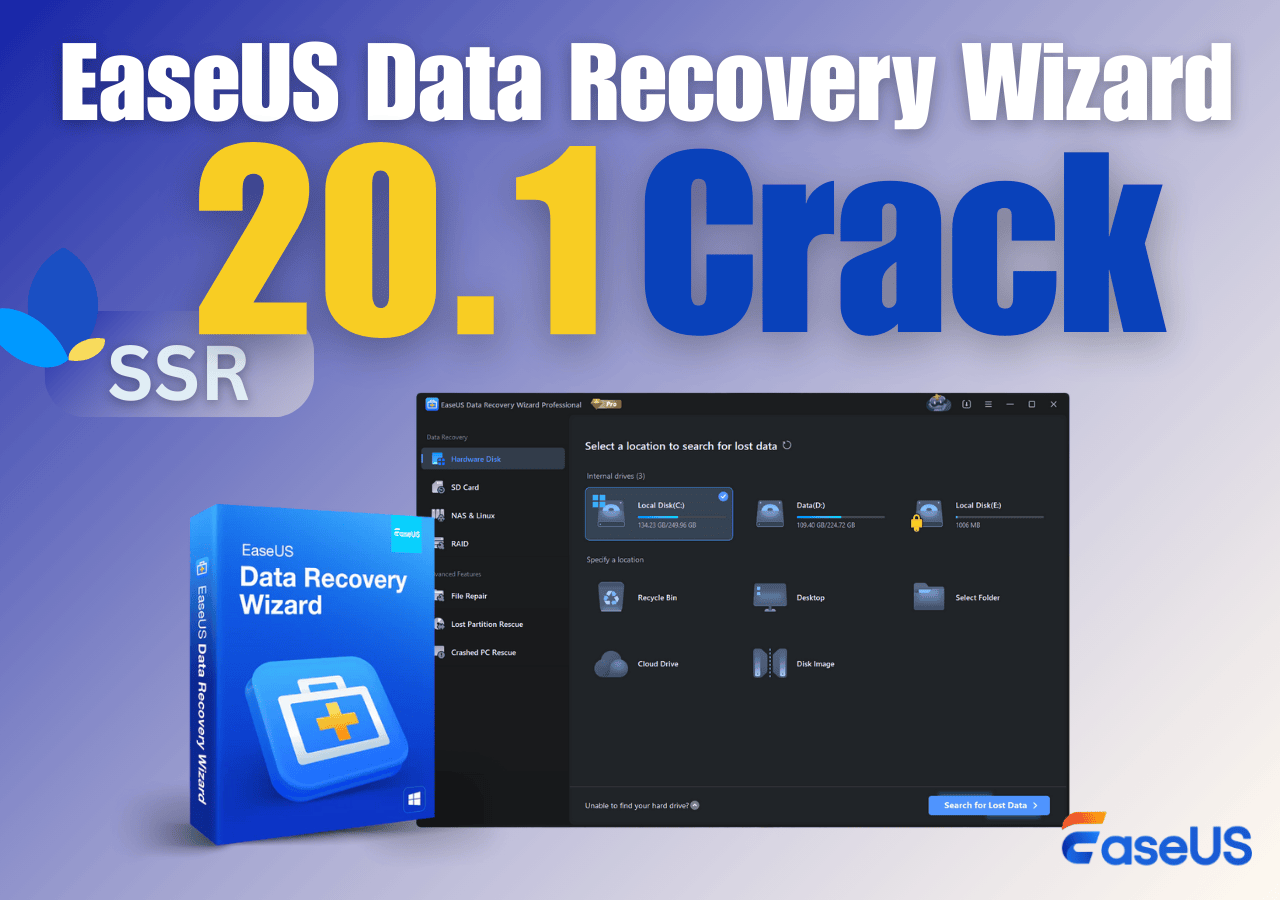
One of the easiest methods users can apply to recover data from a problematic SD card is to use a data recovery tool like EaseUS Data Recovery Wizard. This method can bypass the broken file system entirely and read raw data directly from the card and reconstruct files by their signatures. This SD card recovery tool helps you restore lost files when your SD card is not showing up or is not detected.
Here is how you can recover deleted files from SD card that won't mount:
🏆EaseUS SD card recovery leverages patented video fragment reconstruction technology to deeply repair video files lost due to accidental deletion, formatting, or corruption. Explicitly designed for cameras, action cameras, drones, and dashcams, it accurately restores complete and playable precious footage.
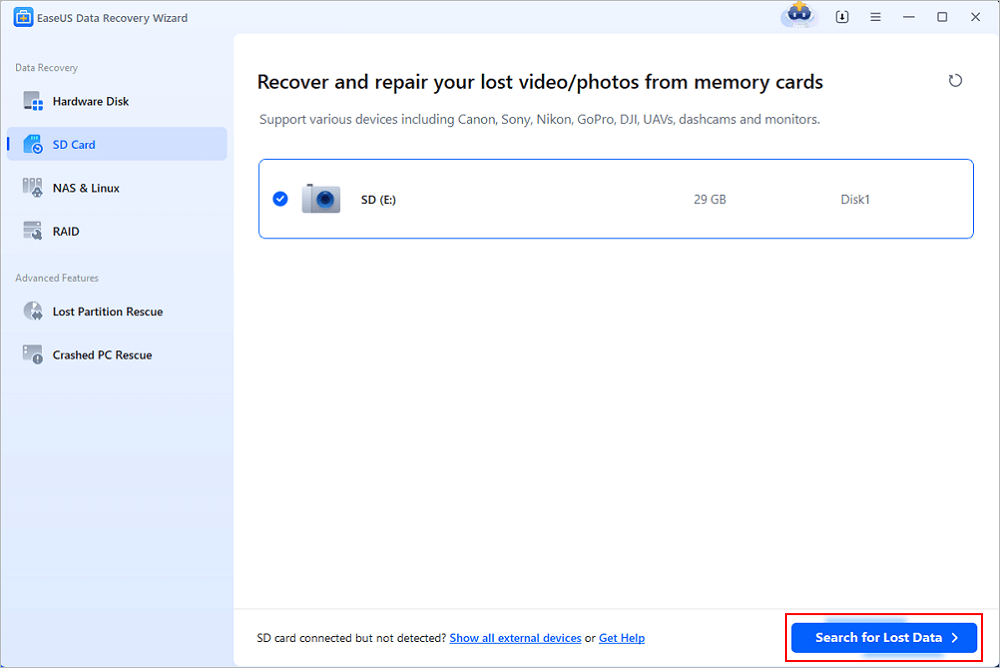
Step 1. Select the SD card to scan
- Download and install EaseUS Data Recovery Wizard on your Windows PC.
- Use the proper way to connect your SanDisk/Lexar/Transcend SD card to the computer.
- Open EaseUS SD card recovery software and choose SD Card Recovery on the left panel. All connected drives will display here. Select your SD card and click "Scan for lost data".
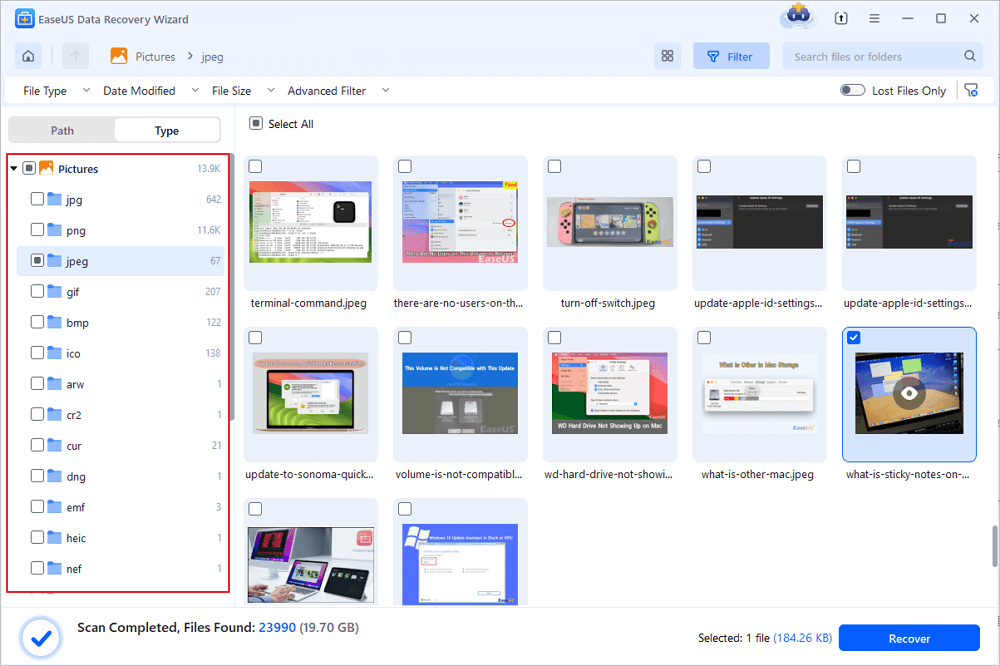
Step 2. Check for scan results
- Wait for the scanning process to complete.
- Specify one or several file types to show up, like Pictures or Videos.
- Click "Preview" to check if they are the wanted files.
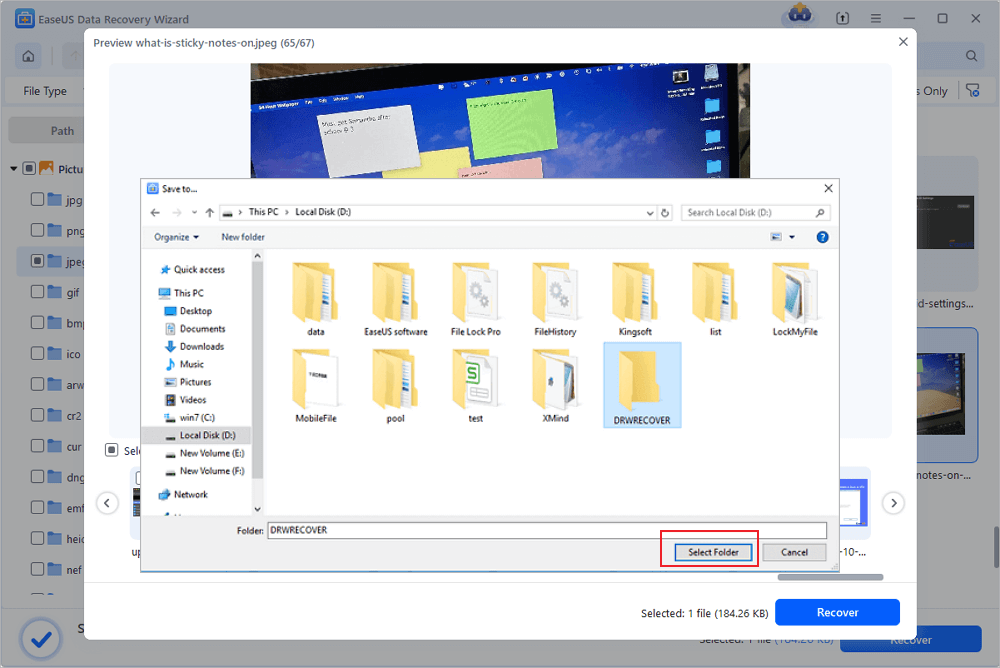
Step 3. Recover SD card data
- Preview the recovered files and click "Recover".
- Choose a different location to save the recovered files instead of the original SD card.
💡Want to know more about SD card data recovery? For example, what is the best SD card data recovery software? How to recover a damaged SD card? How to recover data from an unreadable SD card...Go for SD Card Data Recovery FAQs and restore your precious lost files.
Share this post with users who are facing the same data loss scenarios:

Solution 2. Create a Disk Image to Recover Data From SD Card That Won't Mount
Best for: Technically inclined users. Essential for cards that are failing or intermittently detected.
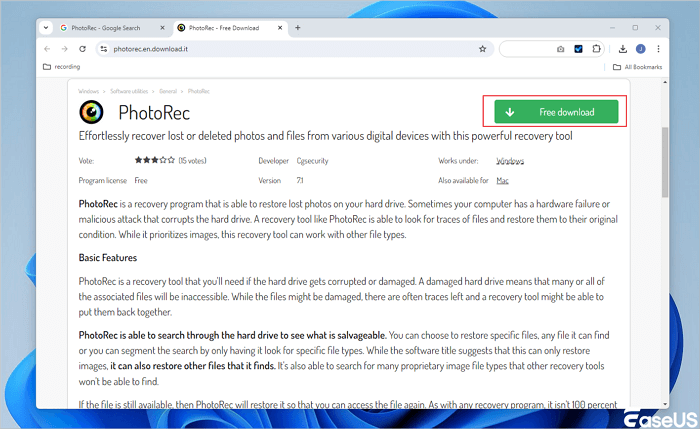
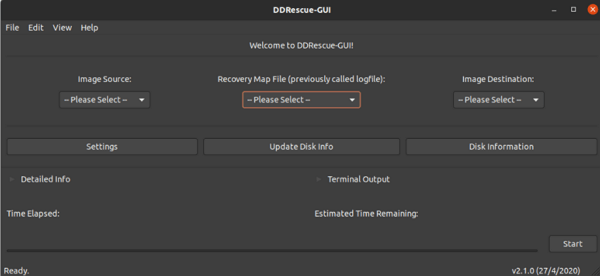
You can also create a disk image and restore lost files using PhotoRec, but it takes a bit more time and requires some basic knowledge. Here is how you can do:
Step 1. Download FTK Imager. Insert the SD card. In FTK Imager, click File → Create Disk Image → Physical Drive → select your SD card → save as a .dd file to your computer. Then remove the SD card and stop using it.
Step 2. Download PhotoRec. Launch it and select the .dd image file you just created.
Step 3. Select "Whole disk" as the partition type and "Other" as the file system.
Step 4. Choose a destination folder on your computer and press C to start carving.
Step 5. PhotoRec extracts all recoverable files by file signature. No original filenames, but your photos are back.
Solution 3. Run CHKDSK to Recover Data From SD Card That Won't Mount
⚠️ WARNING: Run this only AFTER you have recovered your files, or if the card contains nothing important. CHKDSK writes changes and can permanently delete unrecovered data.
Best for: Cards that mount but show "0 bytes," "not formatted," or corruption errors—after data is already saved.
Step 1. Open Command Prompt as Administrator (right-click Start → Command Prompt (Admin)).
Step 2. Type chkdsk E: /f /r /x (replace E: with your SD card drive letter) and press Enter.
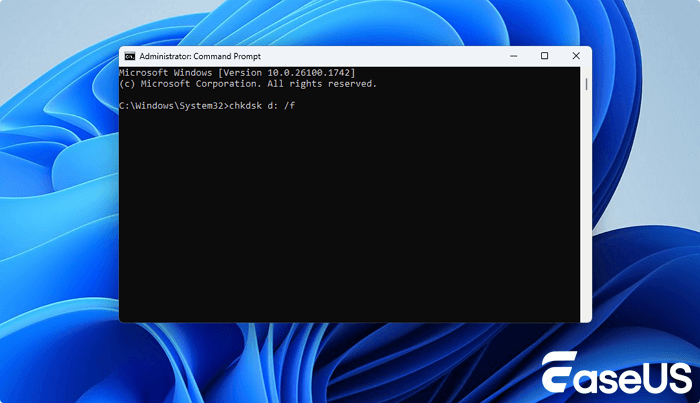
Step 3. Wait for the process to complete (may take an hour).
Step 4. Check if the card now opens in File Explorer.
Step 5. Alternative one-click tool: Use EaseUS CleanGenius → "File Showing" → "Fix File System Error" → select SD card → "Fix."
Final Words
How to recover data from SD card that won't mount? This post from EaseUS has provided you with three ways to restore lost files from the SD card with issues, but one of the most effective methods is to use data recovery software like EaseUS Data Recovery Wizard.
FAQs on How to Recover Data from SD Card That Won't Mount
Read the following questions that users frequently ask to recover your data better:
1. How to recover data from an SD card that won't mount on my computer?
First, stop using the card immediately to prevent overwriting. Try connecting it via a different card reader or port. If it still won't mount, use data recovery software like EaseUS Data Recovery Wizard. These tools can often access raw data even when the file system is corrupted or unreadable.
2. Can I recover files from an SD card that Windows or Mac doesn't recognize?
Yes. If the card isn't mounting, it may still be detectable by recovery software at a low level. On Windows, check Disk Management; on Mac, use Disk Utility. If the card appears but without a drive letter or volume, recovery software can often scan and retrieve your data.
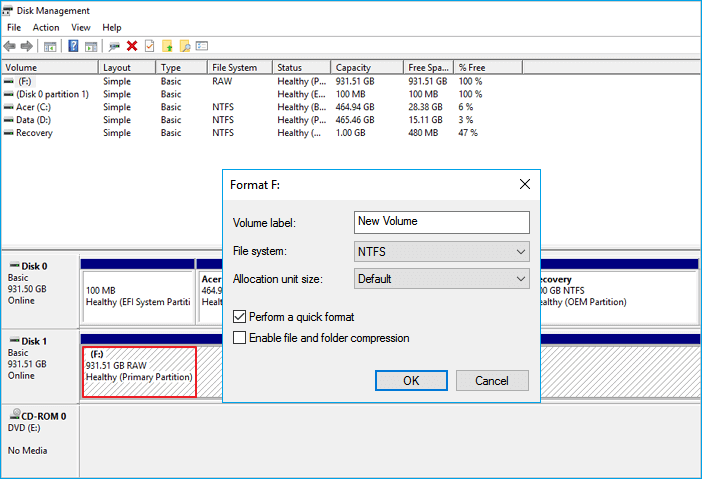
3. What should I do if my SD card shows up in Disk Management but won't mount?
This usually indicates a corrupted file system. Do not format the card if you want to recover data. Instead, use a recovery tool that supports raw drive scanning. Once your files are recovered, you can safely format the card for reuse.
Was this page helpful?
 Why Trust EaseUS
 Editor Reviews

20+
Years of experience

160+
Countries and regions

72 Million+
Downloads

4.9 +
Trustpilot Score





Free Data
Recovery Software
Recover data up to 2GB for free!


