





The Blue Screen of Death (BSOD) is one of the most alarming errors in Windows. It appears that when the operating system encounters a critical issue that it cannot safely recover from, it forces Windows to halt to protect your data and hardware. What causes Blue Screen of Death? Read this article from EaseUS Software to learn about the common causes and the feasible methods below.
What Causes Blue Screen of Death | 6 Reasons
Before exploring solutions, take a closer look at these six common causes of the Blue Screen of Death (BSOD).
Reason 1. Faulty or Failing Hardware
Hardware failures are among the most frequent triggers of BSODs. This includes:
- RAM issues: Corrupted or failing memory can cause unpredictable system crashes.
- Hard drive or SSD failures: A damaged or dying drive can make critical system files unreadable.
- Overheating components: CPUs, GPUs, or other devices that run too hot may trigger a safety shutdown.
- Power supply problems: An unstable or insufficient power source can cause sudden system errors.
When hardware cannot perform reliably, Windows shuts down the system to prevent permanent damage, resulting in a Blue Screen of Death.
Reason 2. Driver Conflicts or Corruption
Drivers act as the bridge between your hardware and Windows. If a driver is outdated, incompatible with your version of Windows, or corrupted,
it can cause the system to crash, often with error messages such as IRQL_NOT_LESS_OR_EQUAL or DRIVER_POWER_STATE_FAILURE. Graphics drivers, network adapters, and storage controllers are frequent culprits. Regularly updating drivers can help prevent BSODs.
Reason 3. Software Conflicts or Bugs
Certain applications, particularly low-level utilities like antivirus software or system optimizers, interact closely with Windows. If these programs contain bugs or conflict with the operating system, they can cause fatal errors. Additionally, improperly installed software or incomplete updates may corrupt critical system processes, triggering a Blue Screen.
Reason 4. Corrupted System Files
Windows relies on essential system files to run correctly. Corruption can occur because of sudden power outages, malware infections, disk errors, or file system corruption.
When these files are damaged, the operating system cannot operate properly, resulting in a stop error. Running tools like System File Checker (SFC) or DISM can repair corrupted files and reduce the risk of future BSODs.
Reason 5. Overheating and Power Issues
Overheating components, particularly the CPU and GPU, can trigger automatic shutdowns to protect hardware. Similarly, a failing power supply or unstable voltage can cause memory and processor errors, leading Windows to display a Blue Screen of Death to avoid permanent damage.
Reason 6. Malware and Security Threats
Some malware targets system-level files and drivers. When these are compromised, Windows may detect unrecoverable errors and trigger a BSOD as a protective measure. Running regular security scans and keeping antivirus software up to date can reduce this risk.
5 Ways to Fix the Blue Screen of Death
There are five solutions to fix the issue. Make sure to review the first solution carefully before scrolling down to the others.
Fix 1. Use EaseUS Partition Master
A common cause of BSODs is disk partition issues. If your system partition is misconfigured or corrupted, Windows may fail to boot properly. EaseUS Partition Master allows you to resize or repair system partitions, convert MBR to GPT without data loss, check and fix file system errors, etc.
Fix 2. Update or Roll Back Drivers
Corrupted or incompatible drivers are one of the most common causes of BSODs. Updating them ensures your hardware communicates correctly with Windows, while rolling back a recent update can fix crashes caused by new drivers. Let's show how it works.
▶️Please press Win + X > select Device Manager to open it > locate the driver causing issues > right-click on it > select Update driver or Roll Back Driver > restart your PC.
Fix 4. Scan for Malware
As mentioned earlier, malware or viruses can also cause this issue. You can use Windows Virus & Threat Protection to scan for and remove threats, safeguarding your device from viruses, malware, ransomware, and other online security risks. Here, it offers real-time protection, automated updates, and customizable scanning options.
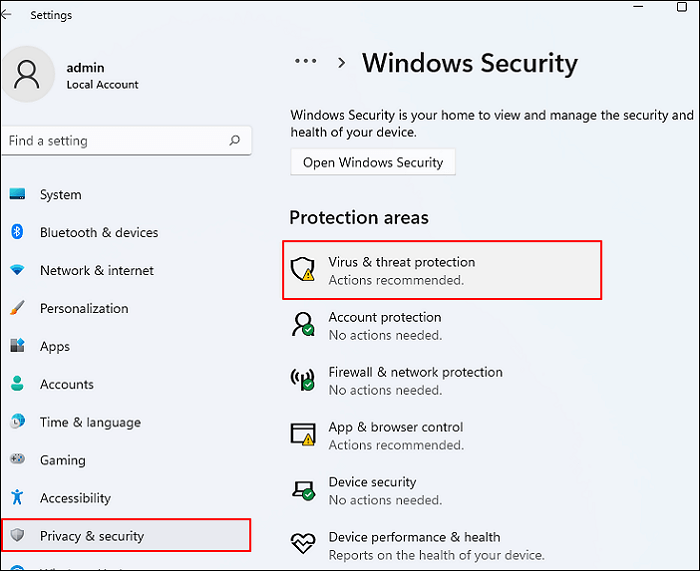
Step 1. Please press Win + I to open Windows Settings > select Privacy & Security > click Virus & threat protection.
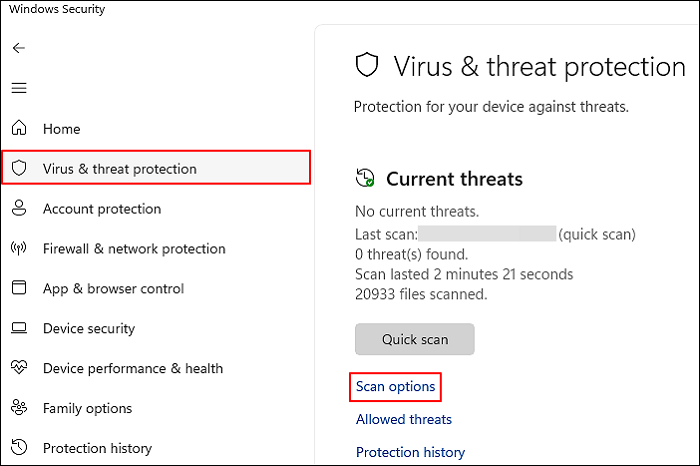
Step 2. Under the Virus & threat protection tab, click Scan options.
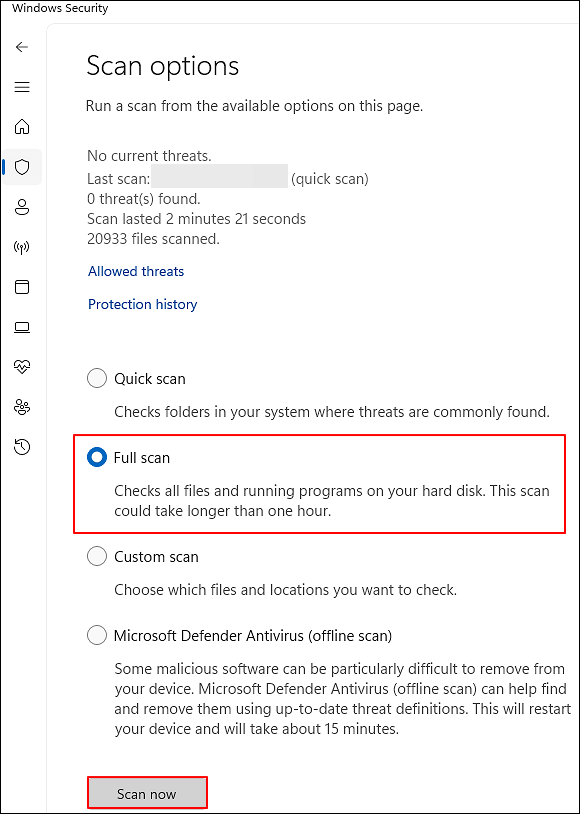
Step 3. In this case, select Full scan > click Scan now. After scanning, restart your PC and reconfirm whether your hard drive is full or not.
Fix 5. Reset BIOS to Default Settings
Misconfigured BIOS settings, such as incorrect boot order, disabled drives, or other custom changes, can block the system from recognizing the operating system after enabling Secure Boot. Factory resetting the BIOS restores default settings compatible with Secure Boot. Let's take MSI PC as an example.
Step 1. Restart your MSI computer > press the Del key immediately to access the BIOS settings.
Step 2. Move to the Save & Exit tab > select Load Optimized Defaults.
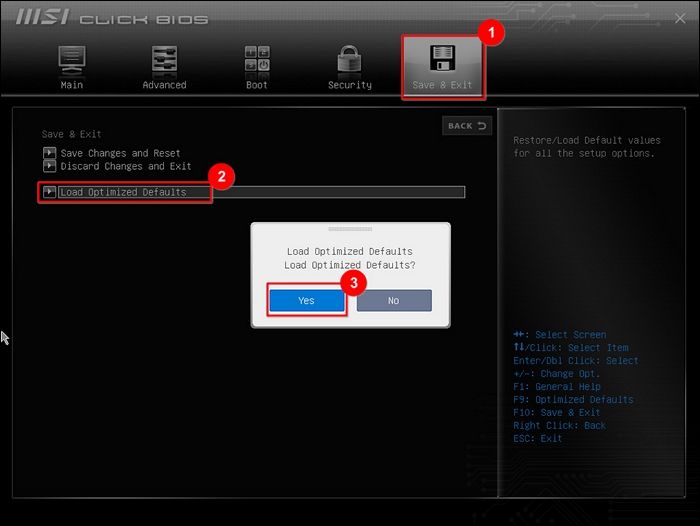
Step 3. Select Yes to confirm your choice > select Save changes and Reset > click Yes.
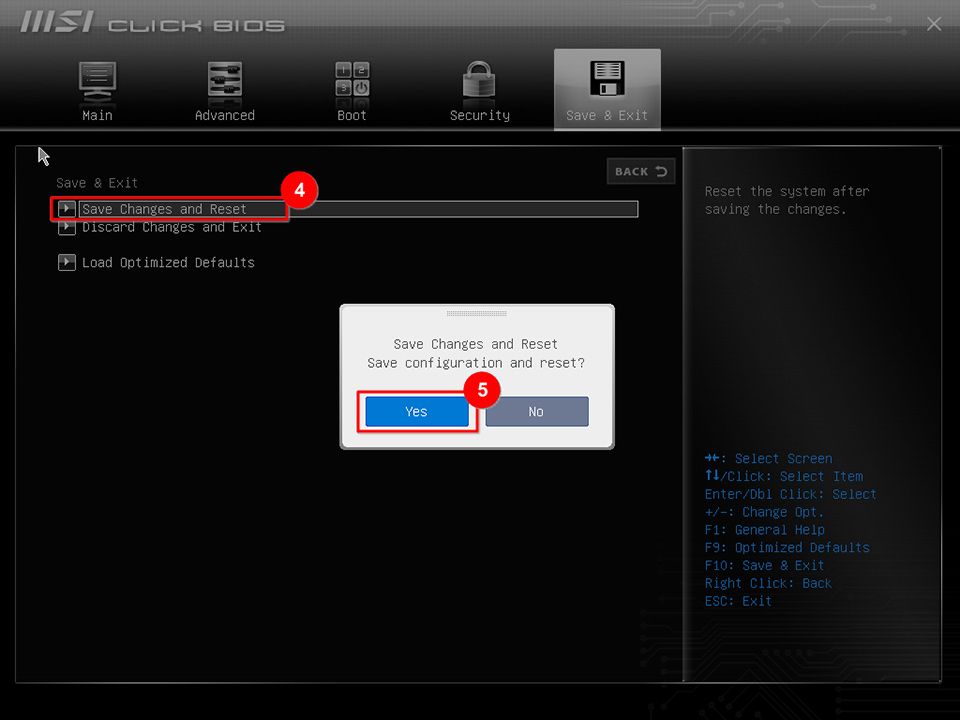
Step 4. Reboot your computer for changes to take effect.
Conclusion
What causes Blue Screen of Death? A Blue Screen of Death usually indicates hardware, driver, or system issues rather than permanent damage. Solutions such as updating drivers, repairing system files, scanning for malware, and resetting the BIOS can restore stability.
Among these, EaseUS Partition Master is especially efficient and convenient because this powerful BSOD repair tool has the ability to fix disk or partition issues, repair MBR/GPT problems, and prevent boot-related BSODs. By applying these steps, your PC can run more reliably and securely.
Was This Page Helpful?

Updated by Tracy King
Tracy became a member of the EaseUS content team in 2013. Being a technical writer for over 10 years, she is enthusiastic about sharing tips to assist readers in resolving complex issues in disk management, file transfer, PC & Mac performance optimization, etc., like an expert.

Cici is the junior editor of the writing team of EaseUS. She accepted the systematic training on computers at EaseUS for over one year. Now, she wrote a lot of professional articles to help people resolve the issues of hard drive corruption, computer boot errors, and disk partition problems.
Related Articles
-
How to Fix Xbox External Hard Drive Not Working [Full Guide]
![author icon]() Cici/2026-06-17
Cici/2026-06-17 -
Fixed: Fallout 4 Crashing on PC (9 Possible Solutions)
![author icon]() Oliver/2026-06-17
Oliver/2026-06-17 -
Game Stuttering on High-End PC [Why & How to Fix]
![author icon]() Larissa/2026-08-14
Larissa/2026-08-14 -
Call of Duty Warzone File Location [All You Want to Know]
![author icon]() Rel/2026-06-18
Rel/2026-06-18
 Oliver/2026-06-17
  Larissa/2026-08-14
  Rel/2026-06-18
 EaseUS Data Recovery Services
EaseUS data recovery experts have uneaqualed expertise to repair disks/systems and salvage data from all devices like RAID, HDD, SSD, USB, etc.


