





Table of Contents
 About the Author
 Related Posts
You have a PDF document you urgently need to review or print. You double-click the file, expecting Adobe Reader (or Acrobat) to launch and display the content, but instead, you encounter an error message, a blank screen, or the file simply fails to respond. This common yet frustrating issue can halt your workflow.
This guide explains why a PDF is not opening in Adobe Reader and provides clear, actionable steps to fix it.
Why PDF Won't Open in Adobe Reader
I had this strange issue lately for more than one user that PDF files are not opening in Adobe Reader. No error message or anything, the default reader opens (Adobe Reader, Chrome), but the document doesn't. - from a User in the Reddit forum
Understanding the root cause is the first step to finding the right solution. The issue typically falls into one of these categories:
The PDF file is corrupted: A damaged or corrupted document is a common reason it won't open. This can occur during interrupted file transfer, incomplete downloads, unexpected system shutdowns, or while the file is being edited. In some cases, a virus or malware infection can also corrupt the file. Therefore, fixing a corrupted PDF file can solve this error.
Adobe Reader/Acrobat issues: The problem might lie with the software, including an outdated version, corrupted installation, Adobe's protected mode, etc.
- Tip
- Adobe's Protected Mode is a security feature that runs Reader in a restricted environment. While it protects your system, it can sometimes conflict with accessing files from network locations or certain secured documents, preventing them from opening.
System configuration problems: Your computer might be set to open PDFs with another program (like a web browser) instead of Adobe Reader. So it can be a conflict. Browsers like Chrome and Firefox are often configured to open PDFs internally. This can cause issues with viewing or printing, and may appear as if Adobe Reader isn't working at all.
How to Fix PDF Not Opening in Adobe Reader
After learning why a PDF file won't open in Adobe Reader, check out the following fixes:
| Workable Solutions | Step-by-step Troubleshooting |
|---|---|
| Fix 1. Repair Corrupted PDF Files | Click "File Repair > Add Files" to select and repair damaged PDF, or other documents...Full steps |
| Fix 2. Repair Adobe Installation | Launch Adobe Acrobat Reader and choose "Help" > Click Repair Installation...Full steps |
| Fix 3. Update Adobe Reader | Run Adobe Reader and select "Help" > Choose "Check for Updates"...Full steps |
| Fix 4. Disable the Protected Mode | Open Adobe Reader and choose "Edit" > Select "Preferences" from the menu...Full steps |
Fix 1. Repair Corrupted PDF Files
If the PDF document is corrupted, it can not be opened by Adobe Reader. In this case, EaseUS Fixo File Repair is one of the best PDF repair tool taht helps repair corrupted documents in clicks!
Check out the following steps to open corrupted PDF files:
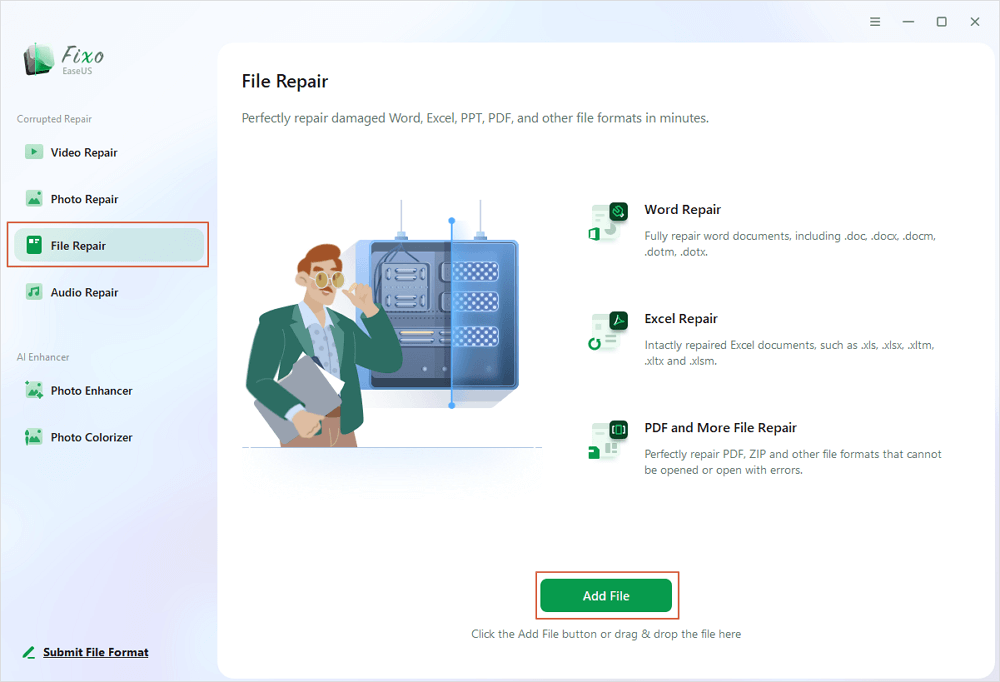
✨Step 1. Download, install, and launch EaseUS Fixo Document Repair
You can download this repair tool with the download button we gave you or other official ways. After the installation, you can double-click the Fixo icon to launch it. Click "File Repair" > "Add Files" to select and repair damaged Word, Excel, PDF, and other documents.
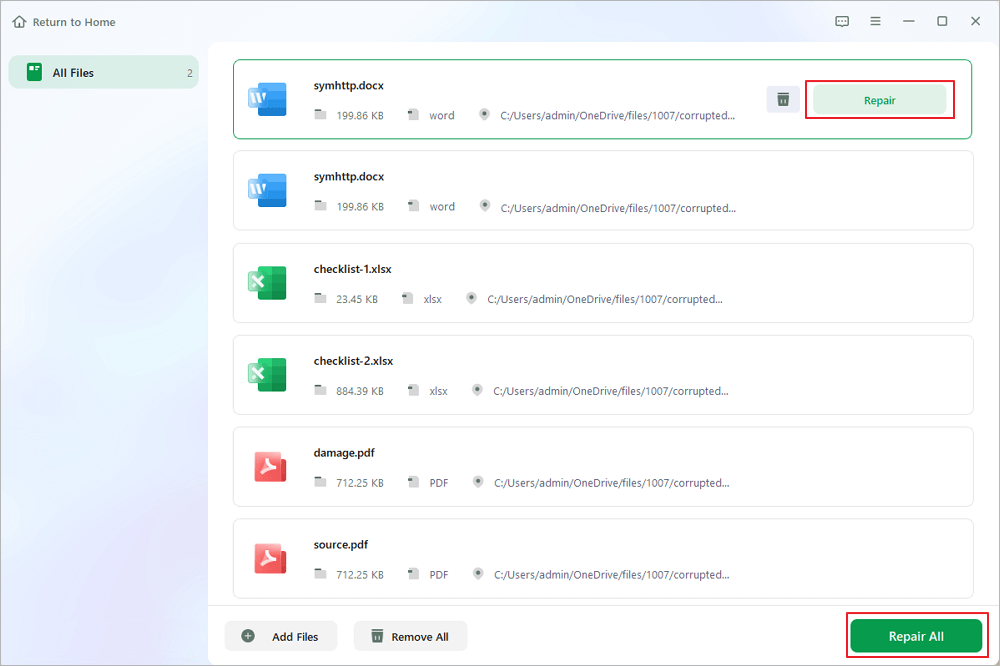
✨Step 2. Repair corrupted documents now
After adding the documents, you can click "Repair" to fix a document specifically or select "Repair All" to repair the whole files in the list altogether.
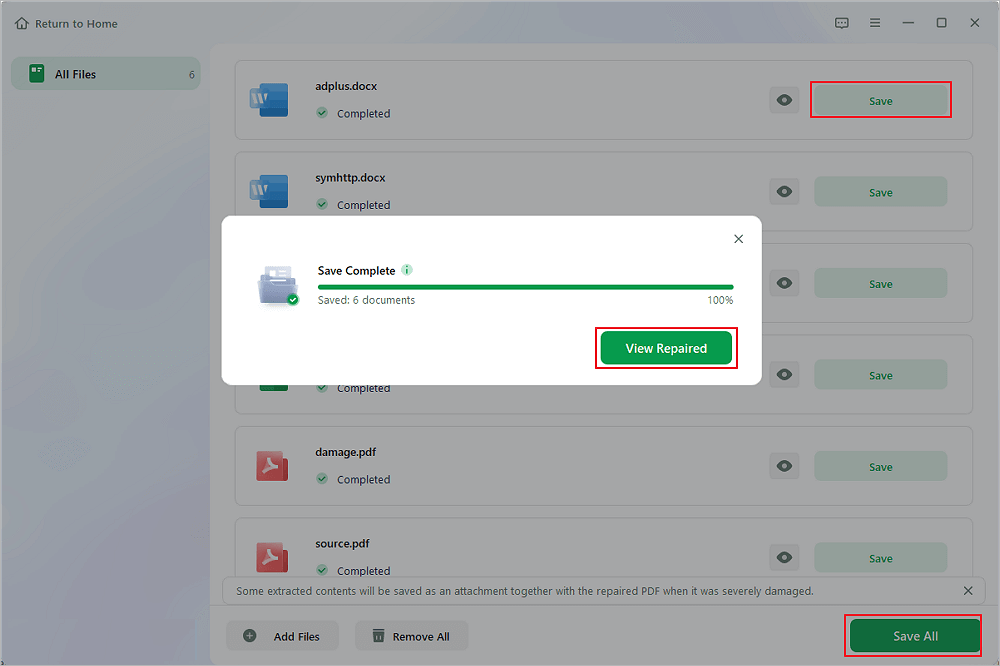
✨Step 3. Preview and save repaired documents
Now, the files are ready to be saved. You can also click the eye icon to preview the documents. After clicking "Save All", select "View Repaired" in the pop-up window to locate these repaired files.
Share this post with your friends if you think it's helpful, and share it on social media to help more people facing the "PDF not opening in Adobe Reader" issue.

Fix 2. Repair Adobe Installation
A completely downloaded PDF file cannot be opened; check whether Adobe Reader is having problems. You can try another way to open a PDF, such as Chrome, or you can repair the Adobe installation.
Step 1. Launch Adobe Acrobat Reader and choose "Help" from the top menu.
Step 2. Click Repair Installation.
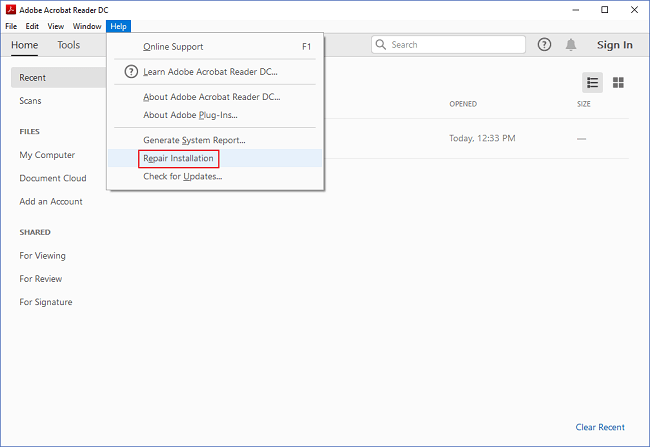
Step 3. Choose "Yes" to start the repair process.
Fix 3. Update Adobe Reader
As we mentioned, an outdated version or corrupted installation may cause the PDF file to not open functionally in Adobe Reader. Follow the steps below to update Adobe Reader/Acrobat to fix the PDF file not opening issue:
Step 1. Run Adobe Reader and select "Help" from the top menu.
Step 2. Choose "Check for Updates" from the drop-down menu.
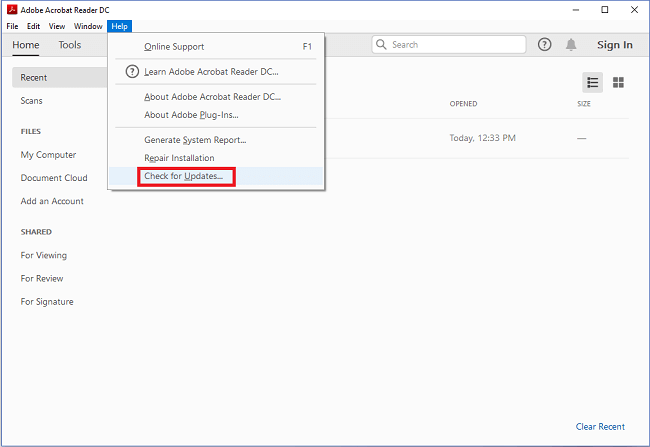
Step 3. Wait for the "Update Successful" message and restart your PC.
Fix 4. Disable the Protected Mode in Adobe Reader
Disabling Protected Mode in Adobe Reader is generally done to troubleshoot performance issues, such as the application freezing, crashing, or failing to open PDFs. It is a temporary troubleshooting step, as disabling it reduces security, making it easier for malicious PDFs to threaten computer safety. Therefore, don't forget to enable the Protected Mode once you open the PDF files.
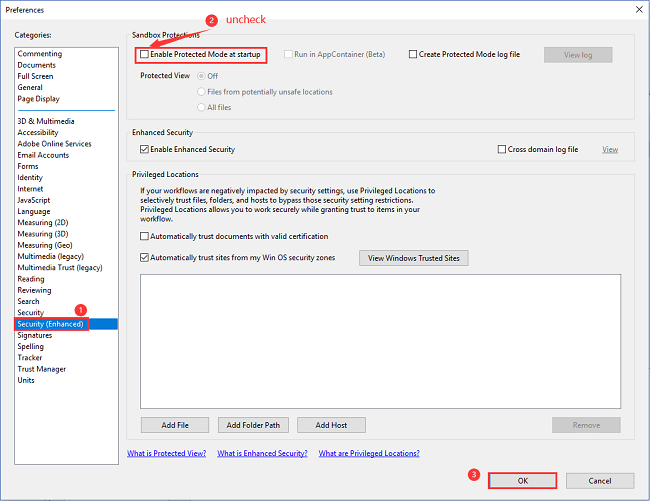
Step 1. Open Adobe Reader and choose "Edit" from the top menu.
Step 2. Select "Preferences" from the drop-down menu.
Step 3. In the pop-up window, select Security (Enhanced) from the Categories menu > Uncheck "Enable Protected Mode at startup" > click "OK" to confirm.
Conclusion
The error "PDF not opening in Adobe Reader" is common but rarely unsolvable. The key is a methodical approach: start by verifying the file and updating your software, then move to adjusting security settings and default apps. For persistent file corruption, a dedicated PDF repair tool like EaseUS Fixo provides a powerful last resort. Regularly updating your software and safely ejecting drives during file transfers can help prevent many of these issues from occurring in the first place.
PDF Not Opening in Adobe Reader FAQs
1. Why can't I open a PDF file in Acrobat Reader?
This is usually because the PDF file is corrupted, your Adobe Reader software is outdated or damaged, or a security feature called Protected Mode is blocking access to the file. First, try updating Adobe Reader and temporarily disabling Protected Mode to see if that resolves the issue.
2. How do I force a PDF to open in Adobe?
You need to set Adobe Reader/Acrobat as your system’s default program for PDF files. Right-click on any PDF, select "Open with > Choose another app", pick Adobe Acrobat Reader DC, and check the box that says "Always use this app". This forces your computer to use Adobe for all future PDFs.
3. How to fix a PDF that won't open?
Begin with basic checks: try a different PDF reader or computer to isolate the problem. Then, update Adobe Reader, run its repair installation tool, and disable Protected Mode temporarily. If the file itself is the problem, you will need to obtain an uncorrupted copy or use a specialized PDF repair tool to recover its contents.
4. Why are my PDFs opening in the browser and not Adobe?
Most web browsers (Chrome, Edge, Firefox) have a built-in PDF viewer enabled by default. To change this, you must adjust your browser's settings. For instance, in Google Chrome, navigate to Settings, find the PDF documents section, and toggle on the option to "Download PDF files" instead of opening them in the browser. After this, downloaded PDFs will open in your system's default app (Adobe).
Was This Page Helpful?
About the Author

Brithny is a technology enthusiast, aiming to make readers' tech lives easy and enjoyable. She loves exploring new technologies and writing technical how-to tips. In her spare time, she loves sharing things about her game experience on Facebook or Twitter.


