





Table of Contents
 About the Author
 Related Posts
Numbers, Apple's native spreadsheet application, is widely favored by Mac, iPhone, and iPad users for its intuitive interface, seamless iCloud sync, and robust data organization capabilities.
From personal budgets and project timelines to business reports and academic datasets, Numbers files (.numbers) often store critical information that users cannot afford to lose. Unfortunately, file corruption is a common issue that can disrupt workflow and cause anxiety - whether it's a sudden crash while editing, an error message when opening the file, or missing data within a previously accessible spreadsheet. The good news is that repairing a corrupted Numbers file is often possible with the right methods.
Causes of Numbers File Corruption
Before diving into repair solutions, it's essential to understand the root causes of Numbers file corruption, as this knowledge can help you avoid future issues and choose the most effective fix for your situation. Corruption typically stems from software, hardware, or sync-related problems, with common triggers including:
- Interrupted saving processes: Unexpected system crashes, forced shutdowns, or power outages while a Numbers file is open can leave data writes incomplete, damaging the file structure.
- Outdated software: Old versions of macOS, iOS, or Numbers may contain bugs that conflict with the app, rendering files unreadable.
- Hardware issues: Failing internal hard drives, corrupted USB flash drives, or unstable external storage can disrupt file integrity due to physical damage or file corruption.
- iCloud sync errors: Poor internet connectivity during syncing or conflicting edits across multiple devices can corrupt cloud-linked Numbers files.
- Malware/viruses: Though rare on Apple devices, malicious software can alter file data and break Numbers spreadsheets.
Steps to Repair the Corrupted Numbers File
When you encounter a corrupted Numbers file, start with simple troubleshooting steps before moving to more advanced solutions. These basic fixes often resolve minor corruption from temporary glitches or software conflicts:
- Restart your device and relaunch Numbers: Close Numbers completely, restart your Mac, iPhone, or iPad to clear RAM and terminate interfering background processes, then try opening the file again.
- Update software: Check for macOS/iOS updates and Numbers app updates. Apple's regular updates include bug fixes and stability improvements that may resolve compatibility-driven corruption.
If the above steps fail, continue with these additional initial checks to rule out device-specific or storage-related issues:
- Open the file on another Apple device: If synced via iCloud, corruption may be isolated to one device. Access the file on a different device (e.g., a Mac-saved file on an iPad) to bypass the corrupted local copy.
- Verify storage device health: For files on external drives, connect the device to another Mac to rule out hardware faults. On Mac, use Disk Utility (in Applications/Utilities) to run First Aid - this tool scans and repairs minor storage errors that may affect the Numbers file.

Advanced Method to Repair Corrupted Numbers File
If initial troubleshooting doesn't fix the corruption, use these advanced methods to target damaged file structures.
EaseUS Fixo Document Repair is a specialized tool designed to target and fix corrupted files, including .numbers spreadsheets. What sets it apart is its cross-platform compatibility. It works seamlessly on both Mac and Windows systems - paired with an intuitive, user-friendly interface that simplifies the repair process for users of all technical levels. Whether you're a casual user or a professional, you can navigate the tool with ease to restore damaged Numbers or Excel files without complex operations.
Below is a detailed, step-by-step tutorial to guide you through repairing corrupted Numbers files using EaseUS Fixo Document Repair on a Mac:
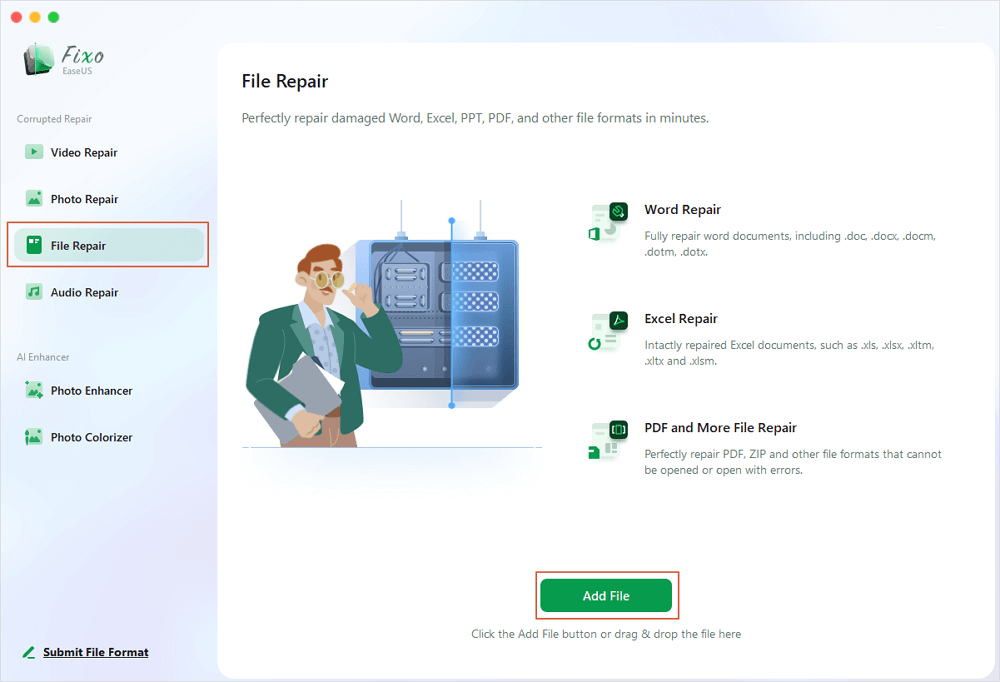
Step 1. Download and launch Fixo on the Mac. Choose "File Repair" from the left panel. Click "Add File" to select corrupted Office documents, including Word, Excel, PDF, and others you want to repair.
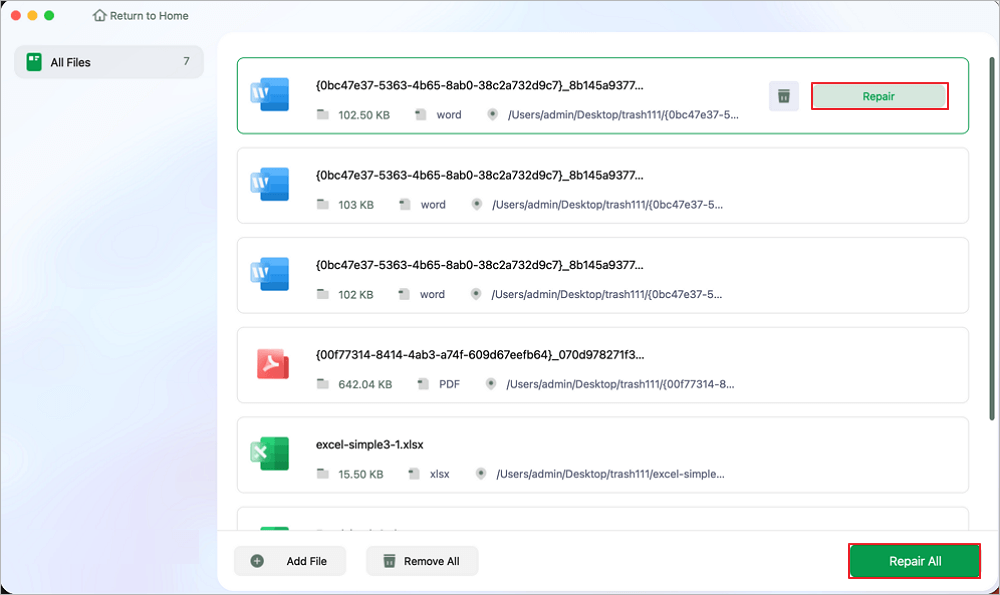
Step 2. To repair corrupted files in batch, click the "Repair All" button. If you want to repair a specific document, move your cursor to the document and click the "Repair" button. You can click the eye icon to preview the repaired document.
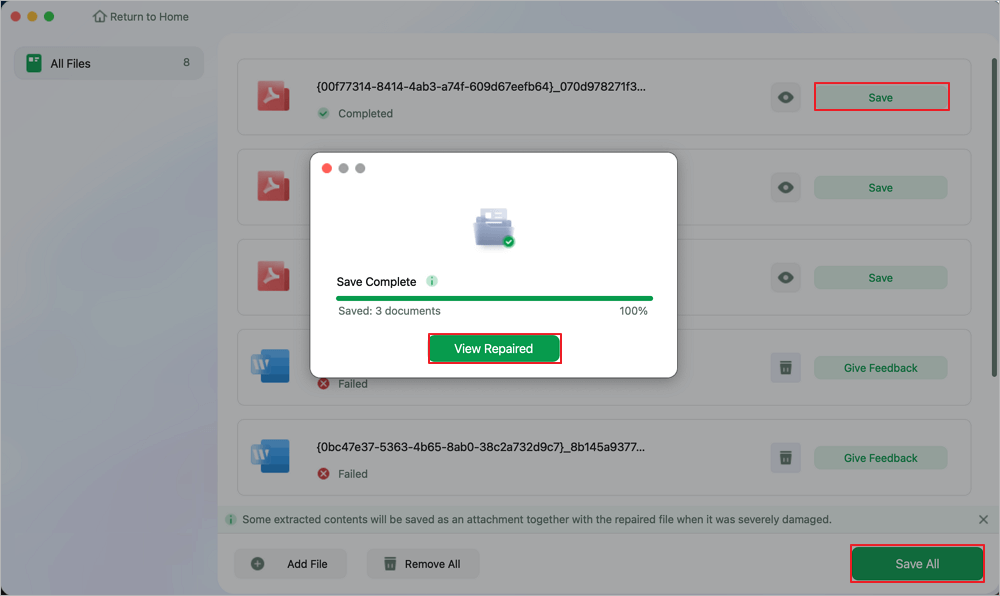
Step 3. Click "Save" to save a selected document. To keep all the repaired documents, choose "Save All". When the save completes, click "View Repaired" to locate the repaired folder.
Preventive Measures to Avoid Numbers File Corruption
Preventing the corruption of the Numbers file is more effective than repairing it. Adopt these habits to protect your data:
- Maintain regular backups: Use iCloud for automatic sync/backups, manually save critical files to external drives or cloud services (Dropbox/Google Drive), and use Time Machine on Mac for full system backups.
- Avoid unstable storage: Only edit Numbers files on reliable devices. Properly eject external drives before disconnecting to prevent data loss.
- Keep software updated: Install macOS/iOS and Numbers updates promptly to get bug fixes and security patches that reduce the risk of corruption.
- Manage storage space: Avoid running low on storage on your device, as it can cause system slowdowns and errors that lead to corruption. Delete unused apps/files regularly.
FAQ About Repairing a Corrupted Numbers File
1. Why can't I open my Numbers file? Is it definitely corrupted?
Corruption is a common cause, but other issues may be to blame—damaged storage devices, outdated Numbers apps, or incorrect saving due to power outages. Rule out temporary glitches first (restart device, update app). If you see errors like "The file is damaged and cannot be opened," corruption is likely.
2. Can I repair a corrupted Numbers file on my iPhone or iPad, or only on Mac?
You can attempt repairs on both iOS and Mac, but methods differ. On iOS, restart the device, update software, use iCloud to revert versions, or sync to a Mac for advanced fixes. Mac offers more tools (Disk Utility, built-in version history, third-party software) for severe corruption.
3. How often should I back up my Numbers files to prevent corruption issues?
Back up daily for frequently edited files (use iCloud for real-time sync). Weekly backups work for less active files. Always back up before major changes (complex formulas, large datasets). Time Machine (Mac) adds a full-system backup layer.
Conclusion
Repairing a corrupted Numbers file is a manageable process when you follow the right steps, starting with simple troubleshooting and progressing to advanced repair methods if needed. Whether you're using Apple's built-in version history, iCloud sync, disk repair tools, or third-party data repair software like EaseUS, the goal is to restore the file's integrity or retrieve critical data.
Remember that if one method fails, don't hesitate to try another. Severe corruption may require a combination of tools and techniques. For extremely critical files, consider consulting a professional file repair service, though this should be a last resort due to higher costs. By following the strategies outlined in this guide, you can minimize the impact of file corruption and fix your Numbers data with confidence.
Was This Page Helpful?
About the Author

Jaden is one of the editors of EaseUS, who focuses on topics concerning PCs and Mac data recovery. Jaden is committed to enhancing professional IT knowledge and writing abilities. She is always keen on new and intelligent products.


