





Table of Contents
 About the Author
 Related Posts
Experiencing issues where Outlook is not opening after the security update is frustrating. Many users report that the classic Outlook desktop client becomes unresponsive following updates, particularly after the January 2026 KB5074109 security update for Windows 11, which notably affected users with POP account configurations.
If you face the same issues that prevent your Outlook from opening, don't worry! This article explores the reasons why Outlook is not opening after the security update, and provides a step-by-step guide to get your email client running smoothly again.
Why Outlook Fails to Open After a Security Update
Security updates are designed to protect your system, but they can sometimes introduce compatibility conflicts with existing software. The Windows 11 "KB5074109 Update" has been linked to Outlook issues, especially with POP accounts. Users have reported that uninstalling this update can resolve the problem.
The first is that when I first start my laptop Outlook Classic opens, but when I close it down I am now unable able to open it again as Office tells me it is still open. - from Learn.Microsoft.com
Either I can get into Outlook and it will reload all the emails I already have looked at sometimes, I can look at one email or try to get into a folder then it goes into "Not Responding" mode with options to close, restart, or wait for the program to respond. - from Reddit
When you can not start Microsoft Outlook, the Outlook crashes immediately or freezes, these conflicts typically arise in a few key areas:
-
Add-in Incompatibility: Third-party add-ins that worked before the update may not be fully compatible with the new system environment, causing Outlook to crash during startup.
-
Corrupted User Profile or Data Files: The update process can occasionally corrupt Outlook's local data files (PST/OST) or the user profile that stores your settings and accounts.
-
Specific System File Conflicts: Some updates have been linked to issues with core components. For instance, one widespread problem was traced to Outlook being unable to access the Forms library, linked to a fault in the OLMAPI32.DLL file. Another issue involved the ucrtbase.dll file, part of the Visual C++ runtime library.
-
Protocol-Specific Bugs: The KB5074109 update specifically caused freezing and startup failures for users whose accounts are set up with the POP (Post Office Protocol) mail protocol.
-
Underlying Data File Corruption: Beyond update-related issues, corrupted Outlook data files (.PST or .OST) are a frequent root cause of startup failures. These files can become damaged due to sudden system shutdowns, disk errors, or malware.
Repairing them is crucial for data safety. While Outlook has a built-in repair tool (scanpst.exe), for severely damaged files, using a dedicated PST repair tool like EaseUS Fixo Document Repair can be a more effective solution to recover emails, contacts, and calendar items.
How to Fix Outlook Not Opening After a Security Update
Follow these solutions in order, starting with the simplest and safest troubleshooting steps.
Fix 1. Start Outlook in Safe Mode
Starting Outlook in Safe Mode loads the program without any add-ins, helping you determine if a third-party add-in is the culprit.
Step 1. Press "Windows Key + R", type outlook /safe, and press Enter.
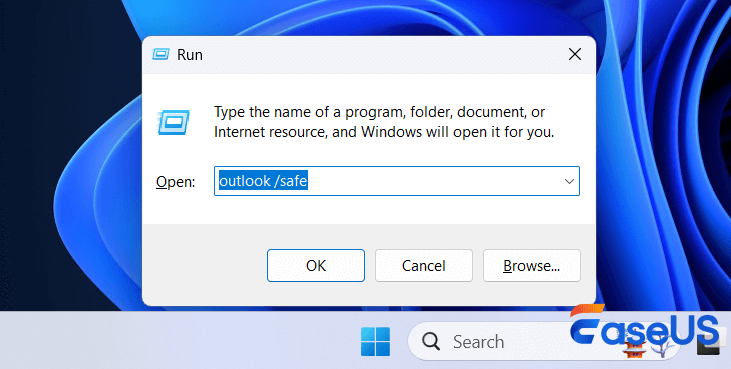
Step 2. If Outlook opens successfully in Safe Mode, an add-in is likely causing the problem. Proceed to disable all add-ins and re-enable them one by one to find the faulty one.
Share this post with your friends and help more people learn how to fix the Outlook not opening after a security update.

Fix 2. Run the Microsoft Office Online Repair
The Online Repair feature reinstalls Office programs to fix corrupted files, which is often effective after a problematic system update.
Step 1. Go to "Windows Settings > Apps > Installed apps".
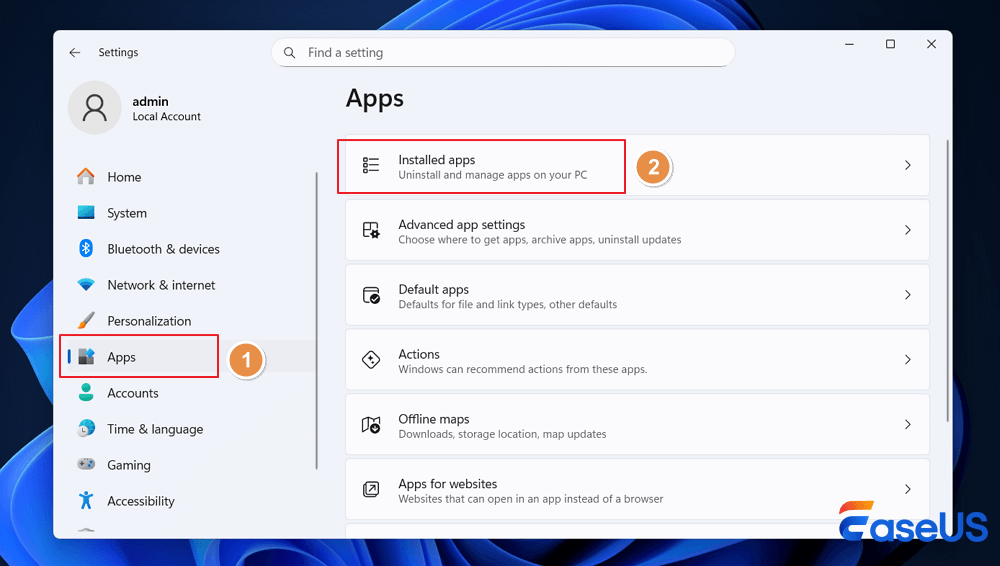
Step 2. Find Microsoft 365 or your version of Office, click the three dots (…), and select "Modify".
Step 3. Choose "Online Repair" and then "Repair". This process requires an internet connection and may take some time.
Fix 3. Create a New Outlook Profile
A new profile creates fresh registry keys and configuration files, bypassing corruption in your old profile: Open the "Windows Control Panel" and search for Mail > Click "Show Profiles" > "Add".
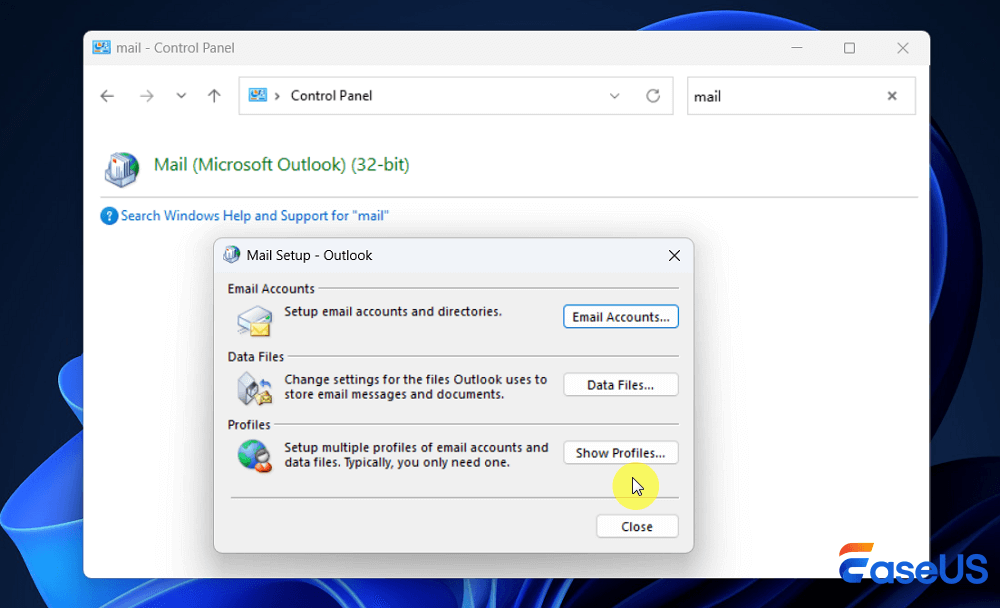
Follow the prompts to set up your email account in the new profile. Next time you start Outlook, choose this new profile from the prompt.
Fix 4. Use the Inbox Repair Tool (scanpst.exe)
This built-in Microsoft tool scans and repairs errors in your Outlook data file (.pst or .ost).
Step 1. Search for scanpst.exe on your system (its location varies by Office version).
Step 2. Run the tool, browse to your Outlook data file (usually in C:\Users\[Username]\AppData\Local\Microsoft\Outlook), and start the repair.
Last-Resort Solutions
If the above methods don't work, consider these steps:
Step 1. Uninstall the Problematic Security Update: As a last resort, you can uninstall the specific update causing the issue (e.g., KB5074109).
Step 2. Reset or Reinstall Outlook: You can reset the app via Windows Settings or perform a complete uninstall and reinstall from scratch.
- Warning
- This will remove the security protections the update provided. Uninstall via Settings > Windows Update > Update history > Uninstall updates.
Read More in Support.Microsoft.com >>
Extra Tips: How to Repair Corrupted Outlook Documents
When the built-in scanpst.exe tool is insufficient, specialized third-party software can offer a more powerful recovery solution. Tools like EaseUS Fixo Document Repair are designed to repair severely corrupted Outlook data files (.pst and .ost) and other Office documents.
These tools can often recover items that the standard utility cannot, providing an extra layer of protection for your critical emails and data. Check out the following steps to repair the corrupted Outlook documents:
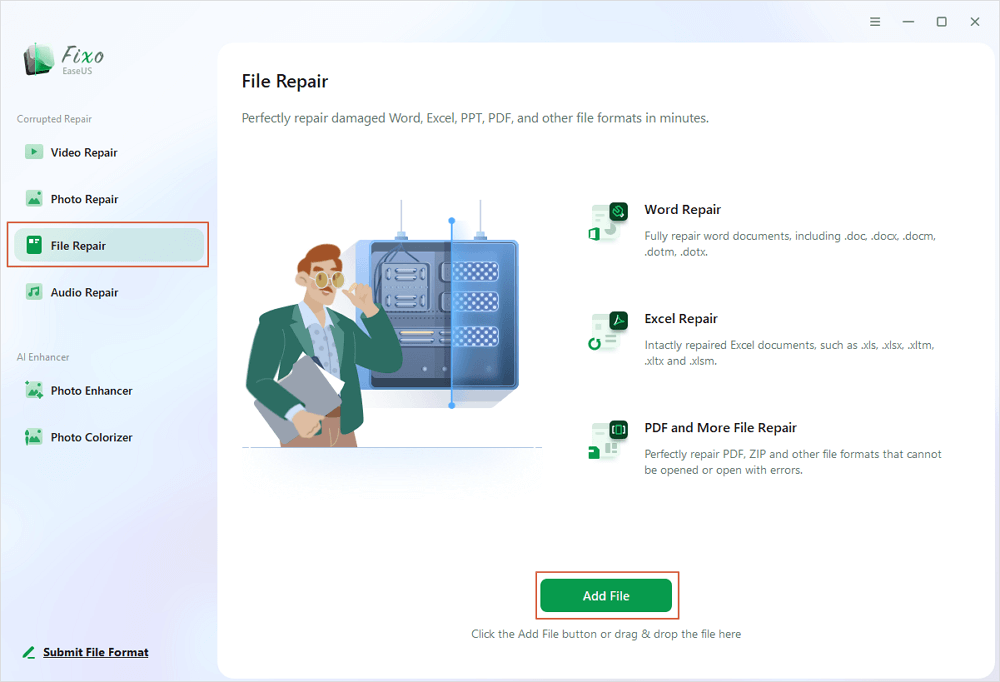
✨Step 1. Download, install, and launch EaseUS Fixo Document Repair
You can download this repair tool with the download button we gave you or other official ways. After the installation, you can double-click the Fixo icon to launch it. Click "File Repair" > "Add Files" to select and repair damaged Word, Excel, PDF, and other documents.
✨Step 2. Repair corrupted documents now
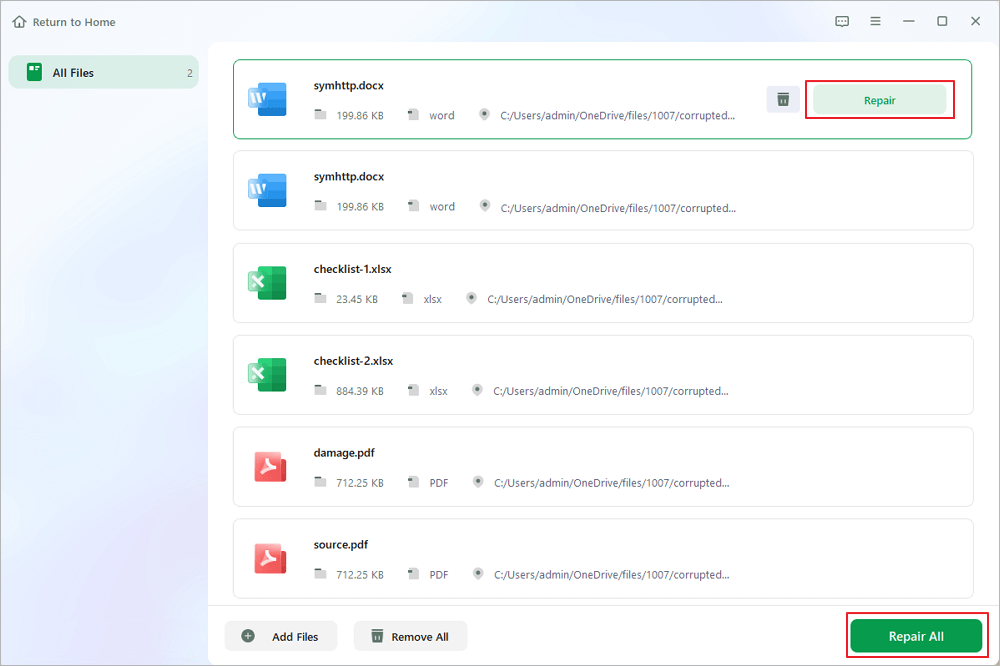
After adding the documents, you can click "Repair" to fix a document specifically or select "Repair All" to repair the whole files in the list altogether.
✨Step 3. Preview and save repaired documents
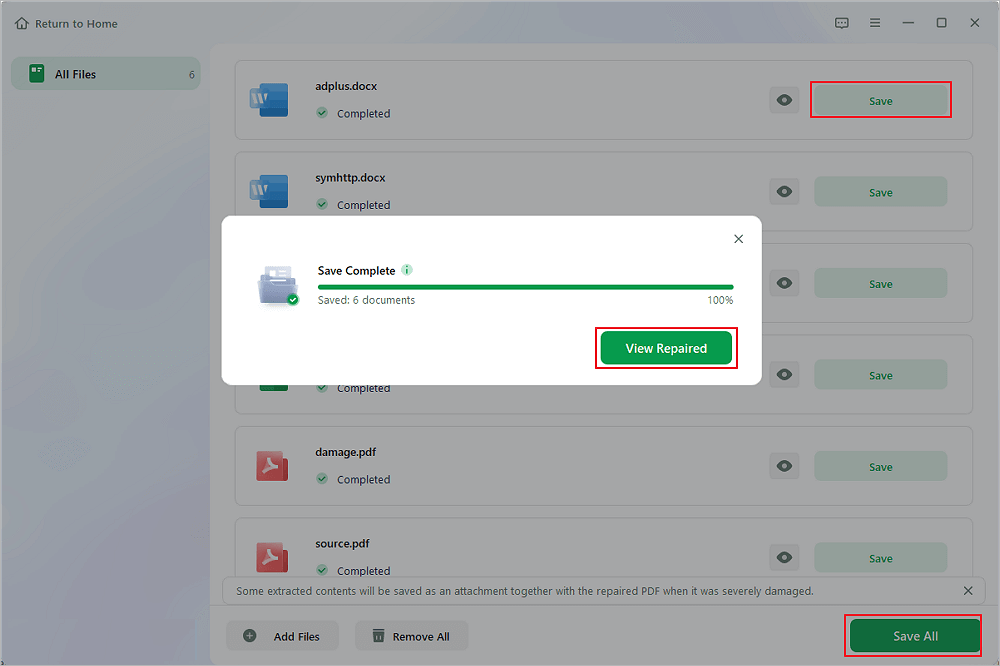
Now, the files are ready to be saved. You can also click the eye icon to preview the documents. After clicking "Save All", select "View Repaired" in the pop-up window to locate these repaired files.
Don't forget to share this post to help people who are facing the "Outlook not opening after a security update" issue.
Outlook Not Opening After Security Update FAQs
1. Why is my Outlook suddenly not opening?
If Outlook won't open or shows hesitation, first restart your PC to clear temporary glitches. Run Office Repair via "Control Panel > Programs" to fix corrupted files. Check for pending Windows and Office updates to ensure compatibility. Disable add-ins by starting Outlook in safe mode (hold Ctrl while launching).
2. What to do if Outlook is not loading?
If Outlook isn't loading, first try restarting your PC and ending other Office processes in Task Manager; then, run Outlook in /safe mode to disable add-ins, as they often cause issues, or use outlook.exe /resetnavpane, and if that fails, perform a Quick or Online Repair of your Office installation via Control Panel or Apps & Features.
3. How do I clear the Outlook cache?
To clear the Outlook cache on Windows, close Outlook, press "Win + R", type %localappdata%\Microsoft\Outlook\RoamCache and press Enter, then select all files (Ctrl+A) in the folder and delete them.
Conclusion
Outlook failing to open after a security update is usually a fixable problem caused by add-ins, corrupted files, or specific update bugs. The most reliable approach is to systematically troubleshoot: begin by starting in Safe Mode, proceed to repair Office or your Outlook profile, and use the Inbox Repair Tool for data file issues. Always ensure your important data files are backed up before making major changes. If file corruption is deep, consider a dedicated repair tool to safeguard your information.
Was This Page Helpful?
About the Author

Brithny is a technology enthusiast, aiming to make readers' tech lives easy and enjoyable. She loves exploring new technologies and writing technical how-to tips. In her spare time, she loves sharing things about her game experience on Facebook or Twitter.


