





Table of Contents
 About the Author
 Related Posts
If your Google spreadsheet is not opening, you're not alone. Many users suddenly find that Google Sheets freezes, loads forever, shows a blank page, or refuses to open shared spreadsheet links.
The good news: in most cases, the "Google spreadsheet not opening" issue is temporary and can be fixed within minutes. This guide walks through the exact fixes that work when:
- Google Sheets is stuck on loading
- Shared spreadsheets won't open
- Excel cannot open the file because the extension is not valid
- Google Sheets opens blank
- Corrupted spreadsheet files stop loading
We also explain when the spreadsheet itself may be damaged - and how to recover important data safely.
Why Is Google Spreadsheet Not Opening
Several things can prevent Google Sheets from opening properly.
The most common causes include browser cache conflicts, Google server outages, corrupted spreadsheet files, browser extensions interfering, internet connection problems, and permission or sharing issues.
Besides, too many formulas/scripts in the sheet, unsupported file formats, or local Excel file corruption before upload may also influence the spreadsheet's opening process.
In many real-world cases, users notice one of these symptoms:
| Symptom | Possible Cause |
| Google Sheets keeps loading forever | Browser cache or network issue |
| Spreadsheet opens blank | Rendering conflict or extension problem |
| Shared Google Sheet won't open | Permission settings |
| Only one spreadsheet fails to open | File corruption |
| Google Sheets crashes the browser | Large formulas/scripts |
| Spreadsheet works on phone but not on desktop | Browser profile issue |
Quick Fixes for Google Spreadsheet Not Opening
Before trying advanced solutions, start with these fast troubleshooting methods.
#1. Check If Google Sheets Is Down
Sometimes the issue is not on your side. Open Google's Workspace Status Dashboard and verify whether Google Sheets is experiencing outages.
If Google servers are down, waiting is the only option.
#2. Refresh the Browser Properly
A normal refresh often doesn't clear temporary loading conflicts. Try:
- Windows: Ctrl + Shift + R
- Mac: Command + Shift + R
This forces the browser to reload the latest page version.
#3. Open the Spreadsheet in Incognito Mode
This is one of the most effective fixes.
Why it works: Incognito mode disables extensions, cached sessions, and conflicting cookies.
If the spreadsheet opens normally there, your browser extensions are likely causing the issue.
#4. Clear Browser Cache and Cookies
A corrupted browser cache is a major reason Google spreadsheet files do not open correctly. Here's how to clear browser cache and cookies on Chrome:
Step 1. Open Chrome and press "Ctrl + Shift + Delete".
Step 2. Select:
- Cookies
- Cached images/files
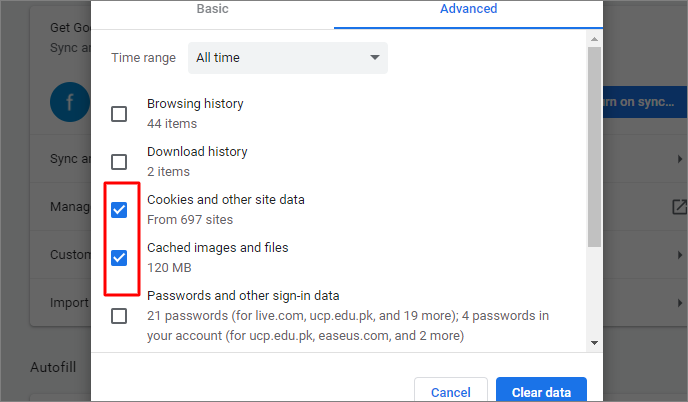
Step 3. Click "Clear Data".
Step 4. Restart Chrome. After clearing the cache, try reopening the spreadsheet.
Share this post with your friends if you think it is helpful!

Uploaded Excel File Won't Open in Google Sheets? How to Fix
Sometimes the original Excel file itself is damaged before upload. Symptoms include:
- upload completes, but the spreadsheet won't open
- "file cannot be processed"
- Google Sheets crashes during import
This often happens with sudden system shutdowns, interrupted saves, and corrupted XLS/XLSX structures. In this situation, repairing the original document usually solves the problem.
How to repair a corrupted spreadsheet file? If the spreadsheet file is damaged, using a professional repair tool can recover inaccessible data. EaseUS Fixo Document Repair helps repair corrupted Excel files, Word documents, PDF files, and Google-import spreadsheet files.
It's especially useful when:
- Excel files won't open before upload
- Spreadsheet data becomes unreadable
- Imported XLSX files crash Google Sheets
EaseUS spreadsheets repair tool repairs corrupted XLS/XLSX files, preserves formatting and formulas, supports severely damaged spreadsheets, and previews recoverable content before saving. For users handling important financial reports, work documents, or client spreadsheets, this can save hours of manual rebuilding.
Follow these steps to repair corrupted files using EaseUS Fixo Document Repair:
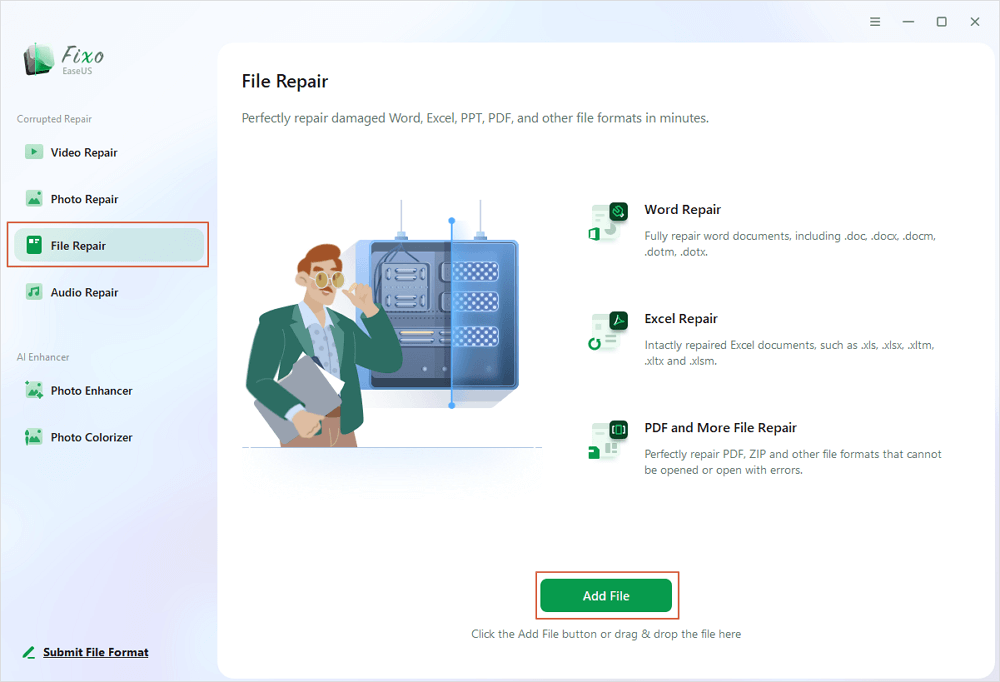
✨Step 1. Download, install, and launch EaseUS Fixo Document Repair
You can download this repair tool with the download button we gave you or other official ways. After the installation, you can double-click the Fixo icon to launch it. Click "File Repair" > "Add Files" to select and repair damaged Word, Excel, PDF, and other documents.
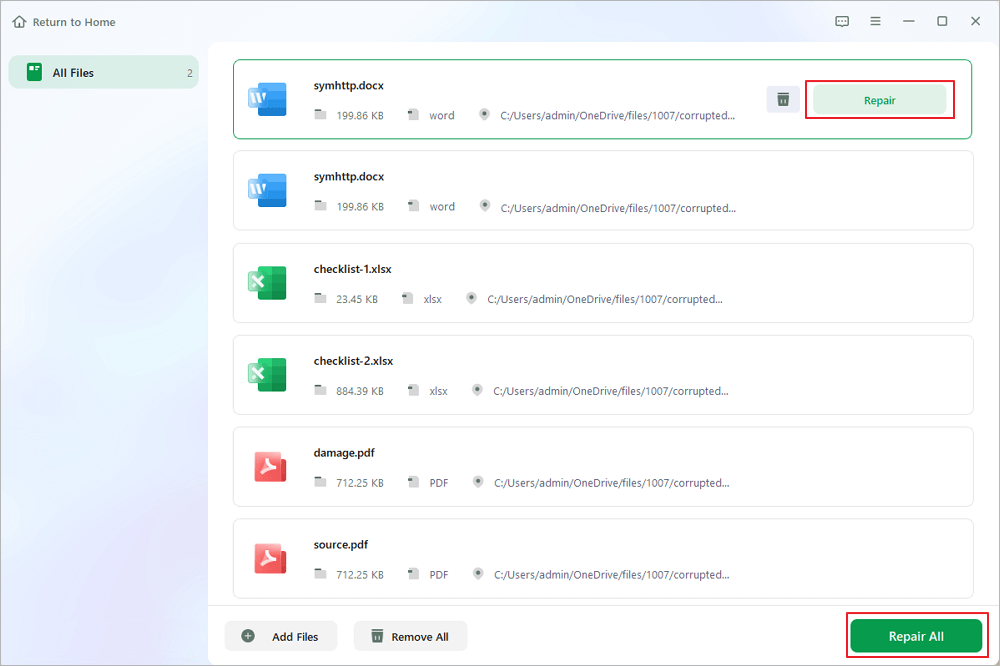
✨Step 2. Repair corrupted documents now
After adding the documents, you can click "Repair" to fix a document specifically or select "Repair All" to repair the whole files in the list altogether.
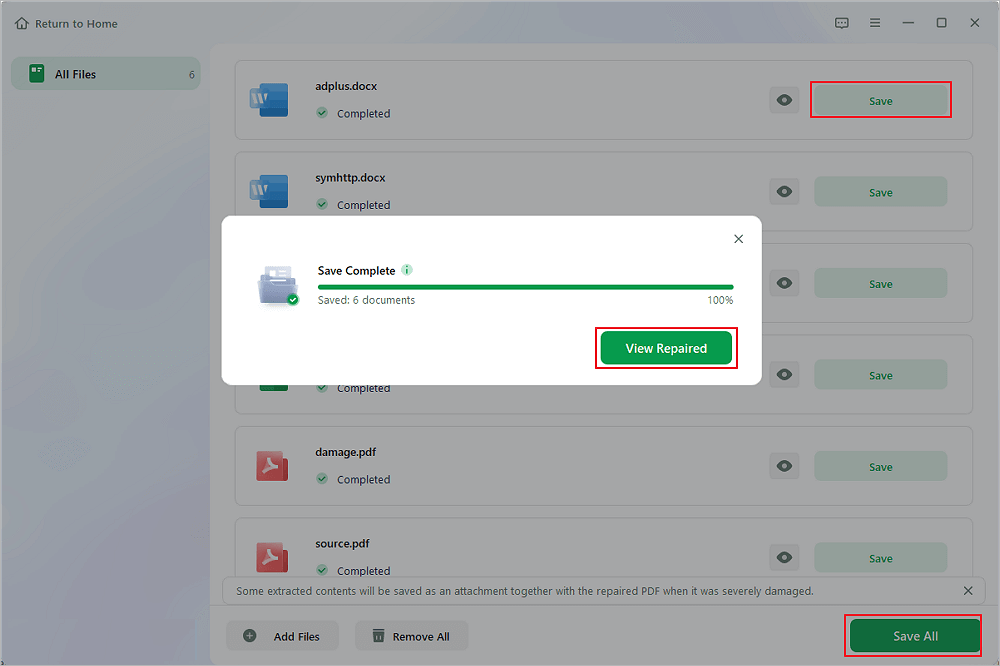
✨Step 3. Preview and save repaired documents
Now, the files are ready to be saved. You can also click the eye icon to preview the documents. After clicking "Save All", select "View Repaired" in the pop-up window to locate these repaired files.
Advanced Fixes for Google Sheets Not Opening
#1. Disable Hardware Acceleration
In Chrome:
- Step 1. Open Settings.
- Step 2. Go to System and turn off "Use hardware acceleration when available".
- Step 3. Restart the browser.
This resolves GPU rendering conflicts affecting Google Sheets.
#2. Reset Chrome Settings
Go to "Chrome Settings > Reset Settings > Restore settings to original defaults".
This removes hidden browser conflicts without uninstalling Chrome.
#3. Check Internet Stability
Weak or unstable internet can stop spreadsheets from loading completely.
Test:
- another Wi-Fi network
- mobile hotspot
- disabling VPN temporarily
Google Sheets relies heavily on stable real-time syncing.
Extra Tip: Other Situations That Can't Open Google Spreadsheet
1. Can't Open Google Spreadsheet Shared With You
If you receive the prompt "You need access", "Unable to open file", or a blank page after clicking the link. The problem may be permission-related.
You should fix the permission issues by asking the spreadsheet owner to verify:
- The spreadsheet is still active
- Your email has viewer/editor access
- Link sharing is enabled
- The file was not deleted or moved
Also, confirm you're signed into the correct Google account. Many users accidentally open shared spreadsheets using another Gmail profile.
2. Google Spreadsheet Opens Blank or Freezes
This usually points to browser rendering conflicts or overloaded spreadsheet data. Disabling browser extensions may solve this issue.
Extensions commonly causing problems include ad blockers, grammar tools, VPN extensions, and security/privacy plugins.
Disable extensions one by one and test again.
Final Thoughts
When a Google spreadsheet does not open, the issue is usually caused by browser conflicts, permissions issues, cache corruption, or damaged spreadsheet files.
Start with simple fixes like:
- Incognito Mode
- clearing cache
- disabling extensions
If only one spreadsheet fails to open, file corruption becomes much more likely.
For damaged Excel or spreadsheet files, tools like EaseUS Fixo Document Repair can help recover important data without rebuilding the file manually. In most cases, one of the solutions above restores access quickly.
FAQ: Google Spreadsheet Not Opening
1. Why is my Google spreadsheet stuck on loading?
Usually due to browser cache, extensions, network instability, or oversized spreadsheet files. Opening the file in Incognito Mode often identifies the issue quickly.
2. Why can't I open a Google spreadsheet link?
Missing permissions, expired sharing access, a wrong Google account, or a corrupted browser cache may be the possible reasons.
3. Can corrupted Excel files stop Google Sheets from opening?
Yes. If the original XLS/XLSX file structure is damaged, Google Sheets may fail to import or load. Repairing the spreadsheet file first can resolve the issue.
4. Does clearing the cache delete Google Sheets files?
No. Clearing browser cache only removes temporary local data. Your spreadsheets remain stored in Google Drive.
Was This Page Helpful?
About the Author

Brithny is a technology enthusiast, aiming to make readers' tech lives easy and enjoyable. She loves exploring new technologies and writing technical how-to tips. In her spare time, she loves sharing things about her game experience on Facebook or Twitter.


