






If your volume becomes unallocated space or shows as RAW, stop writing new files to the drive immediately. Scan the drive sectors and safely recover your missing files. Once your data is secured, you can recreate the lost partition or reassign a drive letter in Disk Management to restore full access.
- Why Did My Partition Disappear After Resizing
- Fix 1. Recover Lost Partition Data with EaseUS Data Recovery Wizard
- Fix 2. Reassign a Drive Letter in Disk Management
- Fix 3. Recreate a New Partition from Unallocated Space
Resizing a partition on Windows is a common task when you want to expand a full C drive, shrink an oversized D drive, split a large volume, or merge adjacent storage space.
Built-in tools like Disk Management and third-party partition managers make adjusting partition boundaries straightforward most of the time. However, changing partition sizes directly alters the partition table and file system metadata on your hard drive or Solid State Drive. If something goes wrong during the resize, an entire partition can vanish or turn into unallocated space in seconds.
Why Did My Partition Disappear After Resizing
When you resize a partition, Windows or your partition tool updates start sectors, end sectors, and file system records. Any interruption or error during this adjustment can break how Windows reads the drive.
- Interrupted Resizing Process: A sudden power outage, system freeze, or forced reboot while shrinking or extending a volume can leave the partition table half-updated and unreadable.
- Bad Sectors or Drive Glitches: Unstable sectors on an older hard disk drive or flash storage device can cause write errors while partition boundaries are being shifted.
- Incorrect Partition Updates: Errors in the Master Boot Record or GUID Partition Table can hide an existing partition and display the space as unallocated.
- File System Corruption: A failed resize can damage NTFS or FAT32 file system structures, causing Windows to label the drive as RAW or prompt you to format it.
Fix 1. Recover Lost Partition Data with EaseUS Data Recovery Wizard
When a partition vanishes after resizing, File Explorer cannot open the missing drive, but the underlying files often remain intact on the physical disk. Using reliable recovery software is the safest way to get your documents, photos, videos, and project files back without risking further damage.
EaseUS Data Recovery Wizard is built for computer users who need a straightforward and dependable way to recover data from lost partitions, unallocated space, and RAW volumes. After a failed partition resize on an internal hard drive, SSD, or external storage device, it scans the drive's sectors and helps you cleanly retrieve missing files.
Step-by-Step Guide to Recover Files After Resizing:
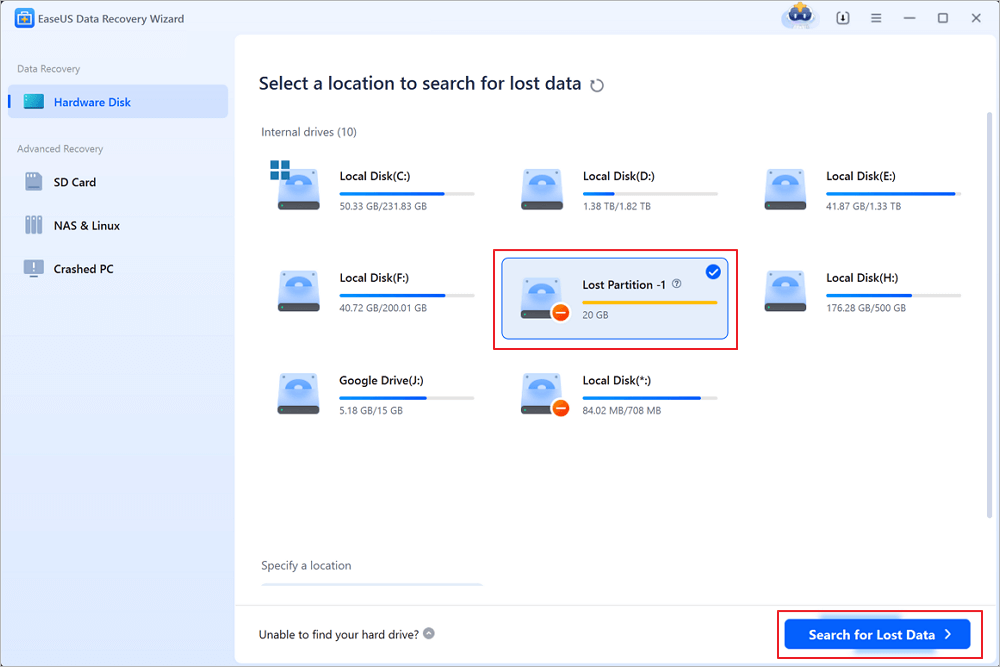
Step 1. Select and scan the lost partition
Launch EaseUS Data Recovery Wizard, select "Lost Partition" and click "Search for Lost Data" to search for all the lost data from your lost or deleted partition. If there are many lost partitions, you can identify them through its partition size.
Note: Since the Windows system doesn't support the Linux file system, the Ext2 or Ext3 partition will be recognized as lost partition with no drive letter in the software. If you want to recover data from Ext2/Ext3 partition, you can follow these steps.
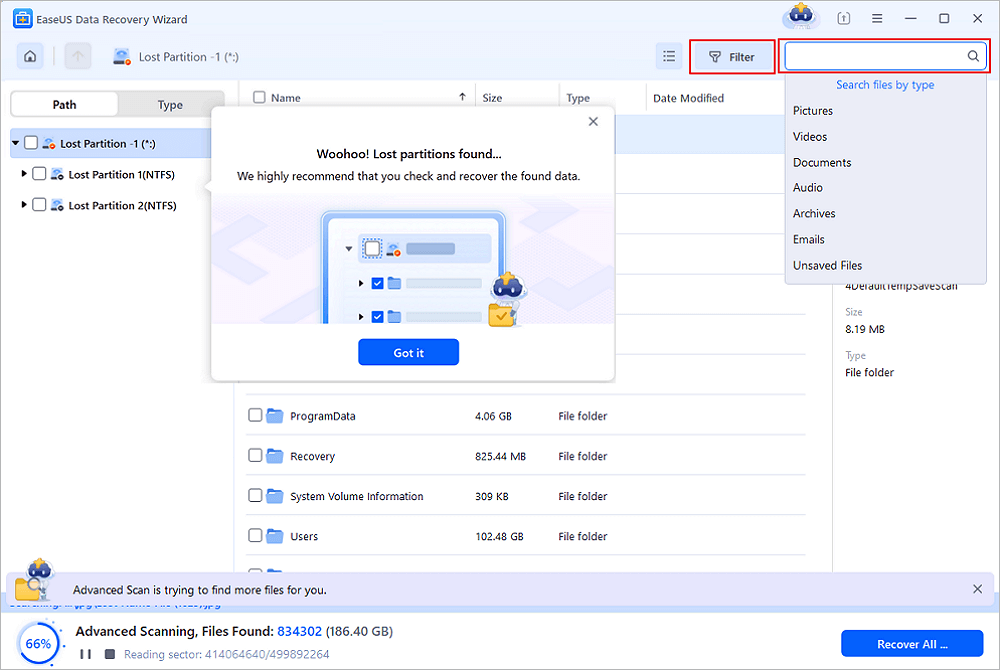
Step 2. Filter the scanned results
Because there will be a lot of scanned files, you can choose a file category for quick filtering, such as Pictures, Videos, Documents, Audio, and Others. Or if you remember the file name, you can just look it up in the search box in the upper right corner.
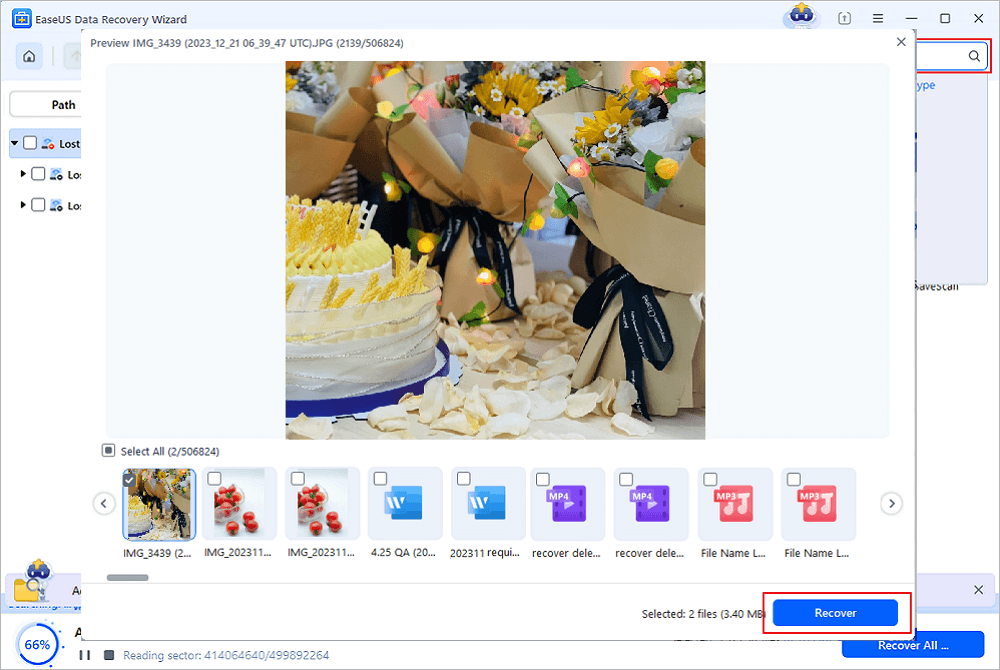
Step 3. Preview and recover data from the lost partition
Before recovery, you can preview the file to make sure it is the data you need. Choose all the files you need and click "Recover" to restore them. Choose a storage location (including cloud storage, such as OneDrive, Google Drive, etc.), and click "Save" to save your recovered files.
If you find this information helpful, please share it with others on social media to assist them in overcoming this common challenge.
Fix 2. Reassign a Drive Letter in Disk Management
Sometimes the resize operation finishes without erasing your files, but Windows drops or skips assigning the drive letter. When that happens, the partition appears in Disk Management but not in File Explorer.
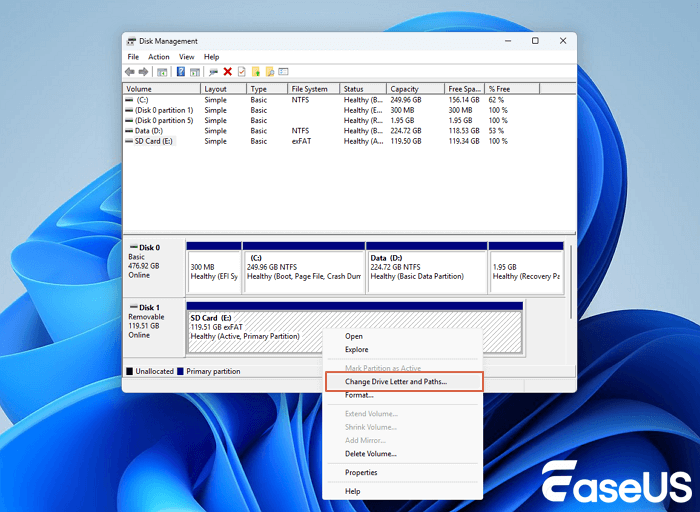
- Right-click the "Start" button on Windows and choose "Disk Management".
- Scroll down the drive list to find the partition that lost visibility.
- If the volume appears with a known file system like NTFS or exFAT but has no drive letter, right-click it and select "Change Drive Letter and Paths".
- Click "Add" or "Change", pick an unused drive letter from the dropdown list, and click "OK".
- Open File Explorer to check whether your partition and files are visible again.
Fix 3. Recreate a New Partition from Unallocated Space
If you already recovered your files with EaseUS Data Recovery Wizard, or if the unallocated space is empty and ready to reuse, you can create a new simple volume in Disk Management so Windows can recover unallocated partition again.
- Right-click the "Start" button and open "Disk Management".
- Locate the black area labeled "Unallocated" on your target drive.
- Right-click the unallocated space and choose "New Simple Volume".
- Follow the wizard steps to set the volume size, assign a drive letter, choose "NTFS" as the file system, and click "Finish".
- Move your recovered files from your safe backup location back onto the newly created partition.
Tips to Prevent Partition Loss When Resizing Drives
Taking a few simple steps before resizing a partition helps protect your files from unexpected errors.
- Back Up Important Files First: Copy essential documents, photos, and work files to an external drive or cloud storage before resizing partitions.
- Keep Power Connected: If you use a laptop, plug in the charger before starting any partition resize so the system does not lose power halfway through.
- Close Open Apps and Scans: Exit heavy programs and pause file transfers or background backups while resizing volumes.
- Check Drive Health Regularly: Watch for slow transfers, freezing, or signs like folders turning into shortcuts when using an external hard drive, which can point to file system or storage issues.
LEARN MORE
Still curious? Click here to learn about Recover Lost Partition & Restore Deleted Files.
Conclusion
Losing a partition after resizing a partition on Windows can be stressful, especially when important files are stored on that drive. In most cases, a vanished or unallocated volume after shrinking, extending, or moving a partition does not mean your files are gone for good. By avoiding new writes to the drive, checking drive letter assignments in Disk Management, and using EaseUS Data Recovery Wizard to scan the drive and safely recover your data, you can recover a partition after resizing it on Windows and get your storage organized again with confidence.
Recover Partition After Resizing on Window FAQs
Here are answers to common questions users ask when a partition goes missing after resizing on Windows.
1. Can I recover a partition if it turned into unallocated space after resizing?
Yes. When a resized partition turns into unallocated space, the partition entry is missing, but the files may still remain on the drive sectors. You can use EaseUS Data Recovery Wizard to scan the unallocated space and recover your files before creating a new partition.
2. Will shrinking or extending a partition delete my files normally?
Normally, shrinking or extending a partition does not delete your files. However, an interruption such as a power loss, system crash, or partition table error during the resize can make the partition unreadable or cause data loss.
3. Why does Windows ask me to format the drive after a failed resize?
Windows shows a format prompt when the file system metadata or boot sector is damaged and cannot be read properly. Do not format the drive right away if you need your files; run EaseUS Data Recovery Wizard first to recover your data safely.
4. What should I do if folders on my external drive look like shortcuts?
If folders turned into shortcuts in external hard drive usage, the drive may have suffered a file system glitch or shortcut virus issue. Stop writing new files to the drive, scan it with EaseUS Data Recovery Wizard to recover your real folders and files safely, and check the drive health before reusing it.
Was This Page Helpful?
Related Articles
-
How to Recover Lost BootCamp Windows Partitions on a Mac
![author icon]() Jaden/2026-11-06
-
4 Effective Ways to Fix Asus Recovery Partition Missing Problem
![author icon]() Cedric/2026-10-31
 Jaden/2026-11-06
 Cedric/2026-10-31
-
How to Recover Lost Partition & Restore Deleted Files Easily
![author icon]() Jean/2026-11-20
-
Recover Partition Table Without Losing Data (2026 Guide)
![author icon]() Daisy/2026-10-30
 Jean/2026-11-20
 Daisy/2026-10-30


