





 About the Author
 Reviews and Awards
 Mac SD Card Recovery
BootCamp Windows partitions on Mac computers can disappear because of macOS updates, improper Disk Utility resizing, file system corruption, or damaged GUID Partition Table entries. To avoid overwriting lost data, don't run Disk Utility repair commands or reinstall Windows immediately. Instead, install EaseUS Data Recovery Wizard for Mac on your macOS volume to perform a deep sector scan across the disk.
Dual-booting Windows and macOS on Intel-based Mac computers with Apple Boot Camp Assistant has long given users the flexibility to run Windows-exclusive applications, PC games, and enterprise tools directly on Mac hardware. By creating a dedicated NTFS volume alongside the primary APFS or HFS+ Mac container, BootCamp lets you switch between operating systems seamlessly at startup.
Why Did My BootCamp Windows Partition Disappear on Mac
Understanding the root causes of partition loss on dual-boot Mac systems helps you choose the best recovery path and avoid accidentally destroying data during troubleshooting. A dual-boot Mac's underlying disk layout relies on precise partition tables and volume markers.
- macOS System Upgrades: Major updates to macOS can rewrite partition scheme headers or modify system container parameters, causing the system bootloader to ignore the legacy Windows volume.
- Improper Disk Utility Partitioning: Using Disk Utility to resize, erase, or create new storage containers on macOS can break the Boot Camp volume's partition boundaries.
- Corrupted GUID Partition Table (GPT): Master partition metadata and hybrid Master Boot Record structures can become corrupted due to unexpected power losses or system crashes.
- Accidental Partition Deletion: Users running BootCamp Assistant to manage space may mistakenly delete the Windows partition instead of adjusting storage allocations.
- NTFS File System Corruption: Sudden shutdowns while running Windows can corrupt the Master File Table, making the NTFS volume unreadable in both operating systems.
First Aid After BootCamp Partition Loss on Mac
When you realize your Boot Camp Windows partition is missing, take immediate safety precautions to prevent background tasks from overwriting your lost data blocks.
- Do Not Reinstall BootCamp or Windows: Running BootCamp Assistant to set up a new Windows installation will format the space and write fresh system files over your lost data.
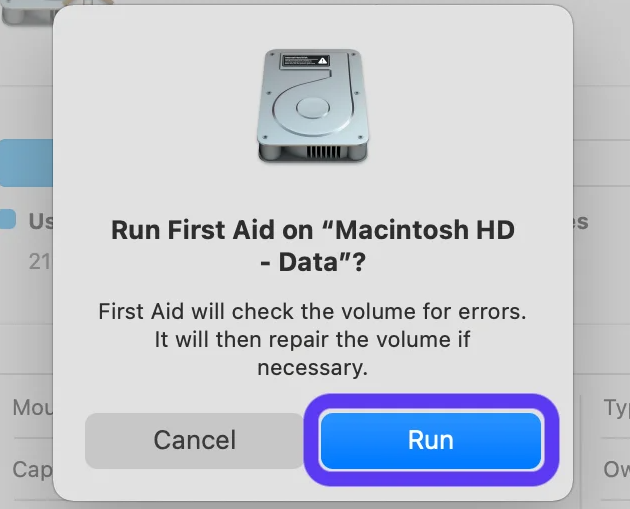
- Avoid First Aid Repairs on Unallocated Volumes: Running First Aid in Disk Utility on a damaged or unallocated volume partition can alter raw file allocation tables, making file recovery harder.
- Stop Saving New Files on your Mac: Continuous browser caching, file downloads, and application installs on your active macOS drive write fresh data clusters that may overwrite raw sectors.
- Work from the Primary macOS Volume: Keep your Mac running on the healthy macOS partition to perform read-only sector scans on the missing storage area.
Fix 1. Recover Missing BootCamp Files with Software
When a BootCamp partition disappears, the operating system loses the logical index pointing to the NTFS directory structure. However, the underlying Windows files, personal documents, and media assets remain stored on the physical drive sectors. Using professional Mac data recovery software is the safest, most reliable way to recover your files.
EaseUS Data Recovery Wizard for Mac is engineered specifically to handle complex Mac disk structures, including lost APFS containers, HFS+ volumes, and raw NTFS partitions. Its advanced scanning engine can parse raw physical disk sectors, locate lost Boot Camp boundaries, and recover Windows files without formatting the drive or manually rebuilding partition tables.
Here is the step-by-step guide to recover BootCamp partition data:
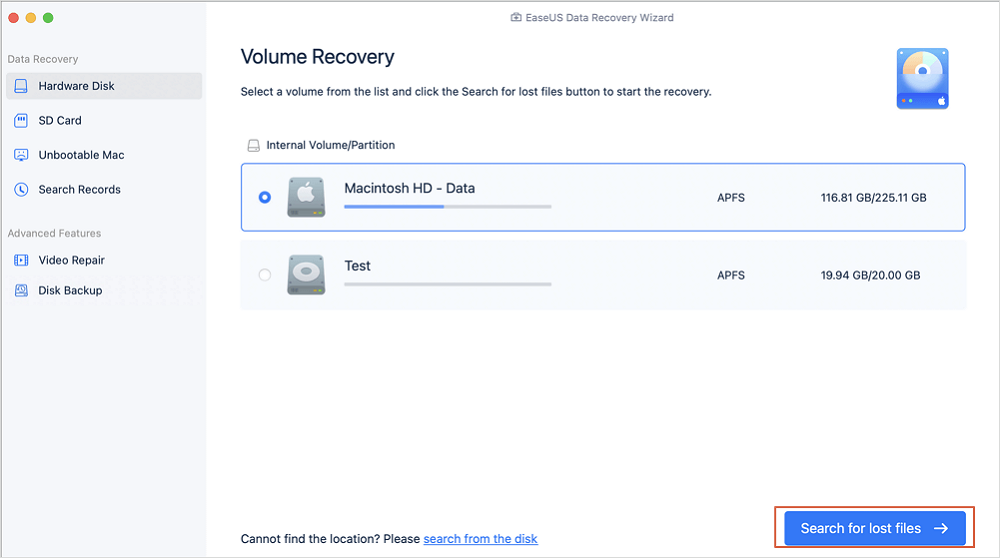
Step 1. Scan for lost data on the fusion drive
Select the Fusion Drive partition where you lost data and files. Click the "Search for lost files" button. If you don't know which partition is the fusion drive, click the "search from your disk" anchor text to check the partition name.
Step 2. Find lost files after the scan
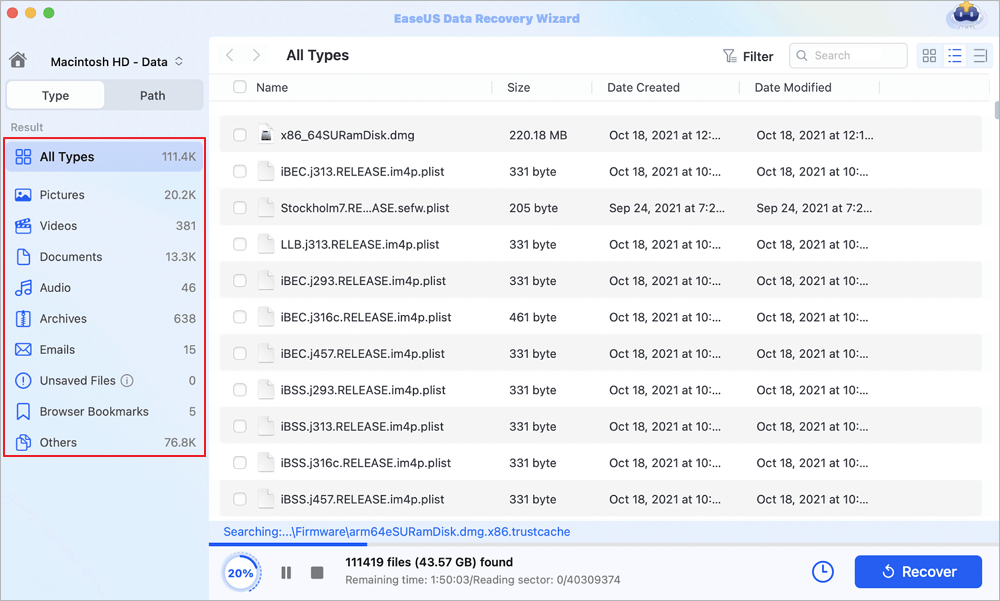
EaseUS Data Recovery Wizard for Mac will immediately scan your Fusion disk partition and display the scanning results. You can filter the files through the file type and path.
Step 3. Recover files on the fusion drive
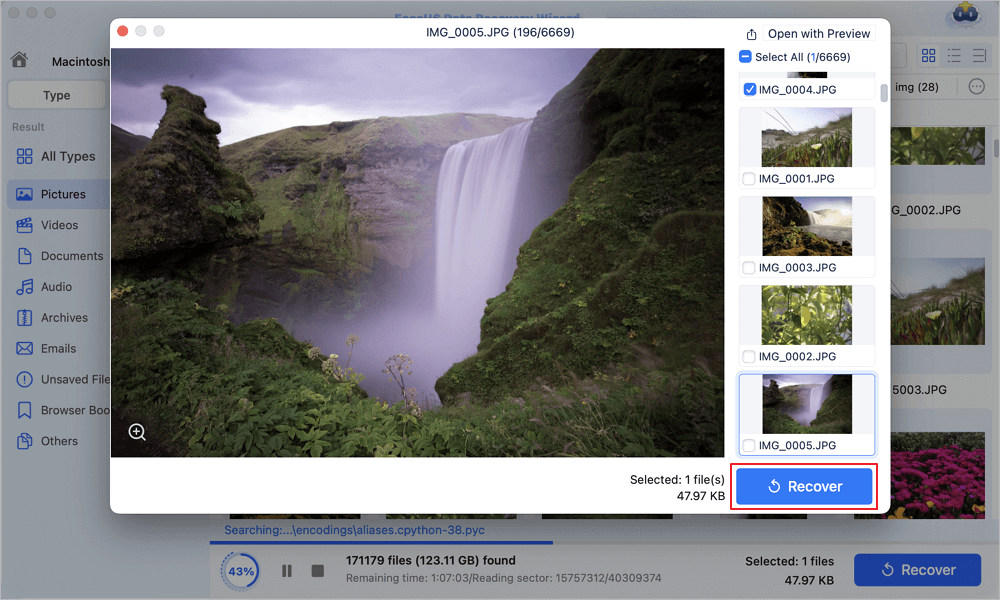
In the scan results, select the file(s) to preview. Then, click the "Recover" button to get them back.
Fix 2. Check Startup Disk Settings and Option Key Boot Menu
In minor software glitches, your BootCamp partition isn't lost or deleted; macOS has lost its default boot-path configuration in System Preferences.
Step 1. Shut down your Mac completely.
Step 2. Press the "Power button", then immediately press and hold the "Option (Alt) key".
Step 3. Keep holding the Option key until the native Startup Manager screen appears displaying available boot drives.
Step 4. If the "BootCamp Windows" volume icon appears in the list, select it using the arrow keys and press "Return" to launch Windows.
Step 5. Once logged into macOS, open "System Settings", select "General", click "Startup Disk", and verify if the Windows volume can be set as the default startup choice.
Fix 3. Check Volume Status in macOS Disk Utility
If the BootCamp volume doesn't appear in the Startup Manager, check its partition state in Disk Utility to determine whether the partition is unmounted or completely erased.
Step 1. Open Finder, navigate to "Applications", select "Utilities", and open "Disk Utility".
Step 2. Click the "View" menu in the top-left corner and choose "Show All Devices".
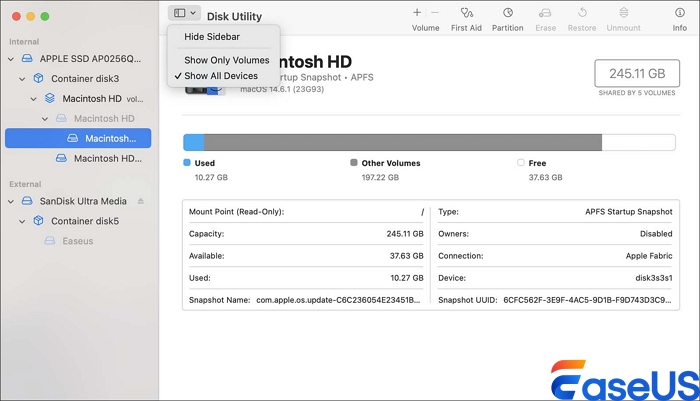
Step 3. Locate your primary internal hard drive in the left sidebar list. Look for a greyed-out volume or unallocated space partition beneath the main container.
Step 4. If you see a greyed-out volume named BOOTCAMP or Windows, select it and click the "Mount" button in the top toolbar.
Step 5. If the drive mounts successfully, open Finder to verify if your Windows files are accessible again.
Conclusion
Discovering that your BootCamp Windows partition has vanished from your Mac can be stressful, but it doesn't mean your valuable Windows files are permanently lost. Partition errors caused by macOS updates, disk management mistakes, or corrupted file system headers usually leave raw data blocks untouched on your internal storage drive. By avoiding risky reinstallation attempts, checking boot menus, and leveraging **EaseUS Data Recovery Wizard for Mac** to scan physical sectors and rescue your files, you can successfully recover lost BootCamp Windows partitions on a Mac and restore complete access to your multi-OS environment.
Frequently Asked Questions
Here are expert solutions to common questions users ask when attempting to restore lost BootCamp partitions on Mac computers.
1. Can EaseUS Data Recovery Wizard for Mac read Windows NTFS partitions?
Yes, EaseUS Data Recovery Wizard for Mac fully supports scanning and recovering files from Windows NTFS file systems. It lets you run scans directly in macOS to recover lost Windows documents, photos, media files, and system folders.
2. Why did my Mac stop showing the Windows BootCamp option at startup?
Your Mac may stop showing the Windows BootCamp option if a macOS update resets startup disk configurations, the GUID Partition Table header becomes corrupted, or NTFS mounting errors prevent the system bootloader from detecting the volume.
3. Is it possible to recover files from a BootCamp partition after running Disk Utility First Aid?
Yes. Even if Disk Utility First Aid fails or marks a volume as unrepairable, EaseUS Data Recovery Wizard for Mac can perform a deep sector scan across physical drive sectors to locate file signatures and extract lost files safely.
4. Will installing Apple Silicon M1, M2, or M3 Macs affect BootCamp recovery?
Apple Silicon Mac models do not support traditional Intel BootCamp dual-booting. BootCamp partition recovery guides apply specifically to Intel-based Mac computers that natively support dual-partition Windows installations.
Was This Page Helpful?

Jaden is one of the editors of EaseUS, who focuses on topics concerning PCs and Mac data recovery. Jaden is committed to enhancing professional IT knowledge and writing abilities. She is always keen on new and intelligent products.
-
EaseUS Data Recovery Wizard is a powerful system recovery software, designed to enable you to recover files you’ve deleted accidentally, potentially lost to malware or an entire hard drive partition.
Read More -
EaseUS Data Recovery Wizard is the best we have seen. It's far from perfect, partly because today's advanced disk technology makes data-recovery more difficult than it was with the simpler technology of the past.
Read More -
EaseUS Data Recovery Wizard Pro has a reputation as one of the best data recovery software programs on the market. It comes with a selection of advanced features, including partition recovery, formatted drive restoration, and corrupted file repair.
Read More
Related Articles
-
Hetman Partition Recovery Download (2026 Review)
![author icon]() Jean/Oct 22, 2026
Jean/Oct 22, 2026 -
4 Effective Ways to Fix Asus Recovery Partition Missing Problem
![author icon]() Cedric/Sep 15, 2026
Cedric/Sep 15, 2026 -
iCloud Files Disappeared? 4 Ways to Recover Lost iCloud Files
![author icon]() Brithny/Sep 29, 2026
Brithny/Sep 29, 2026 -
HDD Partition Recovery | Restore Deleted Hard Disk Partition
![author icon]() Tracy King/Oct 23, 2026
Tracy King/Oct 23, 2026
 Jean/Oct 22, 2026
  Cedric/Sep 15, 2026
  Brithny/Sep 29, 2026
  Tracy King/Oct 23, 2026

