



















Download EaseUS Free SSD Cloning Tool
Upgrade your SSD the smart way! Our free SSD cloning software and step-by-step guide ensure a safe, seamless upgrade in minutes.
Data Recovery Wizard for Windows
Recover lost data from HDD, SSD, SD cards, USB drives on Windows PC.
Recover lost files from Mac SSD, Time Machine backups, memory cards, Trash, and external storage devices.
Recover Lost iPhone/Android Data – Photos, Messages, Contacts & More in 3 Clicks.
Windows partition manager: create, resize, clone partitions and upgrade HDDs/SSDs safely.
Windows Backup Freeware - One-click system, disk, and file backup with reliable recovery for peace of mind.
PC data transfer software: transfer data, apps, user account and personal files to new PCs and disks.
Remove vocals from songs and separate vocal and instrumental tracks from audio or video with AI.
Capture any area of your screen with customizable settings and record video/audio/webcam.
Channel Partnerships
Affiliate Earn commissions when you drive sales through your affiliate links. Resellers Sell EaseUS products as a distributor. Creators & Influencers Partner with us on YouTube, TikTok, Twitch to earn commissions. OEM & Outsourcing Service Put your brand on EaseUS software, or get custom solutions.Self-Service
Manage your products, licenses, and subscriptions in one place. Find guides and resources for quick self-service.
Live Chat Support
Get real-time answers from our experts.
Premium Human Services
Human-led solutions for complex system & data emergencies.



As the global SSD market share continues to grow, more users are upgrading from traditional HDD to faster, more reliable SSD.
SSD prices have surged due to global supply fluctuations and memory demand jumps. For users planning storage upgrades, now is the perfect time to upgrade to a new SSD before costs explode further. Higher prices make one-time perfect migrations even more valuable - avoid repeated upgrades or data reinstalls later.
SSD - M.2 NVME 1 TB Average price
Whether you’re upgrading, replacing, or repairing, disk cloning ensures a seamless transition. Here are some common situations when you need to clone SSD.
Clone to a Larger SSD
Clone to a Larger SSD
Running out of space? Copy your drive to a larger SSD and instantly expand your storage without reinstalling anything.
Replace an Old or Failing SSD
Replace an Old or Failing SSD
When your SSD starts to show signs of wear or slowdowns, disk cloning helps you switch seamlessly to a new one.
Upgrade HDD to SSD
Upgrade HDD to SSD
Still using an HDD? Upgrade your PC to lightning-fast performance by cloning your HDD to SSD with a free disk cloning tool.
Migrate OS to a New SSD
Migrate OS to a New SSD
Want to move Windows to a speedier drive without reinstalling? Free SSD migration software lets you transfer your OS, apps, and settings safely to a new SSD.
Turn slow drives into secure, high‑speed systems! Share this guide to help more users know about SSD upgrade.
EaseUS Partition Master Free is designed for everyday users who want practical, powerful, and genuinely free SSD migration software. It allows you to clone SSDs sector by sector, migrate OS to SSD directly, and even handle encrypted or system partitions safely. With no complicated commands, no hidden catches, just enjoy reliable disk upgrades without reinstalling Windows or risking data loss.
Supported Operating System
Windows 11, Windows 10, Windows 8.1, Windows 8, Windows 7, Windows Vista, Windows XP
Supported File Systems
NTFS, EXT2/3/4, FAT12/16/32, ReFS, exFAT
Supported Disk Brands
Samsung/Western Digital /Seagate/KIOXIA (Original Toshiba)/Crucial, Kingston/SanDisk/Intel/PNY/LaCie/Lexar/Corsair
Supported Disk Types
M.2/NVMe/SATA SSD, IDE/SATA/eSATA/SCSI/FireWire HDD, memory card, USB 1.0/2.0/3.0, etc.
EaseUS Partition Master Free is a practical free SSD cloning software designed for users who need to upgrade, replace, or migrate storage safely. Whether you are moving from HDD to SSD, cloning SSD to SSD, or upgrading to a larger NVMe drive, the SSD cloning freeware delivers stable, bootable results with no data loss.
SSD Optimization after Clone
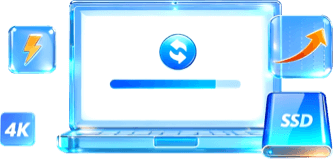
The free SSD cloner offers essential optimization tools: 4K alignment, health/speed checks, and surface tests to keep SSD performing smoothly after cloning.
Clone Partition
Sector-by-sector cloning copies data at the block level, ensuring a safe SSD clone without data loss.
Clone SSD to Large SSD
Easily clone SSD to a larger SSD. Automatically adjusts partitions and keeps OS bootable.
Switch to a New SSD
Move your data and files to a new SSD by cloning partitions.
Clone HDD to SSD
Free HDD to SSD cloning helps users upgrade from hard drives to SSDs without reinstalling Windows.
Cloning an SSD does not require advanced technical knowledge. EaseUS Partition Master Free provides a streamlined workflow suitable for beginners while remaining powerful enough for advanced users.
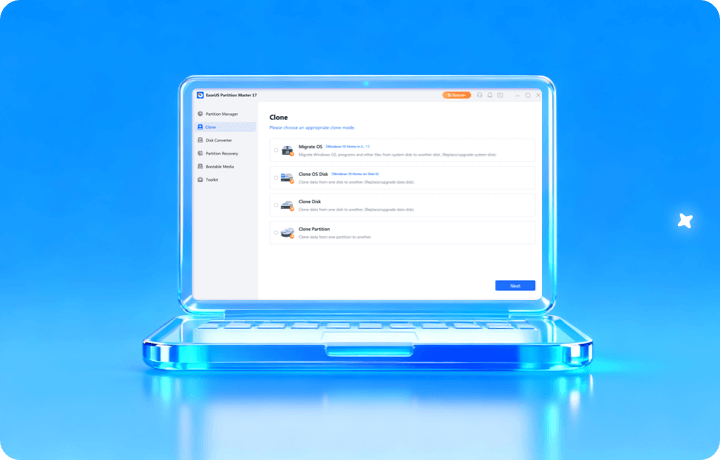
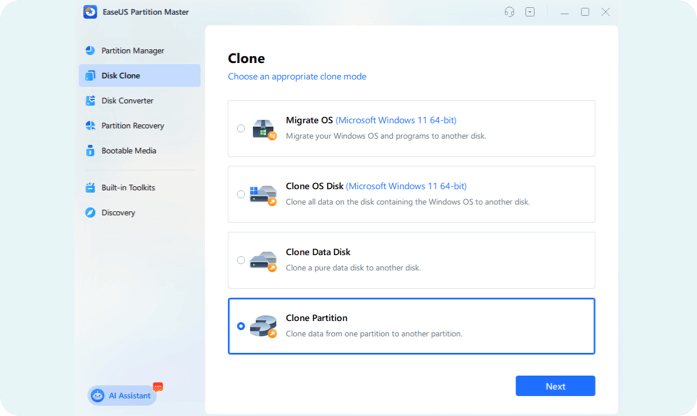
Step 1. Select Clone Partition
Install and launch EaseUS Partition Master Free, go to "Disk Clone" > Select "Clone Partition" > Click "Next".
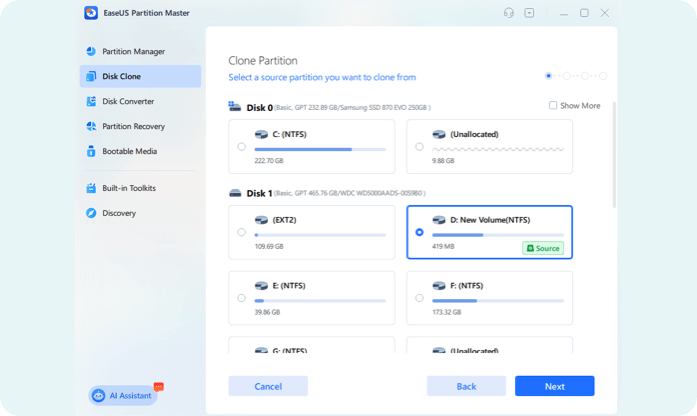
Step 2. Select the Source Partition on the SSD
Select the source partition you want to clone and click "Next."
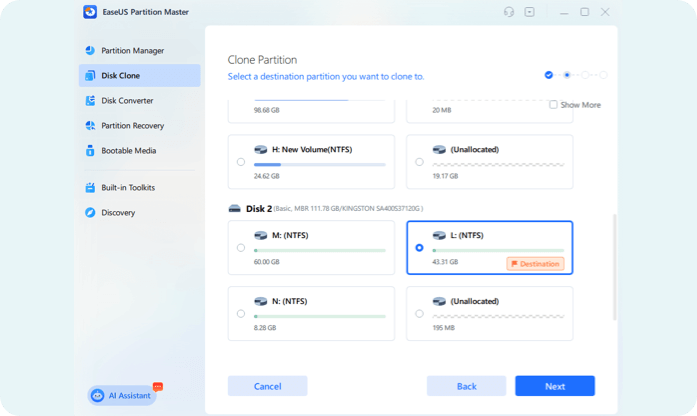
Step 3. Select a Destination Partition and Start Cloning SSD
Then, select the destination SSD > click "Next". Click "Yes" to confirm you'd like to begin the cloning. Repeat the process if you have multiple partitions to be cloned.
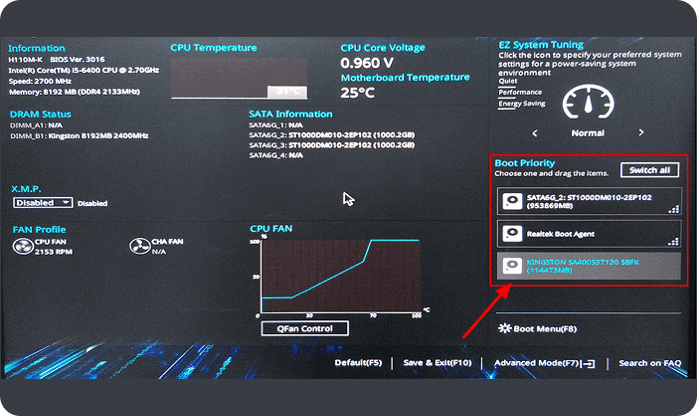
Step 4. Set New Disk as Boot Drive (Optional)
If you cloned OS SSD, enter BIOS and set the new disk as boot drive: Restart PC > Press F2/F8/F10/Del to enter BIOS > Boot Boot Menu/Boot Priority > Select the new disk as boot drive > Save changes and restart PC.
Even with reliable SSD cloning freeware, users may encounter issues during or after SSD cloning. Below are common problems and proven solutions.
Cloned SSD Won’t Boot
Cloning to a Smaller SSD Fails
SSD Cloning Stuck at a Certain Percentage
Cloned SSD Not Detected in BIOS
Slow After Cloning to SSD
Let’s explore how to choose the SSD cloning software that works best for you.
30-day money
back guarantee
100% Secure
Security always comes first
Free
tech support
As a reliable choice among the best free SSD cloning software options, EaseUS Partition Master delivers professional performance trusted by millions for seamless HDD/SSD to SSD cloning and disk upgrades.
EaseUS Partition Master is incredibly simple to use, one of many reasons that you should consider it when looking for a good free disk partitioning tool. An operating system can be migrated from one drive to another, a larger one.
- from Lifewire
The free version of Partition Master is a fully updated piece of software that supports the new Windows 11 and assists PC users with many common disk management and partitioning tasks they may encounter in everyday PC use.
- from BestBackupReview
It is a useful tool for viewing and managing partitions on all your hard disks, and with support for larger disks, the tool becomes even more effective. You might want to give it a try the next time you wish to change something on your hard disk.
- from the Windows Club
EASEUS Partition Master Free Edition is a reliable application that can be used for simple partitioning needs. It's great because it includes a friendly interface that does not complicate this otherwise dangerous procedure.
- from Softpedia
This software tool is very safe to use and reliable, and I highly recommend it to all IT technical people when it comes to partitioning the hard disk.
- from the Software Advice
EaseUS Partition Master has been a great tool when upgrading PCs, which I do every three years. It offers a great set of disk partition management and reconfiguration tools that I've been able to use to reset partitions and clone my drives, allowing me to reuse them in upgraded computers.
- from the G2
Upgrade your SSD the smart way! Our free SSD cloning software and step-by-step guide ensure a safe, seamless upgrade in minutes.
1. What is free SSD disk cloning software?
Free SSD disk cloning software lets you copy all data from one drive to another, including Windows, apps, and files. Tools like EaseUS Partition Master allow users to migrate from HDD to SSD or from one SSD to another without reinstalling Windows.
2. Does SSD cloning affect SSD lifespan?
SSD cloning has little impact on lifespan thanks to wear-leveling, and the extra writes are usually negligible unless done often or on a failing drive. Enabling TRIM and avoiding defragging after cloning helps maintain SSD health.
3. SSD Cloning vs Backup vs Reinstalling Windows
Cloning quickly copies everything from your old drive, including any existing issues, while a fresh install gives better performance but requires reinstalling apps. A backup should always be done first to protect your data - choose cloning for convenience and a clean install for a fresh start.
4. Can I clone my SSD for free with EaseUS Partition Master?
Yes. EaseUS Partition Master offers a free disk and partition cloning feature that lets users migrate data from an old drive to a new SSD, making it ideal for basic SSD upgrades.
5. Is EaseUS Partition Master safe to use for SSD cloning?
Sure. EaseUS Partition Master is widely used and designed to clone SSDs without data loss. It uses sector-level and file-based cloning to ensure data accuracy and drive compatibility.
6. Why choose EaseUS Partition Master over other free SSD cloning tools?
EaseUS Partition Master stands out because it combines free SSD cloning, disk management, SSD optimization, and system migration in one easy-to-use interface, making it a complete solution for disk upgrades.
7. Can I clone a larger HDD to a smaller SSD for free?
Yes, you can. EaseUS Partition Master supports intelligent cloning, which allows you to migrate data from a larger HDD to a smaller SSD as long as the used space fits on the new drive.
8. Do I need to reinstall Windows after cloning my SSD?
The answer is NO. When you clone your drive using EaseUS Partition Master, Windows, programs, and settings are transferred together, so the new SSD is ready to use immediately after cloning.
9. Can EaseUS Partition Master clone NVMe and SATA SSDs?
Yes. EaseUS Partition Master supports cloning between SATA SSDs, NVMe SSDs, and traditional HDDs, making it suitable for most modern PCs and laptops.
10. Will free SSD cloning software align the SSD for better performance?
Of course. EaseUS Partition Master automatically performs 4K alignment during cloning to optimize SSD read/write speeds and extend the drive's lifespan.
Copyright © EaseUS. All rights reserved.


