





 About the Author
 Reviews and Awards
 Mac SD Card Recovery
- First Step: Perform the Compatibility Check
- Check the System Maintenance to Fix macOS Tahoe Cannot Be Installed on Macintosh HD
- Check Storage Space to Fix macOS Tahoe Cannot Be Installed on Macintosh HD
- Run Startup Disk Repair to Fix macOS Tahoe Cannot Be Installed on Macintosh HD
- Install in Safe Mode to Fix macOS Tahoe Cannot Be Installed on Macintosh HD
A Mac user repeatedly clicked the update button, only to receive an error message preventing the installation of macOS Tahoe. The solution, it turned out, was to free up storage space and run a disk repair.
You're ready to experience the new features of macOS Tahoe, but your excitement turns to frustration when you see the message: "macOS Tahoe cannot be installed on Macintosh HD." (If your startup disk has a different name, the error message will reflect that.)
This is a common hurdle, but the good news is it's usually solvable. This guide walks you through nine structured steps to diagnose and fix the issue, helping you complete the system upgrade successfully.
First Step: Perform the Compatibility Check
The first step is to confirm your Mac supports macOS Tahoe. According to Apple, the compatible models are:
- MacBook Air with Apple silicon (2020 and later)
- MacBook Pro with Apple silicon (2020 and later)
- MacBook Pro (16‑inch, 2019)
- MacBook Pro (13‑inch, 2020, Four Thunderbolt 3 ports)
- iMac (2020 and later)
- Mac mini (2020 and later)
- Mac Studio (2022 and later)
- Mac Pro (2019 and later)
If your Mac is not on this list, you cannot install macOS Tahoe via Software Update or the App Store.
Check the System Maintenance to Fix macOS Tahoe Cannot Be Installed on Macintosh HD
Over time, various minor system issues can accumulate and interfere with new installations. Performing routine maintenance tasks can optimize your Mac's state. These tasks include:
-
Reindexing Spotlight
-
Flushing the DNS cache
-
Repairing disk permissions
-
Thinning Time Machine snapshots
Tools like CleanMyMac X's Maintenance module can perform many of these tasks with a couple of clicks. It scans your Mac and recommends actions, streamlining the optimization process.
Check Storage Space to Fix macOS Tahoe Cannot Be Installed on Macintosh HD
Insufficient storage is the most frequent cause of installation failure. Go to "System Settings" > "General" > "Storage". Look at the colored bar at the top; the figure on the right shows your available space.
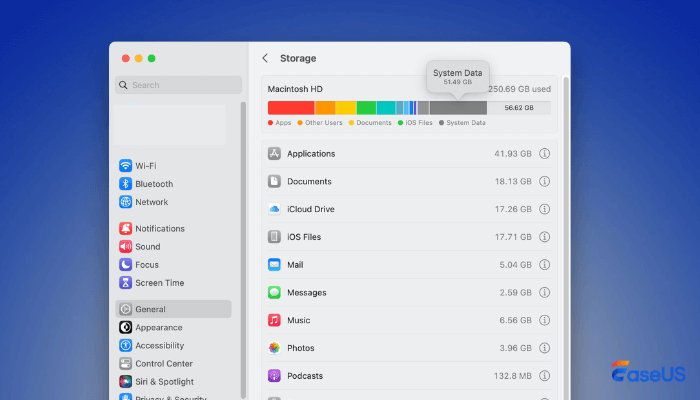
You need at least 25GB of free space to install Tahoe. If space is low, follow the recommendations below the bar to remove unnecessary files or consider using specialized cleanup tools.
Crucially, before any major system operation like an upgrade or disk repair, ensure your important data is backed up. In the unfortunate event of data loss—whether due to accidental deletion during cleanup, a failed update, or disk formatting—a reliable recovery tool is essential. EaseUS Data Recovery Wizard for Mac is a professional data recovery solution that can help retrieve lost photos, documents, and other files from Mac drives, USB drives, and other storage media.
Run Startup Disk Repair to Fix macOS Tahoe Cannot Be Installed on Macintosh HD
Disk errors can cause update failures. Use Disk Utility to repair your startup disk:
Step 1. Go to "Applications" > "Utilities" > "Disk Utility".
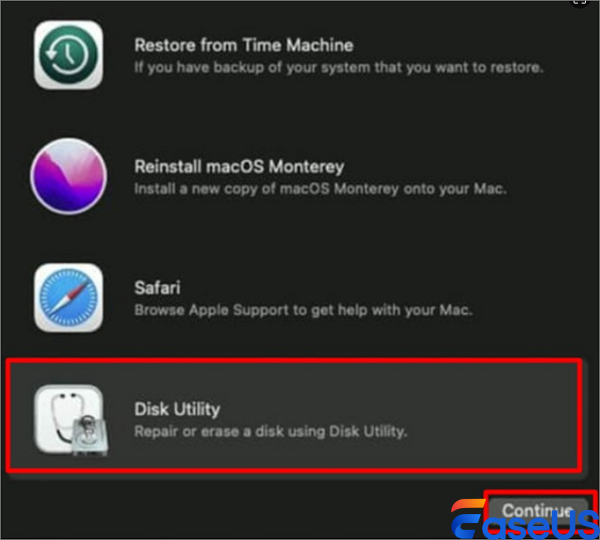
Step 2. Select your startup disk (e.g., "Macintosh HD") from the sidebar.
Step 3. Click the "First Aid" button in the toolbar.
Step 4. Click "Run" and wait for the process to complete.
Step 5. Quit Disk Utility and try the installation again.
Install in Safe Mode to Fix macOS Tahoe Cannot Be Installed on Macintosh HD
Booting into Safe Mode loads only essential system extensions. This can bypass installation issues caused by third-party software conflicts.
Step 1. Restart your Mac.
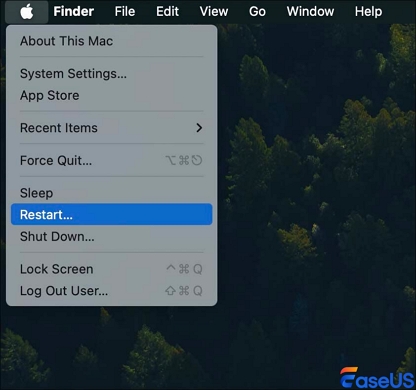
Step 2. Immediately press and hold the Shift key until you see the login window.
Step 3. Log in (you may need to log in twice).
Step 4. Try installing macOS Tahoe from within Safe Mode.
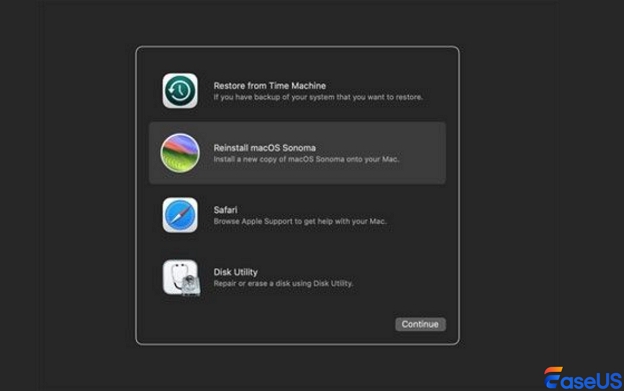
Step 5. After installation, restart normally to exit Safe Mode.
Conclusion
This post from EaseUS looks at how to fix the macOS Tahoe cannot be installed on Macintosh HD error when updating to the latest version of macOS. You can first check the system compatibility and then
FAQ on macOS Tahoe Cannot Be Installed on Macintosh HD
Here are some questions you may be curious about:
1. Why can't macOS Tahoe be installed on Macintosh HD?
It could be: Your Mac is not compatible with macOS Tahoe. There's a problem with your internet connection. There is an issue with Apple's servers.
2. What to do when macOS cannot be installed on Macintosh HD?
When reinstalling macOS fails, the disk needs to be completely erased before trying a reinstall. This is a common step if the reinstall fails. Disk Utility undertakes this as APFS or Mac OS Extended (Journaled). To restart in Recovery Mode, the keyboard must be pressed while pressing the power button and pressing Command + R.
Was This Page Helpful?

Finley is interested in reading and writing articles about technical knowledge. Her articles mainly focus on file repair and data recovery.
-
EaseUS Data Recovery Wizard is a powerful system recovery software, designed to enable you to recover files you’ve deleted accidentally, potentially lost to malware or an entire hard drive partition.
Read More -
EaseUS Data Recovery Wizard is the best we have seen. It's far from perfect, partly because today's advanced disk technology makes data-recovery more difficult than it was with the simpler technology of the past.
Read More -
EaseUS Data Recovery Wizard Pro has a reputation as one of the best data recovery software programs on the market. It comes with a selection of advanced features, including partition recovery, formatted drive restoration, and corrupted file repair.
Read More
Related Articles
-
Recover Unsaved Word/Excel Files in Crashed Office 2016 on Mac
![author icon]() Jean/Sep 23, 2026
Jean/Sep 23, 2026 -
Recover Deleted Photos on Mac in 5 Ways (2026 Solutions)
![author icon]() Daisy/Sep 27, 2026
Daisy/Sep 27, 2026 -
Get EaseUS Data Recovery Wizard for Mac Crack with License Code
![author icon]() Jean/Sep 24, 2026
Jean/Sep 24, 2026 -
How to Recover Deleted GoPro Files on Mac
![author icon]() Brithny/Sep 28, 2026
Brithny/Sep 28, 2026
 Jean/Sep 23, 2026
  Daisy/Sep 27, 2026
  Brithny/Sep 28, 2026

