





 About the Author
 Reviews and Awards
 Mac SD Card Recovery
Every major release of macOS introduces groundbreaking features, refined visual design, and performance optimizations tailored to modern hardware architectures. However, Apple regularly phases out operating system support for aging Intel Mac models.
If you own a legacy MacBook Pro, MacBook Air, iMac, or Mac Mini that officially lost software update eligibility, you do not have to leave your machine behind. Using OpenCore Legacy Patcher, users can break through artificial operating system limits and successfully install macOS Golden Gate on unsupported Mac configurations with full functionality.
Check Hardware Before Installing macOS Golden Gate
Before you attempt to install macOS Golden Gate on an old MacBook Pro or iMac, you need to confirm that your hardware is supported by the OpenCore Legacy Patcher. OCLP focuses on Intel-based Mac models that Apple dropped from the official support list. Most Macs from 2012 through 2020 are good candidates, but some models require specific GPU patches to function properly.
Here is a quick compatibility reference table covering common unsupported Mac models that can run macOS Golden Gate through OCLP.
| Mac Model | Year | OCLP Support Status | GPU Acceleration Notes |
| MacBook Pro | 2012 to 2015 | Supported with patches | Requires legacy Metal patch for graphics acceleration |
| MacBook Air | 2013 to 2017 | Supported with patches | Integrated GPU works with root patches |
| iMac | 2013 to 2019 | Supported with patches | Some models need display acceleration fixes |
| Mac Pro | 2013 trash can | Supported with patches | FirePro drivers require manual patching |
| Mac mini | 2014 to 2018 | Supported with patches | Intel HD graphics need root volume patches |
How to Install macOS 27 on Unsupported Mac
Upgrading an unsupported Intel-based Mac involves patching the system EFI environment to inject missing ACPI tables, drivers, and custom boot flags. The following standard steps outline the full deployment procedure.
Step 1. Download and Install the Latest OpenCore Legacy Patcher
Start by downloading the OpenCore Legacy Patcher from its official GitHub releases page. The application is free and open source. Navigate to the GitHub repository in your web browser and locate the latest release. Download the zip file and extract it. Drag the OCLP application to your Applications folder for easy access.
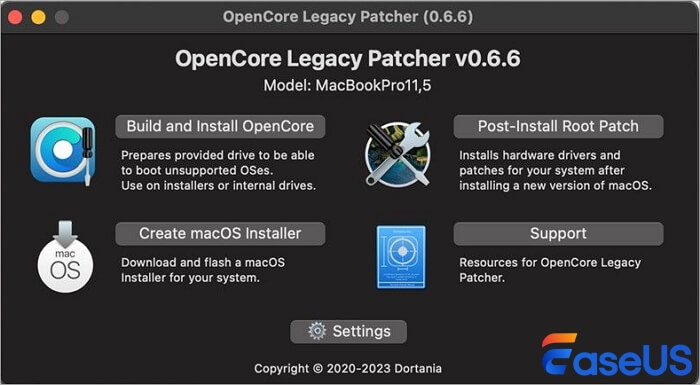
Step 2. Download the macOS Golden Gate Installer Package Through OCLP
From the OCLP main menu, click the option labeled Create macOS Installer. The tool will present a list of available macOS versions. Select macOS Golden Gate from the list. OCLP connects directly to Apple servers and downloads the full installer package, so you do not need to visit the Mac App Store separately.
Step 3. Create a macOS Golden Gate Bootable USB Installer
Now you need to create a bootable USB installer for macOS Golden Gate. Insert your USB flash drive into the Mac. Back in the OCLP interface, after the installer download finishes, the tool will prompt you to select a target drive for the bootable installer. Choose your USB drive from the list.
OCLP will format the USB drive and copy all necessary installer files to it. This step also injects the OpenCore bootloader and any required legacy drivers directly into the USB installer, which is what enables it to boot on unsupported Mac models. The formatting process erases all existing data on the USB drive, so make sure you have backed up anything important stored on it.
If you accidentally lose files during this formatting step, EaseUS Data Recovery Wizard for Mac can scan the reformatted USB drive and recover documents, photos, and other data. The tool works on FAT32, ExFAT, and APFS formatted drives, giving you broad recovery coverage.
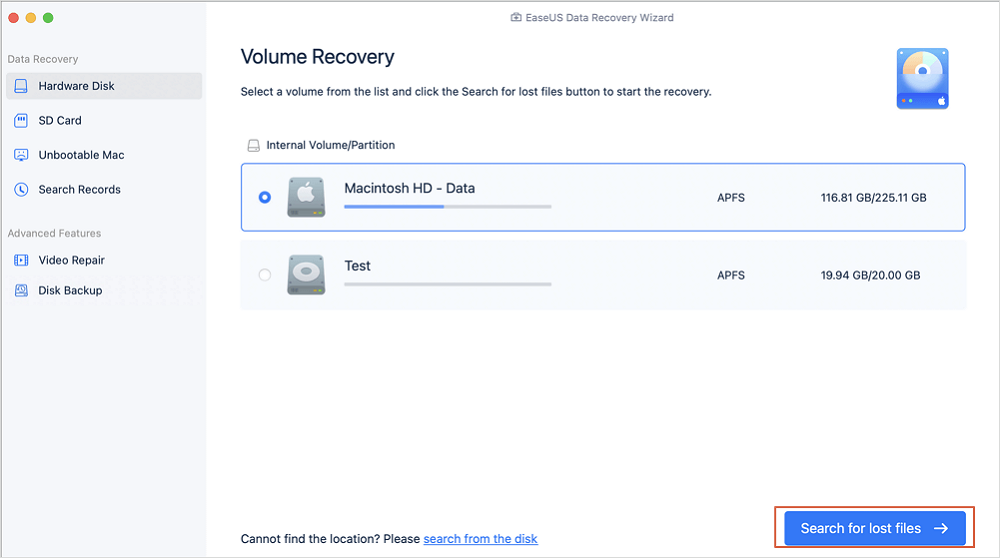
Step 1. Search for lost files
Select the disk location to search for lost files (it can be an internal HDD/SSD or a removable storage device) on macOS Sierra, High Sierra, Mojave, Catalina, Big Sur, Monterey, Ventura, and the latest Sonoma. Click the "Search for lost files" button.
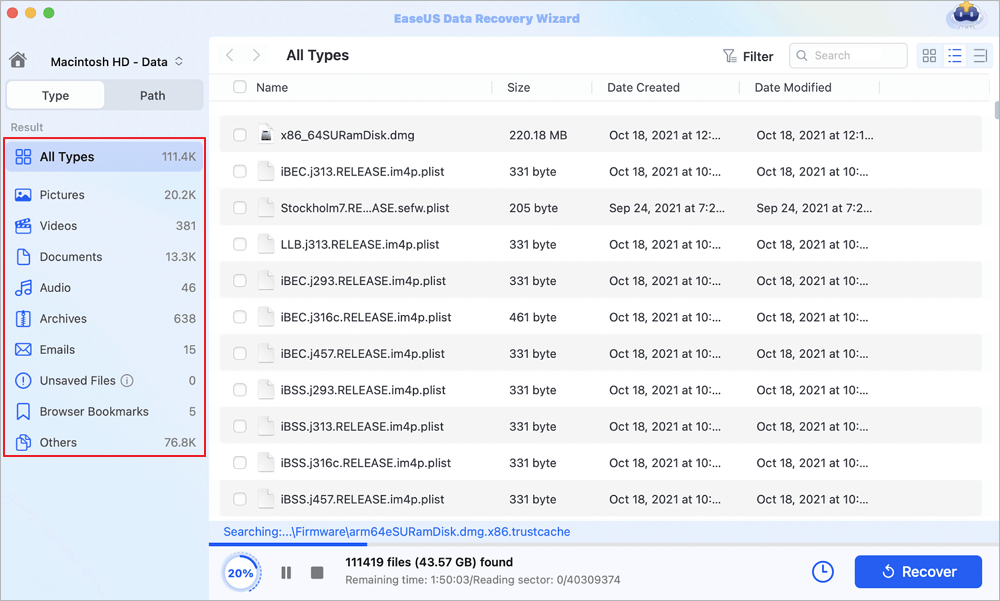
Step 2. Go through the scanning results
EaseUS Data Recovery Wizard for Mac will immediately scan your selected disk volume and display the scanning results.
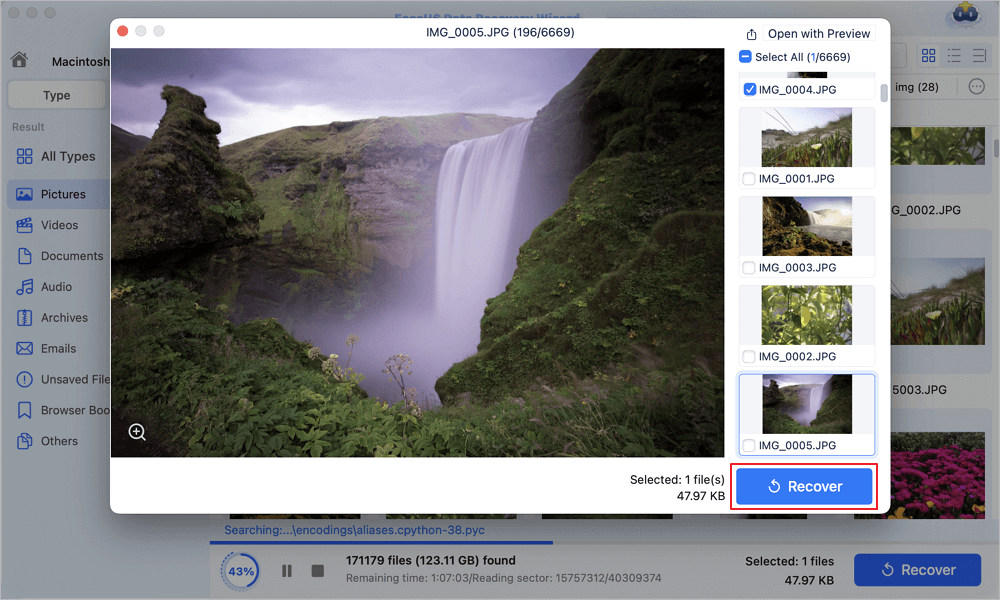
Step 3. Select the file(s) and recover
In the scan results, select the file(s) to preview and click the "Recover" button to have them back.
If you find this information helpful, please share it with others on social media to help them overcome this common challenge.
Step 4. Build and Install OpenCore EFI to USB or Local Disk
With the installation files written to the flash media, you must now inject the custom OpenCore EFI bootloader. This custom boot layer intercepts early boot sequence queries, spoofing supported board identifiers so macOS Golden Gate initializes smoothly.
- Click Build and Install OpenCore from the main menu of OpenCore Legacy Patcher.
- Review the generated log parameters on the build screen to verify your Mac model number is identified correctly, then click Install to Disk.
- Select your external USB flash drive to write the initial bootloader onto its primary EFI partition. Writing to the USB drive first ensures you can test boot stability without altering your internal disk startup files.
- Select the specific EFI partition on the target flash drive and confirm the administrative authorization prompt to finalize writing the boot files.
Now you are ready to boot into the OpenCore EFI layer and launch the macOS Golden Gate setup wizard.
Conclusion
Extending the usable lifespan of vintage Apple hardware is both cost-effective and environmentally responsible. Learning how to install macOS Golden Gate on unsupported Mac systems enables creators and everyday users to access modern security patches, updated productivity tools, and modern user interface enhancements on older machines. By following the hardware compatibility checklist, backing up critical user files, creating a reliable installer drive, and applying root patches for legacy graphics acceleration, you can transform an aging Intel MacBook Pro, Air, or iMac into a capable, up-to-date workstation.
Install macOS Golden Gate on Unsupported Mac FAQs
Executing an operating system upgrade on legacy hardware can trigger technical questions regarding system safety, graphics rendering, and backup management. Here are concise solutions to common post-install queries.
1. Is it safe to install macOS Golden Gate on my old MacBook Pro or iMac?
Yes, installing macOS Golden Gate with OpenCore Legacy Patcher is generally considered safe because the patcher operates non-destructively by injecting driver extensions and ACPI overrides during the boot stage. However, because you are modifying core system settings, you should create a full system backup with Time Machine prior to starting the process.
2. How do I fix graphics acceleration issues after installing macOS Golden Gate?
If your user interface appears slow, window dragging feels jerky, or menu bars lack transparent visual effects, your system is running on basic framebuffers without hardware acceleration. Open OpenCore Legacy Patcher from your Applications folder, click Post-Install Root Patch, and click Start Root Patching. This routine installs custom legacy Metal graphics kexts tailored to older Intel, Nvidia, or AMD graphics processors. Reboot your system once the patch script completes.
3. Will Graphics Acceleration Work on My Old Mac?
The macOS Golden Gate unsupported Mac graphics acceleration fix is handled by the OCLP root patches. After applying root patches, most Intel-based Mac models regain full graphics acceleration, including Metal support. Some very old models with non-Metal GPUs may experience reduced performance, but basic acceleration is still restored through legacy patches.
4. What should I do if my Mac gets stuck on a black screen or Apple logo during boot?
If your machine hangs during boot, power off the Mac completely by holding the power button. Reinsert your macOS Golden Gate bootable USB flash drive, start up while holding the Option key, choose EFI Boot from the drive, and boot into macOS Safe Mode by holding down the Shift key. Once on the desktop, open OCLP to rebuild your EFI configuration or re-apply root patches to resolve driver conflicts.
Was This Page Helpful?

Jaden is one of the editors of EaseUS, who focuses on topics concerning PCs and Mac data recovery. Jaden is committed to enhancing professional IT knowledge and writing abilities. She is always keen on new and intelligent products.
-
EaseUS Data Recovery Wizard is a powerful system recovery software, designed to enable you to recover files you’ve deleted accidentally, potentially lost to malware or an entire hard drive partition.
Read More -
EaseUS Data Recovery Wizard is the best we have seen. It's far from perfect, partly because today's advanced disk technology makes data-recovery more difficult than it was with the simpler technology of the past.
Read More -
EaseUS Data Recovery Wizard Pro has a reputation as one of the best data recovery software programs on the market. It comes with a selection of advanced features, including partition recovery, formatted drive restoration, and corrupted file repair.
Read More
Related Articles
-
8 módszer a törölt fájlok helyreállítására Macen 2026-ben
![author icon]() Cedric/Sep 20, 2026
Cedric/Sep 20, 2026 -
How to Fix macOS Golden Gate Not Showing Up in System Settings
![author icon]() Jaden/Sep 20, 2026
Jaden/Sep 20, 2026 -
Toshiba External Hard Drive not Showing Up on Mac? How to Fix
![author icon]() Jaden/Sep 20, 2026
Jaden/Sep 20, 2026 -
How to Recover Deleted Files on Mac Without Software
![author icon]() Dany/Sep 20, 2026
Dany/Sep 20, 2026
 Cedric/Sep 20, 2026
  Dany/Sep 20, 2026

