





 About the Author
 Reviews and Awards
 Mac SD Card Recovery
TIFFs aren't the smallest file format, but they stand out for supporting additional image data, such as layers, making them a top choice for photographers and graphic designers using tools like Adobe Photoshop. These files store high-quality raster graphics without lossy compression, preserving every detail for precise edits.
It can be frustrating to lose a TIFF file, but there are reliable methods to recover it, regardless of the cause—accidental deletion, corruption, or forgotten saves. We'll define TIFF files, explain how to open them, and provide detailed recover TIFF photos Mac techniques below.
What Is a TIFF File
TIFF (Tagged Image File Format) is a raster graphics format designed to store high-fidelity image data. Unlike compressed formats such as JPG, TIFF uses lossless compression (or no compression) to preserve the original image quality, making it ideal for professional photography and graphic design. It supports layers, multiple color components, and tags based on ISO baseline standards—these tags define how the file can be edited, viewed, and converted in software like Adobe Photoshop, CorelDRAW, and GIMP. TIFFs are widely used because each layer can be edited independently, allowing for non-destructive workflows.

How to Open a TIFF File
Mac devices make opening TIFFs equally simple via Apple Preview:
- Locate the TIFF file and double-click it.
- The file will open automatically in Apple Preview, where you can view, rotate, or perform basic edits on the image.
Other Programs to Open TIFF Files
| For Windows | For Mac |
| Microsoft Paint, Microsoft Paint 3D, Microsoft Photos | Apple Photos, Adobe Photoshop 2022, Adobe Illustrator 2021 |
| Adobe Photoshop 2022, Adobe Illustrator 2021, Adobe Photoshop Elements | CorelDRAW Graphics Suite 2021, Roxio Toast 18, MacPhun ColorStrokes |
Online:
TIFF files can also be opened via cloud services such as Google Drive, Google Photos, and Apple Photos.
How to Recover Deleted TIFF Files
Data loss isn't permanent—follow these methods to recover your TIFF files. Avoid saving new files to the storage device where the TIFFs were lost, as this may overwrite the original data.
1. Recover TIFF Files with Software (EaseUS Data Recovery Wizard for Mac)
Data recovery software is the most versatile solution for recovering lost or corrupted TIFF files, especially when files were permanently deleted (e.g., with Shift+Delete) or from external drives. EaseUS Data Recovery Wizard for Mac is a user-friendly, reliable tool that handles a range of data loss scenarios (accidental deletion, formatting, drive corruption) and supports high-speed scans. Its free plan offers up to 2GB of free recovery - plenty for multiple TIFF files.
Here's how to use it:
Step 1. Scan for lost photos
Select the location where your valuable photos were lost and click the "Search for lost files" button.

Step 2. Select wanted photos
EaseUS Data Recovery Wizard for Mac will immediately start a scan on your selected disk volume. Meanwhile, the scanning results will be presented in the left pane. By Path and Type, you can quickly filter the photos you've lost earlier.
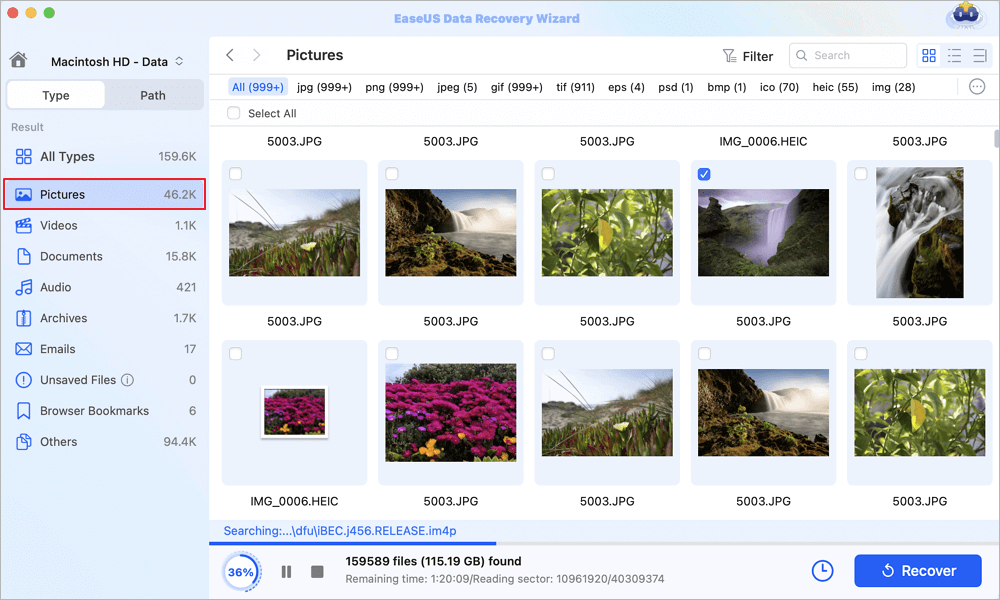
Step 3. Recover lost photos
Select the target photos and click the "Recover" button to get them back at once.
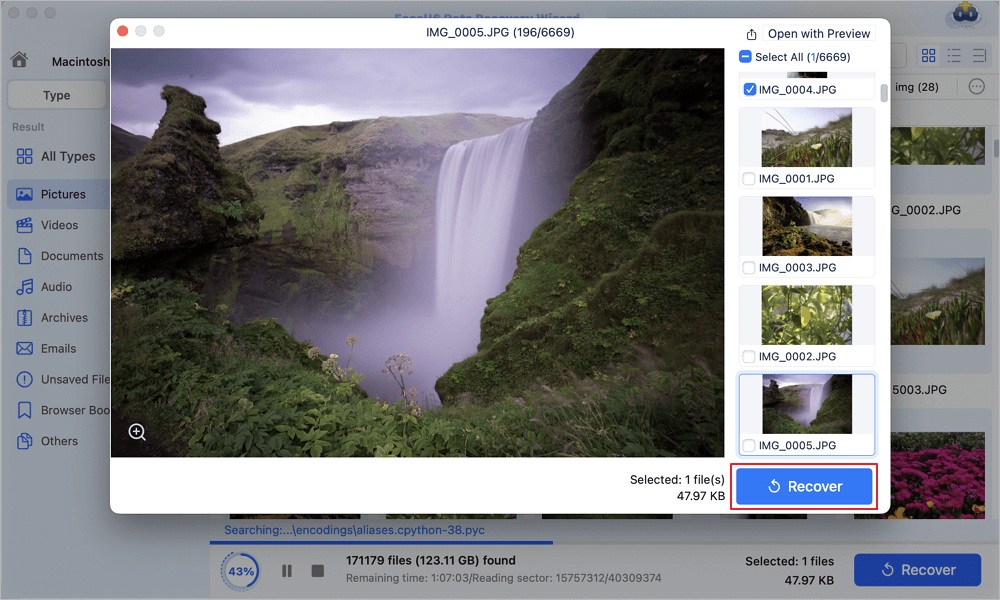
2. Recover TIFF Files from Windows Recycle Bin or Mac Trash
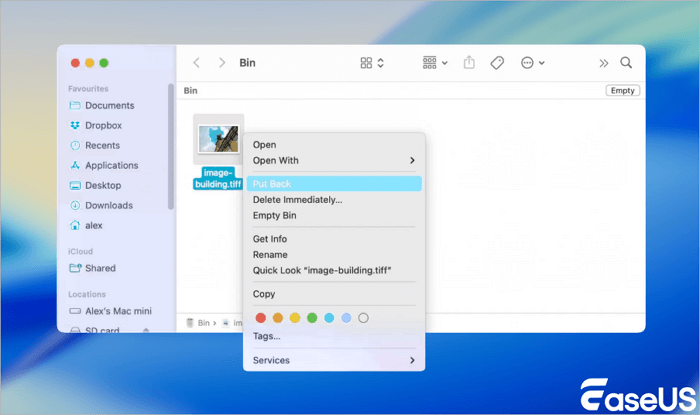
Mac automatically sends deleted files to the Trash (unless deleted with Option+Command+Delete):
- Click the Trash icon in the bottom-right corner of your screen.
- Locate and select the TIFF files you want to recover.
- Right-click the selected files and choose "Put Back."
- The TIFFs will be restored to their original location.
Conclusion
For Mac users, working with TIFF files is intuitive: opening them is seamless in Apple Preview or third-party tools like Adobe Photoshop, and recovering lost TIFF files is straightforward with multiple reliable options. Start with the Mac Trash for quick restores of recently deleted files (not permanently erased with Option+Command+Delete).
For permanently deleting files, corrupting drives, or losing files from external devices, EaseUS Data Recovery Wizard for Mac is a trusted solution—its user-friendly interface, deep scan capability, and free 2GB recovery allowance make it ideal for retrieving high-quality TIFFs without technical hassle. By following these steps, Mac users can minimize data loss and stress and efficiently recover valuable TIFF files.
Was This Page Helpful?

Jaden is one of the editors of EaseUS, who focuses on topics concerning PCs and Mac data recovery. Jaden is committed to enhancing professional IT knowledge and writing abilities. She is always keen on new and intelligent products.
-
EaseUS Data Recovery Wizard is a powerful system recovery software, designed to enable you to recover files you’ve deleted accidentally, potentially lost to malware or an entire hard drive partition.
Read More -
EaseUS Data Recovery Wizard is the best we have seen. It's far from perfect, partly because today's advanced disk technology makes data-recovery more difficult than it was with the simpler technology of the past.
Read More -
EaseUS Data Recovery Wizard Pro has a reputation as one of the best data recovery software programs on the market. It comes with a selection of advanced features, including partition recovery, formatted drive restoration, and corrupted file repair.
Read More
Related Articles
-
Recently Deleted Photos Missing: Why & How to Fix
![author icon]() Brithny/Sep 20, 2026
Brithny/Sep 20, 2026 -
How to Recover a Deleted Webp File on Mac [Image Recover]
![author icon]() Jaden/Sep 20, 2026
Jaden/Sep 20, 2026 -
Photos Disappeared from Mac After Tahoe! How to Recover
![author icon]() Jaden/Sep 20, 2026
Jaden/Sep 20, 2026 -
ORF File Recovery: How to Recover Olympus ORF Photos
![author icon]() Jaden/Sep 15, 2026
Jaden/Sep 15, 2026
 Brithny/Sep 20, 2026

