





 About the Author
 Reviews and Awards
 Mac SD Card Recovery
This article covers how to fix an external hard drive not mounting on macOS 27. You will start with Disk Utility diagnostics and simple system permission tweaks. Always extract files first with EaseUS Data Recovery Wizard for Mac before advanced repair or format operations. Use Terminal tools only when basic methods fail, and treat reformatting as your very last solution.
Many users meet a frustrating issue right after upgrading their Mac to macOS 27 Golden Gate. Their external hard drive doesn't appear on the desktop or in Finder. This common problem rarely means permanent hardware damage. Most triggers include locked security permissions, disabled Finder display options, or corrupted disk mount points. Don't reformat your drive immediately. Incorrect actions can erase photos, documents, and project files stored on the external drive. Follow this safety‑oriented workflow to diagnose the issue, recover data, and restore normal drive access.
Common Root Causes for Missing External Drives on macOS 27
- Updated Security Access Rules: macOS 27 applies stricter accessory access controls. New external storage devices can get blocked by default privacy settings.
- Reset Finder Display Settings: Major system updates often reset Finder Preferences. Your drive may mount successfully but remain hidden from the Desktop and Sidebar.
- Damaged File System Mount Points: Unsafe drive ejection or incomplete file transfers can break metadata so macOS cannot finish the mounting sequence.
- Poor Physical Connections: Worn cables, faulty hubs, or insufficient power supply stop data communication even when the drive power light turns on.
- Stuck Background Disk Check Process: A frozen fsck background task occupies disk resources and blocks your external drive from loading.
Fix 1. Run Diagnostics and Try Manual Mount via Disk Utility
Disk Utility is the built‑in macOS tool for storage management. If an external hard drive doesn't show up on the Finder desktop, this is your first stop. It can detect hardware even if Finder cannot display the volume.
- Connect your external hard drive directly to your Mac. Remove any USB hubs or adapters for initial testing.
- Launch "Disk Utility". Press Command-Space to open "Spotlight", then type Disk Utility and press Enter.
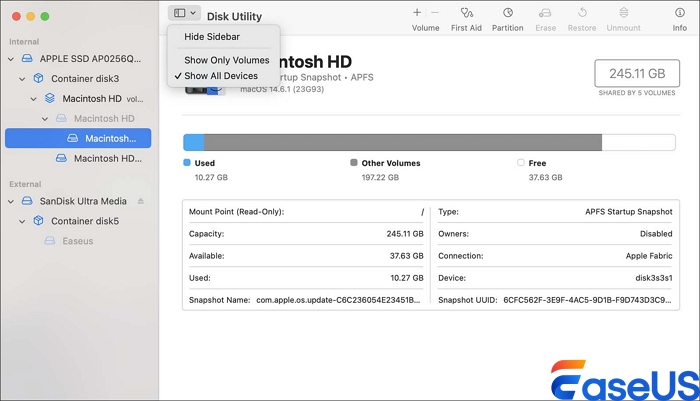
- In the View menu, select "Show All Devices". This action reveals full physical disk entries instead of only visible volumes.
![now-choose-show-all-devices]()
- Browse the left sidebar list. Look for your external disk entry. A grey volume label means the hardware gets detected but remains unmounted.
- Select this grey volume and click the Mount button at the top toolbar. Check whether the drive now appears in Finder and on the desktop.
- If mounting fails, you may run First Aid. Remember "First Aid" fixes logical errors only. Stop further work and back up data if First Aid reports repeated failure messages.
Fix 2. Recover Data First From Unmounted External Drive macOS 27
When Disk Utility cannot mount your external drive normally, repair commands or formatting will put your personal files at risk. Your safest workflow for recovering data from an unmounted external drive on macOS 27 uses dedicated read‑only recovery software before making disk changes. EaseUS Data Recovery Wizard for Mac works for APFS, exFAT, HFS+, and RAW volumes under macOS 27. It reads raw disk sectors without writing new content onto your problematic external hard drive.
Here's how to proceed if you're trying to save your data:
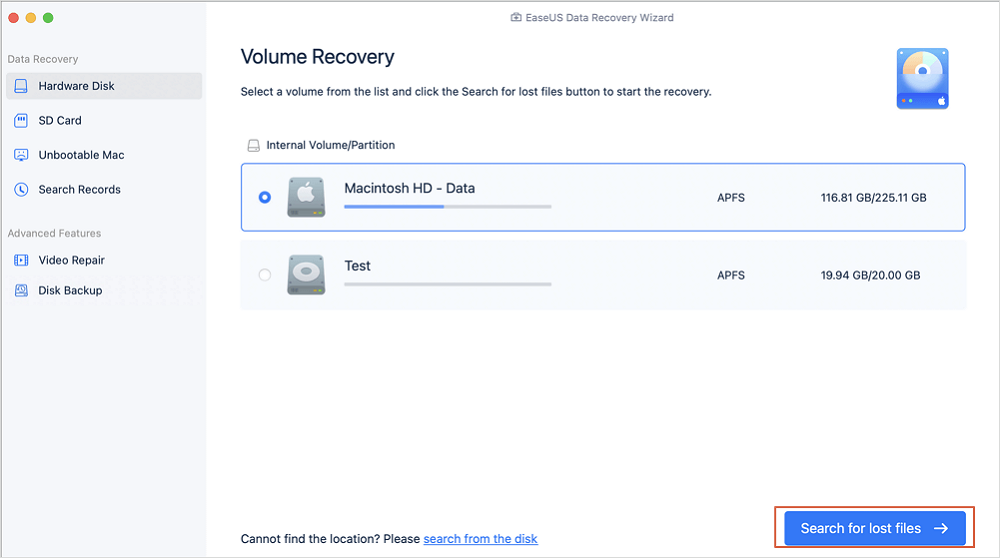
Step 1. Select the location
Select the disk where you lost data after updating to macOS Sonoma/Ventura/Monterey/Big Sur. Then, click "Search for lost files".
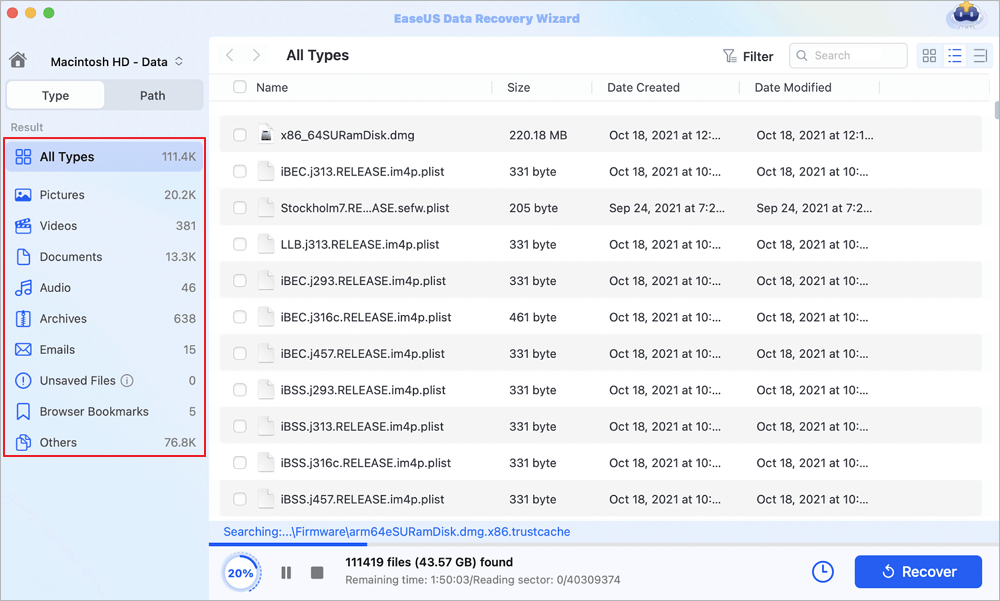
Step 2. Find lost data after the scan
EaseUS Data Recovery Wizard for Mac will immediately scan your selected disk volume and display the scanning results on the left pane. Use the file type and file path to find wanted data on Mac.
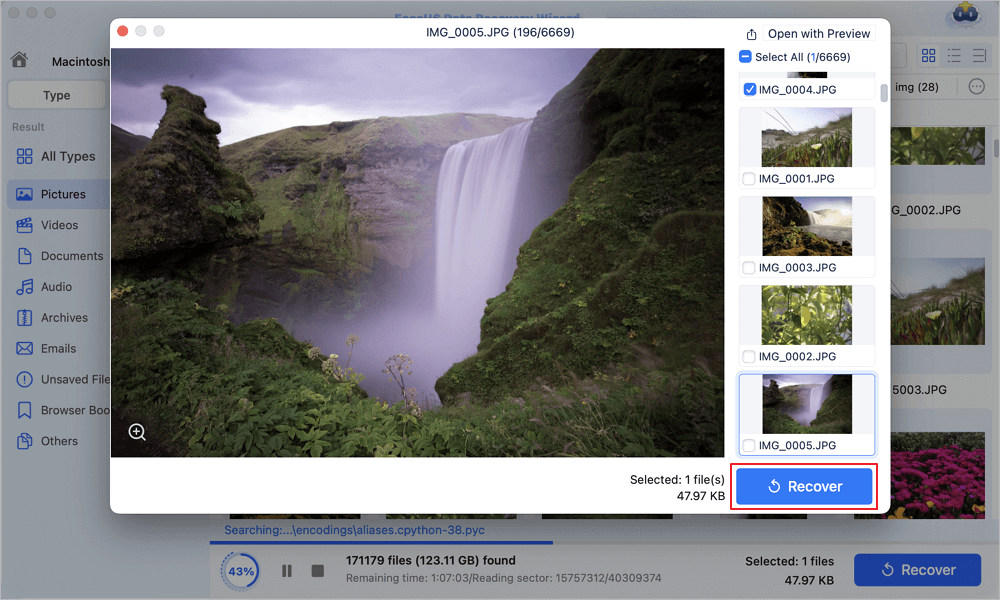
Step 3. Recover data after macOS update
Select the target files that were unknowingly lost during or after the update and click the "Recover" button to get them all back.
Important note. Never save recovered file output back onto the original problematic external hard drive. This action will overwrite remaining recoverable data fragments.
If you find this information helpful, please share it on social media to help others overcome this common challenge.
Fix 3. Final Option Reformat the External Hard Drive
Reformatting erases every single file stored on your external hard drive. You must complete full data recovery via EaseUS Data Recovery Wizard for Mac before you proceed with this operation.
- Open Disk Utility and choose your physical external hard drive entry from the sidebar with Show All Devices mode active.
- Click the Erase button on the top toolbar.
- Input a preferred volume name for your external drive.
- Pick proper file system format. Choose APFS for Mac‑only use. Choose exFAT if you need file exchange between Mac and Windows computers.
- Set the partition scheme to GUID Partition Map, then click Erase to confirm the full reformat process.
| Troubleshooting Method | Risk Level | Best Fit Scenario |
| Disk Utility Manual Mount | Very Low | Drive hardware detected but volume stays unmounted |
| EaseUS Data Recovery Wizard for Mac | Very Low | Recover data when external drive cannot mount normally |
| Disk Utility Reformat | High | All other repair attempts have completely failed |
Conclusion
External hard drive not showing up on macOS 27 Golden Gate does not automatically mean your storage hardware is broken. Many issues stem from security permission limits, Finder Preferences resets, or minor mount-point corruption. Always move through troubleshooting steps from low risk to high risk. Start with Disk Utility diagnostics and simple system adjustments. When mounting fails completely, run EaseUS Data Recovery Wizard for Mac to rescue your important files. Terminal operations and drive reformatting as later-stage options. Protect your valuable personal data before you run any disk‑altering repair action.
Frequently Asked Questions
The following answers address the most common queries from users seeking file restoration solutions.
1. Why does my external hard drive not show on the Mac desktop but appears in Disk Utility?
This usually points to changes in Finder display settings after the macOS 27 update. Open Finder Settings and make sure External disks get checked for desktop and sidebar display options.
2. Can I recover data from an external drive that will not mount on macOS 27?
A2 Yes. Use EaseUS Data Recovery Wizard for Mac. The software reads raw disk sectors without mounting the volume. Save all recovered files to a different safe storage location.
3. Is it safe to run Disk Utility First Aid on an unmountable external drive?
First Aid carries a small risk of writing data. Try data recovery software before running First Aid if your drive stores irreplaceable files.
Was This Page Helpful?

Jaden is one of the editors of EaseUS, who focuses on topics concerning PCs and Mac data recovery. Jaden is committed to enhancing professional IT knowledge and writing abilities. She is always keen on new and intelligent products.
-
EaseUS Data Recovery Wizard is a powerful system recovery software, designed to enable you to recover files you’ve deleted accidentally, potentially lost to malware or an entire hard drive partition.
Read More -
EaseUS Data Recovery Wizard is the best we have seen. It's far from perfect, partly because today's advanced disk technology makes data-recovery more difficult than it was with the simpler technology of the past.
Read More -
EaseUS Data Recovery Wizard Pro has a reputation as one of the best data recovery software programs on the market. It comes with a selection of advanced features, including partition recovery, formatted drive restoration, and corrupted file repair.
Read More
Related Articles
-
Missing Files After macOS Golden Gate? Find and Recover Lost Data on Mac
![author icon]() Dany/Sep 21, 2026
Dany/Sep 21, 2026 -
How to Solve G-Drive Not Showing up on Mac
![author icon]() Jaden/Sep 29, 2026
Jaden/Sep 29, 2026 -
Files Not Showing Up on Flash Drive Mac | How to Fix
![author icon]() Dany/Sep 29, 2026
Dany/Sep 29, 2026 -
Mac Runs Slowly After Update? 7 Fixes Here (macOS Tahoe 26 Included)
![author icon]() Brithny/Sep 29, 2026
Brithny/Sep 29, 2026
 Dany/Sep 21, 2026
  Brithny/Sep 29, 2026

