Page Table of Contents

A broken laptop screen doesn't mean your data is lost. Whether the display is cracked, completely black, or unusable, the internal hard drive usually works just fine. If you want to recover your system or files, or move everything to a new computer, the safest solution is to clone the drive from a laptop with a broken screen. This article will show you how to clone a drive from a laptop with a broken screen with a step-by-step guide.
Is Your Laptop Dead or Just with a Cracked Screen?
Before you start pulling things apart, it's worth checking whether your laptop is completely non-functional or if only the display is broken:
- Power indicators: Does the power light turn on? Do you hear fans spin up?
- External display test: Connect the laptop to an external monitor using HDMI or DisplayPort. If you see output there, the internal screen may simply be faulty.
- Boot indicators: Listen for hard drive activity or beeps during startup.
Sometimes what looks like a broken computer is just a screen or temporary boot issue, and the drive inside is perfectly fine. As long as the hard drive in your broken computer isn't dead, you can try copying data from the current hard drive. If your laptop screen is broken and you want to recover or transfer data, you have several options. If your computer is dead, you still have ways to get data off the dead computer.
Share this article on social media to help others clone a drive from a laptop that has a busted screen!

What to Prepare Before Cloning Hard Drive
To clone a hard drive from a computer with a broken screen, remove the drive and connect it to a working computer using a SATA-to-USB adapter or external drive enclosure. Use disk cloning software, such as EaseUS Disk Copy, to copy the data to a new drive. Alternatively, connect the laptop to an external monitor via HDMI to access the data without removing the drive, and then transfer data to the new drive.
Here's what you'll need to successfully clone a drive from a laptop with a broken screen:
- A working computer – to run disk cloning software or create a bootable USB.
- Target drive – a new HDD or SSD with equal or larger capacity than the source.
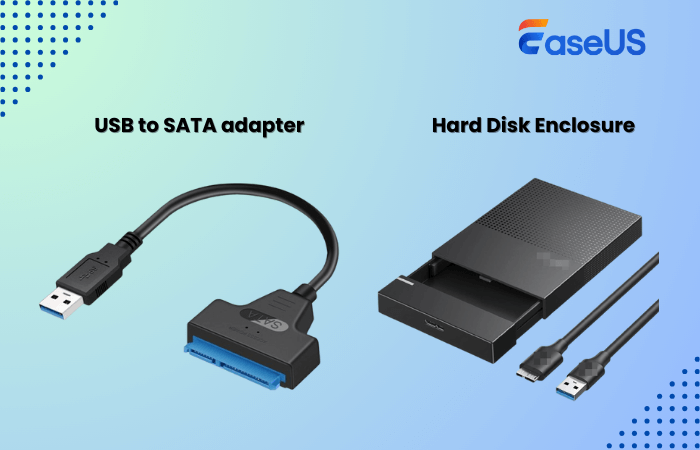
- Connection tools – a SATA-to-USB adapter or an external drive enclosure to connect the old drive externally.
- Screwdriver set - to remove the hard drive from the old computer.
- Disk cloning software - Windows does not have cloning settings that let you clone a hard drive, so you must use professional third-party cloning programs. EaseUS Disk Copy is a disk cloning tool that can help you clone a disk.
EaseUS Disk Copy: Powerful Disk Clone Software for Windows
- Simple interface: Clone a disk to another with a few clicks.
- Disk Mode: Clone the whole hard drive to another one.
- System Mode: Migrate Windows 11/10/8/7 to a new drive.
- Bootable Clone: Create a rescue USB to boot a PC for cloning.
- Sector-by-sector Clone: Clone disk while skipping bad sectors.
 Free Download
Windows 11/10/8/7
Download this safe and reliable disk cloning tool on your PC to help you clone a hard drive from a laptop with a broken screen or clone a hard drive from a dead computer.
How to Clone a Drive from a Damaged Laptop Screen
As mentioned above, you have 2 ways to clone a hard drive from a PC with a damaged or broken screen: you can disconnect the hard drive from the laptop and connect it to a working one, then run EaseUS cloning software; you can also connect the laptop to an external monitor via HDMI to access and transfer the data by cloning it to another.
Here, we will show you how to remove the hard drive, connect it to a working computer, and use EaseUS Disk Copy to clone the drive.
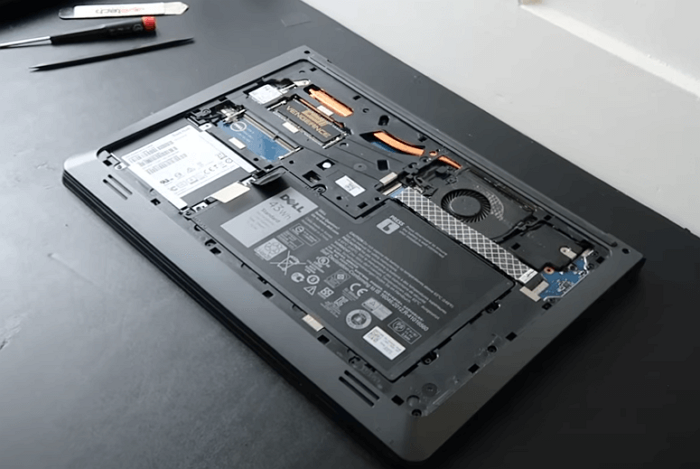
Step 1. Remove Disk from Old Laptop
- Power down the broken laptop, locate the hard drive or SSD, and remove it carefully using the screwdriver set.
Step 2. Connect It to a Working PC
- Use a USB SATA adapter or drive enclosure to connect the drive to a second, working computer.
- You can also connect a new drive to the working computer to store the recovered data.
Step 3. Run EaseUS Cloning Software
- Download and install EaseUS cloning software on your PC.
- Launch it and choose Disk Mode.

Step 4. Select Source and Target Disks
- Select the external hard drive (the one from the broken laptop) as the source.
- Select the new drive you want to store the data in as the target.
- Check "Preview partition layout" for advanced cloning features.
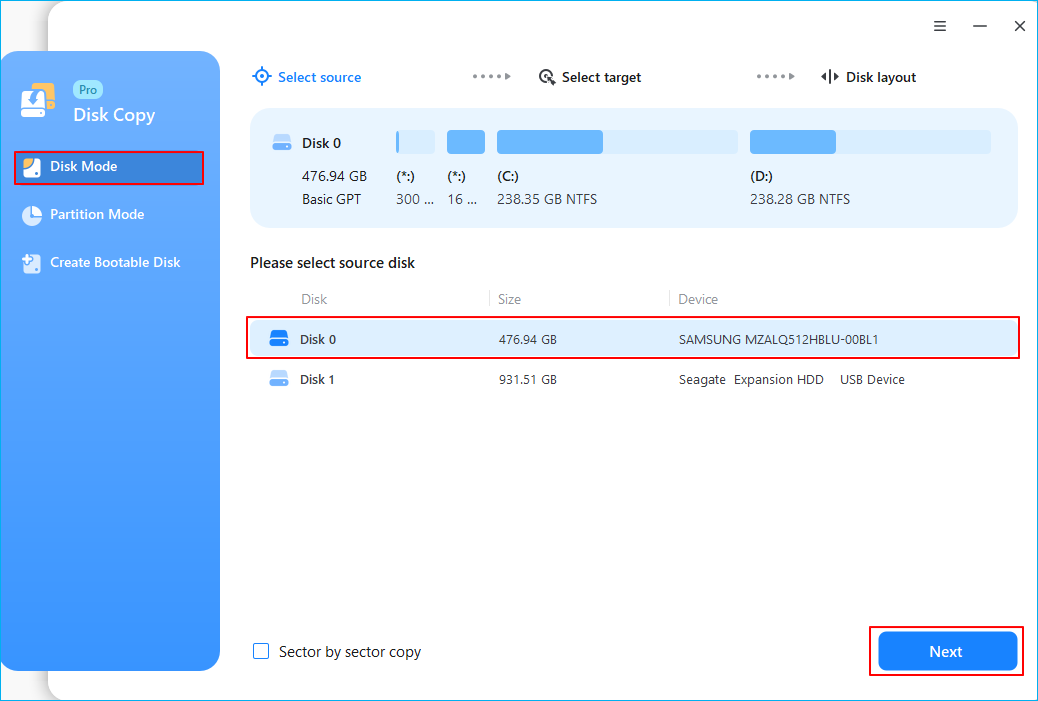
Note: Adjust disk layout if necessary.
- "Autofit the disk" to make better use of the target disk's larger capacity.
- "Copy as the source" to use the "Sector-by-sector copy" feature.
- "Edit disk layout" to manually resize the layout on the destination drive.
Step 5. Start Cloning
- Confirm the warning message and start cloning the disk.
- Wait for the process to complete. The time it takes depends on how much data is on your source drive.
- Notice:
- If your laptop cannot boot, you can also create an emergency bootable disk in EaseUS Disk Copy by selecting "Emergency Disk" in the left panel.
Here is a video guide on how to clone a hard drive using EaseUS Disk Copy:
Share this article on social media to help others clone a drive from a laptop that has a busted screen!
To Wrap Things Up
A broken screen doesn't mean lost data. Cloning a hard drive from a laptop with a broken screen is entirely feasible as long as the drive itself is still functioning. By removing the hard drive from the old laptop, connecting it to a second, working computer, and using disk cloning software, such as EaseUS Disk Copy, you can bypass the damaged screen to directly access and clone your hard drive.
This method is not only suitable for data recovery but is also an ideal choice for upgrading your hard drive or migrating your system. Download this disk cloning tool and start cloning your disk to another.
Free Download
Windows 11/10/8/7
FAQs on Cloning Disk from PC with Broken Screen
1. How to transfer data and programs from a broken laptop to a new one?
If your hard drive still functions, you can:
- Remove the hard drive from the broken laptop
- Connect the external hard drive (the one from the broken laptop) to your new laptop.
- Run disk cloning software such as EaseUS Disk Copy or Clonezilla.
- Select the source and target disk and start cloning.
If you want to transfer programs, manually copying and pasting will not work. You need to clone the drive. By doing so, you can transfer everything from your broken laptop to a new one.
2. Is cloning better than just copying files?
Yes, if you want to transfer Windows, programs, settings, and files, cloning will be better. Just copying files will not work for system or program files.
3. How to transfer data from a laptop that won't turn on?
If your laptop cannot boot and you need to transfer data, you can disconnect the drive from the laptop, connect it to another laptop via a USB to SATA cable, and transfer data to a new disk or laptop. Alternatively, you can use bootable disk cloning software like EaseUS Disk Copy to create an emergency boot disk, boot your laptop from it, and then clone the disk to another drive.
-
Updated by
![]()
Jerry
"I hope my articles can help solve your technical problems. If you are interested in other articles, you can check the articles at the bottom of this page, and you can also check my Facebook to get additional help."…Read full bio