





-
![]()
-
![]()
-
![]() How to Recover Deleted MP4 Files on Windows 10/11 [Ultimate Guide]
How to Recover Deleted MP4 Files on Windows 10/11 [Ultimate Guide] October 14,2026
 6 min read
 -
![]()
-
![]()
-
![]() How to Delete a Corrupted File Windows 10? Simple Methods Here!October 14,20266 min read
How to Delete a Corrupted File Windows 10? Simple Methods Here!October 14,20266 min read -
![]() Dropbox Deleted Files by Itself, How to Recover Missing Files in Dropbox in 4 WaysOctober 14,20266 min read
Dropbox Deleted Files by Itself, How to Recover Missing Files in Dropbox in 4 WaysOctober 14,20266 min read -
![]()
-
![]()
-
![]()
Page Table of Contents
Overview
By doing any one of the following things, you will delete the emails in Outlook in a permanent way. Or, you may call it a "hard deleted".
- Empty the "Deleted Items" folder for good.
- Archive old emails using the settings "Clean out items folder older than xx months".
- Use shift + delete keys to delete the selected email files, folders or subfolders.
| Workable Solutions | Step-by-step Troubleshooting |
|---|---|
| Method 1. Recover in Outlook Trash | Log in Outlook > Click "Deleted Items" > Click "Recover Deleted Items from Server"...Full steps |
| Method 2. Recover with Outlook Recovery Software | Download Outlook recover software > Choose a location to scan > Select emails to recover...Full steps |
After those operations, can you recover permanently deleted emails in Outlook? The answer is YES. There are two exclusive solutions to make you through. One is recovering deleted emails in Outlook from the Deleted Items folder, and the other is using EaseUS Data Recovery Wizard, EaseUS Data Recovery Wizard to recover permanently deleted Outlook emails on the local drive.
How to Recover Deleted Emails in Outlook 2018/2016/2013
When you permanently delete items from Outlook, in fact, you didn't really lose this data. Microsoft Outlook still keeps these emails in somewhere else. They are just hidden from normal, for at least a few weeks or even much longer. So you have the chance to recover permanently delete emails in Outlook. Follow the detailed instructions below.
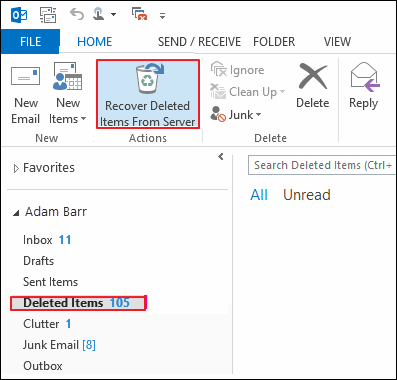
Step 1. Log in to your Microsoft Outlook account, go to the email folder list and click "Deleted Items".
Note: If you don't see the Deleted Items folder, but instead see the Trash folder, then your account doesn't allow you to recover an item that's no longer in the Deleted Items folder.
Step 2. Go to the Home screen, and then click "Recover Deleted Items From Server".
Note: If Recover Deleted Items From Server isn't there, your account doesn't support recovering an item that's no longer in your Deleted Items folder.
Step 3. Then, Microsoft will recover permanently deleted emails from their exchange server and list them for you. Select the item you want to recover, click "Restore Selected Items" and then click "OK".
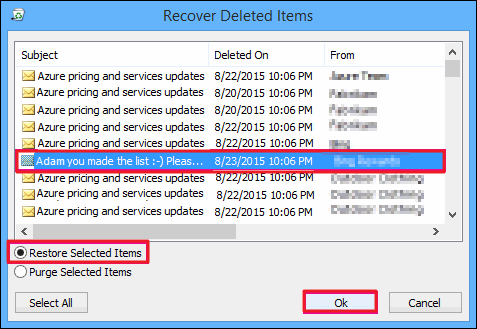
Step 4. When you recover deleted emails from the Recoverable Items folder, they are moved to the Deleted Items folder. You can find them there and then move it to Inbox or another folder.
How to Recover Permanently Deleted Outlook Emails with Email Recovery Software
There are two types of Outlook data files used by Outlook, .pst and .ost. EaseUS Data Recovery Wizard supports both PST file recovery and OST file recovery. By locating the files of the mentioned formats in the scan results, you can quickly restore the emails that you've deleted on a local drive; even the PST/OST files are permanently gone.
Apart from the email recovery, EaseUS data recovery tool is also good at photo recovery, video and audio recovery, Word document recovery (as well as Excel & PPT), as well as other files restoring caused by accidental deletion, hard drive damage/formatting, OS crash, or virus attack.
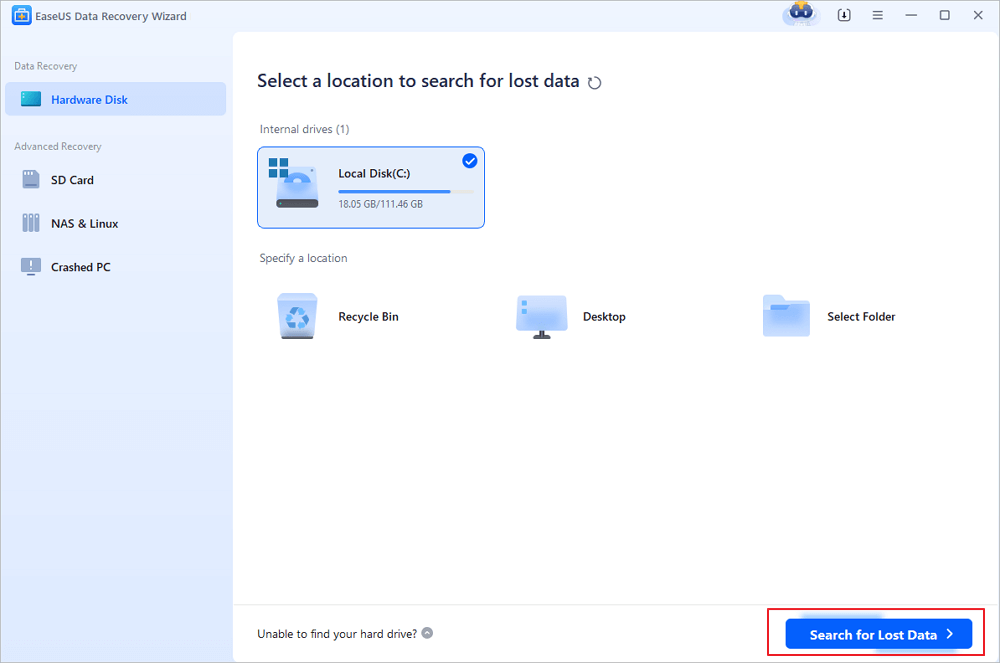
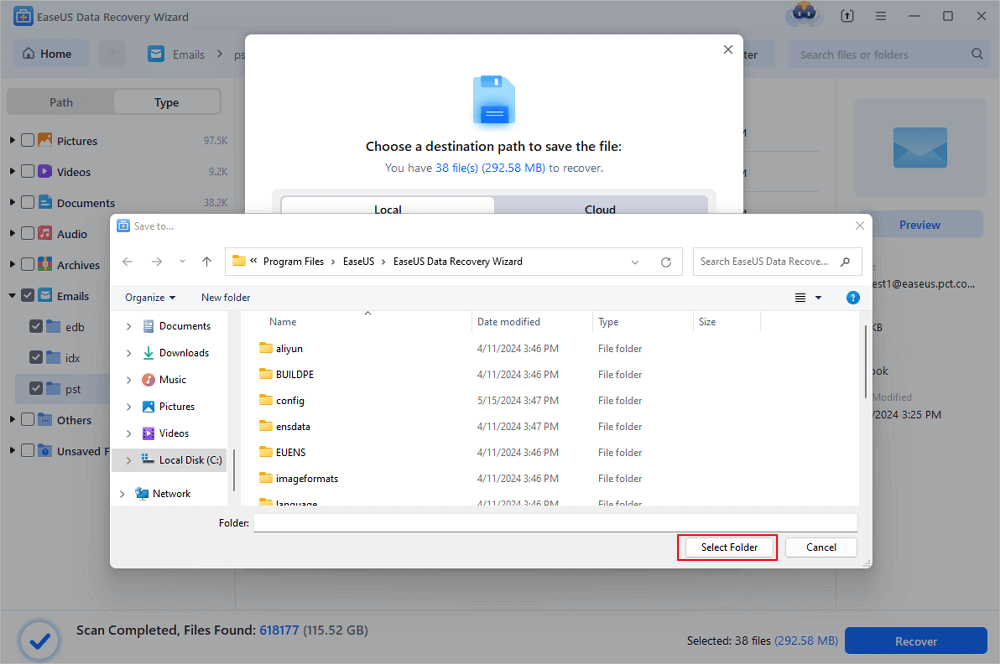
Step 1. Choose the drive or partition where you lost email files, and click "Search for Lost Data".
Step 2. The software will initiate a scanning process immediately. Wait patiently until the scanning process completes. To quickly locate the email files, click "Emails" in the left panel. Then, look for PST files or Outlook files in the file type list.
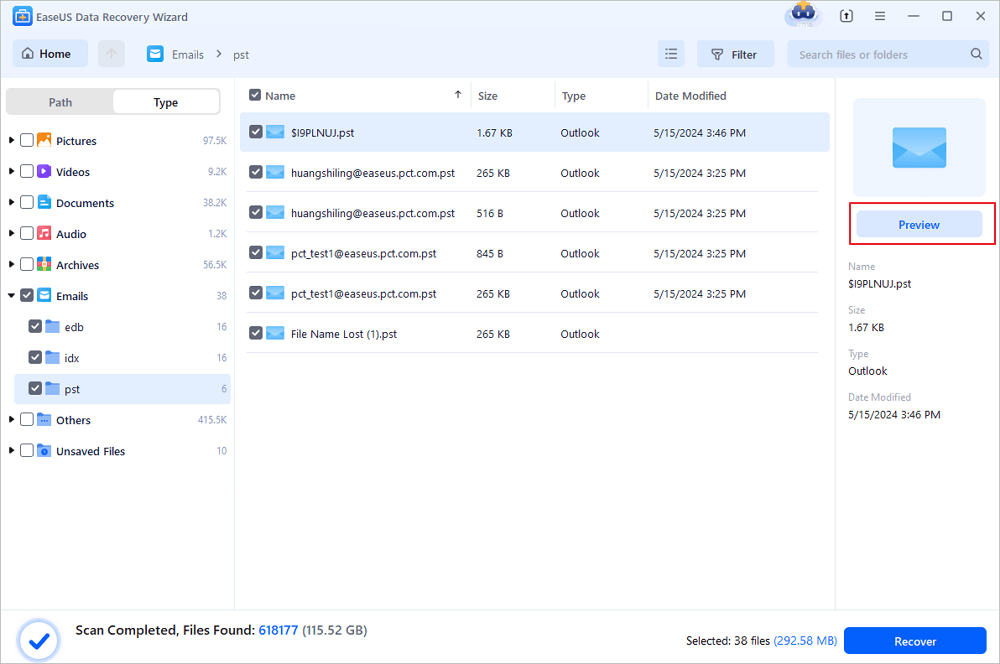
Step 3. Then, choose the desired email files and click "Recover". Save the files to another location instead of the original one. It is also advised to save your files to cloud storage to better avoid data loss.
Import PST/OST files into Outlook
To retrieve your email to Outlook, do as the following steps.
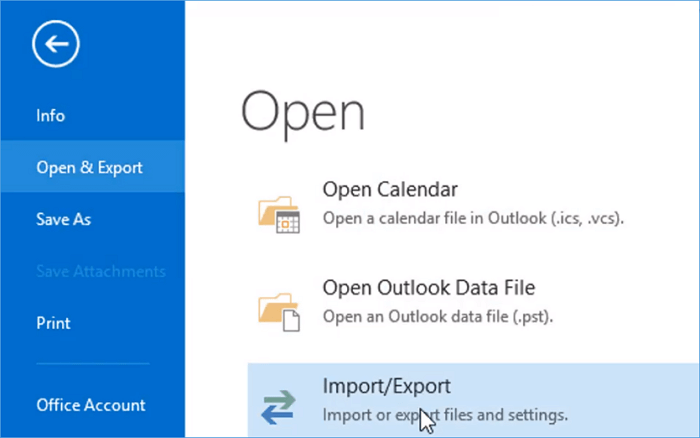
1. Start Outlook. Go to "File" > "Open & Export" > "Import/Export" > "Import from another program or file" > "Open Outlook Data File".
2. In the navigation pane, drag and drop the emails, contacts, other folders from .pst file to your existing Outlook folders.
Was this page helpful?
-
Dany is an editor of EaseUS who lives and works in Chengdu, China. She focuses on writing articles about data recovery on Mac devices and PCs. She is devoted to improving her writing skills and enriching her professional knowledge. Dany also enjoys reading detective novels in her spare time. …



 Why Trust EaseUS
 Editor Reviews

20+
Years of experience

160+
Countries and regions

72 Million+
Downloads

4.9 +
Trustpilot Score





