





-
![]() How to Recover Deleted PST File in Outlook 2019/2016/2013/2010
How to Recover Deleted PST File in Outlook 2019/2016/2013/2010 October 19,2026
 6 min read
 -
![]() How to Recover Permanently Deleted Files in Windows 10 Without SoftwareOctober 19,20266 min read
How to Recover Permanently Deleted Files in Windows 10 Without SoftwareOctober 19,20266 min read -
![]()
-
![]()
-
![]() How to Recover Permanently Deleted AOL Emails Older Than 7 DaysOctober 19,20266 min read
How to Recover Permanently Deleted AOL Emails Older Than 7 DaysOctober 19,20266 min read -
![]()
-
![]() Dropbox Deleted Files by Itself, How to Recover Missing Files in Dropbox in 4 WaysOctober 19,20266 min read
Dropbox Deleted Files by Itself, How to Recover Missing Files in Dropbox in 4 WaysOctober 19,20266 min read -
![]()
-
![]()
-
![]() My Excel File Disappeared! Recover Lost Excel File 2016/2013/2010/2007October 19,20266 min read
My Excel File Disappeared! Recover Lost Excel File 2016/2013/2010/2007October 19,20266 min read
Page Table of Contents
PAGE CONTENT:
You have the deadline for an important assignment the following day; you are having a last look at it, and accidentally, you delete the file! Psst! It's a situation that most of you can relate to and don't wish to go through.
I accidentally deleted a Word document in Office 365 home before saving it. How can I get it back? https://answers.microsoft.com/
Word deletion is sometimes unavoidable due to operational errors or computer problems. Out of haste and negligence, you often end up in this situation. You can find the answer here if you are wondering how to recover deleted Word documents.
How to Recover Permanently Deleted Word Documents with File Recovery Software (Top Method🏆)
Word documents are permanently deleted; that is, they can not be found in the Recycle Bin or on the computer, is the real need for people to recover Word documents. To recover permanently deleted Word documents without backups, you can use EaseUS Data Recovery Wizard.
EaseUS data recovery software is good at restoring lost files from different devices, including HDDs, SSDs, SD cards, USBs, etc. It can recover deleted Word documents and hundreds of other file types in various situations. After file recovery, if your Word document is still corrupted, you can also use this software to repair the corrupted file.
Now, download this well-known file recovery tool and take the following steps to retrieve your deleted Word documents.
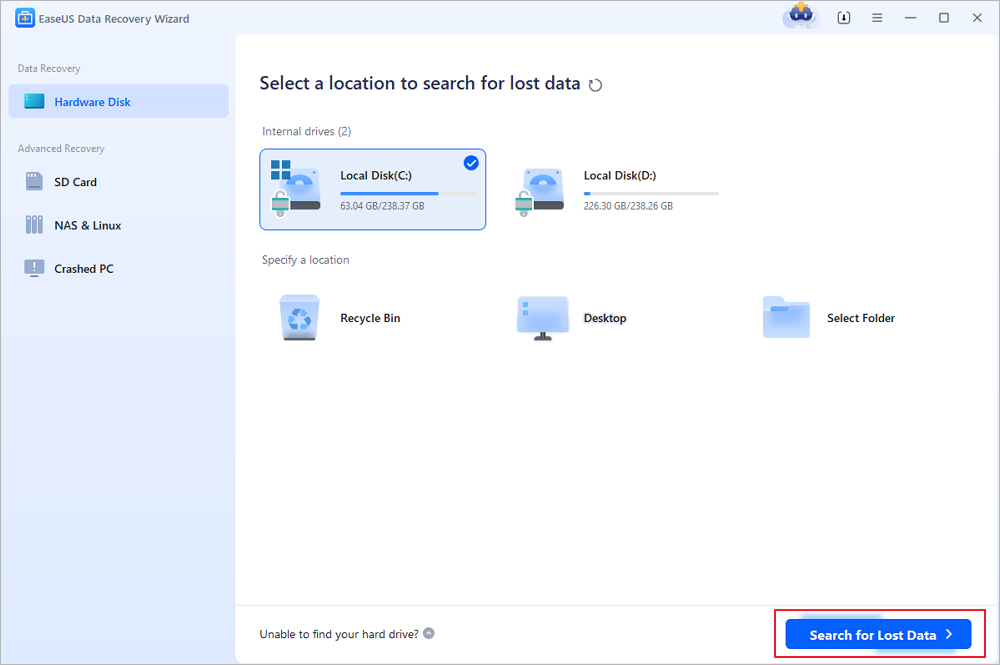
Step 1. Select a location and start scanning
Launch EaseUS Data Recovery Wizard and hover over the partition or drive where the deleted files were originally stored. Click "Search for Lost Data" to scan for deleted files.
Step 2. Find and select the deleted files
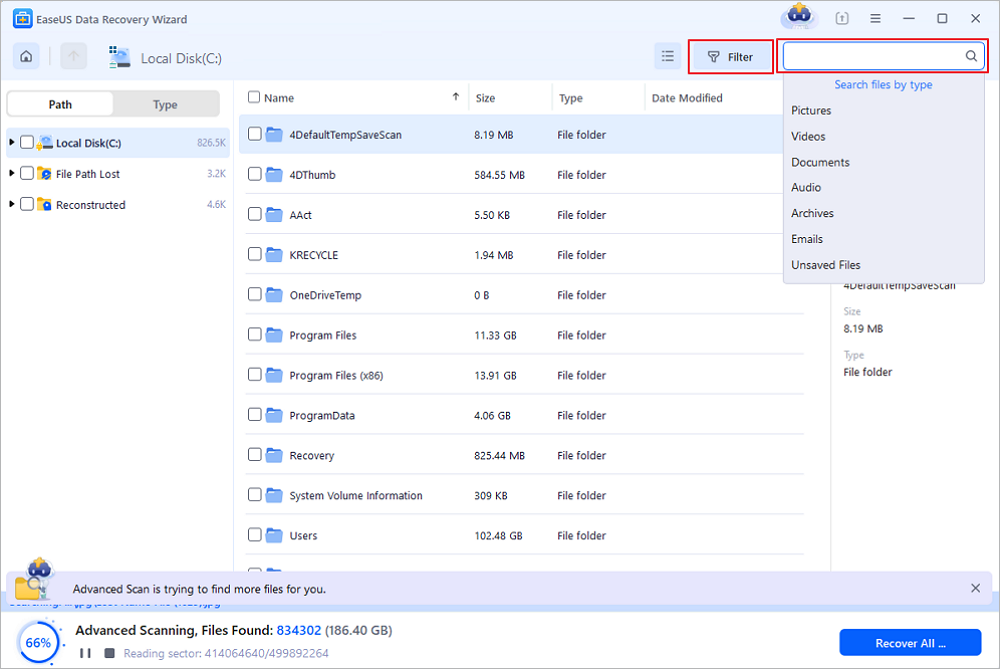
When the scan is complete, browse the results and select the deleted files (DOC, XLSX, PDF, JPG, PNG, MP4, etc.) you want to recover. You can filter files by type or enter the file name in the search box to quickly locate the files you need.
Step 3. Preview and recover deleted files
Preview the recoverable files to check their contents. Select the files you want to restore and click "Recover". Save them to a different location, such as another drive or cloud storage service like OneDrive or Google Drive, then click "Save".
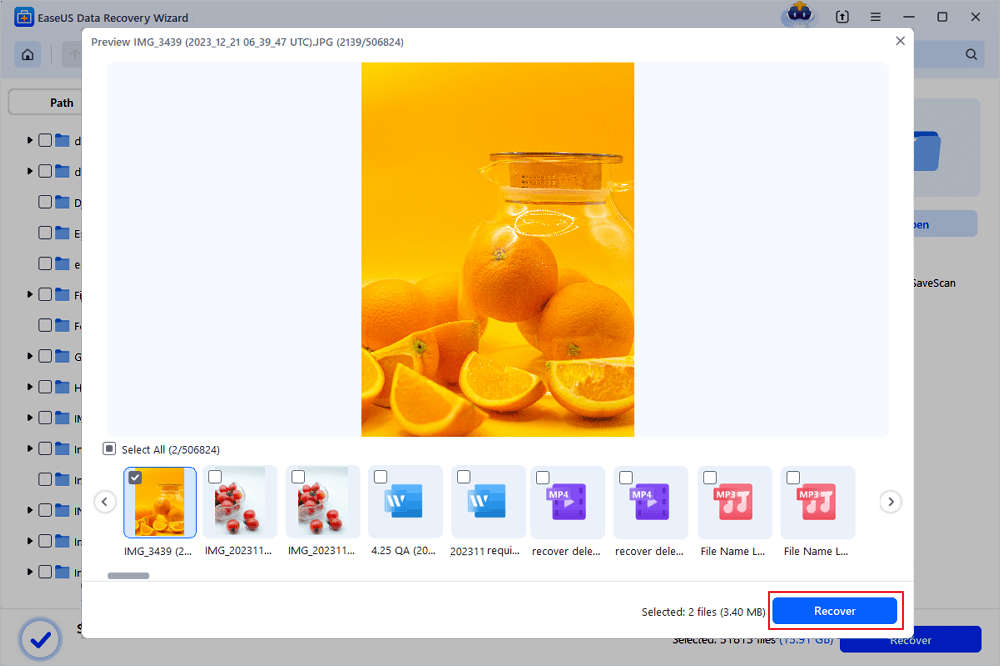
(Note: The free version includes a 2GB data recovery allowance. If you only need to recover everyday documents, photos, or other files, you may not need to purchase anything. Simply select a destination to export your recovered files.)
Want to share this data recovery software with others? Click the Share button below to complete the operation.
How to Restore a Deleted Word Document from the Recycle Bin
Recycle Bin is always an option to recover files and important documents when you have not deleted your file permanently. If you have not configured your PC's settings to delete files permanently, or you have not used the Shift+Del keys simultaneously, there's a rescue.
Follow the steps given below to recover a deleted Word document from Recycle Bin:
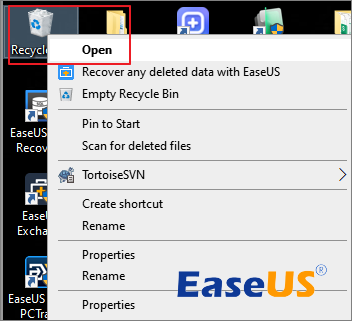
Step 1. Go to your desktop. Find Recycle Bin, right-click it, and select "Open".
Step 2. Find the deleted Word document you want to recover. Right-click it. A drop-down menu will appear; select the "Restore" option.
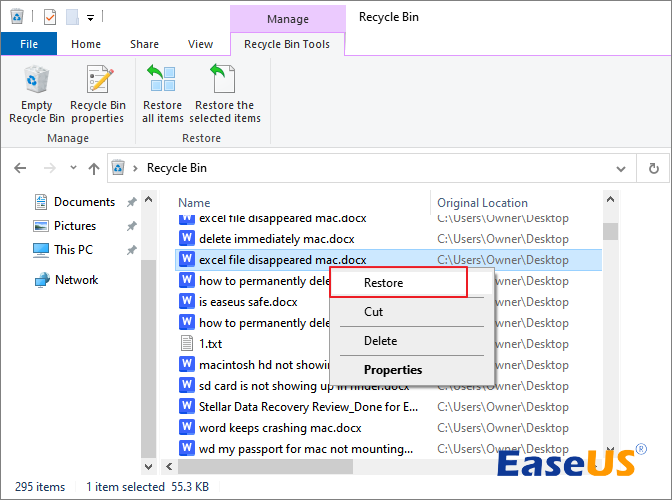
After doing so, head to Microsoft Word and find the Word document you had initially deleted. Further, if you face any issues finding your document in the Recycle Bin, search by your file's name in the Bin. Alternatively, you can look for files ending with the doc or docx extension, sort them as per date, and set them to Newest first.
You may not find your Word document when restoring from the Recycle bin. Read the following article for more information on Recycle Bin recovery.
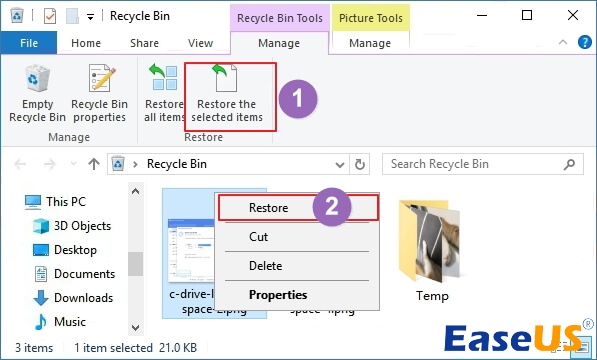
Recover Files Deleted from Recycle Bin in 4 Ways
This article provides four proven solutions to restoring deleted files from Recycle Bin on Windows 10 or Windows 11. Read more >>
How to Recover Deleted Word Documents from Previous Versions
You can even retrieve your lost document using the Previous Versions feature. Doing so restores your file to its initial version, and thus, you can get back your file. It is the easiest method that you can quickly use.
Follow the steps given below to recover deleted Word Documents from Previous Versions:
Step 1. Navigate to the folder or file where your document was saved.
Step 2. Right-click on the file and select Restore Previous Versions.
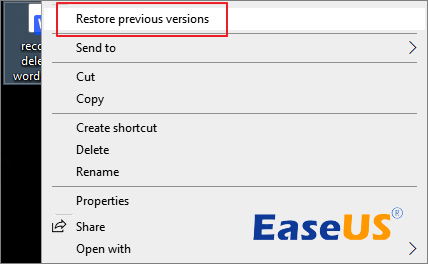
Step 3. A list of previous document versions will be displayed. Click the version that you want to restore.
How to Recover Deleted Word Documents from Cloud Drive
The satisfaction is real when you know you can keep multiple files safe, yet it does not use your device storage. Cloud Computing has brought a drastic transformation and innovation that relieves many users. Microsoft OneDrive is one such powerful Cloud Drive. You save all types of files, including documents, images, videos, PPTs, PDFs, spreadsheets, and lots more.
So, if you have uploaded your files on Microsoft OneDrive, you can easily recover them. It doesn't matter if you would have used the Shift+Delete keys for deletion; you can retrieve it.
Follow the steps given below to recover deleted Word Documents from OneDrive:
Step 1. Open your browser, go to https://onedrive.live.com, and press the Enter key.
Step 2. Sign to OneDrive using your credentials. Once you get the access, navigate to Recycle Bin on the left side of the screen.
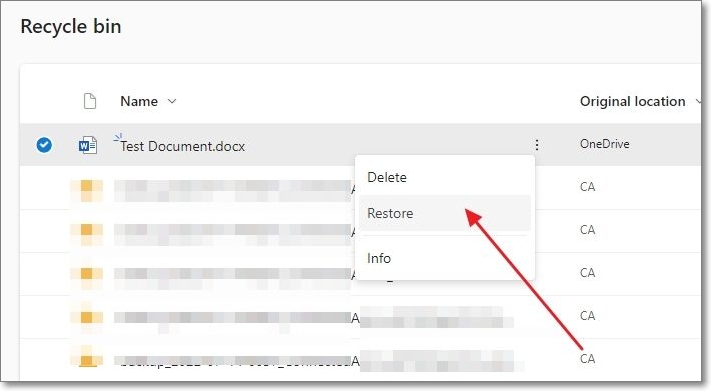
Step 3. Right-click on the deleted file. A drop-down menu appears. Select the "Restore" option.
After doing so, your file will be retrieved where you would have initially saved it.
Further, if you had saved your file in the Personal Vault, you would not be able to find it normally. Instead, you would have to click on the Show Personal Vault Items from the Recycle Bin, and the Word document will be listed there.
If you want to recover a Word document deleted some days ago, you will not find the file after 30 days. The OneDrive retains the deleted files for 30 days only. Further, if you have a Microsoft 365 Subscription, the document will be retained for 93 days.
Recover a Previous Version of a Word Document Stored in OneDrive
We have you covered if you want to retrieve a Word Document's previous version stored in OneDrive. You do not have to locate it on your device and follow the long-form procedure; you can easily do so.
Follow the below-mentioned steps to do so:
Step 1. Go to OneDrive and sign in with your credentials. Navigate to the document whose previous version you want to retrieve.
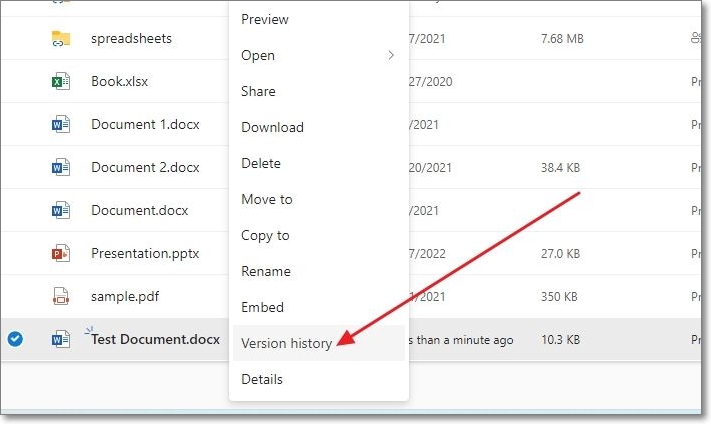
Step 2. Right-click on it, and a drop-down menu will appear; click on Version History. Now, select "Restore" to retrieve your document.
The previous version of your document will now be restored.
Share this article on your social media and help others who need this information.
The Conclusion
After reading this tutorial, you have learned four useful ways to recover deleted Word documents. You can check out the Recycle bin of your PC, restore from a document's previous versions, or use Cloud Drive. EaseUS Data Recovery Wizard offers the most efficient ways to restore permanently deleted Word documents in severe data loss situations. Try it now!
Was this page helpful?
-
Dany is an editor of EaseUS who lives and works in Chengdu, China. She focuses on writing articles about data recovery on Mac devices and PCs. She is devoted to improving her writing skills and enriching her professional knowledge. Dany also enjoys reading detective novels in her spare time. …
-
Cedric Grantham is a senior editor and data recovery specialist of EaseUS. He mainly writes articles and how-to tips about data recovery on PC and Mac. He has handled 10,000+ data recovery cases and is good at data recovery of NTFS, FAT (FAT32 and ExFAT) file systems, and RAID structure reorganization. …

 Why Trust EaseUS
 Editor Reviews

20+
Years of experience

160+
Countries and regions

72 Million+
Downloads

4.9 +
Trustpilot Score





