





On March 26 2026, Microsoft rolled out the KB5079391 update for Windows 11 (versions 24H2 and 25H2). This update adds support for 1000 Hz+ monitors and changes how Smart App Control works. It also improves File Explorer, the taskbar, and system stability. This non‑security update is an excellent opportunity to review how your PC is set up.
In this article, we'll quickly walk through what's new in KB5079391 and how to download and install it. And you'll know how to prepare your computer for a smoother experience.
📖Windows Latest: Windows 11 KB5079391 is available as an optional update, and there are several notable improvements. One change that stands out is support for 1000 Hz refresh rate monitors; another is the ability to turn Smart App Control (SAC) on or off without reinstalling the OS.
Whats New in KB5079391 for Windows 11
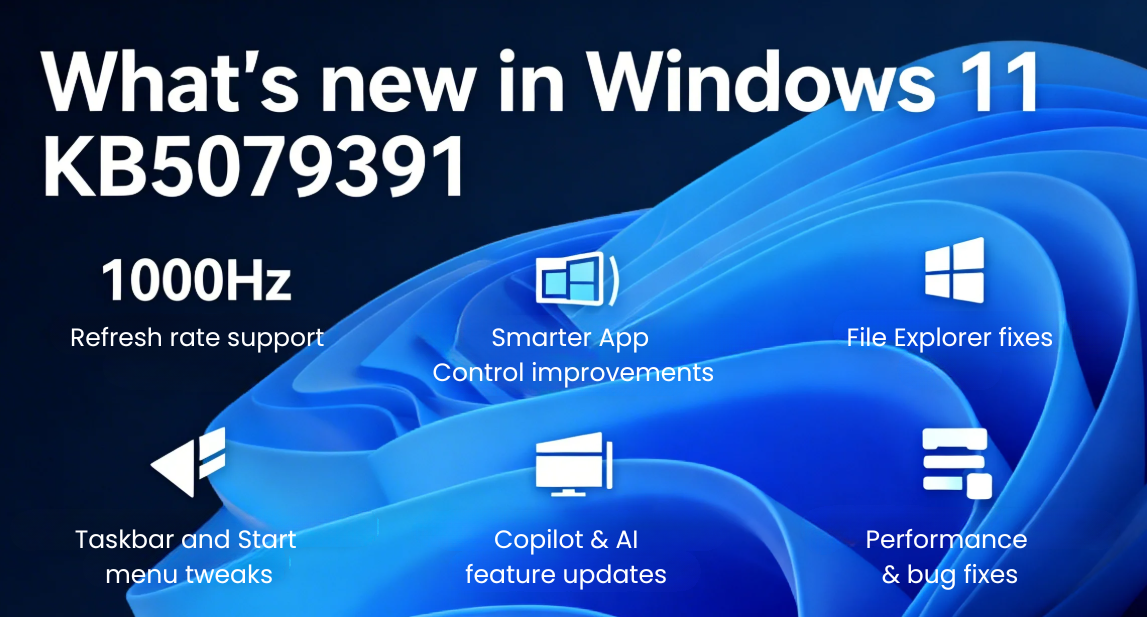
KB5079391 focuses on making Windows 11 more powerful, stable, and user‑friendly rather than rewriting the UI. Key changes include 1000Hz refresh rate support, Smart App Control tweaks, File Explorer fixes, taskbar and Start menu refinements, AI/Copilot improvements, and general performance & bug fixes.
1. 1000Hz refresh rate and HDR support
KB5079391 adds support for refresh rates higher than 1000 Hz on compatible Windows 11 24H2 and 25H2 systems. Monitors can now report these ultra‑high refresh rates through the display stack, letting Windows 11 expose them in settings for users with 1000 Hz+ panels.
- This move signals Microsoft's focus on keeping pace with bleeding‑edge gaming and high‑refresh displays.
- The update also improves HDR behavior, auto‑rotation reliability, and USB4‑connected display power management, making high‑refresh setups feel smoother and more stable in daily use.
2. Smart App Control
One of the most important changes in KB5079391 is how Smart App Control (SAC) behaves. Previously, turning SAC on or off often required a clean install or reset, which made it difficult to test or roll back. How to use it:
- Toggle Smart App Control directly from Settings > Windows Security > App & Browser Control > Smart App Control settings without reinstalling Windows.
This shift makes SAC far more practical for both consumers and IT admins, letting users experiment with stronger security while still being able to disable it if it blocks legitimate apps, reducing friction around one of Windows 11's more opinionated security features.
3. File Explorer and system fixes
KB5079391 brings several small but meaningful improvements to File Explorer. The update makes it more reliable to unlock and preview files downloaded from the internet. It's fixing a regression introduced by earlier security‑focused changes that blocked those previews to reduce NTLM‑based risks.
4. Taskbar and Start menu tweaks
KB5079391 includes subtle refinements to the taskbar and Start menu that improve reliability and usability rather than changing the look. The taskbar in Safe mode now loads more consistently, reducing the instability some users previously saw.
5. Copilot & AI feature updates
KB5079391 pushes forward Windows 11's AI‑driven experiences, especially around accessibility and in‑app help. For example, Narrator now integrates more closely with Copilot, so you can use keyboard shortcuts to describe images or the full screen.
6. General performance & bug fixes
Beyond the headline features, KB5079391 includes a broad set of performance and bug‑fix changes. The update improves the reliability of "sfc /scannow", so it no longer shows misleading extra errors when the system is actually healthy. Windows Hello Fingerprint works more consistently on some devices. These fixes make Windows 11 feel less fragile and more reliable across a wide range of hardware and usage scenarios.
If you find this post helpful, share it to help more users know the Windows 11 KB5079391 update:

Get Ready for Windows 11 KB5079391: Direct Download Links
There are two ways to download Windows 11 KB5079391.
Way 1. Windows Update
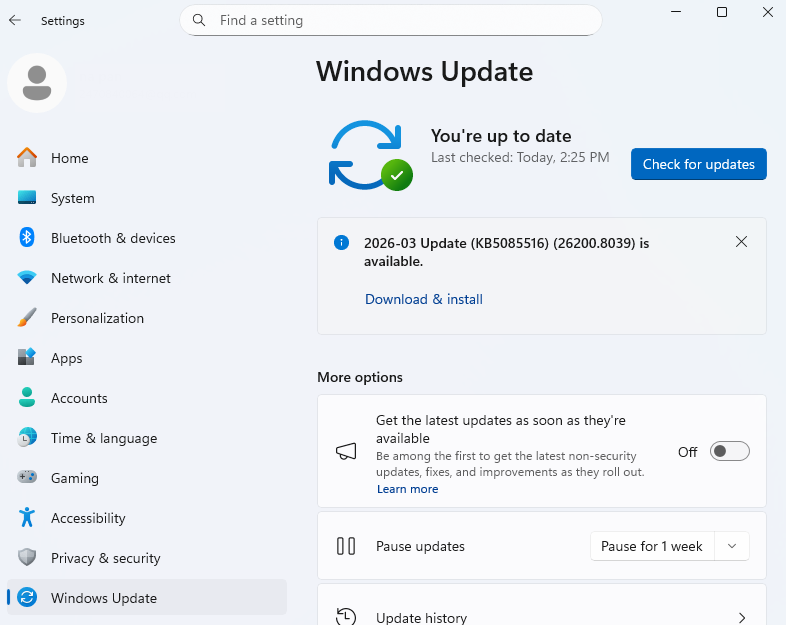
Microsoft delivers this update through normal Windows Update channels. Here are the steps to download Windows 11 KB5079391:
Step 1. Click the Start menu on your computer.
Step 2. Choose Settings > Windows Update.
Step 3. In the Optional updates area, you will find the link to download and install Windows 11 KB507939 updates.
Further reading: Install Windows 11 KB5079391 - from Microsoft.
Way 2. Microsoft Update Catalog
Microsoft also provides direct download links for IT professionals, testers, and advanced users who want to apply the patch manually or test it on specific machines.
Windows 11 KB5079391 Download Links: https://catalog.update.microsoft.com/Search.aspx?q=KB5079391
Install Windows 11 KB5077181 Troubleshooting (and Prepare Your Disk)
You can use Windows Update to install Windows 11 KB5077181. However, some systems may run into update errors due to insufficient disk space, interrupted downloads, or configuration conflicts. If the update repeatedly fails, you can use another powerful tool - EaseUS Partition Master.
With this tool, you can install Windows 11 KB5077181 from a bootable USB. This is where EaseUS Partition Master's built‑in ISO‑burning features become very useful. EaseUS Partition Master also helps resize or extend partitions safely before installing major updates. By extending your C: drive and organizing your partitions, you give Windows 11 more breathing room for updates. This reduces the chance of update failures, improves performance, and makes your system more stable.
What EaseUS Partition Master can help with when you install Windows 11 KB5077181:
- Install Windows 11 KB5077181 when you encounter update errors.
- Optimize your disk before attempting the update.
- Fix low disk space and extend the C drive.
- Clone or back up your OS disk to avoid data loss during preview builds.
- Check and repair partitions after system changes.
Here is how to install Windows 11 KB5077181 with EaseUS Partition Master:
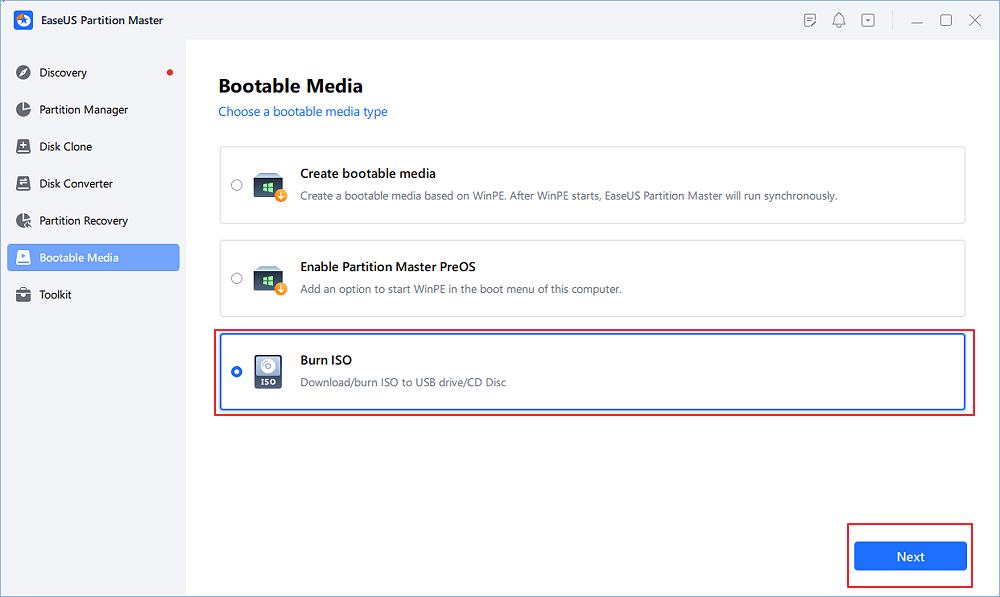
Step 1. Launch EaseUS Partition Master and go to the Bootable Media section. Click "Burn ISO" and click "Next".
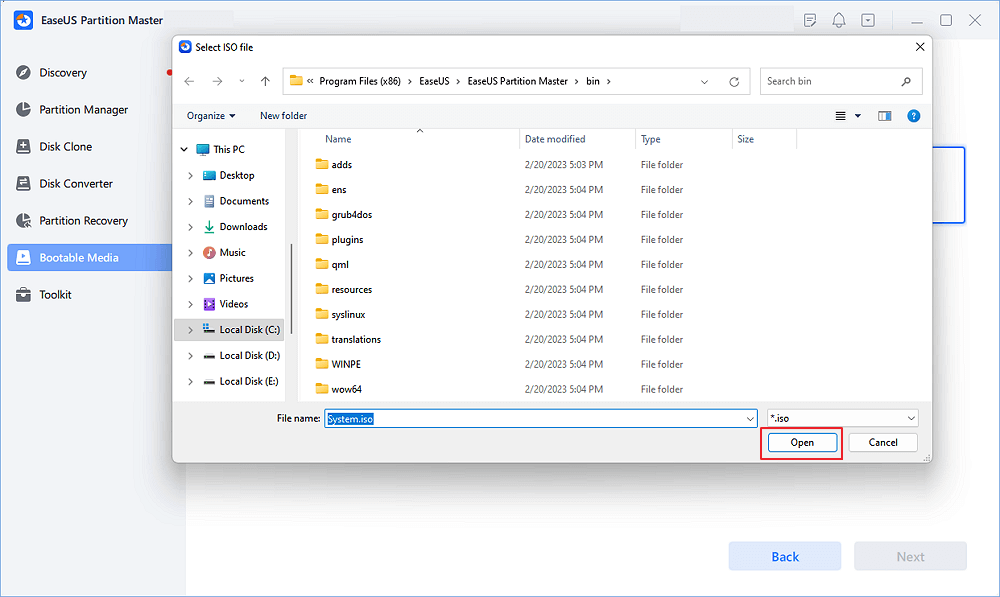
Step 2. Select the ISO image that you have downloaded on your PC, and click "Open".
Step 3. Click "Next" and select the target USB as destination and click "Burn" to execute the operation.
Conclusion
The KB5079391 update for Windows 11 is a solid step forward, especially for gamers and users with high‑refresh‑rate monitors. It supports for up to 1000Hz displays, better HDR reliability, and a more flexible Smart App Control experience. File Explorer and system‑level fixes make everyday tasks feel smoother.
If your C: drive is too small, your disk layout is messy, you may risk update failures and performance issues during a reinstall. EaseUS Partition Master can help you solve these problems by burning your Windows 11 ISO to a bootable USB drive and by adjusting your partitions. In this way, you can avoid errors and prepare your PC for future patches instead of relying only on automatic updates.
Was This Page Helpful?

Updated by Joey Albert
Joey is an enthusiast of science and technology. With a passion for uncovering the latest tech innovations, she creates clear, engaging how-to guides that make technology accessible and enjoyable for all.
Related Articles
-
Fix WD External Hard Drive Not Showing Up/Recognized Error [2025 Tutorial]
![author icon]() Tracy King/2026-06-30
Tracy King/2026-06-30 -
How to Fix Game Stuttering on Windows 11 [Step-by-Step Guide]
![author icon]() Daisy/2025-07-04
Daisy/2025-07-04 -
Screen Goes Black While Watching YouTube (Solved)
![author icon]() Larissa/2025-07-04
Larissa/2025-07-04 -
Windows Update Something Went Wrong - How to Fix?
![author icon]() Jerry/2026-06-18
Jerry/2026-06-18
 Tracy King/2026-06-30
  Daisy/2025-07-04
  Larissa/2025-07-04
  Jerry/2026-06-18
 EaseUS Data Recovery Services
EaseUS data recovery experts have uneaqualed expertise to repair disks/systems and salvage data from all devices like RAID, HDD, SSD, USB, etc.


