





High-end PCs always provide the most conducive gaming environment. However, it's possible to encounter the "game stuttering on high-end PC" problem. Why does this issue occur? How can you fix it? If you're asking similar questions, you're in the right place. This article will answer them in detail and discuss six fixes for the game stuttering problem.
Preview of Games Stutter
Game stuttering occurs when the system suddenly interrupts or disrupts your gameplay. The game stutter may occur through a decreased frame rate or a brief pause. You may also experience inconsistent performance or micro stuttering where new frames fail to match the refresh rate on your monitor.
A game stutter has a diverse impact on your gaming experience. It causes the game to become slow due to the delayed actions. This affects the rhythm and joy of the game. You'll need to address the issue behind the game stuttering if you wish to enjoy your game once more. The next section will outline the common reasons leading to game stuttering.
Why Your High-End PC Stutters While Gaming
You'll probably expect a joyous gaming experience once you upgrade to a high-end device. There could be an underlying problem if you still encounter game stutters after purchasing a high-end PC. The common issues that could lead to this encounter include the following:
- Interference from resource-intensive apps running in the background.
- Overclocked GPU or CPU.
- Outdated drivers or faulty hardware components.
- Reduced disk storage.
- Incompatibility between your CPU and GPU.
- There is a problem with RAM configuration settings.
- Slow hard drive or power supply issues.
- Outdated operating system.
The next section will address these issues by outlining their possible fixes.
Fixes to Gaming Stuttering on High-End PC
It's sad to see your favorite game interrupted when you almost reach a new milestone. This section will discuss six fixes to the game stuttering problem as follows. Keep reading to learn how you can apply these fixes for game stuttering.
Fix 1. Optimize the Game Settings
Your in-game settings could be the main culprit in the game stuttering problem. You can try adjusting the settings to check if the issue disappears. Launch your game and go to "Settings." Next, click on "Display/Graphics." Adjust the settings by reducing texture quality, filtering, and game resolution.
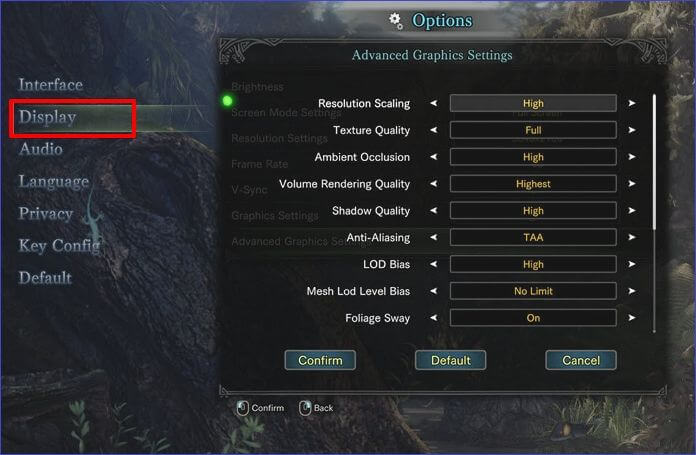
You can also deactivate any unnecessary feature, such as "Anti-aliasing." These changes could boost your device's performance, avoiding stuttering. Although the changes could affect game aspects such as graphics quality, they're worth the trade-off if you want to avoid interruptions in the game.
Fix 2. Update Graphics Driver
An outdated graphic driver may affect how a game runs on your high-end PC. Performing an outdated driver upgrade could easily fix the problem. Follow these steps:
Step 1. Type "device manager" in the search bar. Hit Enter to launch Device Manager.
Step 2. Navigate to "Display adapters" and double-click to expand it.
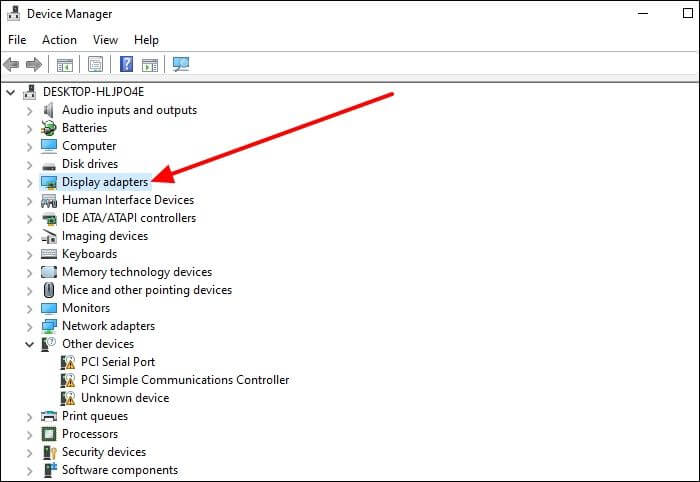
Step 3. Right-click on the graphic driver under this section and select "Update driver."
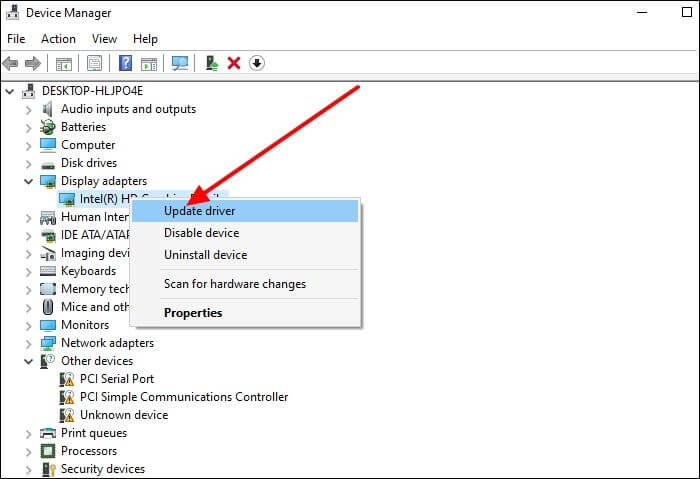
Step 4. Choose "Search automatically for drivers." Wait as the system scans the latest drivers for your PC. Adhere to the onscreen instructions to finish installing and updating drivers on your device.
Fix 3. Close Resource-Consuming Background Programs
Some applications consume a large section of your CPU. This could affect your gaming experience if they are running in the background. The catch is to disable the background processes if you want to avoid the game stuttering issues. Check these steps:
Step 1. Right-click the Start Menu. Choose "Task Manager."
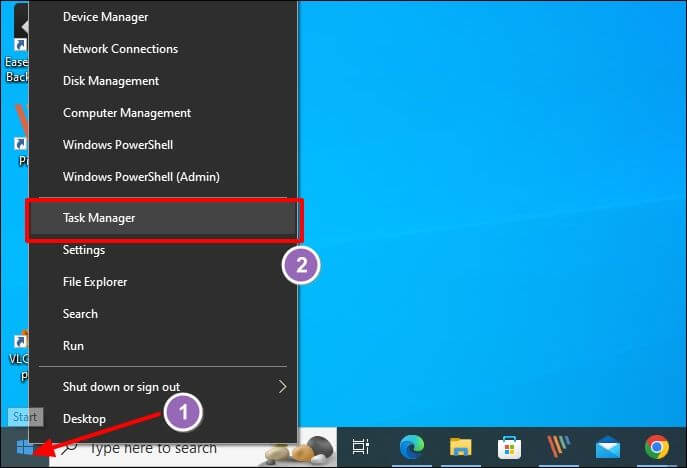
Step 2. Click on the "Processes" tab in the Task Manager window and find the resource-intensive tasks.
Step 3. Right-click on each task and select the "End Task" option. This will stop the task and hence minimize CPU usage.
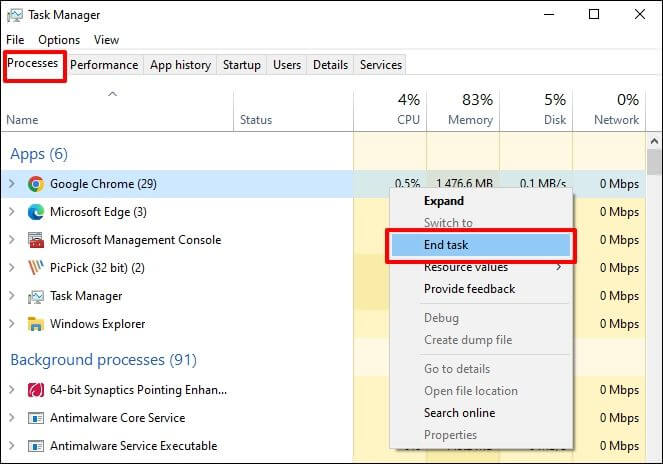
Step 4. Repeat the above steps for all the resource-intensive tasks. You can then resume your game and check whether it has resolved the game stuttering issue.
Share the post on your social platform if you find it helpful.
Fix 4. Upgrade to a Larger SSD
Most high-end PCs run on SSDs. It could be the right time to upgrade to a larger drive if you discover that your games have started stuttering. Most modern games usually consume a significant space. It's important to have a larger storage. Once you've purchased a larger SSD, you can use a clone tool to move your OS and other programs effectively.
This minimizes the time spent on reinstalling your operating system. Which tool is best for cloning a smaller SSD to a larger one? You can use EaseUS Disk Copy. This efficient disk cloner has lightning-fast transfer speeds that effectively cut the time spent moving data between disks. It allows you to upgrade to a larger drive without data loss.
You can also migrate Windows without going through the hassle of reinstalling it. EaseUS Disk Copy lets you easily clone your old SSD to switch to a new computer. It's also useful when retrieving data from a failing hard drive. Ensure you download it now to get started. The steps for using it are very straightforward.
 Free Download
Windows 11/10/8/7
Before cloning:
- If your computer has only one SSD slot, connect the target SSD to your machine via a USB-to-SATA/NVMe adapter.
- If your computer has an extra slot, install the target SSD into the empty slot properly, making sure it is compatible.
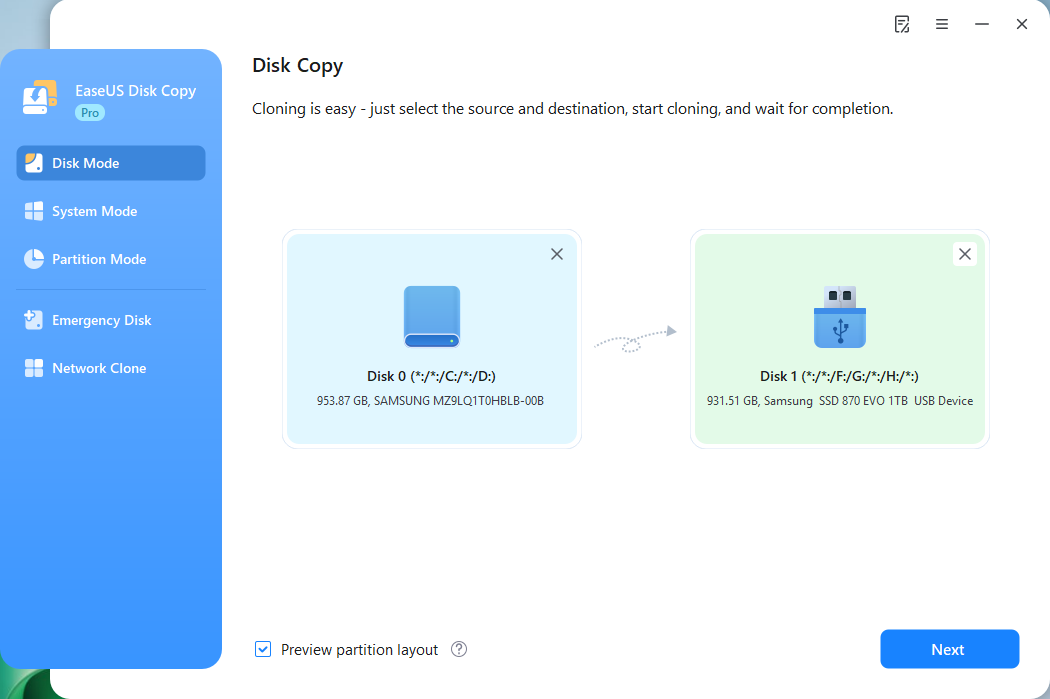
Step 1. Launch EaseUS Disk Copy and choose Disk Mode.
Install EaseUS Disk Copy SSD cloning software on your Windows computer, launch it, and choose Disk Mode.

Step 2. Select the source and target SSDs.
- Source - the old/smaller SSD you want to make a copy.
- Destination - the new/larger SSD that you want to clone data to.
*Note that the used space of the source disk should be less than the target disk capacity.
Step 3. Adjust target SSD layout.
Specify the SSD layout as your preference. You can choose among:
- Autofit the disk: makes some changes by default on the destination disk layout so that it can work at its best.
- Copy as the source: create a 1-to-1 copy of your source disk, the layout is the same as the source disk.
- Edit disk layout: allows you to manually resize/move the partition layout on this destination disk.

*The option "Auto-alignment to 4K" will be checked automatically to optimize the performance of your SSD.
Step 4. Start cloning.
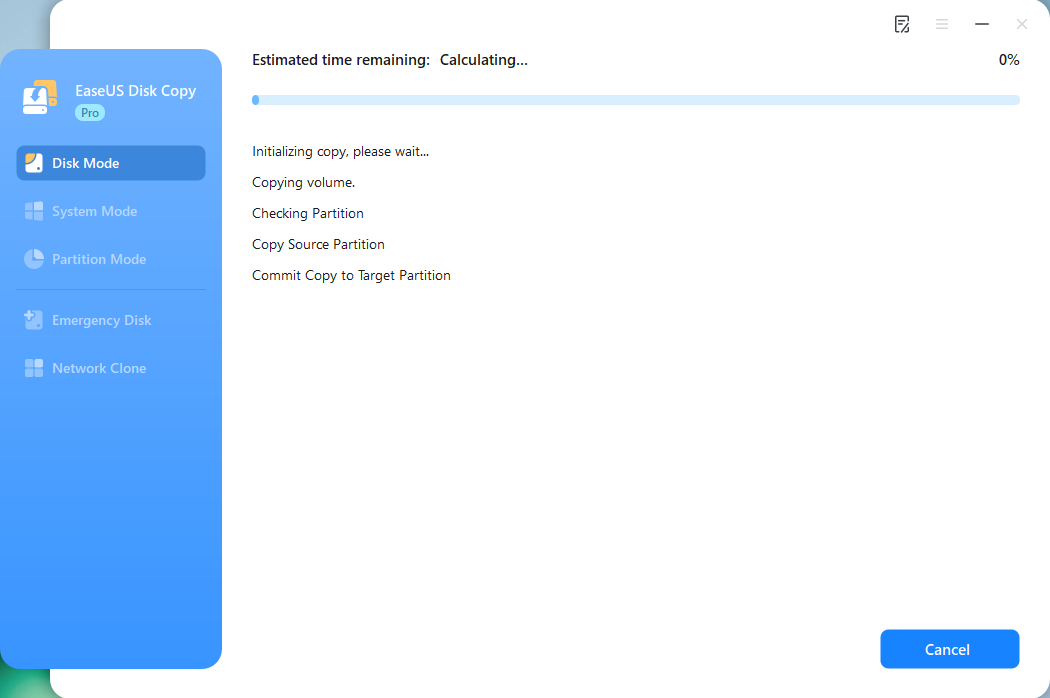
Click Proceed, and a message will appear, warning you that data will be lost. Confirm the message by clicking Continue. Now, it will start executing the SSD cloning task.

Now, it will start executing the SSD cloning task.
Fix 5. Update Audio Drivers
You may also experience interruptions with your game if there's a problem with your audio drivers. You can try updating the drivers as follows:
Step 1. Right-click on the Start Menu and select "Device Manager."
Step 2. Once you launch Device Manager, navigate to the "Sound, video, and game controllers" option and double-click to expand it.
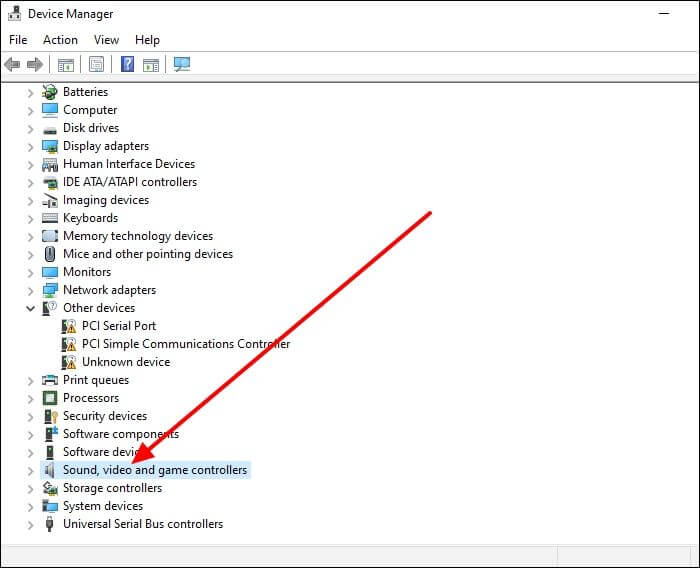
Step 3. Right-click on the audio driver under this section and select "Update driver."
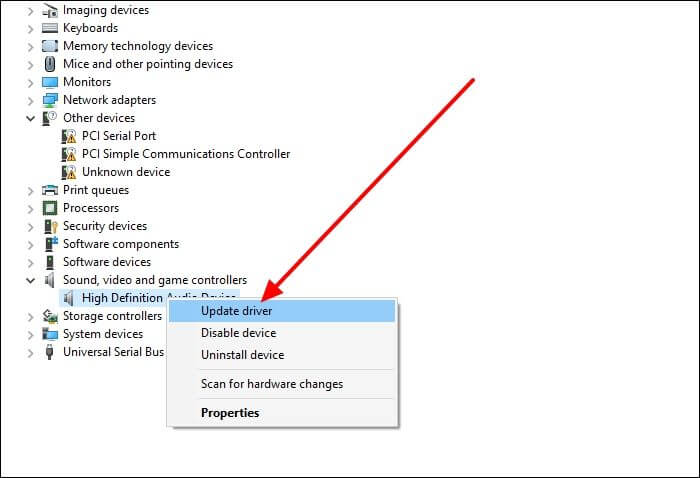
Step 4. Choose "Search automatically for drivers." Wait as the system scans the latest drivers for your PC. Adhere to the onscreen instructions to finish installing the driver updates on your device.
Fix 6. Mark the Game as a High Priority
Another way to fix the game stuttering problem is labeling it as "high priority" under the Graphics Settings. This allows your game to run on high performance without limiting power consumption. The game is also given the highest priority for resource allocation. Below are the steps you can follow:
Step 1. Open your Windows PC Settings. Click on "System" and select "Display."
Step 2. Scroll down and click on "Graphics settings."
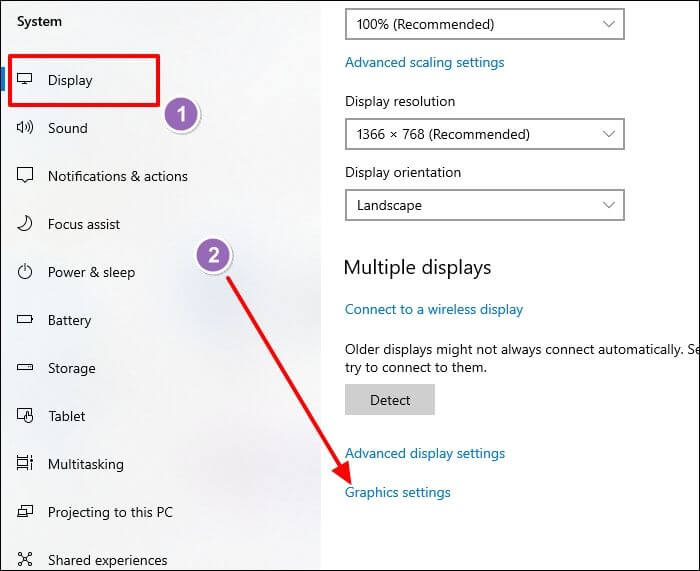
Step 3. The system will then open the "Graphics performance preference" window. Select the game for which you wish to change its performance preference.
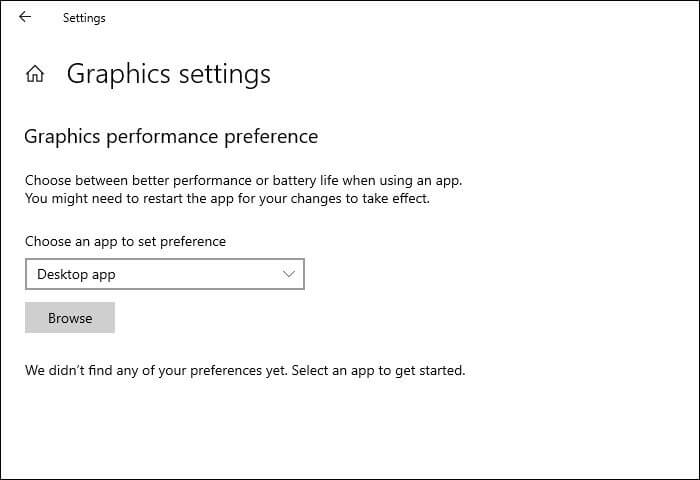
Step 4. Once the game is selected, click "Options" and choose "High Performance." Save your changes and exit. You can resume your game and check whether the stuttering error has disappeared.
Share the post on your social platform if you find it helpful.
Practical Tips to Avoid Game Stutter While Gaming
📚The fixes discussed above can help you solve the game stuttering issue. Do you want to know more practical ways to avoid the issue in the future? You can try out the following tips:
- Boost your internet connection stability using an ethernet cable instead of a wireless connection.
- Use an operating system compatible with your game.
- Check the system requirements for the game and ensure your device meets them.
- Update your OS to avoid any compatibility issues.
- Use gaming optimization software to boost your overall experience.
- Embrace cloud gaming where possible to minimize the pressure on your graphics card.
Try these practical tips to witness optimal performance when gaming on your PC.
Final Words
The game stuttering on high-end PC problem mostly occurs due to overclocked CPU/GPU or interference from background apps. An outdated driver or depleted disk storage may also cause the problem. Common fixes to the problem include optimizing game settings or upgrading to a larger SSD.
When upgrading your storage, you should consider using an efficient clone tool like EaseUS Disk Copy. This application allows you to efficiently upgrade your SSD to a larger one and play games without interruptions. The tool offers fast cloning speeds. Download it today and check how it works.
Free Download
Windows 11/10/8/7
FAQs on Games Stuttering on High-End PC
1. Can Weak PSU Cause Stuttering?
YES. This is mostly true if you've added extra cooling fans or RGB components. Although 550W is mostly enough, you should consider upgrading your PSU if you suspect it's behind the stuttering issue.
2. Is Game Stuttering a CPU Issue?
This problem mostly arises due to the competition for resources from other programs running in the background. The main resource being competed for is the CPU. Therefore, the stuttering mostly occurs due to a CPU issue. It may also happen due to a GPU issue.
Was This Page Helpful?

Updated by Larissa
Larissa has rich experience in writing technical articles and is now a professional editor at EaseUS. She is good at writing articles about data recovery, disk cloning, disk partitioning, data backup, and other related knowledge. Her detailed and ultimate guides help users find effective solutions to their problems. She is fond of traveling, reading, and riding in her spare time.
Related Articles
-
[Solved] Windows 7 Fail to Boot with 0x0000007B BSOD Error
![author icon]() Tracy King/2026-06-08
Tracy King/2026-06-08 -
How to Fix STATUS_ACCESS_VIOLATION | Chrome/Edge
![author icon]() Dany/2026-09-20
Dany/2026-09-20 -
5 methods-Windows Did Not Detect a Properly Installed Network Adapter
![author icon]() Daisy/2025-07-04
Daisy/2025-07-04 -
How to Change the Read/Write Permission on a Flash Disk/Memory Card
![author icon]() Jean/2026-02-12
Jean/2026-02-12
 Tracy King/2026-06-08
  Dany/2026-09-20
  Daisy/2025-07-04
  Jean/2026-02-12
 EaseUS Data Recovery Services
EaseUS data recovery experts have uneaqualed expertise to repair disks/systems and salvage data from all devices like RAID, HDD, SSD, USB, etc.


