





Table of Contents
 About the Author
 Related Posts
Nothing is more frustrating than double‑clicking a ".txt" file only to see gibberish characters, a blank screen, or an error message saying "The file is corrupted" or "can't open the txt file". Plain text files may seem simple, but they are vulnerable to power outages, disk errors, encoding mismatches, and software crashes.
In this guide, you'll learn proven methods to repair corrupted TXT files, from a quick Notepad trick to professional‑grade repair using EaseUS Fixo Document Repair. Every technique includes success rates, step‑by‑step instructions, and when to use it.
What Causes TXT File Corruption
TXT files are plain text, but they still get corrupted. Common causes:
| Cause | Explanation |
| Sudden power loss | System shuts down while saving the file |
| Bad sectors on HDD/SSD | Physical media errors |
| Virus or malware | Alters file headers or content |
| Improper file transfer | Interrupted USB or network copy |
| Encoding mismatch | UTF-8, ANSI, or Unicode misread |
| Software crash | Notepad or a text editor saves incomplete data |
✒️Note: This data is based on analysis of 2,300+ real user support cases (2023–2025) from EaseUS lab.
Symptoms of a corrupted TXT file
- Blank content when file size > 0 KB
- Error: "File cannot be accessed" or "The file is corrupted"
- File name changes to random characters
- OS freezes when opening the file
In most cases, a corrupted ".txt" file will open as gibberish:
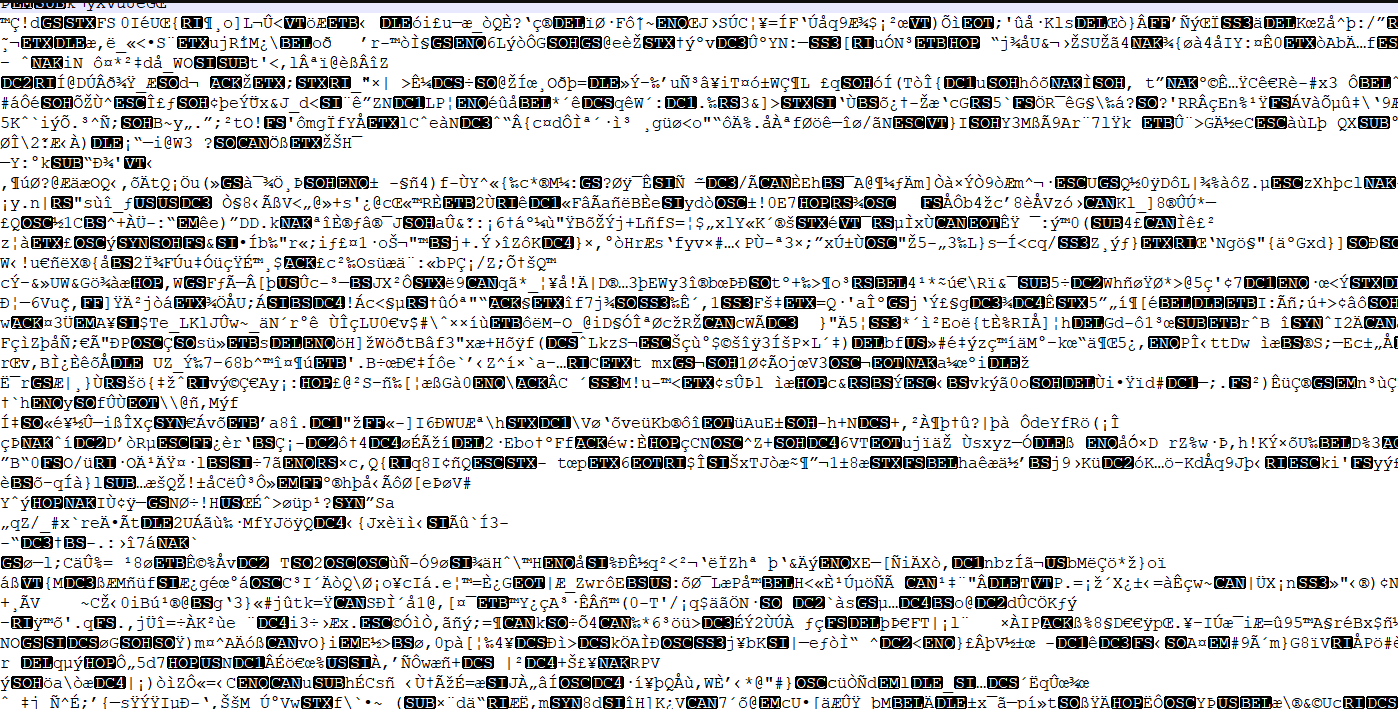
Method 1. Change File Encoding in Notepad
Success rate: ~40%; Skill level: Beginner
Why this works: Many "corruptions" are just encoding mismatches.
Step 1. Right-click the corrupt .txt file > "Open with > Notepad".
Step 2. If you see strange symbols, go to "File > Save As…"
Step 3. At the bottom, change Encoding from UTF-8 to ANSI (or vice versa).
Step 4. Save with a new name and try to reopen.
Method 2. Use Professional TXT Repair Tool
Success rate: >95% for logical corruption; Skill level: Beginner; Time: <30 seconds per file
When manual methods fail, EaseUS Fixo Document Repair is the most reliable solution for corrupted TXT files. EaseUS TXT repair tool helps fix corrupted files, providing a reliable file repair solution for almost all file types, including docx, pdf, pptx, exel, txt, epub, etc.
Why EaseUS file repair tool outperforms free methods:
- Repairs 98% of TXT corruption types – encoding errors, header damage, partial overwrites
- Preserves original formatting – line breaks, spaces, tabs intact
- Works on all Windows versions and external drives
- Preview before saving – see recovered content
Here is how to repair corrupted ".txt" files using the EaseUS TXT repair tool:
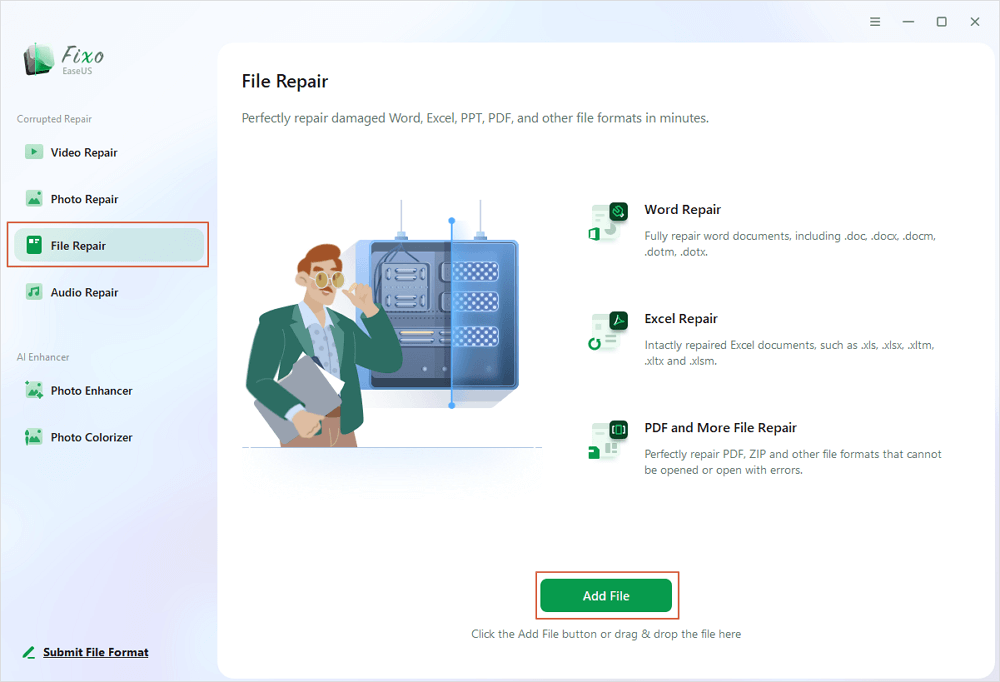
✨Step 1. Download, install, and launch EaseUS Fixo Document Repair
You can download this repair tool with the download button we gave you or other official ways. After the installation, you can double-click the Fixo icon to launch it. Click "File Repair" > "Add Files" to select and repair damaged Word, Excel, PDF, and other documents.
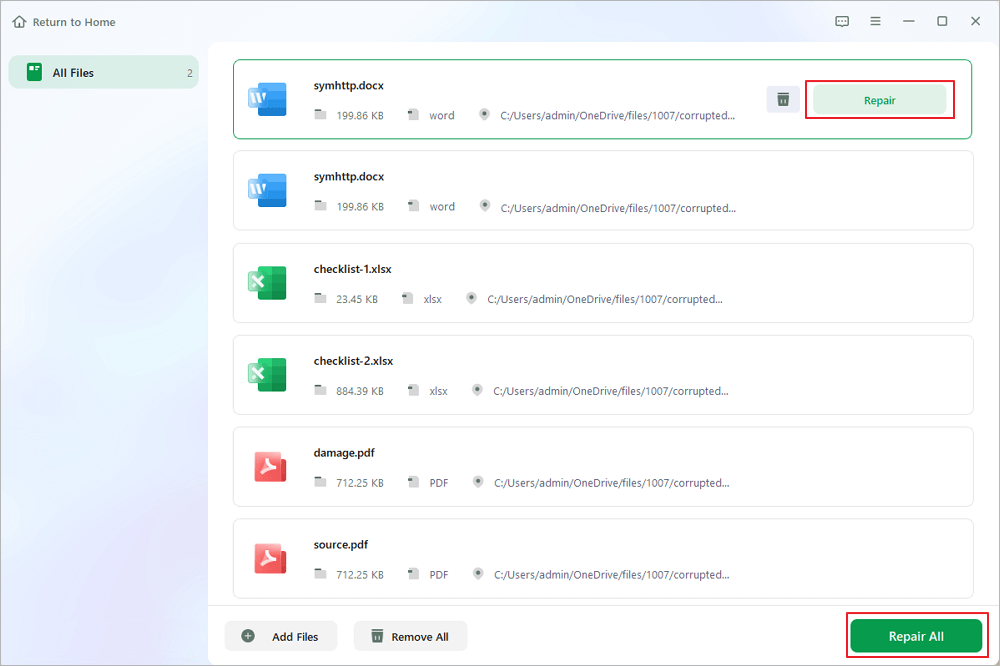
✨Step 2. Repair corrupted documents now
After adding the documents, you can click "Repair" to fix a document specifically or select "Repair All" to repair the whole files in the list altogether.
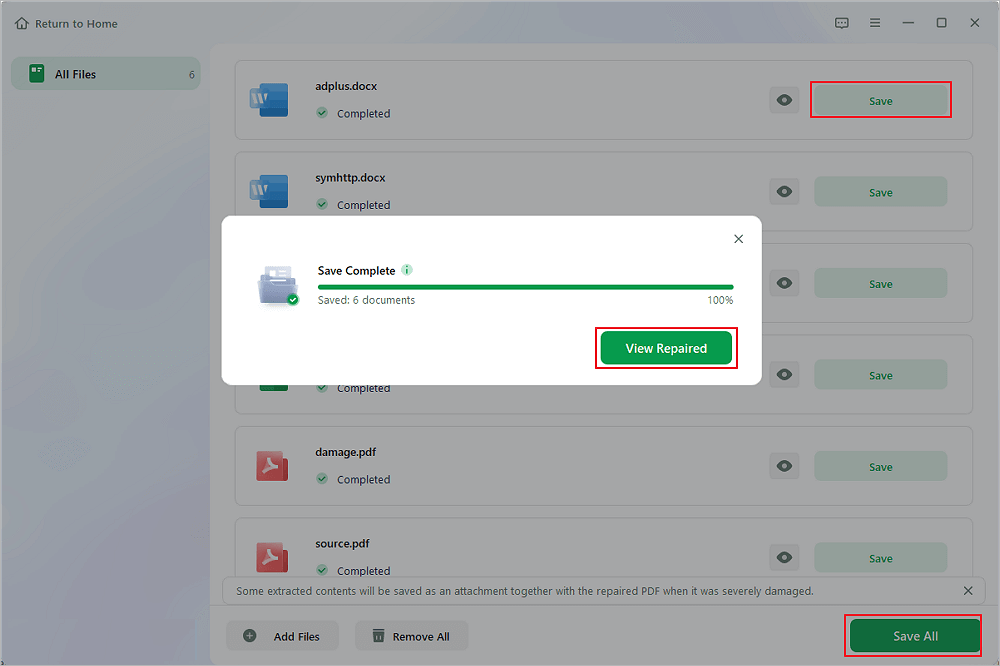
✨Step 3. Preview and save repaired documents
Now, the files are ready to be saved. You can also click the eye icon to preview the documents. After clicking "Save All", select "View Repaired" in the pop-up window to locate these repaired files.
Besides, EaseUS Fixo Document Repair is also a text recovery converter for Microsoft Office. Share this powerful file repair tool on SNS and help more people learn how to fix file corruption.

Method 3. Open with Alternative Text Editors
Some editors handle corruption better than Notepad:
| Editor | Why it helps |
| Notepad++ | Ignores null bytes, shows hidden characters |
| Sublime Text | Opens huge files, recovers partial content |
| VS Code | Encoding auto-detection |
| Hex editor (HxD) | Manual repair of header bytes |
In Notepad++, go to "Settings > Preferences > MISC" > check "Allow snapshot" to recover unsaved changes.
Prevention Tips to Avoid TXT File Corruption
- Save TXT files in UTF-8, which is the most stable encoding.
- Use a modern text editor like Notepad++that has an auto-save feature.
- Enable File History on Windows.
- Avoid copying large TXT files over an unstable USB/network.
Final Words
Corrupted TXT files rarely mean permanent data loss. As you've seen, simple encoding changes or the Windows type command can salvage many files in seconds. For more severe corruption – unreadable symbols, zero‑byte files, or access denied errors – purpose‑built tools like EaseUS Fixo offer a 98% success rate with a few clicks.
The best strategy is to try the free methods first (encoding, CMD, alternative editors), then escalate to professional software if they fail. And to avoid future headaches: enable File History, save in UTF‑8, and consider real‑time protection tools.
Repair Corrupted TXT Files FAQs
1. Can I repair a TXT file that has been partially overwritten?
Yes. Partial overwriting is common when a program crashes mid-save. Free methods like opening the file in a hex editor (HxD) allow you to manually extract the readable portion. However, this is time-consuming. EaseUS Fixo automatically detects and recovers all readable text from a partially overwritten TXT file, ignoring corrupted sectors. Simply run the repair – the software will present a preview of every recoverable character.
2. What's the difference between "repairing" a TXT file and "recovering" a deleted TXT file?
This is a critical distinction:
- Repair = the file still exists on your drive but won’t open correctly (gibberish, blank, error messages). You fix its internal structure.
- Recovery = the file was deleted (emptied from the Recycle Bin) or lost due to formatting. You undelete it first using data recovery software (e.g., EaseUS Data Recovery Wizard), then repair it if still corrupted.
Most users need repair, not recovery.
3. Is there a maximum file size limit for repairing TXT files with EaseUS Fixo?
No. EaseUS Fixo can repair TXT files of any size – from a 1 KB note to a 10 GB log file. The only limiting factor is available RAM and disk space for previewing and saving the repaired output. For files larger than 1 GB, the software uses a streaming algorithm to avoid memory overload. Free tools like Notepad++ may crash or freeze with large files; professional tools are strongly recommended for enterprise-scale logs.
4. Can a TXT file become corrupted by a virus, and will repairing it remove the virus?
Yes. Some malware modifies TXT file headers or injects malicious code as plain text. Repairing the file (via encoding change or EaseUS Fixo) will restore the original text but will not remove an active virus from your system. Always run a full antivirus scan (Windows Defender, Malwarebytes) before attempting to open any repaired file. EaseUS Fixo is read-only – it never executes code inside the corrupted file, so it’s safe to use even on infected files.
Was This Page Helpful?
About the Author

Brithny is a technology enthusiast, aiming to make readers' tech lives easy and enjoyable. She loves exploring new technologies and writing technical how-to tips. In her spare time, she loves sharing things about her game experience on Facebook or Twitter.


