





Table of Contents
 About the Author
 Related Posts
Why Do RAW Files Become Corrupted on Mac
Due to an error with my SD card, I had to restore lost files with a Proram, which worked so far. Almost. Because now I have some broken RAW files (.cr2) and wanted to ask for tips on how I can repair them or whether they are simply gone? - from Reddit
If you've encountered a RAW image that won't open on your Mac, appears black, displays only part of the photo, or generates an error in Preview, Photos, Lightroom, or Photoshop, don't panic. In many cases, the damage is repairable.
Before you try to fix a damaged RAW file, you need to figure out what went wrong in the first place. Different problems mess up different parts of a RAW image file, and knowing what caused the issue helps you avoid the same headache next time.
Here are some of the top reasons RAW files get corrupted on a Mac:
1️⃣Interrupted File Transfer
Moving RAW photos from your SD card to your Mac? That transfer has to finish completely. If you yank out the card reader, pop out the SD card too soon, or your Mac shuts down suddenly, things just break. You end up with corrupted RAW files that are practically useless because important data never made it over.
2️⃣Pulling Out the Memory Card Directly
This one's easy to overlook; photographers often just grab the SD card right after copying photos. But if your Mac is still writing cached data, pulling out the card too soon can corrupt one or more RAW files. Always eject your card properly before unplugging.
3️⃣SD Card File System Problems
SD cards, CFexpress cards, and microSDs can all get logical errors, bad sectors, or directory corruption. If your card's file system is messed up, your RAW images might not open at all. File system issues can crop up because of sudden power loss, improper formatting, counterfeit or junky memory cards, or just old, worn-out flash memory.
4️⃣Failing Storage Devices
External SSDs, USB drives, regular hard drives they don't last forever. If you store RAW files on a device that's starting to fail, the files could be toast before you even get a chance to edit them.
5️⃣Viruses or Malware
You don't hear about it as much on Macs as on Windows, but malware or a nasty file on an external drive can still mess with your images or their structure, leaving the files unreadable.
6️⃣Unsupported RAW Format
Every once in a while, the file isn't actually damaged; it's just not supported by your version of macOS. Apple does roll out updates for camera compatibility now and then, but if your Mac doesn't recognize the latest format, Preview or Photos might wrongly call the file "damaged."
It's possible to fix corrupted files on Mac, keep reading and find a handy RAW file repair tool
How to Repair Corrupted RAW Files on Mac
When opening RAW files on your Mac and they show a black screen, look weirdly colored, or throw error messages at you, stop and take a breath. Don't just keep trying to edit or convert the files, you'll probably make things worse, possibly scrambling the file structure or wiping out handy metadata you could've recovered.
Here's what actually works: go with professional RAW photo repair software. EaseUS Fixo Photo Repair is built for this exact problem. It recovers corrupted image files and does its best to keep as much original detail as possible. It works with almost every major camera RAW format, Canon CR2/CR3, Nikon NEF, Sony ARW, Fujifilm RAF, Panasonic RW2, Olympus ORF, Adobe DNG, and a bunch more.
EaseUS Fixo goes deeper than regular photo viewers. It digs into damaged RAW files, fixes broken headers and metadata, reconstructs image data, and brings back photos that just refuse to open because of corruption.
Check the following guide and recover your corrupted RAW images on Mac:
Step 1. Add the Corrupted Images
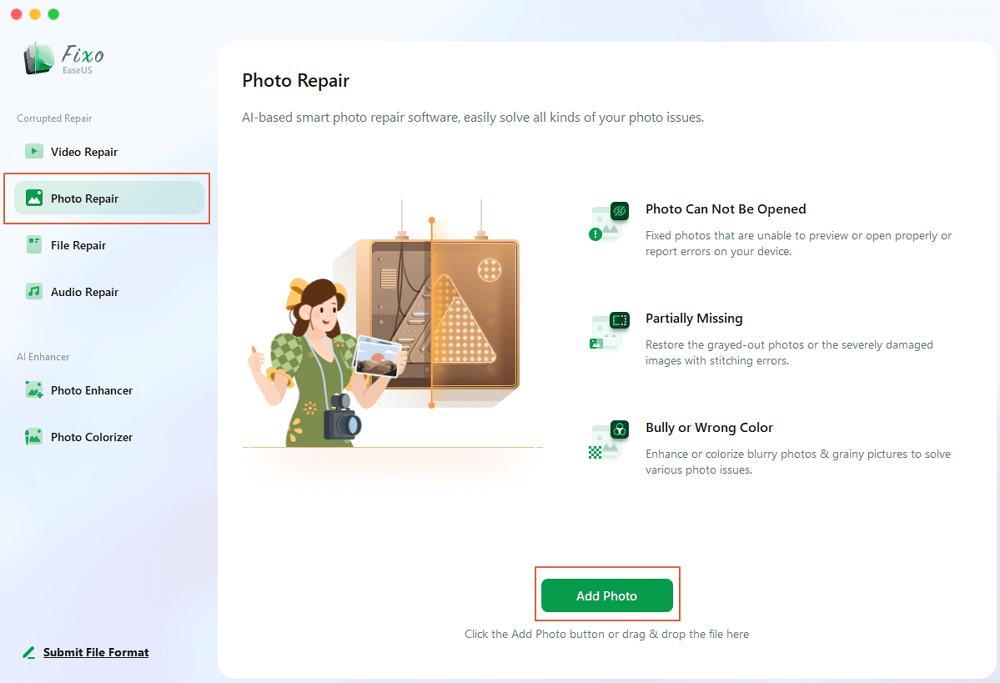
Launch EaseUS Fixo on your Mac, go to the "Photo Repair" tab and click the "Add Photo" button to add the corrupted images, including JPEG, PNG, JPG, CR3, CR2, NEF, NRW, RAF, etc.
Step 2. Repair the Corrupted Images
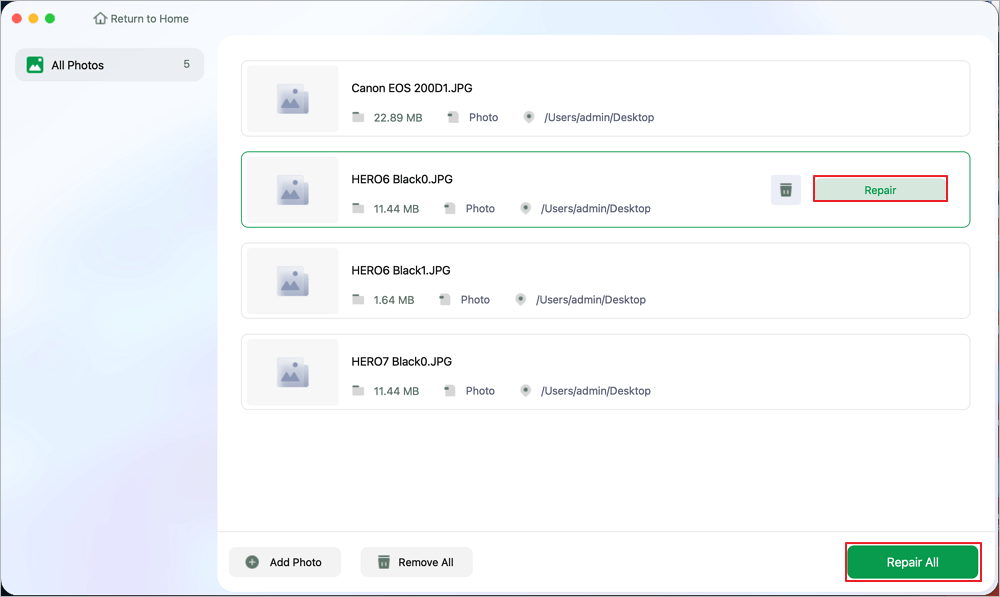
Select an image and click the "Repair" button to start the single image repairing process. If you want to repair all the corrupted images, click "Repair All".
Step 3. Save the Repaired Images on Your Mac
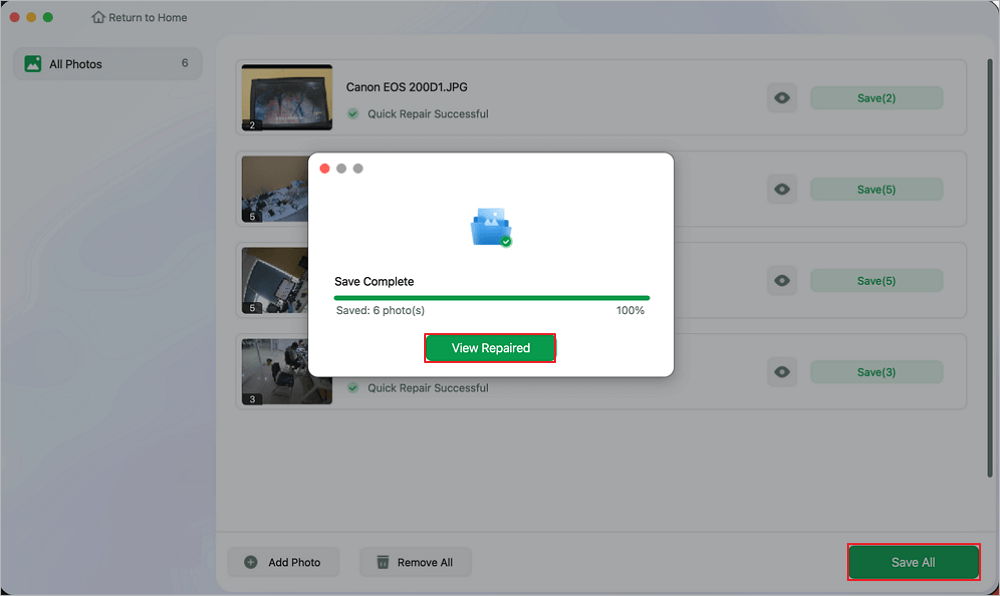
Click on the eye icon to preview the repaired images and click "Save" to save them on your Mac. Choose "Save All" to save all the repaired images. Click "View Repaired" to locate the repaired folder.
If you think this photo repair tool is helpful, please recommend it to more friends on social media!

How to Prevent RAW File Corruption on Mac
Fixing corrupted RAW files sometimes saves your photos, but honestly, it's way better to avoid the problem in the first place. Since RAW files often hold once-in-a-lifetime moments or your hard-earned professional shots, it pays to have solid storage and transfer habits. A little care now saves you big headaches later.
Here's how you can protect your RAW photos at every step—shooting, transferring, editing, or just storing them on your Mac.
1. Eject Memory Cards Correctly
Don't pull out an SD card, CFexpress, or external drive while files are still transferring. That's asking for corruption.
Here's what you should do:
- Make sure the transfer's actually done.
- Right-click the device in Finder and hit Eject.
- Wait for macOS to tell you it's safe.
2. Stick With Qualified Memory Cards
Cheap, no-name cards are unreliable. They wear out faster and are prone to developing bad sectors that ruin your shots.
Buy cards from reputable brands and get them from legit retailers. Otherwise, you're taking a risk—and it's not worth it.
3. Format Cards Inside Your Camera
Don't just delete photos one by one. Instead, use your camera's built-in "format" command once in a while.
Formatting inside the camera makes sure the card is set up with the right structure for your model. That helps prevent weird compatibility issues.
Before you format, always:
- Back up anything important.
- Double-check your files copied over.
- Open your backups to make sure they work.
4. Don't Interrupt File Transfer
Large RAW images can take a while to copy, especially when you've got a lot of them.
While transferring:
- Leave the card reader alone.
- Don't force quit Finder.
- Don't reboot your Mac.
- Wait until everything's done to mess with the device.
Stopping things halfway can leave your files broken or unreadable.
5. Back Up RAW Photos Right Away
Follow the rule: three copies, on two different types of storage, and one off-site (or in the cloud).
That could mean:
- External SSDs
- Network drives (NAS)
- Time Machine
- iCloud, Dropbox, or Google Drive
Backing up right away gives you peace of mind. If anything goes wrong, you can just restore your originals.
In short: a little care and attention go a long way toward keeping your RAW photos safe from corruption. These habits make all the difference when you're counting on your shots to last.
Conclusion
RAW files keep your photos looking their best, but they're a bit fragile. Their big size and complicated structure make them more likely to get corrupted than your average JPEG or PNG.
Corruption doesn't have to spell disaster. If you find a RAW file acting up on your Mac, a repair tool like EaseUS Fixo Photo Repair can help you get those images back.
RAW File Repair Mac FAQs
1. How can I repair corrupted CR2 files on Mac?
If you need to repair CR2 files on Mac, the quickest way to fix them is with a photo repair tool like EaseUS Fixo Photo Repair. Just download and install the software, add your damaged CR2 files, and hit Repair.
2. How can I fix a RAW file not opening on my Mac?
First things first, check whether your macOS actually supports the RAW format from your camera. Sometimes it's just a compatibility hiccup. If that's not the problem, the file probably got corrupted during transfer or because of a bad memory card. In cases like this, you can try running EaseUS Fixo Photo Repair to fix the file's structure.
3. Are there free RAW file repair tools?
There are a couple of free tools out there; most online repair tools are free. You can try EaseUS Online Photo Repair to repair corrupted RAW images for free.
Was This Page Helpful?
About the Author

Dany is an editor of EaseUS who lives and works in Chengdu, China. She focuses on writing articles about data recovery on Mac devices and PCs. She is devoted to improving her writing skills and enriching her professional knowledge. Dany also enjoys reading detective novels in her spare time.


