





Table of Contents
 About the Author
 Related Posts
MRW (Minolta Raw) is a raw image file format used by Konica Minolta and later Sony digital cameras. These files contain unprocessed data directly from the camera's sensor, preserving maximum detail, dynamic range, and color information. Because MRW files are raw, they offer photographers unparalleled flexibility in post-processing.
However, their complexity and size also make them vulnerable to corruption. Whether due to improper file transfer, storage device errors, camera malfunctions, or software incompatibilities, corrupted MRW photos can be a frustrating obstacle. Fortunately, there are effective methods and tools for repairing or recovering corrupted MRW files.
1. Repair Corrupted MRW Photos with Software
Before attempting repair, confirm that the file is actually corrupted. Signs include:
- The file won't open in any raw processor.
- The thumbnail appears, but the whole image fails to load.
- The image opens with visual glitches (e.g., green lines, mosaic patterns, or missing sections).
- Error messages like "Unsupported file format," "File is damaged," or "Cannot read raw data."
Several specialized tools are designed to repair corrupted raw files, including MRW. You can use MRW photo repair software to repair corrupted images. We are discussing EaseUS Fixo Photo Repair, a tool that recovers corrupted files from memory cards and hard drives.
EaseUS Fixo is ideal for repairing corrupted raw images.
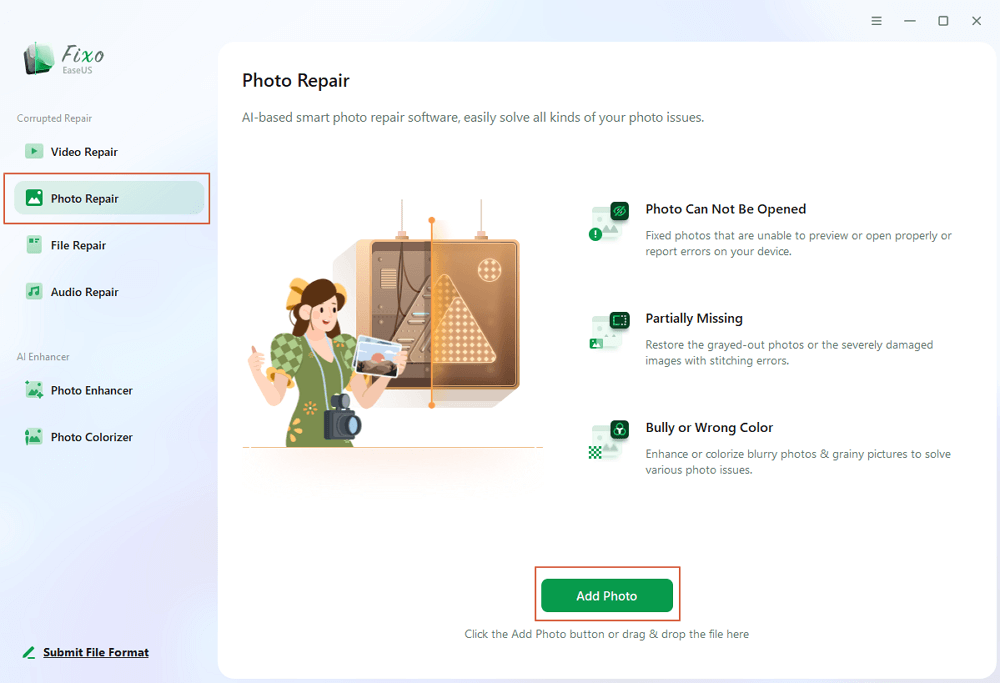
Step 1. Launch Fixo on your computer. You can choose "Photo Repair" to repair photos that cannot be opened, partially missing, etc. Click "Add Photos" to select corrupted photos.
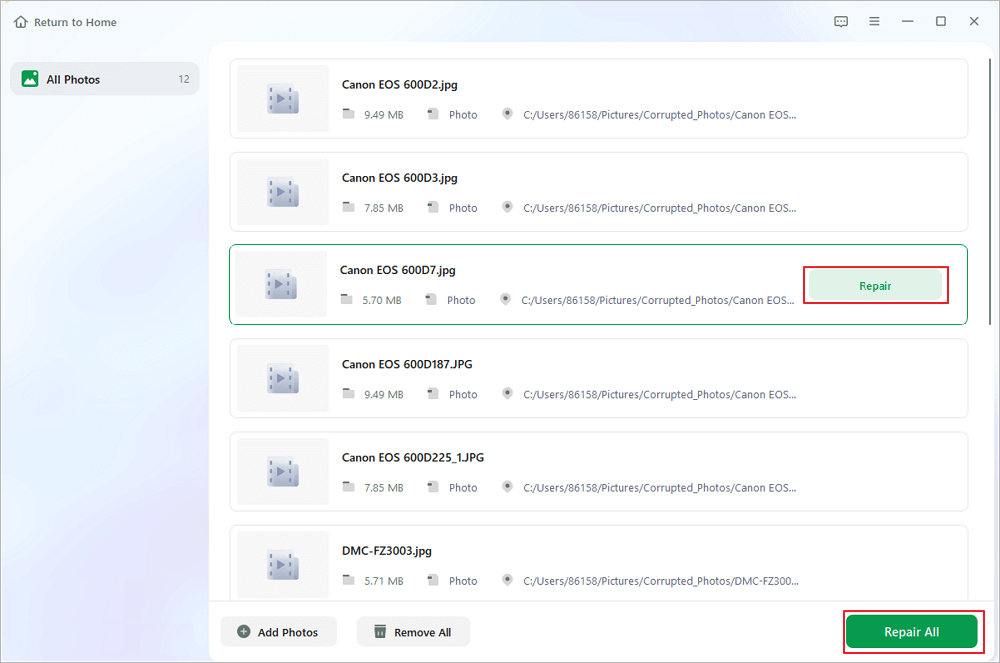
Step 2. You can repair multiple photos at once by clicking the "Repair All" button. If you want to repair one photo, move your pointer to the target photo and choose "Repair".
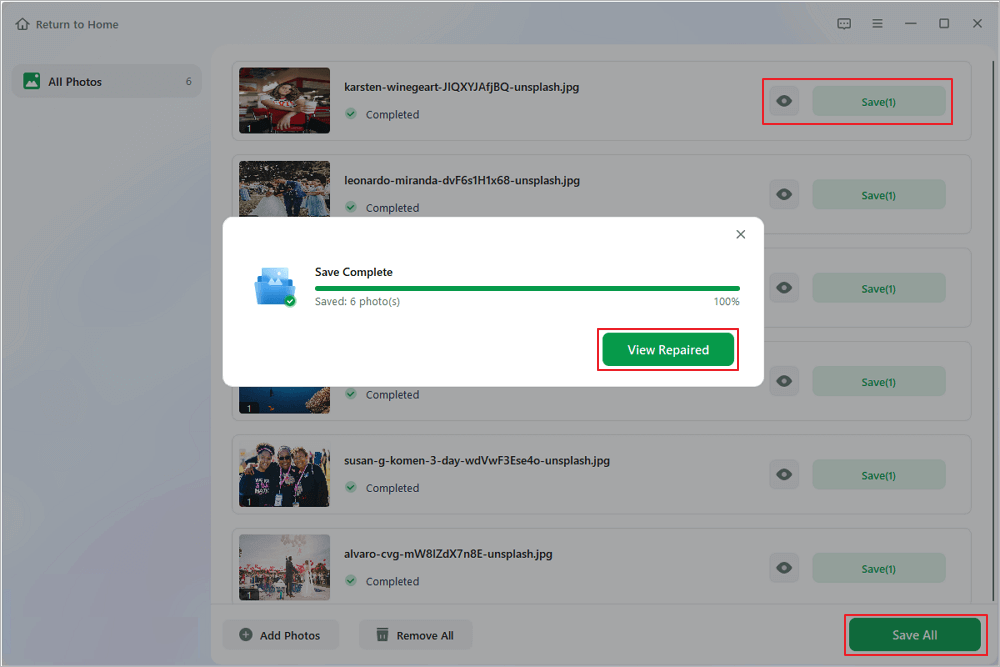
Step 3. You can click on the eye icon to preview the photos and click "Save" to save a selected photo. Choose "Save All" to save all the repaired images. Click "View Repaired" to locate the repaired folder.
Download this professional file repair software now! If you like the information mentioned above, please share it with your friends on social media.
2. How to Repair Corrupted MRW Photos Online
EaseUS Online File Repair is the best RAW photo repair program for handling persistent file corruption. It uses advanced AI algorithms to analyze and repair damaged MRW photos online for free, achieving a high recovery success rate.

EaseUS's advanced technology ensures your treasured memories are restored in no time by repairing all types and sizes of audio files. The steps are the following:
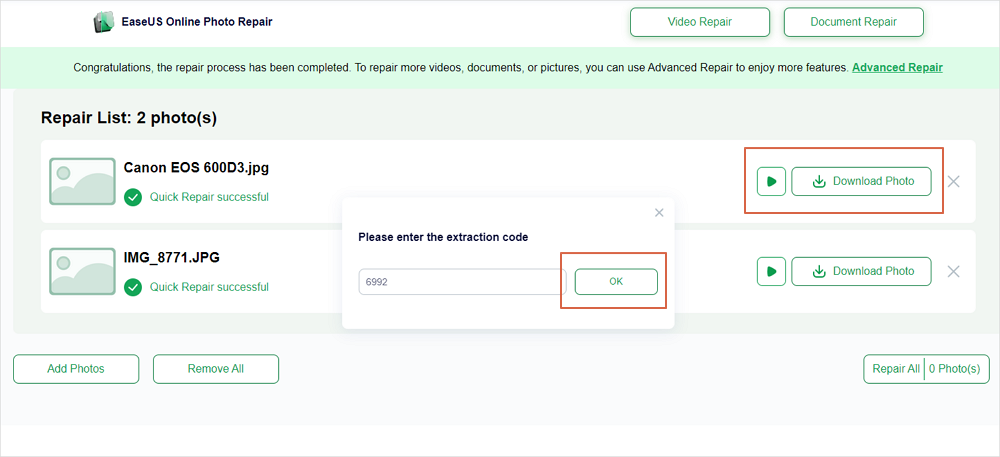
Step 1. Open the EaseUS Online Photo Repair page by clicking the button. To upload your corrupted JPG, JPEG, PNG, GIF, CR2, NEF, or ARW photos, click "Upload Photo".

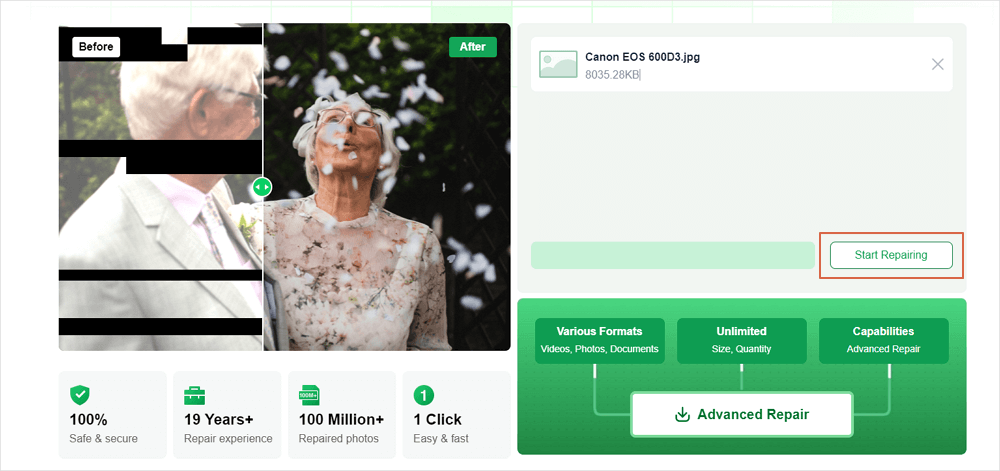
Step 2. Enter a valid email address and click "Start Repairing" to upload your damaged photos. Now, the photo will be uploaded and repaired automatically. You can leave the page open and finish your stuff during the process.
Step 3. When the repair is over, you will receive an email sent by EaseUS. Copy and paste the photo extraction code and go back to the EaseUS Online Photo Repair page. Click "Download Photo" and enter the code. Click "OK" to save your photo to a safe location.
3. Convert Format to Repair Corrupted MRW Photos
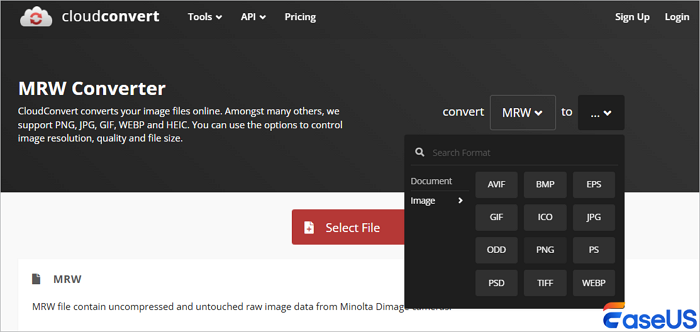
Sometimes the reason you can't view your photos isn't corruption. If you don't think the damage to your photo files is severe, you can try some simple remedies.
Converting the damaged photo files' format is the simplest step. Any free online format converter can help you. After applying a different format to the picture files, reopen the file to see whether you can access it.
4. Repair MRW Photos by Windows CHKDSK
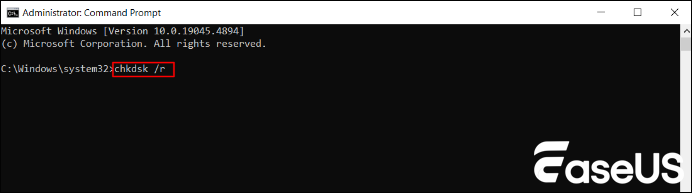
SD or CF cards with bad sectors or physical damage can lead to data corruption. Therefore, to scan and repair memory cards and fix MRW photos using Windows CHKDSK, take the actions listed below:
- In the Windows search box, type Command Prompt.
- In the command window, type chkdsk (drive letter) / r after selecting Command Prompt.
- Hit Enter.
- Restart your computer after the process is finished. You should now be able to access your photos.
Common Causes of MRW Photo Corruption
- Interrupted File Transfer: Removing a memory card or disconnecting a USB cable during file transfer can cause the file to be truncated or corrupted.
- Camera Errors: Power loss during shooting, camera crashes, or firmware bugs may result in incomplete or corrupted files.
- Software Incompatibility: Editing or converting MRW files with outdated or incompatible software can alter the file structure.
- Virus or Malware: Although rare, malicious software can damage or encrypt files.
- File System Errors: Corruption in the storage device's file system (e.g., FAT32 or exFAT) can affect file integrity.
- Improper Ejection: Failing to eject the memory card or external drive safely can cause write errors.
Repair Corrupted MRW Photos FAQs
These are the FAQs to consider to repair corrupted MRW photos:
1. How can I tell if an MRW file is corrupted?
Signs of a corrupted MRW file include being unable to open it in any raw-processing software, error messages such as "File format not supported" or "Damaged file," or visual artifacts such as color distortions, stripes, or missing image sections. Sometimes, the thumbnail appears normal, but the full-resolution image fails to load. If one program can't open the file, try other programs to rule out compatibility issues before concluding it's corrupted.
2. Can corrupted MRW files be repaired completely?
In many cases, yes—especially if the corruption is minor, such as a damaged header or metadata section. Tools like EaseUS Fixo Photo Repair can often restore enough of the file structure to make the image usable again.
Conclusion
Corrupted MRW photos can be a photographer's nightmare, especially when they contain irreplaceable moments. However, with the proper knowledge and tools, many corrupted files can be repaired or partially recovered. The key is to act quickly, avoid further writes to the storage device, and use reliable recovery methods.
Most importantly, adopt a proactive approach: use high-quality gear, follow safe transfer practices, and maintain multiple backups. By doing so, you'll minimize the risk of corruption and ensure your precious raw images remain secure and accessible for years to come.
Was This Page Helpful?
About the Author

Jaden is one of the editors of EaseUS, who focuses on topics concerning PCs and Mac data recovery. Jaden is committed to enhancing professional IT knowledge and writing abilities. She is always keen on new and intelligent products.


