





Table of Contents
 About the Author
 Related Posts
MKV file no-sound issues usually stem from unsupported codecs, corrupted headers, or outdated drivers. Choose your fix based on the scenario:
Scenario 1: System-wide failure (all videos or system sounds silent)
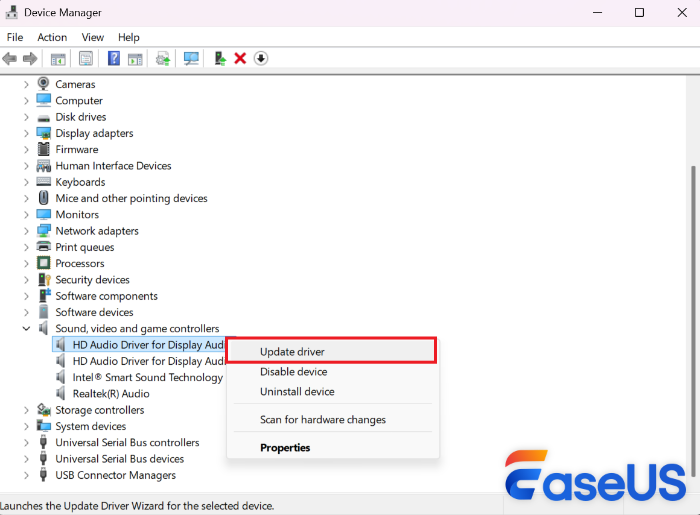
Fix 1. Update audio driver: Device Manager > "Sound, video and game controllers" > Update driver.
Fix 5. Run Windows troubleshooter: Settings → System → Troubleshoot > Other troubleshooters.
Scenario 2: Only one MKV file plays without audio
Fix 2. Repair corrupted header: Use EaseUS Fixo Video Repair to rebuild the audio track.
Continue reading to learn more fixes...
Have you ever opened an MKV file only to find the video plays perfectly with zero audio? You may have recovered a 1GB MKV concert recording with a DTS soundtrack, only to be upset by muted playback. Most Windows laptops come with Realtek audio chips, which lack full MKV format support. This means you cannot resolve MKV no-sound issues without proper codecs if the file contains advanced audio tracks.
We understand how frustrating the MKV no-audio issue can be, especially when you want to watch a movie, lecture, recovered footage, or important recording.
Common Causes for MKV Files No Audio
Before troubleshooting, it helps to understand why your MKV file may play without sound. The most frequent causes are listed below:
- Windows audio driver error: The default output device of your Windows system doesn't have the latest version of its audio driver.
- Corrupted MKV file header: The file can become damaged after interrupted downloads, incomplete data transfers, or failed recovery attempts.
- Incorrect audio track selected: Your media player may default to an empty or muted audio channel.
- Incompatible media player: Your default player cannot fully decode the MKV container or its embedded audio streams.
- Windows system error: An incomplete Windows system update triggers audio driver errors, breaking playback for most video files on your PC.
- Lossless audio incompatibility: Most devices cannot play lossless or high-bitrate audio embedded in MKV (DTS, DTS-HD, Dolby TrueHD, FLAC, E-AC3) unless compatible codecs are installed.
Now, let's take a look at the quick fixes to get the sound back for the broken MKV file.
7 Tested Fixes for MKV File No Sound
To address these problems, this part starts from a system-wide problem troubleshooting suggestion to the codec-pack support fix for your media player.
- Fix 1. Update the Windows Audio Driver
- Fix 2. Quickly Repair MKV File No Sound with EaseUS Fixo Video Repair
- Fix 3. Select the Correct Audio Track for the MKV File No Sound
- Fix 4. Switch to an MKV-Compatible Media Player
- Fix 5. Run the Windows Troubleshooter
- Fix 6. Install the K-Lite Codec Packs for Windows Media Player
- Fix 7. Convert the MKV File into MP4
Fix 1. Update the Windows Audio Driver
Best for: Occasions where all video files on your computer lack audio, particularly after a recent Windows update.
Step 1. Right-click the "Start" button, select "Device Manager".
Step 2. Expand the "Sound, video and game controllers" menu.
Step 3. Right-click your audio device, choose "Update driver".
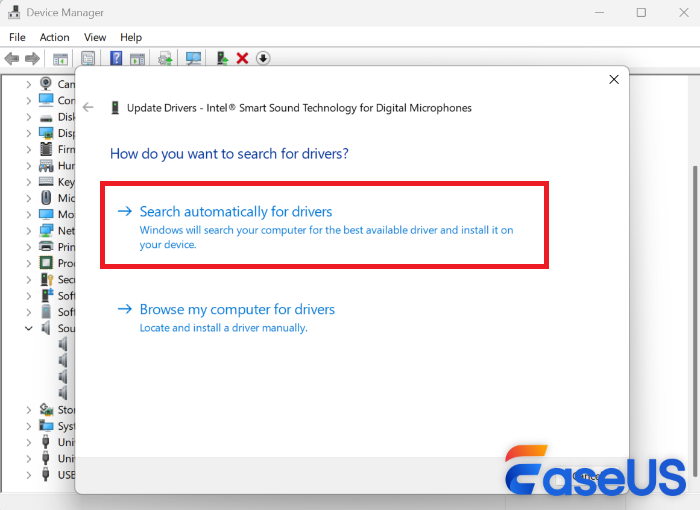
Step 4. Select "Search automatically for drivers", then restart your computer once the update finishes.
Tips: If the MKV file no-audio problem persists after the driver upgrade, chances are that the file has a corrupted header. In this case, you can use EaseUS Fixo Video Repair to repair the damaged MKV video.
Fix 2. Quickly Repair MKV File No Sound with EaseUS Fixo Video Repair
Best for: Damaged MKV files with corrupted headers caused by interrupted transfers or incomplete data recovery.
Cases where other video files work fine except for one MKV file.
MKV files often sustain header damage during downloading, transferring, conversion, editing, or recovery. A corrupted header allows video playback but prevents the player from detecting audio streams properly. We recommend EaseUS Fixo Video Repair for this scenario.
EaseUS Fixo Video Repair is an AI-powered video repair tool built on FFmpeg recovery logic. It can thoroughly repair severely damaged MKV files:
- Effortlessly repair MP4 videos, and videos in MP4, MOV, M2TS, MKV, MTS, 3GP, AVI, FLV, M4V.
- Restore clarity to footage damaged during shooting, recording, transfer, or data recovery.
- Recover videos shot on cameras, drones, CCTV/DVR systems, smartphones, and NAS storage devices.
Step-by-Step Repair Guide:
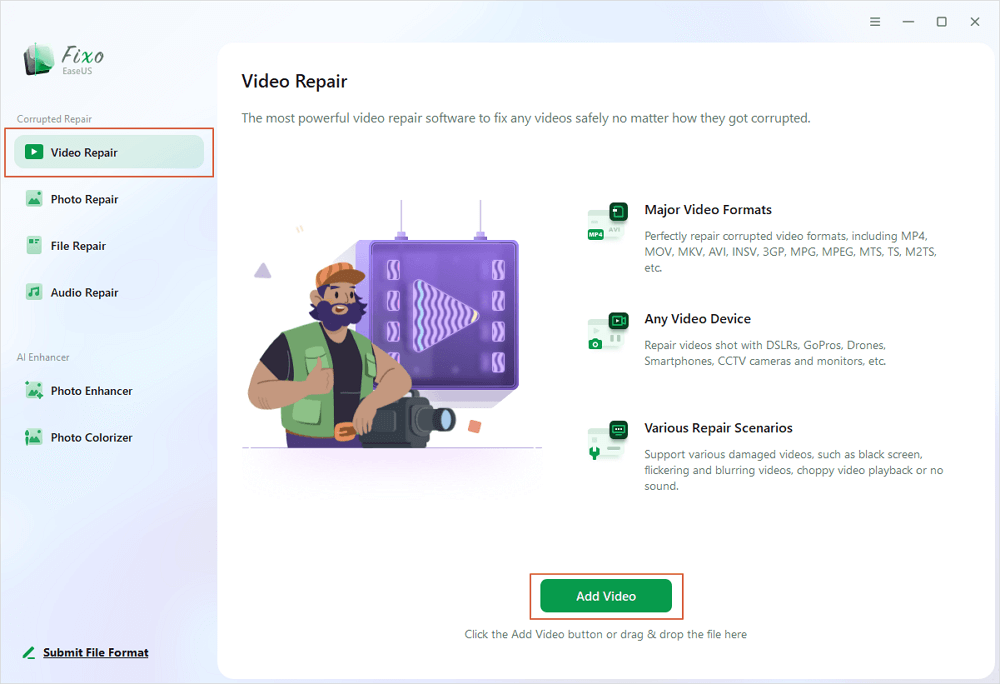
Step 1. Open Fixo on your local PC. Click "Video Repair" and add the corrupted MP4/MOV/AVI/MKV/3GP/FLV/MKV/WMV video files by clicking "Add Videos".
Step 2. Move the pointer to a video and click the "Repair" button to start the single video repairing process. If you want to repair all the videos, click "Repair All".

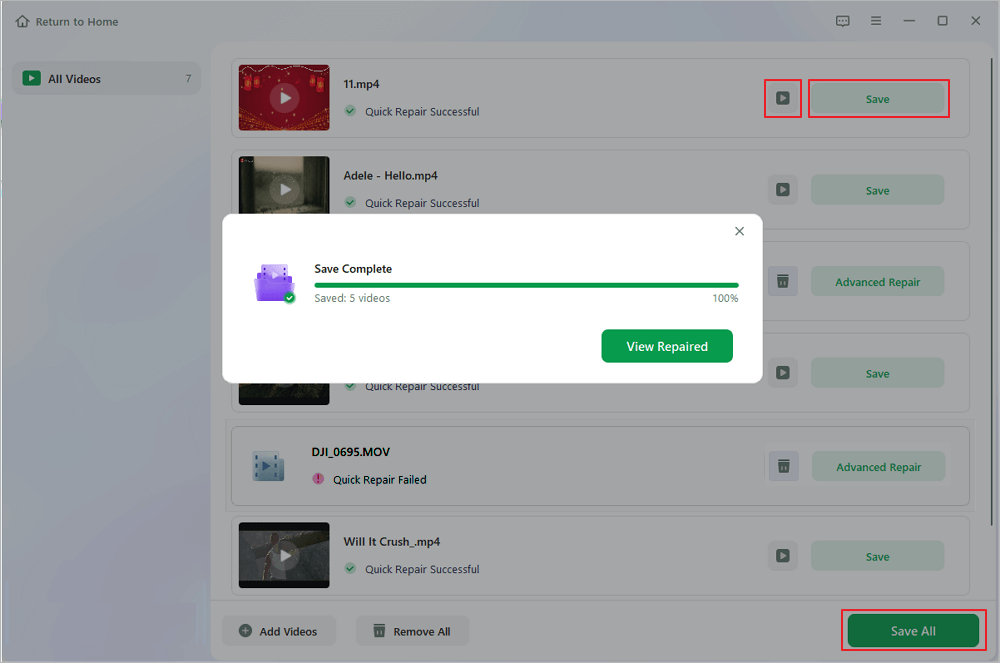
Step 3. Wait a few minutes, and the corrupted videos will be repaired. Click the play icon to preview the videos. You can save a single video by clicking the "Save" button next to the play icon. If you want to save all the repaired videos, choose "Save All".
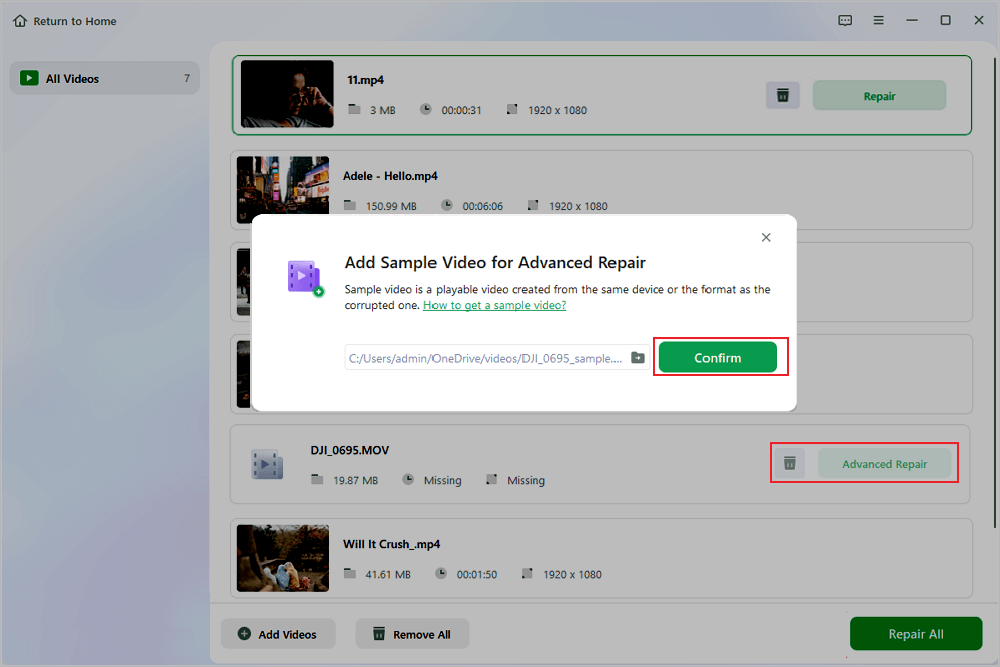
Step 4. If the quick repair fails, you should utilize the advanced repair mode. Click "Advanced Repair" and add a sample video. Choose "Confirm" to ensure.
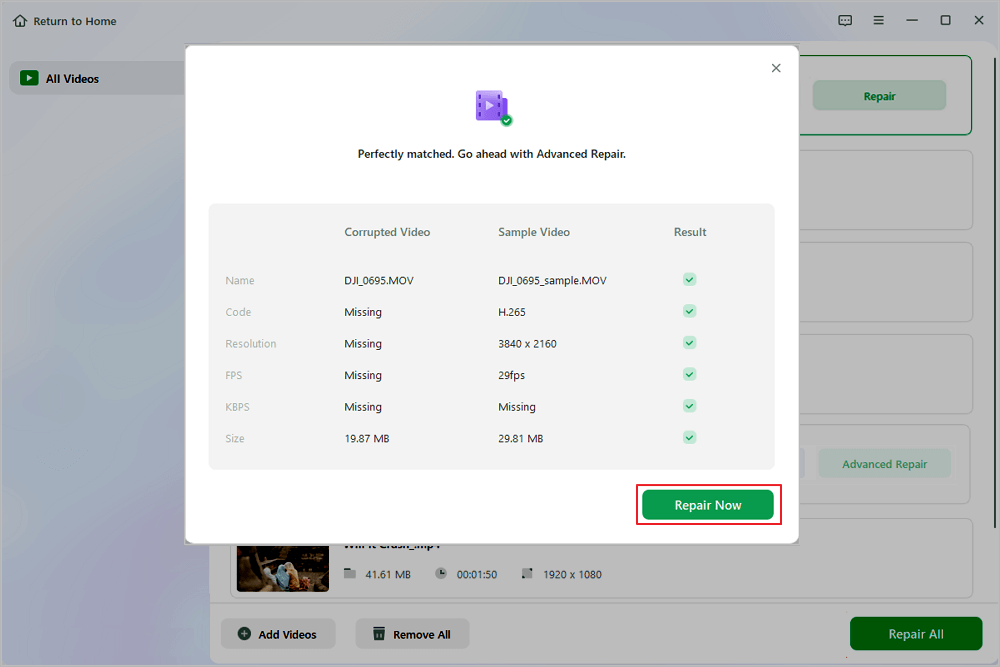
Step 5. A list of detailed information on corrupted and sample videos will show up. Click "Repair Now" to start the advanced video repair process. When the repair is complete, you can view the videos and click the "Save" button to save the repaired video files to an appropriate destination.
We recommend this method first if your MKV file was interrupted mid-download, failed during transfer, or recovered from a corrupted drive.
Click to share this guide to Facebook, Reddit, Twitter, or Quora if it is helpful to you.
Fix 3. Select the Correct Audio Track for the MKV File No Sound
Best for: Players defaulting to empty, muted or unsupported audio tracks.
MKV containers support multiple embedded audio tracks, such as multilingual soundtracks, stereo audio, and surround sound channels. If your media player loads an unsupported or blank track by default, the video will play with no sound. In that case, you can always switch audio tracks before attempting complex fixes.
Step 1. Open the MKV file in VLC Media Player. Unlike Windows Media Player, open-source players including VLC and MPC-HC handle MKV playback seamlessly.
Step 2. Navigate to "Audio" from the top menu > select another audio track.
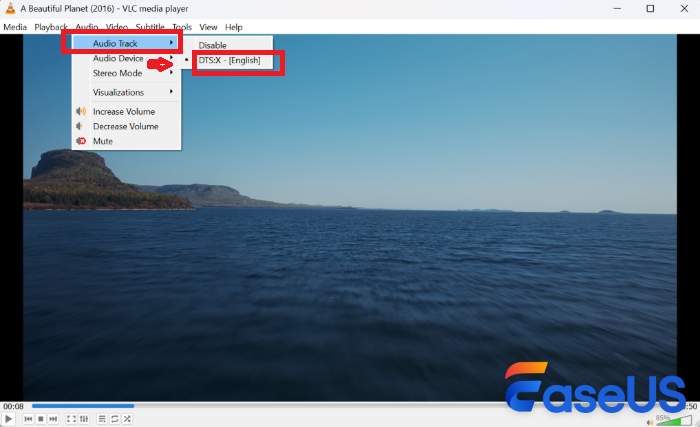
Step 3. Pick an alternative audio track from the dropdown list.
Step 4. Replay the video and check whether the sound returns.
Tips: If you plan to stay with Windows Media Player, and confirm that the MKV file itself is not damaged, jump to Fix 6 - Install K-Lite Codec Pack.
Fix 4. Switch to an MKV-Compatible Media Player
Best For: Default media players like Windows Media Player cannot play MKV files due to the lack of native MKV support. MKV files with separate video and MKA audio files, or multiple embedded soundtracks that basic players cannot switch between.
When video and audio streams are saved as separate files. Open-source free media players like VLC, MPC-HC can sync them together, you may try to fix video playback with VLC.
Step 1. Download and install VLC Media Player, launch the program.
Step 2. Click "Media" > "Open Multiple Files" and add your MKV video and MKA audio from separate folders.
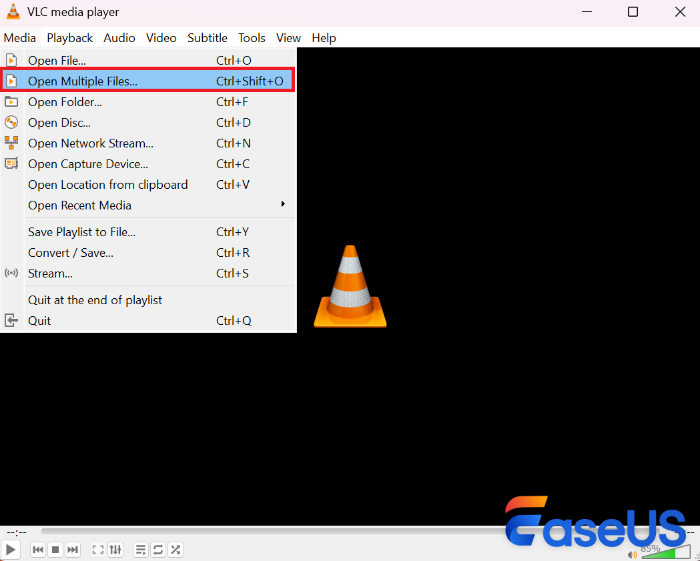
Step 3. Tick "Play another media synchronously" under "Show more options".
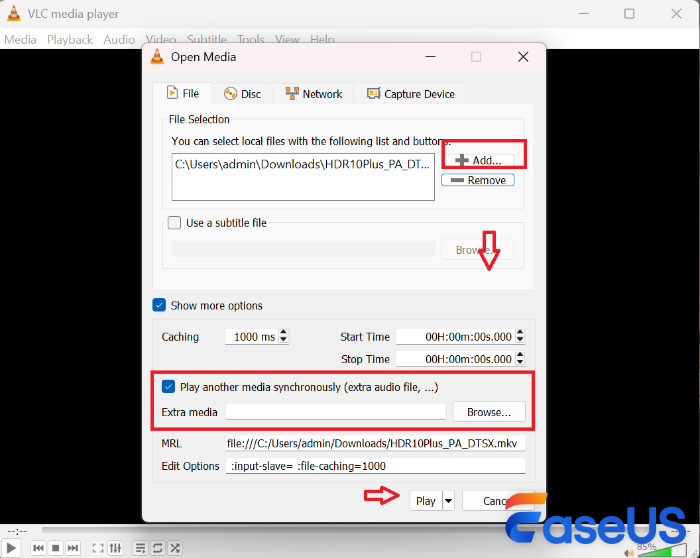
Step 4. Import the matching MKA audio file.
Step 5. Click "Play" to open the video with the external audio.
Use this solution if your MKV files malfunction in Windows Media Player, Plex or other default system players.
Fix 5. Run the Windows Troubleshooter
Best For: System-wide video files problem where all video and audio applications have no sound at all.
Windows 10 and later include a built-in audio troubleshooter that resolves most common sound playback errors, including silent MKV files issues.
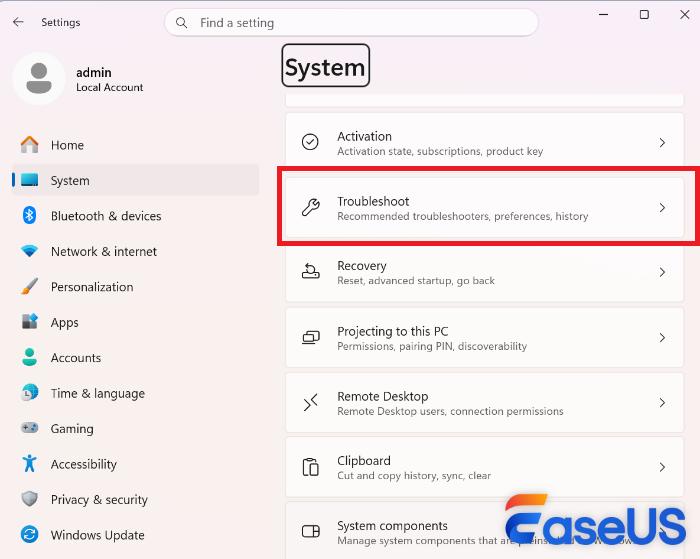
Step 1. Open the "Start" menu and click "Settings".
Step 2. Click on "System" in the left sidebar > select "Troubleshoot", and then click "Other troubleshooters".
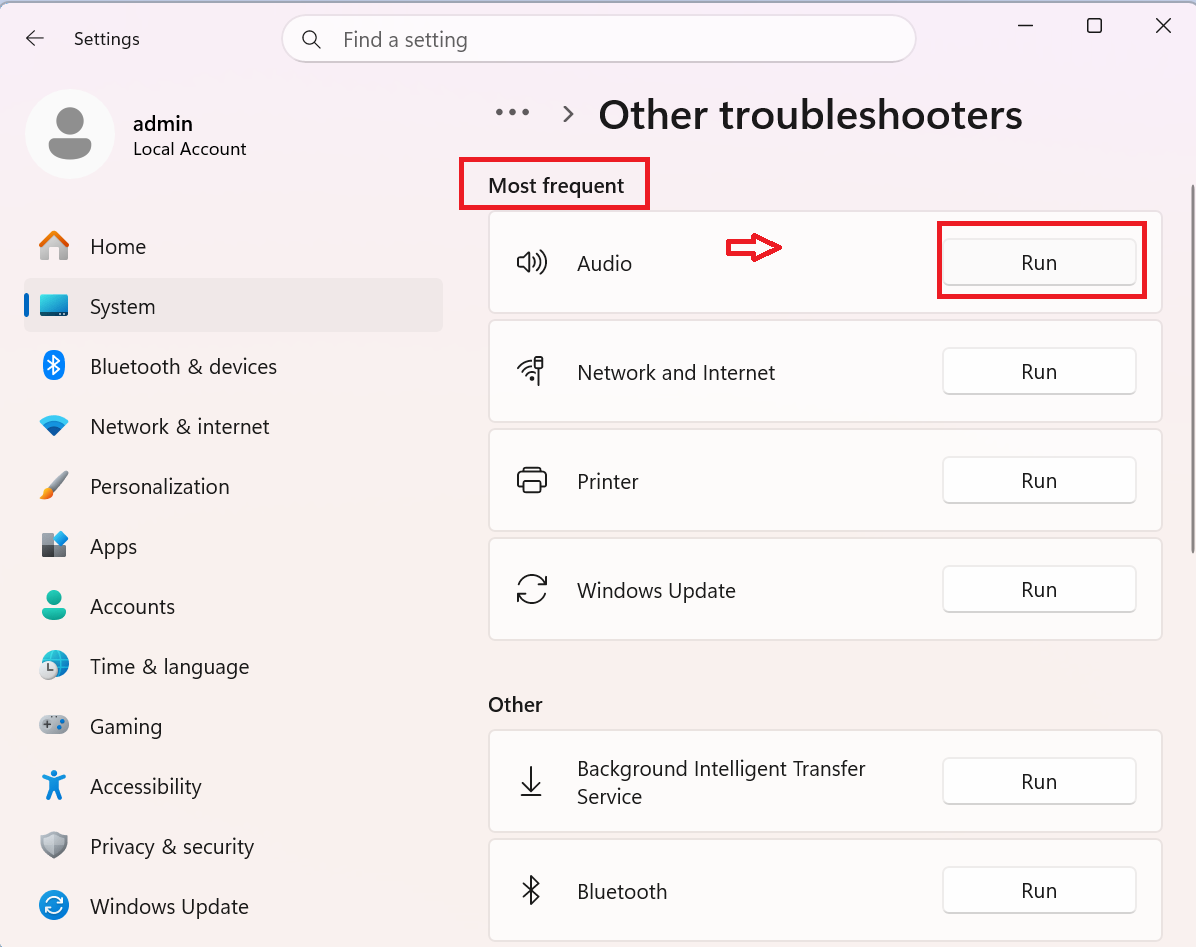
Step 3. Look for "Playing Audio" under the "Most Frequent" section, click "Run" and the troubleshooter unmutes your device automatically.
Fix 6. Install the K-Lite Codec Packs for Windows Media Player
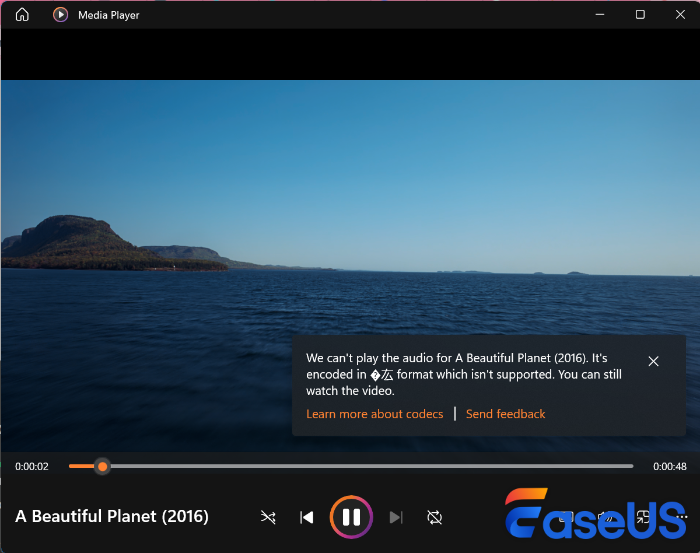
Best for: MKV files encoded with advanced lossless audio codecs.
Step 1. Visit the official K-Lite Codec Pack website.
Step 2. Download the Standard version for regular playback needs.
Step 3. Launch the installer and ensure that you tick "LAV audio decoder" to resolve MKV audio failures.
Step 4. Follow the on-screen installation instructions.
Step 5. Restart your media player after installation.
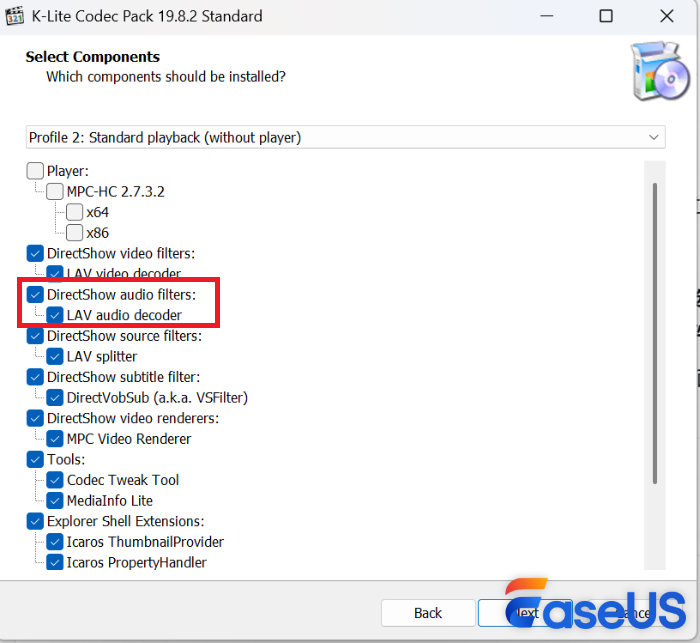
Step 6. Open the MKV file again and test audio playback.
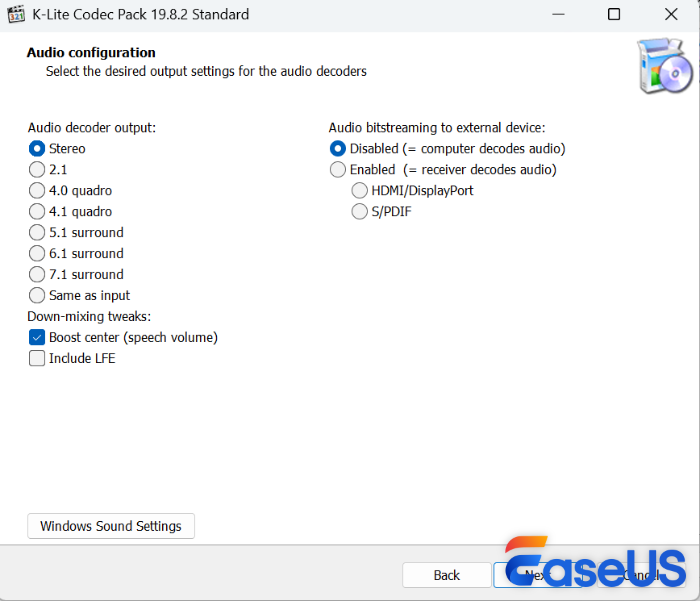
This fix is especially effective if your MKV file contains DTS, DTS-HD, Dolby TrueHD, AC3, E-AC3, FLAC, or other Opus audio streams.
Fix 7. Convert the MKV File into MP4
Best For: You need to transcode the lossless audio formats to play the MKV file in a public device media player, a game console, or a smart TV, or in Plex Media Player.
Many MKV files contain high-quality or lossless audio formats, such as FLAC, DTS-HD MA, or Dolby TrueHD. These formats are great for quality, but not always easy to play everywhere. While these formats deliver high playback quality, they suffer from poor cross-device compatibility. Converting MKV files into MP4 and transcoding the audio to AAC resolves playback issues. In that case, we suggest using open-source free video converters like HandBrake.
Step 1. Open HandBrake, click "Source Selection >> File", select your MKV video file.
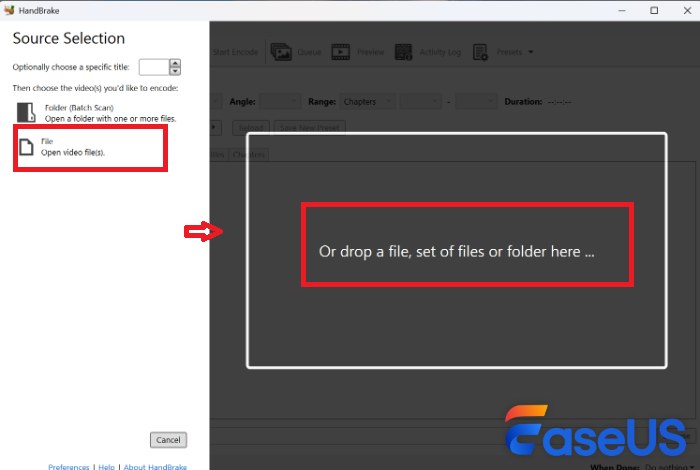
Step 2. In the "Summary" tab, set "Format" to MP4. Optionally check ;"Web Optimized".
Step 3. Under the "Audio" tab, set the output "Codec" to AAC.
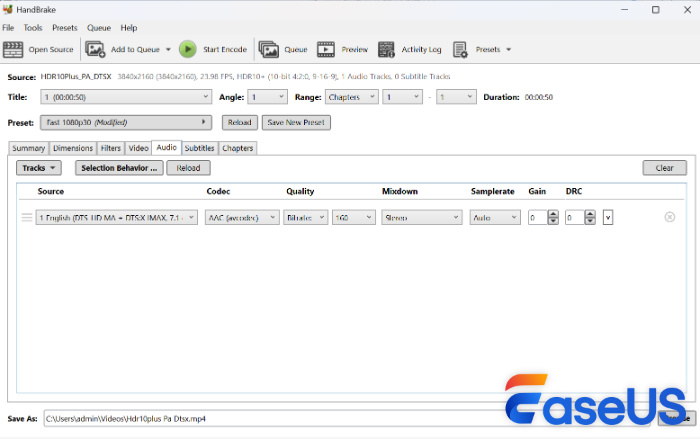
Step 4. Press the green "Start Encode" button and wait for the conversion to run.
Step 5. Play the transcoded MP4 video, now it should have sound.
Tips: We suggest this method if you plan to stay with streaming media players like Plex.
FAQs About MKV File No Sound
If you'd like to explore the reasons behind each fix, or have run into other types of MKV file problems, refer to the tips below to address your concerns.
1. Why do MKV files corrupt frequently?
It's more accurate to say that an MKV file isn't inherently prone to corruption, but rather that it is highly susceptible to corruption due to the flexible internal structure.
Think of an MP4 file as a perfectly bound book, while an MKV is a flexible binder. The binder is incredibly flexible — you can easily add, remove — that's when corruptions happen.
2. Why does my MKV play in VLC but not Windows Media Player?
This usually means Windows Media Player does not have the codec needed to decode the MKV audio stream. We suggest installing K-Lite Codec Pack or using VLC Media Player.
3. Why is there no sound when playing MKV files in VLC?
It has been reported that VLC version 3.0.21 contains a known bug that causes the player to lose audio playback for MKV videos. Users have found that rolling back to VLC version 3.0.19 immediately restores the audio.
Conclusion
MKV no-audio errors are annoying, yet nearly always fixable. The core troubleshooting step is identifying whether the root cause lies with the video file itself, incompatible audio encoding, or system hardware settings.
If your MKV file previously played audio normally and suddenly went silent, or if it was downloaded incompletely, transferred unsuccessfully, or restored from corrupted storage, start by checking for file corruption to repair MKV files.
Was This Page Helpful?
About the Author

Brithny is a technology enthusiast, aiming to make readers' tech lives easy and enjoyable. She loves exploring new technologies and writing technical how-to tips. In her spare time, she loves sharing things about her game experience on Facebook or Twitter.


