





Table of Contents
 About the Author
 Related Posts
Encountering the "Failed to load the file since it's corrupted" error in Insta360 Studio? This guide walks you through every fix, from quick checks to using the official Insta360 File Repair tool and EaseUS Fixo File Repair as a powerful alternative to help you perform Insta360 repair, so you can get your 360° footage playing again.
Method 1. Perform Insta360 File Repair with EaseUS Fixo Video Repair
When Insta360 flags a file as corrupted and refuses to load it, that's your cue to act. If the quick fixes didn't do the trick, it may be time to bring in a dedicated tool; and EaseUS Fixo Video Repair is well equipped for both video and photo repairs, handling a wide range of corruption scenarios.
Footage often gets damaged when an Insta360 camera powers down mid-recording, and in those cases you'll need a professional Insta360 repair tool to bring the video or photo back.
This dependable tool goes to work reconstructing headers and rebuilding data maps, which restores access to the file — clips that previously wouldn't open become viewable again. Whether you're working with an X3, a GO model, INSV files, or ordinary MP4 clips, you can run an advanced repair as long as you have sample videos on hand (Insta360 clips captured with the same device) to upload.
The repair workflow is straightforward: drop a file in, run the fix, then check how it looks before saving it.
Step 1. Open Fixo on your local PC. Click "Video Repair" and add the corrupted MP4/MOV/AVI/MKV/3GP/FLV/MKV/WMV video files by clicking "Add Videos".
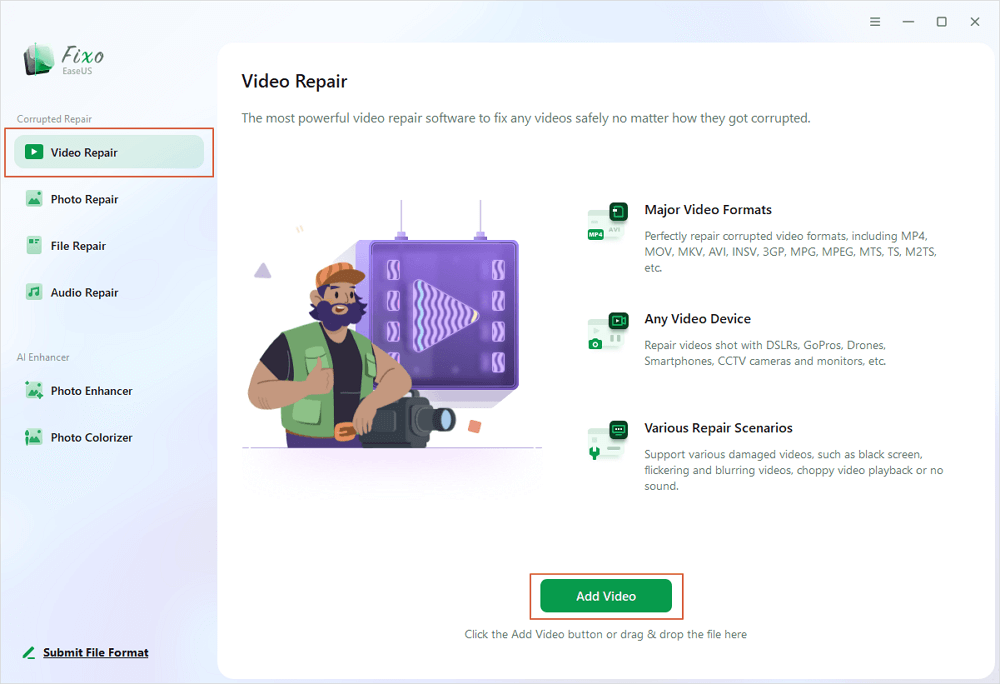
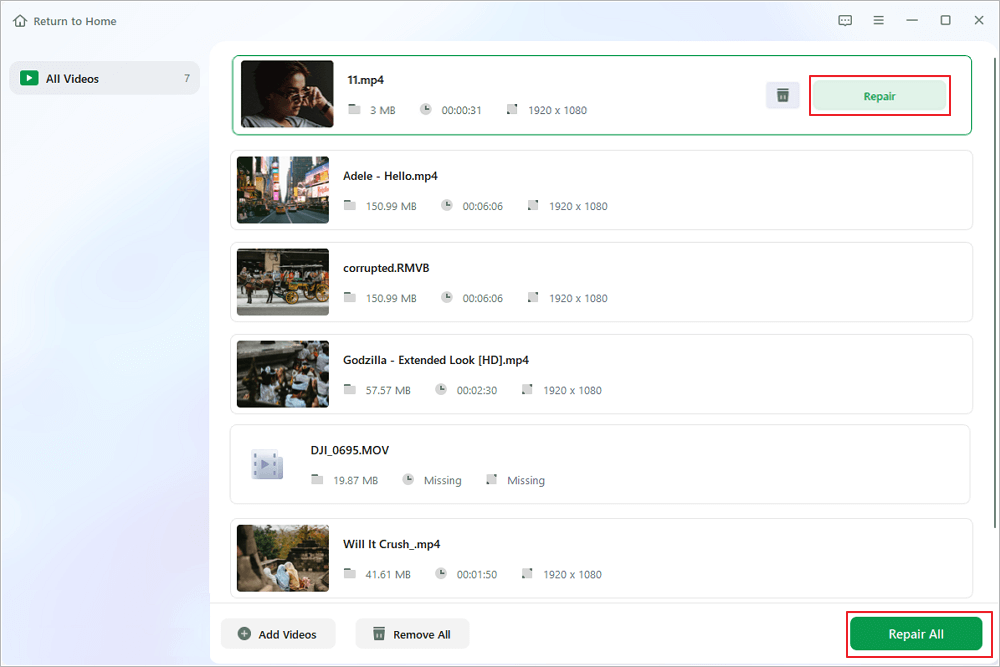
Step 2. Move the pointer to a video and click the "Repair" button to start the single video repairing process. If you want to repair all the videos, click "Repair All".
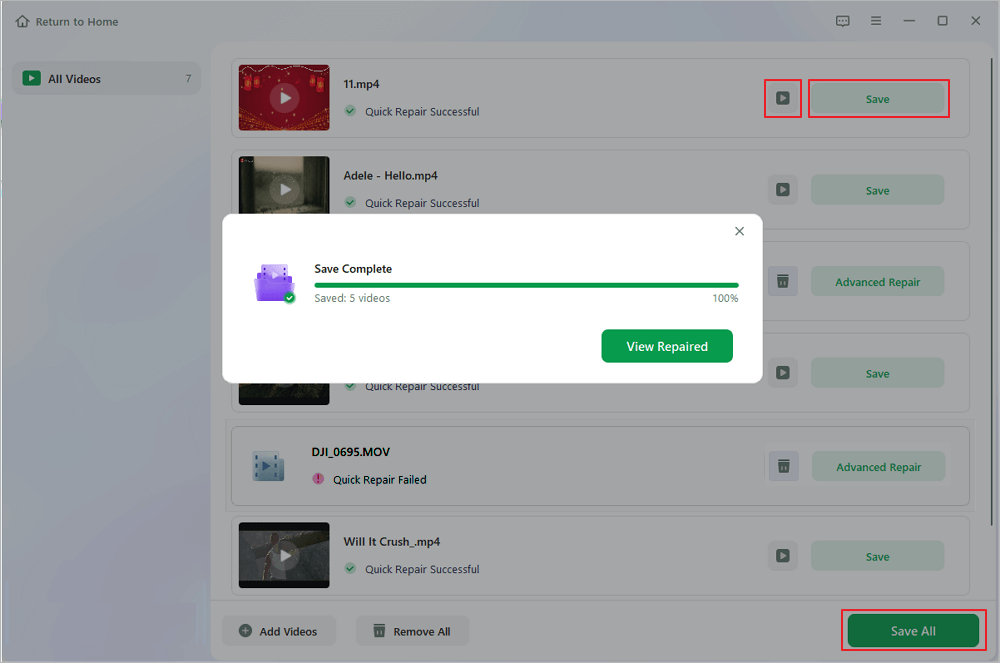
Step 3. Wait a few minutes, and the corrupted videos will be repaired. Click the play icon to preview the videos. You can save a single video by clicking the "Save" button next to the play icon. If you want to save all the repaired videos, choose "Save All".
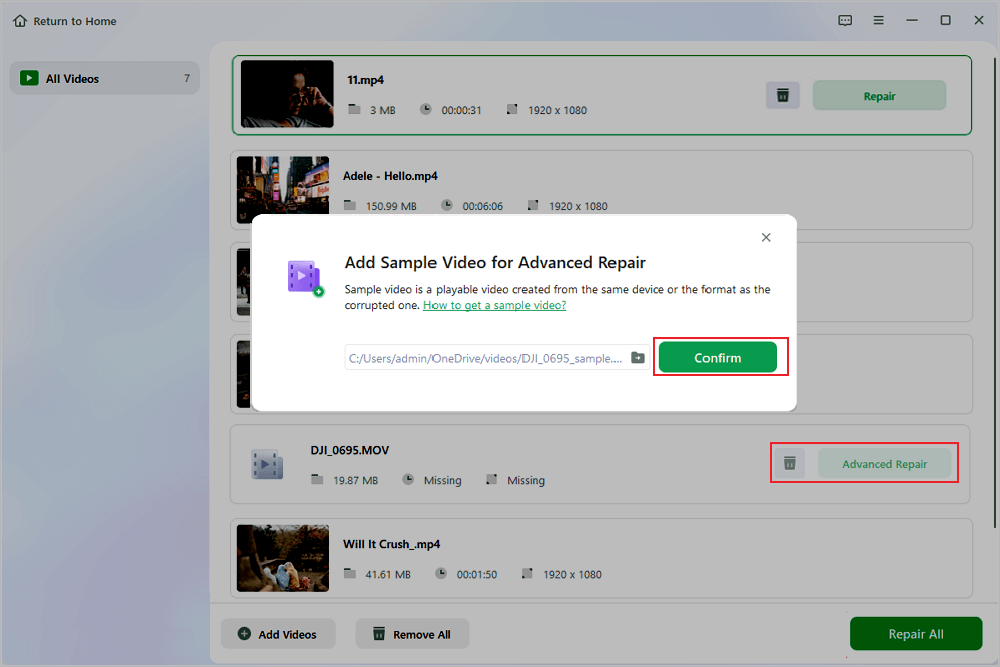
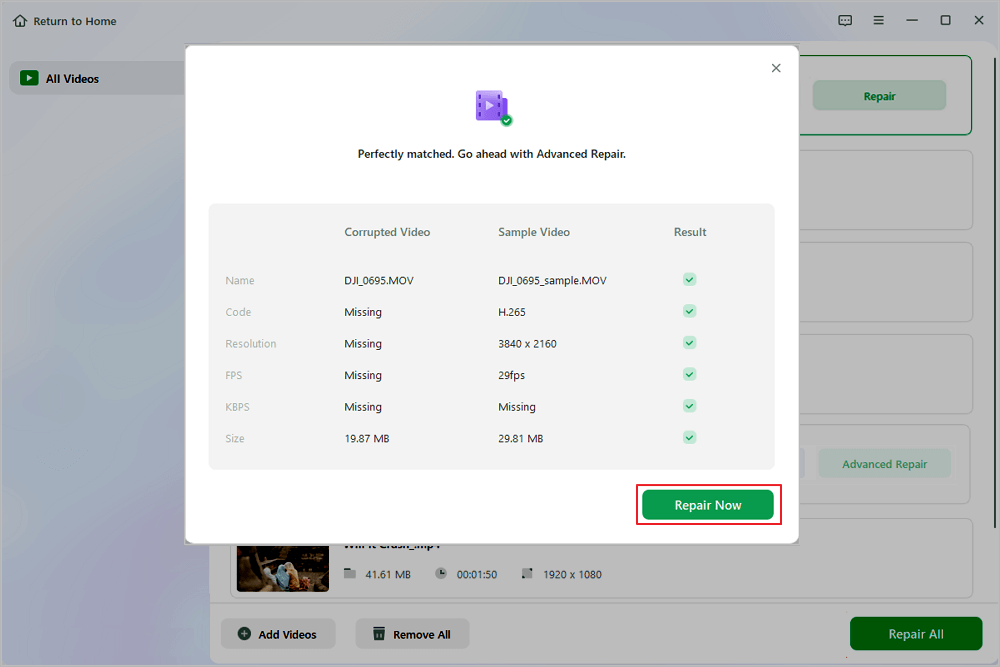
Step 4. If the quick repair fails, you should utilize the advanced repair mode. Click "Advanced Repair" and add a sample video. Choose "Confirm" to ensure.
Step 5. A list of detailed information on corrupted and sample videos will show up. Click "Repair Now" to start the advanced video repair process. When the repair is complete, you can view the videos and click the "Save" button to save the repaired video files to an appropriate destination.
Method 2. Perform Insta360 File Repair with Official Insta360 File Repair Tool
Insta360 provides a free File Repair utility specifically for footage damaged by abnormal camera shutdowns. It supports INSV and MP4 files .
When to use it: Your file imports as two separate spheres, shows a “stitching data lost” error, or simply won’t preview .
Step 1. Download Insta360 File Repair from the official Insta360 download center and install it on your PC .
Step 2. Launch the tool and add your corrupted .insv or .mp4 file.
Step 3. For 360° videos, upload both the 00 and 10 files from the same recording .
Step 4. Provide a healthy reference file recorded with the same camera model. This helps the tool rebuild the broken header.
Step 5. Click Repair and wait for the process to finish. Preview the result and save it to a new location.
Note: Repair success depends on the severity of damage. Even if video is recovered, gyro data and audio may not be fully restored .
How to Prevent Future Insta360 Corruption
- Format the SD card in-camera, not on your computer. This keeps the file system optimized for the camera .
- Use a high-quality microSD card rated for high-bitrate recording. Cheap or worn cards are a leading cause of corruption .
- Never pull the battery or force a shutdown while the camera is recording or saving data .
- Copy — don’t cut — files from the card to your PC. Eject the card safely after transfers .
- Keep the battery charged before long recording sessions, and plug in if recording nonstop .
Conclusion
Insta360 file corruption is usually caused by interrupted recording, slow SD cards, or transfer glitches — and it’s often fixable. Start with basic checks: copy the file locally, re-import it, and test with VLC. If that fails, the official Insta360 File Repair tool is your first repair option, especially for files damaged by an abnormal shutdown. When the official tool can’t help, EaseUS Fixo Video Repair — particularly its Advanced Repair mode with a sample video — offers a solid second chance by rebuilding damaged headers and indices. And with good recording and transfer habits, you can keep future footage safe.
FAQs on Insta360 File Repair
1. What does Failed to Load the File Since It"s Corrupted actually mean?
A: It means Insta360 Studio cannot read the file’s header or index data. The video stream may still be intact, but the container is damaged — often due to an interrupted recording or a faulty SD card .
2. Can I repair an INSV file, or do I need to convert it first?
A: The official Insta360 File Repair tool supports INSV directly and requires both the 00 and 10 files. For EaseUS Fixo, you can try importing the INSV file directly or rename a copy to .mp4.
3. What is a sample video and why do repair tools need one?
A: A sample video is a healthy clip recorded with the same Insta360 model and settings. Advanced repair modes use it as a template to reconstruct the broken file’s header and data structure .
Q4: Is the official Insta360 File Repair tool free?
A: Yes. It’s available for free download from Insta360’s official website and is the recommended first step for corruption caused by abnormal shutdowns .
Was This Page Helpful?
About the Author

Finley is interested in reading and writing articles about technical knowledge. Her articles mainly focus on file repair and data recovery.


