





Table of Contents
 About the Author
 Related Posts
When a CR3 file becomes damaged or unopenable due to file header corruption or incomplete transfer, professional photo repair tools like EaseUS Fixo Photo Repair can rebuild the corrupted container and restore full image access. Users can also utilize secondary repair methods such as hex editing, sample video or image reference matching, raw image converter tools, or embedded preview extraction utilities. By understanding file structure vulnerabilities and implementing consistent SD card practices, photographers can prevent future image corruption.
Canon introduced the CR3 file format alongside its Digic 8 processor to replace the older CR2 raw format. Built upon the ISO Base Media File Format structure, a CR3 file houses raw image array data, extensive Exif metadata, and a full size embedded JPEG preview.
Unlike the older CR2 format, which was based on TIFF structures, the CR3 raw format utilizes a modern architecture derived from the ISO Base Media File Format.
Because of this sophisticated multi-layered architecture, encountering an error message stating an unrecognized format or a corrupted raw file does not mean your photography session is lost forever. As long as the core byte blocks have not been completely overwritten by new data, you can repair corrupted CR3 files and restore your original imagery using specialized software tools and structured technical methods.
Common Causes of CR3 File Corruption
Understanding why Canon CR3 raw files fail to open or display visual glitches is the first step toward successful recovery. Because raw files involve massive amounts of data transferred at high speeds between the camera processor and flash storage, several physical and software factors can disrupt file writing.
- Unsafe SD Card Removal: Ejecting the memory card from a camera or card reader while read and write operations are active corrupts the file allocation table and destroys the CR3 file header.
- Sudden Power Loss During Shooting: A depleted battery dying mid burst or while the camera buffer is actively writing raw data to the SD card leaves the CR3 file container unfinished without closing structural metadata tags.
- Storage Drive Sector Failure: Bad sectors or deteriorating flash memory chips on memory cards, external SSDs, or internal hard drives break contiguous byte blocks, rendering files unreadable.
- Interrupted File Transfers: Abruptly disconnecting USB cables or encountering system crashes during file transfer from memory card to computer damages the file payload.
- Malware and Virus Infections: Malicious scripts or file encryption software can alter raw file headers, resulting in an unrecognized format error when opened in image editing suites.
- Software or Firmware Incompatibility: Opening modern CR3 files on outdated photo editing applications that lack current Canon Digic codec support can mistakenly interpret healthy files as corrupted.
Proven Solutions to Repair Corrupted CR3 Files
Restoring access to broken Canon raw files requires targeted recovery techniques ranging from automated software repair to file structure manipulation and conversion. Below are the most effective solutions to resolve CR3 playback and editing failures.
1. Use EaseUS Fixo Photo Repair Software (Top Recommended Solution)
Professionals prefer to work with CR3 files because they are the most original form of a shot. So, it really upsets people when they are corrupted. But don't rush to feel sorry for them because there is a workable method.
Since you want to get your photo fixed as soon as possible, we recommend you consult a professional photo repair tool to help speed the process. EaseUS Fixo Photo Repair is a good choice.
You can repair your corrupt RAW photos with just a few clicks by using this powerful photo repair tool. Follow the steps below to repair corrupted CR3 files:
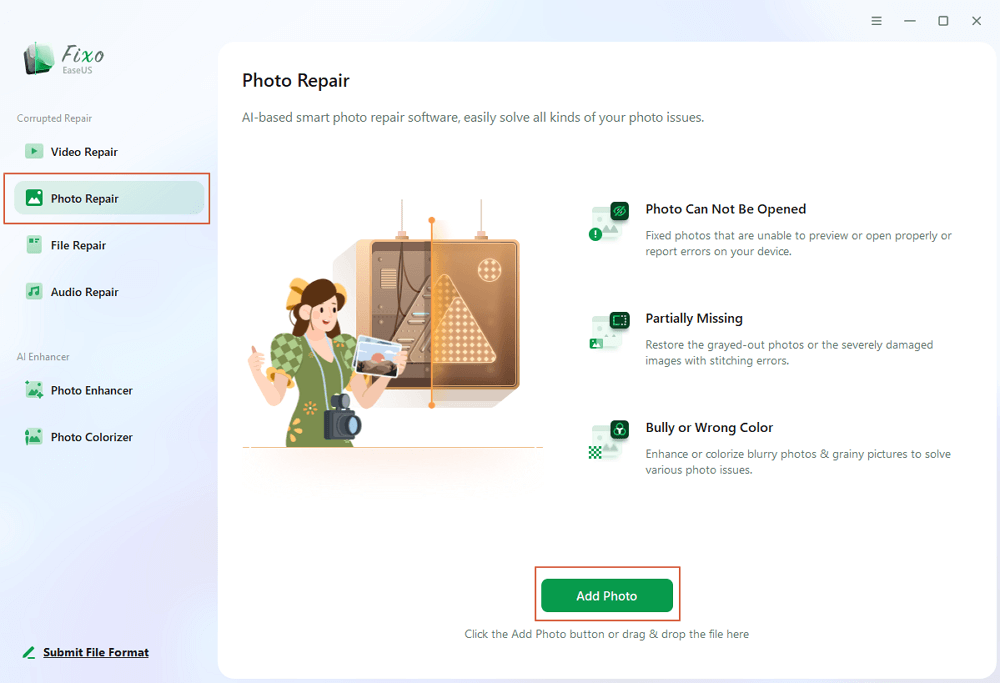
Step 1. Launch Fixo on your computer. You can choose "Photo Repair" to repair photos that cannot be opened, partially missing, etc. Click "Add Photos" to select corrupted photos.
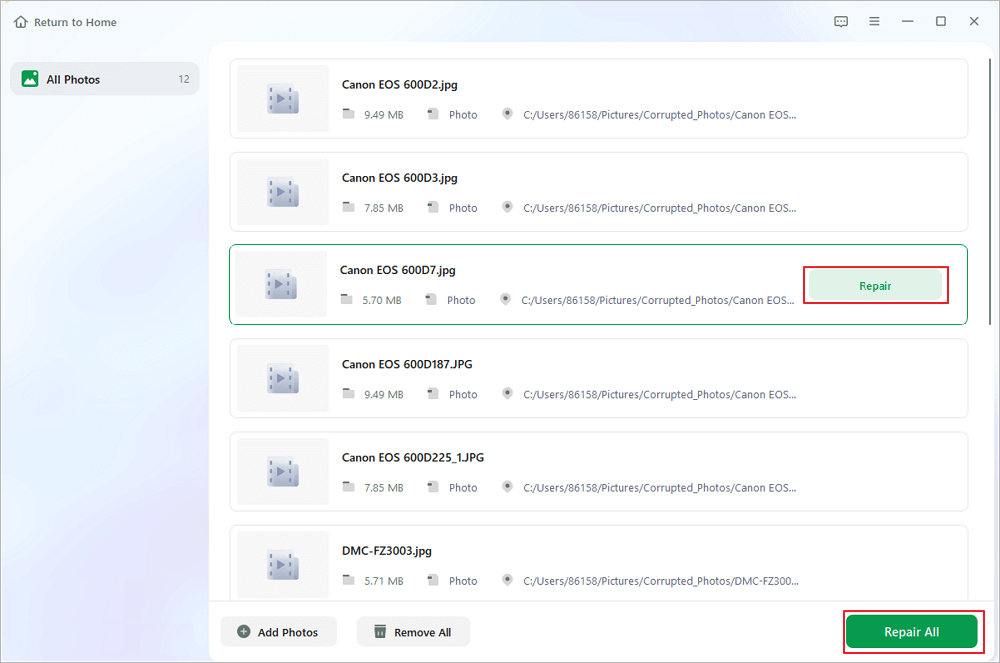
Step 2. You can repair multiple photos at once by clicking the "Repair All" button. If you want to repair one photo, move your pointer to the target photo and choose "Repair".
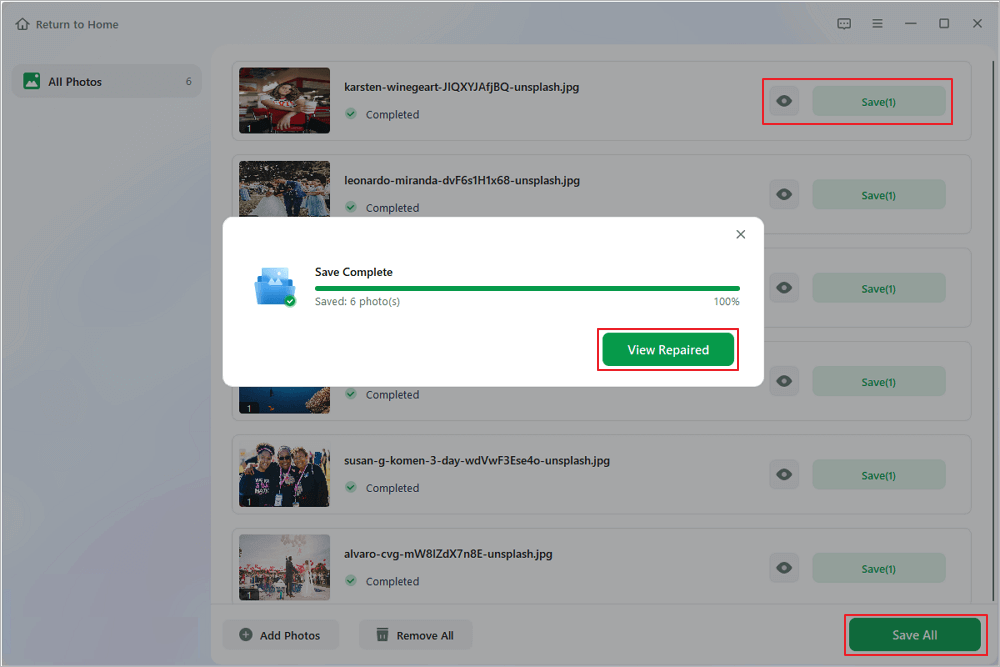
Step 3. You can click on the eye icon to preview the photos and click "Save" to save a selected photo. Choose "Save All" to save all the repaired images. Click "View Repaired" to locate the repaired folder.
2. Extract Embedded Full Size JPEG Previews Using ExifTool
Because the CR3 file specification incorporates a full-size, high-quality JPEG preview directly inside the container, you can rescue your imagery even if the main raw sensor block is corrupted beyond direct repair. Command-line tools like ExifTool can read raw container structures and extract this hidden JPEG without needing to open the broken raw container in standard photo editors.
- Download the official ExifTool executable file and place it on your system.
- Open your computer command line utility or terminal prompt.
- Navigate to the directory containing your corrupted CR3 raw files.
- Execute the extraction command targeting the preview image stream.
- Check the output folder where the standalone high-resolution JPEG preview images will be saved automatically.
3. Update Codecs and Photo Editing Software
Before assuming a CR3 file is corrupted, verify that your computer operating system and editing suite possess the correct decoding software. Canon frequently updates CR3 compression variations with new camera releases. Operating systems without updated RAW Image Extension codecs or outdated versions of editing software will fail to parse valid CR3 containers.
- Open your operating system update manager and install the latest system software releases.
- Download the official Canon Raw Driver or Windows RAW Image Extension package from official sources.
- Update your primary editing software such as Adobe Lightroom, Capture One, or Canon Digital Photo Professional to the latest version.
- Restart your computer and attempt to reload the CR3 files.
4. Run System Disk Utilities to Repair Storage Sectors
If CR3 files become unreadable after saving them to an external hard drive or SD card, logical drive errors or bad sectors on the storage device may be preventing your operating system from reading the full file. Running system check tools can repair file allocation errors.
- Connect the affected memory card or drive to your computer.
- Open your native system disk utility tool.
- Select the target drive volume containing the unopenable CR3 files.
- Execute the First Aid or File System Check command to scan for and fix volume structure errors.
- Attempt to copy the CR3 files to a new healthy drive before opening them again.

How to Repair Corrupt RAW Photos on Windows PC
Is it hard to repair corrupt RAW photos? The answer is NO. You can easily repair corrupt RAW photos with professional photo repair software, EaseUS Fixo Photo Repair.

How to Choose CR3 File Repair Methods
Choosing the right approach depends on the severity of file damage and your current operational needs. The table below compares the primary CR3 repair solutions across key operational metrics.
| Repair Method | Success Rate for Severe Corruption | Preserves RAW Data | Technical Skill Required | Best Suited Scenario |
|---|---|---|---|---|
| EaseUS Fixo Photo Repair | High | Yes | Low | Severely corrupted file headers, unopenable files, and batch photo recovery |
| ExifTool Extraction | Moderate | No (Extracts JPEG) | High | Emergency image retrieval when raw array data is unfixable |
| Codec and Software Updates | Low (Applies to healthy files) | Yes | Low | Files failing to open due to outdated software builds |
| System Disk Repair | Moderate | Yes | Moderate | CR3 files failing due to bad sectors or card logical read errors |
How to Prevent CR3 File Corruption in the Future
While Canon CR3 file repair software can successfully salvage damaged photographs, adopting preventive measures minimizes the risk of facing data loss during important photoshoots.
- Format SD Cards inside the Camera: Always format memory cards within the specific Canon camera body you intend to shoot with, rather than formatting them on a computer. This ensures proper file system alignment.
- Use High-Speed Quality Storage: Invest in reliable SD cards from reputable manufacturers with high write speed ratings capable of handling fast raw buffer transfers.
- Always Safely Eject Storage Media: Never pull a memory card out of a card reader or disconnect camera USB cables without using the official safely remove option on your computer operating system.
- Monitor Camera Battery Levels: Avoid shooting continuous raw bursts when your camera battery drops below ten percent to prevent sudden shutdown while writing data.
- Maintain Multiple Backup Copies: Implement a strict 3-2-1 backup strategy by copying raw files to an external drive and cloud storage immediately after wrapping up a shoot.
Conclusion
Encountering damaged Canon raw files can derail a photography project, but understanding the RAW image structure provides a clear path toward successful restoration. Because CR3 files encapsulate raw array streams, EXIF metadata, and embedded previews within an ISO base media container, corruption is often isolated to structural headers rather than the actual image bytes. By using dedicated tools like EaseUS Fixo to rebuild broken file headers, utilizing DNG conversion tools, or extracting embedded previews, photographers can confidently recover lost media and safeguard their valuable work.
Frequently Asked Questions
Navigating raw file recovery often generates technical questions regarding format structures and software capabilities. The following section provides direct answers to common queries regarding how to fix corrupted Canon RAW files (.cr3).
1. Can corrupted CR3 files be completely repaired?
Yes, corrupted CR3 files can be repaired if the core image payload remains stored on the media. Tools like EaseUS Fixo use advanced algorithms and sample file references to rebuild broken headers and fix corrupted metadata, returning the raw file to a fully functional state.
2. Why does my photo editor say CR3 is an unrecognized format?
This message occurs either because your editing software lacks the necessary Digic processor decoding codecs for modern Canon models, or because file header corruption has altered the internal signature of the CR3 file. Updating your software or running a photo repair tool resolves the issue.
3. Is a CR3 file different from an older CR2 file?
Yes, Canon CR3 files are based on the ISO Base Media File Format, whereas older CR2 files were built on the TIFF file structure. The CR3 format offers better compression efficiency, smaller file sizes, and support for C-RAW formats, but requires modern decoding software.
4. How can I recover images if a CR3 file cannot be repaired?
If the raw sensor array data is completely destroyed, you can use command-line tools like ExifTool to extract the full-size JPEG preview embedded inside the CR3 container, ensuring you still retain a usable high-resolution image from the shoot.
Was This Page Helpful?
About the Author

Jaden is one of the editors of EaseUS, who focuses on topics concerning PCs and Mac data recovery. Jaden is committed to enhancing professional IT knowledge and writing abilities. She is always keen on new and intelligent products.


