





Table of Contents
 About the Author
 Related Posts
Many people may encounter corrupted photo files resulting from sudden power outages, failed transfers, or storage device failures. Don't worry if you are one of them, and in this review, we'll provide a comprehensive EaseUS Fixo Photo Repair review!
EaseUS Fixo Photo Repair is available as both a desktop application (for Windows and Mac). It aims to address various corruption issues, including photos that won't open, appear blurry, have pixelation, or show display errors. Read this complete EaseUS Fixo Photo Repair review to learn more detailed information about this professional and trusted photo repair tool!
Is EaseUS Fixo Photo Repair Safe
EaseUS Fixo Photo Repair is safe when obtained from legitimate sources. It uses secure algorithms, does not alter original files, and respects user privacy by deleting uploaded data after processing.
The primary concerns are not about safety but about the risks associated with pirated versions. As long as you download from the official website and avoid cracked software, you can use the tool with confidence.
Comprehensive Fixo Photo Repair Review
Based on tests and user reports, here are the tool's principal strengths:
User-Friendly Interface and Process
EaseUS Fixo Photo Repair features a clean, intuitive interface that guides users through two simple steps: add corrupted photos and start the repair. No technical expertise is required - beginners can navigate the process effortlessly. Everything from file selection to repair completion is clearly labeled, minimizing confusion and saving time.
Effective Advanced Repair
When standard repair fails due to severe corruption (e.g., incomplete headers or complex file structure damage), the Advanced Repair mode steps in. It requires a healthy sample photo taken with the same device, enabling the software's AI‑driven algorithm to accurately reconstruct the corrupted file's internal data.
Broad Format and Device Compatibility
The software supports a wide range of photo formats, including JPEG, PNG, GIF, BMP, TIFF, and corrupted RAW photo repair (CR2, NEF, ARW, etc.). It works seamlessly with images from DSLRs, smartphones, drones, and memory cards, ensuring consistent repair regardless of the source. This extensive compatibility makes it a versatile solution for both casual users and photographers dealing with diverse file types.
Preview and Batch Repair Capabilities
Users can preview repaired photos to verify quality - a transparent feature that builds trust. The batch repair function allows processing hundreds of images in one go, drastically reducing the time required for large‑scale restoration tasks. Combined, these capabilities offer efficiency and confidence, ensuring you only pay for results and can handle high volumes without repetitive manual work.
EaseUS Fixo photo repair tool significantly boosts the success rate for otherwise unrepairable images, making it a reliable fallback for critically damaged files.
Despite its strengths, EaseUS Fixo Photo Repair has several limitations that potential users should consider.
🛜Potential for Slow Repair Times
The repair speed can be a drawback, especially for larger image files. User experiences indicate that the process can be slow, and upload times for the online version are heavily dependent on your internet connection speed.
If you think this post helps, share it with your friends to help them learn more about EaseUS Fixo Photo Repair!

How to Use EaseUS Fixo to Repair Corrupted Image Files
Go to EaseUS Fixo's official site to download this reliable photo repair tool on your computer, and follow these steps to repair corrupted photos, videos, documents (Word/Excel/PowerPoint), audio files, etc.
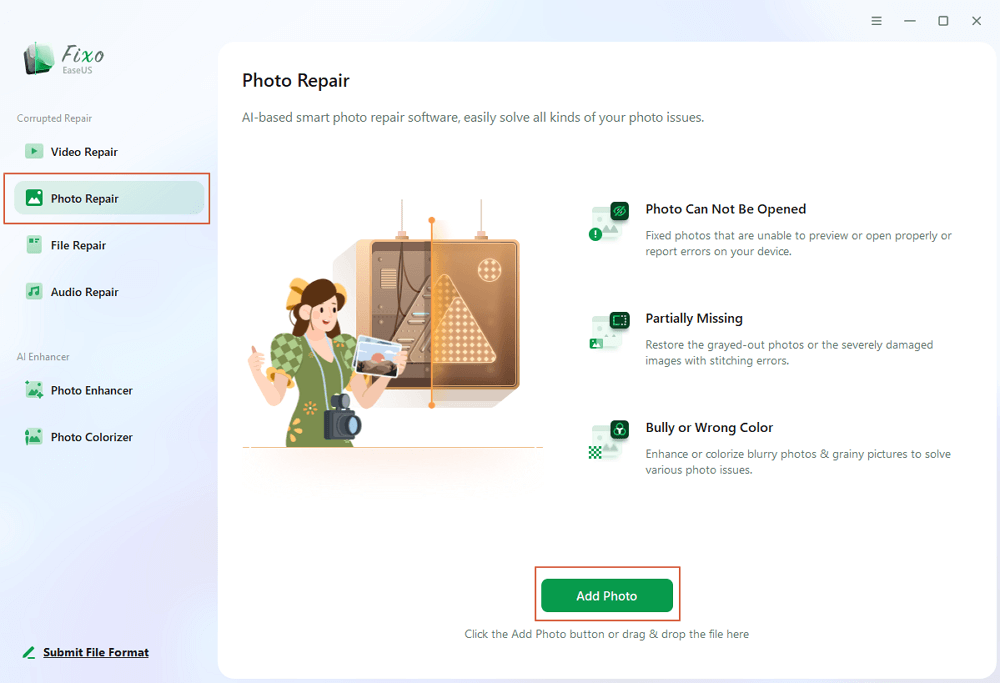
Step 1. Launch Fixo on your computer. You can choose "Photo Repair" to repair photos that cannot be opened, partially missing, etc. Click "Add Photos" to select corrupted photos.
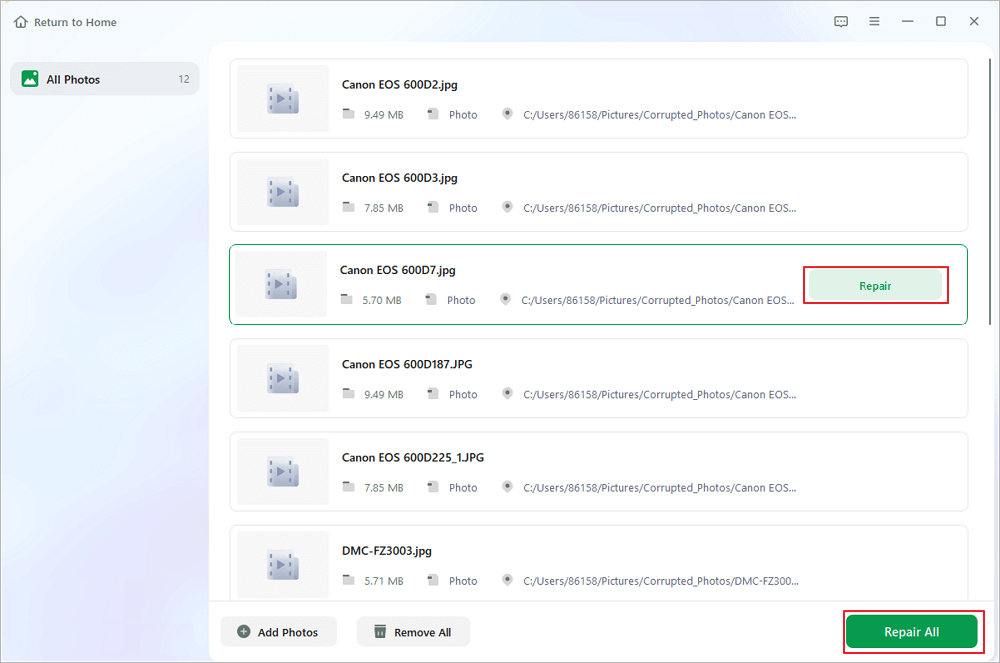
Step 2. You can repair multiple photos at once by clicking the "Repair All" button. If you want to repair one photo, move your pointer to the target photo and choose "Repair".
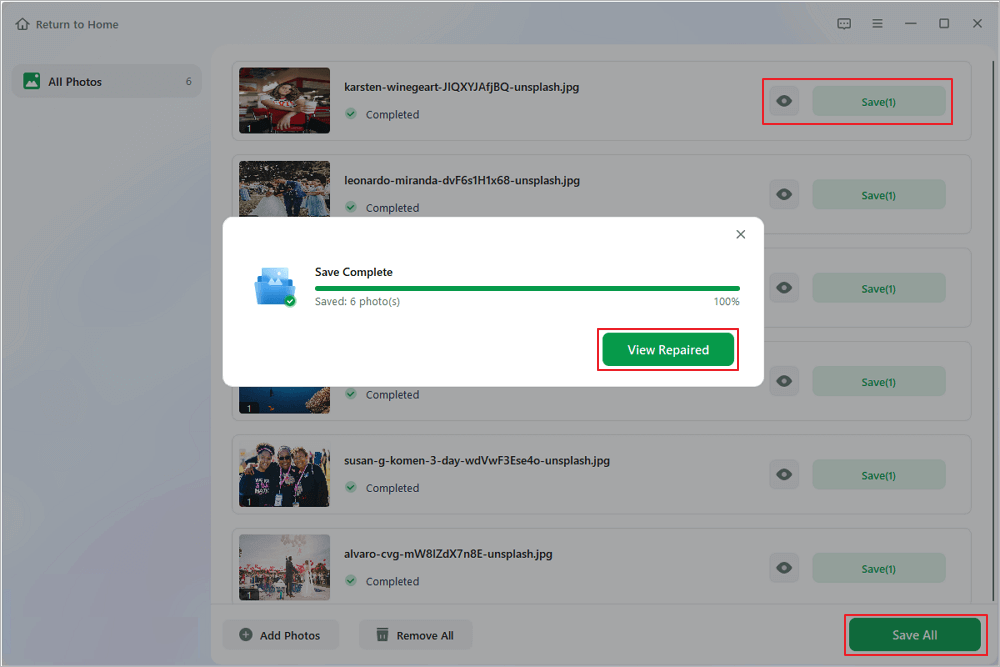
Step 3. You can click on the eye icon to preview the photos and click "Save" to save a selected photo. Choose "Save All" to save all the repaired images. Click "View Repaired" to locate the repaired folder.
Fixo Photo Repair Review FAQs
Here are questions people frequently ask about Fixo photo repair. Take a look:
1. Is EaseUS Fixo repair tool safe?
EaseUS Fixo is a safe and legitimate file repair tool for fixing corrupted videos, photos, and documents on Windows and macOS. It is widely recognized for its user-friendly interface and, according to worldwide user reviews, is free of malware.
2. Can EaseUS Fixo repair corrupted files?
Yes, EaseUS Fixo is a specialized tool designed to repair corrupted, damaged, or unplayable files, including videos, photos, and office documents. It effectively fixes common issues such as inaccessible files, broken headers, and corrupted data due to system crashes, failed transfers, or virus attacks across various storage devices.
3. How to use EaseUS fixo?
To use EaseUS Fixo to repair corrupted videos, photos, and documents:
- 1. Add corrupted files, including photos, videos, documents, etc., to EaseUS Fixo's repair box.
- 2. Click the "Repair" button, and this powerful file repair tool will fix the corrupted files immediately.
- 3. Check the repaired files and save them to a safe storage location.
It supports various formats (MP4, MOV, Word, Excel, JPEG) and includes an Advanced Repair feature for severely damaged files using a sample file.
Was This Page Helpful?
About the Author

Brithny is a technology enthusiast, aiming to make readers' tech lives easy and enjoyable. She loves exploring new technologies and writing technical how-to tips. In her spare time, she loves sharing things about her game experience on Facebook or Twitter.


