





Table of Contents
 About the Author
 Related Posts
Why Are My CapCut Videos Broken
There are several reasons why CapCut videos may not work properly or show video broken, and the majority of them are unrelated to the program itself. Frequently, the editing process is halted, or the video is already ruined before you import it. These are the most typical reasons:
- ⚠️Incomplete file transfers or downloads. CapCut might only read a portion of the clip, making it unplayable, if the video was transferred from your phone, SD card, or cloud storage and the transfer was halted midway.
- ⚠️Corrupted source video. The original clip may be damaged by unexpected shutdowns, camera malfunctions, or storage problems. CapCut may not load or render it correctly, even if it initially appears to be fine.
- ⚠️Device or storage issues. Corrupted media files that break during editing or export are often caused by low storage space, outdated SD cards, or malfunctioning USB drives.
- ⚠️Format or video codec not supported. Unusual or high-bitrate video formats are not completely supported. A stopped frame, a dark screen, or audio loss could occur when CapCut is unable to decode them.
Once the underlying reason is found, these problems are frequently resolved. In the following section, you'll learn some quick solutions to fix broken CapCut videos.
How to Fix Broken CapCut Video Quickly
Minor errors or missing files are the main cause of issues, and the video can often be restored with a few quick checks. Here are a few quick remedies that people frequently use:
- ✅Restart Capcut. Temporary rendering problems are frequently resolved with a quick reload.
- ✅Clear CapCut's cache. Particularly if storage is limited or the program has been used a lot.
- ✅Try other video players or editors. This enables you to verify whether the file is actually damaged.
- ✅Convert the video. Transform the video into a common format, such as MP4 (H.264). Unusual codecs or high-bitrate files can cause CapCut to freeze or lose frames. To prevent issues with exporting or decoding, update the application.
If the video clip is already corrupted, use a specialized tool to fix it. A broken film that CapCut cannot load correctly can often be repaired with the video repair software.
How to Fix Broken CapCut Projects
You'll need more than the standard quick fixes when a CapCut movie is actually corrupted, not just the program. CapCut may not correctly decode a clip if it is damaged during recording, transfer, or export. The only dependable method to restore playability in these situations is to fix the corrupted CapCut video file itself.
A specialized repair tool can be helpful in this situation. Software like EaseUS Fixo Video Repair can repair incomplete frames using advanced AI technology, rebuild broken video headers with sample videos, and fix clips that editing tools cannot load.
With this reliable CapCut video repair tool, you can fix corrupted videos affected by transfer failures, camera malfunctions, power outages during recording, or corrupted SD cards:
✨Step 1. Download, install, and launch EaseUS Fixo Video Repair
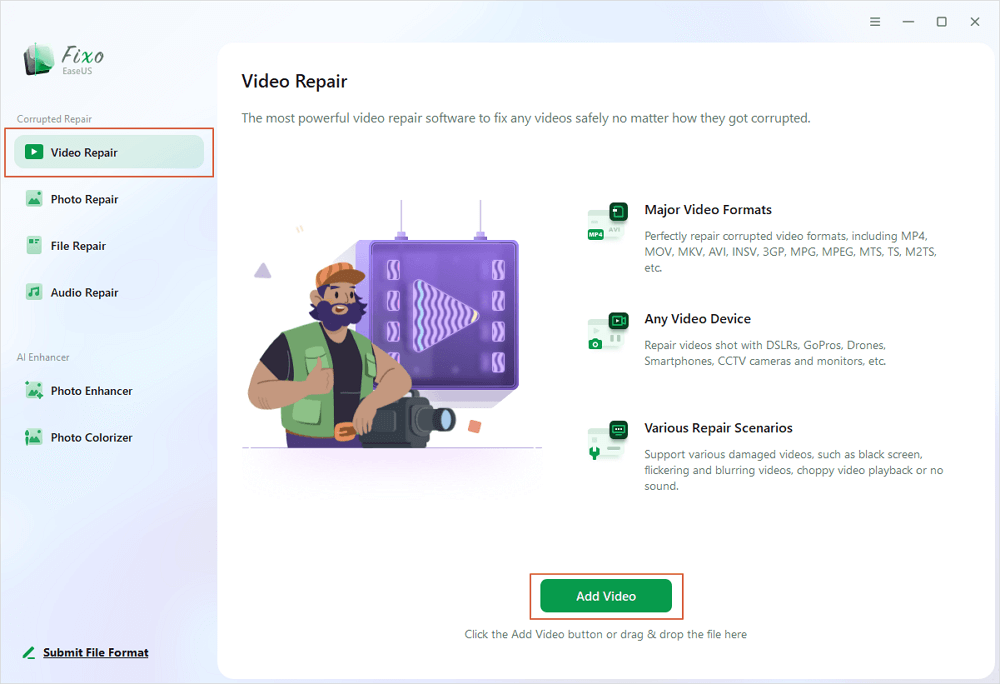
Click the download button or visit Fixo official website to download and install this video repair tool, In the interface, click "Video Repair" > "Add Videos" to upload movies, recordings, or other video files from various storage devices.
✨Step 2. Start the video repair now
If you don want to repair all the videos at once, you can select a singe one and choose "Repair". Click the trash button to remove the video from the repair list.

✨Step 3. Preview and save repaired videos
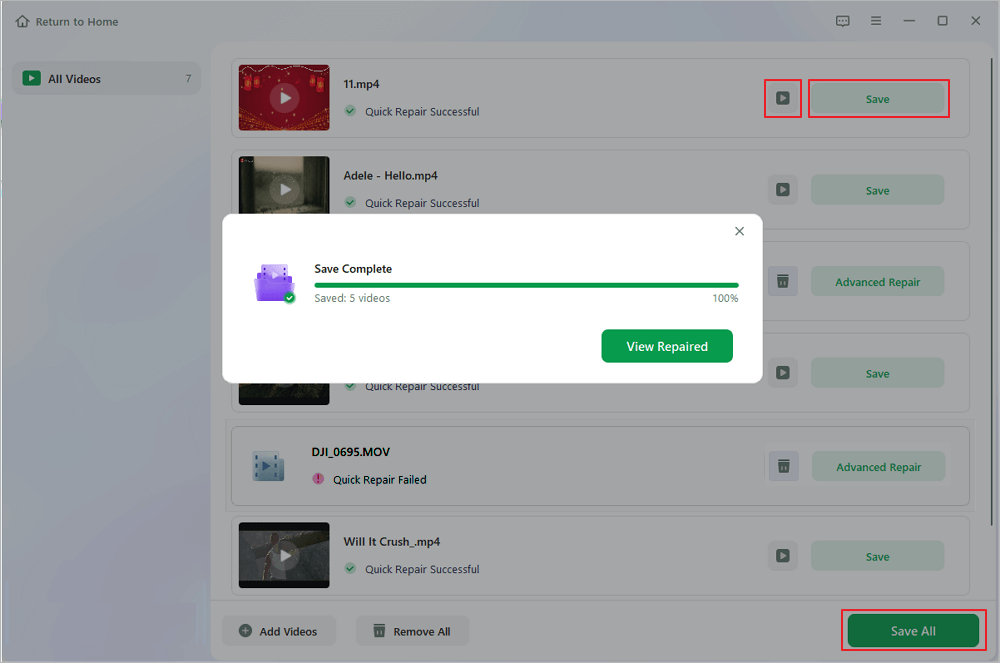
It may takes longer to repair large videos. Click the play icon to preview the repaired videos, and click "Save All" to save these video files. The "View Repaired" button will lead you to the repaired folder directly.
✨Step 4. Apply advanced repair if fails
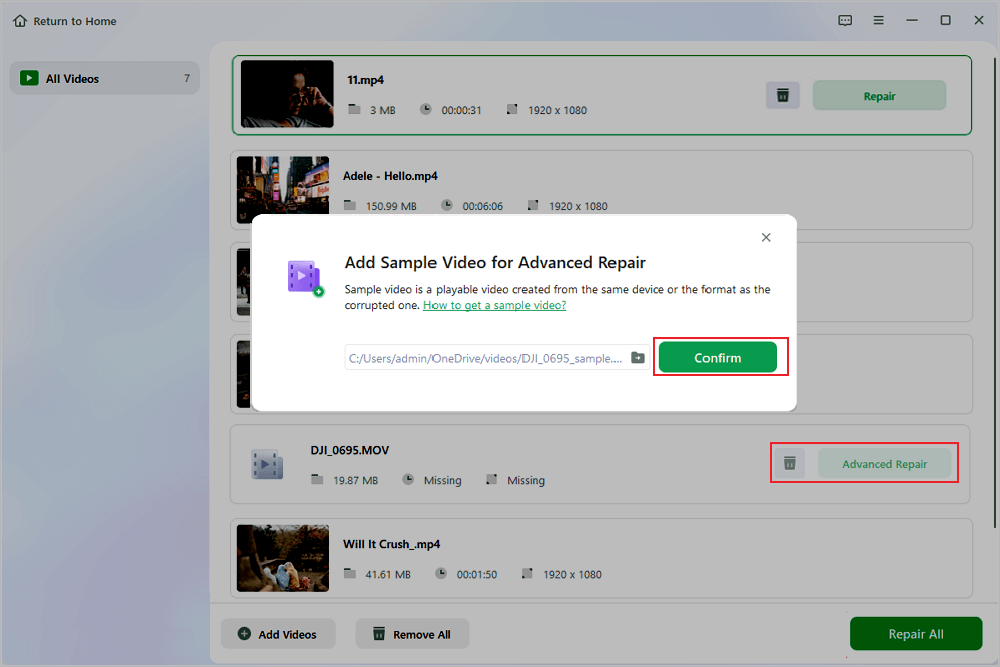
If the video shows "Quick Repair Failed", that means the video is seriously damaged and it's better to utilize the advanced repair mode. Click "Advanced Repair" > the folder icon > "Confirm" to add a sample video.
✨Step 5. Check the match result
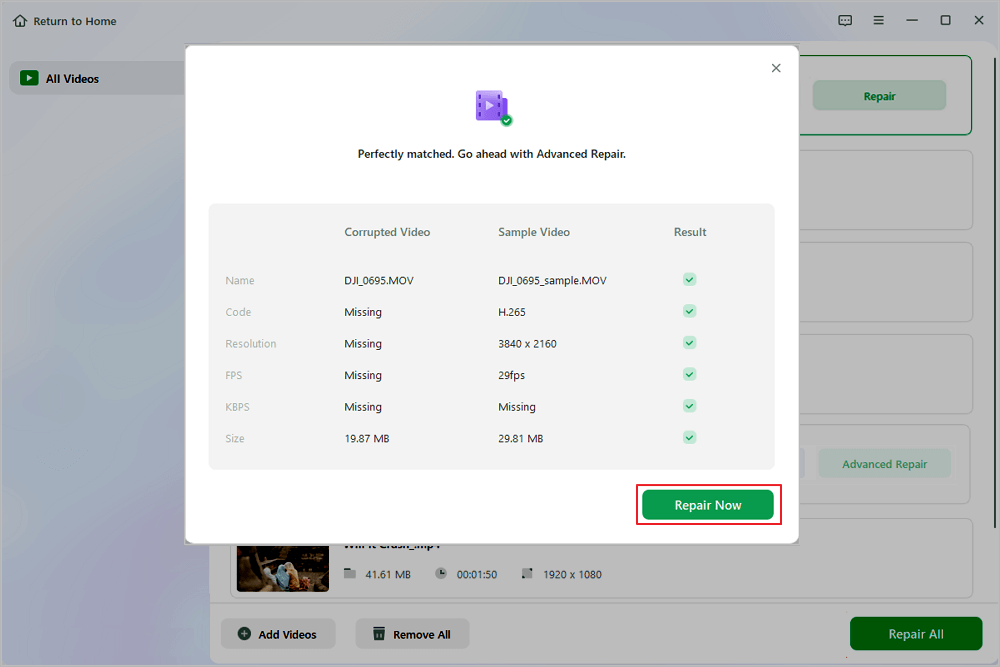
You'll know whether the sample video can help repair the corrupted videos or not in the pop-up window. A list of detailed information on corrupted and sample videos will show up. Click "Repair Now" to start the advanced video repair process.
Once the corrupted video is repaired, you can import it back into CapCut and continue editing without starting over. Please share this video clip repair solution with more friends who also encounter damaged CapCut videos.

Conclusion
Keeping your device's storage healthy and avoiding force-closing CapCut mid-render will help prevent broken videos in the future. Before switching apps, ensure your phone or camera has finished recording, and try to transmit large video files over a reliable connection. You also have a safety net in case something goes wrong: back up your projects and original clips.
If you encountered video corruption, such as the video cannot play in CapCut or shows no sound, download EaseUS Fixo Video Repair and fix your damaged video clips!
CapCut Video Clip Not Working FAQs
1. What causes CapCut to break?
A CapCut movie typically fails because the software crashes during rendering, the transfer is interrupted, or the source file is already corrupted. The clip CapCut attempts to load may also be damaged by low storage, unstable formats, or a recording crash.
2. How can I fix CapCut video glitching?
Start by importing the original video again, emptying CapCut's cache, or refreshing the project. If the issues persist, either use a specialized repair program like EaseUS Fixo Video Repair to fix the damaged portions of the file or convert the video to a more common format.
3. Why is my video showing as broken in CapCut?
Because CapCut is unable to fully decode the file, your video may appear damaged. This occurs when the video is captured in a format that the app finds difficult to interpret, is incomplete, or is corrupted.
Was This Page Helpful?
About the Author

Dany is an editor of EaseUS who lives and works in Chengdu, China. She focuses on writing articles about data recovery on Mac devices and PCs. She is devoted to improving her writing skills and enriching her professional knowledge. Dany also enjoys reading detective novels in her spare time.


