





-
![]()
-
![]()
-
![]() How to Format a Flash Drive Without Losing Data (Complete Guide)
How to Format a Flash Drive Without Losing Data (Complete Guide) October 29,2026
 6 min read
 -
![]()
-
-
![]()
-
![]() Recover Deleted Files from USB Without Software (Step-by-Step Guide)October 29,20266 min read
Recover Deleted Files from USB Without Software (Step-by-Step Guide)October 29,20266 min read -
![]() RAW USB Recovery | How to Recover Data from RAW USB DriveOctober 29,20266 min read
RAW USB Recovery | How to Recover Data from RAW USB DriveOctober 29,20266 min read -
![]() The Disk Is Write Protected: How to Remove Write Protection HDDOctober 29,20266 min read
The Disk Is Write Protected: How to Remove Write Protection HDDOctober 29,20266 min read -
![]() Lexar USB Format Tool 2026 Guide: Download & Repair in 2026October 29,20266 min read
Lexar USB Format Tool 2026 Guide: Download & Repair in 2026October 29,20266 min read
Page Table of Contents
When a USB drive shows a 0-byte error, always rescue your files first before running any repair commands. EaseUS Data Recovery Wizard helps retrieve inaccessible content. Try no‑format fixes first. Use formatting or Diskpart only as your final solution when all other methods fail.
PAGE CONTENT:
Many Windows users run into a frustrating situation after plugging in their USB flash drive. The system displays 0 Bytes Used and 0 Bytes Free for the removable storage. When users open Disk Management, the USB drive shows 0 bytes raw file system or is marked as No Media. You cannot open folders or view any stored files even if you know data exists inside the USB flash drive. Many users rush to run repair tools right away, but wrong operations may permanently erase your personal files.
What Does USB Drive Shows as 0 Bytes Mean
This is the first critical fact every user should understand. A USB drive showing 0 bytes does not equal permanent total data loss. Your photos, documents, and media files may still be safe on the flash memory chip. The operating system simply can't read the partition metadata to recognize file entries. Logical errors instead of full physical damage cause most 0-byte USB problems.
| Status | Description | Causes |
| 🗂️RAW file system | Windows cannot identify the existing file system on the USB drive | Corrupted partition table, unsafe USB removal, virus activity |
| ❔USB No Media | System detects the USB hardware but cannot access the storage chip | Insufficient power supply, bad flash sectors, loose hardware contact |
First-aid: Recover Your USB Data Before Repair Actions
All repair operations risk overwriting remaining file fragments on your USB drive. CHKDSK formatting and Diskpart commands may alter storage structures and make content impossible to retrieve. The correct workflow always makes data rescue your first priority, even if your USB flash drive shows 0 bytes raw file system.
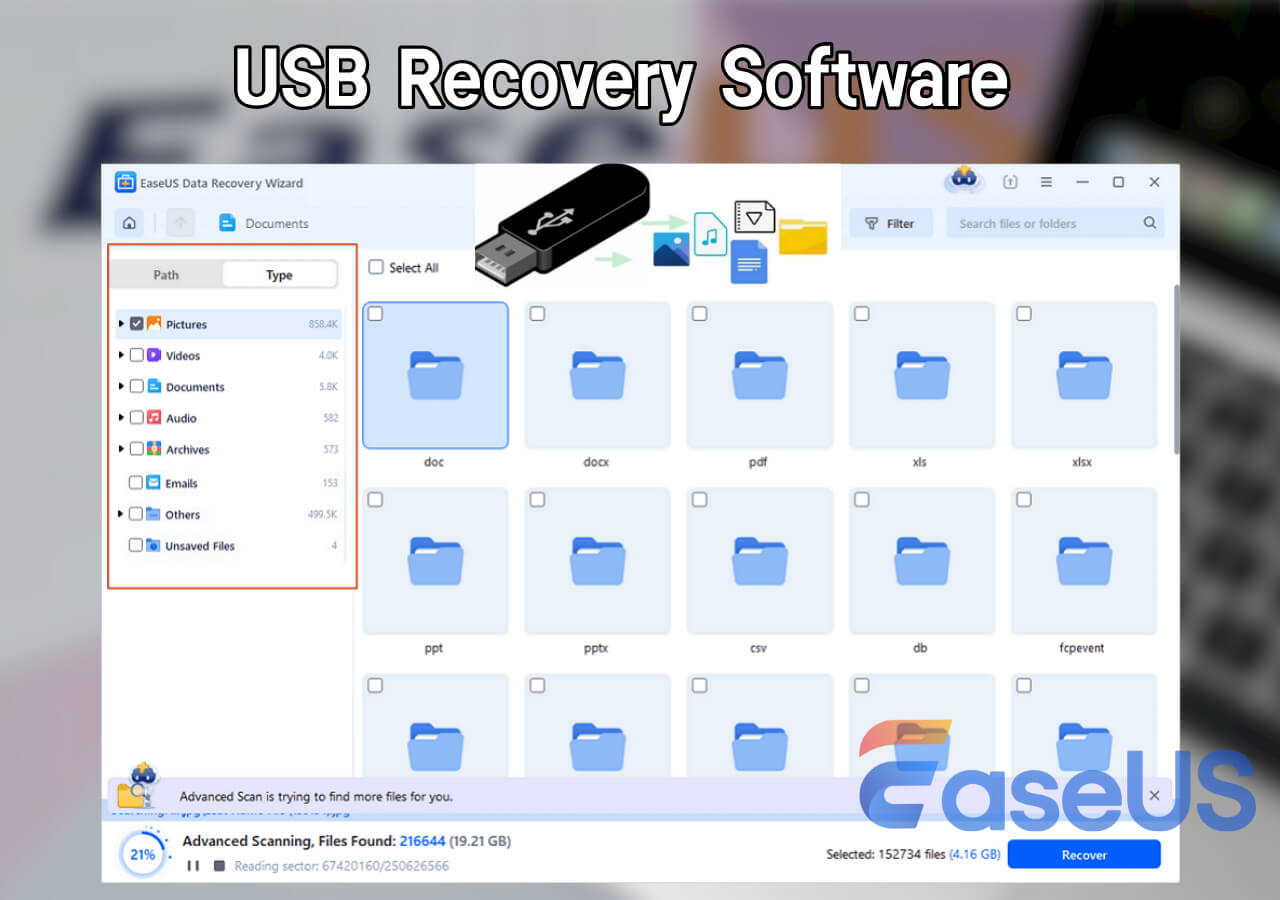
EaseUS Data Recovery Wizard works reliably for USB drives with RAW status or logical corruption. It performs read‑only deep scans and will not write new content onto your faulty USB storage.
Install this software on your local computer hard drive, not the problematic USB device.
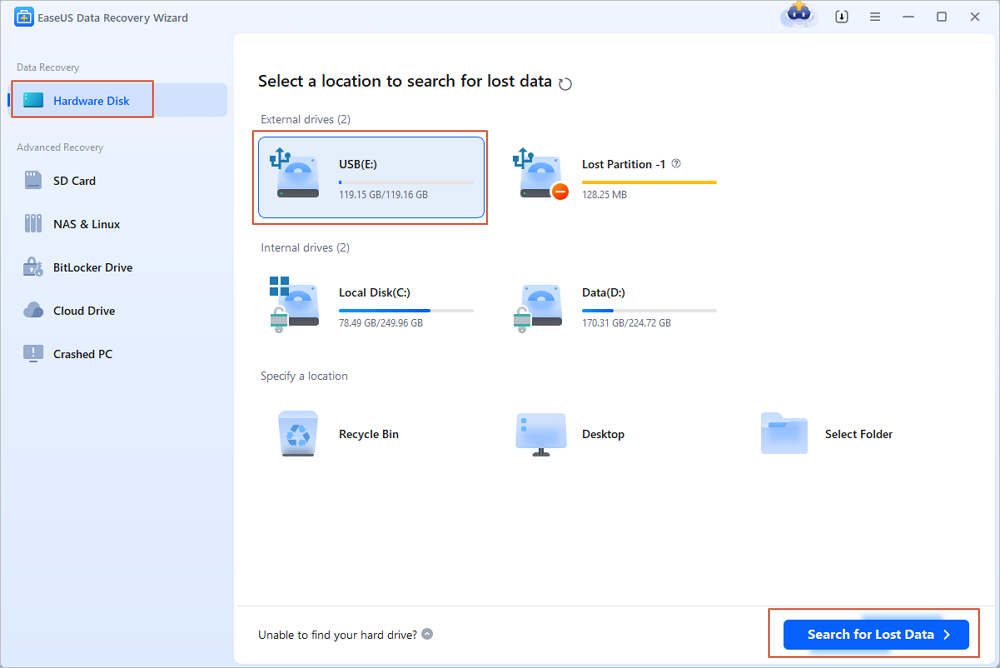
Step 1. Choose the USB drive to scan
Launch EaseUS Data Recovery Wizard and choose your USB drive where you lost important files. Click "Scan for lost data" to start.
Step 2. Check and preview USB drive data
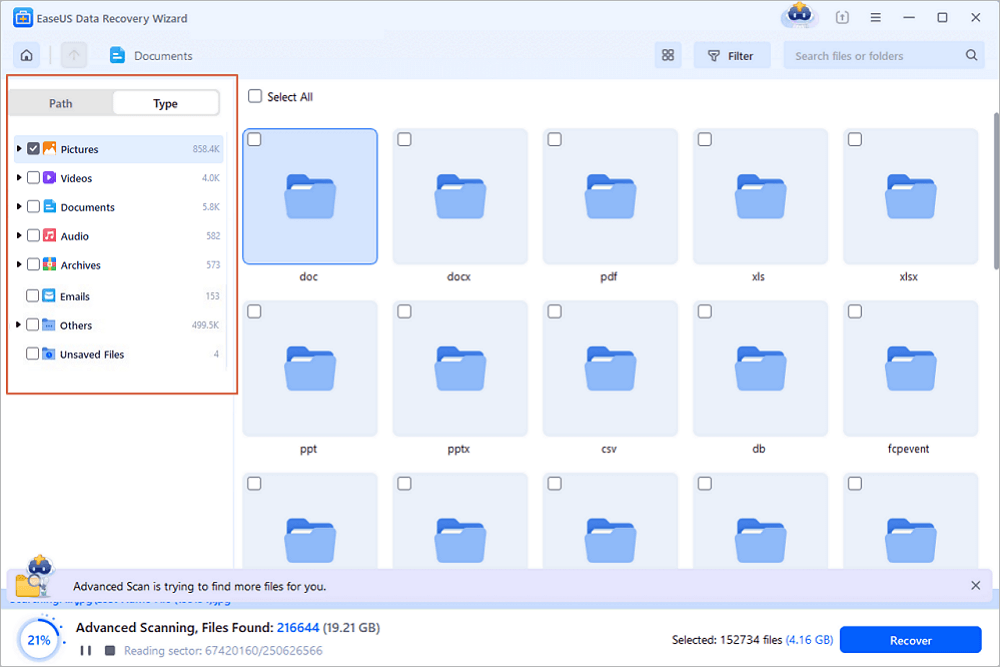
When the scanning is finished, you can quickly locate a specific type of file by using the Filter feature as well as the Search option.
Step 3. Restore flash drive data
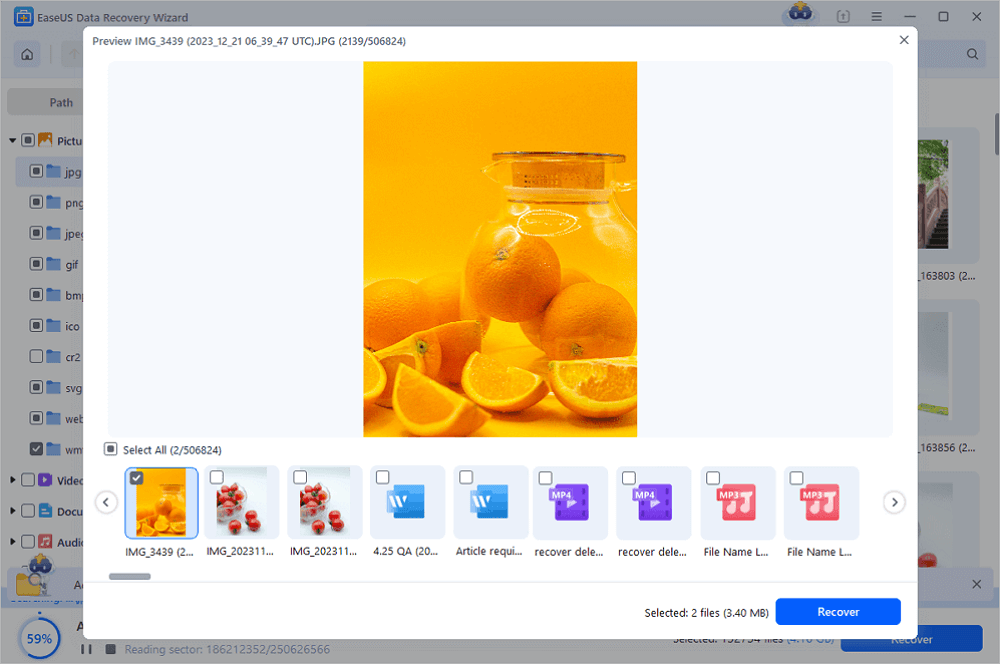
After checking and finding lost USB drive files, click "Recover" to restore them. You shall save the found files to a safe location on your PC rather than to your USB drive.
💡Tip: You can restore data on the local disks, external hard drives, and also the cloud storage.
Never save recovered data back to the same USB drive that shows 0 bytes. This action will overwrite the remaining original data fragments and reduce your recovery success rate. If you find this information helpful, share it on social media to help others overcome this common challenge.
Repair USB Drive Shows as 0 Bytes Without Formatting
After you safely extract important files from USB storage, test these no‑format solutions to fix USB drive shows 0 bytes no media errors. Work through these methods one after another.
Method 1. Reinstall USB Device Drivers
Step 1. Keep your problematic USB drive plugged into the computer's USB port.
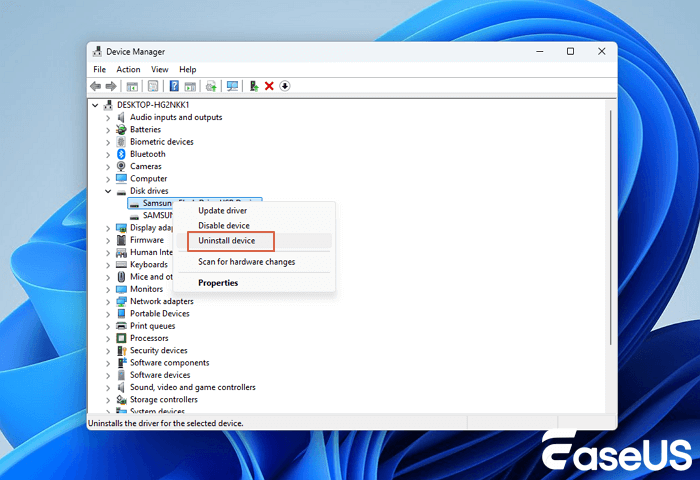
Step 2. Right-click the "Windows Start" menu and open "Device Manager".
Step 3. Expand the Disk drives category to find your connected USB flash drive entry.
Step 4. Right-click this USB hardware entry, then select "Uninstall device".
Step 5. Disconnect your USB flash drive. Restart your Windows system fully.
Step 6. Re‑insert the USB drive into another computer USB port. Windows will automatically install fresh driver software for this removable device.
Method 2. Unhide Hidden Files via Command Prompt
Corrupted metadata may mark all USB content as hidden system entries even when the storage itself stays intact. Run this command from an administrator terminal to reveal hidden items.
Step 1. Press the Win + R keys. Type cmd, then press Enter.
Step 2. Right-click Command Prompt and choose Run as administrator.
Step 3. Input the command attrib -h -r -s /s /d X:\*.*. Replace C:\ and the folder paths in this picture with your actual USB drive letter shown on your system.
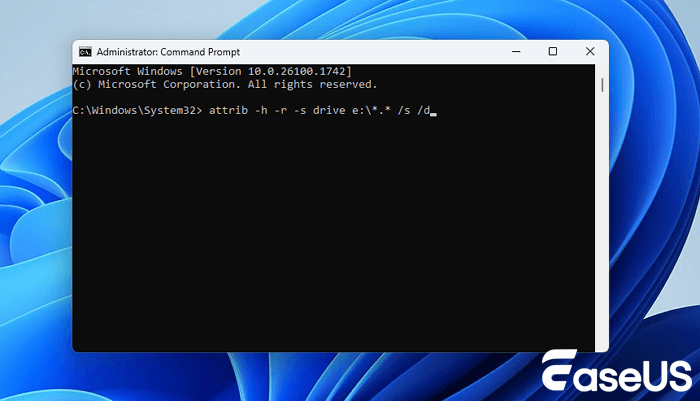
Step 4. Press Enter and wait for the command execution to complete. Open your USB drive to check visible file content.
Method 3. Assign a New Drive Letter via Disk Management
Drive letter conflicts can make valid USB storage show up as 0 bytes. Changing the assigned drive letter often resolves mount issues.
Step 1. Press Windows + X and select "Disk Management".
Step 2. Locate your USB flash drive entry on the volume list.
Step 3. Right-click this USB volume and select "Change Drive Letter and Paths".
Step 4. Click "Change" and pick one unused drive letter from the drop-down menu.
Step 5. Click "OK" and refresh File Explorer to verify USB access status.

How to Fix a Pen Drive Without Formatting
This article will provide the 6 practical methods to resolve a damaged USB and offer a guide to help you recover data from a corrupted USB flash drive.
Final Fix: Reset USB via Format or Diskpart
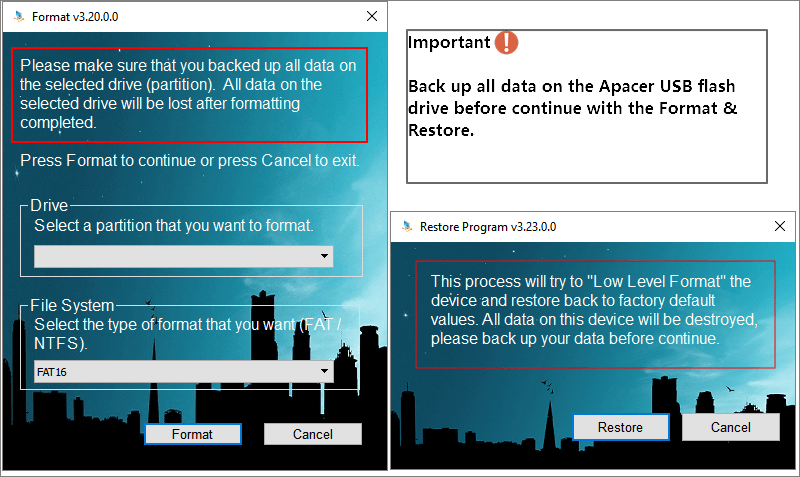
When no-format troubleshooting steps work, you need a full storage reset. Remember formatting will erase every single file stored on the USB flash drive. Confirm you have completed full data recovery with EaseUS Data Recovery Wizard before moving forward.
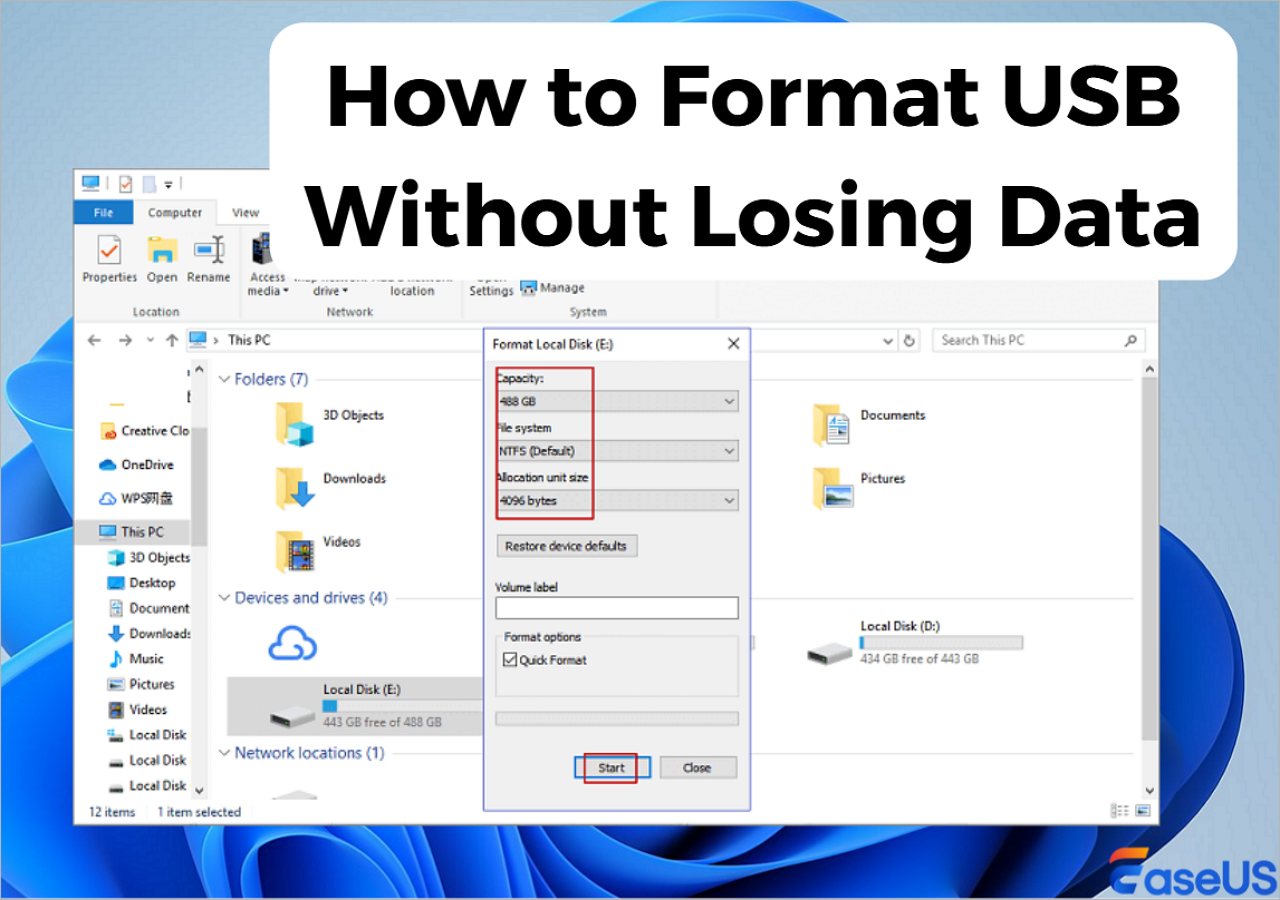
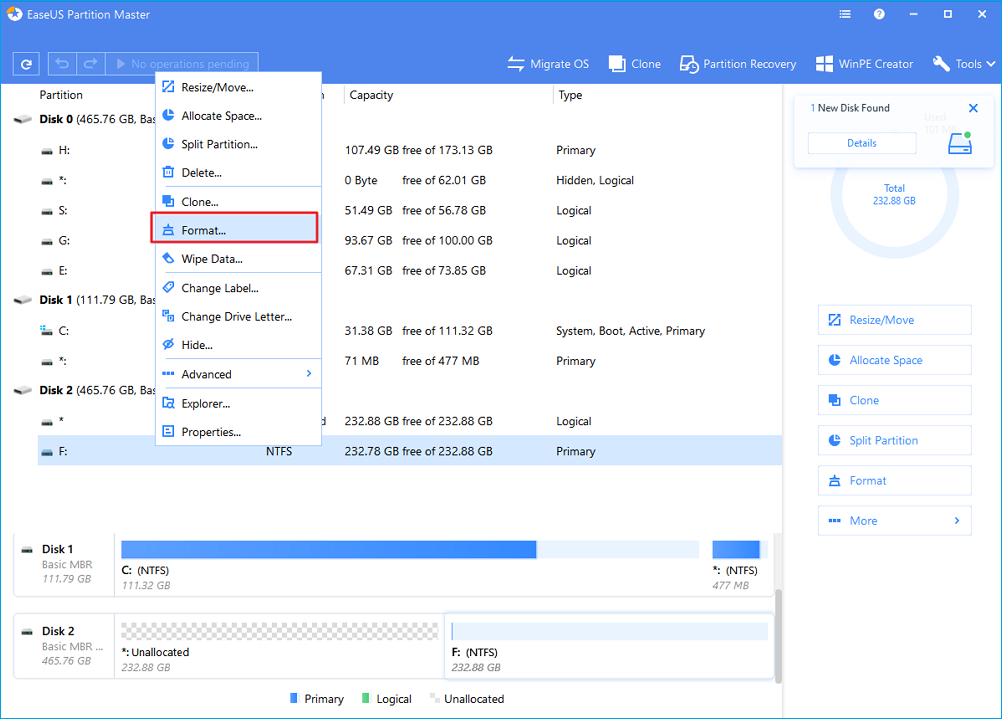
Step 1. Open This PC. Right‑click your target USB drive entry.
Step 2. Select the Format option from the pop-up menu.
Step 3. Choose a suitable file system, such as FAT32 or NTFS, based on your needs.
Step 4. Set the allocation unit size to the default value. You may set a new volume label name.
Step 5. Check the Quick Format box, then click Start to confirm the format operation.
Conclusion
A USB drive showing as 0 bytes is a widespread error for removable flash storage. Keep this core rule in mind for every troubleshooting workflow. Complete data recovery before you run repair or reset operations. EaseUS Data Recovery Wizard offers effective read‑only scanning to pull files from USB drives marked RAW or 0 bytes.
USB Drive Shows as 0 Bytes FAQs
The following answers address the most common queries from users seeking file restoration solutions.
1. Why does my USB drive show as 0 bytes with RAW file system status?
A RAW file system means Windows can't read the partition table on your USB flash drive. Common triggers include unsafe USB removal, malware infection, or sudden power loss during file transfer. Your original data may still exist on the flash chips, so recover it before running any repair commands.
2. What difference exists between a USB drive showing 0 bytes raw file system and No Media?
RAW points to logical partition damage. The computer can still communicate with the USB memory chip. No Media status suggests hardware-level connection problems or serious flash chip degradation. Re-plug your USB device into different ports and check the cable connections for the No Media error first.
3. Can I fix a USB drive showing 0 bytes No Media without losing data
A4 You have a higher chance of keeping your files if you run data recovery software before repair actions. If your USB reports No Media due to physical flash hardware failure, software scanning may fail, and you need a professional data recovery service.
Was this page helpful?

 Why Trust EaseUS
 Editor Reviews

20+
Years of experience

160+
Countries and regions

72 Million+
Downloads

4.9 +
Trustpilot Score





