






If you accidentally deleted a volume on a Windows dynamic disk, the recovery logic is fundamentally different from a basic disk. Dynamic disks rely on a hidden private database (the LDM database) to manage volumes that can span multiple physical drives. Standard partition recovery tools often cannot read this complex structure, and writing to the disk can destroy the very metadata needed for recovery. Here is how you can recover deleted volume on dynamic disk with ease:
Why Recovering a Deleted Volume on a Dynamic Disk Is Trickier
Dynamic disks support simple, spanned, striped, mirrored, and RAID-5 volumes. When you delete a volume, Windows mainly modifies the LDM database record at the end of the disk, while the actual file data usually remains in place until it is overwritten. The problem is that many generic partition recovery tools only read standard MBR/GPT partition tables. They cannot see the dynamic disk volume map, so the space appears as "Unallocated," and recovery seems impossible.
| Basic Disk | Dynamic Disk |
|---|---|
| Uses traditional MBR/GPT partition tables | Uses a private LDM database to manage volumes across disks |
| Easy to recover with standard tools | Requires tools that understand the dynamic disk database |
What to Do First: Protect Your Data
Before attempting any fix, follow this order. Otherwise, you may lose your data permanently:
- Do not format. When Windows prompts "You need to format the disk before you can use it," close the prompt and do not format.
- Do not run chkdsk /f. Running repair commands on a damaged dynamic volume can overwrite the LDM database or NTFS metadata, making recovery harder.
- Do not rush to convert back to a basic disk. Windows Disk Management usually requires deleting all volumes before converting a dynamic disk back to basic, which wipes the volume structure.
- Save recovered files to a different physical disk. Never write recovered data back to the original disk, or you may overwrite unrecovered files.
How to Recover a Deleted Volume on a Dynamic Disk
Using a recovery tool like EaseUS Data Recovery Wizard that supports dynamic disk structures, the key is to select the entire physical disk for a deep scan rather than trying to click a specific partition.
Here is how you can recover lost or deleted partition:
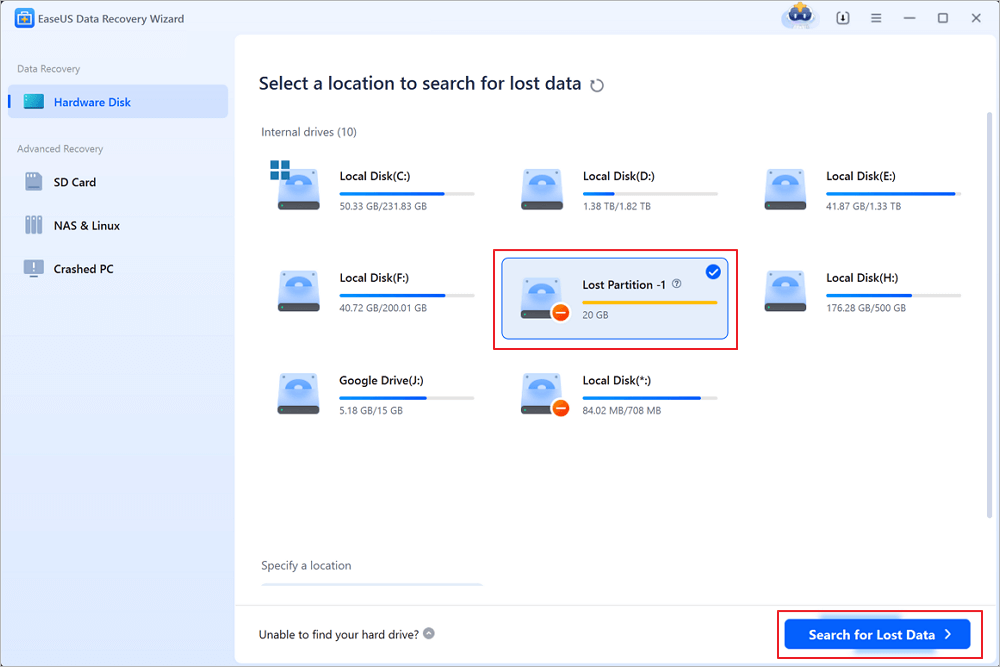
Step 1. Select and scan the lost partition
Launch EaseUS Data Recovery Wizard, select "Lost Partition" and click "Search for Lost Data" to search for all the lost data from your lost or deleted partition. If there are many lost partitions, you can identify them through its partition size.
Note: Since the Windows system doesn't support the Linux file system, the Ext2 or Ext3 partition will be recognized as lost partition with no drive letter in the software. If you want to recover data from Ext2/Ext3 partition, you can follow these steps.
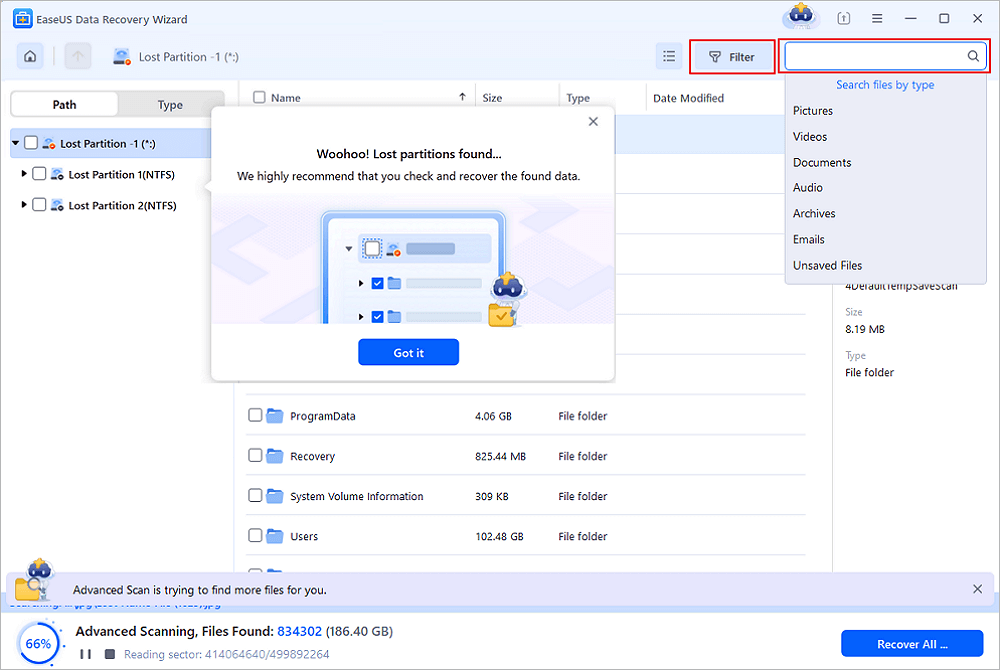
Step 2. Filter the scanned results
Because there will be a lot of scanned files, you can choose a file category for quick filtering, such as Pictures, Videos, Documents, Audio, and Others. Or if you remember the file name, you can just look it up in the search box in the upper right corner.
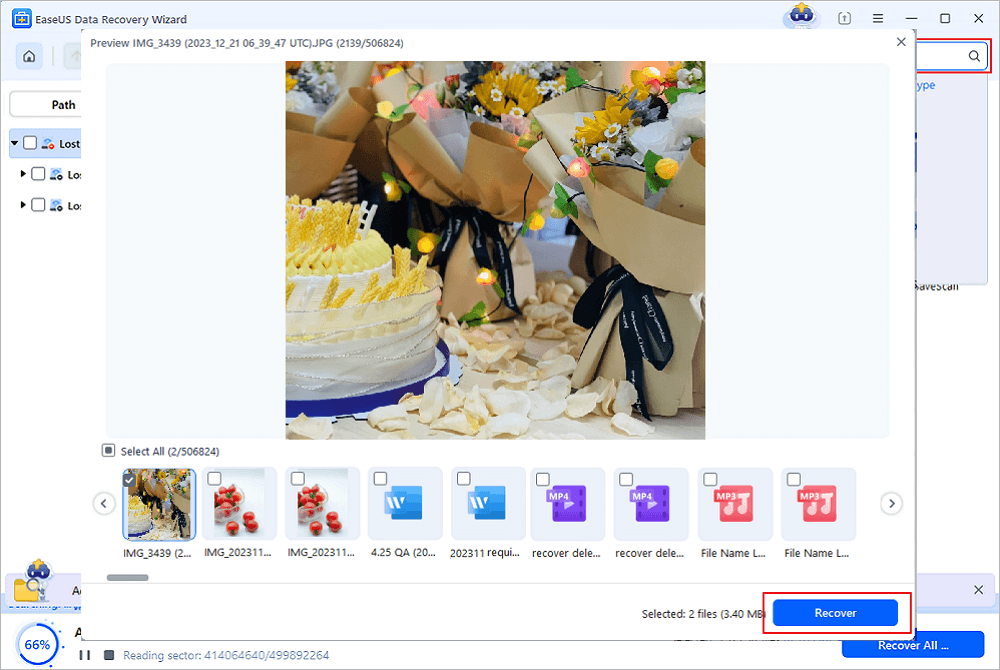
Step 3. Preview and recover data from the lost partition
Before recovery, you can preview the file to make sure it is the data you need. Choose all the files you need and click "Recover" to restore them. Choose a storage location (including cloud storage, such as OneDrive, Google Drive, etc.), and click "Save" to save your recovered files.
You can share this post with users who are facing the same volume loss error:

If the Software Cannot Detect the Dynamic Disk
Some general-purpose recovery tools (including certain versions of EaseUS Partition Recovery) explicitly state that they cannot directly recover volumes on dynamic disks, and their official advice is to convert first—which carries data-loss risk. If Recoverit's deep scan still cannot find the original volume, or if the disk shows as "Invalid" or "Foreign" in Disk Management, the issue may be beyond software recovery. In that case:
- Check the disk connection. If it is an external enclosure or adapter, try another port or connect directly to a motherboard SATA port to ensure the LDM database can be read completely.
- Consider professional service. If the disk makes unusual noises, or if the volume is a spanned/striped volume made of multiple disks, DIY attempts can scramble the array structure further. Consult a professional data recovery lab to image the disks first.
Tips to Prevent Future Volume Loss on Dynamic Disks
Here are some tips that help prevent volume loss in future:
- Back up the LDM database and critical data regularly to a separate physical disk or external drive.
- Avoid unnecessary dynamic-to-basic conversions. Windows requires deleting all volumes first, which erases data.
- Keep power and cabling stable. Sudden disconnects can corrupt the LDM database and cause volumes to show as "Missing" or "Invalid."
- Plan a migration. Dynamic disks are legacy technology; Microsoft now guides users toward Storage Spaces. After recovering your data, consider moving to basic disks or a modern storage pool that is easier to maintain and recover.
Final Words
Recovering a deleted volume on a dynamic disk requires understanding that Windows manages these volumes through a private database, not a standard partition table. Formatting, running aggressive repair tools, or forcing a conversion can destroy the metadata needed to rebuild your files. By stopping writes immediately, avoiding questionable repairs, and using recovery software that supports dynamic disk structures to recover deleted volume on dynamic disk.
FAQs on How to Recover Deleted Volume on Dynamic Disk
Here are some frequently asked questions you may be curious about:
1. Can I recover a deleted volume on a dynamic disk with free software?
Some free tools can scan dynamic disks, but many cannot rebuild spanned, striped, or mirrored volumes. If the free version cannot detect the deleted volume, try a deep scan on the entire physical disk with a tool that explicitly supports dynamic disks.
2. What happens when I delete a volume in Disk Management on a dynamic disk?
Windows removes the volume record from the LDM database and marks the space as unallocated. The file data usually remains until overwritten, so recovery is often possible if you stop using the disk immediately.
3. Is it safe to convert a dynamic disk back to basic to recover data?
No. Windows normally requires deleting all dynamic volumes first, which erases data. Recover and back up your files first, or clone the disk and perform the conversion on the clone.
4. Why does my dynamic disk show as "Invalid" or "Missing"?
The LDM configuration database may be corrupted, or there may be cable/power problems or signature conflicts after moving disks between systems. Do not initialize or format the disk; attempt dynamic disk recovery first.
Was This Page Helpful?
Related Articles
-
NVMe SSD Partition Recovery: Technical Guide
![author icon]() Jaden/2026-11-19
-
No BitLocker Recovery Key Found for This Device? Fix Now
![author icon]() Dany/2026-11-19
 Jaden/2026-11-19
 Dany/2026-11-19
-
How to Recover and Repair USB Drive/SD Card Partition | 2 Ways
![author icon]() Daisy/2026-09-20
-
How to Recover Data from BitLocker Encrypted Drive
![author icon]() Jaden/2026-11-19
 Daisy/2026-09-20


