



When a partition suddenly turns RAW, losing access to important documents, photos, or project files can be stressful. You may see pop-ups such as "You need to format the disk before you can use it," notice that "The file system is RAW," or see a drive reporting 0 bytes used and free space. In most cases, your files are still sitting on the storage medium; Windows simply cannot read the corrupted file system structure.
📒A RAW partition is a storage volume whose file system structure, such as NTFS, FAT32, or exFAT, is damaged or unrecognized by Windows, making files inaccessible without formatting. Because the underlying data often remains intact, you can usually recover data from a RAW drive first using recovery software before fixing the partition without losing files.
To fix a RAW partition without losing data, follow one golden rule: recover your data to a separate, healthy drive first, and repair or format the RAW partition second. Formatting or rebuilding a partition can overwrite or clear file system references, so extracting your files before making structural changes protects your data.
Understanding RAW Partitions, Common Error Messages, and Root Causes
"What Makes a Partition or Drive Turn RAW in Windows?"
File system corruption in a RAW state occurs when metadata structures, such as the boot sector, Master File Table (MFT), or partition table, become unreadable or inconsistent with Windows drivers. While the operating system cannot mount the volume normally, raw data blocks on the disk often remain recoverable until overwritten.
When Windows mounts a standard volume, it reads file system metadata (commonly NTFS on internal Windows drives, or FAT32 and exFAT on flash drives and external storage) to map folders and files. If that metadata is damaged, Windows labels the volume as RAW instead of displaying its normal file system.
Common triggers behind a RAW partition or RAW drive include:
- File system corruption: Damaged NTFS, FAT32, or exFAT metadata prevents Windows from recognizing the volume.
- Sudden power failure: Power outages during file transfers or disk writes interrupt metadata updates.
- Unsafe drive removal: Unplugging USB drives, SD cards, or external hard drives without safe ejection can corrupt active writes.
- Virus or malware attacks: Malicious software can alter partition tables, boot sectors, or volume headers.
- Bad sectors: Degrading or damaged sectors on an HDD, SSD, or flash drive can corrupt critical structures.
- Interrupted formatting or partitioning: Aborted formatting, resizing, or partition edits can leave a volume in a RAW state.
- OS crashes or BSODs: System crashes during disk operations can leave file systems in an inconsistent state.
- Cable, port, or hardware faults: Loose cables, failing USB hubs, or aging storage hardware can cause read errors that appear as RAW.
Common RAW Drive Symptoms and Troubleshooting Comparison
Different symptoms point to different underlying issues and risk levels. Use the comparison table below to match what you see on screen with a safe next step.
| Scenario / Symptom | File System State | Data Loss Risk | Recommended First Step |
|---|---|---|---|
| "You need to format the disk in drive" prompt | Unrecognized/RAW | Medium-High (if formatted early) | Cancel format; scan and recover files to another drive first. |
| "CHKDSK is not available for RAW drives" | RAW (unsupported by CHKDSK) | Medium | Do not rely on CHKDSK alone; recover data before repairing. |
| Drive shows 0 bytes / inaccessible | Corrupted metadata or partition | High | Stop writing to the drive; recover data with recovery software. |
| Sudden power loss during transfer | Interrupted metadata write | Medium-High | Extract existing files first, then format or rebuild partition. |
| Frequent disconnects or clicking/noise | Possible bad sectors/hardware fault | Very High | Prioritize urgent data recovery; check drive health/SMART next. |
| After malware alert or failed resize | Damaged partition/boot entry | High | Recover files to a clean drive, scan system, then recreate partition. |
Critical Rules Before You Attempt Any Fix
Before running repairs or changing partition layouts, apply three strict precautions:
- Do not save recovered files to the RAW drive: Always write recovered data to a different, healthy drive or partition.
- Do not click Format prematurely: Formatting prepares a fresh file system and can make recovery harder or less complete.
- Check physical connections first: Test another USB port or cable on external drives so intermittent connection drops do not interrupt recovery.
How to Recover Data from a RAW Partition Safely Before Repairing
"Why Data Recovery Comes First When Fixing a RAW Drive?"
Data recovery from a RAW drive is the process of scanning a RAW volume's sectors to locate existing files and copy them to a healthy storage location before modifying the partition. Performing recovery first prevents formatting or partition edits from overwriting unallocated or unindexed file data.
Many users try to fix a RAW partition by formatting it right away or deleting and recreating the partition. While formatting often makes the drive usable again, it creates a new file system structure over the existing volume and can overwrite valuable files. Extracting your files first gives you a safety net, even if a later repair step requires wiping the partition.
If you need a reliable way to recover data from a RAW drive before repairing the partition, EaseUS Data Recovery Wizard is designed to scan RAW partitions and recover files from internal hard drives, SSDs, external hard drives, USB flash drives, and SD cards using dedicated partition recovery software workflows.
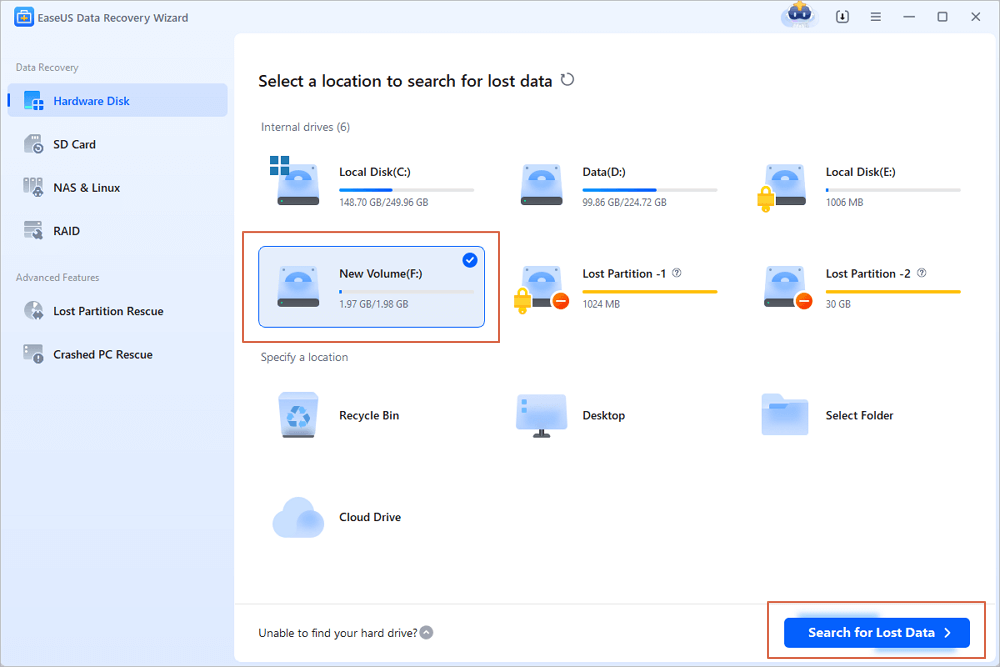
Step 1. Run EaseUS Data Recovery Wizard. Select the partition where stored the lost files and click "Search for Lost Data". EaseUS data recovery software supports parition recovery with FAT(FAT12,FAT16,FAT32), exFAT, NTFS, NTFS5, ext2, ext3, HFS+, and ReFS file system.
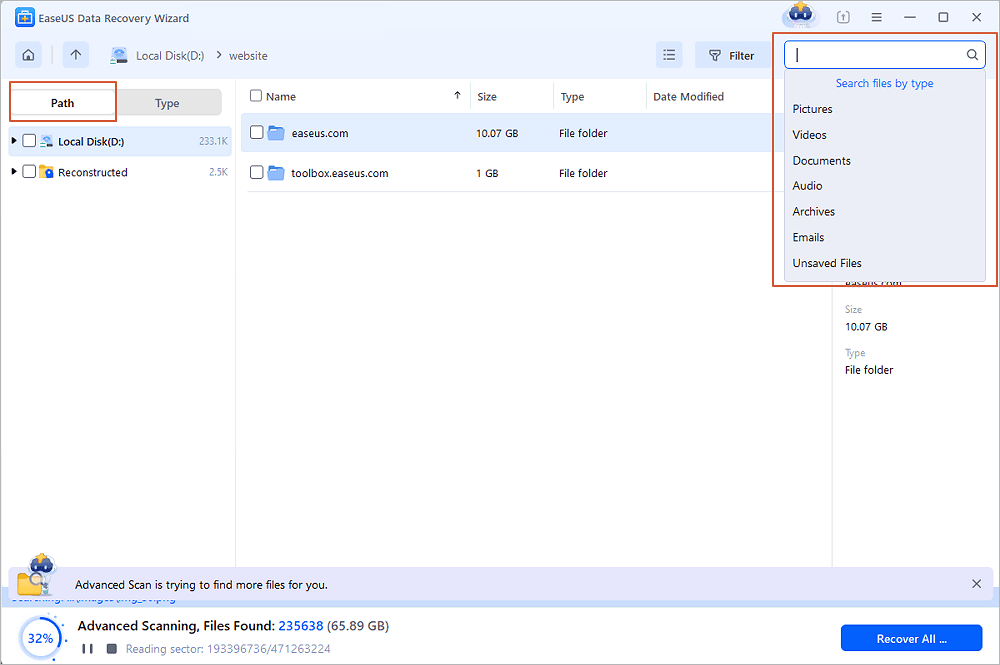
Step 2. If you want to quickly find the lost data from the numerous scan results, you can use the "Path" feature, or the search box function to search your lost files.
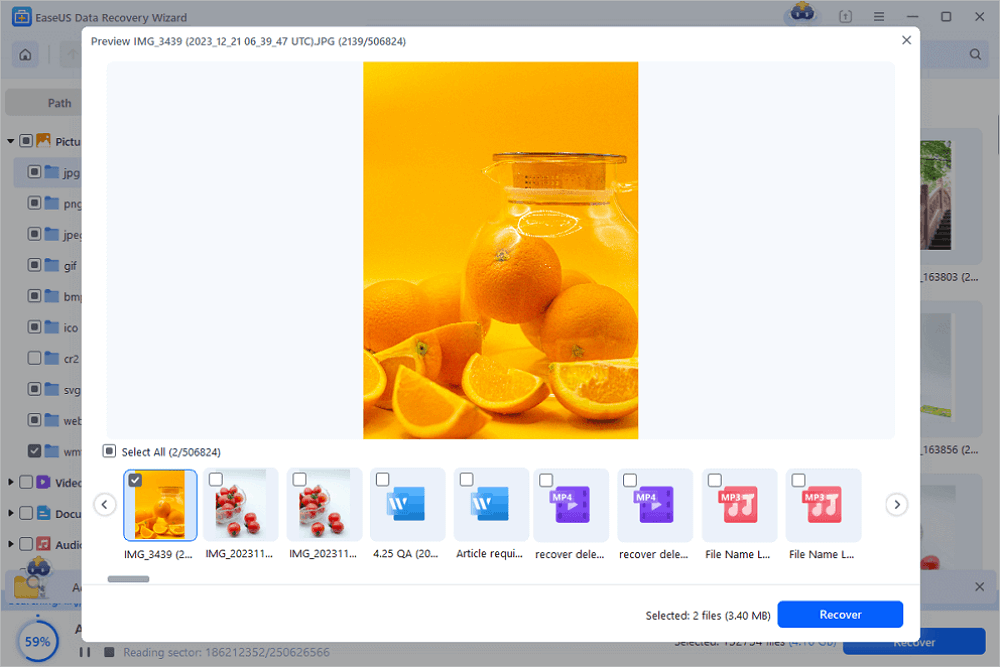
Step 3. You can preview files before recovery. Then, select all desired data and click "Recover" to restore files from existing partitions. Do not save the files to the partition where you lost the data. You can choose a cloud storage, such as OneDrive, Google Drive, etc., and click "Save" to save your recovered files.
Tips to Maximize Recovery Success on Damaged or Unreadable Drives
- Allow scans to finish when possible: Deep scanning takes longer on large or damaged drives, especially if bad sectors are present.
- Verify files by opening them: Check key documents, photos, and videos in the destination folder before making changes to the RAW volume.
- Keep the destination drive separate: Never select the RAW partition itself as the output folder for recovered files.
You can share this guide on social media and help more users recover data from a RAW partition.

How to Fix a RAW Partition Without Losing Data After File Recovery
Once your important files are safely stored on another drive, you can fix a RAW partition without losing data from your recovered backup by restoring a readable file system or resolving underlying disk issues. Choose the method that matches your situation.
Method 1. Format the RAW Partition to NTFS, FAT32, or exFAT
Formatting creates a clean file system so Windows can read and write the partition normally again. Because you have already recovered your data to another drive, formatting is a straightforward way to clear RAW status on a healthy volume.
Step 1. Open "File Explorer" or right-click the "Start" menu and open "Disk Management".
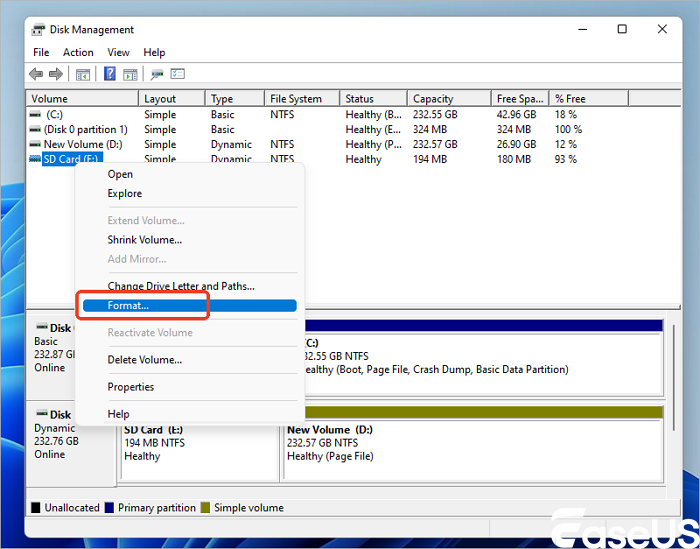
Step 2. Locate the RAW partition, right-click it, and select "Format".
Step 3. Choose a file system:
- NTFS for Windows internal/external drives and large files
- exFAT for cross-platform drives and large files
- FAT32 for broad legacy compatibility, set an optional volume label, and confirm.

Method 2. Rebuild or Clean Partitions Using DiskPart
If the partition layout or partition table is severely corrupted, formatting alone may fail. In that case, you may need to delete and recreate the partition in Disk Management or use DiskPart in Command Prompt.
Step 1. Open Command Prompt as Administrator and type diskpart, then press Enter.
Step 2. Run list disk to identify the exact disk number of your affected drive; double-check the disk size so you never select the wrong disk.
Step 3. Run select disk X (replacing X with the target disk number).
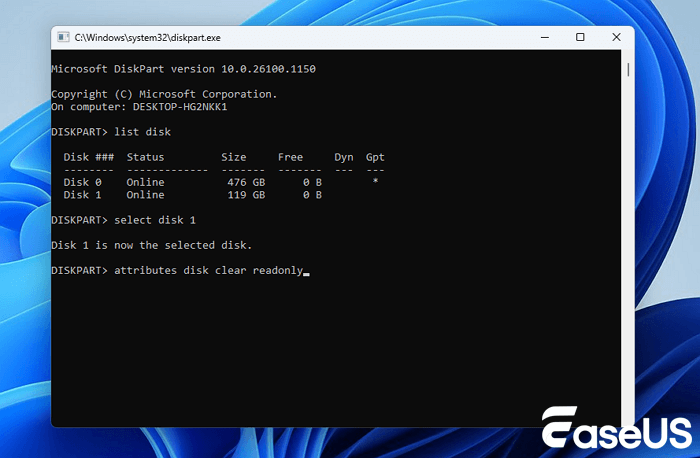
If you intend to wipe the disk layout completely, run clean, then create partition primary, and finally format fs=ntfs quick (or exfat/fat32 as needed).
⚠️Warning: DiskPart commands such as clean and format remove existing partition structures and data on the selected disk. Only run them after your data is safely recovered.
Method 3. Run CHKDSK, Update Disk Drivers, and Check Hardware Health
Windows includes built-in diagnostic and driver tools that help verify whether a drive is healthy or still experiencing system-level or hardware issues:
- CHKDSK behavior on RAW drives: If a partition is currently RAW, running CHKDSK typically returns "The type of the file system is RAW. CHKDSK is not available for RAW drives." Once the volume is formatted to a recognized file system like NTFS, you can run chkdsk X: /f in an elevated Command Prompt to check file system integrity.
- Update disk drivers: Open Device Manager, expand Disk drives, right-click your drive, and select "Update driver" to resolve outdated or corrupted driver issues.
- Check hardware health and bad sectors: Check SMART attributes or use your drive manufacturer's diagnostic utility. If SMART reports reallocated/pending sectors or drive failure warnings, replace the drive rather than trusting it with critical data.
How to Prevent a Partition from Becoming RAW Again
Safe Ejection, Power Protection, and Malware Defense
Preventing future RAW errors comes down to protecting active disk writes and keeping your system clean:
- Always eject external drives safely: Use Safely Remove Hardware and Eject Media before unplugging USB drives, SD cards, or external hard disks.
- Protect against power loss: Use a surge protector or UPS on desktops to prevent abrupt shutdowns during transfers.
- Keep security software updated: Maintain active antimalware protection to block threats that tamper with boot sectors or partition tables.
Routine Backups and Proactive Drive Health Monitoring
- Follow a multi-copy backup habit: Keep important files backed up across at least two locations, such as an external drive, cloud storage, or NAS.
- Monitor drive health periodically: Review SMART status and run occasional error checks so aging drives are replaced early.
- Avoid interrupting disk operations: Let file transfers, formatting, and partition edits finish completely before disconnecting or restarting.
⭐Key Takeaway
- Safe ejection and reliable power significantly reduce accidental file system corruption.
- Regular backups to a separate location remain your strongest protection against data loss.
- Monitoring drive health early helps catch failing hardware before files become inaccessible.
Frequently Asked Questions About RAW Partition Recovery and Repair
Can you fix a RAW partition without losing data?
Yes, you can fix a RAW partition without losing data by separating data extraction from partition repair. First, scan the RAW partition with a data recovery tool and save your recoverable files to a different, healthy drive or partition. Second, format the RAW partition to NTFS, exFAT, or FAT32—or recreate the partition—so Windows can recognize it again. Because your files were already copied to a safe location before formatting or changing the partition structure, your data remains intact even when the repair step itself erases or resets the RAW volume.
Can I recover data from a RAW hard drive?
Yes, recovering data from a RAW hard drive is often possible when the file system metadata—such as the NTFS MFT or boot sector—is corrupted rather than overwritten. When a drive turns RAW, Windows cannot mount the file system, which makes the drive look inaccessible or unformatted, yet the underlying file data frequently remains on the platters or flash cells. Using data recovery software to scan the RAW drive and export files to another drive is the safest way to retrieve your data before attempting repairs.
Should I format a RAW drive before recovering files?
No, you should not format a RAW drive before recovering your files. Although Windows frequently prompts you to format the disk when you try to open a RAW volume, formatting creates a new file system structure and can overwrite data areas or complicate recovery. Always recover your important files to another drive first, verify that you can open them, and only format the RAW drive afterward to restore normal usability.
Does formatting a RAW partition erase all data?
Yes, formatting a RAW partition clears existing file system structures and prepares the partition for a new file system like NTFS, FAT32, or exFAT, which erases data on that partition. Even a quick format resets file system metadata and can lead to data loss if you have not already recovered your files elsewhere. That is why data recovery should always come before formatting when you want to keep your files without data loss.
Why does it say CHKDSK is not available for RAW drives?
Windows displays "The type of the file system is RAW. CHKDSK is not available for RAW drives" because CHKDSK is designed to inspect and repair recognized file systems such as NTFS or FAT32. When a volume is RAW, Windows does not recognize an active file system structure on it, so CHKDSK cannot run directly against it. You should recover your data first, format the partition to a supported file system if needed, and then use CHKDSK if you want to verify file system health afterward.
Can CHKDSK fix a RAW partition or RAW drive?
CHKDSK cannot directly convert or repair a RAW partition because it cannot read a RAW file system. While some users try running CHKDSK on drives with minor file system errors, a true RAW volume lacks a recognized file system for CHKDSK to process. Instead, recover your data from the RAW drive first, format the partition to a supported file system like NTFS or exFAT, and use CHKDSK only after the partition has a valid file system.
How do I fix a RAW partition using DiskPart?
To fix a RAW partition using DiskPart after backing up your data, open Command Prompt as Administrator, enter diskpart, and run list disk to identify your target drive. Select the correct disk with select disk X (replacing X with your disk number), then run commands such as clean, create partition primary, and format fs=ntfs quick to reset and format the volume. Because clean and format erase data on the selected disk, verify the disk number carefully and complete data recovery first.
What is the safest software to recover data from a RAW partition?
The safest software for recovering data from a RAW partition is a reputable data recovery tool that performs read-only scanning, supports file previewing, and lets you save recovered files to a separate drive. EaseUS Data Recovery Wizard supports RAW partition and drive recovery across HDDs, SSDs, USB flash drives, and SD cards while allowing you to preview files before exporting them. Always choose a trusted tool and export files to a different physical drive than the RAW source.
Can I preview files before recovering from a RAW drive?
Yes, modern data recovery tools such as EaseUS Data Recovery Wizard allow you to preview many recoverable files—such as photos, videos, and documents—before you save them. Previewing helps you confirm that key files are intact and readable before you spend time exporting everything or moving on to formatting the RAW partition. Keep in mind that heavily fragmented or partially overwritten files may still show visual or structural issues even when listed in scan results.
Where should I save recovered files from a RAW partition?
You should always save recovered files from a RAW partition to a separate, healthy drive or partition, never back onto the RAW partition itself. Saving files to the same drive you are recovering from can overwrite unallocated clusters or remaining recoverable data during the recovery process. Using an internal secondary drive, a reliable external hard drive, or another healthy partition keeps your recovered files isolated and safe.
How do I recover data from a RAW USB flash drive or SD card?
To recover data from a RAW USB flash drive or SD card, connect it directly to a reliable port on your computer and avoid formatting it when prompted. Scan the RAW volume using data recovery software like EaseUS Data Recovery Wizard, preview your photos, videos, or documents, and save them to a separate drive on your computer. Once your files are safely copied, you can format the USB drive or SD card to exFAT or FAT32, or replace it if flash memory errors persist.
How do I know if my RAW drive has physical damage?
Signs that a RAW drive may have physical or hardware damage include clicking, grinding, or whirring noises on mechanical hard drives, repeated disconnections, extreme slowdowns during scans, or poor SMART health attributes. Software recovery and formatting can fix logical file system corruption, but they cannot repair worn-out read/write heads, failing flash controllers, or physical bad sectors. If you suspect hardware failure, recover critical data promptly and consider replacing the drive.
Summary
Fixing a RAW partition without losing data is straightforward when you follow the right sequence: protect the drive, recover your files to another location first, and repair the partition second. By avoiding premature formatting, using reliable recovery steps to extract your data, and choosing the appropriate format, partition rebuild, or hardware check afterward, you can restore normal access to your storage while keeping your important files safe.
Was This Page Helpful?
Related Articles
-
Numbers Files Disappeared on Mac: Causes & Fixes
![author icon]() Dany/2026-06-16
-
EaseUS Data Recovery Wizard 20.1 Crack Free Download
![author icon]() Dany/2026-11-18
 Dany/2026-06-16
-
Recuva Review: Features, Pros & Cons, and Real Recovery Results
![author icon]() Dany/2026-11-18
-
How to Recover Lost NTFS Partition Without Losing Data
![author icon]() Tracy King/2026-07-29
 Tracy King/2026-07-29


