





 About the Author
 Reviews and Awards
 Mac SD Card Recovery
What Causes SD Card to Be Write-Protected on Mac
Hello everyone! I'm having trouble with my SanDisk card - it's showing as write-protected, and I can't add or delete files. I've checked for any physical lock switches, but no luck. Any advice on how to remove this write protection? Thanks in advance for any help! -from SanDisk Forums
Most of the time, it's possible to remove write protection from an SD card on a Mac without risking data loss. Before trying all the recommended solutions, it's necessary to know what causes your SD card to be write-protected on a Mac:
- The physical lock switch is enabled. A tiny switch rides along one edge of most SD cards and their adapters. When that slider clicks into place labeled "Lock," your SD card will be "locked" and not allowed to write new data.
- Incorrect file permissions on macOS. Suddenly, macOS could set the SD card to read-only mode. This often happens following a system update. Sometimes, it follows an incorrect removal of the card, and the read-only status shows up unexpectedly.
- File system errors or corruption. When the file system on an SD card - like FAT32 or exFAT - gets corrupted, macOS might load it without write access just to keep things safe.
- Hardware issues or bad sectors. When the Mac computer detects that your SD card is write-protected, it may set it to write-protected to avoid further corruption.
Understanding the cause helps you choose the right fix and avoid unnecessary formatting.
How to Remove Write Protection from an SD Card on a Mac
Try the following solutions in order. Start with the simplest and safest methods to reduce the risk of data loss.
Method 1. Check and Unlock the Physical Write Protection Switch
Finding this solution feels simpler than most expect. A tiny switch sits on the edge of most regular SD cards - also plenty of microSD ones when slotted into adaptors.
How to unlock your SD card physically:
Step 1. Remove the SD card from your computer or the device that reads it.
Step 2. Look at the edge of the memory card or its holder.
Step 3. When the switch sits on Lock, move it the other way to unlock.
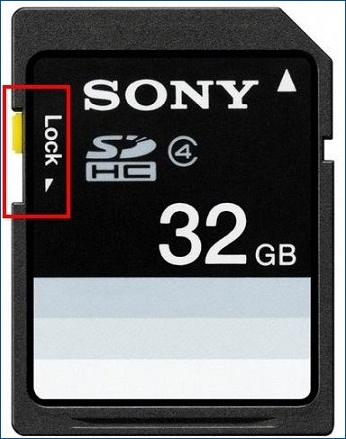
- Tip
- Insert the card again slowly - sometimes the reader nudges the switch closed without warning. If the SD card remains locked even after flipping the switch, move on to another fix.
Method 2. Change SD Card Permissions on Mac
Folders and files on macOS have access rules set by the system. A card might appear locked when macOS denies access. Check on how to change SD Card permissions on your Mac:
Step 1. Connect the SD card to your Mac, open Finder, and locate your card.
Step 2. Right-click your SD card and choose "Get Info".
Step 3. Then, scroll down until you see "Sharing & Permissions".
Step 4. Check that your account allows both read and write. You may need to type your Mac password after clicking the lock symbol.
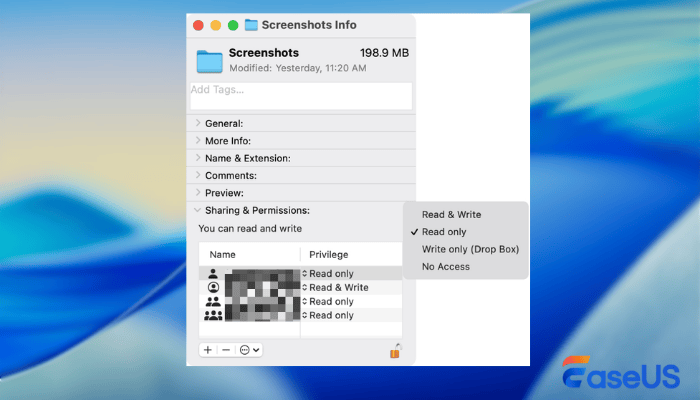
Step 5. Start by clicking the settings symbol. Choose "Apply" to confirm the changes.
Most people can use this approach without risk. You can share this simple approach on social media and help more SD card users to remove write protection from the card on a Mac.

Method 3. Run First Aid to Fix SD Card in Disk Utility
Fixing file issues on a disk might be possible using Disk Utility's First Aid tool. When problems lead to SD card write locks, this function can be very useful to help users fix common file system errors. Check on how to run First Aid and fix a corrupted SD card on your Mac:
Step 1. Open Disk Utility on Mac with Spotlight.
Step 2. Start by selecting "View", then choose "Show All Devices" from the menu that appears.
Step 3. Choose the SD card itself, click "First Aid," and make sure it's set. Finish when confirmed.
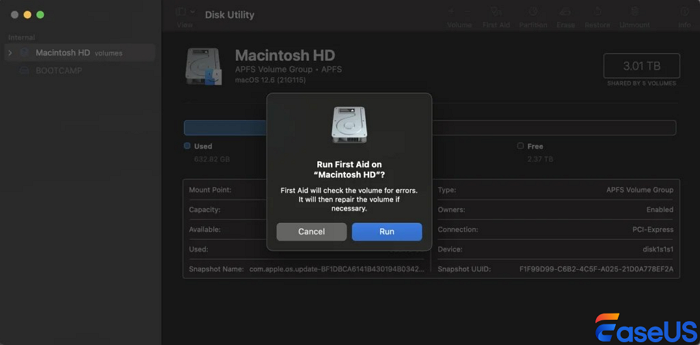
When problems are found on the SD card, macOS begins fixing them automatically.
Method 4. Reformat SD Card on Mac (Last Resort)
What happens when you format is total data loss because the formatting process rebuilds how files are stored. Formatting the SD card on a Mac should be the last thing you try.
Step 1. Open Disk Utility with Spotlight or in the Applications folder.
Step 2. Choose the SD card on the left side. If your SD card is not showing up on Mac, click "View" > "Show All Devices".
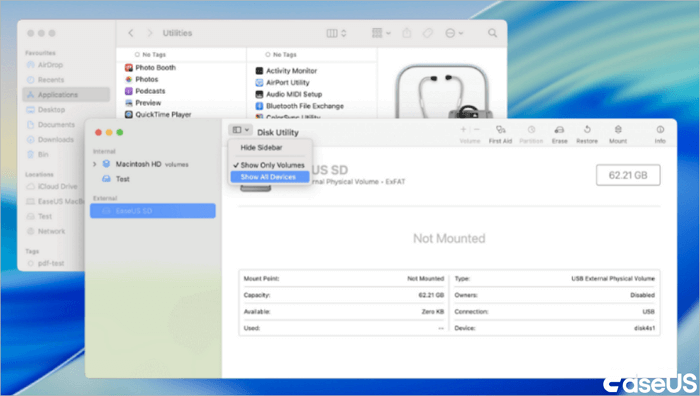
Step 3. Click "Erase", and select a format:
- exFAT: Best for Mac and Windows compatibility
- FAT32: Shows up most in cameras, also found in many recording gadgets
- exFAT: Best for Mac and Windows compatibility
- FAT32: Shows up most in cameras, also found in many recording gadgets
Step 4. Click the "Erase" button to confirm the formatting of the SD card. Once formatting completes without issues, the lock on the SD card should be removed.
Recover Lost Data from Write-Protected SD Card on Mac
When people try to format an SD card or fix write-protection issues without backing up their data in advance, data can be lost. Still, recovery is usually possible if new data hasn't replaced the old.
EaseUS Data Recovery Wizard for Mac is a good choice when you need to restore missing files from an SD card. This handy data recovery tool is designed to recover lost files from SD cards, even after formatting or file system errors.
No matter whether your files are missing after permission changes, or the SD card cannot be read on your Mac, EaseUS SD card recovery software can be very helpful to find missing files or recover data from a RAW SD card on your Mac.
Now, follow the steps below and recover data from an SD card:
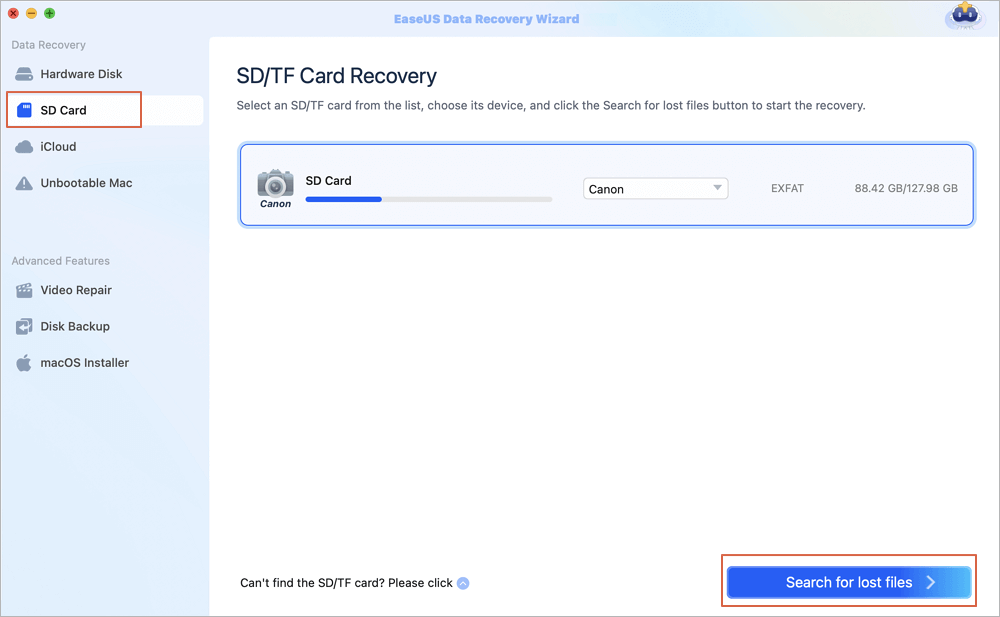
Step 1. Select the SD card
- Correctly connect your memory card to your Mac. Launch EaseUS Data Recovery Wizard for Mac.
- Go to "SD Card Recovery", find your Canon/Nikon/Go Pro/DJI/Sony SD card, and click "Search for lost files".
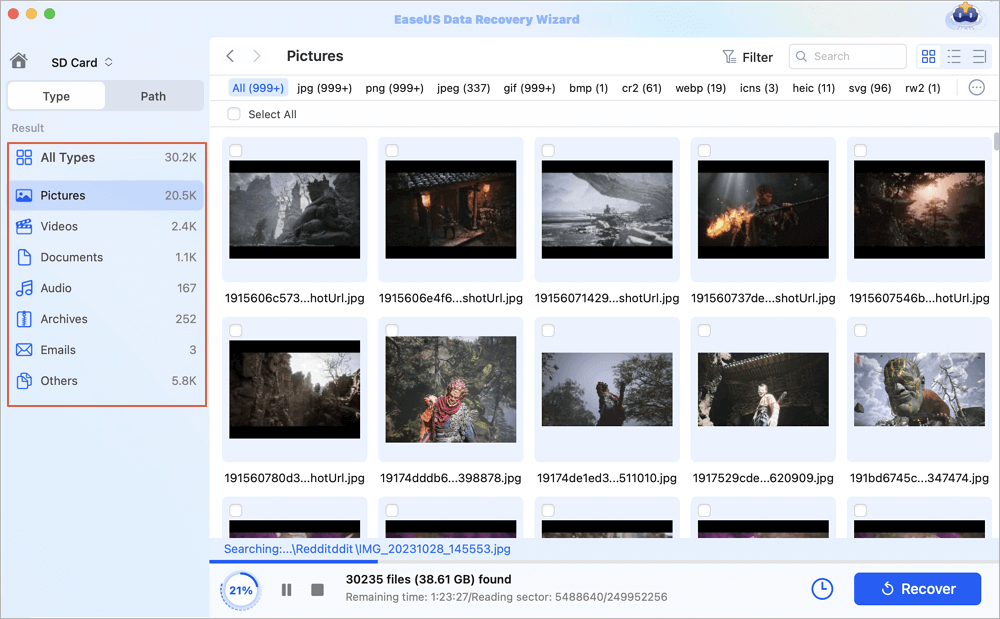
Step 2. Filter lost SD card data
After the scan, all files will be presented in the left panel in the scan results. Find wanted photos, videos, and other files.
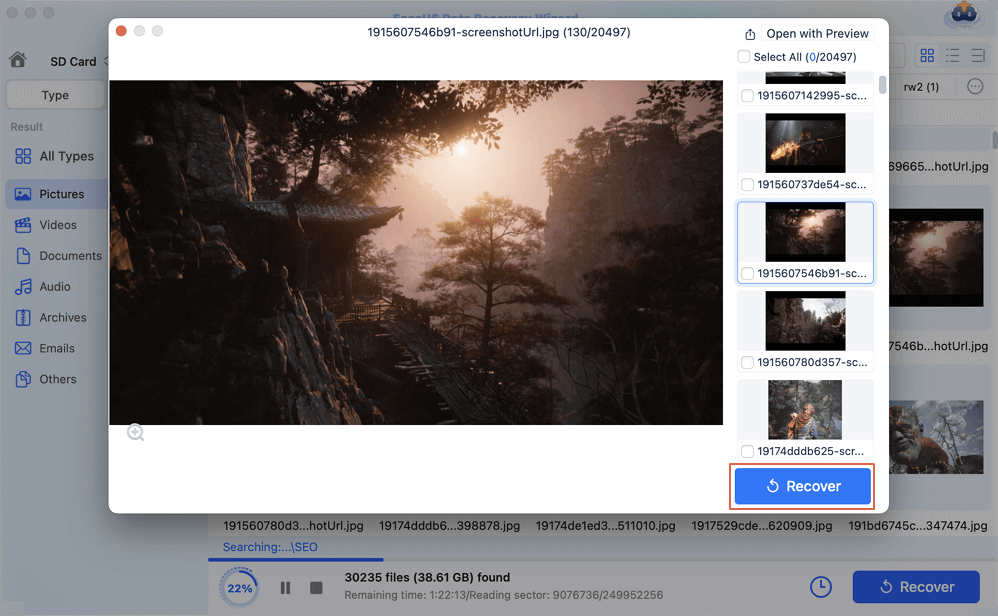
Step 3. Preview and recover data
Preview the SD card data and select the wanted files. Then, click the "Recover" button. Don't save the recoverable files to the SD card itself in case of data overwriting.
Feel free to share this SD card recovery method on social media to help more SD card readers who need data recovery.
Conclusion
Something might seem wrong when your SD card won't let you save anything on a Mac - but that does not always point to system corruption. You can quickly resolve the write protection error by adjusting the lock switch, changing access settings, or resolving storage-related glitches.
To avoid this error in the future, try not to remove the SD card from a computer directly; use "Safely Eject."
SD Card Write Protection Removal on Mac FAQs
1. Can I remove write protection from an SD card on a Mac without formatting?
Yes, there are ways to remove write protection without wiping the SD card. You can adjust the physical lock switch on your SD card, and run First Aid to repair a corrupted SD card.
2. Can I recover files from a write-protected or formatted SD card on a Mac?
Absolutely. You can recover lost files from a write-protected or formatted SD card using software like EaseUS Data Recovery Wizard for Mac. It scans the card, lets you preview files, and restores them safely. Stop using the card immediately to maximize recovery chances.
3. Why is my SD card write-protected and inaccessible on macOS Tahoe?
Your SD card may be write-protected on macOS Tahoe due to a locked physical switch, an incompatible file system (like NTFS), a corrupted file system, restrictive permissions, or hardware/card reader issues. Sometimes updating the macOS operating system can cause this issue.
Was This Page Helpful?

Dany is an editor of EaseUS who lives and works in Chengdu, China. She focuses on writing articles about data recovery on Mac devices and PCs. She is devoted to improving her writing skills and enriching her professional knowledge. Dany also enjoys reading detective novels in her spare time.
-
EaseUS Data Recovery Wizard is a powerful system recovery software, designed to enable you to recover files you’ve deleted accidentally, potentially lost to malware or an entire hard drive partition.
Read More -
EaseUS Data Recovery Wizard is the best we have seen. It's far from perfect, partly because today's advanced disk technology makes data-recovery more difficult than it was with the simpler technology of the past.
Read More -
EaseUS Data Recovery Wizard Pro has a reputation as one of the best data recovery software programs on the market. It comes with a selection of advanced features, including partition recovery, formatted drive restoration, and corrupted file repair.
Read More
Related Articles
-
SD Card Recovery for Mac: Recover Deleted & Formatted Files
![author icon]() Daisy/Sep 20, 2026
Daisy/Sep 20, 2026 -
How to Fix DJI SD Card Unavailable? The Ultimate Guide Here
![author icon]() Dany/Sep 15, 2026
Dany/Sep 15, 2026 -
Unreadable SD Card: Ultimate Guide to Fix & Recover Data
![author icon]() Tracy King/Sep 17, 2026
Tracy King/Sep 17, 2026 -
Recover Lost Data from xD-Picture Card on Mac
![author icon]() Jaden/Aug 14, 2026
Jaden/Aug 14, 2026
 Daisy/Sep 20, 2026
  Tracy King/Sep 17, 2026
  Jaden/Aug 14, 2026

