





 About the Author
 Reviews and Awards
 Mac SD Card Recovery
To recover a formatted WD My Passport for Mac, stop using it immediately. Do not copy files to it, format it again, or run repeated repair attempts. New writes can overwrite file data, reducing your chances of recovery.
Before you try to recover formatted WD Passport data on Mac, protect the remaining file data. Complete this short checklist first.
- Disconnect the WD Passport after confirming the format is complete.
- Do not copy files, create folders, or install apps on this drive.
- Do not format it again, erase it, or change its partition layout.
- Avoid First Aid or other repair actions that write changes to the disk.
Formatting may remove file system records without instantly replacing every file block. New data can overwrite those blocks, reducing recovery results. For the safest process, start recovery before using the drive again.
Recover Formatted WD Passport Data with Software
Install EaseUS Data Recovery Wizard for Mac on your Mac or another safe volume. This keeps the recovery app away from the formatted drive. The current Mac download supports macOS 26 through macOS 10.9. Expected result: the app opens without changing the WD Passport.
Connect the WD Passport directly to your Mac. Use a stable cable and avoid an unpowered hub. Expected result: the drive appears in the app and remains connected.
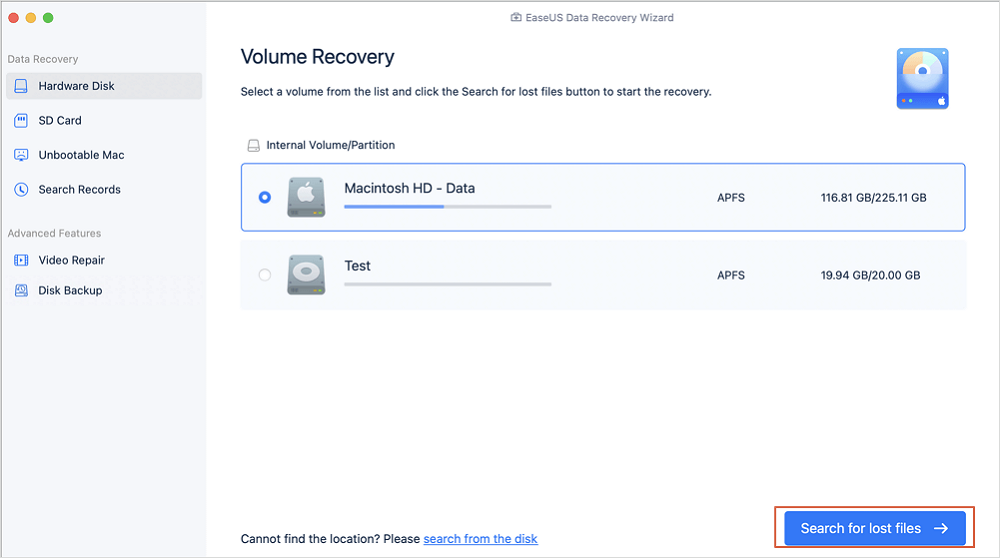
Step 1. Search for lost files
Select the disk location to search for lost files (it can be an internal HDD/SSD or a removable storage device) on macOS Sierra, High Sierra, Mojave, Catalina, Big Sur, Monterey, Ventura, and the latest Sonoma. Click the "Search for lost files" button.
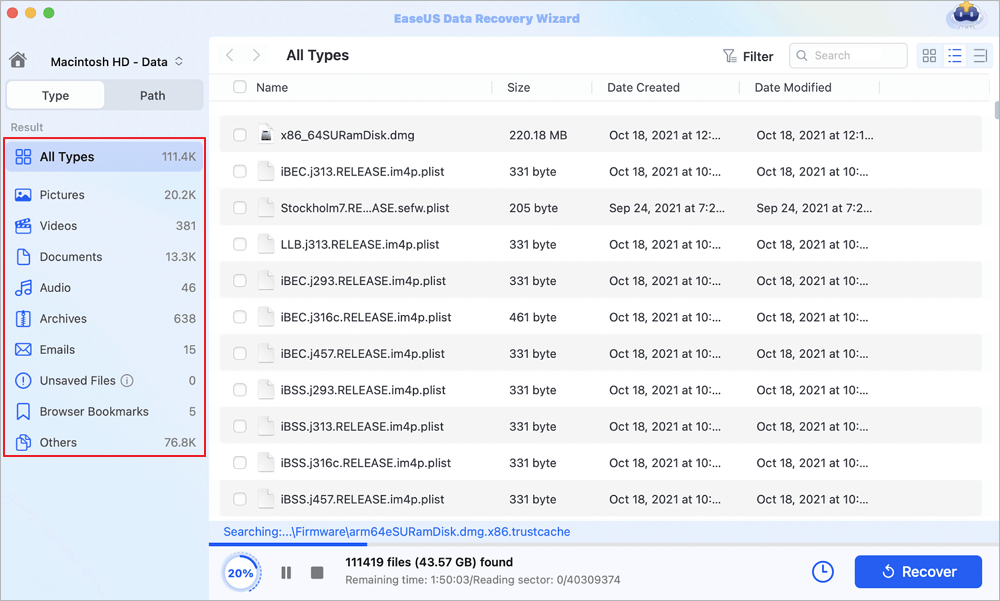
Step 2. Go through the scanning results
EaseUS Data Recovery Wizard for Mac will immediately scan your selected disk volume and display the scanning results.
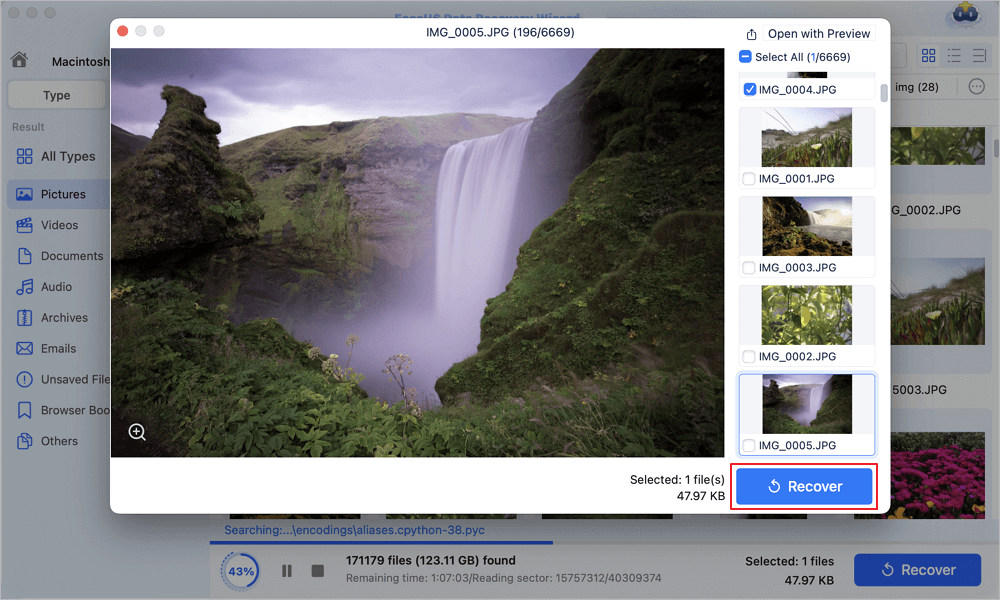
Step 3. Select the file(s) and recover
In the scan results, select the file(s) to preview and click the "Recover" button to have them back.
Wait for more results before judging the outcome. You can pause the scan if needed, but do not stop it permanently. Continue when files begin appearing. Stop immediately if the WD Passport disconnects repeatedly, makes unusual sounds, or disappears from macOS.
If you find this information helpful, please share it with others on social media to help them overcome this common challenge.
Recover Formatted WD Passport Data with Terminal on Mac
Terminal can help you confirm whether macOS still detects the WD Passport. It does not automatically rebuild missing file records or safely restore formatted data. Use it for inspection only.
- Open Terminal from "Applications" > "Utilities".
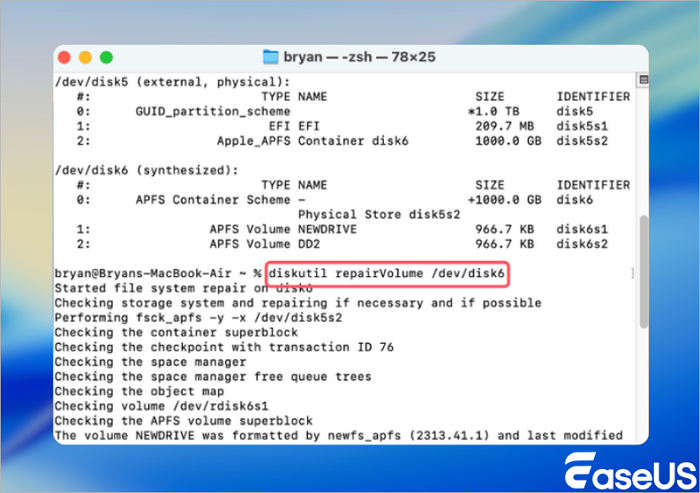
- List connected disks with: diskutil list
- Find the WD Passport by its name and storage capacity. Note its identifier, such as /dev/disk6. Do not rely on the number alone. Check the size before continuing.
- Inspect the disk without changing it: diskutil repairVolume /dev/disk6
- Replace disk2 with the correct identifier. Review the connection type, mounted volumes, and file system details.
- Do not run write commands. Avoid eraseDisk, partitionDisk, repairDisk, and similar commands. These actions can replace metadata and reduce the chance of recovering formatted WD Passport files.
If the drive mounts and still shows readable files, copy them to your Mac or another drive with Finder. Do not save anything back to the WD Passport. If the volume appears empty, shows as RAW, or returns errors, stop using Terminal. A read-only scan with data recovery software is safer for locating formatted files. If the disk disconnects or makes clicking sounds, unplug it and seek professional recovery help.
Fix Problems That Can Interrupt Recovery
Use the symptom to choose a safe next step. Do not erase the WD My Passport or run repair tools before recovery if the files matter.
- The Drive Is Not Showing Up on Your Mac
| Problem symptom | Possible cause | How to confirm | Solution |
| The WD Passport is missing from Finder and Disk Utility. | The cable, USB port, adapter, power, or drive hardware may have failed. | Open Disk Utility and choose View > Show All Devices. If the physical disk is still missing, test one known-good cable and another Mac port. | Stop DIY recovery if it remains undetected. A professional lab should inspect the drive before further scans. |
A missing Finder volume may still appear in Disk Utility. If so, do not erase it. Record its name and capacity, then try read-only recovery software.
- The Drive Is Detected but Files Cannot Be Read
| Problem symptom | Possible cause | How to confirm | Solution |
| Disk Utility sees the disk, but Finder shows an unreadable-volume alert or no files. | Formatting may have damaged file-system records, or the volume may not mount. | Check the disk and volume entries in Disk Utility. Note whether the volume is mounted, read-only, or shown with an unknown format. | Scan the correct physical disk with recovery software. Save results to your Mac or another drive. Do not erase or initialize the volume. |
Avoid First Aid until important files are recovered. Repair actions can change file-system metadata and complicate recovery.
- Clicking, Disconnecting, or Other Physical Warning Signs
| Problem symptom | Possible cause | How to confirm | Solution |
| The drive clicks, spins down, disconnects repeatedly, or appears and disappears. | The disk may have mechanical, power, or hardware failure. | Listen for repeated clicks and watch for unstable detection during a short connection test. | Unplug it and stop scanning. Continued use can worsen physical damage. Contact a professional data recovery lab. |
Do not keep reconnecting a clicking WD Passport. Software recovery is suitable only when the connection stays stable, and the disk responds normally.
Conclusion
You can recover data from a formatted WD Passport on Mac if the drive remains stable and new data has not overwritten the old files. The safest approach is to stop using the drive, scan the correct disk, preview important results, and save recovered files to a different location.
Before ending the recovery process, open sample photos, documents, videos, and project files from the destination drive. Check file names, file sizes, and folder structure. A file that appears in the scan is not fully recovered until it opens correctly.
Recover Data from a Formatted WD Passport on Mac FAQ
The following answers address the most common queries from users seeking file restoration solutions.
1. Does formatting a WD My Passport permanently erase data?
No. A standard format removes or replaces file-system information, so files become inaccessible. The underlying data may remain until new files overwrite it. Secure erase or repeated writing is different because it is designed to make previous data much harder or impossible to recover. Recovery is more likely when you stop using the WD Passport immediately. Do not format it again or save recovered files to it.
2. Can I recover files if my Mac does not recognize the WD Passport?
Software recovery may work if the drive appears consistently in Disk Utility. Open Disk Utility and choose View > Show All Devices. Check the cable, USB port, power, and adapter first. If the physical disk remains missing, clicks, spins down, or disconnects, stop repeated tests. A recovery tool cannot scan a drive that macOS does not detect. Professional service is safer for a completely undetected or unstable drive.
3. Can EaseUS Data Recovery Wizard for Mac recover a formatted WD Passport?
Yes. EaseUS Data Recovery Wizard for Mac is designed to scan supported external drives after formatting. It supports common file systems, including APFS, HFS+, exFAT, NTFS, and FAT. Results depend on overwritten data, file-system damage, drive stability, and file reconstruction. Preview important files before saving them to another drive.
4. Should I keep trying if my WD Passport is clicking?
No. Stop DIY recovery if the WD Passport clicks, repeatedly disconnects, or fails to spin normally. These signs can indicate hardware trouble. Software cannot repair mechanical damage. Unplug the drive, avoid repeated reconnections, and contact a professional recovery lab.
Was This Page Helpful?

Jaden is one of the editors of EaseUS, who focuses on topics concerning PCs and Mac data recovery. Jaden is committed to enhancing professional IT knowledge and writing abilities. She is always keen on new and intelligent products.
-
EaseUS Data Recovery Wizard is a powerful system recovery software, designed to enable you to recover files you’ve deleted accidentally, potentially lost to malware or an entire hard drive partition.
Read More -
EaseUS Data Recovery Wizard is the best we have seen. It's far from perfect, partly because today's advanced disk technology makes data-recovery more difficult than it was with the simpler technology of the past.
Read More -
EaseUS Data Recovery Wizard Pro has a reputation as one of the best data recovery software programs on the market. It comes with a selection of advanced features, including partition recovery, formatted drive restoration, and corrupted file repair.
Read More
Related Articles
-
2026 Formázatlan Ingyenes szoftver | Merevlemezek/USB meghajtók formázása könnyedén
![author icon]() Cedric/Sep 15, 2026
Cedric/Sep 15, 2026 -
How to Unformat a Disk: Recover Data After Format
![author icon]() Tracy King/Sep 15, 2026
Tracy King/Sep 15, 2026 -
How to Fix LaCie Hard Drive Not Mounting Mac | No Data Loss
![author icon]() Dany/Sep 20, 2026
Dany/Sep 20, 2026 -
How Can I Recover Formatted SD Card? Possible or Not?
![author icon]() Dany/Sep 20, 2026
Dany/Sep 20, 2026
 Cedric/Sep 15, 2026
  Tracy King/Sep 15, 2026
  Dany/Sep 20, 2026

