





 About the Author
 Reviews and Awards
 Mac SD Card Recovery
Experiencing a system crash after installing a macOS beta version can be alarming, especially when you're unsure if your important files are safe. If your Mac has crashed following the macOS 27 Golden Gate Developer Beta update, don't panic. This guide provides a clear, actionable plan to recover data after macOS 27 crash using proven methods.
Immediate Steps to Take After a macOS Crash
Before attempting any recovery, it's crucial to follow these initial steps to prevent permanent data loss:
- Stop all input and reboot attempts immediately. Constant boot loops can overwrite residual data on APFS SSDs, making recovery far less effective.
- Do not force restart your Mac repeatedly. Each forced restart writes temporary log and diagnostic files, which may overwrite the very data you're trying to recover.
- Enter Mac Recovery Mode (Intel: Command+R at startup; Apple Silicon: Press and hold the power button) to run basic disk diagnostics first. This helps determine if the drive is physically sound.
Once you've stabilized the situation, choose one of the recovery methods below.
Method 1. Recover Data Using EaseUS Data Recovery Wizard for Mac
For logical corruption caused by beta system crashes, professional recovery software is often the most effective solution. EaseUS Data Recovery Wizard for Mac is specifically designed to handle damaged APFS volumes, making it an ideal choice to recover data after a macOS 27 crash.
Why This Tool Works Best for Beta Crashes
- Advanced APFS Scanning: Rebuilds broken directory trees that disappear after beta-related file system damage.
- Read-Only Operation: Scans your drive without writing any new data, eliminating the risk of secondary overwrites.
- Full Apple Silicon & Intel Support: Fully compatible with M1, M2, M3, M4, and legacy Intel Macs.
- No Backup Required: Directly scans raw APFS drive sectors to locate and reconstruct lost files.
Here is how you can recover data after a macOS crash with this data recovery tool from EaseUS:
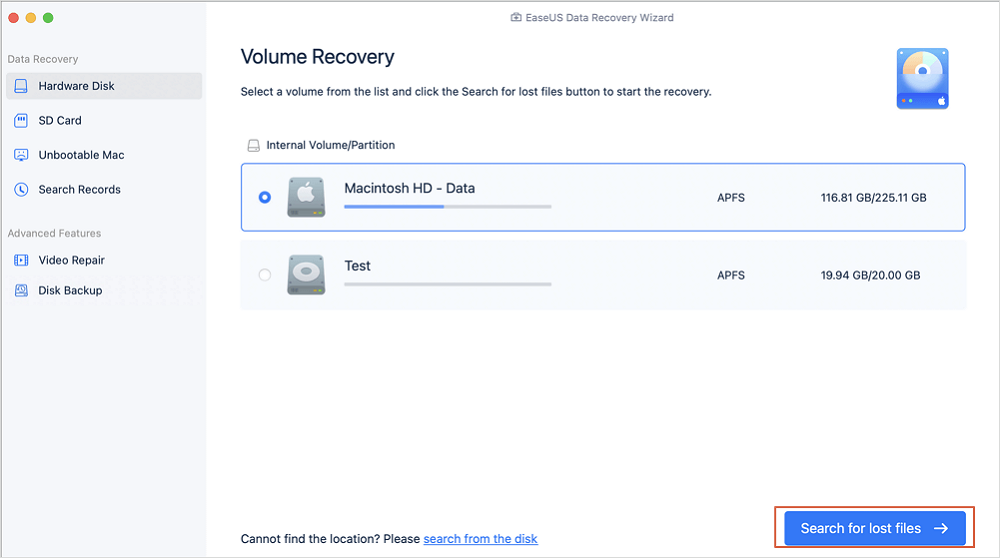
Step 1. Search for lost files
Select the disk location to search for lost files (it can be an internal HDD/SSD or a removable storage device) on macOS Sierra, High Sierra, Mojave, Catalina, Big Sur, Monterey, Ventura, and the latest Sonoma. Click the "Search for lost files" button.
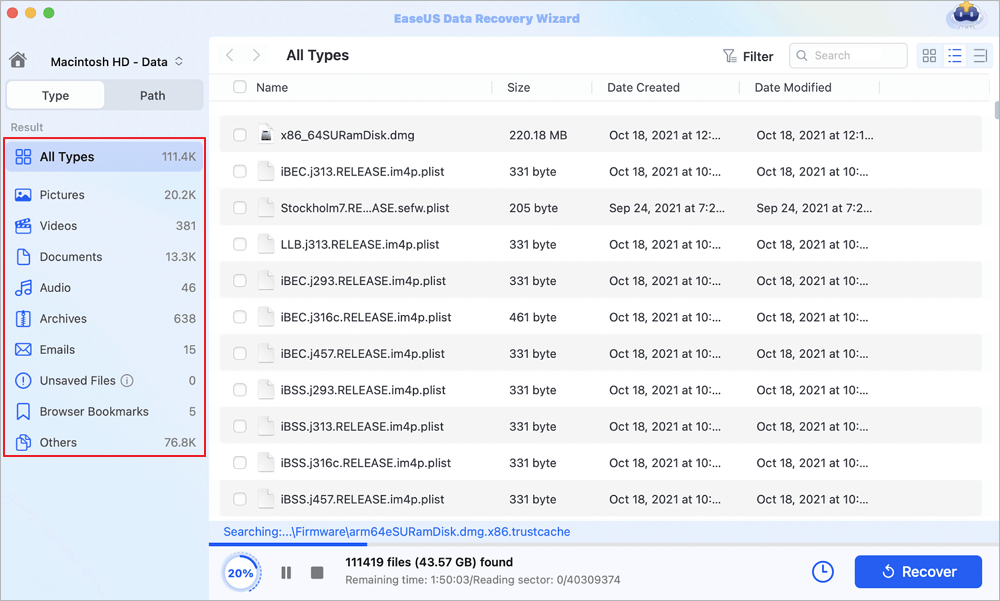
Step 2. Go through the scanning results
EaseUS Data Recovery Wizard for Mac will immediately scan your selected disk volume and display the scanning results.
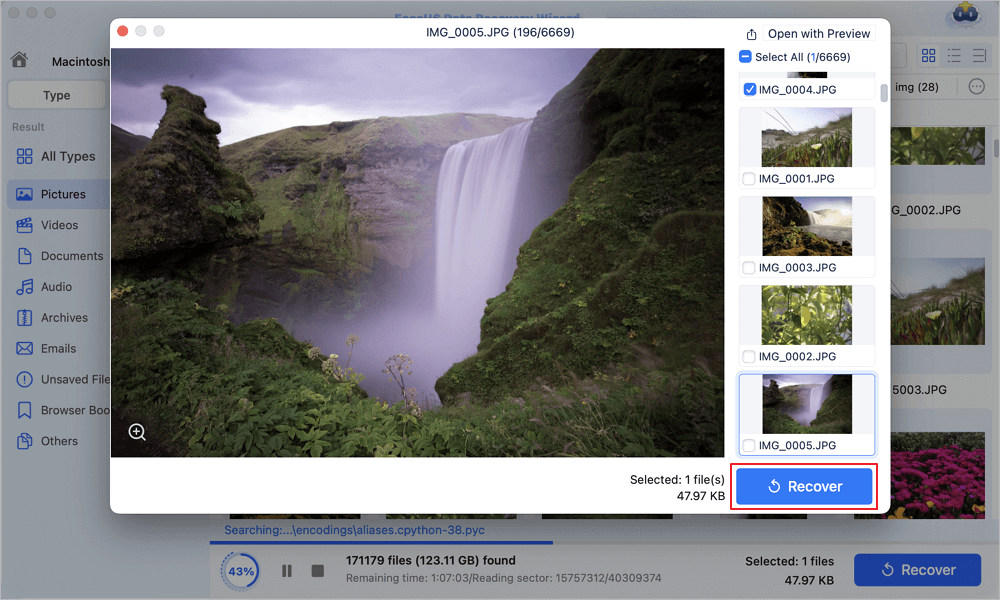
Step 3. Select the file(s) and recover
In the scan results, select the file(s) to preview and click the "Recover" button to have them back.
Method 2. Restore Files via Time Machine Backup
If you created a full Time Machine backup before installing the macOS 27 beta, you have a reliable native recovery option. This method is excellent for retrieving individual files or folders without a full system restore. Do as follows:
Step 1. Connect the Time Machine backup drive to your crashed Mac.
Step 2. Boot into macOS Recovery Mode (Command+R at startup for Intel; press and hold the power button for Apple Silicon).
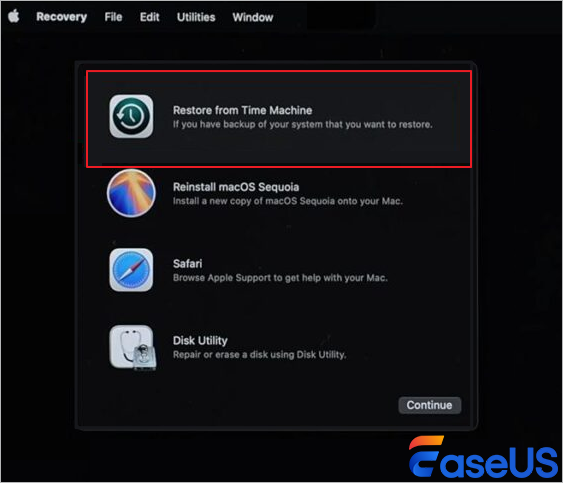
Step 3. From the main recovery menu, select "Restore From Time Machine Backup".
Step 4. Choose the backup snapshot created prior to the beta installation from the chronological list.
Step 5. Use the file browsing interface to manually select individual folders and files for export to external storage.
Step 6. Copy all critical data before proceeding with any partition erasure or OS reinstall.
Note: If your Mac won't turn on at all (no startup light or fan movement), you may have a hardware issue requiring DFU mode revival via Apple Configurator on a secondary Mac. If power indicators activate but boot never completes, use a bootable USB recovery tool instead.
Final Thoughts
A system crash after installing a beta OS is stressful, but your data is often still recoverable if you act carefully. Prioritize stopping all writes to the drive, then choose the method that best fits your situation. Always save recovered files to an external drive to avoid further data loss. Beta software is for testing—consider maintaining robust backups and using a separate partition or machine for future beta trials.
FAQs on How to Recover Data After macOS 27 Crash
Here are some frequently asked questions you may be curious about:
1. Can I recover data if my Mac will not turn on at all after the macOS Beta upgrade?
-
A total power failure may indicate hardware damage requiring DFU mode recovery.
-
If power indicators activate but boot fails, use a bootable USB with EaseUS Data Recovery Wizard to scan the internal SSD without a full system boot.
2. Is EaseUS Data Recovery Wizard safe for Apple Silicon Macs?
Yes. It offers full native support for M1, M2, M3, and M4 chips. You may need to adjust temporary security rules in Startup Security Utility when booting from the recovery media to unlock deep APFS scan permissions. All scanning remains read-only and safe.
3. Do I need a Time Machine backup to use the EaseUS recovery tool?
No. The software scans raw APFS drive sectors directly and does not rely on pre-created backup archives, making it a powerful solution even if you don't have a recent backup.
Was This Page Helpful?

Finley is interested in reading and writing articles about technical knowledge. Her articles mainly focus on file repair and data recovery.
-
EaseUS Data Recovery Wizard is a powerful system recovery software, designed to enable you to recover files you’ve deleted accidentally, potentially lost to malware or an entire hard drive partition.
Read More -
EaseUS Data Recovery Wizard is the best we have seen. It's far from perfect, partly because today's advanced disk technology makes data-recovery more difficult than it was with the simpler technology of the past.
Read More -
EaseUS Data Recovery Wizard Pro has a reputation as one of the best data recovery software programs on the market. It comes with a selection of advanced features, including partition recovery, formatted drive restoration, and corrupted file repair.
Read More
Related Articles
-
How to Automatically Empty Trash on Mac | Best Answer Here
![Dany]() Dany/Nov 02, 2026
Dany/Nov 02, 2026 -
Mac Prohibitory Symbol on Startup Screen Mac🚫[4 Fixes]
![Jaden]() Jaden/Nov 02, 2026
Jaden/Nov 02, 2026 -
How to Force Mount a Drive in Mac Terminal | Command Way
![Brithny]() Brithny/Nov 02, 2026
Brithny/Nov 02, 2026 -
macOS Sequoia Data Recovery Software: Top 3 in 2026 [Supports macOS 14 - OS X 10.9]
![Brithny]() Brithny/Nov 02, 2026
Brithny/Nov 02, 2026
 Dany/Nov 02, 2026
  Jaden/Nov 02, 2026
  Brithny/Nov 02, 2026

