





-
![]()
-
![]()
-
![]()
-
![]() What Is the Best SSD Data Recovery Software? 6 Top Solutions
What Is the Best SSD Data Recovery Software? 6 Top Solutions October 29,2026
 6 min read
 -
![]()
-
![]() Best Partition Recovery Software in 2026: Tested & Ranked (Top 10 Tools)October 29,20266 min read
Best Partition Recovery Software in 2026: Tested & Ranked (Top 10 Tools)October 29,20266 min read -
![]()
-
![]()
-
![]()
-
![]()
Page Table of Contents
PAGE CONTENT:
Can You Recover a Deleted Partition Using CMD
Losing a partition on your drive can make a whole chunk of your storage vanish from Windows File Explorer. It can happen easily: you may have deleted a volume by accident, messed around with Disk Management, reinstalled Windows, or run into disk errors. With CMD, you might get your partition, or at least your files, back without a ton of hassle.
CMD gives you access to Windows disk tools; DiskPart is the main one to poke around, see what's left, and sometimes get missing partitions back by assigning drive letters. But let's be honest: CMD won't magically recover a lost partition. If the space shows up as unallocated, DiskPart probably isn't going to recreate your original partition and file system. You're going to need something like professional partition recovery software to dig up lost structures and files.
How to Recover Deleted Partition Using CMD
Windows comes with command-line tools that help you check for missing partitions. DiskPart is your go-to for inspecting disks, partitions, and volumes. These methods are about finding the problem and, if possible, restoring access.
If you can access any files at all, back them up before diving in. If you really can't afford to lose stuff and the partition's completely gone, try partition recovery software before making any big changes.
Method 1. See if the Deleted Partition Still Exists
Sometimes Windows just stops showing the partition in File Explorer. It could still be there but missing a drive letter, or maybe Windows isn't mounting it. DiskPart helps you check.
Step 1. Open Command Prompt as administrator.
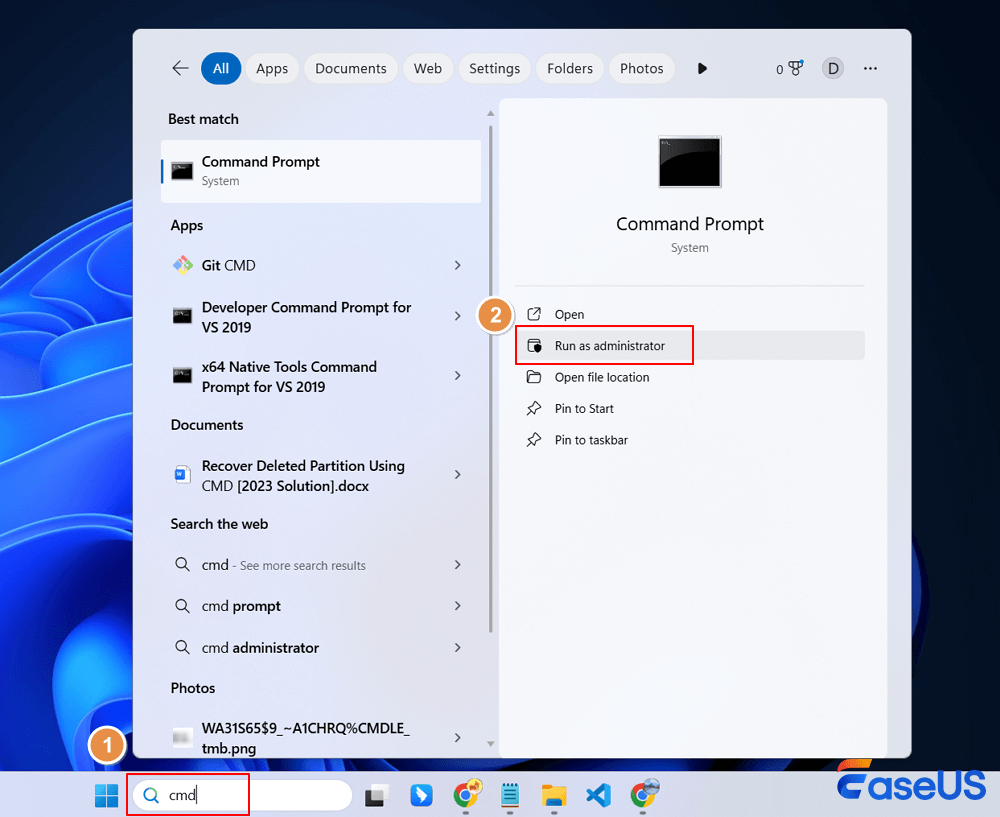
Step 2. Type diskpart, and list all connected disks by typing list disk. Find your disk by its size, double-check if you have multiple similar disks.
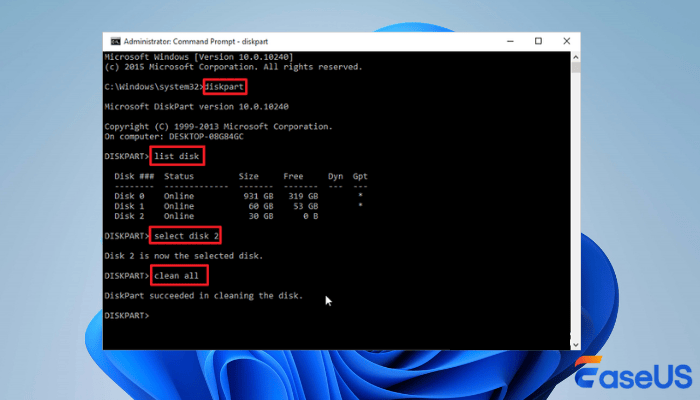
Step 3. If it's Disk 1, type: select disk 1 (Change "1" to match your disk's number.)
Step 4. List partitions on that disk by typing: list partition. This tells you which partitions Windows still sees.
If your missing partition pops up here, it's probably still around, just invisible. If not, or if the space is unallocated, the partition entry was deleted, and you'll need professional software to recover unallocated partitions.
You can also type: list volume. This shows all volumes across disks. Compare sizes, letters, and file systems; see if yours is on the list.
Step 5. Exit DiskPart by typing: exit. If the partition is still listed, move on and see if adding a drive letter brings it back. If it's missing and there's unallocated space, keep your hands off; use partition recovery tools before changing anything.
Method 2. Restore a Partition by Assigning a Drive Letter
When DiskPart confirms the partition is there, assigning a drive letter could make it show up in File Explorer. This won't fix a deleted partition; it just helps Windows recognize what's already in place.
Step 1. Run DiskPart.
Step 2. List your volumes: list volume. Find the right partition; double-check the size and file system.
Step 3. Select the volume: select volume 1 (Use the number that matches your setup)
Step 4. Assign a new drive letter in CMD. If you pick E:, assign letter=E. Don't pick a letter already in use.
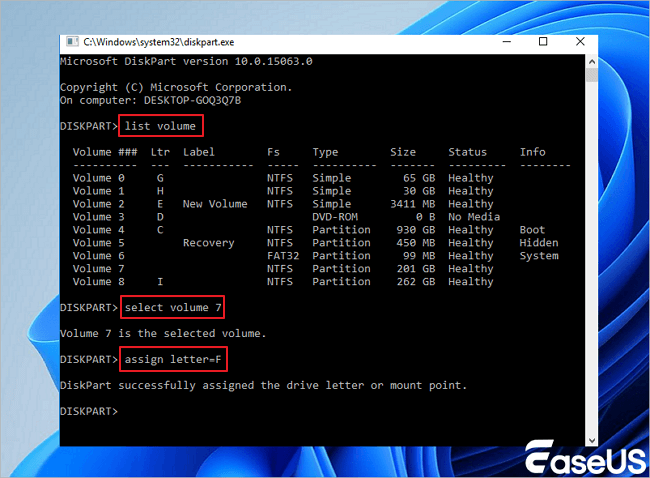
Step 5. Type list volume and check your work.
If your partition now shows a drive letter, exit DiskPart, open File Explorer, and see if you can access it.
If your files are back, great. If Windows says the file system is RAW, it's still not accessible. Or, if DiskPart doesn't recognize the partition at all, this method won't help.
Method 3. Check the Disk for Errors Using CMD
Sometimes partitions vanish because of corruption or disk errors, not just deletion. CMD helps you check this stuff, but there's a big difference between file system trouble and an actually deleted partition.
Step 1. Open DiskPart and list disks:
- diskpart
- list disk
If the disk isn't listed, check cables, USB ports, power, or look for hardware issues. Weird noises? Stop using it and call a data recovery pro.
Step 2. If DiskPart sees your disk, type list volume. Look for your partition. If it has a drive letter and a normal file system, it might be fine. RAW or missing? You need more help.
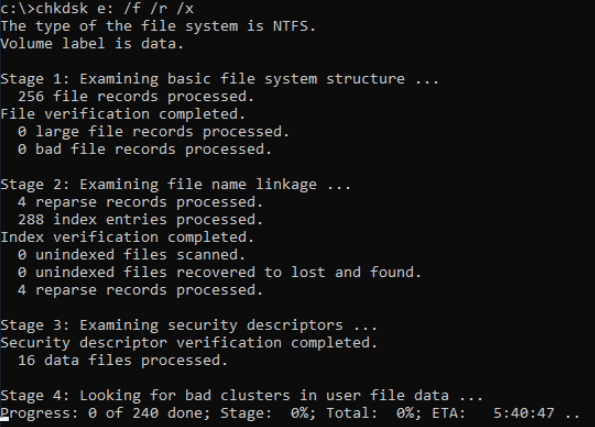
Step 3. CHKDSK is for checking and fixing file systems, not partition recovery. If you're sure the volume is okay and you backed up your files: chkdsk E (Replace E with your drive letter)
Don't run repair options like `/f` or `/r` if the files aren't backed up; they can mess up structures and make recovery tougher. RAW volumes or totally absent partitions? CHKDSK won't fix them.
Step 4. If CHKDSK finds errors, consider repairs only after you protect your data. If the partition is completely missing in DiskPart or there's unallocated space, switch to partition recovery tools; don't keep running file system commands.
Restore Deleted Partition with Partition Recovery Software
If Command Prompt can't find your deleted partition, don't panic. Partition recovery software actually gives you a better shot. While DiskPart works with disks that Windows already recognizes, these recovery tools dig much deeper. They scan your drive for partitions that vanished, even after a bad deletion or a corrupted partition table.
So, let's say you accidentally wiped a partition. Now you're staring at unallocated space, or Windows can't open the drive anymore. This is where something like EaseUS Partition Recovery comes in, or, if you just care about your files and not the whole partition, EaseUS Data Recovery Wizard.
Check the following guide to recover lost partitions:
Notice: It supports NTFS/exFAT/FAT32/BitLocker recovery of lost partitions, such as partition deletion, uninitialized disk, and unallocated space, as well as recovery of partitions that become RAW.
Step 1. Search for Lost Partitions
First, choose "Lost Partition Rescue" on the left and click "Start" to initiate the partition scan. Your disk will be displayed, including existing and lost partitions (marked as unallocated). Then click "Search for Lost Partition" to begin the scan.
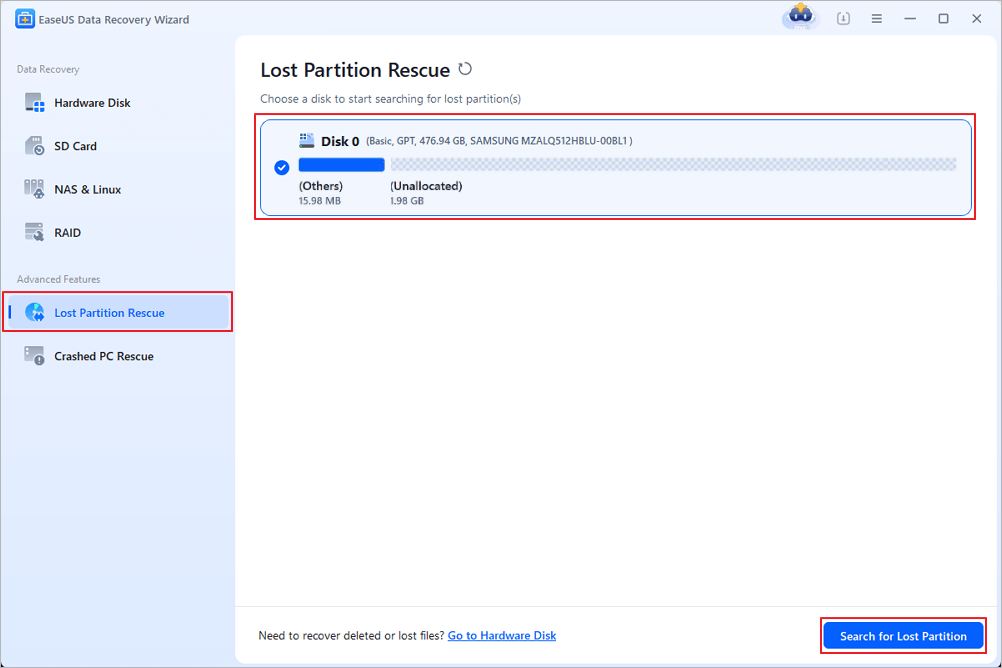
Step 2. Check Files in the Partition
Wait for the smart partition scanning. This process may take several minutes, depending on the severity of the partition loss. While waiting, you can move the cursor to the partition you want to view the files and data in it.
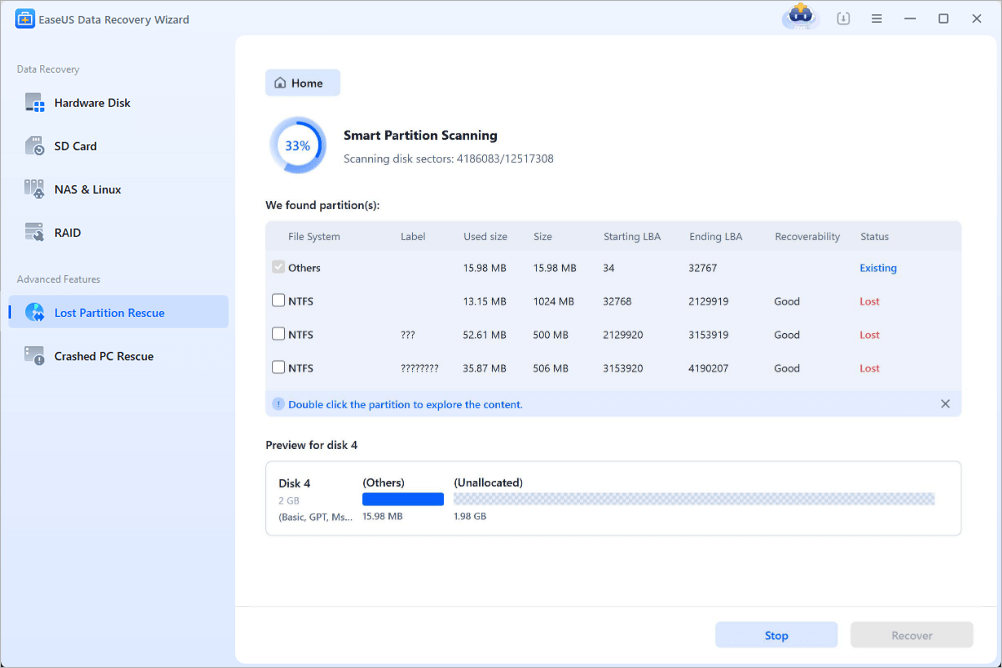
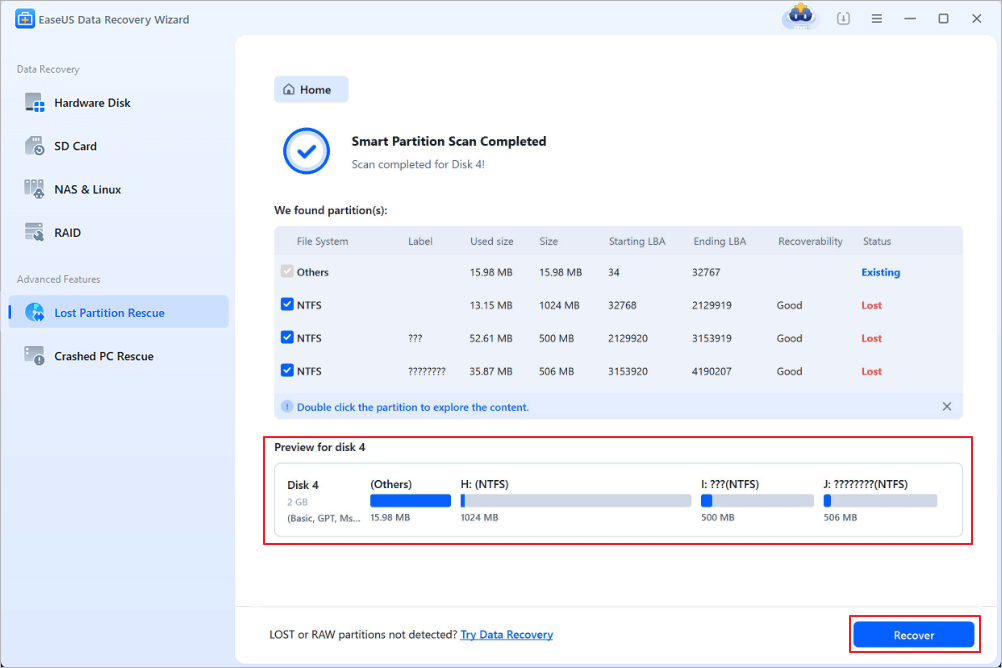
Step 3. Select and Restore the Partition
Select the partitions you want to recover from the list of lost partitions that have been scanned. Their corresponding information will also be displayed below. After selecting, click "Recover" to restore your disk partition settings.
Don't forget to share this partition recovery guide on social media. With this software, you don't need command-line tools like CMD.

What If the Deleted Partition Still Does Not Appear
So, you've tried Command Prompt and recovery tools, but your missing partition still hasn't turned up. That's frustrating. Usually, this means there's a deeper issue: a broken partition table, a corrupted file system, something unplugged, or maybe even a failing drive. Here's what you can check next, without risking your data in the process.
1. Check Disk Management
Hit Windows + X and open Disk Management. Find your disk and look carefully at what Windows says about its partitions.
- Unallocated space: The partition might've been deleted. Don't create a new volume here if you care about the old files; you'll just make things harder to recover.
- A partition with no drive letter: Try assigning a letter; sometimes that's all it takes.
- RAW partition: This means Windows can't read the file system. If you see this, recover your files first before you try to fix or format anything.
- Offline disk: Figure out why Windows marked it "offline" before making any changes.
- Not Initialized disk: If you care about the files on it, don't initialize it. That step rewrites metadata and can mess up recovery.
2. Check the Physical Connection
If you don't see your disk in Disk Management or DiskPart, double-check the basics: USB cables, power supply, ports, or the external enclosure. If it's an internal drive, open up the BIOS or UEFI to see if the system even detects it.
If you can, test the drive with a different cable or another computer. And if the drive makes weird sounds, overheats, or keeps dropping off, stop plugging it in over and over. That usually means the hardware's failing.
3. Don't Create or Format a New Partition
Sure, making a new partition lets you use the unallocated space again, but it won't bring your old files back. In fact, you could end up overwriting what's still recoverable.
If you haven't gotten your files yet, just leave the space as-is. Use recovery software to scan it and save recovered data to a different drive.
4. Think About Professional Recovery
Serious issues like hard disk physical damage, drives that keep cutting out, or if you're worried about important personal or business files - call for professional help. Home software isn't always the answer, and endless scans can actually make things worse if hardware is dying.
Conclusion
The Command Prompt is handy for getting back access to a missing partition, as long as the partition's still there but just lost its drive letter. DiskPart commands like list disk, list partition, and list volume help you figure out what disks and partitions you actually have, and assign letter=E can sometimes bring a volume back to life.
But let's be honest, CMD can't rebuild a deleted partition table or guarantee your old data comes back. If the disk space is unallocated, you'll need real partition recovery software. If your main concern is getting your files (photos, documents, videos), a tool like EaseUS Data Recovery Wizard is worth trying.
Partition Recovery with CMD FAQs
1. Can I recover a deleted partition using CMD without third-party software?
Sometimes. If Windows can still see the partition but it just lost its drive letter, DiskPart can assign one and restore access. If the partition's truly gone and the space is unallocated, CMD can't just bring it back; there's no magic command for that.
2. What CMD command recovers a deleted partition?
There isn't a one-size-fits-all command. DiskPart lets you look at your disks and partitions with list disk, list partition, and list volume. If there's an existing volume, assign letter=E can add a drive letter. But if the partition itself is gone, CMD alone won't recover it.
3. How do I recover a deleted partition that's now unallocated space?
Don't use the drive. Open Disk Management and confirm it's really unallocated. Then use partition recovery software to scan for old partitions. If you only care about the files, data recovery tools might pull them out without needing to rebuild the partition.
Was this page helpful?
-
Dany is an editor of EaseUS who lives and works in Chengdu, China. She focuses on writing articles about data recovery on Mac devices and PCs. She is devoted to improving her writing skills and enriching her professional knowledge. Dany also enjoys reading detective novels in her spare time. …
 Why Trust EaseUS
 Editor Reviews

20+
Years of experience

160+
Countries and regions

72 Million+
Downloads

4.9 +
Trustpilot Score





