





Table of Contents
 About the Author
 Related Posts
ISO files play a critical role in storing disk images, application installers, and operating system files. Lack of integrity in ISO files can hinder opening, mounting, and using them. Therefore, the following steps will help repair corrupted ISO files. Follow the methods below to repair corrupted ISO files:
Common Reasons Why ISO Files Get Corrupted
Understanding the causes of corruption will enable you to prevent future problems:
- Incomplete Downloads: If your internet connection has been disrupted, it could be that some downloads were not complete, making them unusable
- Problems in Storage Devices: There might be bad sectors in hard disk drive storage, USB devices, or external storage media, causing file corruption while transferring or saving files.
- Improper System Shutdown: There is the possibility that power failure or system crash, especially during access and/or transfer of ISO files, may result in damage. Virus or Malware Infections: Infections from malicious software can change or corrupt files, making them unreadable.
Method 1. Use EaseUS Fixo File Repair to Repair Corrupted ISO Files
For significantly damaged ISO files, certain repair software has proven to be the best option. EaseUS Fixo File Repair is a program that effectively repairs various levels of file damage. This file repair software from EaseUS can help you repair corrupted files, videos, and Microsoft documents within three steps.
Key Features of EaseUS Fixo for ISO Repair:
- Designed specifically for dealing with corrupted archive files and disc images
- User-friendly interface appropriate for beginners and experienced users alike
- Preview results of repair operations before saving
- Supports batch processing of multiple damaged files
Follow the steps here to repair the corrupted ISO files with ease:
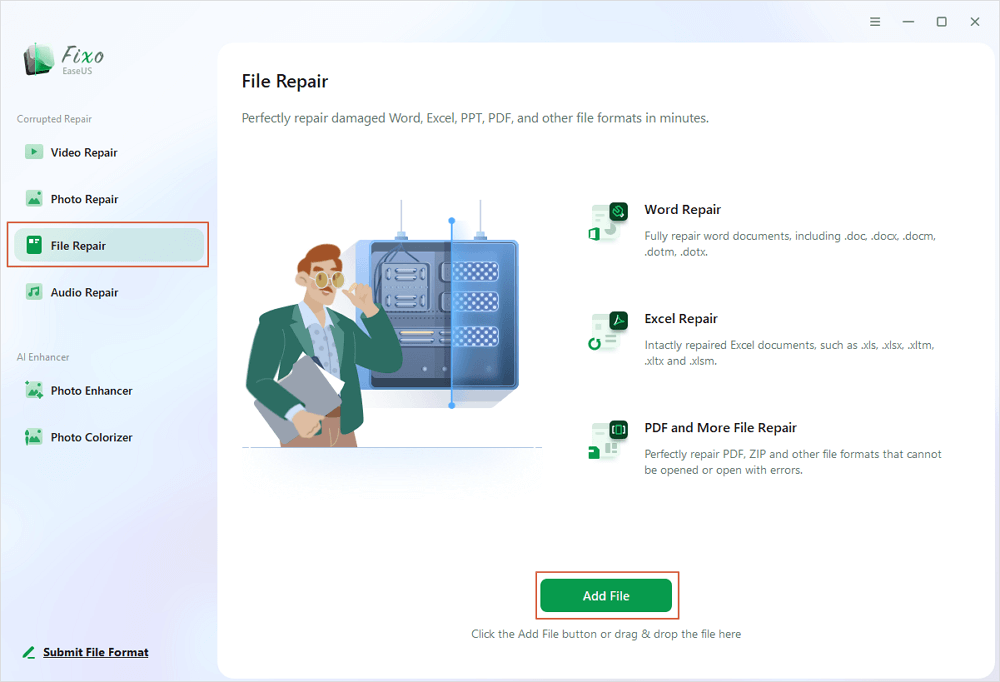
✨Step 1. Download, install, and launch EaseUS Fixo Document Repair
You can download this repair tool with the download button we gave you or other official ways. After the installation, you can double-click the Fixo icon to launch it. Click "File Repair" > "Add Files" to select and repair damaged Word, Excel, PDF, and other documents.
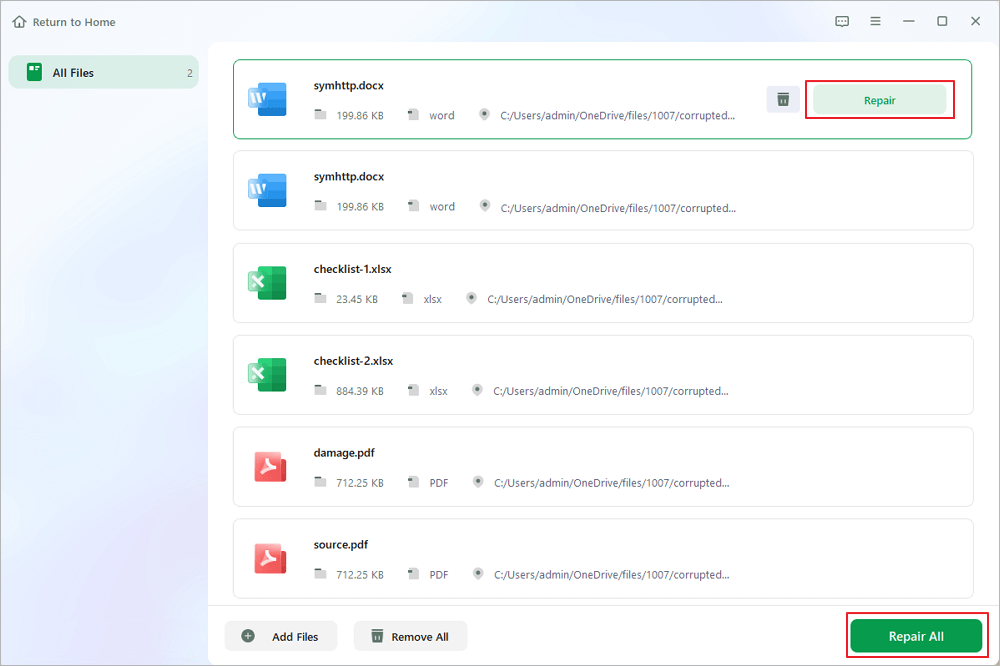
✨Step 2. Repair corrupted documents now
After adding the documents, you can click "Repair" to fix a document specifically or select "Repair All" to repair the whole files in the list altogether.
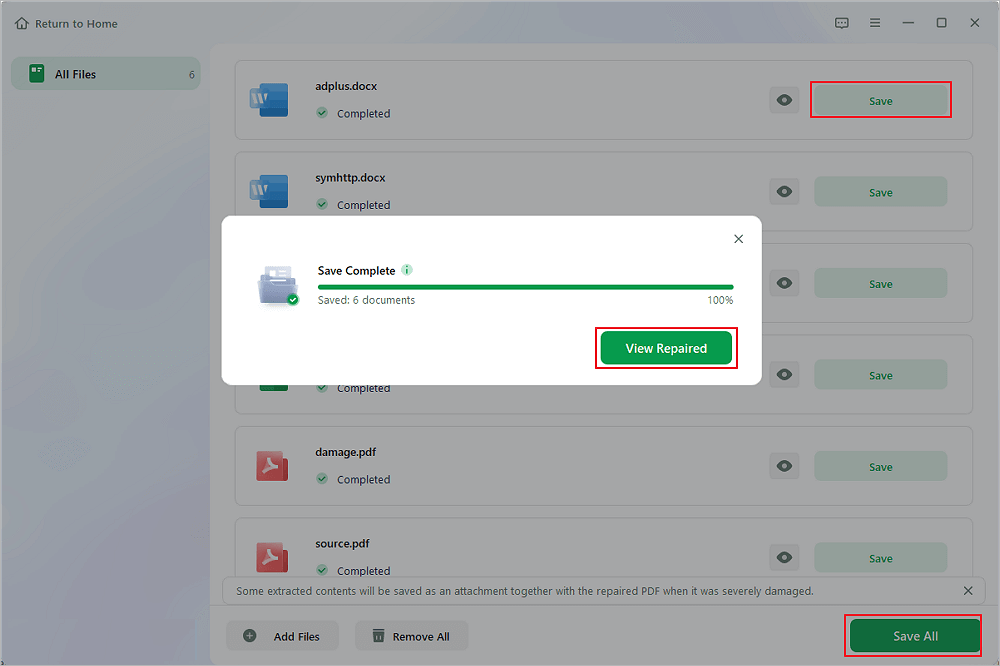
✨Step 3. Preview and save repaired documents
Now, the files are ready to be saved. You can also click the eye icon to preview the documents. After clicking "Save All", select "View Repaired" in the pop-up window to locate these repaired files.
Method 2. Check and Repair Your Archive Software to Repair Corrupted ISO Files
The problem may not be with your ISO file, but with the software you are using to open it. If you are experiencing problems with a particular software, try opening the ISO with different applications; for example, replace WinRAR with 7-Zip or the built-in Windows feature. Update your archive software to the latest version. Just do as follows:
Step 1. Open Windows Settings by typing the setting in the search bar.
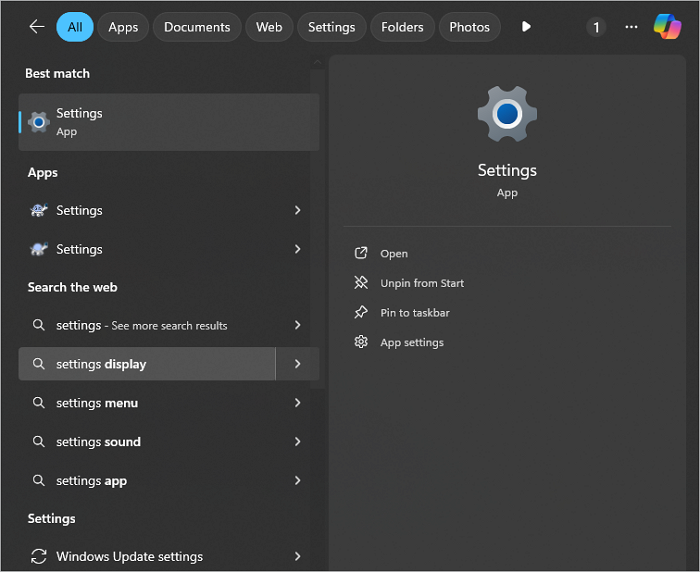
Step 2. Navigate to "Apps" > "Installed Apps" > "Your software" > "Advanced Options" > "Repair".
Method 3. Using Windows Built-In Tools to Repair Corrupted ISO Files
Windows has some utility programs that can potentially fix various file system problems, which might relate to ISO files. Here is how you can run the SFC command:
Step 1. Open Command Prompt as Administrator
Step 2. Type sfc /scannow and press Enter
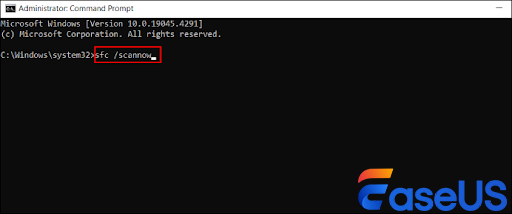
Step 3. Wait for the scan to finish, and then restart your computer if necessary.
Method 4. Check Storage Device Health to Fix Corrupted ISO Files
Your ISO files stored on an external storage device or a USB flash drive may be causing these ISOs to get corrupted. The steps you should follow include:
Step 1. Copy the ISO file to another media storage device, such as your computer's internal hard drive.
Step 2. Run a disk check on the problematic storage device.
Step 3. If possible, try to read the ISO file on another computer to verify if the problem lies with the file itself or your system.
Preventive Measures to Avoid ISO Corruption
In order to minimize the risk of future ISO file corruption:
- Always use a stable internet connection to download big files. Safely ejecting external storage devices before disconnection.
- Perform regular Antivirus Scans to prevent Malware Infections
- Make sure to keep important ISO files on multiple media.
- Verify downloads with provided checksums, where available from the source
Conclusion
Perform repair on those files that are irreacquirable or have important unique data using specialized software such as EaseUS Fixo. If you are having issues with multiple files, not just the ISO, consider using system-level utilities to resolve them.
For critical ISO files that will not open with simpler techniques, professional file repair software is generally the best bet for recovery, as it directly targets file structure corruption. If problems persist with additional ISO files, this could signify an underlying problem with your storage device or operating system and may warrant further analysis.
FAQs on How to Repair Corrupted ISO Files
Here are some frequently asked questions you may be curious about:
1. What does it mean when an ISO file is corrupted?
A corrupted ISO file is one that has been damaged or altered, preventing it from being properly mounted, burned, or used. Corruption can occur due to incomplete downloads, transfer errors, storage media issues, or malware.
2. How can I tell if my ISO file is corrupted?
- Common signs include:
- Inability to mount or open the ISO
- Errors when burning the ISO to a disc or USB
- CRC (Cyclic Redundancy Check) errors
- Failed verification against the original checksum (MD5, SHA-1, etc.)
3. Can a corrupted ISO file be repaired?
Sometimes, yes—depending on the type and extent of the corruption. In many cases, however, the most reliable fix is to re-download or re-copy the ISO from the original source.
Was This Page Helpful?
About the Author

Finley is interested in reading and writing articles about technical knowledge. Her articles mainly focus on file repair and data recovery.


