






Table of Contents
 About the Author
 Related Posts
An AEP file is an Adobe After Effects project file that stores your compositions, keyframes, layer links, and effects settings. When an AEP project file becomes corrupted, After Effects may freeze while loading, display an invalid project file error, or fail to open. You can repair corrupted AEP files by checking After Effects auto-save backups, testing a clean project import, and using EaseUS Fixo File Repair, which now supports AEP project files in its latest version.
Adobe After Effects is a go-to tool for motion graphics designers, video editors, and visual effects creators. Every edit, animation curve, text layer, and composition structure lives inside an AEP project file. Spending hours building complex motion sequences only to find that your AEP file will not open can be stressful, especially when a client deadline is approaching.
When you face an unreadable project file, learning how to repair corrupted AEP files quickly helps protect your creative work. Many project errors happen because of a sudden save interruption rather than complete data loss. I
Common Reasons Why AEP Project Files Become Corrupted
Knowing what can damage an After Effects project file makes it easier to prevent future issues and choose the right fix for your current file.
- Power Outages While Saving: If your computer loses power mid-save, the AEP project file can end up incomplete.
- Interrupted Drive Transfers: Moving AEP project files to or from an external hard drive and unplugging too early can corrupt file data.
- Third-Party Plugin Conflicts: Buggy plugins, broken scripts, and missing media links can prevent a project file from loading properly.
- Storage Sector Errors: Bad blocks on a hard drive can damage saved project files over time.

Method 1. Repair Corrupted AEP Files Using EaseUS Fixo File Repair
When an AEP project file refuses to open, manual editing can be risky if you are not familiar with project file structures. Dedicated repair software gives everyday users a direct way to fix damaged files without altering the original.
EaseUS Fixo File Repair is a practical repair tool for damaged files, and its latest version now supports AEP project files alongside popular file formats. It scans damaged file structures, repairs corrupted file headers, and saves clean copies so you can get back to editing in After Effects faster.
Guide to repair corrupted AEP files with EaseUS Fixo:
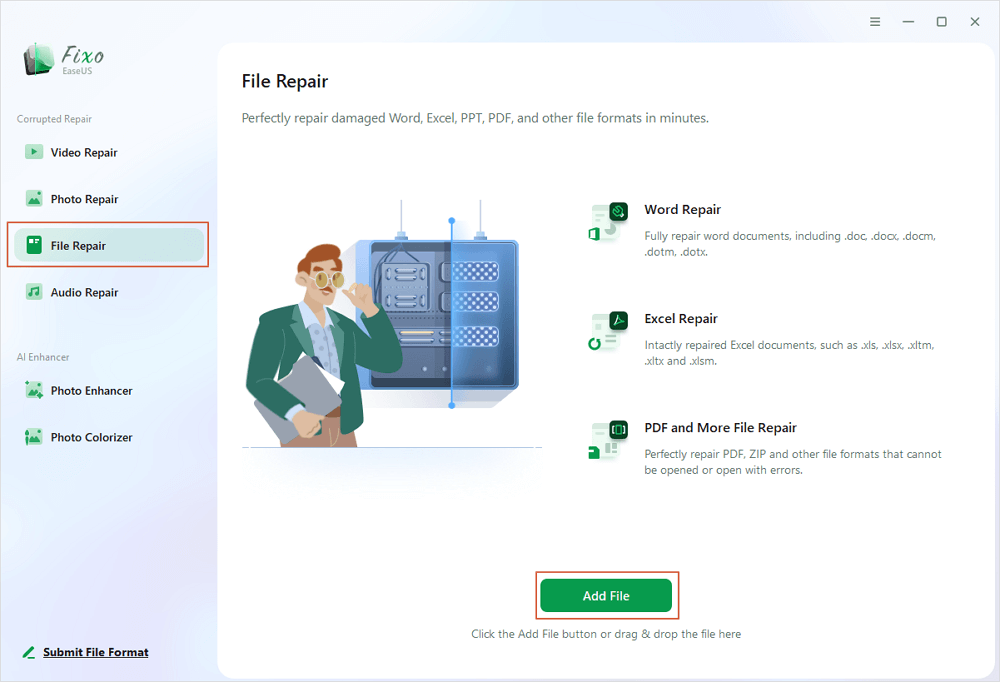
Step 1. Download and launch Fixo on your PC or laptop. Choose "File Repair" to repair corrupted Office documents, including Word, Excel, PDF, and others. Click "Add Files" to select corrupted documents.
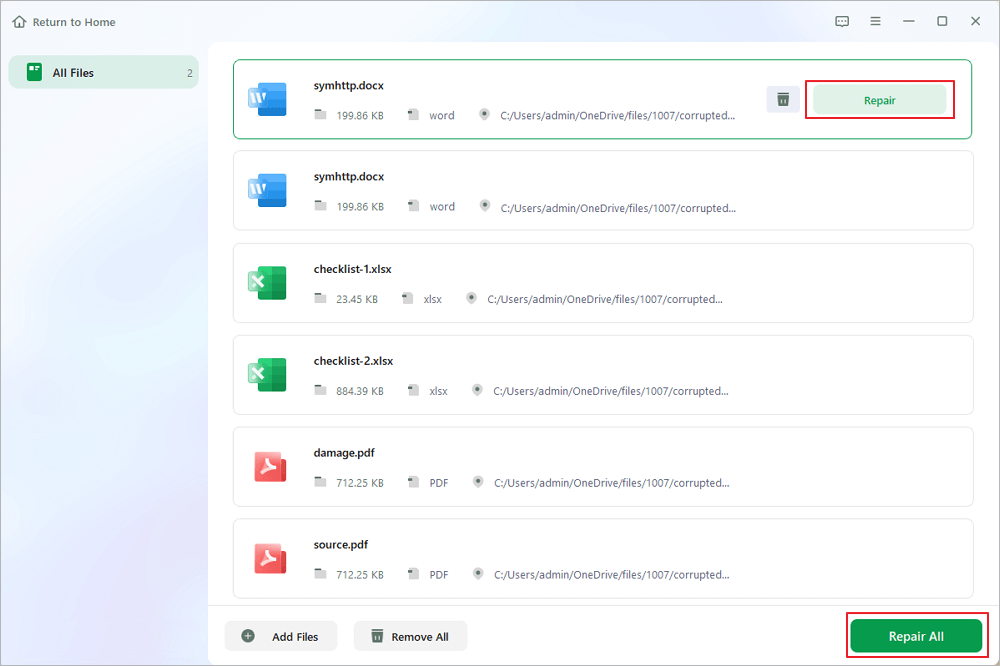
Step 2. To repair multiple files at once, click the "Repair All" button. If you want to repair a single document, move your pointer to the target file and choose "Repair". You can also preview the documents by clicking the eye icon.
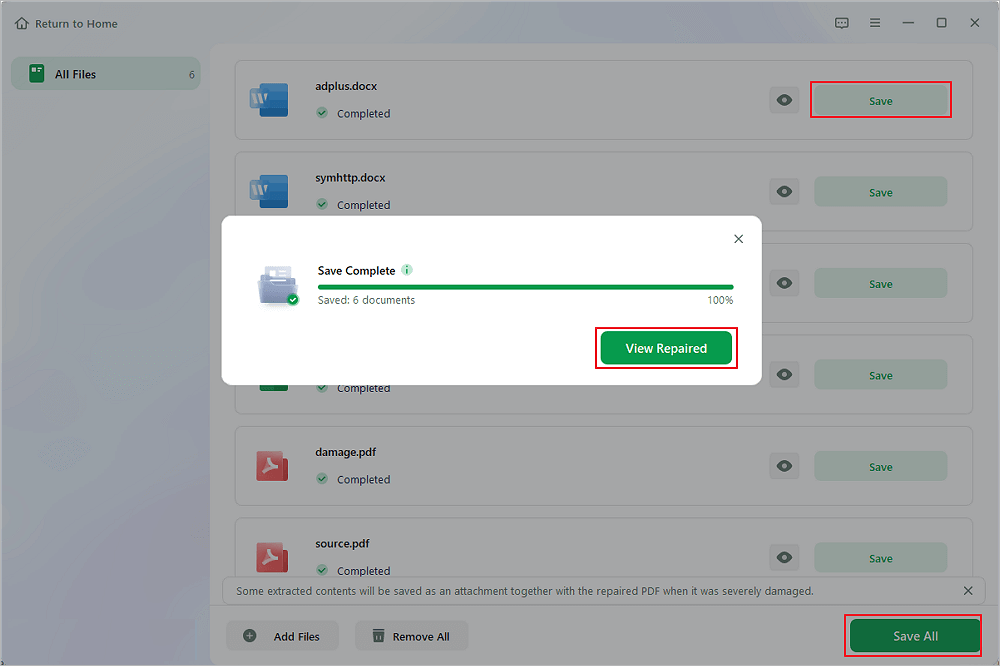
Step 3. Click "Save" to save a selected document. Select "Save All" to save all the repaired files. Choose "View Repaired" to locate the repaired folder.
If you find this information helpful, please share it with others on social media to assist them in overcoming this common challenge.
Method 2. Restore an Auto Save Backup in Adobe After Effects
Before starting over, check whether Adobe After Effects automatically saved a recent backup of your AEP project file while you worked.
- Open Adobe After Effects.
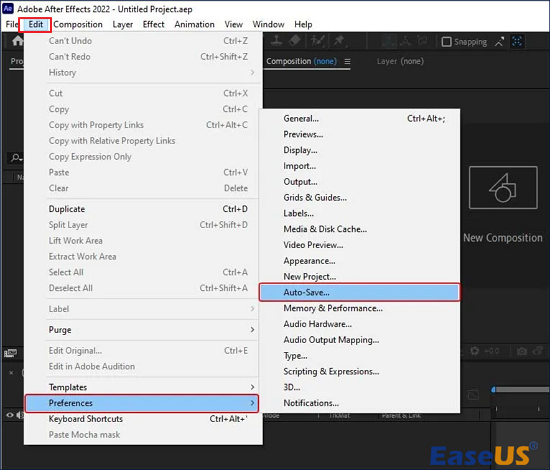
- Select "Edit" > "Preferences," then check "Auto-Save" and click "OK."
- Navigate to the folder where your AEP file is saved.
- Select the most recent working backup file, click "Open", and save it under a new file name so you keep a clean copy.
Method 3. Import the Corrupted AEP File into a New Project
Sometimes opening a damaged AEP file directly fails, but importing it as an asset into a brand-new After Effects project lets you pull out usable compositions.
- Launch Adobe After Effects and create a new blank project by selecting "File" > "New" > "New Project".
- "From the top menu, select File," then "Import," then "File".
- Choose your problematic AEP file and click "Import".
- If compositions appear inside the Project panel, double-click them to check if your layers and keyframes load cleanly.
- Save the new project under a fresh name and relink any missing footage if needed.
Tips to Prevent AEP File Corruption in the Future
Adopting a few simple editing and storage habits can save hours of rework and keep your After Effects projects safe.
| 1️⃣Keep Auto Save Turned On | Make sure auto save is enabled in After Effects preferences and set to save every few minutes with multiple backup versions. |
| 2️⃣Save Incrementally on Big Projects | Save numbered project versions as your motion design work grows so you always have a fallback file. |
| 3️⃣Avoid Working Directly from Unstable Drives | Edit local project files on a dependable internal drive and eject external drives safely before unplugging. |
| 4️⃣Back Up Important Files Regularly | Keep copies of your AEP files and source media on a second drive. |
Conclusion
A damaged After Effects project file doesn't have to ruin hours of motion design work. By checking your auto-save backups, trying a fresh project import, and using EaseUS Fixo file Repair, which now supports AEP project files in its latest version, you can repair corrupted AEP files smoothly and get back to creating with confidence.
Repair Corrupted AEP Files FAQs
Here are clear answers to common questions users ask when an After Effects AEP file becomes corrupted.
1. Can I repair corrupted AEP files if After Effects will not open them?
Yes. You can try importing the AEP file into a new project, checking your Auto Save folder for a recent backup, or using EaseUS Fixo File Repair (the latest version supports AEP project files) to repair the damaged file.
2. Where does After Effects store auto save files for an AEP project?
By default, After Effects creates an Adobe After Effects Auto Save folder in the same directory where your project file is saved, unless you choose a custom folder in your Auto Save preferences.
3. Will repairing a corrupted AEP file delete my original file?
No. When you repair a file with EaseUS Fixo File Repair and save the output to a selected folder, your original AEP file stays intact while you get a repaired copy to open.
4. Why did my AEP project file get corrupted after a crash?
A crash while After Effects writes changes to disk can leave the project file incomplete, preventing the program from reading it properly on the next launch.
Was This Page Helpful?
About the Author

Jaden is one of the editors of EaseUS, who focuses on topics concerning PCs and Mac data recovery. Jaden is committed to enhancing professional IT knowledge and writing abilities. She is always keen on new and intelligent products.


