





Table of Contents
 About the Author
 Related Posts
Error code 224002 occurs when an online web player like JW Player fails to load or decode an embedded video stream on your browser. This playback error typically stems from outdated browser versions, corrupted cache and cookie data, conflicting third-party extensions, hardware acceleration glitches, or corrupted video files on media servers.
- What Causes Error Code 224002 During Video Playback
- Method 1. Clear Browser Cache, Cookies, and Browsing History
- Method 2. Disable Ad Blockers and Conflicting Browser Extensions
- Method 3. Turn Off Hardware Acceleration in Browser Settings
- Method 4. Repair Corrupted Video Files with EaseUS Fixo Video Repair
This specific error message appears most frequently on embedded web video platforms powered by JW Player, HTML5 elements, or self-hosted video engines. It affects users across Google Chrome, Mozilla Firefox, Microsoft Edge, Apple Safari, and mobile browsers on Android and iPhone devices. In this comprehensive troubleshooting guide, you will learn the primary causes behind video error code 224002, explore simple browser fixes, and discover how EaseUS Fixo Video Repair helps restore corrupted local video files cleanly.
What Causes Error Code 224002 During Video Playback
Understanding what triggers error code 224002 makes it easier to find the right solution. The error indicates a communication failure between your client web browser and the remote host server delivering the media stream.
- Corrupted Browser Cache and Cookies: Stale web data files stored in your browser can block proper communication with streaming servers.
- Third-Party Extension Interference: Ad blockers, privacy shields, and proxy extensions frequently block essential video script streams by mistake.
- Outdated Web Browser Versions: Running older browser versions leads to HTML5 media decoder incompatibilities with modern video codecs.
- Hardware Acceleration Conflicts: Graphical processing settings in browser configurations can cause video decoding crashes on specific graphics cards.
- Restricted Network or DNS Settings: Custom DNS servers or restrictive firewall settings can block media stream requests.
- Corrupted Source Video Files: When attempting to view locally saved or uploaded video content, header damage or broken file structures prevent successful video rendering.
MP4 File Not Playing | 3 Advanced Solutions
Playing MP4 files is one of the most popular ways to enjoy videos. So MP4 video files that don't play are quite common. Malware, data corruption, battery drain, etc. Read more >>
Method 1. Clear Browser Cache and Browsing History
Accumulated browser cache and temporary internet files often cause online video decoding failures. Clearing these temporary files forces your browser to download fresh scripts from the video hosting server.
Clearing Cache on Google Chrome and Microsoft Edge
- Open your web browser and click the three-dot menu icon in the top right corner.
- Select "Settings" and navigate to "Privacy and Security".
- Click "Clear browsing data".
- Set the Time range dropdown menu to "All time".
- Check the boxes for "Cookies and other site data" and "Cached images and files".
- Click "Clear data", close your browser completely, and relaunch the video page.
Clearing Cache on Mobile Devices Android and iPhone
- Open the Mobile Chrome or Safari app on your mobile device.
- For Chrome, tap the three dots, select "History", and tap "Clear browsing data".
- For Safari on iOS, open device "Settings", select "Safari", scroll down, and tap "Clear History and Website Data".
- Relaunch the mobile browser app and try reloading the video stream.
Method 2. Disable Ad Blockers and Conflicting Browser Extensions
Ad-blocking extensions and anti-tracking add-ons often misidentify embedded video media scripts as unwanted advertisements, triggering error code 224002.
Step 1. Open Google Chrome, click the three-dot menu, hover over "Extensions", and select "Manage Extensions".
Step 2. Locate your installed ad blocker, privacy shield, or custom proxy extension.
Step 3. Toggle the switch to turn off the extension, or click "Remove" to uninstall it.
Step 4. Reload the webpage hosting the video file to check if playback resumes.
Step 5. If the video plays successfully, add the website domain to the whitelist inside your ad blocker settings.
Method 3. Turn Off Hardware Acceleration in Browser Settings
Hardware acceleration passes video processing tasks from your main computer CPU to your graphics processing unit GPU. If your graphics card driver encounters a minor bug, hardware acceleration can crash web video decoders.
Step 1. Launch Google Chrome or Microsoft Edge and open the main "Settings" panel.
Step 2. Type "System" into the settings search box at the top.
Step 3. Locate the option labeled "Use graphics acceleration when available or Use hardware acceleration when available".
Step 4. Toggle the switch to "Off".
Step 5. Click the "Relaunch" button next to the setting to restart the browser and test video playback.
Method 4. Repair Corrupted Video Files with EaseUS Fixo Video Repair
While error code 224002 usually affects browser streams, users who download videos from web platforms or try to play locally stored media often find the video file itself is severely corrupted. Header damage, incomplete downloads, or interrupted file transfers prevent media players like VLC, Windows Media Player, or web players from reading the file payload.
EaseUS Fixo Video Repair is a specialized software tool designed to fix damaged, corrupted, unplayable, or truncated video files. Whether your video file has missing container headers, audio sync issues, broken frame rates, or codec error flags, EaseUS Fixo analyzes file structures and repair unplayable video files.
Step-by-Step Guide to Repair Corrupted Video Files with EaseUS Fixo:
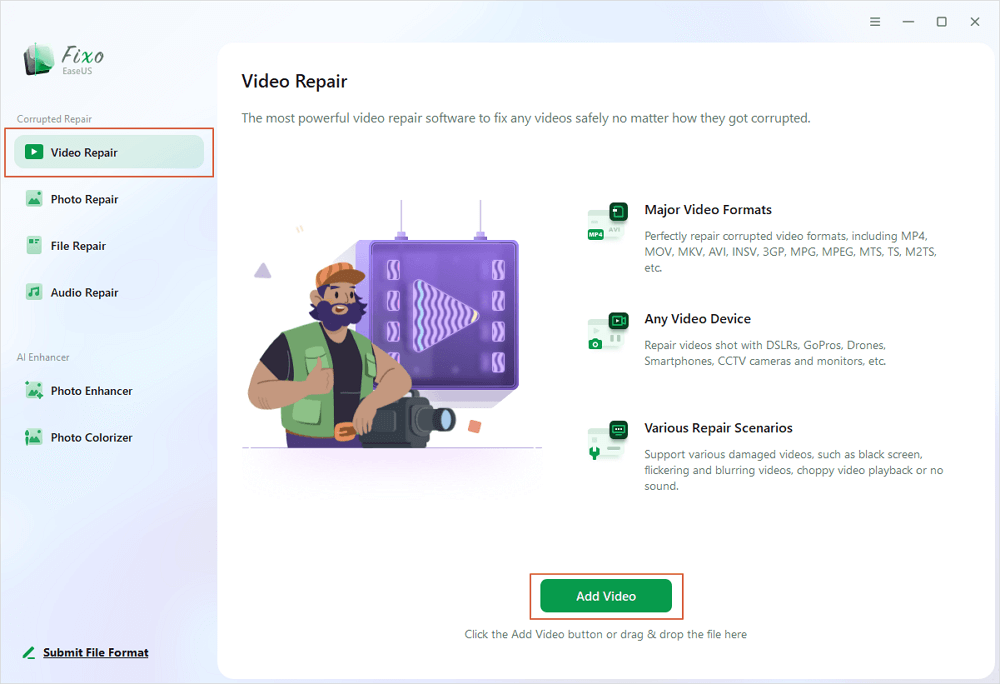
✨Step 1. Download, install, and launch EaseUS Fixo Video Repair
Click the download button or visit Fixo official website to download and install this video repair tool, In the interface, click "Video Repair" > "Add Videos" to upload movies, recordings, or other video files from various storage devices.
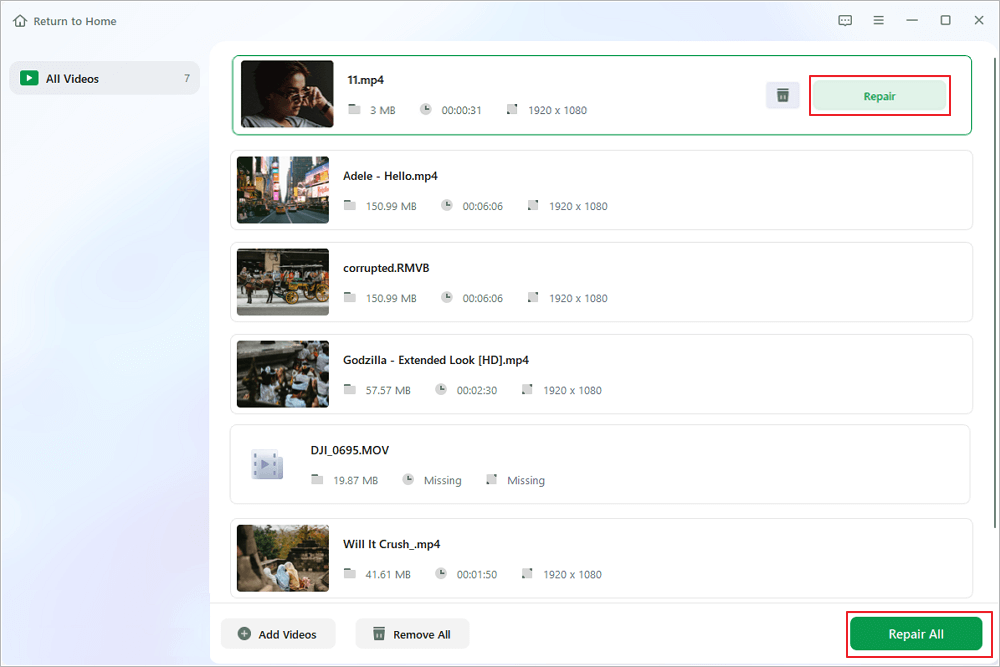
✨Step 2. Start the video repair now
If you don want to repair all the videos at once, you can select a singe one and choose "Repair". Click the trash button to remove the video from the repair list.
✨Step 3. Preview and save repaired videos
It may takes longer to repair large videos. Click the play icon to preview the repaired videos, and click "Save All" to save these video files. The "View Repaired" button will lead you to the repaired folder directly.
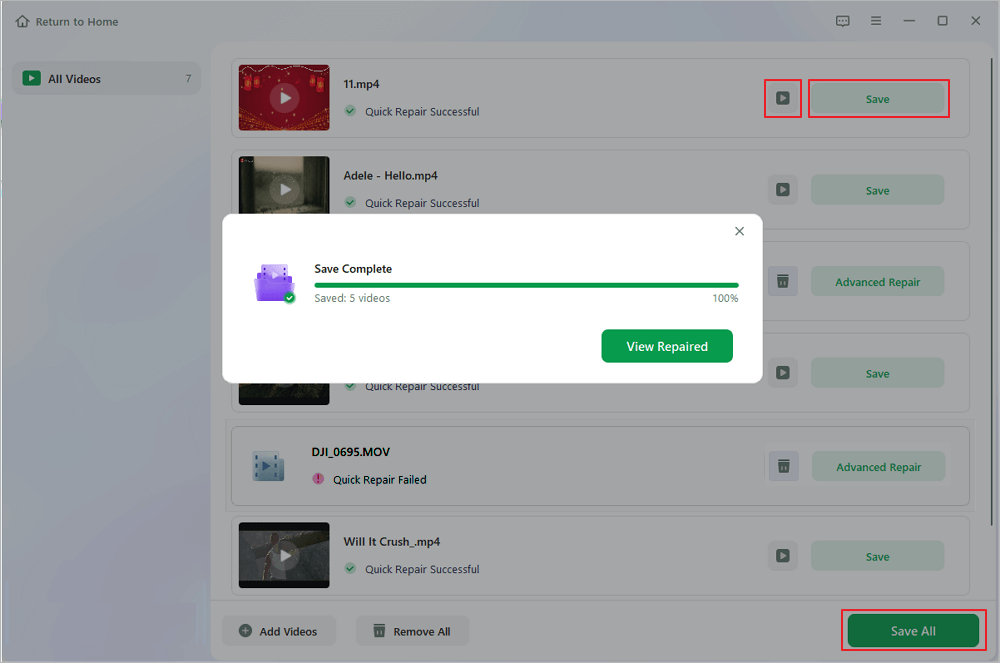
✨Step 4. Apply advanced repair if fails
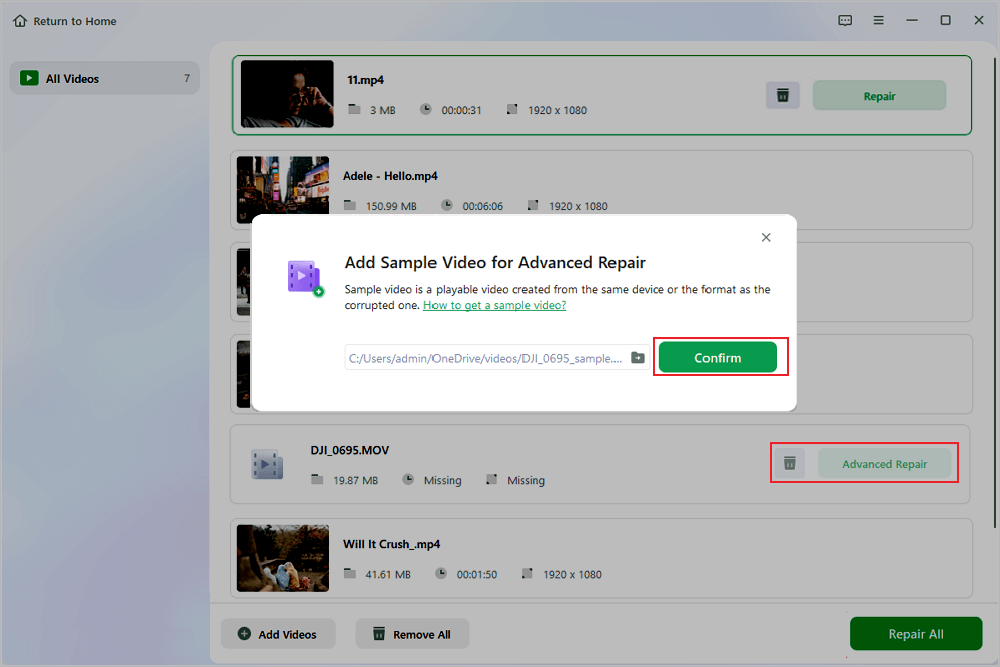
If the video shows "Quick Repair Failed", that means the video is seriously damaged and it's better to utilize the advanced repair mode. Click "Advanced Repair" > the folder icon > "Confirm" to add a sample video.
✨Step 5. Check the match result
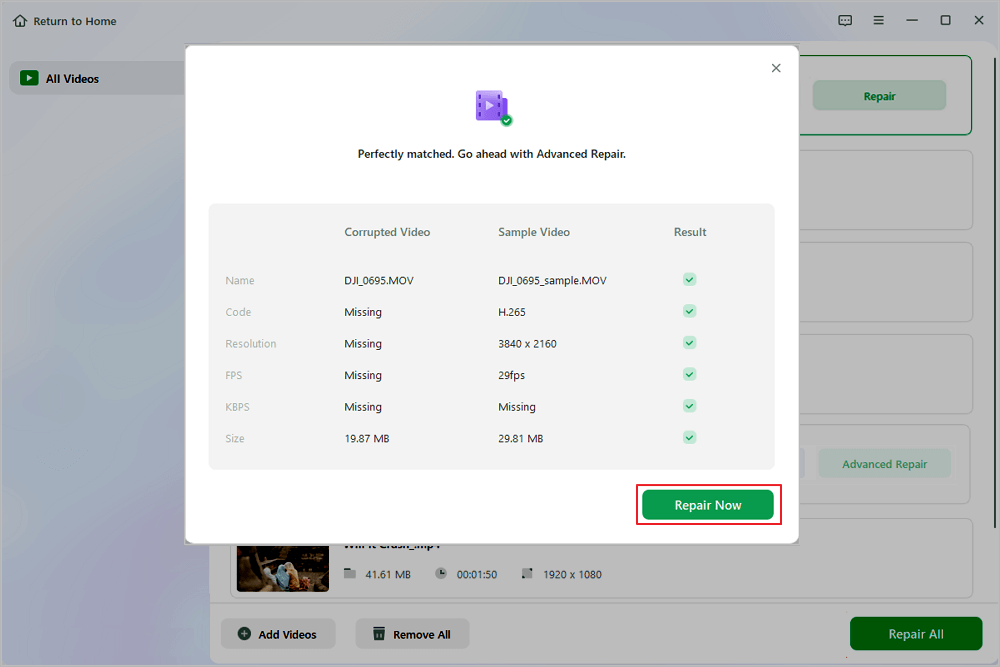
You'll know whether the sample video can help repair the corrupted videos or not in the pop-up window. A list of detailed information on corrupted and sample videos will show up. Click "Repair Now" to start the advanced video repair process.
Frequently Asked Questions About Error Code 224002
Here are answers to the most common questions users ask regarding error code 224002 and video playback failures.
1. What does error code 224002 mean on an online video player?
Error code 224002 is a web player error code indicating that an embedded media player like JW Player failed to load or decode the requested video stream. It is typically caused by corrupted browser caches, ad blockers, or outdated browser media decoders.
2. How do I fix error code 224002 on an Android phone or iPhone?
To fix error code 224002 on mobile devices, open your mobile browser settings, clear your browsing history, cookies, and cached data, update your browser app to the latest version in the Google Play Store or App Store, and disable active ad-blocking apps.
3. Why does error code 224002 happen on Google Chrome specifically?
On Google Chrome, error code 224002 often occurs because of strict third-party cookie policies, outdated HTML5 video decoding components, or third-party extensions that block media scripts on web pages.
4. Can EaseUS Fixo Video Repair fix online streaming errors directly?
EaseUS Fixo Video Repair is designed to fix local and downloaded video files saved on your computer or storage drives. If you download a streaming video and it becomes corrupted, EaseUS Fixo can repair the file structure so it plays smoothly in media players.
Conclusion
The message "This video file cannot be played" (error code 224002) can disrupt your online learning or streaming experience, but fixing it is usually quick and straightforward. By clearing corrupted browser cache files, disabling conflicting ad blocker extensions, turning off hardware acceleration, and updating your web browser, you can resolve online web player errors easily. When downloaded or local video files fail to play because of severe data damage, EaseUS Fixo Video Repair provides a reliable solution to fix file headers, restore video frames, and get smooth media playback again.
Was This Page Helpful?
About the Author

Jaden is one of the editors of EaseUS, who focuses on topics concerning PCs and Mac data recovery. Jaden is committed to enhancing professional IT knowledge and writing abilities. She is always keen on new and intelligent products.


