-
![]()
-
![]()
-
![]() How to Recover Permanently Deleted Files in Windows 11 Using CMD [SOLVED]
How to Recover Permanently Deleted Files in Windows 11 Using CMD [SOLVED] October 19,2026
 6 min read
 -
![]()
-
![]()
-
![]() How to Recover Permanently Deleted Files in Linux Redhat/Ubuntu/MintOctober 19,20266 min read
How to Recover Permanently Deleted Files in Linux Redhat/Ubuntu/MintOctober 19,20266 min read -
![]()
-
![]()
-
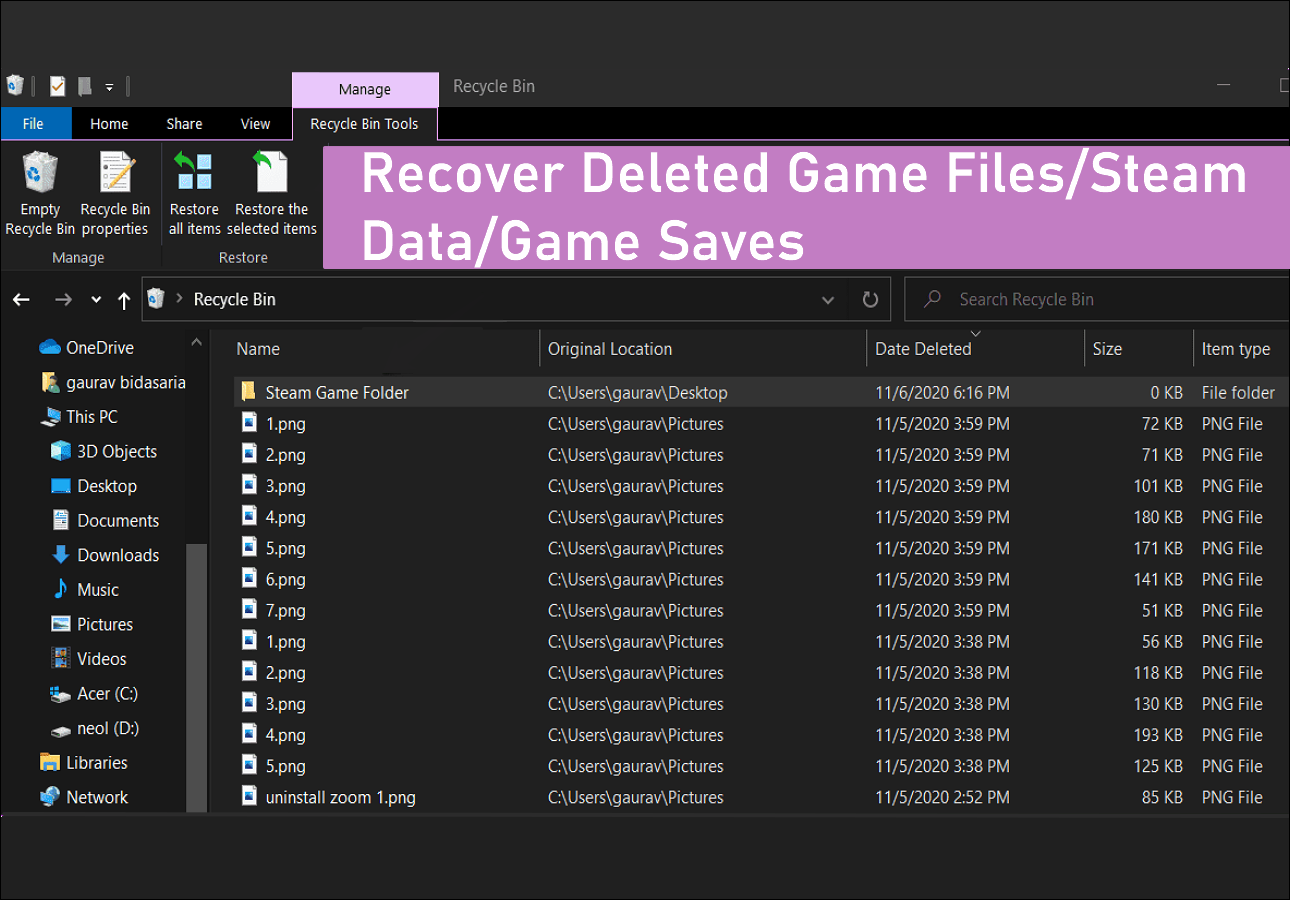
![]() How to Recover Deleted Game Files/Steam Data/Game Saves on PCOctober 19,20266 min read
How to Recover Deleted Game Files/Steam Data/Game Saves on PCOctober 19,20266 min read -
![]() How to Recover Deleted Folders [Even Permanently Deleted]October 19,20266 min read
How to Recover Deleted Folders [Even Permanently Deleted]October 19,20266 min read
Page Table of Contents
If your lost files total less than 2GB (such as a few photos, videos, or Word/PDF documents), you don't need to purchase the paid version.
You can use the free version of EaseUS Data Recovery Wizard to recover and export up to 2GB of data at no cost.
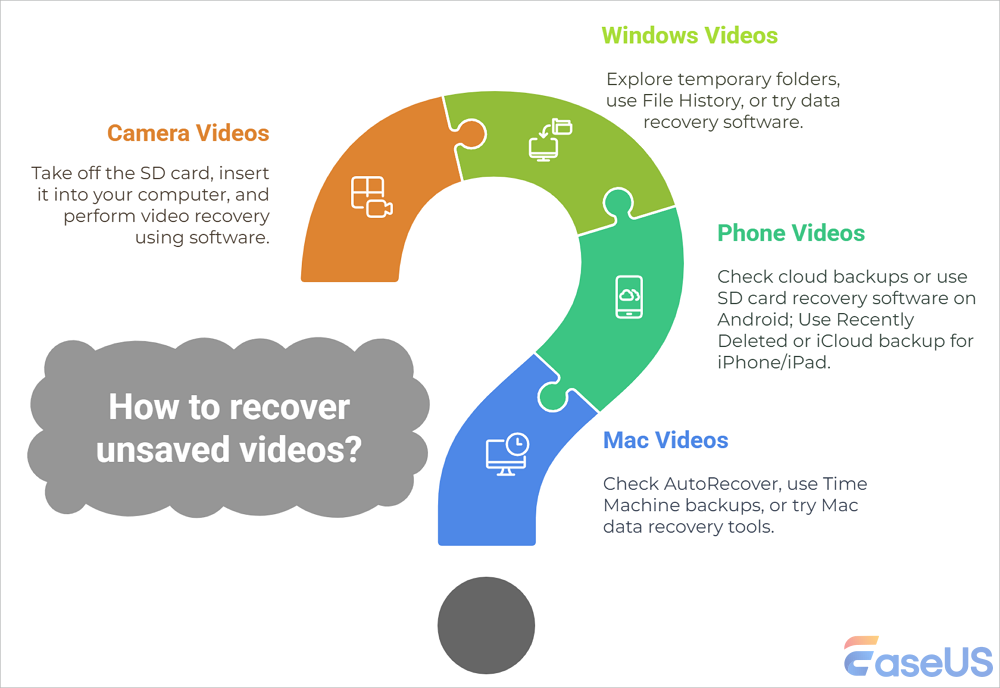
Losing an unsaved video can be frustrating, whether it's an important work project, a precious memory, or creative content you spent hours editing. The good news is that, in many cases, the unsaved video files can be recovered with a quick response. This guide outlines the most effective methods to recover unsaved videos on Windows, Mac, cameras, or smartphones. Read on to learn the detailed steps with prevention tips to avoid future data loss.
| ✅ | Suppose the unaved video files are so essential that you have no time to try all the methods in this post; Go straight to install EaseUS Data Recovery Wizard, which supports a wide range of file types to recover an MP4, AVI, MOV, 3GP, WMV, MKV, FLV, etc., and provides a user-friendly interface to ensure a computer novice can quickly restore unsaved/lost files. |
Can Unsaved Video Files Be Recovered
Unsaved video files can often be recovered, depending on how they were lost and the steps taken afterward. Here are the common reasons for unsaved video loss.
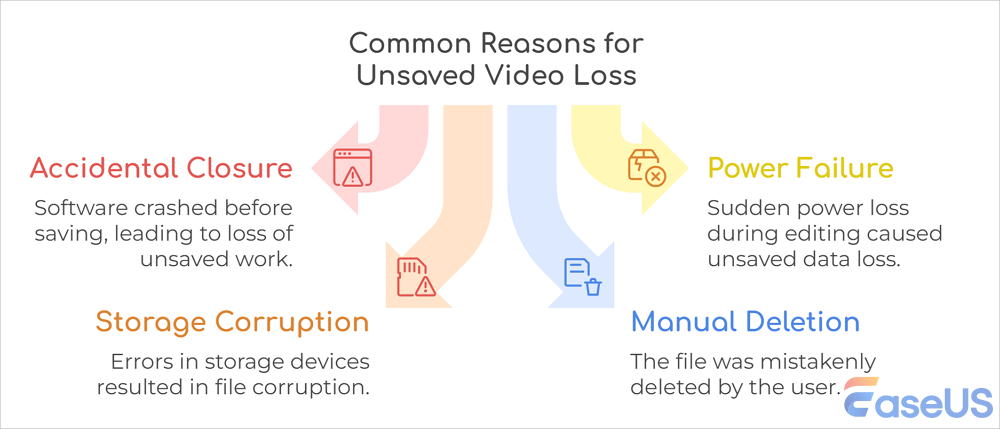
Here are the common video loss scenarios and solutions you can refer to:
| Common video loss scenarios | Solutions |
| Unsaved Video Editing Projects | If your video is being edited in projects such as Premiere Pro, DaVinci Resolve, Final Cut Pro, etc., using the auto-saved or temporary files. |
| Unsaved Recordings | Some recordings in OBS, Zoom, and other screen recorders that you forget to save can be restored from the temporary folder. |
| Deleted Before Saving | Stop using the drive immediately, then check the recycle bin or use video recovery software to retrieve unsaved videos. |
| Crashed Before Saving | Checking the captures and cache folder, or checking the creator dashboard for saved VODs, helps restore unsaved game recordings or live streams. |
Choose the suitable solution and recover your unsaved video files on Windows, Mac, phone, cameras, etc.
Fix 1. Use Video Recovery Software to Restore Unsaved Videos
EaseUS video recovery software helps recover unsaved, lost, or deleted videos. If your video files were deleted before saving, stop using the drive immediately to prevent data loss and potential overwriting. Then, follow the steps below to restore the unsaved video files:
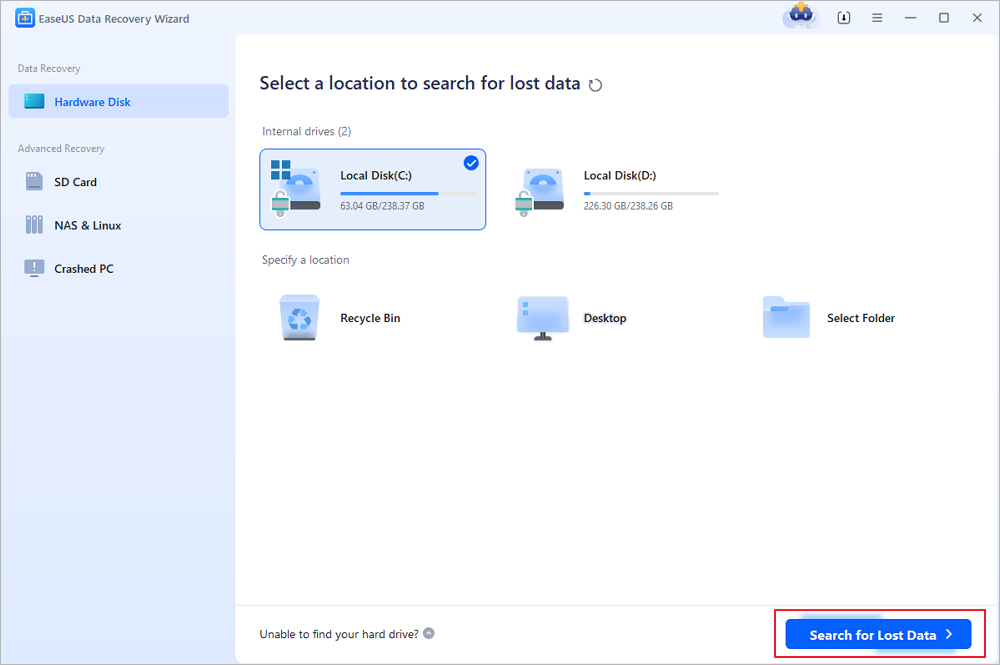
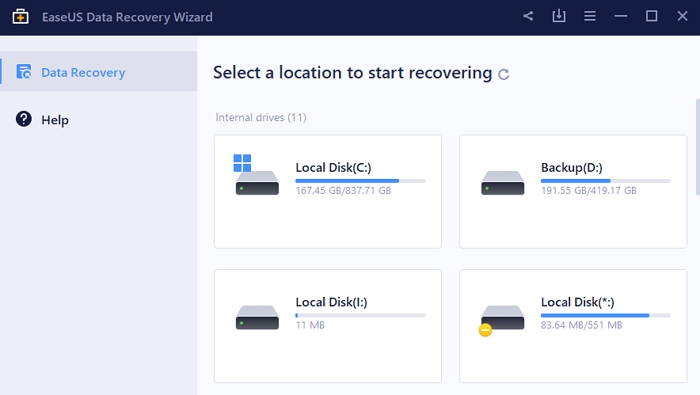
Step 1. Choose the original location and scan for lost data
Open EaseUS Data Recovery Wizard and locate the partition or drive where you accidentally deleted your files. Hover over the location and click "Search for Lost Data" to find recoverable files.
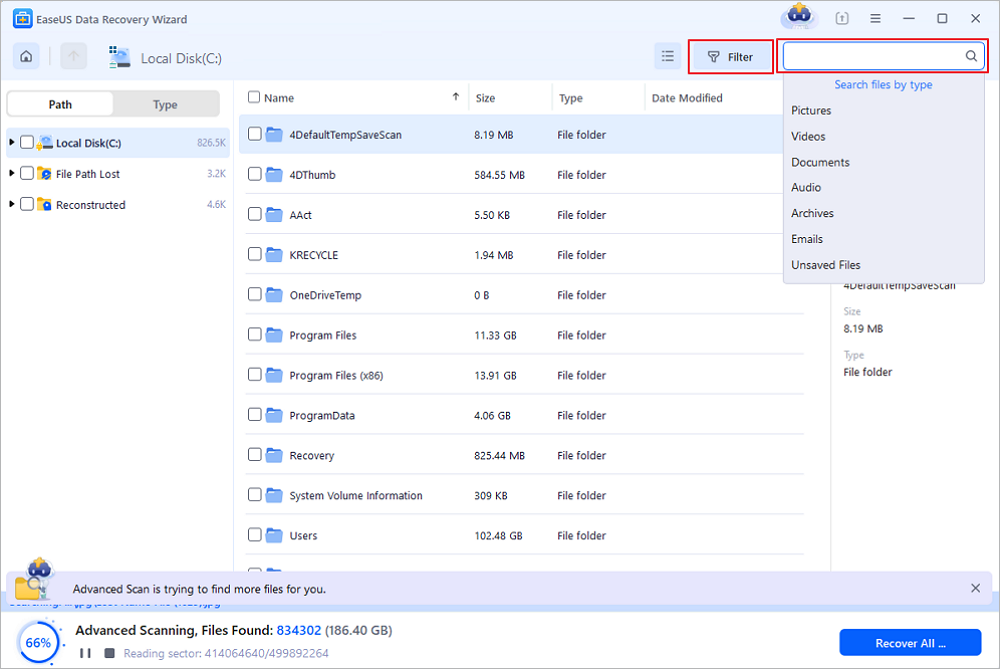
Step 2. Locate the files you want to restore
After scanning, review the results and select the accidentally deleted files you need. You can filter the results by file type, such as documents, photos, videos, or audio files. If you remember the file name, use the search box to find it more quickly.
Step 3. Preview and restore your deleted files
Preview the selected files to verify that they are the ones you want to recover. Click "Recover" and choose a safe destination different from the original storage location. You can save the restored files to another partition, an external drive, or cloud storage, then click "Save".

(Note: The free version allows up to 2GB of data recovery. For everyday deleted files within this limit, you can recover your data without purchasing a license. Always save recovered files to a different location to avoid overwriting the original data.)
Share this post with your friends on SNS to help them learn how to restore deleted videos that were not saved.

Fix 2. Retrieve Unsaved Videos via the Recycle Bin Folder
Sometimes, you may have hit the delete button in the middle of recording a video. In this case, you can find the unsaved videos from the "Recently Deleted" folder or the Recycle bin (Trash folder on Mac). Check out the following steps to recover deleted files from the Recycle bin:
Step 1. Open the Recycle Bin by double-clicking on its icon on the Desktop.
Step 2. Locate the deleted videos. You can search for the item through the search bar in the top-right corner.
Step 3. Right-click the selected video and choose "Restore" to confirm and move it to its original storage location.
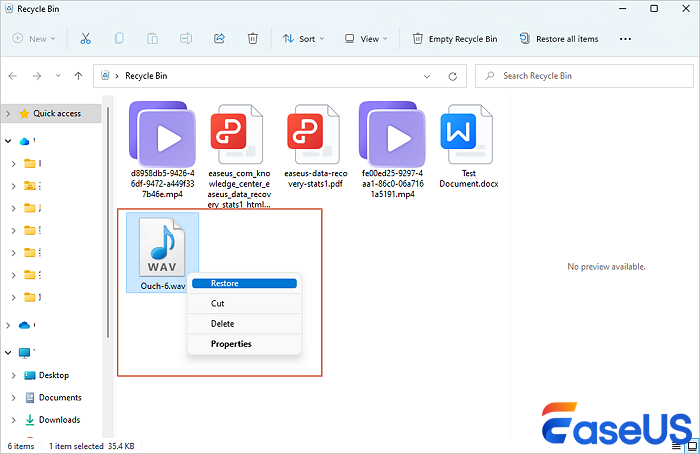
Fix 3. Recover Unsaved Videos from the Auto-Save/Temporary Folder
Many programs, including Premiere Pro, Camtasia, and Windows Movie Maker, auto-save drafts. Therefore, you can restore unsaved video files from their drafts:
- Press "Win + R", and type %temp%. Search for the file extensions like ".mp4", ".mov", or ".avi".
Or you can look through the autosave folder, whose path is often "Document > [Software Name] > Autosave folders".
Final Thoughts
This post discusses the most effective methods to recover unsaved videos on Windows, Mac, cameras, or smartphones, including using EaseUS video recovery software, checking the Recycle bin folder, and restoring unsaved videos from the Auto-save folder or temporary files. If the video is essential, install the EaseUS data recovery tool to rescue the unsaved data quickly and safely!
Recover Unsaved Videos FAQs
Here are questions people frequently ask about how to recover unsaved videos:
1. How can I recover my videos without backup?
Photos and videos that weren't backed up stay in your trash for 30 days. If you're missing photos and videos, check your trash.
2. How do I recover lost videos on my computer?
You can check the file history by following the steps:
- Right-click the folder location and select "Restore previous version".
- Check the listed backup date to find the version when the file was accidentally deleted. Click Restore.
This method only works for users who have enabled file history.
3. Is there any free video recovery software?
EaseUS Data Recovery Wizard Free helps you recover deleted photos, videos, documents, and music without cost. Its AI-powered scans dig deep to locate even hard-to-find files across hard drives, SD cards, or USB devices. Preview items before restoring them and only upgrade to the Pro version if it works.
Was this page helpful?



 Why Trust EaseUS
 Editor Reviews

20+
Years of experience

160+
Countries and regions

72 Million+
Downloads

4.9 +
Trustpilot Score