-
![]()
-
![]()
-
![]()
-
![]()
-
![]() How to Fix Missing DLL Files in Windows 10/8/7 [2026 Full Guide]
How to Fix Missing DLL Files in Windows 10/8/7 [2026 Full Guide] October 29,2026
 6 min read
 -
![]()
-
![]()
-
![]() How to Recover Emails Deleted from Trash in All PlatformsOctober 29,20266 min read
How to Recover Emails Deleted from Trash in All PlatformsOctober 29,20266 min read -
![]() How to Recover Permanently Deleted Files in Windows 11 Using CMD [SOLVED]October 29,20266 min read
How to Recover Permanently Deleted Files in Windows 11 Using CMD [SOLVED]October 29,20266 min read -
![]() 3 Ways | How to Recover Deleted Photos from Laptop Windows 11/10October 29,20266 min read
3 Ways | How to Recover Deleted Photos from Laptop Windows 11/10October 29,20266 min read
Page Table of Contents
If your lost files total less than 2GB (such as a few photos, videos, or Word/PDF documents), you don't need to purchase the paid version.
You can use the free version of EaseUS Data Recovery Wizard to recover and export up to 2GB of data at no cost.
To recover deleted LNK files on Windows 10 or Windows 11, check the Recycle Bin first and restore them with a simple right-click. If cleared, use File History or Previous Versions to revert your desktop folder to an earlier state. Alternatively, recreate broken LNK shortcuts manually by navigating to the original executable Target Path. For permanently deleted shortcuts across internal or external drives, EaseUS Data Recovery Wizard scans storage sectors to recover deleted .lnk files efficiently, while command utilities like Windows File Recovery offer a native command-line solution.
PAGE CONTENT:
Desktop shortcut pointers are stored as small files featuring the .lnk file extension. When desktop shortcuts suddenly disappear or get deleted accidentally, daily productivity can take an immediate hit. Understanding how to recover deleted shortcut files on Windows requires a clear strategy, ranging from basic desktop adjustments to advanced file recovery routines.
This guide details the difference between .lnk file and original target file components, explores recovery techniques, and walks through native Windows recovery mechanisms.
What is a Windows Shortcut LNK File
A Windows shortcut file uses the .lnk extension, which stands for Link. It is a tiny configuration file, typically ranging from a few kilobytes to several megabytes in size, created automatically by Windows or manually by users. Rather than containing real application code or document text, a .lnk file contains metadata that directs Windows where to find the source object.
Key parameters stored inside a .lnk file include:
- Target Path: The exact drive partition and directory address where the master executable file or document resides.
- Working Directory: The folder context required by the program to execute correctly.
- Icon Location: The resource file or library path holding the visual icon displayed on your desktop.
- Hotkeys and Execution Flags: Custom keyboard commands and window launch configurations configured by the user.
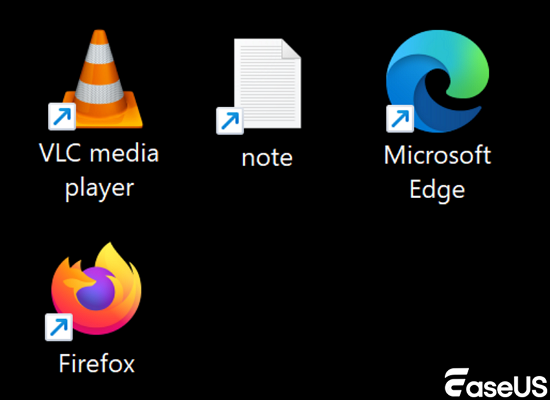
How to Recover Deleted Desktop LNK Icons
When shortcuts disappear from your desktop, simple system checks often fix the issue without requiring deep disk scans.
Method 1. Retrieve Shortcuts from the Recycle Bin
When you press "Delete" on a desktop shortcut, Windows moves the .lnk file directly to the system Recycle Bin.
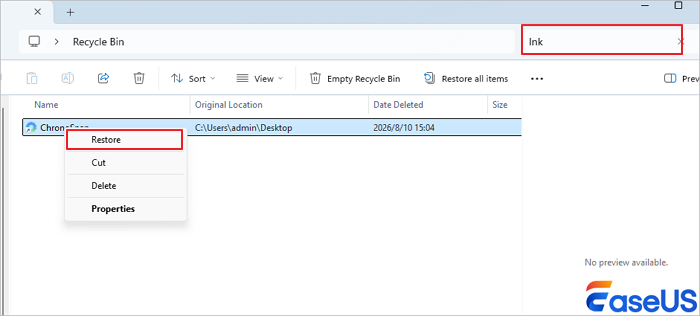
- Double-click the "Recycle Bin" icon located on your desktop to open the system trash folder.
- Type lnk into the top right search bar to filter for deleted shortcut files.
- Locate the missing shortcut file from the list.
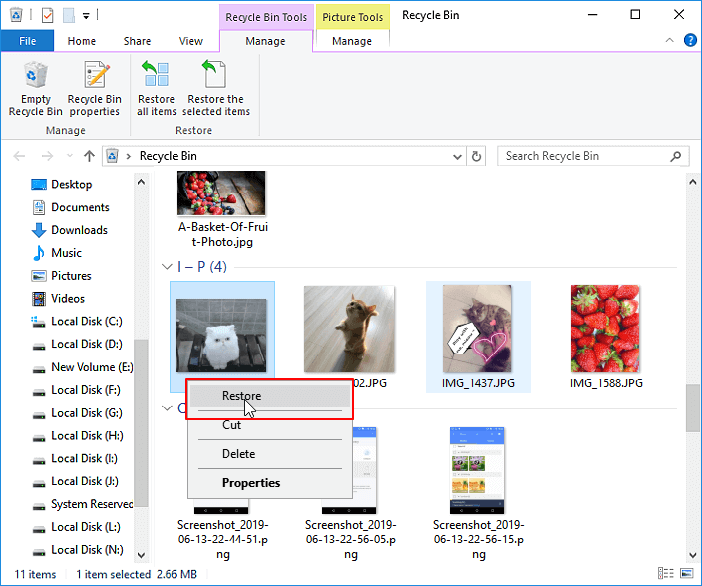
- Right-click the desired .lnk file and select "Restore". The icon will immediately return to its original desktop coordinates.
Method 2. Recreate Broken LNK Shortcuts Manually
If a shortcut was deleted or if the Target Path was broken due to software updates, you can recreate broken .lnk shortcuts within seconds by locating the original application file.
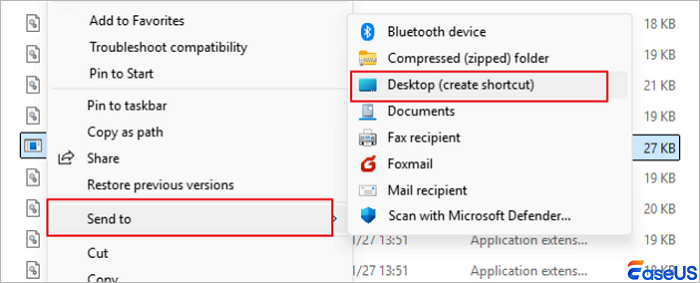
- Open File Explorer and navigate to the default installation directory, usually C:\Program Files or C:\Program Files (x86).
- Locate the main application folder and find the primary executable file ending in .exe.
- Right-click the executable file, navigate to "Send to" in the context menu, and click "Desktop (create a shortcut)".
Recover Deleted LNK Files Using Professional Recovery Tool
When you clear your Recycle Bin, execute Shift+Delete commands, or experience storage drive formatting, shortcut files vanish from standard system access. In these scenarios, using professional data recovery software is the most effective approach.
EaseUS Data Recovery Wizard is a leading file restoration utility that can recover files, documents, photos, and other types of data due to accidental deletion or formatting.
Here is how you do it:
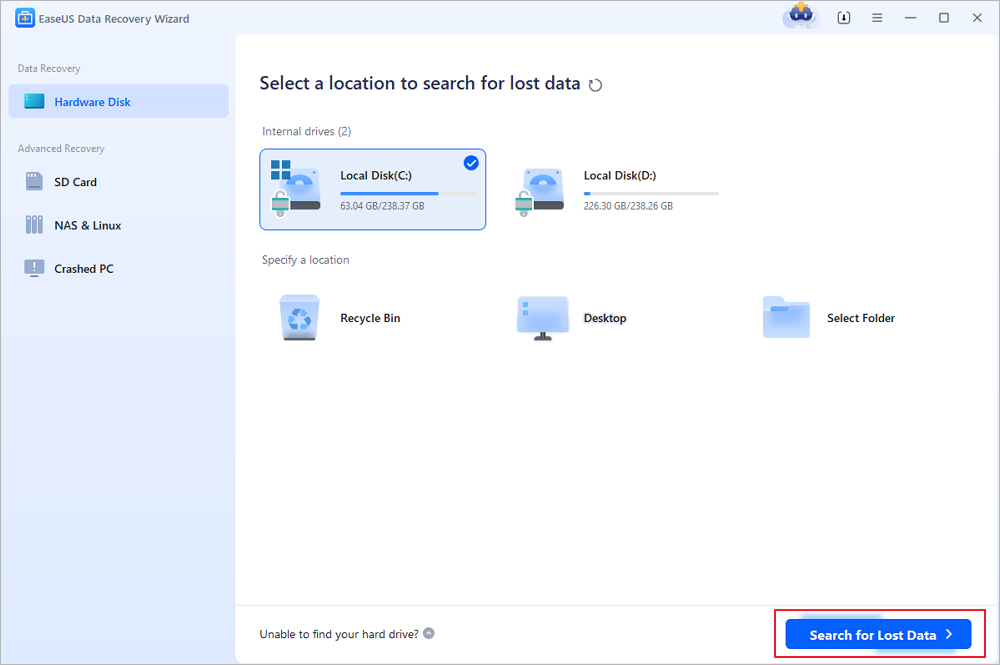
Step 1. Select a location and start scanning
Launch EaseUS Data Recovery Wizard, hover on the partition/drive where the deleted files were stored. Click "Search for Lost Data" to find lost files.
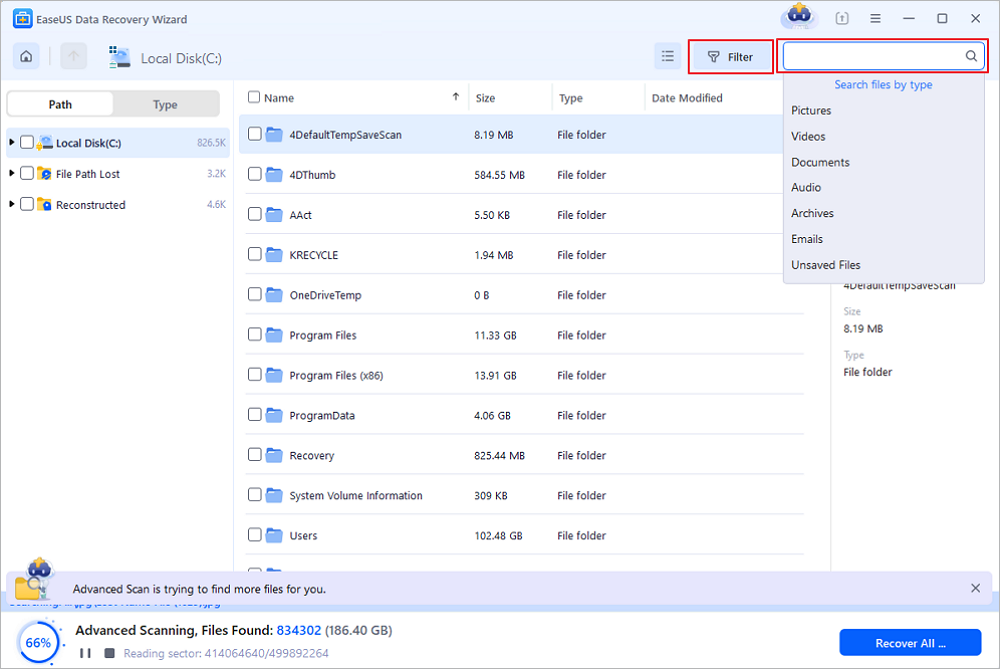
Step 2. Select the files you want to recover
When the scanning has finished, select the deleted files you want to recover. You can click on the filter to display only the file types you want. If you remember the file name, you can also search in the search box, which is the fastest way to find the target file.
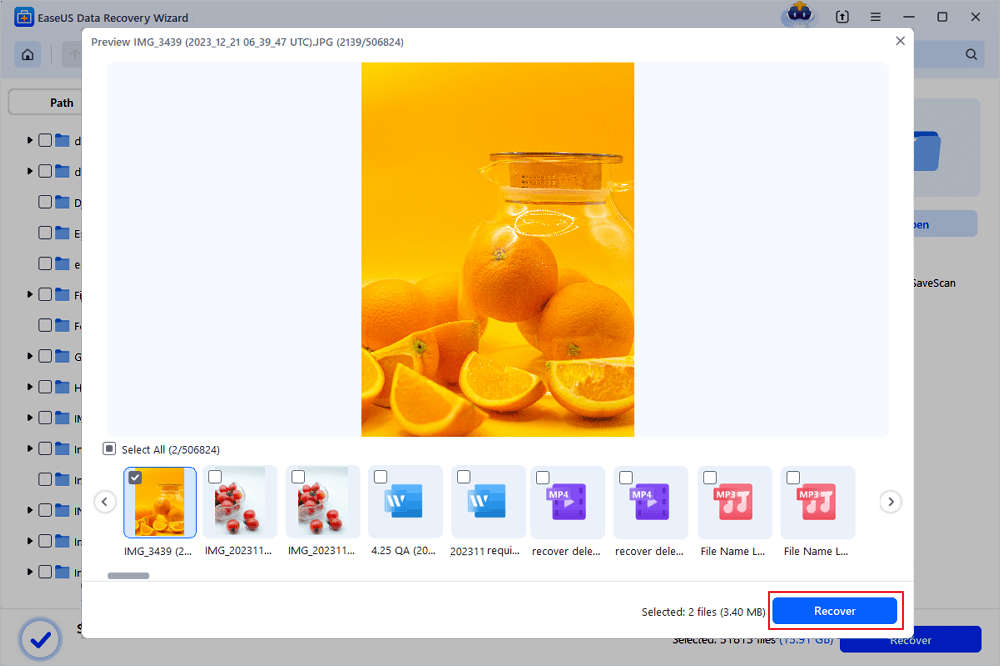
Step 3. Preview and recover deleted files
Preview the recoverable files. Then, select files you want to restore and click "Recover" to store the files at a new storage locations instead of the disk where the data was previously lost. You can choose a cloud storage, such as OneDrive, Google Drive, etc., and click "Save" to save your recovered files.
If you find this information helpful, please share it with others on social media to help them overcome this common challenge.
Frequently Asked Questions
Restoring shortcut files and managing desktop pointers often brings up specific technical questions. Here are expert answers to frequent user queries.
1. Does deleting a .lnk file delete the original program or file?
No, deleting a .lnk file only deletes the lightweight desktop shortcut pointer. The master software application, document, or media file remains completely untouched in its original Target Path directory on your storage drive.
2. Why did my desktop shortcut icons turn into blank white file symbols?
Desktop shortcut icons turn into blank white symbols when Windows loses the cached icon file or when the file association for .lnk extension breaks in the Windows Registry. Rebuilding the Windows icon cache or recreating the shortcut usually fixes the visual problem.
3. How do I fix a shortcut that says the item this shortcut refers to has been moved or changed?
This error occurs when the underlying target application was moved to a new folder, renamed, or uninstalled. To fix it, right-click the shortcut, select Properties, update the Target field with the new path to the application executable file, and click Apply.
Conclusion
Losing desktop shortcuts can disrupt your daily navigation on Windows 10 and 11, but encountering missing icons or deleted .lnk files does not mean your essential software and documents are lost. Because a .lnk file serves merely as a directional pointer toward a master Target Path, the underlying files usually remain safe inside system directories. Users can quickly resolve shortcut issues by checking the Recycle Bin, manually recreating broken pointers, or using native utilities like File History. When shortcuts are permanently deleted or lost due to drive errors, EaseUS Data Recovery Wizard provides the most efficient and reliable path to scan storage sectors, recover deleted LNK files, and restore seamless desktop access.
Was this page helpful?

 Why Trust EaseUS
 Editor Reviews

20+
Years of experience

160+
Countries and regions

72 Million+
Downloads

4.9 +
Trustpilot Score