-
![]()
-
![]()
-
![]()
-
![]()
-
![]()
-
![]()
-
![]() 3 Ways | How to Recover Deleted Photos from Laptop Windows 11/10
3 Ways | How to Recover Deleted Photos from Laptop Windows 11/10 October 19,2026
 6 min read
 -
![]() Recover Deleted or Lost AppData Folder and Files in Windows 11, 10, 8, 7October 19,20266 min read
Recover Deleted or Lost AppData Folder and Files in Windows 11, 10, 8, 7October 19,20266 min read -
![]() How to Recover Deleted Recordings on Sky Q and Sky Plus BoxOctober 19,20266 min read
How to Recover Deleted Recordings on Sky Q and Sky Plus BoxOctober 19,20266 min read -
![]() How to Recover Deleted Photos from HP Laptop | Advanced Recovery PlansOctober 19,20266 min read
How to Recover Deleted Photos from HP Laptop | Advanced Recovery PlansOctober 19,20266 min read
Page Table of Contents
If your lost files total less than 2GB (such as a few photos, videos, or Word/PDF documents), you don't need to purchase the paid version.
You can use the free version of EaseUS Data Recovery Wizard to recover and export up to 2GB of data at no cost.
PAGE CONTENT:
Finding your precious Sigma camera photos, those irreplaceable X3F raw files, accidentally deleted, can be stressful. However, with the right data recovery software and immediate action, successful X3F file recovery is highly possible.
This guide will walk you through the X3F format and the steps to recover deleted X3F files, focusing on reliable software solutions.
What is an X3F File
An X3F file is a RAW image format created exclusively by Sigma cameras that use the unique Foveon X3 sensor. Unlike standard JPEGs, which are processed and compressed by the camera, an X3F file contains all the unprocessed, pristine data captured by the sensor. This gives photographers immense flexibility in post-processing to adjust exposure, white balance, and other details without degrading image quality.
You can identify these files by their ".x3f" file extension. To view them, you typically need specialized software like SIGMA Photo Pro or other compatible photo editing applications.
Can I Recover Deleted X3F Files
The short answer is yes, usually you can recover deleted files, including ".x3f" files. When you delete a file from an SD card or hard drive, the data isn't immediately wiped. Instead, the space it occupies is simply marked as available for new data. This means your X3F photos often remain on the drive, waiting to be recovered, until they are overwritten by something new.
🚨Stop Using the Device!
Before you try any recovery method, following these two golden rules is critical for a successful outcome:
#1️⃣. Stop Using the Device Immediately: If the deleted photos were on your camera's SD card, stop taking pictures. If they were on your computer's hard drive, avoid saving new files or downloading anything to that drive. Continued use risks overwriting your deleted photos, making them unrecoverable.
#2️⃣. Remove and Protect the SD Card: Safely eject the SD card from your camera. If your computer has an SD card slot, it's best not to use it for the recovery process itself. Instead, use a separate USB card reader to connect the card to your computer. This prevents any accidental writes to the card.
Read on to learn detailed steps to recover deleted X3F files!
Recover Deleted X3F File Using EaseUS Data Recovery Software
Now, let's get to the recovery process. You'll need data recovery software that supports the X3F format. EaseUS Data Recovery Wizard explicitly supports recovering X3F and many other RAW image formats, such as CR2, NEF, and DNG.
What EaseUS Data Recovery Wizard is: A popular and user-friendly software designed to recover lost, deleted, formatted, or corrupted data (documents, photos, videos, emails) from various devices, including HDDs, SSDs, USB drives, and SD cards. It operates on Windows and macOS, featuring quick and deep scans, file preview capabilities, and high success rates for file retrieval.
Check out the steps below to learn how to recover deleted X3F files on a Windows PC:
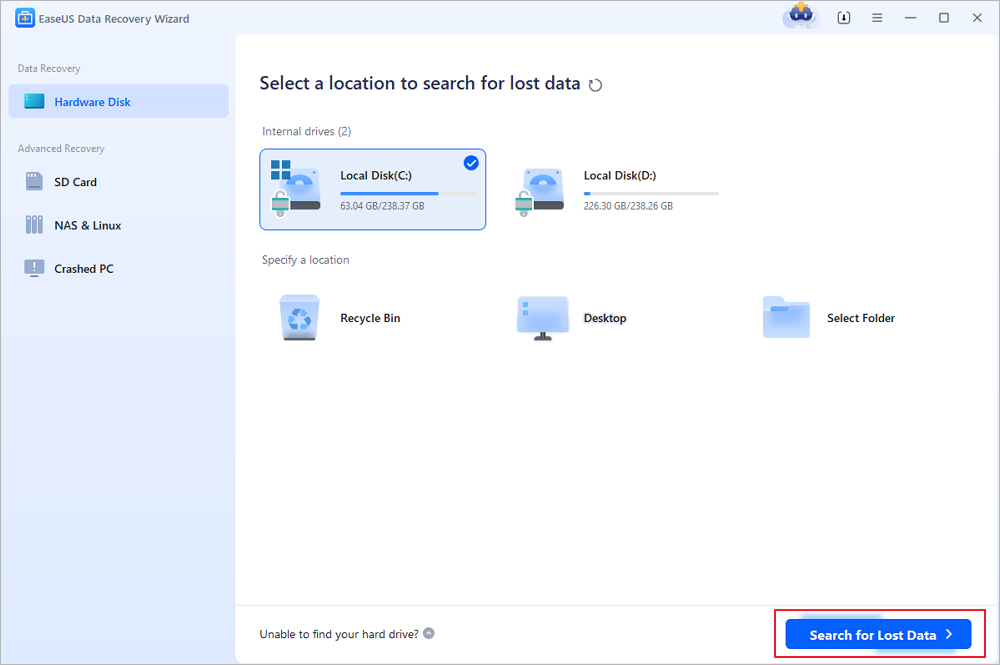
Step 1. Select the drive and start a scan
Launch EaseUS Data Recovery Wizard and select the partition or drive where the files were originally saved before being deleted or emptied from the Recycle Bin. Click "Search for Lost Data" to search for recoverable files.
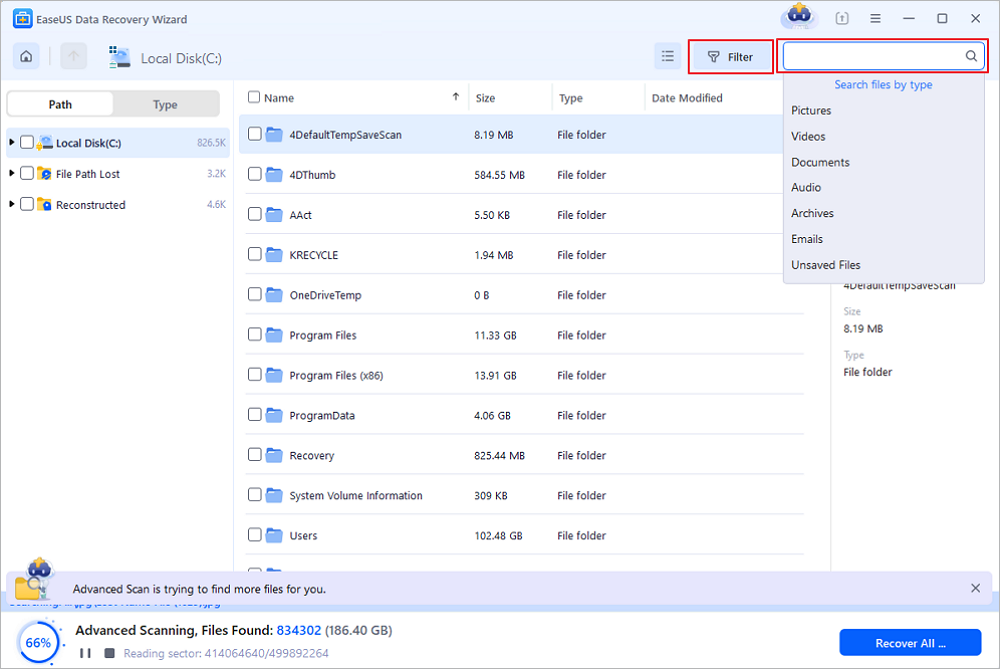
Step 2. Find the files deleted from the Recycle Bin
After the scan is complete, browse the results and select the files you want to recover, including documents, photos, videos, and other file types. You can filter by file type or enter a file name in the search box to locate specific items.
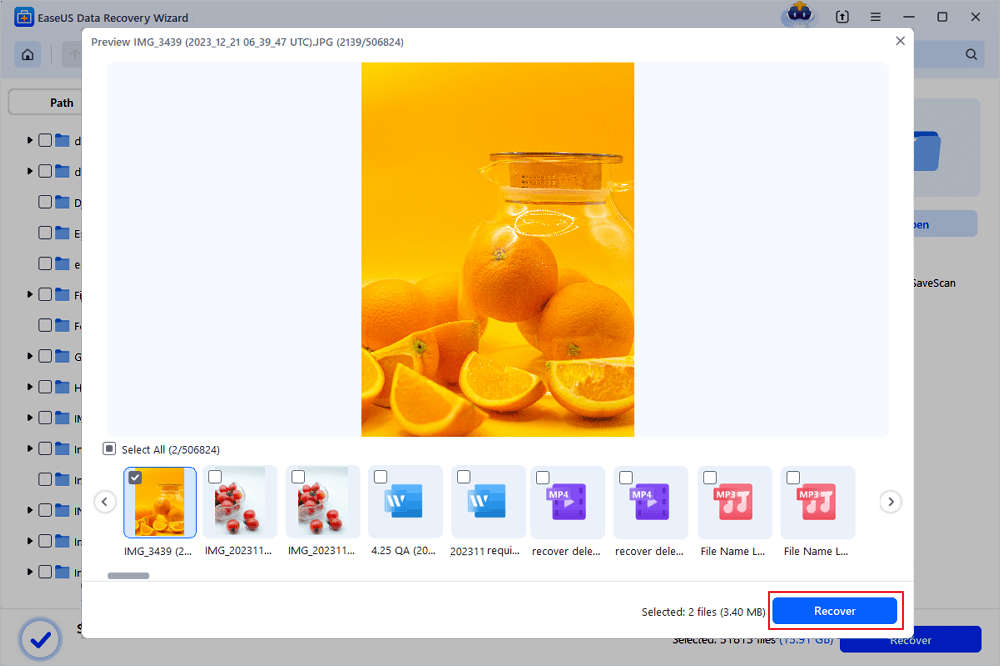
Step 3. Preview and recover files from the Recycle Bin
Preview the found files to check their contents. Select the files you want to restore and click "Recover". Choose a different drive, external storage device, or cloud location, such as OneDrive or Google Drive, to save the recovered files.
(Note: The free version provides up to 2GB of data recovery. You can restore everyday files within this limit without purchasing a license. For the best chance of recovery, avoid saving new data to the drive where the deleted files were stored.)
Don't forget to share this informative guide on SNS to help more people learn how to recover deleted X3F files.

Recover Deleted X3F File with Open-Source Recovery Software
If you prefer a no-cost solution, there are excellent open-source tools available. These can be incredibly effective, though they may have a steeper learning curve. In this part, PhotoRec is the most recommended free tool.
What PhotoRec is: A free, open-source file recovery tool that is part of the TestDisk suite. It's designed to recover a vast number of file formats, including X3F. It runs from the command line, which might seem intimidating, but it follows a clear, step-by-step process.
It ignores the file system and searches for data based on the underlying file signatures (or "headers"), making it very effective even on corrupted or reformatted drives.

PhotoRec Review: Still Capable of Recovery in 2026
PhotoRec is a file recovery program designed to recover lost files, including video, documents, and archives, from hard disks, CD-ROMs, and other media. To help you solve data loss problems with PhotoRec, this post provides an in-depth review. Read more >>
Check out the following steps to learn how to use PhotoRec:
Step 1. Download, install, and launch the software on your Windows PC. After that, run the program as an administrator.

Step 2. In this 2nd step, use the up/down arrow keys to select the disk to work with, and after that, hit the Enter button.
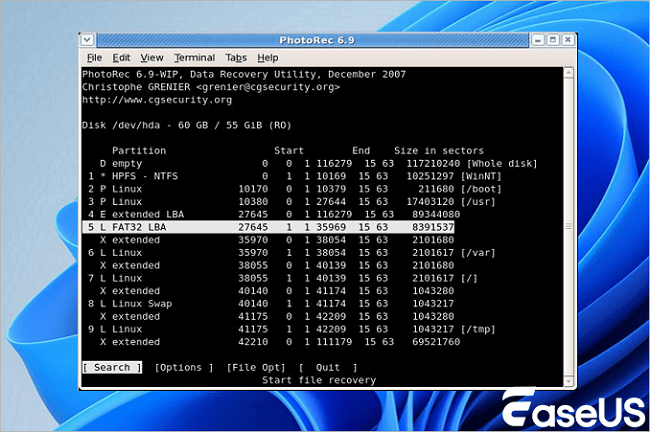
Step 3. There will be 4 options to choose from: "File Opt", "Search", "Options", and "Quit". Now, choose search to proceed with data retrieval.
Step 4. In this 4th stage, you have to choose a partition of your PC's hard drive that you desire to scan for deleted files. Now, you need to provide the file system's information. After that, select "Other" unless the file system is ext2, ext3, or ext4.
Step 5. As you have chosen the required partition, you have two options: "Free" and "Whole". You need to choose the free option to recover your deleted files. Otherwise, you can select the whole option if the file system has deteriorated.
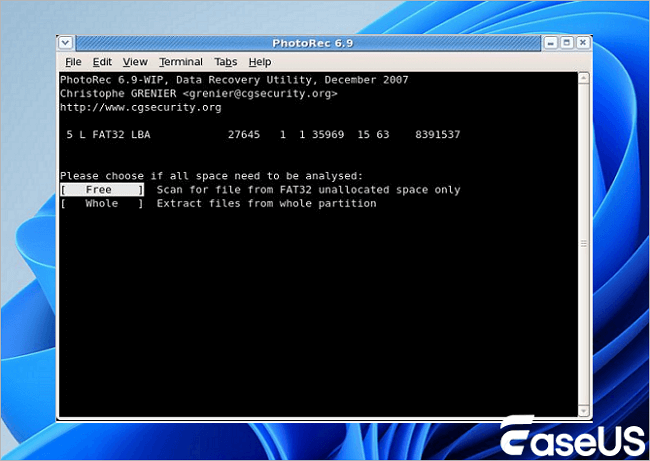
Step 6. At this step, select the folder/directory where your files were located before deletion. Utilize the up/down arrow keys to navigate to your preferred folder.
As you've chosen the folder, the retrieval process will start. You need to wait a while for the process to complete.
Extra: How to Repair Corrupted X3F Files
Sometimes, recovered X3F files might be corrupted and won't open properly. If you encounter this, you may need a specialized repair tool. EaseUS Fixo Photo Repair is designed to handle such situations. It can repair corrupted, blurry, or unreadable photos, including the X3F format.
The process is straightforward: you add the corrupted photos to the software, and it attempts to repair them with advanced algorithms. Read this post to learn detailed information!

How to Repair Corrupted X3F Files | 2026 Full Steps
When faced with corrupted X3F files, EaseUS Fixo Photo Repair emerges as a powerful solution worth considering. This specialized software offers robust capabilities for handling various types of image corruption across multiple file formats. Read more >>
Conclusion
This post discusses how to recover deleted X3F files using professional and popular data recovery software, EaseUS Data Recovery Wizard, or open-source data recovery software, PhotoRec. In this post, we provide complete steps for recovering an X3F file, which is also applicable to other file formats.
Recover Deleted X3F File FAQs
1. Is it possible to recover permanently deleted photos?
Yes, it is possible to recover permanently deleted photos, but it depends on whether the storage space has been overwritten. If they were recently emptied from the trash/bin (usually within 30-60 days), check cloud backups (Google Photos, iCloud) or use data recovery software (e.g., EaseUS Data Recovery Wizard, PhotoRec) for desktop or Android to scan internal memory.
2. How to recover deleted RAW files from a camera's SD card?
To recover deleted RAW files, immediately stop using the SD card to prevent overwriting, then use data recovery software like EaseUS Data Recovery Wizard or PhotoRec. Connect the card to a computer via a reader, scan for files, preview, and restore them to a different drive.
3. Can EaseUS Data Recovery Wizard restore deleted photos?
Yes, EaseUS Data Recovery Wizard can restore deleted photos, including those from emptied recycle bins, formatted drives, lost partitions, or corrupted memory cards. It supports over 1,000 file types, including JPG, PNG, RAW, and CR2, offering a high recovery success rate.
4. How to repair corrupted X3F image files on my computer?
To repair corrupted Sigma X3F RAW files, use specialized software like EaseUS Fixo Photo Repair to rebuild damaged data. Alternatively, try opening files in different viewers (e.g., Sigmas Photo Pro, RawTherapee) or convert file formats. If corruption is due to drive issues, use data recovery tools like EaseUS Data Recovery Wizard.
Was this page helpful?


 Why Trust EaseUS
 Editor Reviews

20+
Years of experience

160+
Countries and regions

72 Million+
Downloads

4.9 +
Trustpilot Score