
On February 10, 2026, Microsoft officially began rolling out Windows 11 KB5077181, the second major update of the year following January's problematic Patch Tuesday release. This update targets Windows 11 25H2 and 24H2, introduces several long-awaited features, and ships as a mandatory security update.
 KB5077181 not only delivers UI refinements and system improvements but also bundles local AI models, making it one of the largest monthly updates to date. However, as with many cumulative updates, installation failures, boot issues, and compatibility problems remain a real concern, especially for users who already struggle with scenarios like Windows 10 won't boot after update or failed in-place upgrades.
This article breaks down what's new in KB5077181, known issues, official download options, and proven installation methods, including recovery strategies if Windows fails to boot after updating.
Clicking the buttons below, you can share this post and let more people learn the Windows 11 latest version.

What's New in Windows 11 KB5077181
Microsoft positions KB5077181 as a stability-focused security update, but it also introduces several functional enhancements. Below is a structured overview of what actually changes after installation.
1. Cross-Device Resume for Android (Gradual Rollout)
One of the most notable additions is Cross-Device Resume, a feature conceptually similar to Apple's Handoff. The idea is simple: start a task on your Android phone and continue it seamlessly on your Windows PC.
Initially, this capability was limited to OneDrive documents, which made it feel unfinished. With KB5077181, support expands to:
- Spotify playback resumption
- Microsoft Word, Excel, and PowerPoint sessions
- Web browsing (on supported Android browsers)
Once enabled, Windows shows a resume prompt directly on the taskbar.
🚩Risk note: This feature does not support offline files and is still rolling out gradually, so availability varies by device and region.
2. Windows MIDI Service Improvements
KB5077181 significantly modernizes Windows' aging MIDI stack. The update improves support for both MIDI 1.0 and MIDI 2.0, enabling:
- Better compatibility between legacy WinMM apps and modern WinRT apps
- Automatic protocol translation when needed
- Shared MIDI port access across multiple applications
For musicians and audio professionals, this eliminates long-standing issues where a single app would lock a MIDI device and prevent other software from accessing it.
3. Smart App Control Can Now Be Toggled Without Reinstalling Windows
Previously, Smart App Control (SAC) required a clean Windows installation to enable or disable - a major pain point for power users. KB5077181 removes this restriction.
Users can now toggle SAC from:
- Windows Security → App & Browser Control → Smart App Control
That said, Microsoft confirms this change is still rolling out. Some systems may not yet see the option, and inconsistent behavior has been reported.
🚩Important warning: SAC can still block legitimate apps, including drivers, game anti-cheat software, and OEM utilities.
4. New Start Menu and Colored Battery Icon (Wider Availability)
After nearly a year in testing, the redesigned Start Menu is finally reaching more devices. The new layout:
- Uses a single-page design
- Displays all apps directly on the main screen
- Reduces navigation clicks
Users can disable Recommended content, but doing so also removes recent files from File Explorer and jump lists.
Additionally, the taskbar now shows colored battery icons, improving power-state visibility at a glance.
5. Device Card Added to Settings
A new Device Card appears on the Settings home page, summarizing:
- Installed RAM
- Available storage
- Key hardware details
This information is pulled from Settings → System → About, making it easier to check or share system specs quickly.
6. Storage Settings Now Require Administrator Permission
Storage settings now trigger a UAC prompt, preventing standard users from accessing sensitive cleanup operations. (Refer to Windows Central)
However, this change introduces a limitation:
Windows Update files can no longer be removed via Storage Settings. Users must rely on the legacy Disk Cleanup tool instead.
7. NVIDIA GPU Black Screen Issue Fixed
KB5077181 resolves a black-screen issue introduced in January's update that affected systems with Nvidia GPUs, especially during boot or before launching games. (Refer to WindowsLatest)
Any Known Issues in Windows 11 KB5077181?
Microsoft reports no officially acknowledged new issues, but typical usage tells a more nuanced story. You can check the Reddit post to learn more.
Windows 11 update issues (KB5077181) and Missing Secure Boot Keys
by u/JohnnySizzle01 in techsupport
🚩Key limitation: Security updates like KB5077181 cannot be uninstalled after 10 days, so failed installations require recovery-based solutions rather than rollback.
Windows 11 KB5077181 Download
Microsoft provides two official installation paths:
1️⃣Windows Update (Recommended)
Settings → Windows Update → Check for updates
2️⃣Offline Installer (.msu) via Microsoft Update Catalog
Useful for multiple PCs or systems with update errors
Update size exceeds 4 GB, largely due to bundled local AI models. These models are downloaded even on unsupported hardware but remain inactive unless the system meets NPU requirements.
How to Install Windows 11 KB5077181
KB5077181 is a mandatory cumulative update for Windows 11 25H2. If Windows Update is enabled, the update will be downloaded and installed automatically unless updates are manually paused for seven days or longer.
In most cases, Windows Update completes the installation without user intervention. However, some systems may encounter update errors due to insufficient storage space, interrupted downloads, or system configuration conflicts. In these situations, the following installation methods provide reliable alternatives.
Method 1. Install KB5077181 Using the Media Creation Tool (In-Place Upgrade)
When Windows Update fails to complete the installation, an in-place upgrade is an effective and officially supported solution. This method reinstalls core Windows components while keeping existing applications, user files, and system settings intact.
Here is how:
- Download the official Media Creation Tool from Microsoft
- Run the tool and select Upgrade this PC now
- When prompted, choose Keep personal files and apps
- Follow the on-screen instructions to complete the installation
Once finished, the system will be updated to the latest Windows 11 build that includes KB5077181.
Method 2. Install KB5077181 via a Bootable Windows 11 USB
For users who prefer a clean and controlled installation environment, installing Windows 11 from a bootable USB is another option. This approach is commonly used when performing a fresh system setup or when standard update methods fail.
- Warning
- A clean installation will remove existing Windows system partitions. Back up important data before proceeding.
With EaseUS Partition Master, you can create a Windows 11 installation USB using the latest official ISO file, without relying on command-line tools.
- ✔️Downloads the latest Windows 11 ISO directly from official sources
- ✔️Simplifies bootable USB creation with a guided interface
- ✔️Reduces setup errors during disk selection and installation
1️⃣A USB flash drive: 32GB or larger, FAT32, back up it if necessary.
2️⃣Download the professional ISO file burner
Now, follow the instructions to create a USB installer:
Step 1. Launch EaseUS Partition Master and go to the Bootable Media section. Click "Burn ISO" and click "Next".
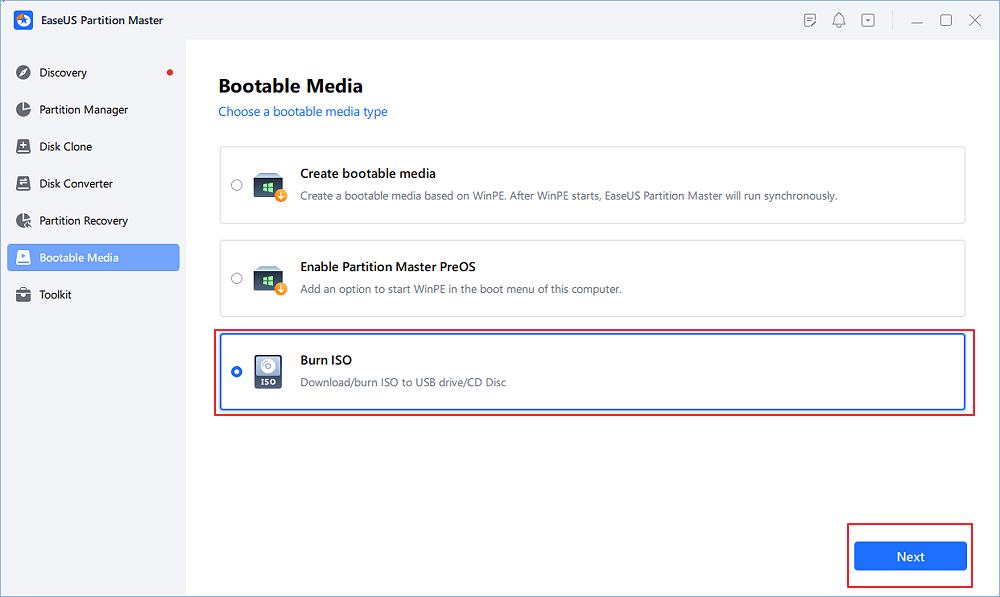
Step 2. Select "Download ISO from Microsoft" and select the correct language you want.
Step 3. Select a device, such as a USB flash drive, and click "Start" to burn the ISO to a USB flash drive.
Then, boot from the USB installer and follow the on-screen prompts to finish the Windows 11 KB5077181 installation. Do not hesitate to share this post to help more.
Conclusion
Windows 11 KB5077181 introduces several practical improvements, including expanded cross-device continuity, refinements to system controls, and multiple stability and security fixes. At the same time, its large package size and mandatory rollout mean that installation reliability remains an important consideration for users.
While most systems will install the update without issues, a small percentage of devices may encounter update interruptions or post-installation anomalies. Understanding installation options, rollback limitations, and alternative recovery methods helps reduce downtime and ensures a smoother update experience. If KB5077181 installs successfully, users can benefit from its new features and fixes; if not, Microsoft-provided recovery paths offer structured ways to complete the update.
FAQs About Windows 11 KB5077181
1. Can KB5077181 cause boot problems?
In rare cases, yes. Although KB5077181 installs successfully on most supported systems, some users may experience startup-related issues such as temporary black screens or delayed boot after installation.
These issues typically occur when the update process is interrupted, required system components fail to register correctly, or existing driver configurations conflict with the new build. Microsoft classifies such cases as limited in scope, and they are usually resolved through standard Windows recovery or repair options.
2. Can I uninstall KB5077181?
Yes, but only within a 10-day rollback period after installation. During this window, Windows allows users to remove the update using built-in recovery options.
Once the 10-day period expires, Windows deletes the previous system image, and the update can no longer be uninstalled. At that point, the only supported ways to revert changes are reinstalling or repairing Windows. This restriction applies because KB5077181 is a cumulative security update enforced by Microsoft.
3. Why is the update over 4 GB?
KB5077181 exceeds 4 GB because Microsoft now bundles local AI components with monthly cumulative and security updates. These packages include on-device models and supporting resources that are delivered regardless of whether the system actively uses AI features.
On systems without compatible AI hardware, these components remain inactive but still contribute to the overall download size. This approach streamlines Microsoft's update distribution process but results in significantly larger update files, especially for offline (.msu) installers.
Was This Page Helpful?

Sherly joined EaseUS in 2022 and she has always loved writing articles and enjoys the fun they bring. She receives professional training here, focusing on product performance and other relative knowledge. She has written over 200 articles to help people overcome computing issues.
Related Articles
-
Is Windows 11 Good For Gaming? Your Best Answer in 2025!
![author icon]() Cici/2025-10-13
Cici/2025-10-13 -
Not Enough Free Space for macOS Ventura Update/Installing/Downloading macOS 13
![author icon]() Dany/2025-10-27
Dany/2025-10-27 -
Palworld Save File Location & Config File on PC/Steam/Xbox
![author icon]() Jerry/2025-07-04
Jerry/2025-07-04 -
Solved: System Restore Is Restoring the Registry Windows 11/10/8/7
![author icon]() Brithny/2025-07-04
Brithny/2025-07-04
 Cici/2025-10-13
  Dany/2025-10-27
  Jerry/2025-07-04
  Brithny/2025-07-04
 EaseUS Data Recovery Services
EaseUS data recovery experts have uneaqualed expertise to repair disks/systems and salvage data from all devices like RAID, HDD, SSD, USB, etc.


