





-
![]()
-
![]() Recover Deleted Photos from SD Card Without Software [Fixed]
Recover Deleted Photos from SD Card Without Software [Fixed] October 20,2026
 6 min read
 -
![]()
-
![]() Ultimate SD Card Recovery Guide: Answer All Questions (2026)October 20,20266 min read
Ultimate SD Card Recovery Guide: Answer All Questions (2026)October 20,20266 min read -
![]()
-
![]() How to Recover Deleted Photos & Videos from Android Without RootOctober 20,20266 min read
How to Recover Deleted Photos & Videos from Android Without RootOctober 20,20266 min read -
![]() How to Solve Can't Format SD Card on Android Phone, Camera, and Windows PCOctober 20,20266 min read
How to Solve Can't Format SD Card on Android Phone, Camera, and Windows PCOctober 20,20266 min read -
![]()
-
![]()
-
![]() SanDisk Memory Card Repair Tool Free Download for Windows/MacOctober 20,20266 min read
SanDisk Memory Card Repair Tool Free Download for Windows/MacOctober 20,20266 min read
Page Table of Contents
PAGE CONTENT:
The moment you realize that precious video footage has vanished from your camera, whether it's a child's first steps, a wedding toast, or a creative project, can feel like a punch to the gut. But here's the truth that most people don't realize: deleted doesn't mean gone forever, and you can recover deleted videos from a digital camera with effective methods.
This guide walks you through proven, step-by-step methods to recover deleted videos from a digital camera. We'll focus on practical solutions that work, without relying on any specific third-party software recommendations.
Why Videos Get Deleted & Why Recovery Is Often Possible
Before diving into solutions, it helps to understand what actually happens when you delete a video. When you press the delete button or format your memory card, the camera doesn't completely wipe the video data. Instead, it simply marks that space as "available" for new files. The actual video content remains physically stored on the card until something new overwrites it.
This is why acting quickly is so critical, and why recovery is often successful when you do. Understanding how videos disappear can help you prevent future loss and choose the right digital camera memory card recovery approach:
| Common Reasons for Video Loss | |
| Accidental deletion | Pressing "delete all" instead of "delete one," or cleaning up files without realizing what you're removing. |
| Power loss | When your camera battery dies mid-recording, the file may not save properly and can become corrupted or disappear entirely. |
| Improper ejection | Removing the memory card while the camera is still writing data can corrupt the file system. |
| Formatting errors | Formatting the wrong card or formatting without backing up first. |
| Physical card issues | Low-quality cards, worn-out cards, or cards with file system errors. |
Method 1. Recover Deleted Videos from Digital Camera with Software
For most situations, data recovery software offers the best chance of getting your videos back. These programs scan the raw storage of your SD card, looking for file signatures and reconstructing deleted videos even when the file system no longer shows them.
Losing precious video footage from your digital camera's SD card can be heartbreaking, especially after a long day of shooting. EaseUS Data Recovery Wizard offers a powerful and reliable solution to recover deleted videos with just a few clicks.
Whether the files were accidentally erased, lost due to a card formatting error, or corrupted by a sudden camera shutdown, the software performs a deep scan to locate and restore footage in various formats like MP4, MOV, and AVI. With a high success rate and an intuitive preview feature, EaseUS ensures you can confidently retrieve your memories before they are permanently overwritten.
Here are steps to recover deleted videos from your digital camera's SD card:
🏆 EaseUS SD card recovery leverages patented video fragment reconstruction technology to deeply repair video files lost due to accidental deletion, formatting, or corruption. Explicitly designed for cameras, action cameras, drones, and dashcams, it accurately restores complete and playable precious footage.
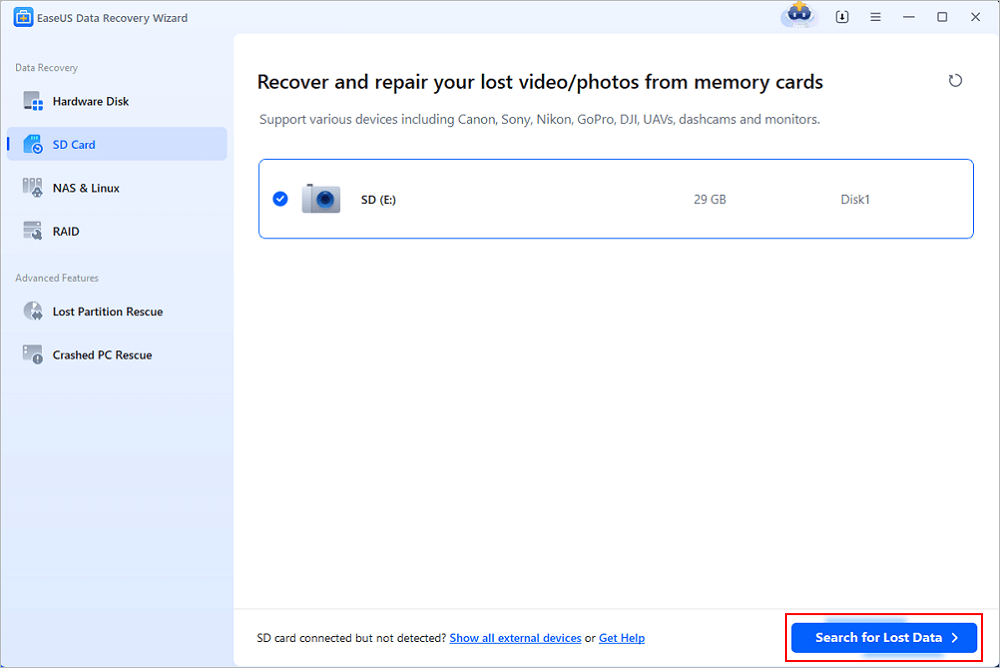
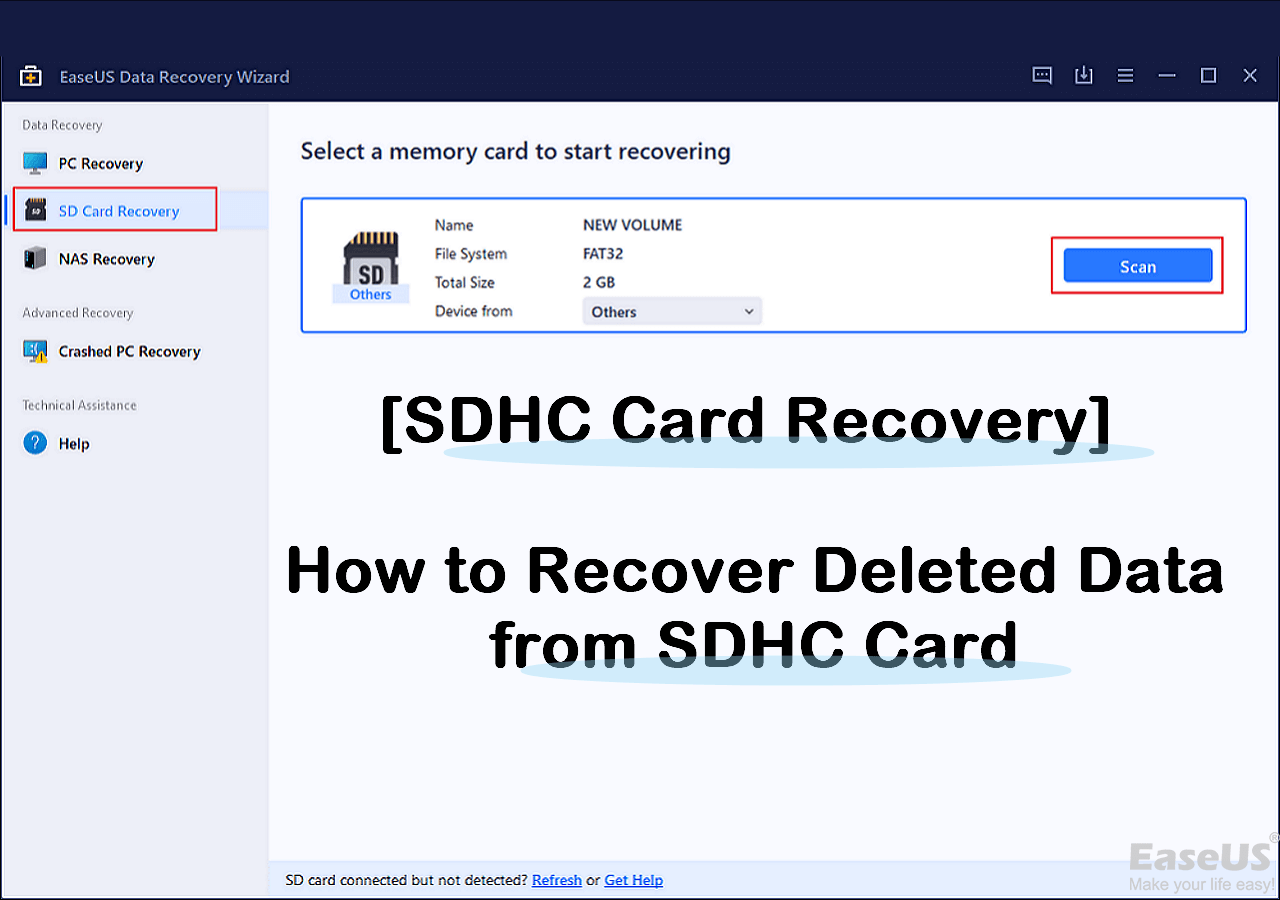
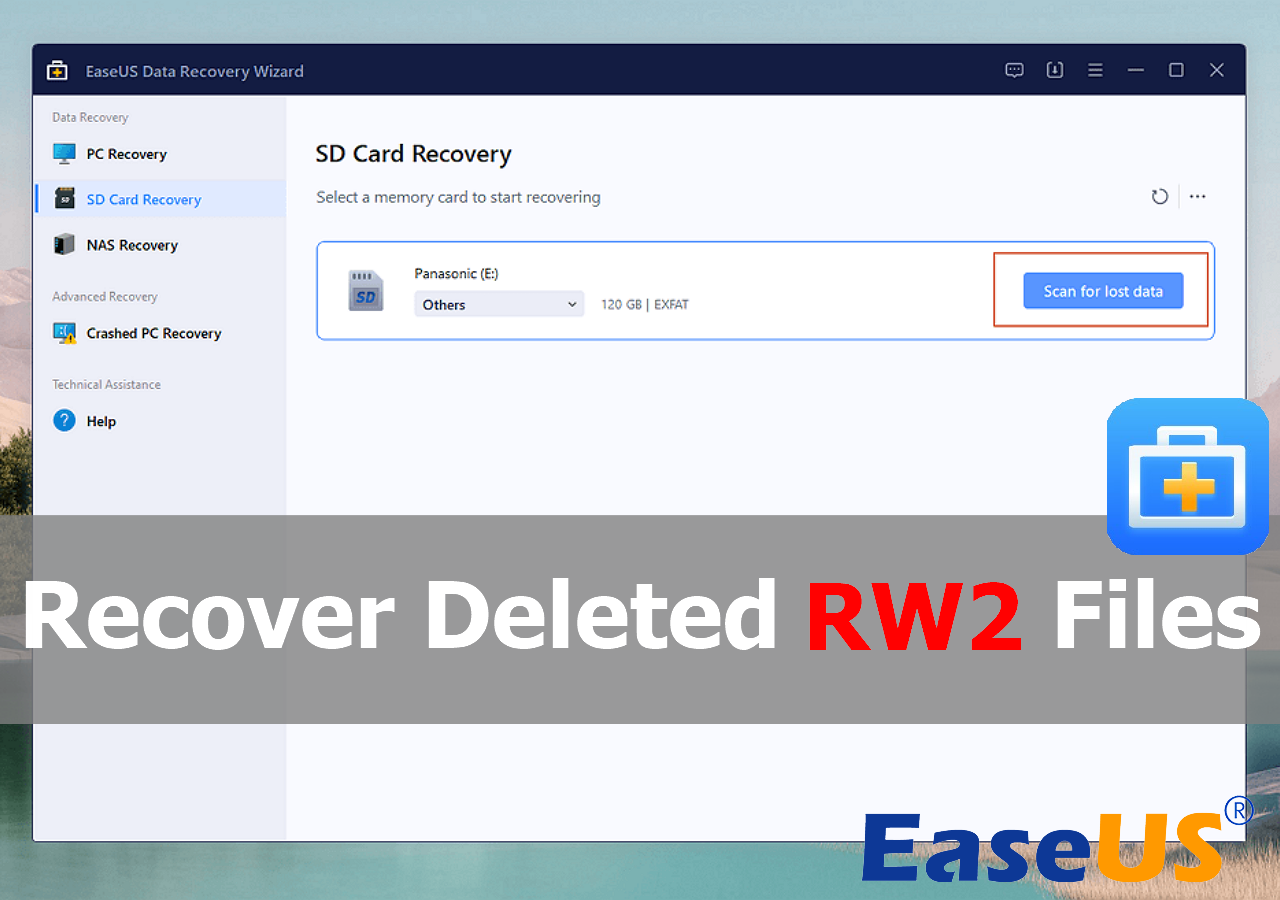
Step 1. Connect the SD card, memory card, or CF Card to your computer and launch EaseUS memory card recovery software on your PC. The SD card will be listed under the Devices section. Choose the SD card and click "Scan for lost data" to start looking for your lost data.
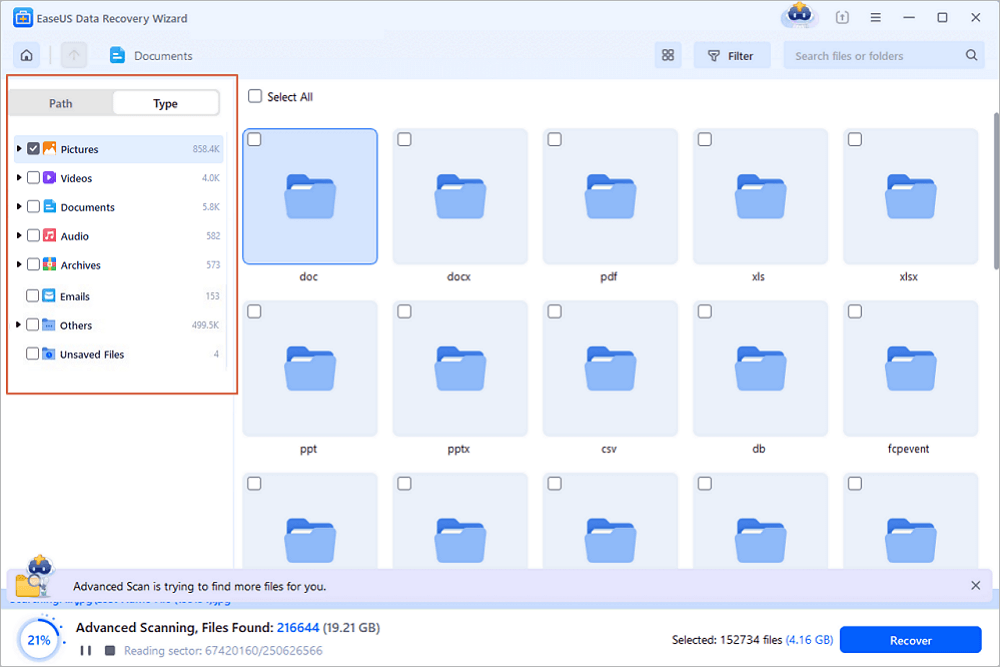
Step 2. The software will start a scan automatically. The scan is powerful enough to find all lost files that even lost file names. After the scanning process, you can find deleted items from the tree-view panel on the left. Then, click "Filter" if you are looking for a specific file type, like photos, documents, videos or emails.
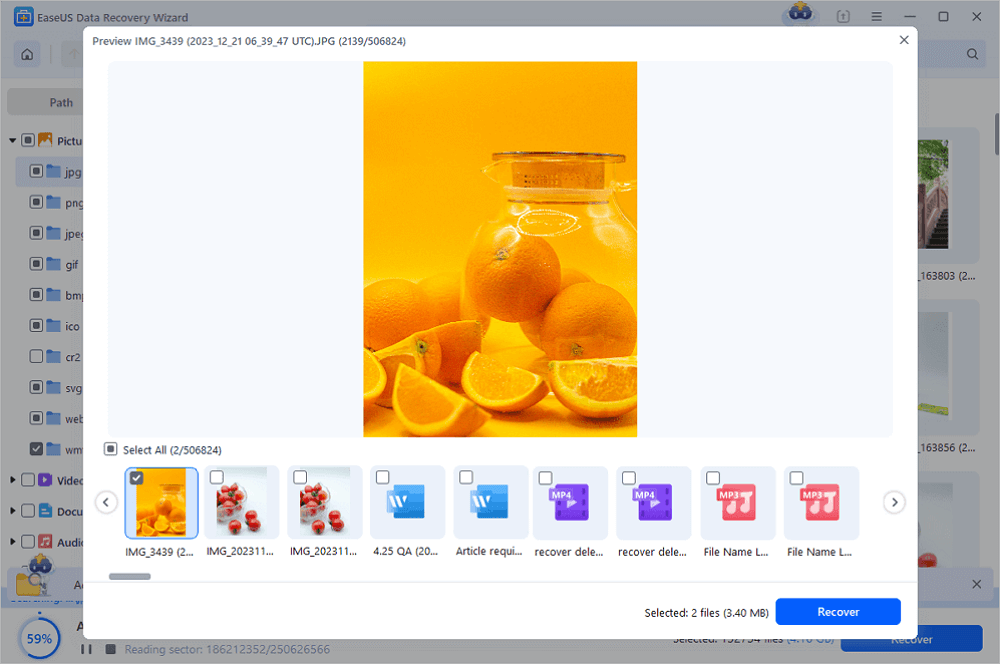
Step 3. You can directly double-click the files to preview the content. After this, you can choose wanted files and click "Recover" to restore them to a secure location on your PC or other external storage devices.
Tip: You can restore data on the local disks, external hard drives, and also the cloud storage.
💡Want to know more about SD card data recovery? For example, what is the best SD card data recovery software? How to recover a damaged SD card? How to recover data from an unreadable SD card...Go for SD Card Data Recovery FAQs and restore your precious lost files.

You may permanently delete files or folders from hard drives or other storage devices by pressing the Shift + Delete buttons, emptying the Recycle Bin, etc. How to recover permanently deleted files, videos, or photos? EaseUS Data Recovery Wizard can be your first choice! Check out this post to learn details.

Recover Permanently Deleted Files (Videos and Photos)
This article introduces effective ways to recover permanently deleted files, including videos, on a Windows PC. Read more >>
Share this post with your friends and help more people learn how to recover deleted videos from a digital camera using trsusted EaseUS Data Recovery Wizard.

Method 2. Recover Deleted Videos Using 3 Built-In Recovery Options
If you had already transferred your camera videos to your computer before they were deleted, you may be able to recover them using built-in system tools, no special software required.
#1️⃣. Use File History to Restore Deleted Videos
- Note
- This only works if you had it enabled before the deletion.
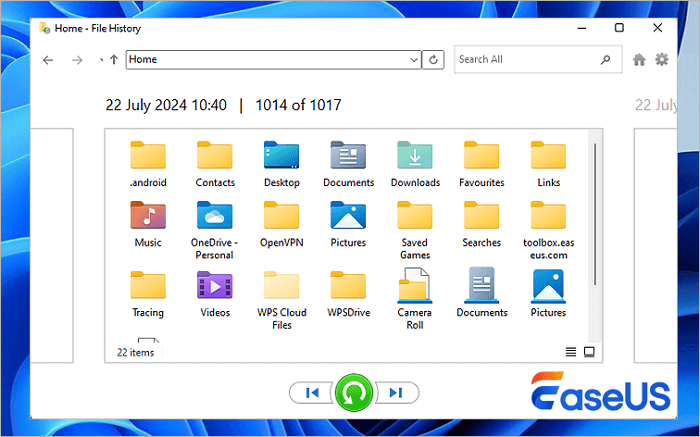
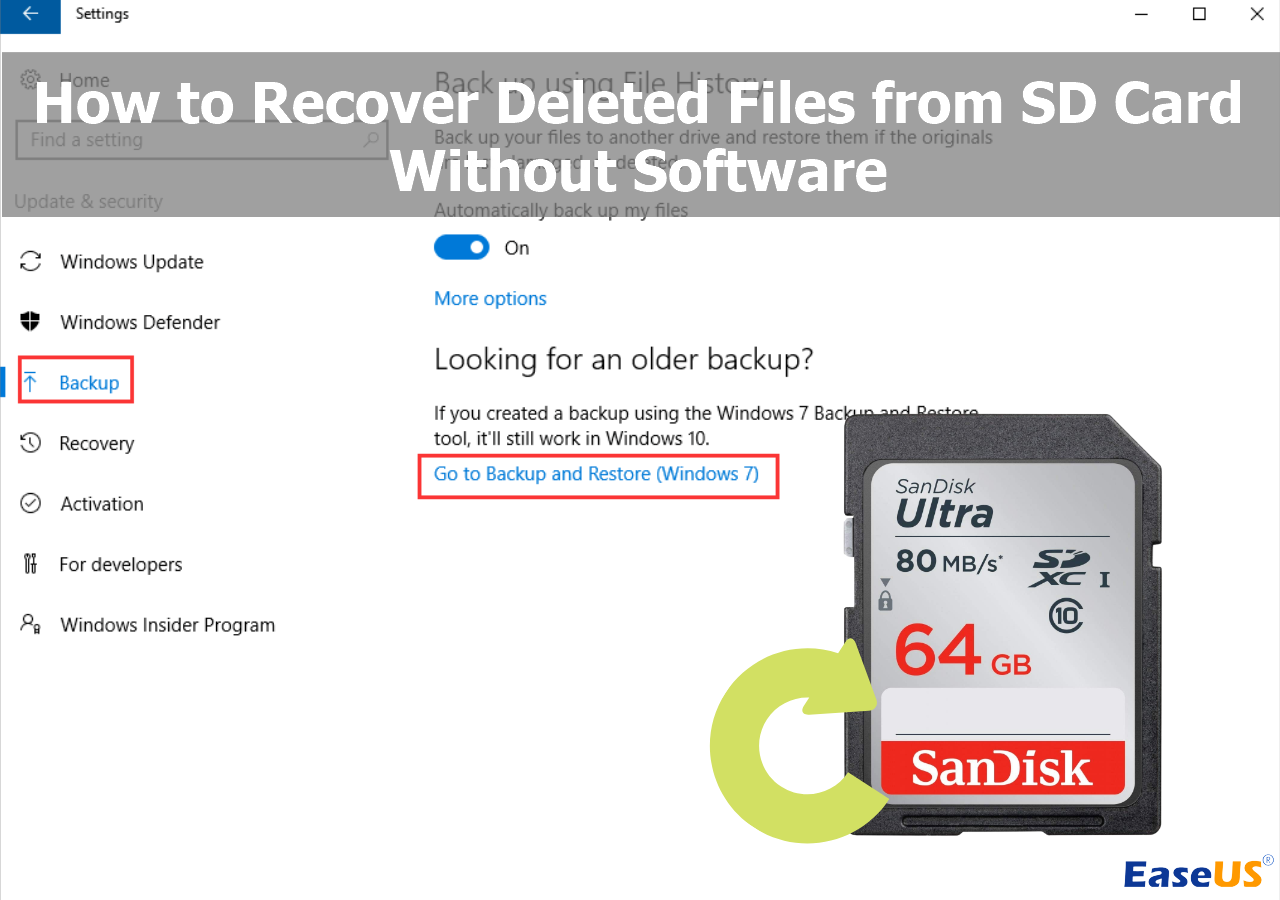
For Windows users, File History is a Windows backup feature that automatically saves copies of your files to an external drive or network location. Here's how to back up and restore with File History:
- Step 1. Open the Start Menu and type "File History".
- Step 2. Select "Restore your files with File History".
- Step 3. Browse through the backed-up folders to find where your videos were stored.
- Step 4. Select the version you want (different time stamps may be available).
- Step 5. Click the green restore button to recover old version of file to its original location.
#2️⃣. Recover Deleted Videos from Previous Versions
Even without File History enabled, Windows sometimes maintains "shadow copies" of files through System Protection. Here's how to go back to the previous version of Windows:
- Step 1. Navigate to where your videos were stored in File Explorer.
- Step 2. Right-click on the folder (or file) and select "Properties".
- Step 3. Go to the "Previous Versions" tab.
- Step 4. If any versions appear, select and restore them.
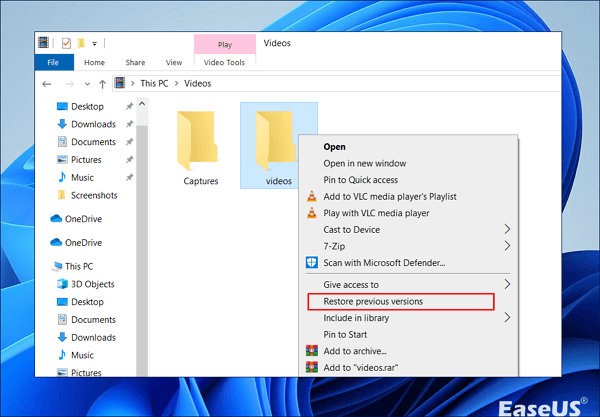
When the Restore Previous Versions is not working properly, the Previous Versions tab shows that there are no previous versions available. How to restore files? This post shows the way to fix there are no previous versions available issue and recover lost files.

[Solved] There Are No Previous Versions Available Windows 10/8/7
This post shows the way to fix there are no previous versions available issue and recover lost files. You can follow fix 3 and fix 4 to turn on the File History and backup on Windows 10/8/7. Read more >>
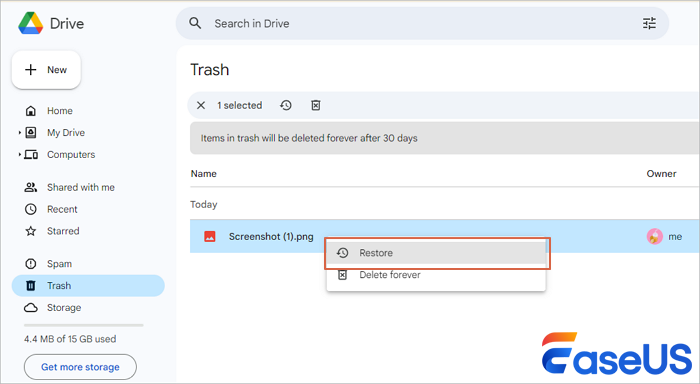
#3️⃣. Check the Trash in Your Cloud Drive
If you sync your camera videos to cloud services like Google Drive, Dropbox, or OneDrive, check the service's trash or recycle bin:
For example, here are steps to recover deleted files on Google Drive:
- Step 1. Go to drive.google.com in your browser.
- Step 2. Click "Trash" (or "Bin") in the left sidebar.
- Step 3. Browse for your videos, right-click, and select "Restore".
Deleted files typically remain in cloud trash for 30 days before being permanently removed.
Conclusion
When attempting to retrieve lost footage from your digital camera, you might first check Windows File History, dig through 'Previous Versions' of the folder, or look inside your cloud drive's trash bin. While these methods can sometimes restore files synced from other devices, they rarely work for media stored directly on an SD card. For a genuine and comprehensive recovery directly from the card itself, the most reliable solution is dedicated software. That’s why we strongly recommend the EaseUS Data Recovery Wizard. It is faster, far more effective, and specifically designed to perform deep scans that locate video files that standard system tools cannot see, ensuring you get your memories back without the guesswork.
Recover Deleted Videos from Digital Camera FAQs
1. Can I recover videos if I've already used the card after deletion?
Yes, it's still possible. Each new file only overwrites specific areas of the card. The more you've used it, the lower your chances, but recovery is often still successful, especially with deep scanning tools.
2. What about free recovery tools?
Free tools exist and can work, but they often have limitations: file size caps, format restrictions, or no preview features. Some free tools also carry malware risks; always download from official sources.
3. How long do deleted videos stay recoverable?
There's no set time limit. Videos remain recoverable until the space they occupy is overwritten by new data. On a card used daily, that might be days or weeks. On a card set aside after deletion, it could be years.
4. Can I recover videos from a formatted card?
Yes. Formatting typically just resets the file system, and it doesn't erase the actual video data. Recovery software can often restore most or all files from a formatted card, provided you haven't added much new data afterward.
5. Will connecting my camera directly to the computer work?
It might, but a card reader is better. Direct camera connections often provide limited access to the card, which can prevent recovery software from performing deep scans
Was this page helpful?
 Why Trust EaseUS
 Editor Reviews

20+
Years of experience

160+
Countries and regions

72 Million+
Downloads

4.9 +
Trustpilot Score





