Welcome
Thanks for using EaseUS MobiMover.
From time to time, we are wondering about any means to intuitively and efficiently manage the contacts, messages, notes, pictures, music, and videos of one iOS device on a PC.
We now have a solution- EaseUS MobiMover and here you can find all detailed tutorials about how EaseUS MobiMover helps manage your iOS contents between iOS devices and computers.
Getting Started
Learn the basics, settings, and license code register of MobiMover. Please refer to the following guidelines to facilitate your MobiMover use.
Supported File Types
Audio: Music, Voice Memo, Ringtone, Audiobook, Playlist
Picture: Photo, Album
Video: Movie, TV Show, Music Video
Personal Info: Contacts, Messages, Voice Mail, Book, Note, App, Podcast
System Requirements
1. EaseUS MobiMover can be installed on the following operating systems:
Win7, Win8, Win8.1, and Win10.
2. Latest version of iTunes needs to be installed on the computer.
Supported iOS device
iPhone 4s, 5, 5s, 6, 6 plus, 6s, 6s plus, 7, 7 plus; 8, 8 plus, X, XR, XS, XS Max, iPhone 11, iPhone 11 Pro, iPhone 11 Pro Max; iPhone 12, iPhone 12 Pro, iPhone 13, iPhone 13 mini, iPhone 13 Pro, iPhone 13 Pro Max
iPad mini 2, 3, 4, 5;
iPad Air, iPad Air 2, iPad Pro
Supported iOS version
iOS 9.0 and above versions
Activation
Different versions of MobiMover
Free version
♦ Allows home users to transfer 20 items every day.
♦ Can freely use the preview, add, delete and edit feature from Browse & Transfer.
Trial version
♦ Allows users to transfer the most 10 items every day.
♦ Can freely use the preview, add, delete and edit feature from Browse & Transfer.
How to Activate
To enjoy all features for business use, please firstly purchase MobiMover from EaseUS Store or click Activate/Upgrade->Buy Now on MobiMover to purchase it.

Note:
The offline activation method is not supported. Please connect to the internet to activate EaseUS MobiMover.
Preparation
For iOS devices:
When no iOS device is connected to the computer or the device is not correctly recognized, the following window displays.

Connect the iOS device to the computer and run EaseUS MobiMover.
You will get an operation guide for starting Apple Mobile Device Service if it is not running. Please refer to the guide on MobiMover to start Apple Mobile Device Service.

Please note if this is the first time that you connect the iOS device to the computer, you need to tap Trust This Computer on the device.

Once the device is connected and recognized by EaseUS MobiMover, you'll see the device information on the right side and the six main features of EaseUS MobiMover on the left side.

Switch iOS Device
When multiple iOS devices are connected to the computer, you can refer to click on the droplist to select the iOS device.

You can switch the selected iOS Device only on the Home page.
For Android devices:
Please connect your Android device to your computer and open EaseUS MobiMover. A pop-up window will guide you through enabling USB debugging on your Android device to ensure a successful connection.

If USB debugging is enabled but the product is not responding, you can follow this troubleshooting guide to resolve the issue.
Once all settings are configured, the MobiMover app will be automatically installed on your device.


After that, please refer to the instructions provided in the product to grant access permission for files on your device.


Once the device is detected by EaseUS MobiMover, you will see the device name displayed above the main categories data.

Switch Appearance
MobiMover provides Dark and Light appearances, please choose your favorite appearance.

Settings
You are able to change the Language, Storage Path, Transcode Quality, and the format of Photos and Contacts in settings.

Device Manager
The browse & Transfer feature helps you apply a more customized management to your iOS content or Android content.
For iOS devices, you can easily manage your Audio, Pictures, Videos, Podcasts, Messages, Contacts, Notes, Apps, and Others.

Audio includes Music, Voice Memos, Playlists, Ringtones, and Audiobooks.

Pictures include Photos and Albums.

in the Photos section, all your contents are categorized into several parts, such as Selfies, Live Photos, etc. You can use them to quickly select the category you want to transfer.

Videos include Movies, TV, and Music Videos.

Other include Books and Voice Mails.

For Android devices, you can easily manage your Photos, Audios, Videos, Messages, Contacts, Call History, Calendar, Apps, and Files.

With MobiMover, you can manage each content more effectively, including adding contents from the computer to your device, transferring content from the device to the computer, between two devices directly, and deleting contents. This is the main window for managing Photos.

It is the same process to manage other contents, such as Music, Books, Contacts, Movies,.etc. You are able to use the features Import to Phone, Export to PC, Delete, and To another Phone if it is visible.
For the Contacts and Playlists, you can also use the New feature to add a contact or playlist.


In the Contact section, you can also select the contact in your Outlook and Gmail.

Note, due to the limitation of Apple, when you transfer messages, voice memos, contacts (Outlook&Gmail), notes, and voicemails, our product will first run a backup for these content and then transfer them to your computer.


Tips:
As a limitation of Apple, Notes cannot be transferred on iOS 11.0 and later versions. The App can only be transferred on iOS 8.2.
iCloud Manager
iCloud Manager allows you to customize and manage the data on your iCloud account, enabling you to download, upload, delete data, and more.
Login
Connecting your iOS devices to the computer is not required. Simply enter your Apple ID and Password to access your iCloud account. Please be aware that a verification code from your iOS device will be requested to proceed with the process.


After logging in, you will have access to your Contacts, Calendar, Photos, Notes, and Reminders, all of which can be easily managed by simply clicking on them.

Contacts
The edit option allows for changing the basic information for a contact. The Download option enables you to export contacts in .vcf or .csv formats. If there are new contacts on your PC, selecting Upload can efficiently import them into your iCloud account. You also have the option to delete any unwanted contacts here. The Sync function is for transferring contacts between your iCloud accounts.

Pictures
In the Pictures section, your content is categorized into three parts: Photos, Albums, and Media Types. You can select the one you prefer to download. Additionally, you have the option to delete unwanted pictures or upload pictures from your computer.

Note:
- It only supports JPG and JPEG format with the Upload and Sync option.
- The photo sections are classified according to different standards, so there may be duplicate photos in each category.
Calendar, Notes, Reminders
Calendars and Reminders can be downloaded to the computer in .csv format, while Notes can be downloaded in either .html or .pdf format as per your preference. All features include the option to delete and the ability to sync with another iCloud account.
Advanced Options
This feature enables the quick download, management, and synchronization of data between iCloud and your computer. Below, we will provide you with an overview of these options.

1. Export iCloud data to a computer with one click - With this feature, you can easily download data to your computer with just one click. If you wish to change the export destination, simply use the select option. In the Photos section, all your contents are categorized into several parts, such as Selfies, Live Photos, etc. You can use them to quickly select the category you want to transfer.

2. Import files to the corresponding app on iCloud - As the name suggests, you can import files from your computer to your iCloud account.

3. iCloud Drive - It allows you to download or upload data without the need for format conversion. You can also directly create a new folder to store files and sync files between iCloud accounts. Videos include Movies, TV, and Music Videos.

4. Keep two iCloud services synced - If you have a different iCloud account, simply log into that account by entering another Apple ID and password. Then, you can choose the category you wish to sync by clicking Next.


Phone to PC
For iOS devices:
If you transfer your iOS contents to a computer, you will have a copy of your information to use in case your device is ever replaced, lost or damaged. MobiMover helps you transfer all iOS contents stored on the device to the computer.
File type Supported:
Audio: Music, Playlists, Ringtones, Voice Memos, Audiobooks
Picture: Photos, Albums
Video: Movies, TV Shows, Music Videos
Personal Info: Contacts, Messages, Notes, Podcasts, Books, Voice Mails
Please refer to the following guide to make good use of MobiMover
1. Click the Phone to PC first once the Phone is recognized normally by MobiMover.

2. All categories will be listed and selected by default after clicking the Next. If your iOS device doesn’t have such type of files, an empty folder will be created and transferred. Please untick some categories or just click the Transfer to continue.

3. Once you click the Transfer button, the transfer process will start. The time of transferring contents varies based on the size of your contents. Please keep patient. Meanwhile, given the importance of your data, please do not disconnect your iOS device before the transfer finishes.

Once the transfer process is completed, you will see the Transfer Completed page. To locate the data exported on your computer, please click View Files. To go back to the previous page, please click Transfer More.

For Android devices:
If you transfer your Android device contents to a computer, you will have a copy of your information to use in case your device is ever replaced, lost, or damaged. MobiMover helps you transfer all Android device contents stored on the device to the computer.
1. Click the Phone to PC once the Android device is recognized normally by MobiMover.

2. All categories will be listed and selected by default after clicking the Start. If your Android device doesn’t have such type of files, an empty folder will be created and transferred. Please untick some categories or just click the Transfer to continue.

3. Once you click the Transfer button, the transfer process will start. The time of transferring contents varies based on the size of your contents. Please keep patient. Meanwhile, given the importance of your data, please do not disconnect your Android device before the transfer finishes.

4. Once the transfer process completes, you will see Transfer Completed page. To locate the data exported on your computer, please click View Files. All transferred files will be saved on one folder. To go back to the previous page, please click Transfer More.


PC to Phone
MobiMover currently supports transferring computer content to both iOS devices and Android devices.
For iOS devices:
File type Supported:
Audio: Music, Playlists, Ringtones, Voice Memos, Audiobooks
Picture: Photos, Albums
Video: Movies, TV Shows, Music Videos
Personal Info: Contacts, Notes, Podcasts, Apps, Books
You are able to transfer files or folders to an iOS device via the following steps.
1. Click the PC to Phone once the Phone is recognized normally by MobiMover.

2. Click Select Files to select a file or folder for transferring or drag & drop file or folder to this window directly.

You'll get a preview of the contents in the folder that can be transferred to the iOS device.

3. Press the Transfer button and wait. The transfer time varies based on the size of your content. Please keep patient. Meanwhile, given the importance of your data, please do not disconnect your iOS device before the transfer finishes.

Once the transfer process is completed, you will see the Transfer Completed Page. You can then go to the device to view files. To go back to the previous page, please click Transfer More.

For Android devices:
EaseUS MobiMover can transfer computer data to Android devices.
Here are the steps to process a transfer.
1. Click the PC to Phone once the Phone is recognized normally by MobiMover.

2. Click Select Files to select a file or folder for transferring or drag & drop file to this window directly. You'll get a preview of the contents in the folder that can be transferred to the Android device.


3. Press the Transfer button and wait. The transfer time varies based on the size of your content. Please keep patient. Meanwhile, given the importance of your data, please do not disconnect your Android device before the transfer finishes.

Phone to Phone
A new iOS device usually arrives with more powerful processing units but it can be troublesome to transfer all the data from the old iOS device to the new one manually. MobiMover is able to help you transfer the data to other iOS devices with a few clicks.
File type Supported:
Audio: Music, Playlists, Ringtones, Voice Memos, Audiobooks
Picture: Photos, Albums
Video: Movies, TV Shows, Music Videos
Personal Info: Contacts, Notes, Podcasts, Apps, Books
Please refer to the following guide to make good use of MobiMover.
1. Click the Phone to Phone once the two iOS devices are recognized normally by MobiMover. The first step is to select the transfer direction and click Next.

2. You'll be given an option to select the categories you want to transfer.

3. Once you press the Transfer button, the transfer process will automatically start. The time to transfer contents varies based on the size of your contents. Please keep patient. Meanwhile, given the importance of your data, please do not disconnect your iOS device before the transfer finishes.

Once the transfer process completes, you will see the Transfer Completed Page. You can then go to the device to view files. To go back to the previous page, please click Transfer More.

Backup & Restore
MobiMover is a useful backup tool, which includes Backup Manager and WhatsApp Manager. It offers you a more flexible backup solution to meet different demands and preferences.
Device Backup Manager
Device Backup Manager is able to back up almost all data on your Android and iOS device to the backup image file, and you are able to restore the backup when you need it.

Backup
The backup function is used for backing up the data which is listed in the backup function. You can click the Backup button to finish the backup. The Backup Path feature enables you to choose the location where you want to store your backup files.


Restore
For iOS devices:
Your backup images will be listed after clicking the Restore button. Please select your backup image then click Restore to continue, it will finish the restoring directly.

The backup includes the Personal data and Multimedia, only the file types included in the Personal data on your iOS device will be overwritten by the restoration. However, the recovery for Multimedia will not cause any data loss.
Note:
1. It is not allowed to restore the backup from the new version of iOS to the old version.
2. Some restored data may not be used normally if you restore it to a different iOS device.
3. iPod and iPod Touch are not supported to restore.
For Android devices:
To begin restoring your data using the Restore feature in the product, simply click on it. A pop-up window will appear on your Android device, allowing you to select MobiMover APP as the default SMS app. Once you have enabled this option, the restore process will then be carried out. The restore operation will not cause any data loss.


Backup History
All your backup history can be viewed in this window. To delete old images, please click the Delete button.
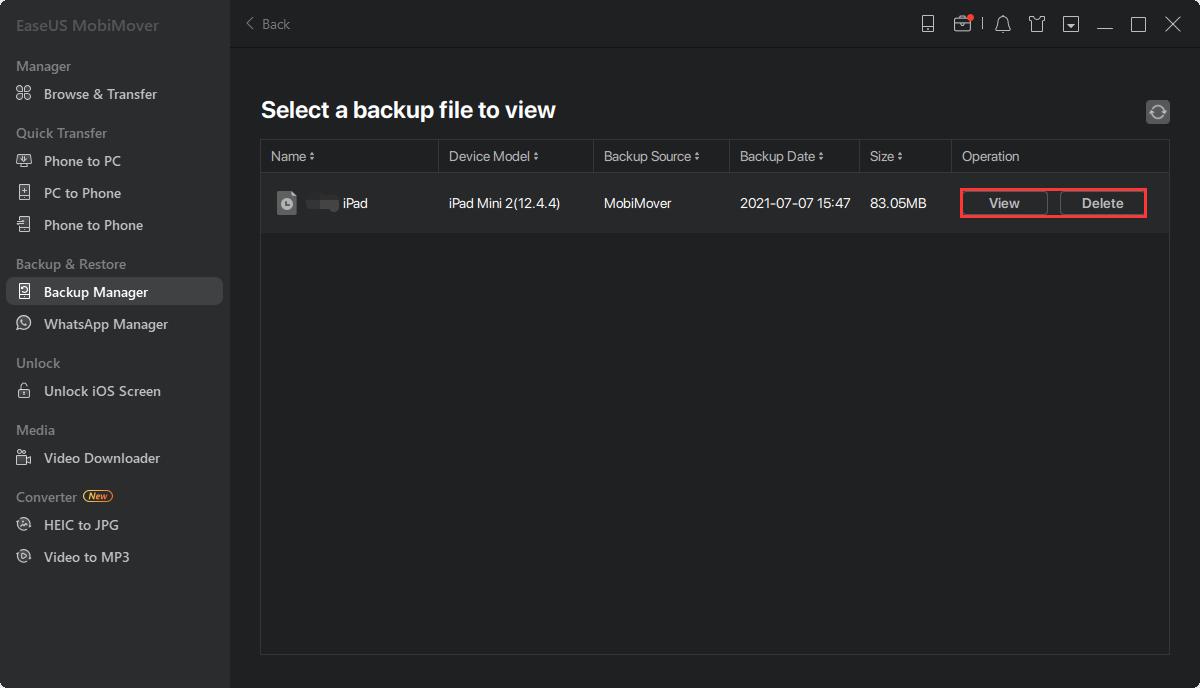
To click the View button, you can see the details in this image or only copy some files from it.

Social App Manager
The Social App Manager function is used for backing up, restoring, and viewing the app data. The supported apps include WhatsApp, Whatsapp Business, LINE, Kik, and Viber.
In the following guide, we will take WhatsApp as an example.

Backup
Backup is able to create a backup for your WhatsApp messages and save the backup files to the local drive of your computer. It is easy to finish the backup with the following steps.
1. Please ensure your iOS device is connected to this machine and the WhatsApp is recognized by MobiMover. Select WhatsApp and click Backup.

2. The backup needs some time if you have lots of data on the Phone. Please be patient during the process.

3. The Backup is finished and the size of backup data can be seen at this step.

Restore
This function is used for restoring the backup files you created by the WhatsApp Manager function. You are able to restore the backup with the following steps.
1. Select your backup image and click the Restore. Kindly note that the Restore operation will overwrite the WhatsApp data on your target iOS device.

2. It needs some time to restore the backup, please wait patiently during the process.

3. The restoration is finished and you can reboot your iOS device to check it.

Phone to Phone
MobiMover is able to transfer WhatsApp messages from one iOS device to another and ensure the transferred messages on another iOS device can be used normally. The transfer can be finished with the following steps.
1. Click Transfer after connecting two iOS devices to your computer. You may hit Switch if the transfer direction needs to be changed.

2. You will see the pop-up message saying that the WhatsApp data on the target device would be erased. Click Transfer to confirm this operation.

3. The transferring may need some time, please wait patiently at this step.

4. The transferring is finished and you can reboot your iOS device to check it.

Video Downloader
Video Downloader helps you download video files to a device or computer. You only need to enter or paste a download link and click Download button to start downloading. Also adding multiple links is supported. Just click + and paste the URLs.

Converter
The converter feature helps to convert HEIC to JPG format, or Videos to MP3.
HEIC to JPG
HEIC is the default image format for iPhone 11 or newer so users can take higher quality pictures and even videos with its promising technology. However, they can not be opened directly on Windows PC. We recommend converting the HEIC images to JPG using EaseUS MobiMover with a few clicks.
Please follow the steps below:
1. Select the HEIC files by clicking Browse or dropping the files in the circle area.

2. You may start the conversion for all the files by clicking Start All, or just click Convert for one single file.

Video to MP3
Sometimes, you might be in need of making an audio file using a video. This can be achieved in MobiMover. Here are the steps:
1. Select the video files by clicking Browse or dropping the files in the circle area.

2. Before the conversion, you may click Settings to change the file name, Audio Bitrate, Audio Sample Rate, and Volume. After that, you can click the Convert or Start All Button to start the conversion.

Feedback and Support
We invite your comments on how well EaseUS MobiMover performed, and we are also enthusiastic about replying to all your questions about using it. Please click Contact Support to send us your suggestions.

We also provide an online chat service and the Live Chat option can be located in the top navigation bar of EaseUS official website www.easeus.com.