Welcome
Thank you for choosing EaseUS Fixo.
EaseUS Fixo is a robust tool that is designed to repair damaged videos, photos, and files with great efficiency and ease.
Getting Started
This part outlines the basic parameters to use EaseUS Fixo. It will help you acquire a general understanding before you get started.
Hardware Requirements
500 MHz processor or faster
A minimum of 2 GB RAM for Windows
A minimum of 100MB of available space on the hard disk
Keyboard, mouse, and other compatible pointing devices
System Requirements
Make sure you are running any one of the listed operating systems:
For the Windows version:
Windows® 7
Windows® 8
Windows® 8.1
Windows® 10
Windows® 11
Windows® Server 2000
Windows® Server 2003
Windows® Server 2008
Windows® Server 2012
Windows® Server 2016
Windows® Server 2019
For Mac version:
From MacOS 11.x to the latest version.
Activation
EaseUS Fixo trial version is capable of fixing corrupted videos, photos, files and audios. It can also enhance photos and videos, and perform color restoration on black and white photos. However, it prompts for an upgrade when you attempt to save them. To upgrade to the full version, simply click on Activate button at the top right corner of the main interface in EaseUS Fixo and Enter the License code. And then click Activate after entering the License code.
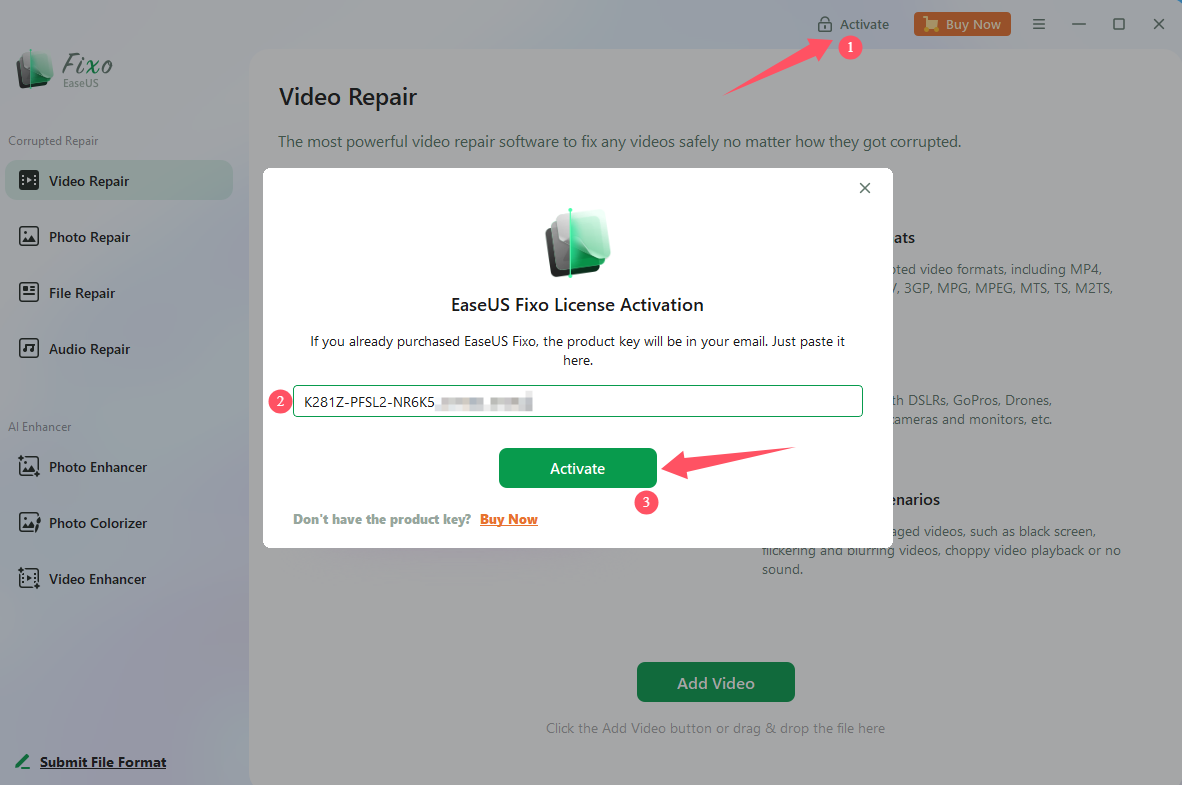
In case you don't possess a license code, you may click on the option for Buy Now to purchase one.
Video Repair
Video Repair can repair a variety of corrupted video formats, including MP4, MOV, MKV, AVI, and more. This feature supports sample videos, including those from Samsung and Apple phones, dashcam videos, and videos generated by screen recording software.
To import the video you want to fix, simply click on Add Videos option. After adding the video, you can initiate the repair process by clicking on Repair button. If you have more videos to be repaired, easily add them to the list by clicking on Add Videos and then start the repair process for all of them by clicking on Repair All.
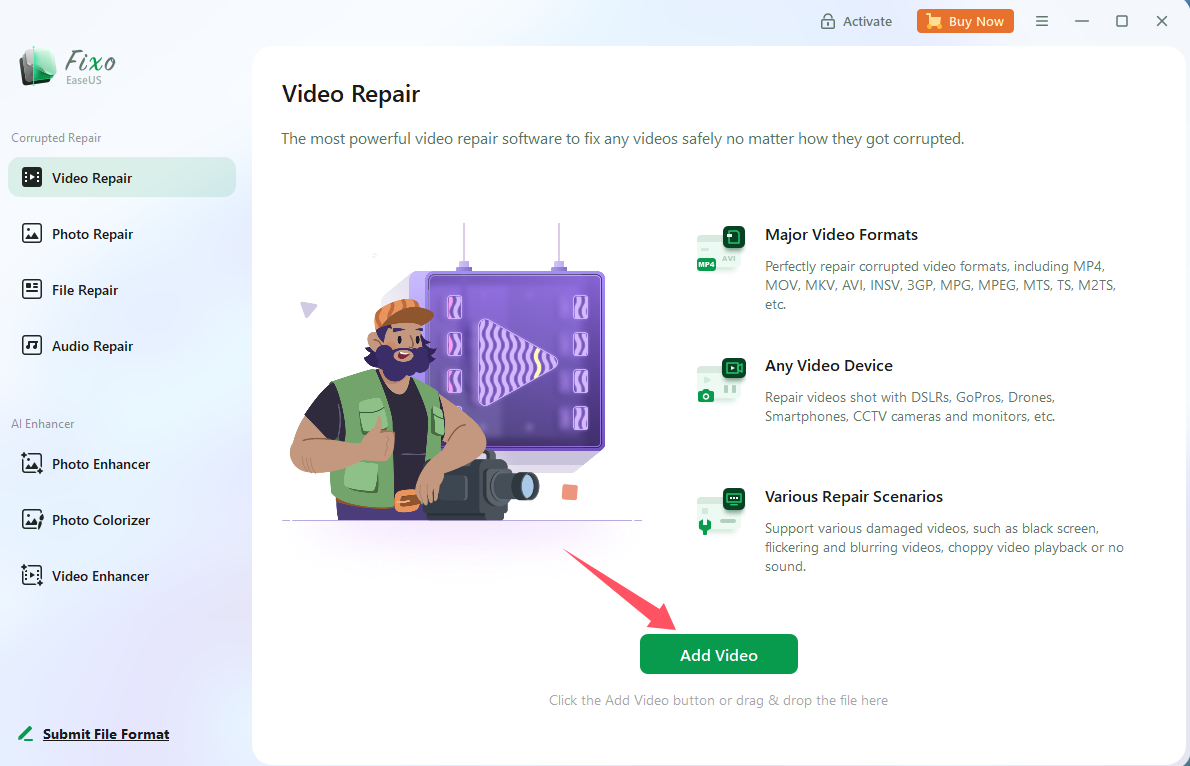
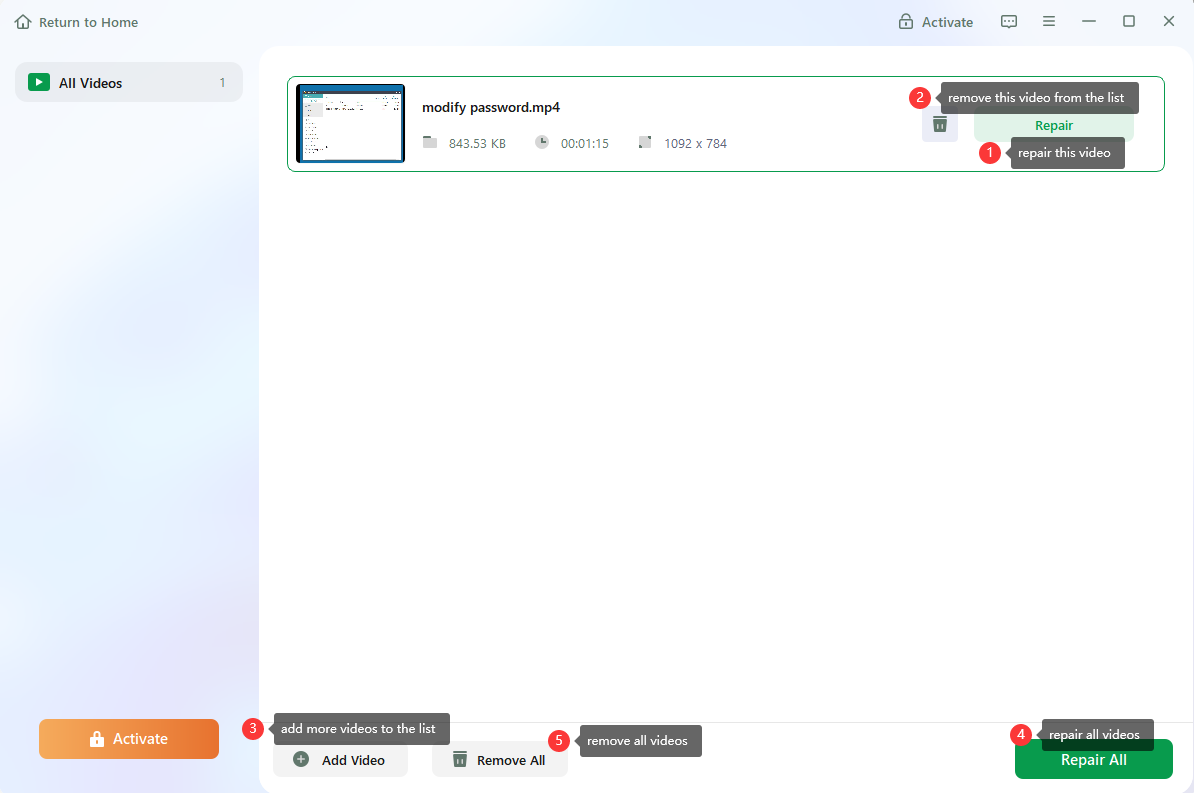
Photo Repair
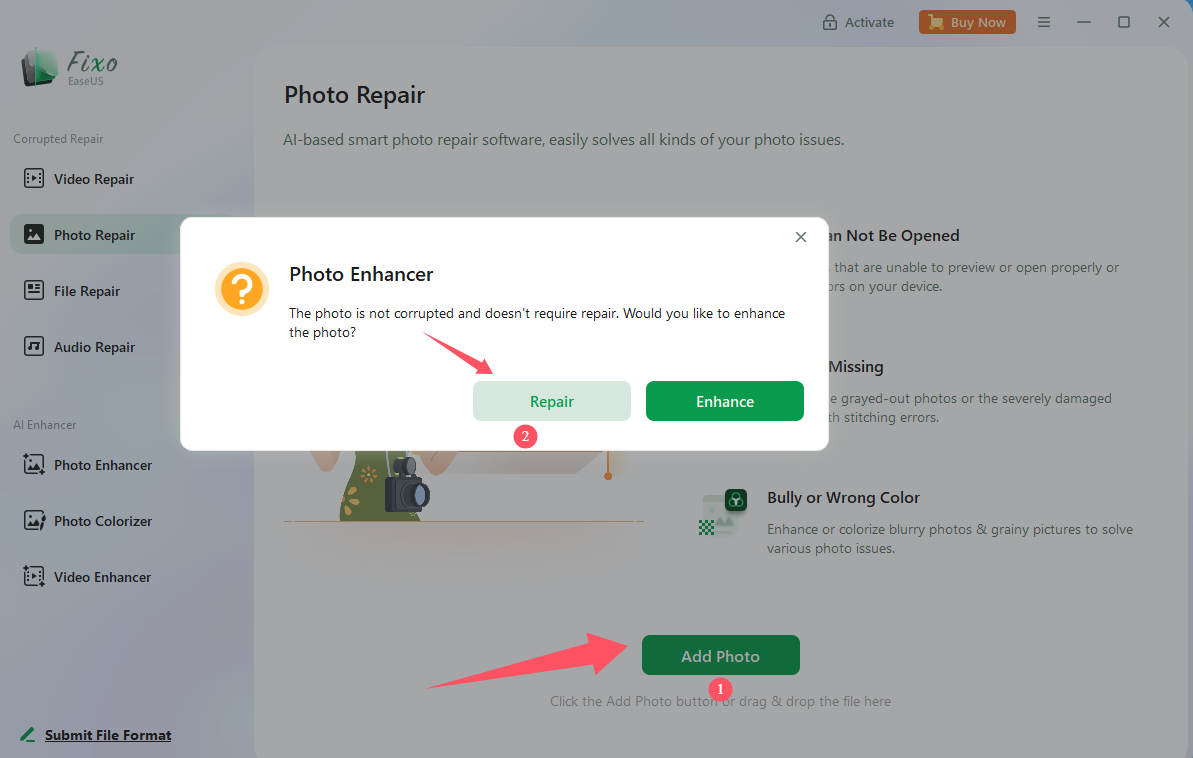
Photo Repair assists in repairing photos that cannot be opened or previewed correctly, or that report errors on your device.
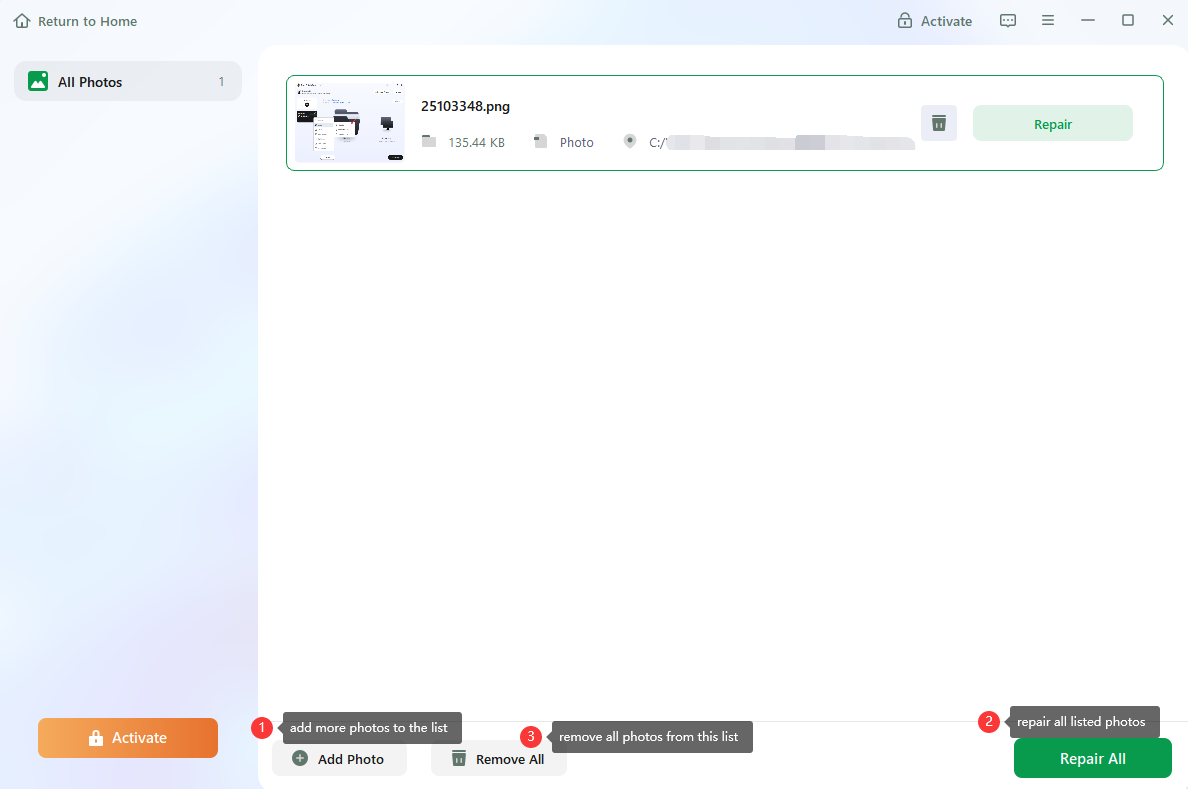
To repair your photos, simply click on Add Photos and select the images you wish to fix. Then, click on the Repair button to initiate the photo repair process. You can also add more photos to the list, remove photos from the list, and start the repair process by following the instructions provided.
File Repair
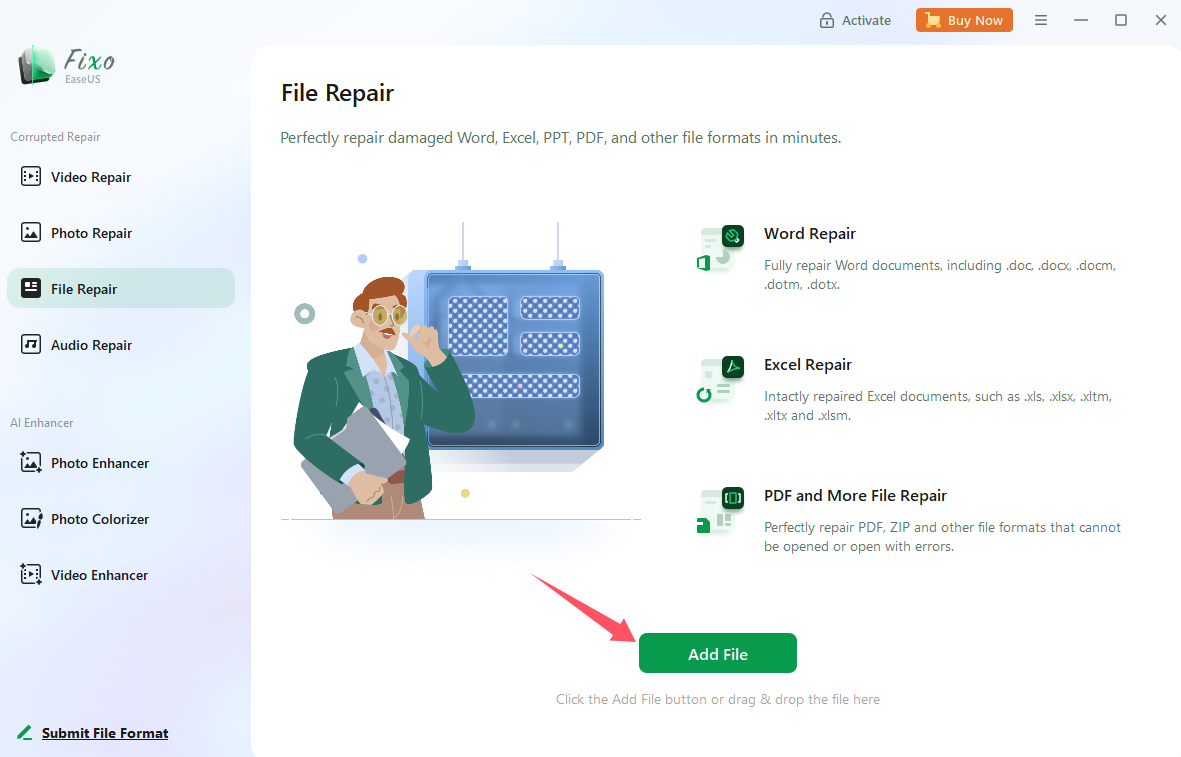
File Repair is specifically designed to repair damaged Word, Excel, PPT, PDF, Pages, Numbers, HWP, and other critical documents.
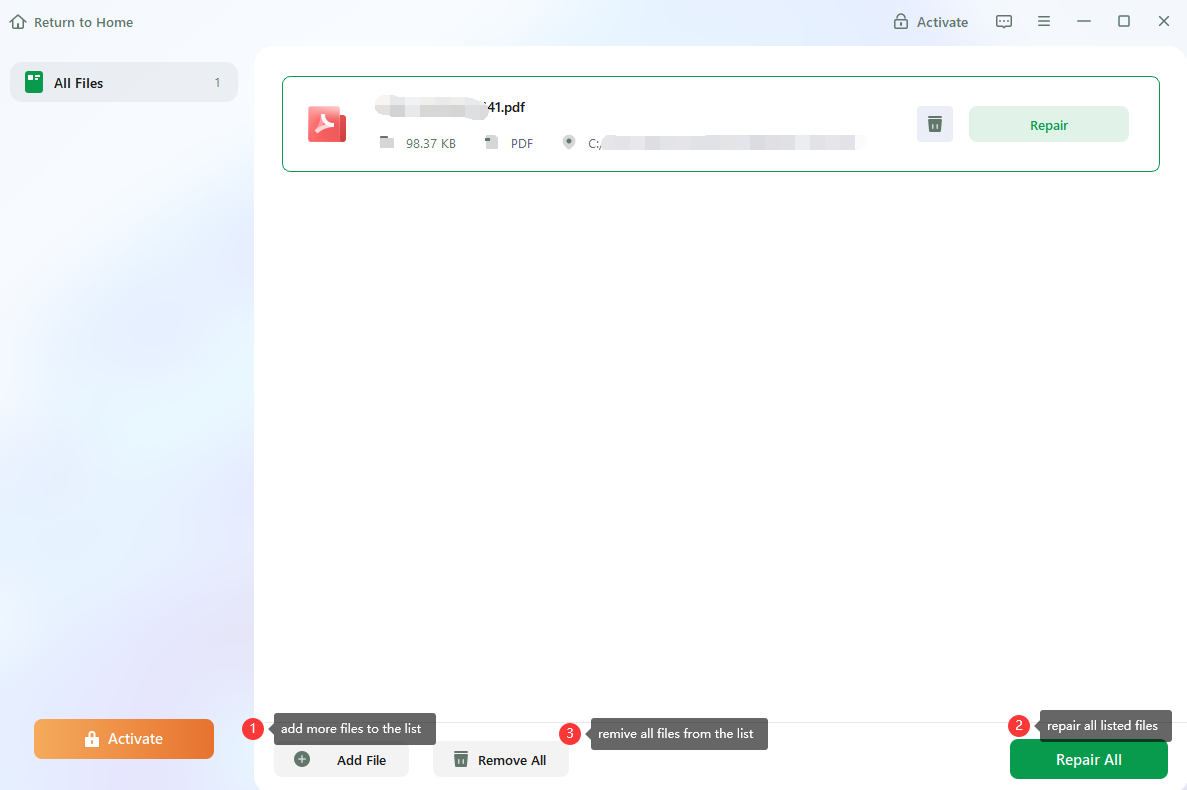
To repair your damaged files, start by clicking on Add Files button and selecting the files you wish to repair. Once you have the files added, click on Repair button to begin the file repair process. Additionally, to repair multiple files at once, you can use Repair All button.
Audio Repair
Audio Repair helps repair audio that cannot be opened or previewed correctly, or that reports errors on your device.
To repair your audio, simply click on Add Audio and select the audio you wish to fix. Then, click on Repair button to initiate the audio repair process. You can also add more audios to the list, remove audios from the list, and start the repair process by following the instructions provided.
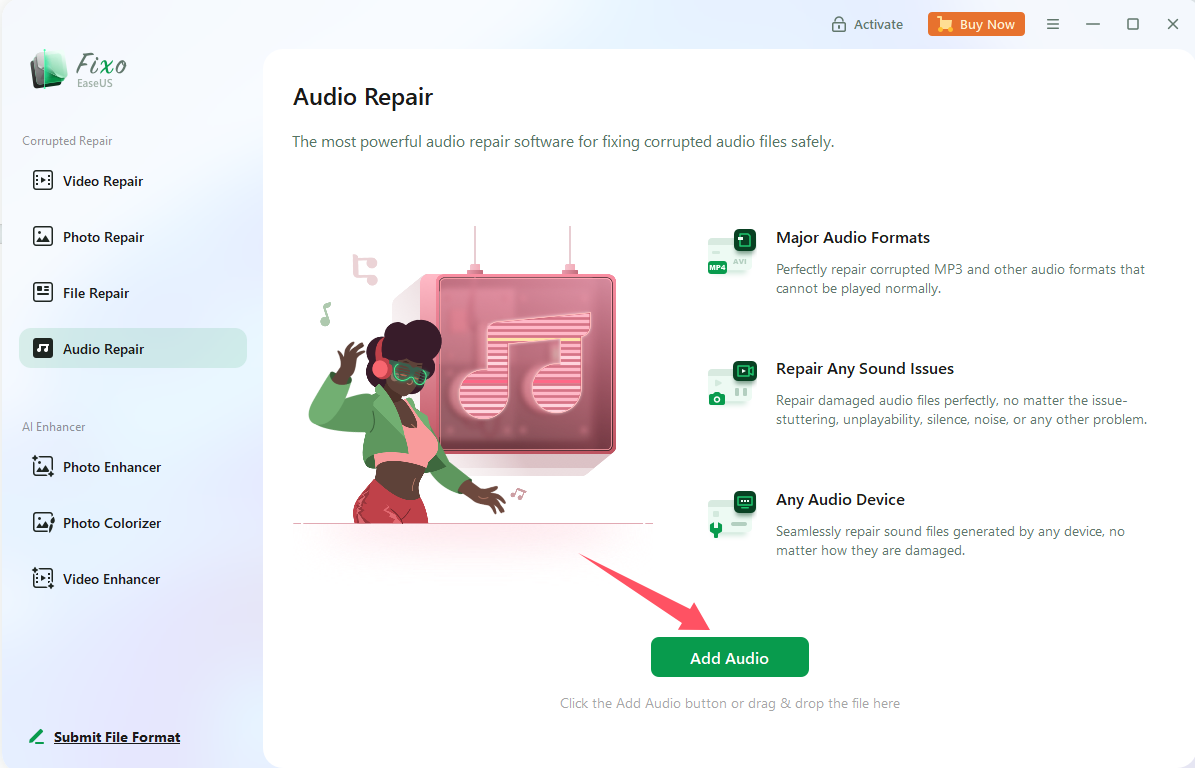
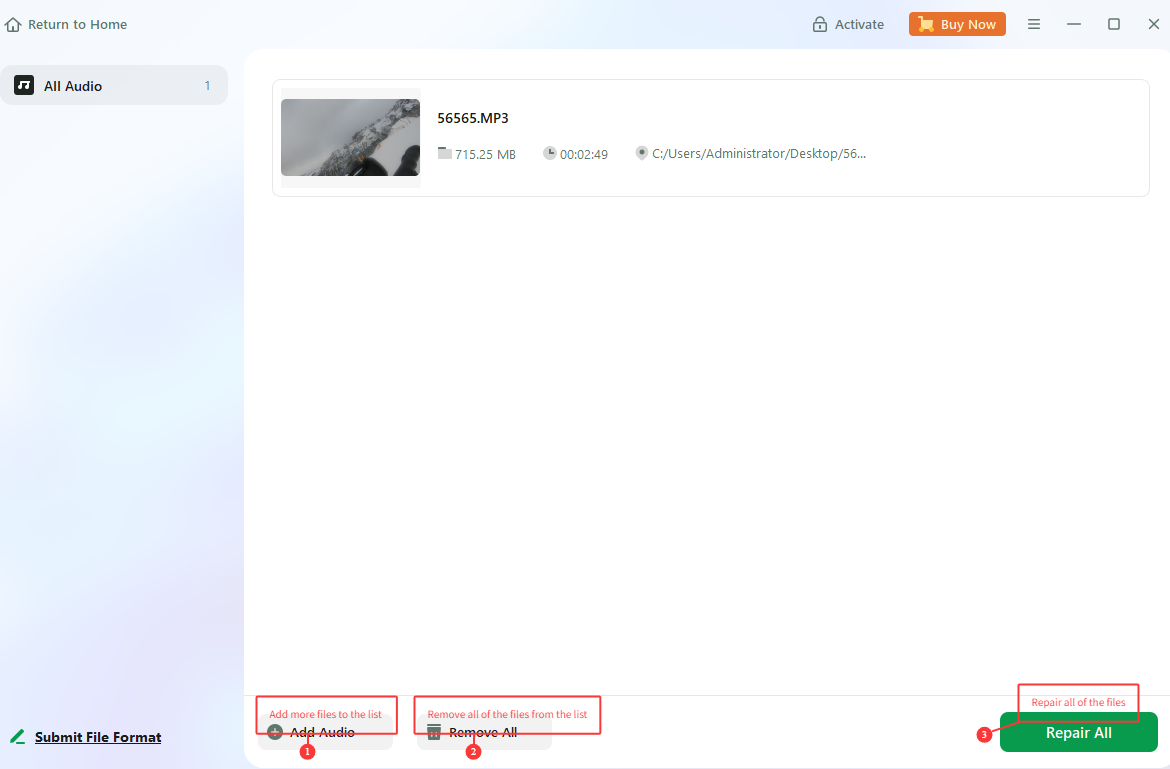
Photo Enhancer
Photo Enhancer improves image quality by upscaling and enhancing photos to make blurry photos clearer, more vivid, and sharper. There are two function options on the left side of the page through which you can choose by yourself, namely AI model and Resolution ratio.
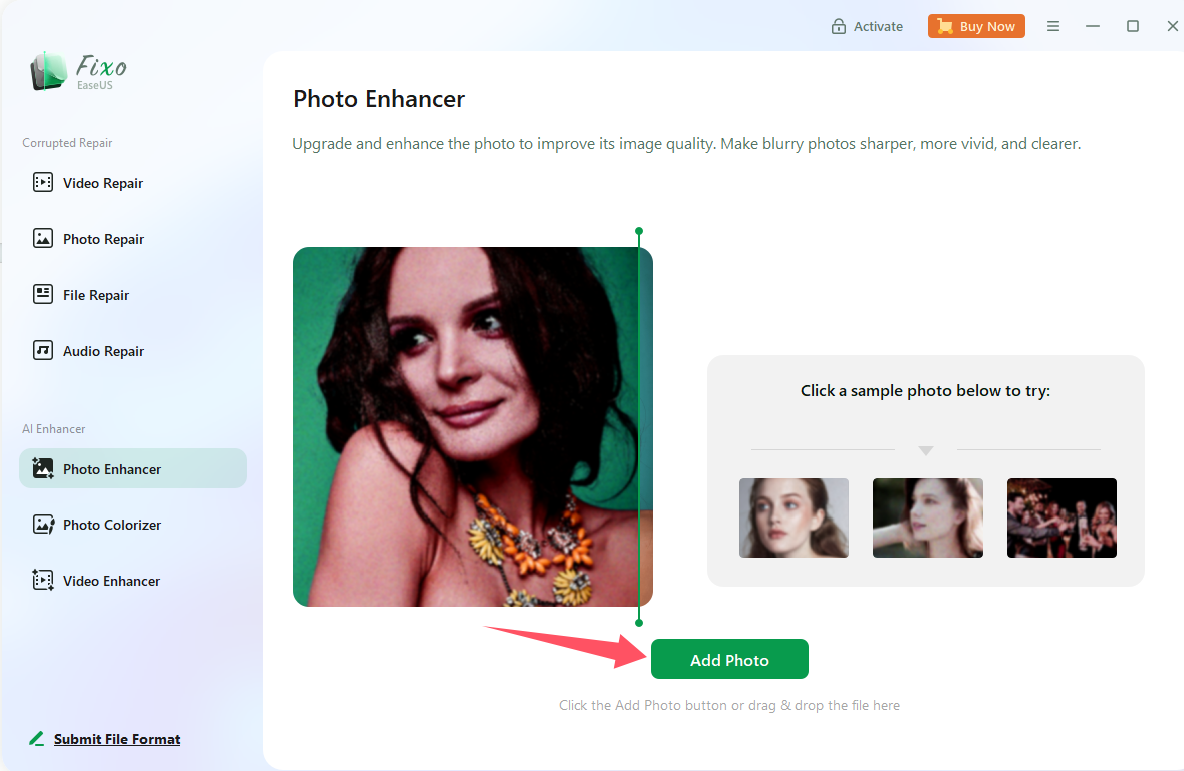
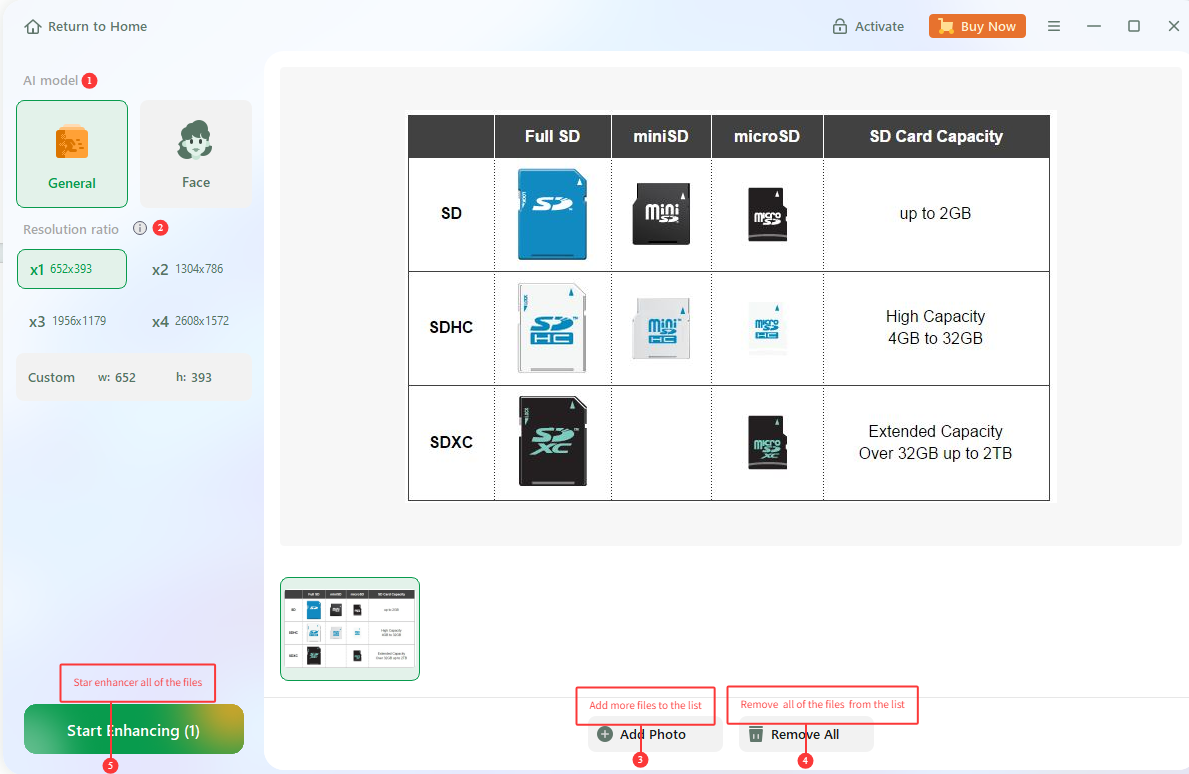
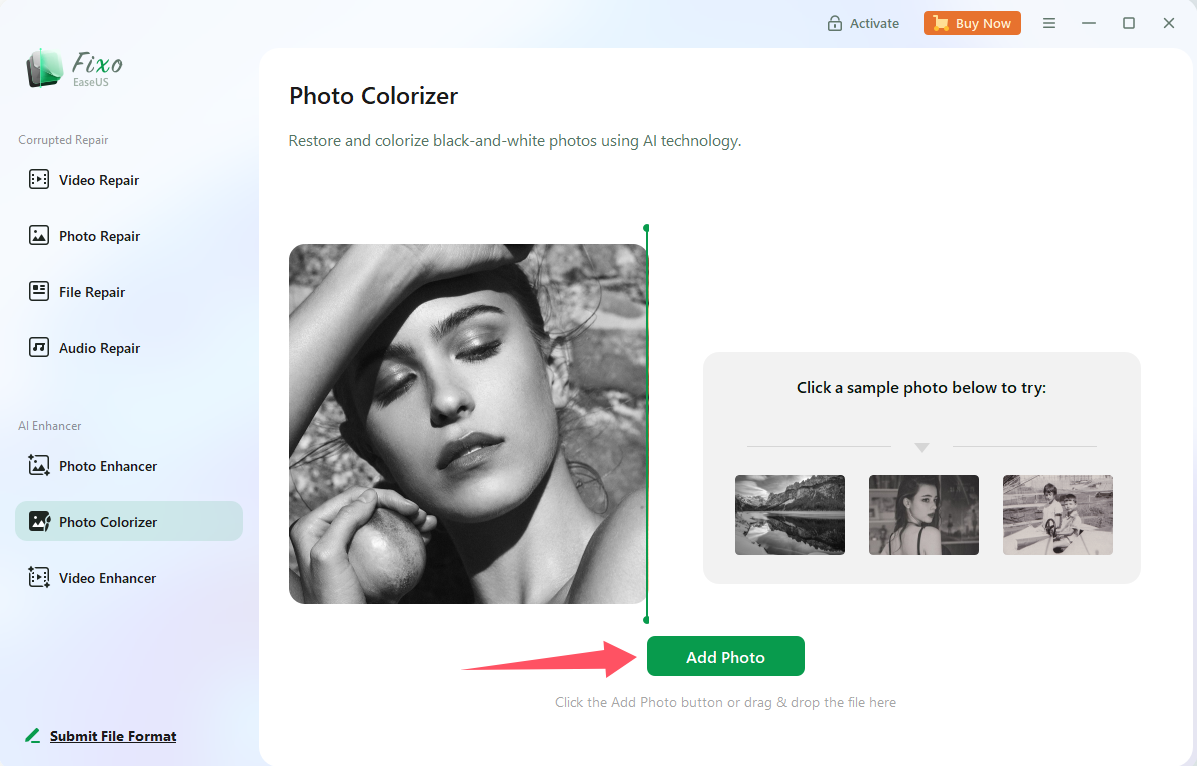
Photo Colorizer
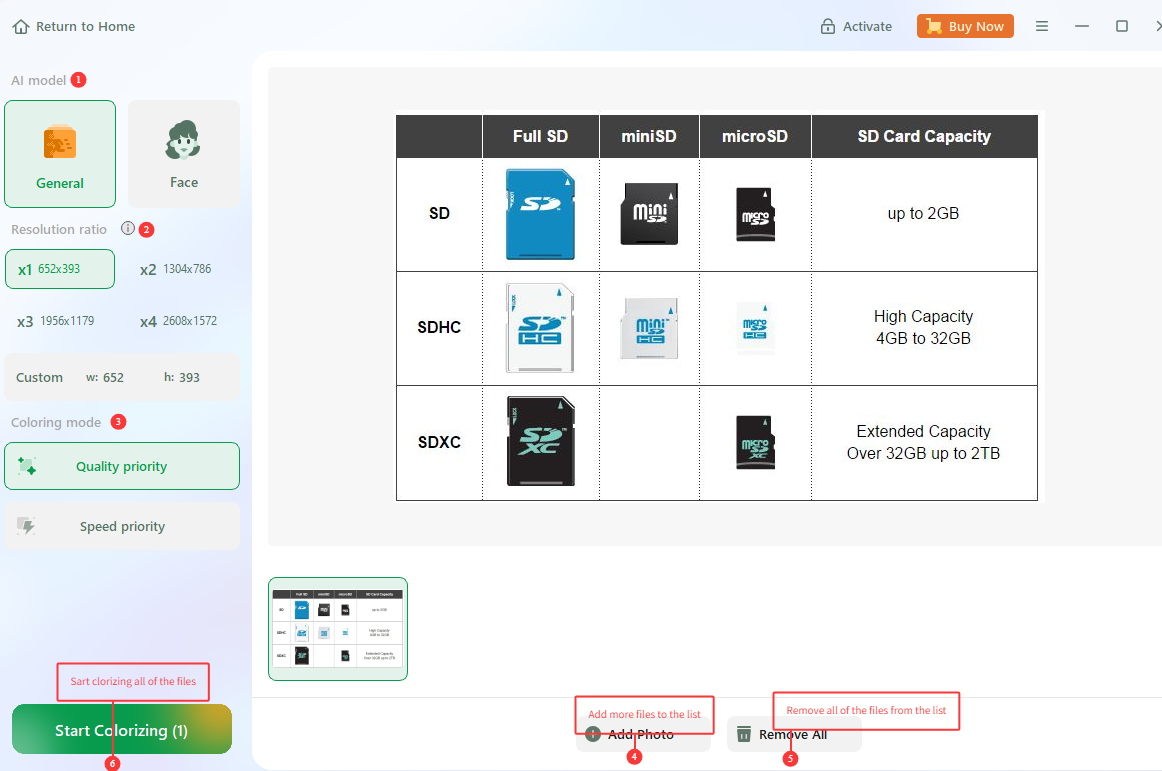
Photo Colorizer uses AI technology to restore and colorize black and white photos. There are three options on the left side of the page, allowing you to select the AI model, Resolution ratio, and Coloring mode.
Video Enhancer
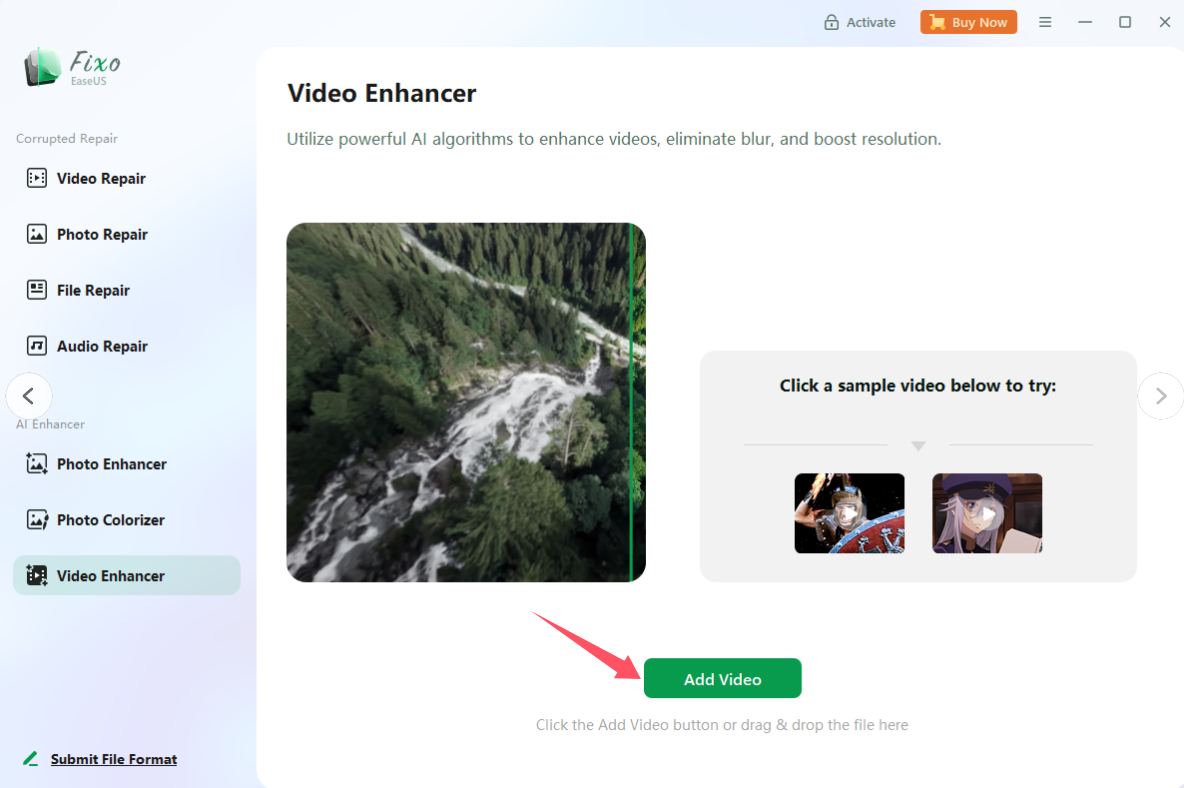
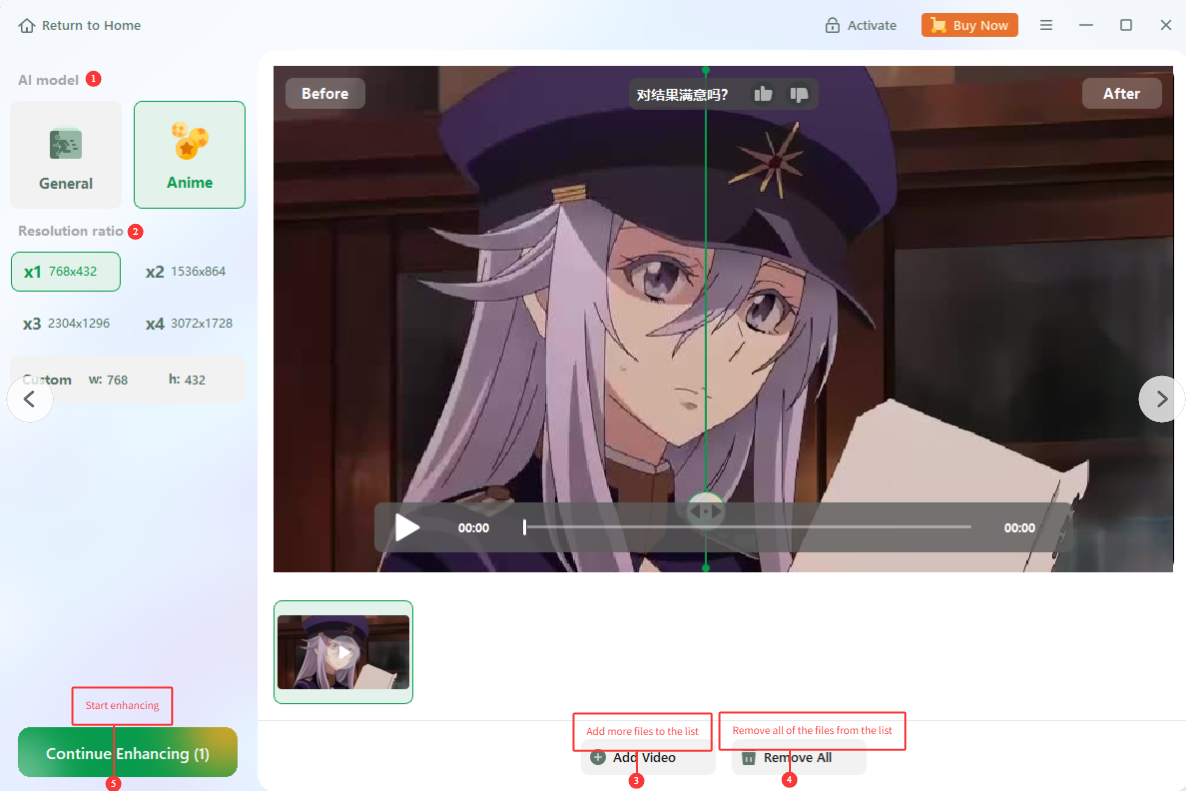
Video Enhancer uses AI algorithms to enhance videos, remove blur, and increase resolution, thereby improving video quality. There are two options on the left side of the page: AI model and Resolution ratio.
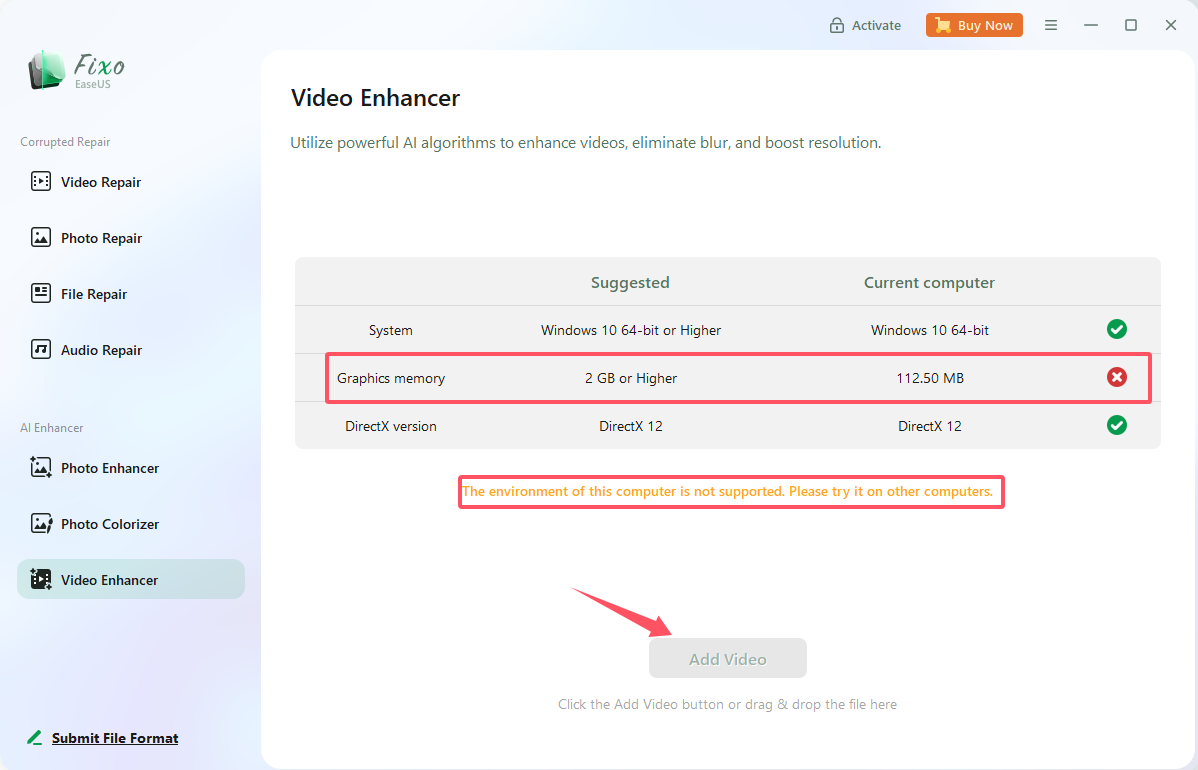
Video Enhancer requires the computer to meet all three conditions shown in the figure simultaneously. If any one of the conditions is not met, it cannot be used.
Feedback and Support
We invite your comments on how well EaseUS Fixo performs, and we are also eager to address all your questions related to this product. Please feel free to contact us at: [email protected]
We also provide an online chat service, and the Live Chat option can be found in the top navigation bar of the EaseUS official website at www.easeus.com.





