





Unhappy with your subscription period?

See All Plans

Products Related to this item

  • EaseUS Data Recovery Wizard

    For Windows

    Learn More
  • EaseUS Data Recovery Wizard

    For mac

    Learn More
  • EaseUS Fixo

    for files Repairing

    Learn More
  • EaseUS Disk Copy

    Seamless Disk Migration

    Learn More
  • EaseUS Todo PCTrans

    Transfer Data Between PCs

    Learn More
  • EaseUS Vocal Remover

    Remove Vocals online for free

    Learn More
  • EaseUS Video Downloader

    Download Videos and Audios

    Learn More
  • EaseUS PDF Editor

    Create, Edit and Covert PDFs with AI

    Learn More

Partition Master

Best Tool to Simplify Your PC
Disk Management

What Can EaseUS Partition Master Solve?

EaseUS Partition Master can handle diverse disk and partition tasks including space management, system/disk upgrades, partition operations, data recovery, and system maintenance like resizing partitions, cloning disks, recovering lost partitions, and fixing disk errors.

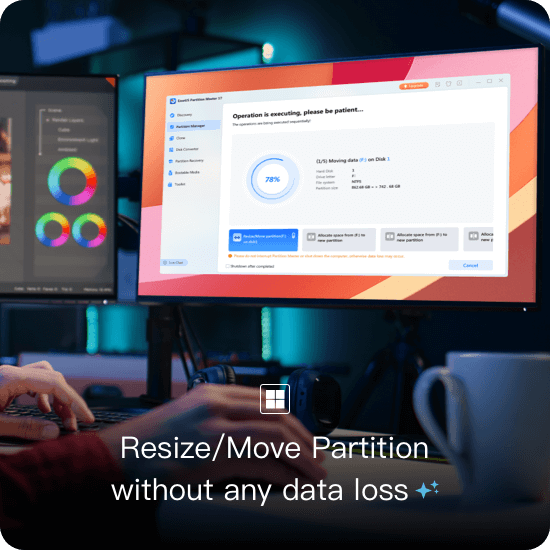
Resize/Move Partition

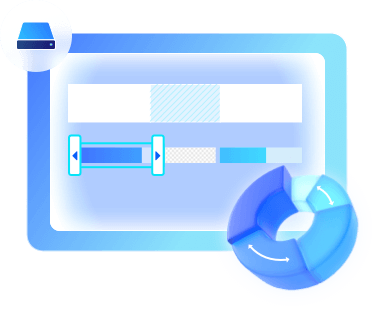
No worry if extending volume grey out. Easily adjust the used partition space (s) without any data loss: Resize, Move, to freely change disk space.

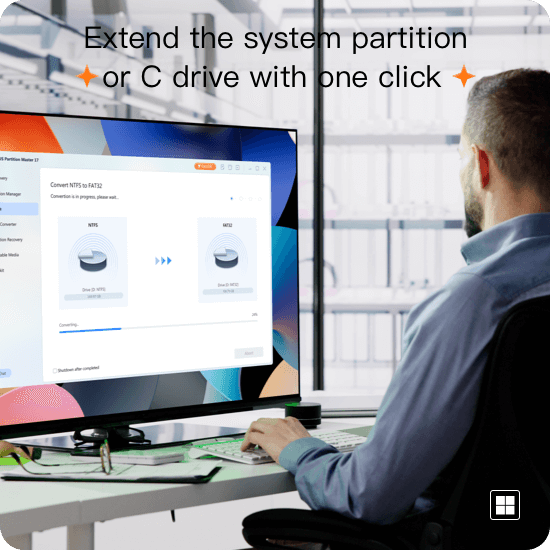
Extend System Partition

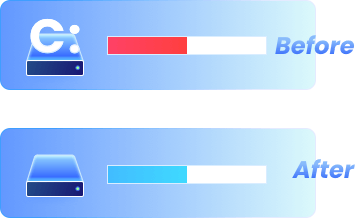
Make full use of free or unallocated space by extending the system partition or C drive. Try the "Extend" function and make the PC run faster.

Also Capable of these Robust Features

EaseUS free disk partition software is more than a free disk management tool.

How to Use EaseUS Partition Manager

Create Partition

Right-click unallocated space, select "Create...". Set Partition Size, Drive Letter, Partition Label, and File System for the new partition and click "OK". Click "Execute Operation" and "Finish".

Extend Partition

To extend a partition, right-click the target partition, select "Resize/move". Drag the end of the partition into the unallocated space, click "OK". Click "Execute Operation", "Apply" and "Finish".

Format Partition

Right-click on the target partition that you tend to format, select "Format...". Set the File System as NTFS, FAT32, exFAT, EXT2/3/4, and click "OK". Click " Execute Operation", "Apply" and "Finish".

Merge Partition

Right-click a partition with enough free space and select "Merge". Then select a target partition that you want to keep and click "OK". Click "Execute Operation", "Apply" and "Finish".

EaseUS Partition Master Tutorial

EaseUS Partition Master offers you comprehensive disk partitioning features to improve disk performance efficiently.

Free Download

Tech Specification

Operating System Supported:

Windows 11、Windows 10
Windows 8.1、Windows 8 Windows
7 Windows Vista Windows XP

File System Supported:

NTFS、EXT2/3/4、FAT12/16/32、
ReFS、exFAT

Storage Devices Supported

HDD: Parallel ATA (IDE), Serial ATA (SATA), External SATA (eSATA), SCSI, IEEE 1394 (FireWire)

SSD: SATA SSD, M.2 SSD, NVMe SSD, Large Capacity Hard Disk (GPT and MBR Disk)

Removable Devices: USB 1.0/2.0/3.0, flash drive, memory card,memory, stick etc.

SCSI, IDE and SATA RAID Controllers, RAIDed Configurations (Hardware RAIDs)

What’s New?

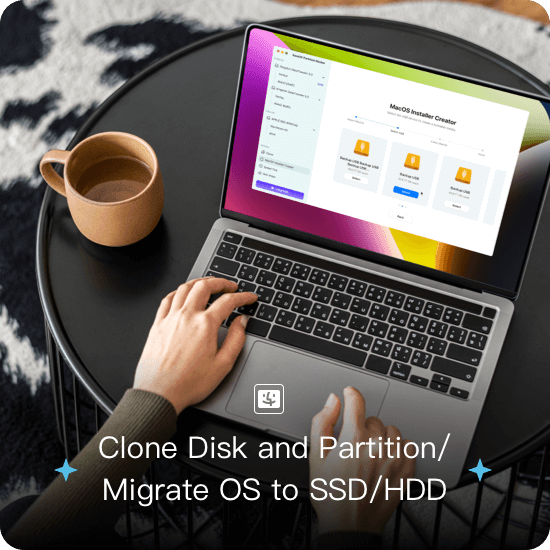
Improved the "Disk Clone" function

Now you can clone your system from the second system disk.

Added FAT to exFAT conversion function

Now you are allowed to convert exFAT to FAT

Frequently Asked Questions


Is EaseUS Partition Master Free safe?

EaseUS Partition Master Free is a free yet secure partition software that supports resizing, moving, formatting, deleting, and even erasing hard drive partitions on Windows computers. In addition, it protects users' data and drives security by prompting a confirming window before executing operations.

It's also virus-free and green for all Windows users to trust and rely on.


Is there a free partition manager?

Yes, if you are looking for a free partition manager software that helps partition hard drives, and manage your disk space flexibly, don't miss EaseUS Partition Master Free.

You can also trust Windows built-in free partition manager tools, like Disk Management and DiskPart.

So how do you get a free partition manager and use it to create, extend, shrink, and format partitions for free on your own? Follow this page and learn how to efficiently use the best free partition manager on Windows 7/8/10/11.


Which is the best partition manager?

When it comes to finding tools for disk partitioning, you may find it hard to find a qualified partition manager software to create, extend, shrink, merge, split, and even format hard drive partitions.

So which is the best partition manager among the searching result list on Google? Here are some basic criteria that you can apply to define if the current tool works the best for you:

1. Support your current Operating System;

2. It's secure and virus-free;

3. It fulfills your tasks and demands;

4. Easy-to-use;

5. It's within your budget.

You may follow this link to get a list of 12 best free partition manager tools for Windows, and among the list, EaseUS Partition Master Free Edition stands out to fulfill your different disk partitioning demands.


How to get to partition manager?

To access partition manager in Windows, you can try the following 2 tips:

To get to EaseUS partition manager: download and install EaseUS Partition Master on your PC, then, right-click Windows icon and select "search", type 'EaseUS Partion Master' in the search box and click to open it from the reseult list.

To get to Windows partition manager - Disk Management: Right-click the Windows icon, and click "Disk Management", then wait for the program to open up.


What is the best free Windows disk management tools?

Most modern Windows operating systems contain a built-in tool called Disk Management that supports creating, deleting, and resizing partitions on internal and external hard drives, HDD/SSD, USBs, and even SD cards. However, some Windows beginners report that Disk Management is somehow a bit complex to run and may cause data loss issues without a warning notice. So is there a Disk Management alternative tool that works the same or even better in disk partitioning? Yes, here is a list of free Windows 10 disk management tools that you can apply to execute disk partitioning tasks with ease and effectively.


How do I get EaseUS Partition Master for free?

EaseUS Partition Master is a powerful partition manager software that assists all levels of Windows users to partition hard drives, manage disk space, and check and repair some storage errors to make their drives at peak performance.

If you want to get EaseUS Partition Master for free, please open this link in your browser: https://www.easeus.com/partition-manager/epm-free.html. Then, go and visit the free product page of EaseUS Partition Master Free, and you can directly download it here for free.


How does EaseUS Partition Master work?

Easy for all users! EaseUS Partition Master uses intelligent partitioning technology to handle OS disk partitioning and data disk partitioning. When selecting the function to resize/move/extend/shrink/format disk space, the process will not occur immediately, and you can check the warning message to decide whether to do it. So is other functions do. For the brand-new hard drive, directly follow the new disk guide to manage your storage drives easily.


Which is the best disk partition software?

You may have a different standard about the best partition software. However, most of you still shall share one of the most important criteria for defining the best partition software: qualified and efficient partitioning hard drives, right?

Here is a collection of the top 7 best disk partition software that works on Windows 11/10/8.1/8/7 and even Windows Vista/XP that you view and pick one to manage your hard disk drives immediately.


Is there a free version of Partition Magic?

So is there a free version of Partition Magic software that works equally or even better than PartitionMagic for disk partitioning in new Windows operating systems? Yes, sure. EaseUS Partition Master Free Edition on this page is available for free download.

However, suppose you tend to find a full version of Partition Magic alternative software to manage your Windows computer drives fully. In that case, you can follow this link to Free Download Partition Magic Full Version for Windows.