





Disk Copy
Seamless Disk Migration Experience
Unhappy with your subscription period?
See All Plans
#1 Best Seller
in Computer Utilities & MaintenanceFor Windows
Learn Morefor Windows files Repairing
Learn MoreDisk Partiton Manager
Learn MoreTransfer Data Between PCs
Learn MorePDF Editor Powered by AI
Learn MoreAll-around Video Download
Learn MoreA cutting-edge audio tool
Learn MoreSeamless Disk Migration Experience
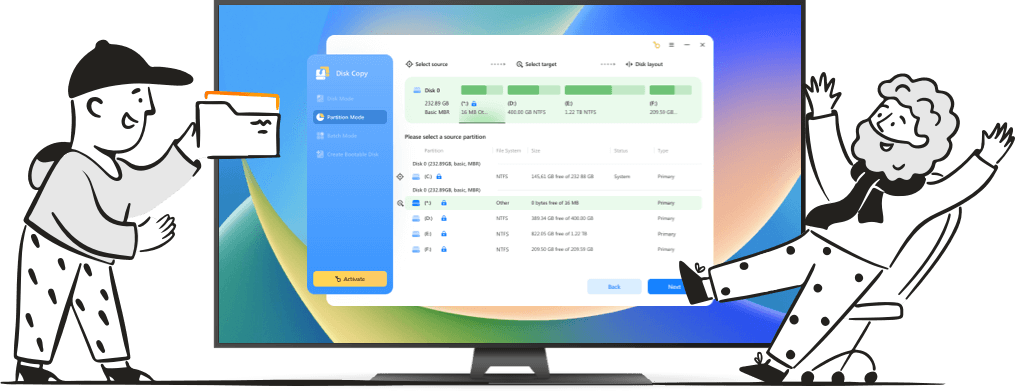
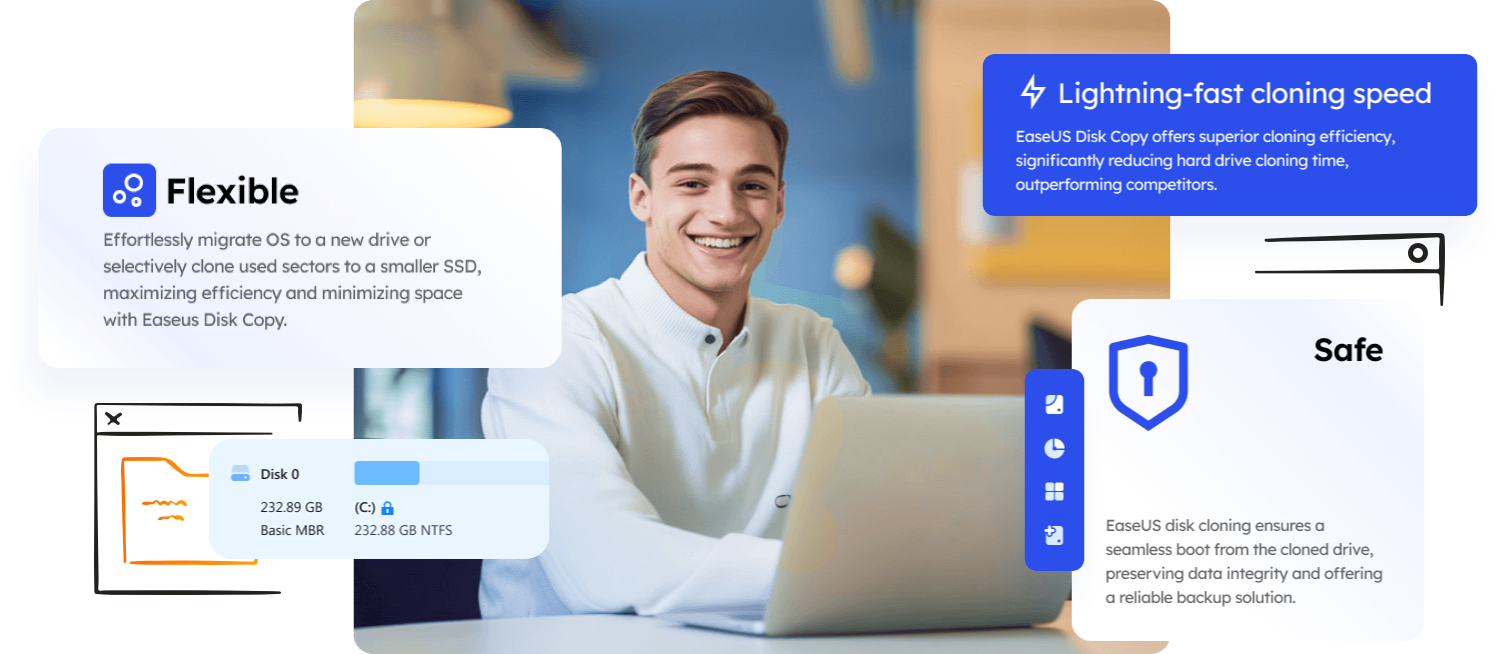
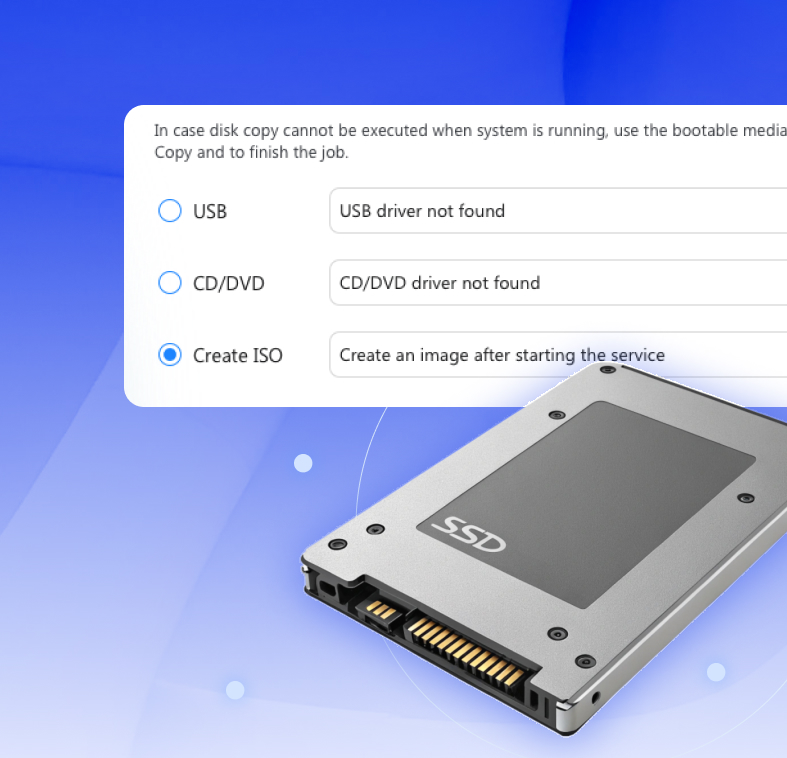
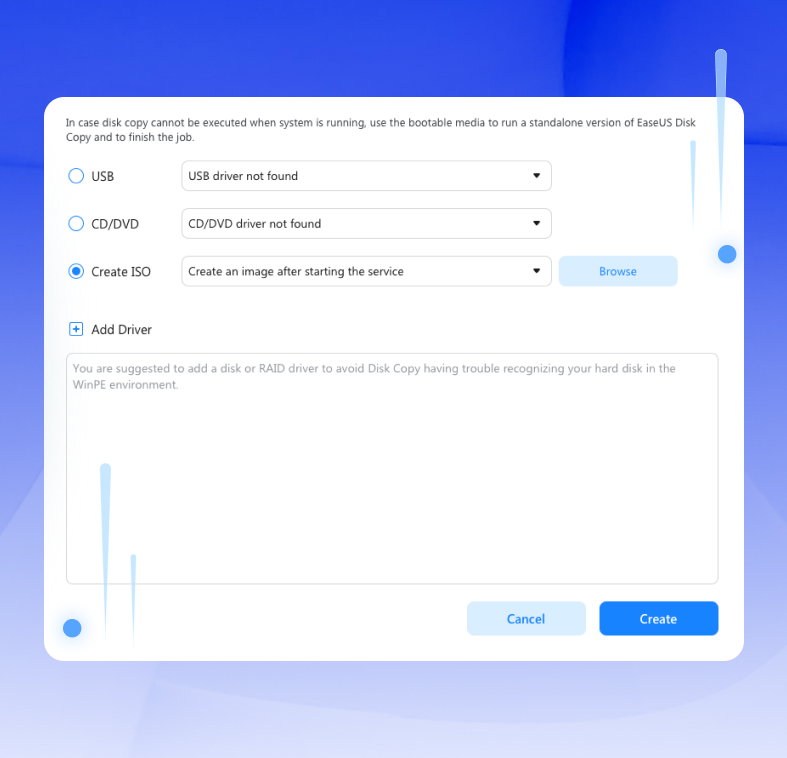
It delivers lightning-fast cloning speeds, ensuring your disk copying tasks are completed in no time. Its flexible features allow you to clone entire disks or individual partitions, migrate your system seamlessly, and create bootable media for recovery.
EaseUS Disk Copy offers a comprehensive suite of tools designed to meet all your disk cloning needs, ensuring a seamless and secure cloning experience, making it the ultimate choice for both beginners and advanced users.
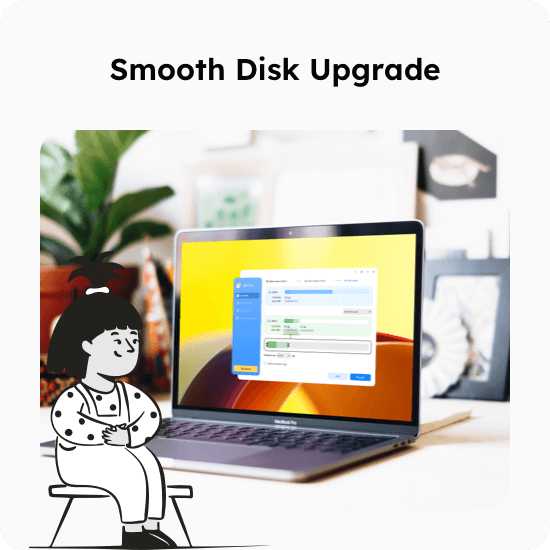
Smooth Disk Upgrade
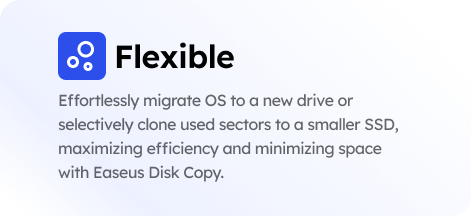
Clone software effortlessly facilitates the upgrade to a larger HDD or SSD, ensuring a data loss-free and seamless transition to enhanced storage capacity.
OS Migration Effortless
Migrating Windows 10/11 from an HDD to an SSD is a straightforward process that enhances system performance without the need for a fresh installation. This direct transfer preserves your operating system, applications, and personal files, ensuring a seamless transition to faster storage with improved read/write speed
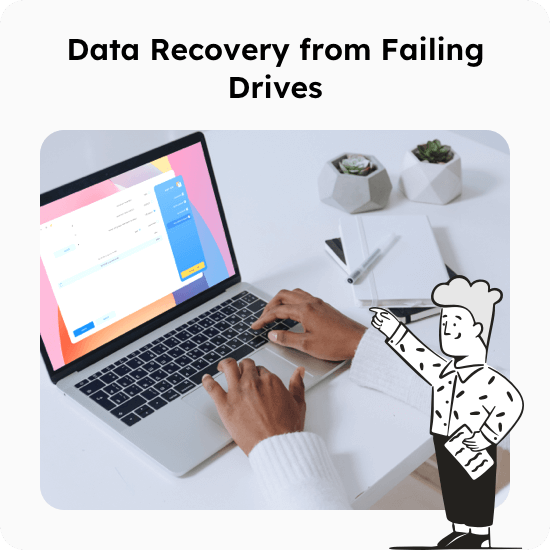
Data Recovery from Failing Drives
Cloning a failing drive to a new one is a strategic move for complete data recovery, ensuring that all your valuable information is preserved. This process creates an exact replica of your old drive, including the operating system, applications, and personal files, on a new, reliable SSD
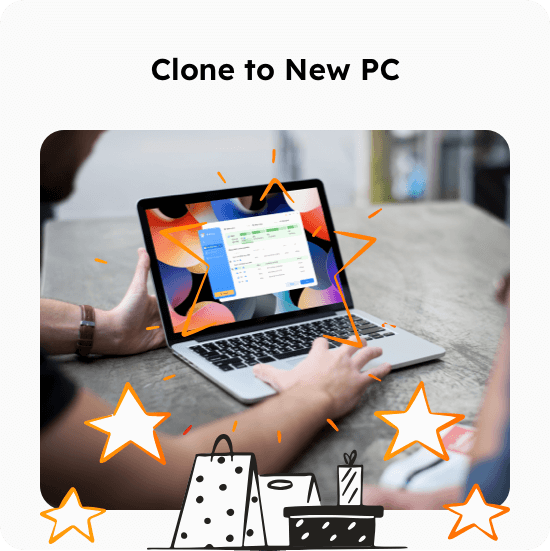
Clone to New PC
Cloning your old HDD/SSD to a new computer simplifies the setup process, bypassing the need for a time-consuming OS reinstallation. This direct transfer ensures your system settings, applications, and files are instantly available on the new machine, preserving your digital ecosystem for a seamless and efficient transition.
Portable Data Transfer
Creating a portable Windows USB drive offers the convenience of carrying a fully functional OS with you, enabling easy data access and productivity on the move. This pocket-sized solution allows you to boot Windows from any computer, providing a personalized environment with your files, settings, and applications, ensuring a consistent and secure computing experience wherever you are.
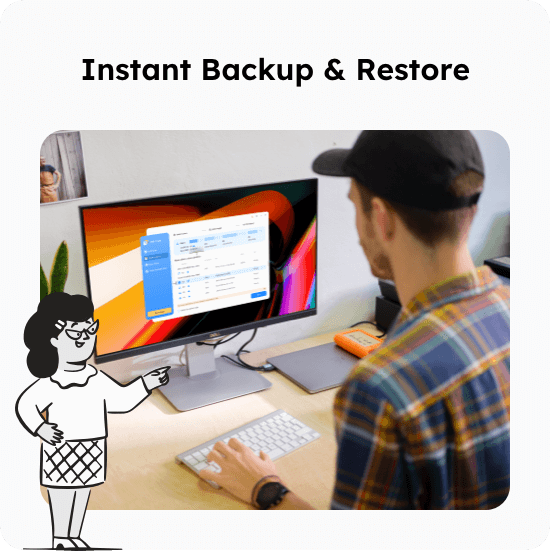
Instant Backup & Restore
Cloning your drive is a smart strategy for creating a quick backup and ensuring a swift restore in the event of a system failure. This method duplicates your entire drive, preserving all data, settings, and applications, so you can restore your computer to its previous state with minimal downtime. It's an efficient way to safeguard your digital life against hardware malfunctions or data corruption, giving you peace of mind that your important files are always protected and easily recoverable.
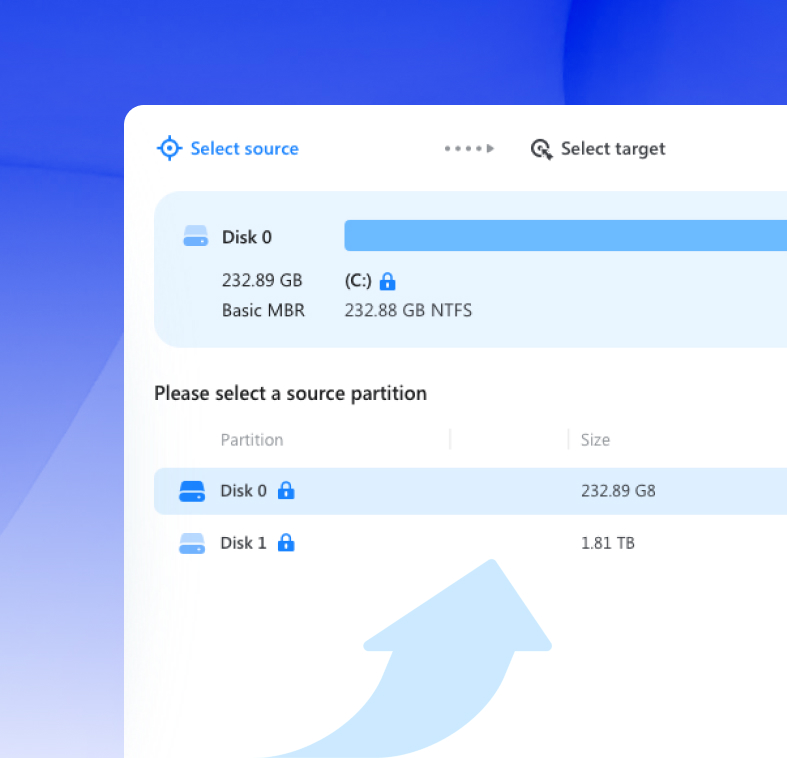
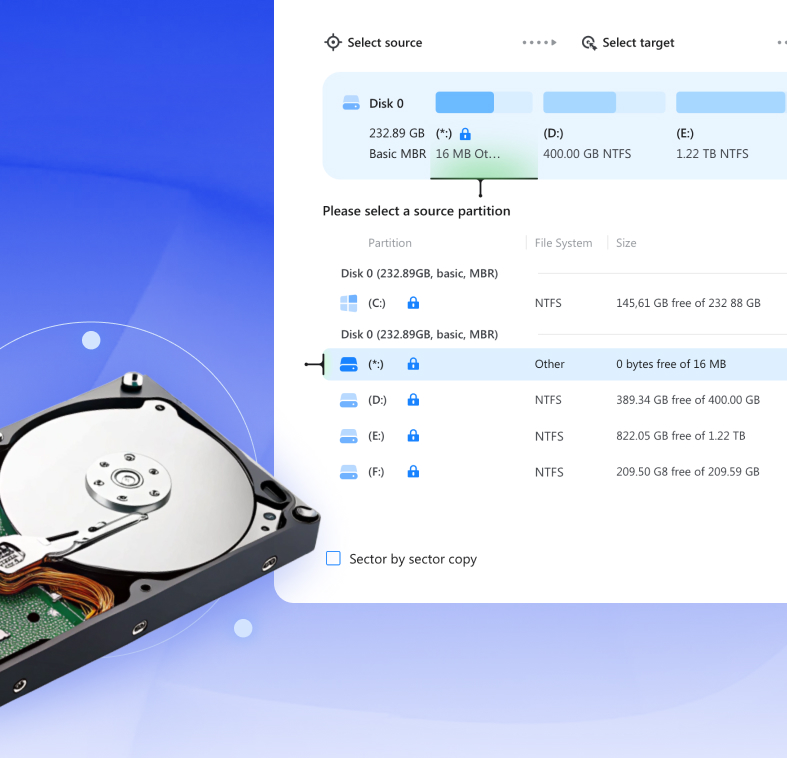
Select a disk/partition and click the sector by sector to start a sector-level copy.
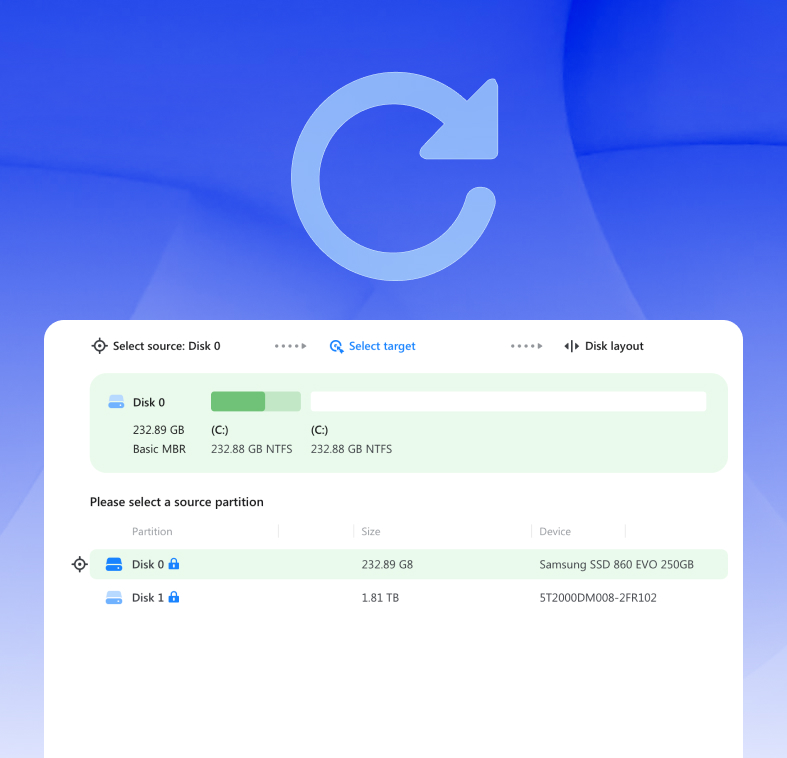
Confirm a disk that you attempt to clone the source disk to.
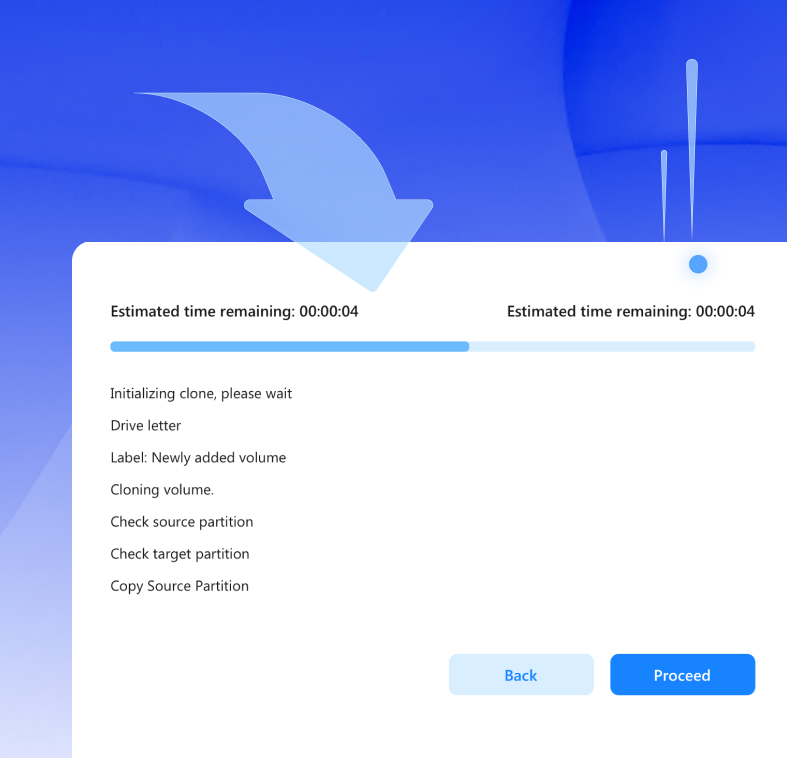
Click to clone and auto-fit the disk afterward. Optimize SSD and edit disk layout.
This video can help you clone your disk with a comprehensive guide
Windows 11/10/8/7
Windows Server 2008/2012/2016/2019/2022
FAT12
FAT16
FAT32
NTFS
On filesystem error, rearranged layout, cloned partition by sector.
Cloned MBR to GPT, converted back to MBR.
Improved PE creation UI, added retry mechanism.
Improved partition deletion, non-critical partitions deleted directly.
Does Windows 10 have disk cloning software?
Microsoft Windows 10 doesn’t have any built in disk cloning option to directly clone a hard drive to another. When Windows 10 users need to upgrade a hard drive to transfer operating system to a new HDD, SSD or even a new PC, the only default option they can reply on is the System Image function in the Windows Backup and Restore (Windows 7) program. Never bother. EaseUS Disk Copy can perfectly work as Microsoft cloning software.
What’s the best free disk cloning software?
Disk cloning is a widely applied method to replace a hard drive or change a computer without losing data or reinstalling operating system. There are many disk cloning software that offers free trial for cloning an entire hard disk or an individual partition, and EaseUS disk copy software is overall the best when it comes to ease of use, cloning speed and the success rate.
How to clone hard drive to SSD?
Launch EaseUS Disk Copy on your Windows 7/8/10/11 computer, and connect the new SSD to your computer. You’ll go through three steps to clone any hard drive to SSD: choose the source drive > choose the SSD as the destination drive > click Proceed.
Can I clone HDD to smaller SSD?
Yes, only if your SSD is no smaller than the used space on the HDD. For example, the used disk space on the source HDD is 120GB, then technically speaking, an SSD of over 120GB size is enough.
Is there any open source disk cloning software?
Generally speaking, Clonezilla represents the best disk cloning software from open source. It's always appear on the top list rank on review sites due to its free access and ability in cloning both an entire hard drive and single partition. However, open source software is widely used among IT professionals, beginners seldom use it, due to the complexity to operate.


 Operating System Supported:
 Files System Supported

