
-
![]() League of Legends Account Recovery: How to Get Riot Account Back
League of Legends Account Recovery: How to Get Riot Account Back September 22,2026
 6 min read
 -
![]() Fix The Type of the File System Is RAW Now with 3 StepsSeptember 22,20266 min read
Fix The Type of the File System Is RAW Now with 3 StepsSeptember 22,20266 min read -
![]()
-
![]() How to Fix [Please Wait for the GPSVC] for Long TimeSeptember 22,20266 min read
How to Fix [Please Wait for the GPSVC] for Long TimeSeptember 22,20266 min read -
![]() Aptio Setup Utility Ultimate Guide | How to Access/Fix ItSeptember 22,20266 min read
Aptio Setup Utility Ultimate Guide | How to Access/Fix ItSeptember 22,20266 min read -
![]() External Hard Drive Not Formatting? Complete Guide to Fix Format ErrorSeptember 22,20266 min read
External Hard Drive Not Formatting? Complete Guide to Fix Format ErrorSeptember 22,20266 min read -
![]() Solved: The Volume Does Not Contain a Recognized File SystemSeptember 22,20266 min read
Solved: The Volume Does Not Contain a Recognized File SystemSeptember 22,20266 min read -
![]() Fix Excel 2016 Opens and Closes Immediately [4 Ways]September 22,20266 min read
Fix Excel 2016 Opens and Closes Immediately [4 Ways]September 22,20266 min read -
![]() Error: Google Docs Didn't Save My Work | How to Recover Unsaved Changes to Google DocsSeptember 22,20266 min read
Error: Google Docs Didn't Save My Work | How to Recover Unsaved Changes to Google DocsSeptember 22,20266 min read -
![]() How to Fix Invalid Media or Track 0 Bad - Disk Unusable Error in 8 WaysSeptember 22,20266 min read
How to Fix Invalid Media or Track 0 Bad - Disk Unusable Error in 8 WaysSeptember 22,20266 min read
Page Table of Contents
A "raw drive" is a storage device, such as a USB drive or hard disk, that the operating system is unable to access or identify because of a file system problem. In essence, the drive is marked as RAW because the operating system is unable to comprehend its raw file structure.
PAGE CONTENT:
What Is RAW Drive/External Hard Drive
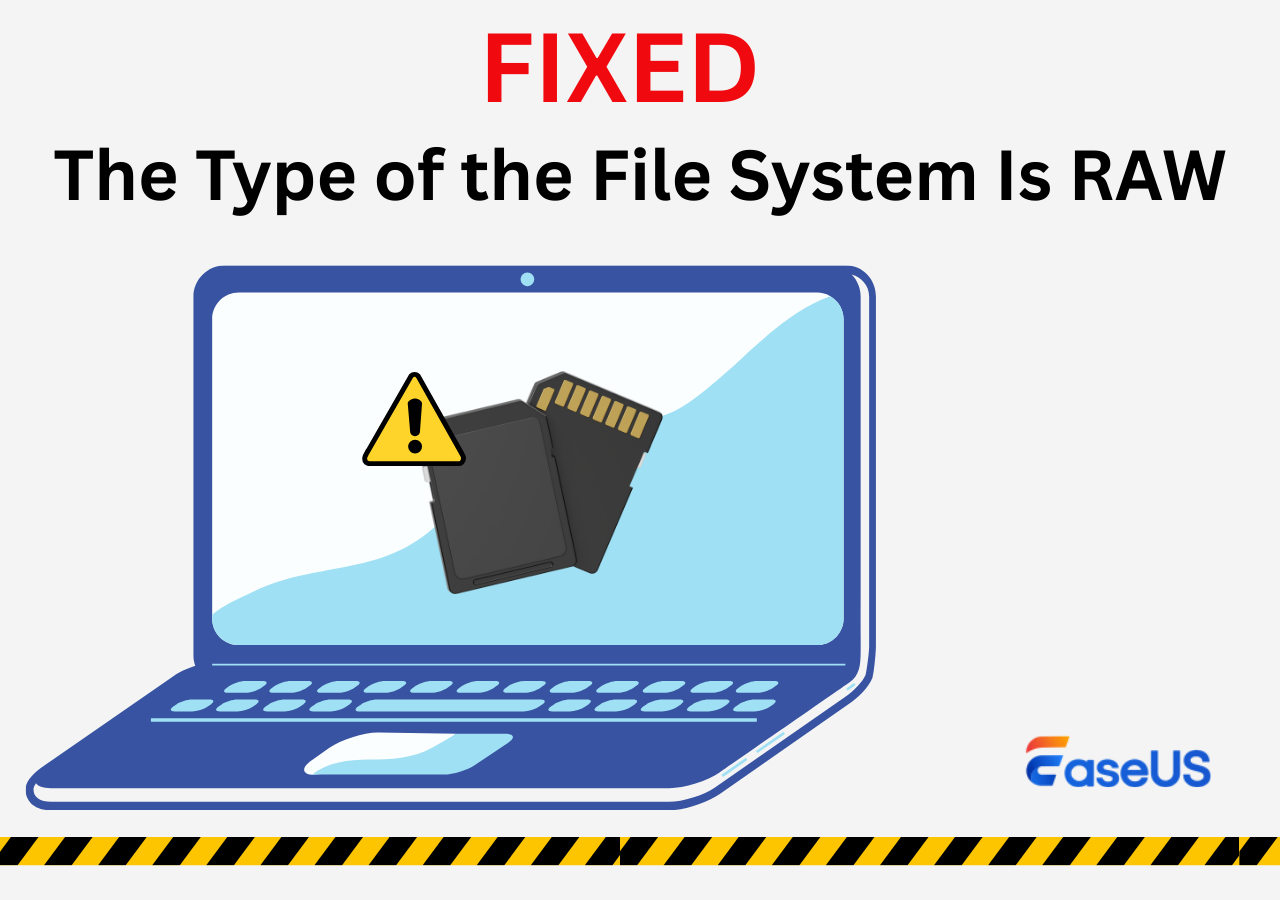
It sometimes happens that your computer hard drive, external hard drive in RAW format, USB flash drive, SD card, or other external storage devices suddenly becomes RAW. When your hard drive becomes a RAW drive, it indicates that your hard drive is like "the file system is RAW", or "the type of file system is RAW", not formatted with a compatible file system like NTFS or FAT32. And the data on it remains inaccessible.
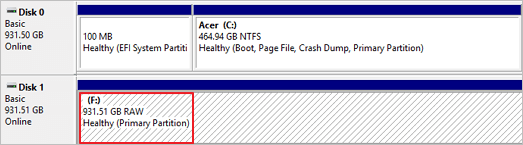
Generally speaking, the causes of hard disk failures that appear to be RAW are mainly divided into logical errors and physical errors. Physical damage frequently manifests itself viscerally, such as through odd noises, burning odors, or a drive that "disappears" from your system, in contrast to logical faults. To prevent complete data loss, these hardware malfunctions must be addressed immediately.
How do you identify a RAW hard drive? If you find yourself in one of the following situations, know the symptoms that your (external) hard drive has become RAW.
Logical error symptoms:
- 🗂️The file system is displayed as "RAW"
- ❌File names contain weird characters
- 💽Can't format external hard drive
Logical RAW status occurs when the OS locates the drive's physical storage and critical metadata structures (partition table, $MFT, superblocks) are unreadable.
Unlike logical errors, physical damage often announces itself with visceral warnings – strange noises, burning smells, or a drive that "disappears" from your system. These hardware failures require immediate intervention to prevent total data loss.
Physical error symptoms:
- 💾Rhythmic clicking/grinding
- 🌡️Surface temperature exceeding 55°C
- ⁉️Drive appears/disappears in BIOS/Disk Utility intermittently
Physical damage corrupts the drive's low-level formatting. When sectors become unreadable.
If you have encountered one of the situations listed above, the next thing you need to know is how to perform a RAW drive fix without losing any files on it. Based on our experience, there are three methods to fix a RAW external hard drive. Both are outlined below, and you can also apply the methods to perform SD card RAW format fix, and fix RAW USB flash drives and other storage devices. Keep reading to learn the detailed tutorials.
- Expert Verdict:
- "For logical RAW, 92% recovery success is achievable with professional tools like UFS Explorer. Physical cases? Never DIY – one dust particle can kill platters. Lab costs are painful, but permanent data loss hurts more."
How to Fix RAW Drive [3 Methods]
According to Apple's professional forum, APFS drives experience 37% more logical RAW errors than HFS+ drives due to the complexity of their metadata trees. Always maintain backups or hard disk RAW copy before the click of death! The methods for RAW disk repair vary depending on the condition of your hard drive.
Users may ask, what do I do now RAWs? The following flowchart may help you.
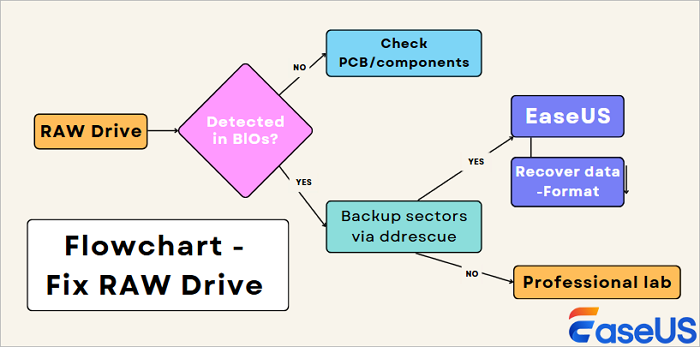
We will introduce three ways to help you perform a file system RAW fix:
| Methods | Editor's Review | Time | Difficulty | Scenario |
| This method requires you to use the Command Prompt to repair your RAW drive using the CHKDSK command. You'll need the RAW drive letter. | 10 Mins | ⭐⭐ |
|
|
| Ensure you have backed up the RAW drive or need a data recovery tool to avoid data loss. | 10 Mins | ⭐ |
|
|
| When you cannot fix the problem yourself, ask a professional data recovery team for help. | 1-2 Weeks | ⭐ |
|
Method 1. Fix RAW External Hard Drive Without Formatting
If the drive shows RAW but still has a drive letter, you can try to fix the RAW hard drive without formatting it using CMD. With CHKDSK, you have a chance to fix your RAW hard drive without formatting it. Some people might say that CHKDSK is not available for RAW drives, but that's not true. If your external hard drive appears with a drive letter, you can use CMD to try and fix it. If your external hard drive is shown as RAW without a drive letter, follow Method 2 instead.
- Warning
- Running chkdsk can hopefully fix the RAW drive issue, however, it can also result in total data loss. So, perform data recovery in advance, and then continue with the CMD method.
Step 1. Connect your RAW external hard drive to your computer.
Step 2. Click the "search" icon in the taskbar and type cmd. Then, right-click "Command Prompt" and choose "Run as administrator".
Step 3. Enter chkdsk G: /f and hit Enter to fix your RAW external hard drive. (G is the drive letter of your RAW drive.) and
After the repair process, you can open Disk Management to check if your hard drive is repaired. If CHKDSK is not working, don't worry. You can fix your RAW external hard drive using the method below. You can also check the following passage to fix the CHKDSK issues:

The Type of this File System Is RAW, CHKDSK Is Not Available for RAW Drives
Getting error message 'The type of the file system is RAW. Chkdsk is not available for RAW drives'? Read more >>
Method 2. Format RAW External Hard Drive to NTFS Without Losing Data
A straightforward way to do this is to first recover data from the RAW external hard drive first and then use the RAW NTFS converter or other file systems you like. As mentioned above, RAW means your external hard drive is not formatted. Thus, the direct way to fix it is to format the RAW drive to NTFS, FAT32, or other file systems available. However, as we all know, formatting inevitably causes data loss on your storage device. To avoid data loss, you can use the 100% secure EaseUS Data Recovery Wizard to recover your files before or after the formatting process.
As one of the best RAW format hard drive recovery software for Windows, EaseUS Data Recovery Wizard will perform RAW drive recovery safely and quickly. After that, you can format your RAW external hard drive to NTFS without worrying about losing files. This software can be helpful when you perform a USB RAW format fix or troubleshoot other storage devices.
- Notice:
- It's better to recover data before you format the RAW external hard drive to NTFS or other file systems.
- Although you cannot access data on the RAW hard drive from your computer, the RAW hard drive recovery software can successfully access and recover it for you.
First, recover Data from the RAW Hard Drive:
A video tutorial and detailed steps are provided below. Follow one of them to restore files from your hard drive and recover files after disk format immediately.
- 00:00 RAW drive errors introduction
- 01:14 How to check drive condition
- 03:04 Fix RAW drive problem
You can recommend EaseUS Data Recovery Wizard to more users who have the same trouble as you!
Detailed Steps to Recover Files from RAW drive with EaseUS Data Recovery Wizard:
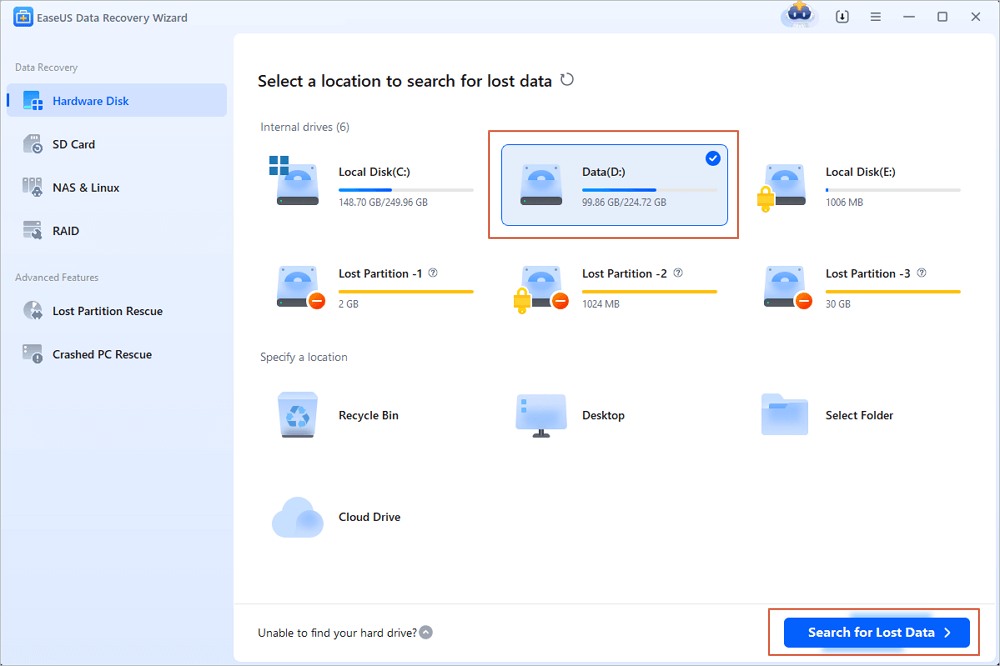
Step 1. Select and scan the RAW partition
If the RAW partition contains a partition label, you can directly select it from drives list and click "Search for Lost Data" to look for the lost files. If the RAW partition lost its label, it will be recognized as "Lost Partition", just select the "Lost Partition" and initiate an overall scan on the RAW drive.
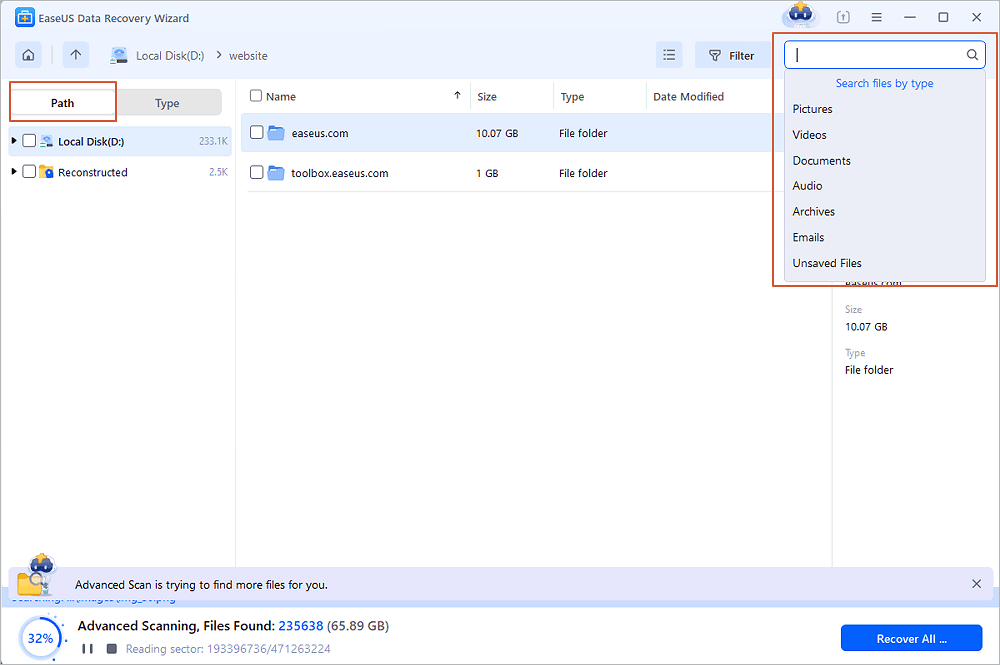
Step 2. Preview found data from the scan result
After the scan is completed, all available files in the RAW hard drive will be displayed. View these files and find the files you want to recover. You can sort the scanned data by file format or search directly in the "Search files or folders" box.
Step 3. Recover data from RAW partition
Select all files and click "Recover" to get all the data back. Select another internal/external hard drive or Cloud drive to save the recovered data and click "OK" to start RAW drive recovery.
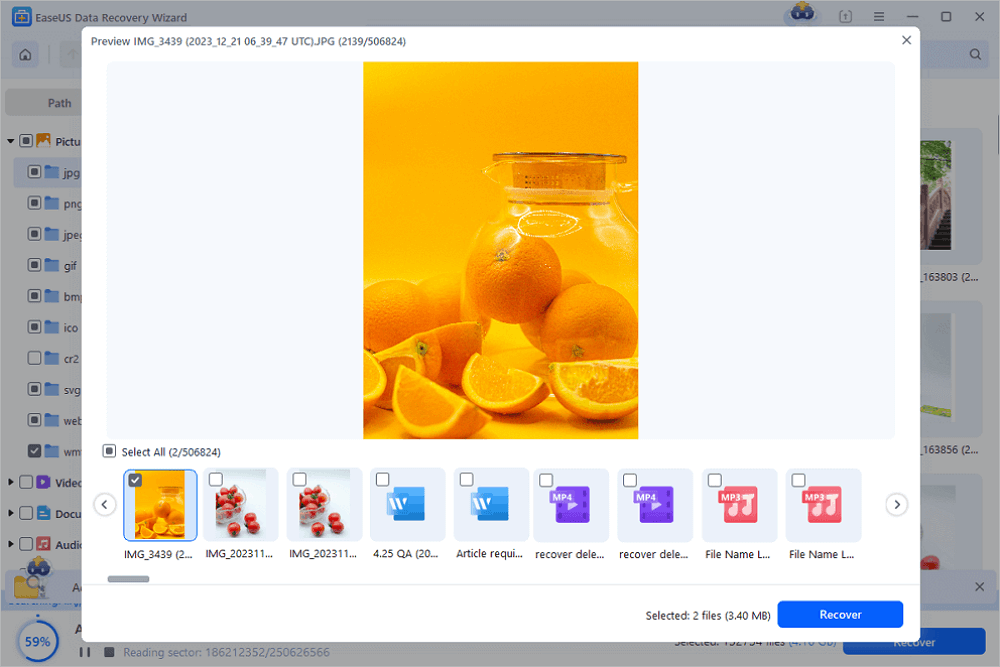
This solution is also applicable to raw USB recovery and raw pen drive recovery. Other than RAW disk recovery, this software is also capable of retrieving data from other situations, like recovering deleted files after emptying the Recycle Bin, recovering formatted SD cards, restoring lost data after reinstalling OS, and more. It's worth downloading EaseUS Data Recovery Wizard on your computer to minimize the chance of data loss.
Then, Format the RAW Hard Drive to NTFS:
After you have successfully recovered files from the RAW external hard drive, you can format the external drive to NFTS. After formatting, the drive will become normal and usable.
Step 1. Connect your RAW external hard drive to your computer.
Step 2. Go to "This PC" > "Manage" > "Disk Management".
Step 3. Find and right-click the RAW hard drive and choose "Format".
Step 4. Select the file system (NTFS) and assign a drive letter to your hard drive.
Step 5. Click "Start" to format your RAW hard drive. When formatting has been completed, click "OK".
Don't forget to share this useful tutorial with more users!
Method 3. Fix RAW External Hard Drive with RAW Recovery Services
You can also try an efficient way to fix RAW external hard drive and recover by using manual RAW data recovery services.
Consult with EaseUS data recovery experts for one-on-one manual RAW HDD recovery service. We could offer the following services after FREE diagnosis:
- Repair damaged RAW drive without formatting
- Recover data from RAW drive, including BitLocker encrypted drives
- Recover RAW partition, RAW USB, RAW flash drive, RAW external hard drive, etc
🍎How to fix RAW drive on Mac?
When your external drive, SSD, or SD card suddenly appears as "RAW" on Mac, it means macOS recognizes the physical storage but can't interpret its file system (APFS, HFS+, exFAT, etc.).
For Logical Corruption Only (no physical symptoms), you can use First Aid in Recovery Mode:
- Reboot MacBook and hold Cmd + R to open "Disk Utility".
- Select the parent disk (e.g., "APPLE SSD" not "Macintosh HD") and click First Aid.
It can repair APFS/HFS+ superblocks in a low-risk environment.
RAW Drive FAQs
There are some RAW drive and NTFS drive related questions and answers. Keep reading to get further help.
1. Can the RAW drive be recovered?
Yes. You can run a RAW drive recovery with EaseUS data recovery software:
- Select and scan the RAW partition
- Preview found data from the scan result
- Recover data from RAW partition
2. How do I convert RAW to NTFS?
To convert RAW to NTFS without data loss:
Step 1. Run EaseUS Data Recovery Wizard to recover data
Step 2. Convert RAW to NTFS with the command lines:
- Diskpart
- H: /FS :NTFS
3. What causes a RAW drive?
A lot of reasons can cause an external hard drive to become RAW:
- The file system is not supported by the operating system.
- The file system structure has been damaged.
- A partition is a part of a spanned volume or RAID.
Was this page helpful?
-
Dany is an editor of EaseUS who lives and works in Chengdu, China. She focuses on writing articles about data recovery on Mac devices and PCs. She is devoted to improving her writing skills and enriching her professional knowledge. Dany also enjoys reading detective novels in her spare time. …


 Why Trust EaseUS
 Editor Reviews

20+
Years of experience

160+
Countries and regions

72 Million+
Downloads

4.9 +
Trustpilot Score