
-
![]()
-
![]()
-
![]()
-
![]() Free | How to Recover Files from Formatted USB/Pen Drive
Free | How to Recover Files from Formatted USB/Pen Drive September 17,2026
 6 min read
 -
![]()
-
![]()
-
![]() Recover Deleted Files from USB Without Software (Step-by-Step Guide)September 20,20266 min read
Recover Deleted Files from USB Without Software (Step-by-Step Guide)September 20,20266 min read -
![]()
-
![]() Fix: Need to Format the Disk in Drive Before You Can Use It USBSeptember 20,20266 min read
Fix: Need to Format the Disk in Drive Before You Can Use It USBSeptember 20,20266 min read -
![]() How to Recover Data from a Dead USB Drive: 5 Easy MethodsSeptember 20,20266 min read
How to Recover Data from a Dead USB Drive: 5 Easy MethodsSeptember 20,20266 min read
Page Table of Contents
If you want ro fix the USB drive that already turns RAW, you can first run the CHDDSK command to repair the corrupted file system. If you have the backup of your critical files on this USB, you can then reformat it as a last resort. If not, you may as well restore your files with a data recovery tool like EaseUS Data Recovery Wizard.
PAGE CONTENT:
"I have a USB flash drive that has data on it. When I plugged it into my computer, a prompt appeared asking me to format the drive, and the USB showed as a RAW format. There are important files on the device that I need to recover. Does anyone know how to recover files from a RAW USB?" - from Super User
The USB becoming the RAW format is a common issue that annoys users. When a USB drive becomes RAW, it means the data on the device is inaccessible. You will not be able to access and open files such as documents, photos, emails, and more on your device. Thus, to fix the RAW USB, you need first to perform RAW USB recovery and then fix the USB drive in the RAW format. But, before we show you how to do that, you may want to know more details about how to perform RAW USB drive fix:
Common Situations Indicating USB Has Become RAW
When your USB becomes the RAW format, the system doesn't necessarily show you a RAW USB directly. Instead, you receive various notifications. When you experience one of the situations or error messages below while using a USB drive, and you check the properties of the drive, it will show you that the file system is RAW.
- ⚠️Invalid media type reading drive. Abort, Retry, Fail?
- 🛑The file system is displayed as "RAW."
- ⛓️Windows may show "Disk is not formatted. Do you want to format now?"
- ⚡File names contain weird characters
- ❓"Sector not found" messages

While using certain USB drives such as USB external hard disks, USB memory cards, USB smart media, or other storage media, you may encounter these frustrating notifications. Fortunately, there are ways to repair the RAW USB drive without losing any data. By recovering your precious files from your RAW USB and then fixing the RAW format, you can make your USB drive work properly again without data loss.
Perform RAW USB Drive Fix with Data Recovery Tool
Before you format the USB drive to RAW, perform a RAW USB drive recovery to keep your data safe. The professional USB data recovery tool EaseUS Data Recovery Wizard fully supports RAW USB recovery. With it, you can easily recover all the files from your inaccessible USB drive. You can catch a glimpse of the software here:
- Supports RAW data recovery, deleted files recovery, formatted file recovery, Recycle Bin emptied data recovery, lost partition recovery, virus attack recovery, and other difficult data recovery situations
- Recovers files from a USB flash drive, SD card, memory card, external hard drive, digital camera, music player, computer, etc
- Retrieves almost all file types from USB, including MP4, doc, PNG, and file types you use in your daily life.
Follow the detailed steps here to restore your files from the RAW drive:
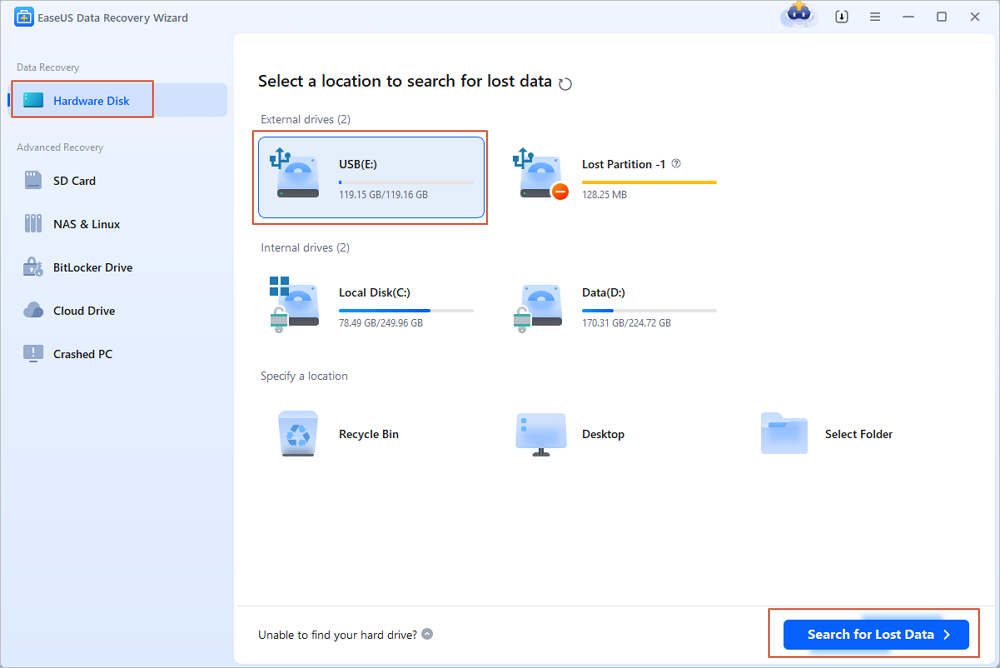
Step 1. Choose the USB drive to scan
Launch EaseUS Data Recovery Wizard and choose your USB drive where you lost important files. Click "Scan for lost data" to start.
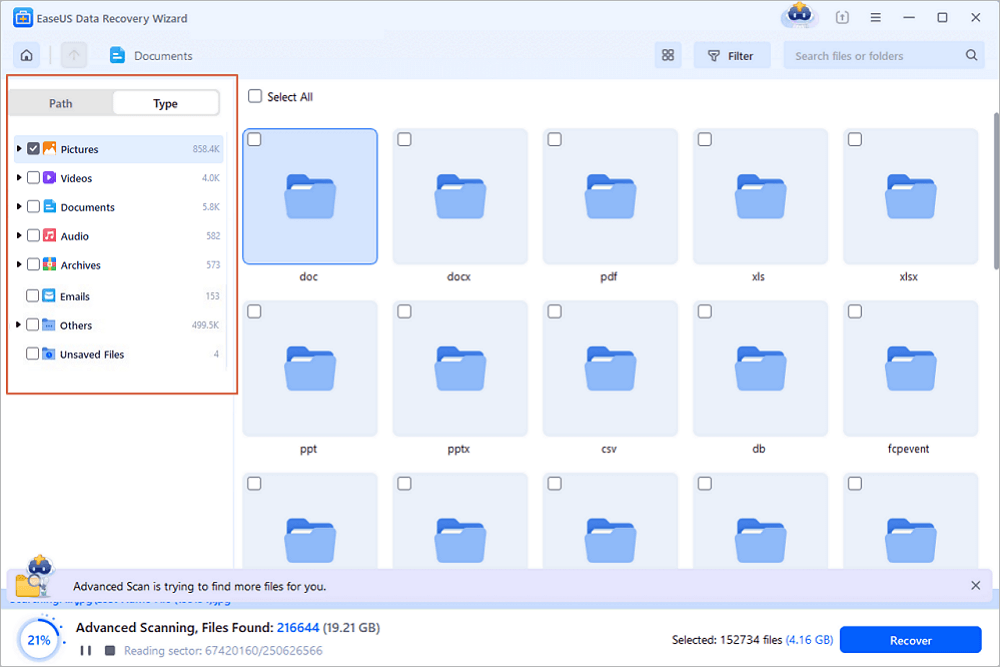
Step 2. Check and preview USB drive data
When the scanning is finished, you can quickly locate a specific type of file by using the Filter feature as well as the Search option.
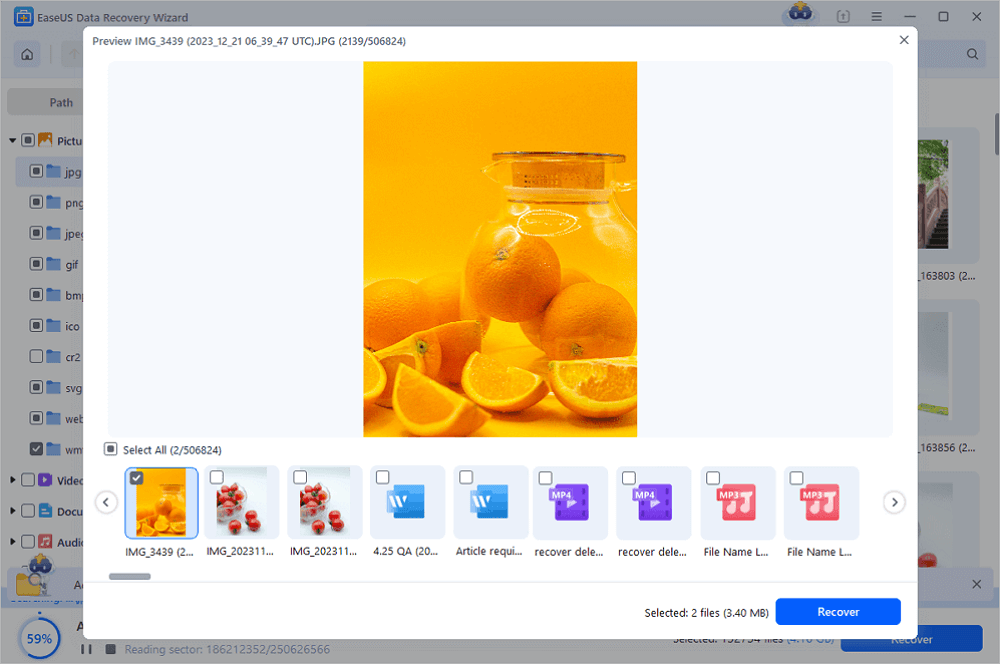
Step 3. Restore flash drive data
After checking and finding lost USB drive files, click "Recover" to restore them. You shall save the found files to a safe location on your PC rather than to your USB drive.
💡Tip: You can restore data on the local disks, external hard drives, and also the cloud storage.
Here is the video guide to help you better repair RAW drive:
- 00:48 Method 1. Repair USB with Error Check Tool
- 01:15 Method 2. Fix Corrupted USB with CMD
- 02:09 Method 3. Uninstall USB Driver to Fix USB Drive
- 02:40 Recover USB with EaseUS Data Recovery Wizard
Share this post with users who are facing the same RAW USB recovery:

When you have a RAW USB drive, you can't just format it directly as you are asked by your computer. Doing so will delete all existing files on the RAW USB drive, and you may lose the chance to recover them. What you should do, instead, is to first recover files from the RAW USB drive and then fix the problematic storage device. And, since you cannot recover files from the RAW USB drive by yourself, you should seek assistance from a third-party tool.
Perform RAW USB Data Recovery with Online Services
As one of the best data recovery software for Windows, EaseUS Data Recovery Wizard is a good recommendation for RAW USB drive recovery, including unparalleled manual recovery services.
Consult with EaseUS data recovery experts for one-on-one manual RAW recovery service. We could offer the following services after FREE diagnosis:
- Repair damaged RAW drive without formatting
- Recover data from the RAW drive, including BitLocker encrypted drives
- Recover RAW partition, RAW USB, RAW flash drive, RAW external hard drive, etc.
3 Ways to Fix Corrupted RAW USB Drive
As you probably know, the most effective way to fix a USB in RAW format is to format it. However, formatting the device should be your last resort, as it erases all data on your USB drive.
Method 1. Fix RAW USB Drive by Checking the Device
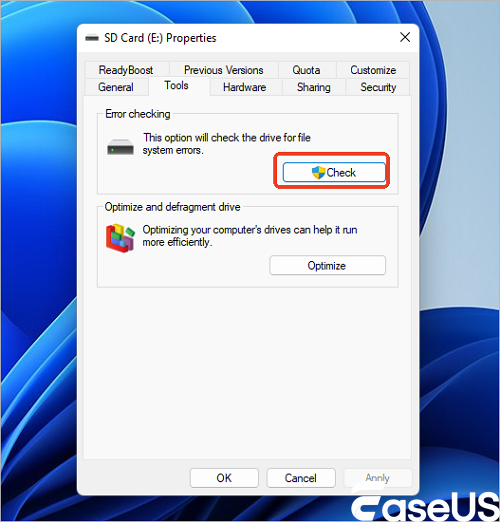
A built-in Windows feature can help you check the drive for file system errors and automatically repair them.
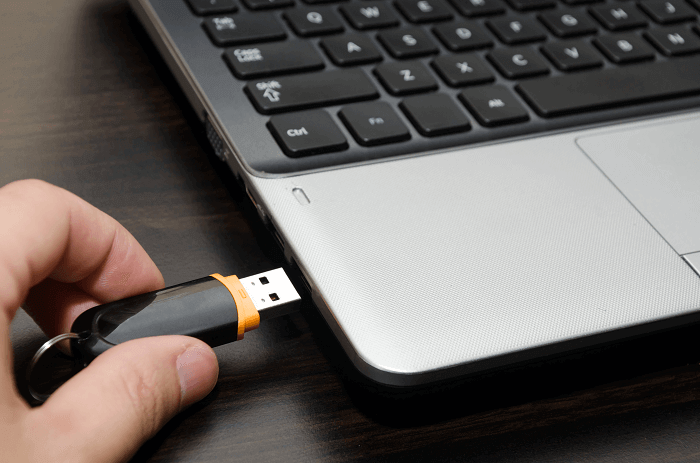
Step 1. Connect your USB drive to your computer.
Step 2. Go to "This PC" (in Windows 10). Under "Devices and drives", right-click your USB and choose "Properties".
Step 3. Click the "Tools" tab and then click "Check".
Step 4. In the "Error Checking" window, choose "Scan and repair drive" and wait for the process to finish.
Method 2. Repair a RAW USB Drive Using CMD
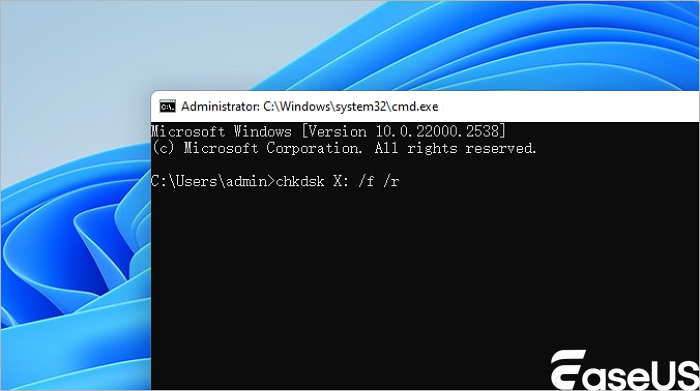
You might have heard that the chkdsk command is not available for RAW drive. However, that's not true. As long as your USB is still shown with a drive letter, you can use the command to check and repair the storage device.
- Warning
- Running chkdsk can hopefully fix the RAW USB drive issue, however, it can also result in total data loss. So, perform data recovery in advance, and then continue with the CMD method.
Step 1. Connect your USB to your computer.
Step 2. Click the "search" icon in the taskbar and type cmd. Then, right-click "Command Prompt" and choose "Run as administrator".
Step 3. Enter chkdsk /f G: (G is the drive letter of your RAW drive) and press Enter to fix your RAW USB.
After the repair process, launch Disk Management and check if your hard drive is repaired. If CHKDSK is not working, consider formatting your USB. Luckily, since you have recovered files from your USB already, you can format the USB without any worries.
Method 3. Fix and Repair a RAW USB Drive by Formatting It
Step 1. Connect the RAW USB/SD card/pen drive to your PC.
Step 2. Open "This PC/My Computer". Right-click the RAW USB drive, SD card, or other RAW device and select "Format".
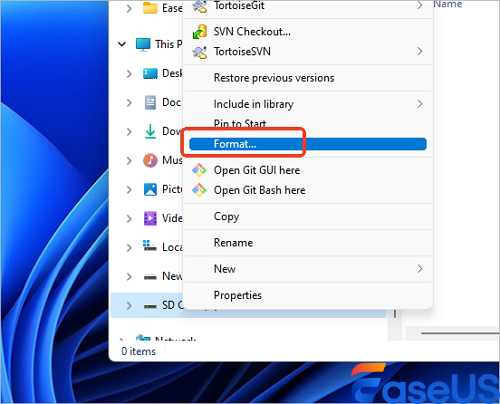
Step 3. Reset the file system, rename the USB drive, and then click "OK" to repair the RAW USB drive to NTFS/FAT32. After that, it will be reusable again.
There is more than one way to format a USB. In addition to the built-in features in Windows, you can also format the RAW USB with a professional usb formatter. After the formatting, you can move the files back to the USB drive if you need to.
Conclusion
Generally speaking, it's easy to fix a RAW USB flash drive. To keep your data safe, though, you will inevitably need the help of a third-party EaseUS Data Recovery Wizard tool like EaseUS Data Recovery Wizard. It successfully performs RAW USB recovery and it can also be helpful in other data recovery situations. Go ahead and grab the tool to fix RAW issues without worries.
RAW USB Drive Recovery FAQs
Do you want to learn more about RAW USB drive recovery? We have prepared four frequently asked questions to help you learn more information:
1. How to fix RAW USB without formatting?
You can fix the RAW USB without formatting by using the methods below:
- 1. Repair the RAW file system of your USB drive.
- 2. Check hardware issues.
- 3. Use the CHKDSK command to fix the RAW USB.
- 4. Check the USB driver update.
- 5. Delete the RAW partition on your USB drive.
2. Is that possible to recover data from a RAW USB?
Yes, RAW drive recovery is available with EaseUS Data Recovery Wizard.
- 1. Connect your USB drive to your computer/laptop, and scan it with EaseUS Data Recovery Wizard.
- 2. It is time to select the files you want to recover from your USB flash drive.
- 3. The Recover button should be pressed when ready to perform a RAW USB recovery.
3. How to format a RAW USB drive?
You should follow the steps below to format a RAW USB drive:
- 1. Recover data from your RAW USB with EaseUS Data Recovery Wizard.
- 2. Open Windows Disk Management.
- 3. Right-click your RAW USB flash drive and click "Format", then your USB drive will be formatted.
4. Why did my USB drive suddenly become RAW format?
Your USB drive needs to be formatted or has been incorrectly formatted recently. This may be because your computer's operating system does not currently recognize the file system on your USB. Or a virus has invaded your USB drive.
Was this page helpful?
-
Dany is an editor of EaseUS who lives and works in Chengdu, China. She focuses on writing articles about data recovery on Mac devices and PCs. She is devoted to improving her writing skills and enriching her professional knowledge. Dany also enjoys reading detective novels in her spare time. …
 Why Trust EaseUS
 Editor Reviews

20+
Years of experience

160+
Countries and regions

72 Million+
Downloads

4.9 +
Trustpilot Score