Page Table of Contents

Want to upgrade your HDD to an SSD without losing data or reinstalling Windows? Moving Windows from an HDD to an SSD does not require a fresh Windows installation. You can clone the old drive to the new SSD and transfer Windows, installed programs, settings, and personal files in one go.
This guide explains how to clone HDD to SSD seamlessly using powerful cloning software EaseUS Disk Copy, what to check before starting, and how to troubleshoot common problems after cloning.

What to Prepare for Cloning Hard Drive to SSD
Before you start, there are some preparations you need to make to have a smooth cloning process:
- Choose the right SSD - Check whether your computer supports a 2.5-inch SATA SSD, an M.2 SATA SSD, or an M.2 NVMe SSD, and make sure the new SSD is large enough for your current data.
- Connect target SSD to PC - If your desktop or laptop has an available drive bay or motherboard slot, install the SSD according to the manufacturer's instructions. For a laptop with only one internal drive slot, connect the new SSD using a USB-to-SATA adapter or an NVMe enclosure, depending on the drive type.
- Back up important data - Back up important files before cloning. If the destination SSD already contains files, copy them elsewhere first. Disk cloning can overwrite the destination drive's existing partitions and data.
- Clean Up Your HDD - Check the HDD for file-system errors and ensure Windows can access the files you need. Remove unnecessary files to reduce the amount of data transferred.
- Download reliable disk cloning software - Windows has no built-in cloning tools, so you'll need professional cloning software. EaseUS Disk Copy is powerful disk cloning software that lets you clone a hard drive without losing data or reinstalling Windows.
 Free Download
Windows 11/10/8/7
Note: Some SSD brands offer cloning tools that help users upgrade their SSDs, such as Samsung Magician for Samsung SSDs and Acronis True Image for Crucial, WD, SanDisk, and Kingston SSDs. However, they are brand-locked and offer limited advanced cloning settings. Clonezilla is often recommended on Reddit as a powerful and free disk cloning tool, but its requirement to boot from a USB drive can make it less beginner-friendly.
How to Clone Hard Drive to SSD on Windows
Meet all the requirements above? EaseUS Disk Copy can recognize almost all hard drives and SSDs and works perfectly on Windows 11/10/8/7, ensuring all data is transferred to the target disk without loss.
Note: EaseUS Disk Copy supports cloning between MBR and GPT disks. It also supports cloning BitLocker-encrypted drives without disabling BitLocker on the source drive.
Here is how to clone a hard disk to an SSD using EaseUS Disk Copy:
Step 1. Launch EaseUS disk cloning software and select Disk Mode.

Step 2. Select Source and Target Drives.
- Select the old HDD as the source.
- Select the new SSD as the destination.
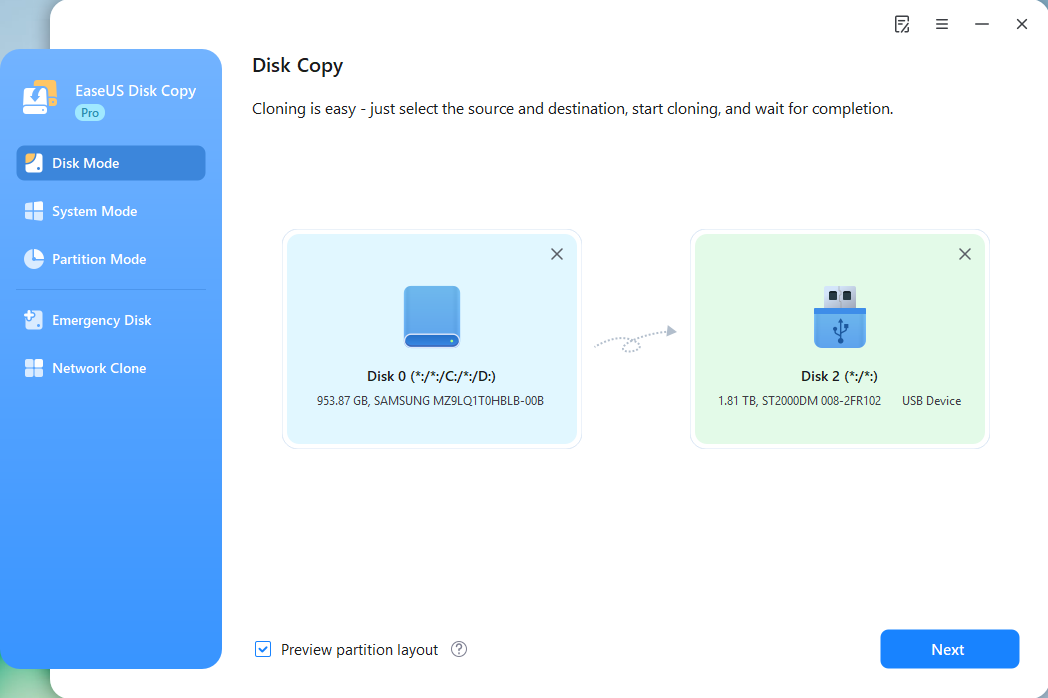
Step 3. Adjust disk layout if necessary. You can choose among "Autofit the disk", "Copy as the source", or "Edit disk layout". Click Proceed, confirm the warning message (data on the destination drive will be erased), and start cloning.
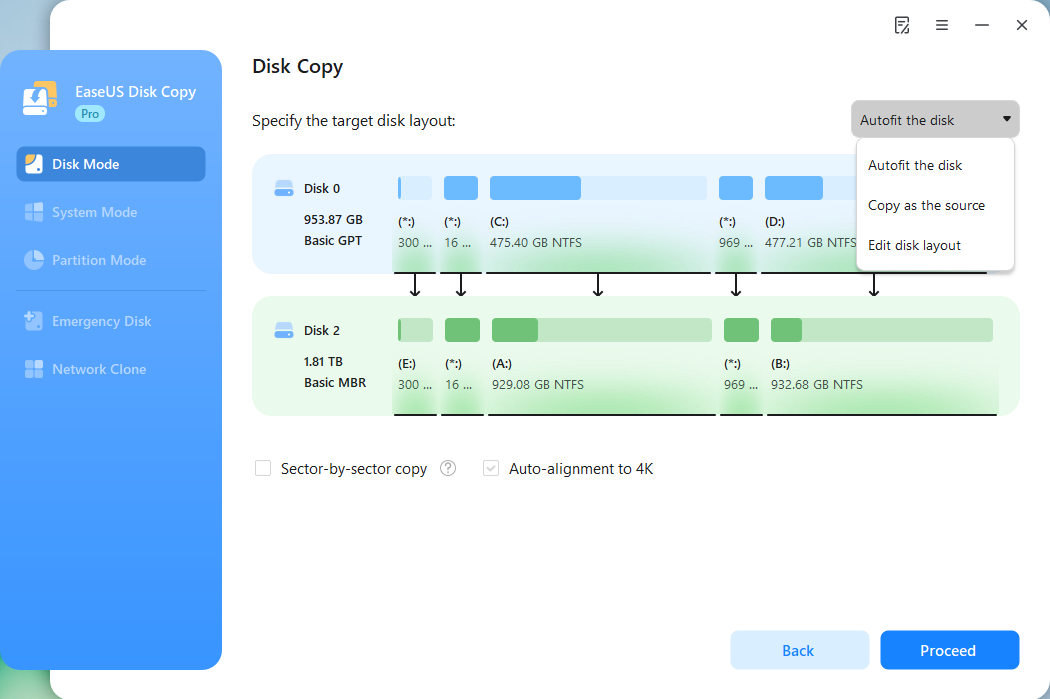
- Autofit the disk: Automatically adjust the layout to fit the target SSD.
- Copy as the source: Keep the original disk layout, but leave unallocated space when cloning to a larger SSD.
- Edit disk layout: Manually adjust the target disk layout.
- Sector-by-sector copy: Copy all sectors on the source drive. The target disk must be at least as large as the source drive.
Step 4. When cloning completes, replace the old HDD with the new cloned SSD, then set it as the primary drive in BIOS/UEFI.
Option 1. If you want to keep both the old disk and the new disk
- Restart the PC and press F2 (F8, F10, DEL...) to enter BIOS settings.
- In the Boot option, select the new SSD as the boot drive.
- Exit BIOS and restart the computer.
Option 2. If you want to keep only the new disk
- Unplug the old disk and make sure the new disk is well connected.
- Restart your computer.
- Option 2 is a better hard drive retention plan for laptops.
Video Guide: How to Clone Disk to SSD Using EaseUS Disk Copy
If you prefer a visual guide, this YouTube video will guide you on how to clone an HDD to an SSD using EaseUS Disk Copy:
Share the blog on social media to help other users easily clone HDD to SSD.

Advanced HDD to SSD Cloning Scenarios
Different upgrade situations often need slightly different cloning approaches. Below are some common real-world cases and how to handle them without overcomplicating the process.
This is probably the most common scenario when upgrading an older laptop or desktop. The key point is simple: your SSD must have enough space for the data you use, not the HDD's total size. Before cloning, delete large files, uninstall unused apps, and make sure the system partition has enough space.
Most cloning tools will automatically resize partitions during migration, but it's still worth checking disk usage first. If the HDD is heavily used, shrinking partitions beforehand helps prevent clone failures.
When moving from a SATA HDD to an NVMe M.2 SSD, performance is the main reason users do this upgrade. The process is similar to a normal clone, but you need to confirm:
- The motherboard supports NVMe boot
- BIOS/UEFI mode is set correctly (usually UEFI)
- The NVMe drive is properly detected before cloning
After cloning, you may need to adjust the boot priority in BIOS so the system boots from the NVMe drive instead of the old HDD.
Clone Laptop Hard Drive to SSD
Laptop SSD upgrades are usually more constrained, especially if there is only one drive bay. In most cases, users connect the SSD via a USB-to-SATA or USB-to-NVMe adapter, clone the system first, and then physically replace the HDD.
Keep the laptop plugged in throughout the process to avoid interruptions, as laptops often take longer to stabilize external drive connections.
As a drive ages, bad sectors can cause cloning to fail or freeze. In this case, the goal isn't a perfect copy speed; it's data salvage. A good approach is:
- Enable "sector-by-sector" mode
- Skip unreadable sectors instead of stopping the process
- Prioritize system and user data first
If the disk is still readable, clone it sooner rather than later. Waiting usually makes recovery harder.
Clone HDD to SSD on Windows 11
Windows 11 or Windows 10 doesn't include a disk cloning tool, so most users rely on third-party software. The main compatibility points are:
- UEFI + GPT partition style is required for Windows 11 boot
- Secure Boot may need to stay enabled in most cases
- System partition and EFI partition must be cloned together
After cloning, if the system doesn't boot, it's usually a bootloader issue; a failed clone - repairing startup via Windows recovery usually fixes it quickly.
Share the blog on social media to help other users easily clone HDD to SSD.
Troubleshooting: Issues You May Encounter After Cloning
Although many users can successfully clone an HDD to an SSD, some exceptions still occur. Here, we list some frequently asked questions and their corresponding solutions, if applicable.
Issue 1. Clone SSD Won't Boot
Have 3 drives, one HDD and 2 SSDs. Now, when I'm cloning from HDD to SATA SSD, the PC refuses to boot from it. I've tried booting directly and removing the other drives with no success.
Disk boot issues can have various causes. Try changing the boot order in BIOS, fixing the Boot Mode conflict, repairing the boot files, or booting into Safe Mode to locate the issue.
🔍Check this page for more detailed solutions - Cloned SSD Won't Boot
Issue 2. The SSD Is Not Detected
Check the physical connection, adapter, enclosure, and motherboard slot compatibility. If the SSD shows in BIOS/UEFI but not in Windows, open Disk Management to check whether it is offline, uninitialized, missing a drive letter, or showing as unallocated space.
Issue 3. SSD Partition Misalignment After Cloning
After cloning a hard drive to an SSD, partitions may not be properly aligned. Improper partition alignment can affect SSD performance. To check partition alignment, follow these steps:
- Step 1. Press Windows + R, type msinfo32, and press Enter.
- Step 2. Navigate to Components > Storage > Disks.
- Step 3. Check the Partition Starting Offset value. For a typical 4K alignment check, the offset should be divisible by 4096.
If you identify a partition alignment issue, use a suitable partition management tool, such as EaseUS Partition Master, to correct it.
Issue 4. The Cloned SSD Shows Less Available Space
If the destination SSD is larger than the source HDD, some space may remain unallocated or may not be included in the copied partition layout. Open Disk Management to inspect the partition layout. If appropriate, extend the relevant partition or adjust the layout using a suitable partition-management tool. Back up important data before making partition changes.
Conclusion
Cloning an HDD to an SSD is a practical way to upgrade storage without reinstalling Windows. Check compatibility and capacity first, back up important data, select the correct source and destination, and verify that the new SSD boots successfully before reusing the old drive.
EaseUS Disk Copy is a reliable and trustworthy cloning tool that simplifies every stage of the cloning process. Whether you are upgrading a desktop or laptop or migrating to a larger or smaller drive, this software delivers the stability, speed, and data integrity you need.
Free Download
Windows 11/10/8/7
FAQ on Hard Drive to SSD Cloning
1. Can I Clone a 1TB HDD to a 500GB SSD?
Yes, you can clone a 1TB HDD to a 500GB SSD if the data and required partitions fit within the SSD's usable capacity and the cloning software supports resizing partitions. The HDD's total capacity alone does not determine whether cloning will succeed. Before cloning, make sure the destination SSD has enough space for the data you want to transfer.
2. Can I just clone my HDD to SSD?
Yes, you can clone your hard drive directly to a solid-state drive. To clone an HDD to an SSD, connect your new SSD to your computer using a USB-to-SATA/NVMe adapter or an extra internal slot, run cloning software like EaseUS Disk Copy, select your source HDD and target SSD, and start the process.
3. Why Won't My Computer Boot from the Cloned SSD?
A computer may fail to boot from a cloned SSD because of an incorrect boot order, missing boot partitions, a mismatch between UEFI and Legacy BIOS modes, or an incomplete clone. First, check whether the SSD is detected in BIOS/UEFI and select the correct boot device, such as Windows Boot Manager. If the computer still won't boot, check the boot configuration and verify that you cloned all required system partitions.
4. Does cloning Windows 11 to a larger SSD require reactivation?
No, you usually don't need to reactivate Windows 11 after cloning it to a larger SSD. Your Windows license remains valid as long as you use the same computer. Once the cloning is complete, Windows should activate automatically. If it doesn't, go to Settings > System > Activation to check the activation status. If you've also changed major hardware, such as the motherboard, you may need to reactivate Windows.
5. Should I Keep the Old HDD After Cloning?
Yes, it's best to keep the old HDD until you've confirmed that the computer boots successfully from the SSD and that your important files and applications work as expected. Make sure you have a separate backup of important data before erasing the old drive. Once the SSD is working reliably, you can reuse the HDD for storage or erase it if you no longer need it.
6. Is a Fresh Install Better Than Cloning?
The choice depends on your needs. Cloning is faster, keeps everything intact, and lets you use your system immediately, but it may carry over clutter or driver issues. A fresh install takes longer but provides a clean, stable system. Choose cloning for convenience; choose a fresh install for better performance and stability.
-
Updated by
Jean is recognized as one of the most professional writers at EaseUS. She has continually improved her writing skills over the past 10 years and has helped millions of readers solve tech problems on PC, Mac, and iOS devices. …Read full bio