





-
![]()
-
![]() Where Are Screenshots Saved Windows 11 | Screenshots Default Location
Where Are Screenshots Saved Windows 11 | Screenshots Default Location February 12,2026
 6 min read
 -
![]()
-
![]()
-
![]() Audio Recovery Software: How to Recover Audio Files on Windows/Mac/Android/iPhoneFebruary 12,20266 min read
Audio Recovery Software: How to Recover Audio Files on Windows/Mac/Android/iPhoneFebruary 12,20266 min read -
![]()
-
![]()
-
![]() Ext3/Ext2 Linux Recovery: Check Best Recovery Solutions HereFebruary 12,20266 min read
Ext3/Ext2 Linux Recovery: Check Best Recovery Solutions HereFebruary 12,20266 min read -
![]()
-
![]()
Page Table of Contents
PAGE CONTENT:
NTFS (short for New Technology File System) is the standard file system of Windows NT, including its later versions Windows 2000, Windows XP, Windows Server 2003/2008, Windows Vista, Windows 7, 8, 10, and 11. It supersedes the FAT file system as the preferred file system for Microsoft's Windows operating systems, which has become increasingly popular.
However, data loss issues like converting raw to NTFS partitions also have a rapid rise, even if you take every precaution to avoid it. To retrieve data from an NTFS partition, if it exists, we recommend using GetDataBack for NTFS to recover the data in Part 1. Or if you lost an NTFS partition, try the following steps in Part 2. Read on to learn the reliable solutions to get lost data back from NTFS drives with the GetDataBack Alternative free version.
Part 1. Get Data Back from NTFS Hard Drive Partition
Do you think it's difficult to get data back from the NTFS partition because of the advantages of the NTFS file system? Nowadays, it's quite easy to achieve the aim of NTFS hard drive recovery software. Many professional data recovery software programs can get data back for NTFS. Millions of search results will appear if you Google "get data back for NTFS".
After a long time of seeking and experience, I recommend you try professional NTFS partition recovery software - EaseUS Data Recovery Wizard to get data back from NTFS volumes. Now, you can use EaseUS Data Recovery Wizard Professional to get data back from an NTFS partition if the partition itself wasn't lost.
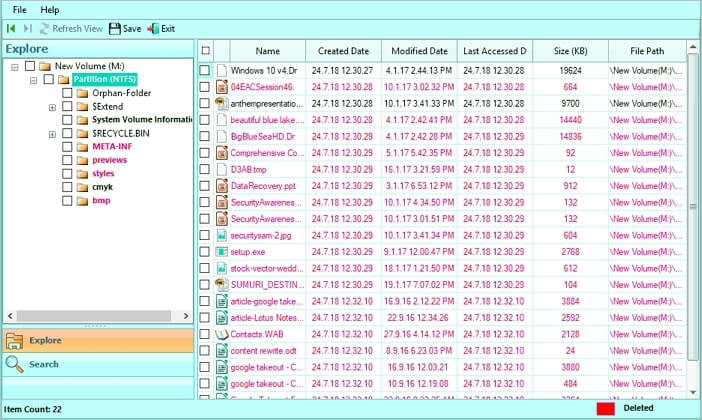
Just follow the tutorial below to get data back from the NTFS/FAT hard drive partition using GetDataBack free version:
To recover an NTFS partition without losing data, you can follow these steps:
- 1. Stop Using the NTFS partition drive
- 2. Choose a Reliable data recovery software like EaseUS Data Recovery Wizard
- 3. Recover NTFS Partition Using TestDisk
- 4. Recover the NTFS Partition from Backup
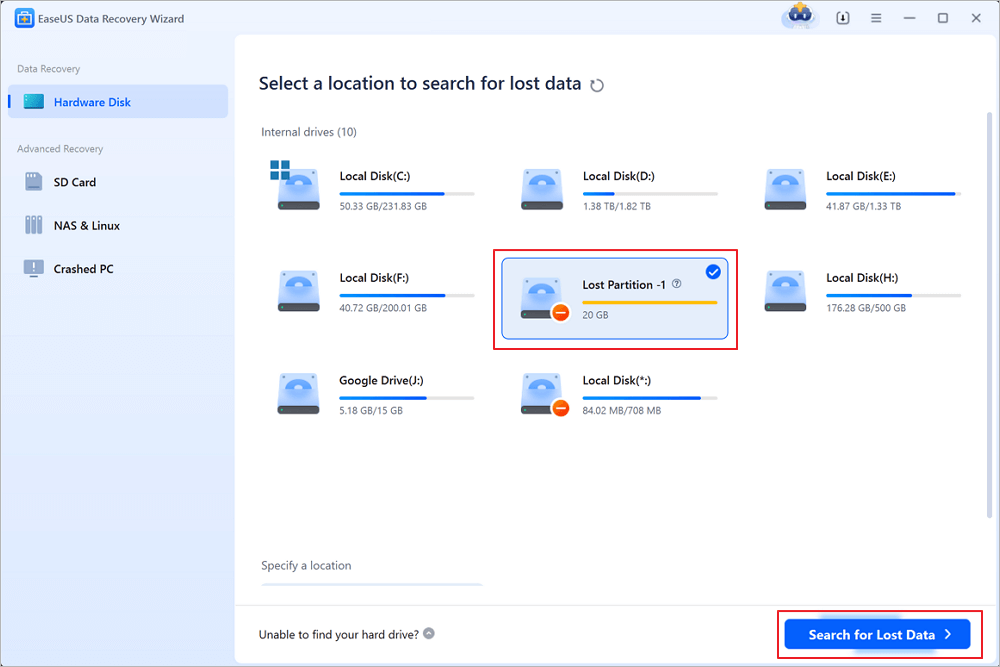
Step 1. Select and scan the lost partition
Launch EaseUS Data Recovery Wizard, select "Lost Partition" and click "Search for Lost Data" to search for all the lost data from your lost or deleted partition. If there are many lost partitions, you can identify them through its partition size.
Note: Since the Windows system doesn't support the Linux file system, the Ext2 or Ext3 partition will be recognized as lost partition with no drive letter in the software. If you want to recover data from Ext2/Ext3 partition, you can follow these steps.
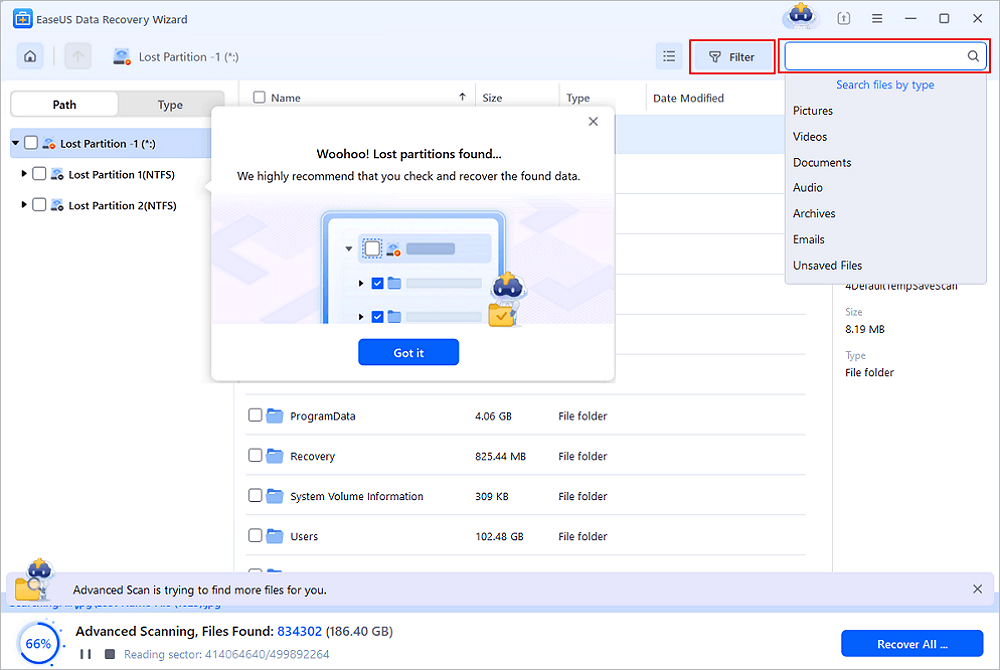
Step 2. Filter the scanned results
Because there will be a lot of scanned files, you can choose a file category for quick filtering, such as Pictures, Videos, Documents, Audio, and Others. Or if you remember the file name, you can just look it up in the search box in the upper right corner.
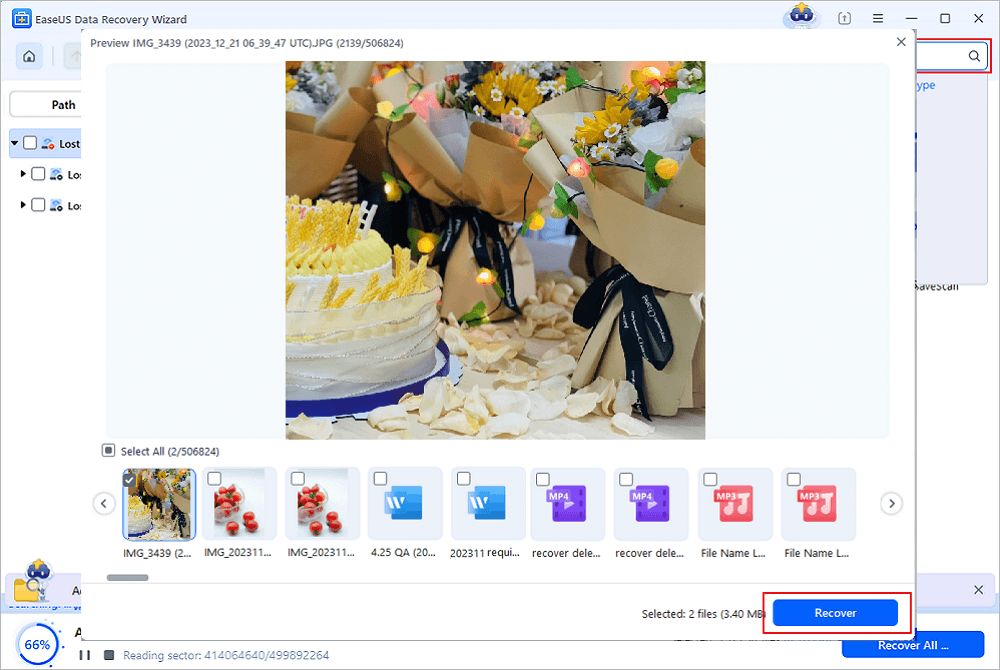
Step 3. Preview and recover data from the lost partition
Before recovery, you can preview the file to make sure it is the data you need. Choose all the files you need and click "Recover" to restore them. Choose a storage location (including cloud storage, such as OneDrive, Google Drive, etc.), and click "Save" to save your recovered files.
This useful software also provides GetDataBack for Mac, an alternative free version. If you think this post is helpful, share it with your friends on SNS!

Part 2. Restore an NTFS Partition Using GetDataBack Alternative
What if you lost the NTFS partition itself? If you accidentally deleted the whole NTFS partition, you can turn to EaseUS Partition Recovery. It can easily recover deleted or lost partitions. It supports all kinds of partitions, including FAT, NTFS, Ext2, and Ext3 volumes in Windows.
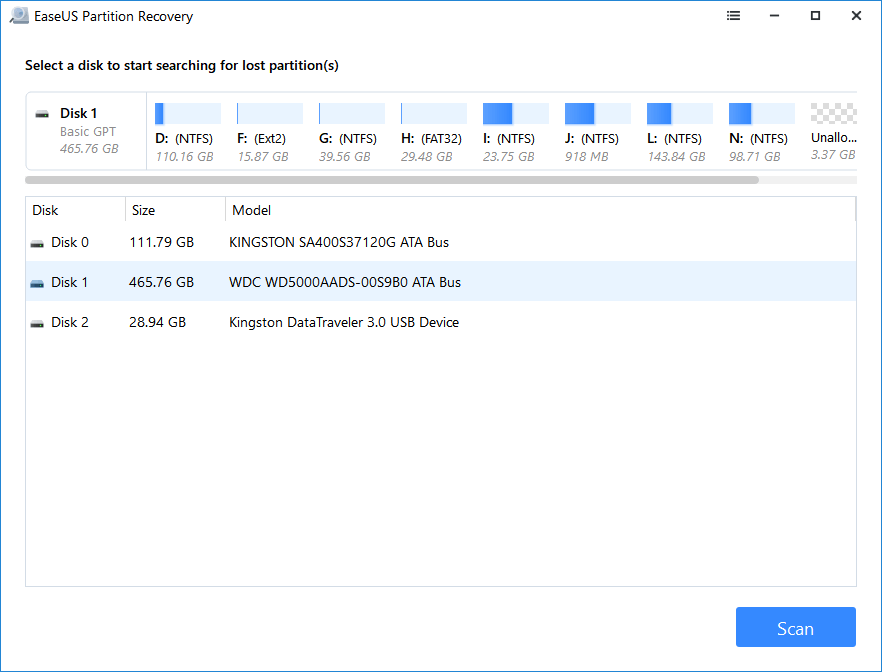
Step 1. Run EaseUS Partition Recovery on your PC.
Select the disk or device where you lost partition(s), click "Scan" to continue.
Step 2. Wait for the scanning process to complete.
Let the program scan the selected disk and find the lost partition(s).
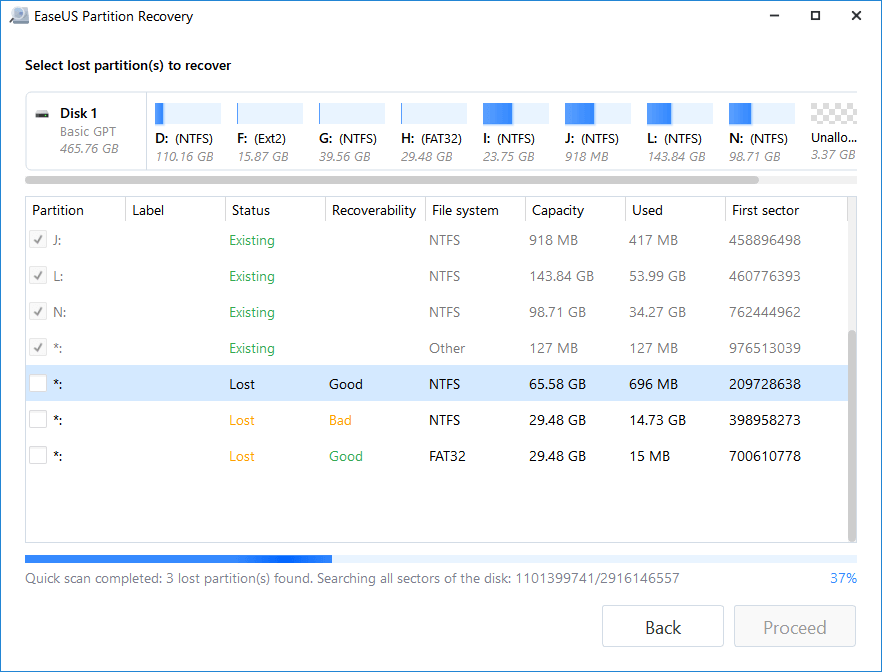
Step 3. Preview and restore the lost partition(s).
Double-click on the partition which is marked as "Lost" with "Good" recoverability.
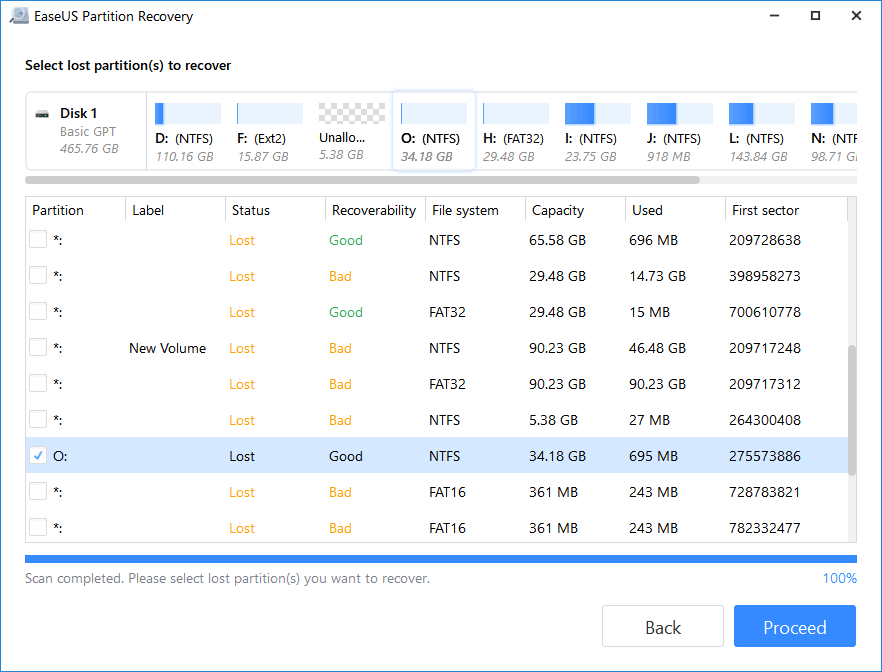
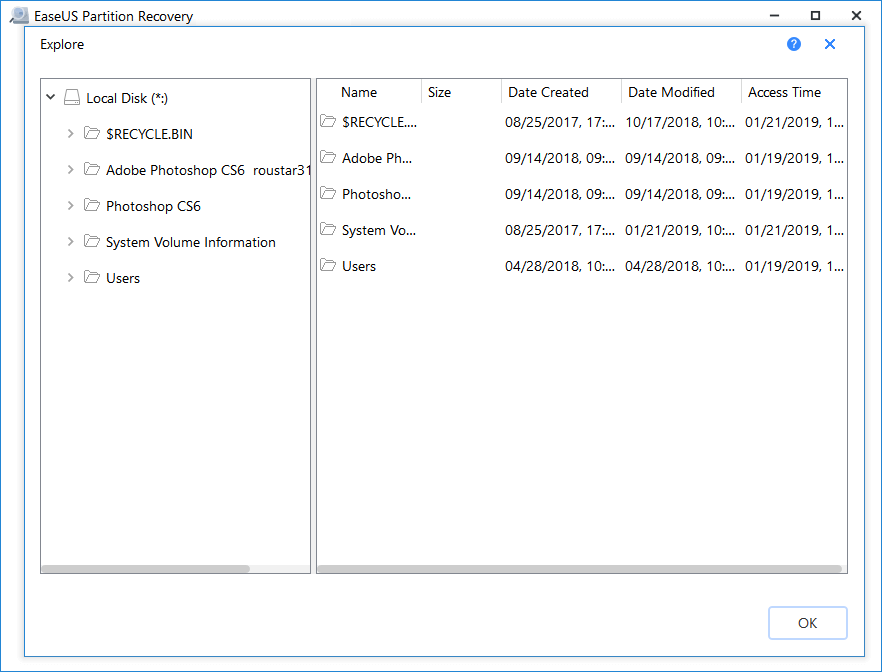
Preview the content of the lost partition. Click "OK" and click "Proceed" to start restoring the lost partition.
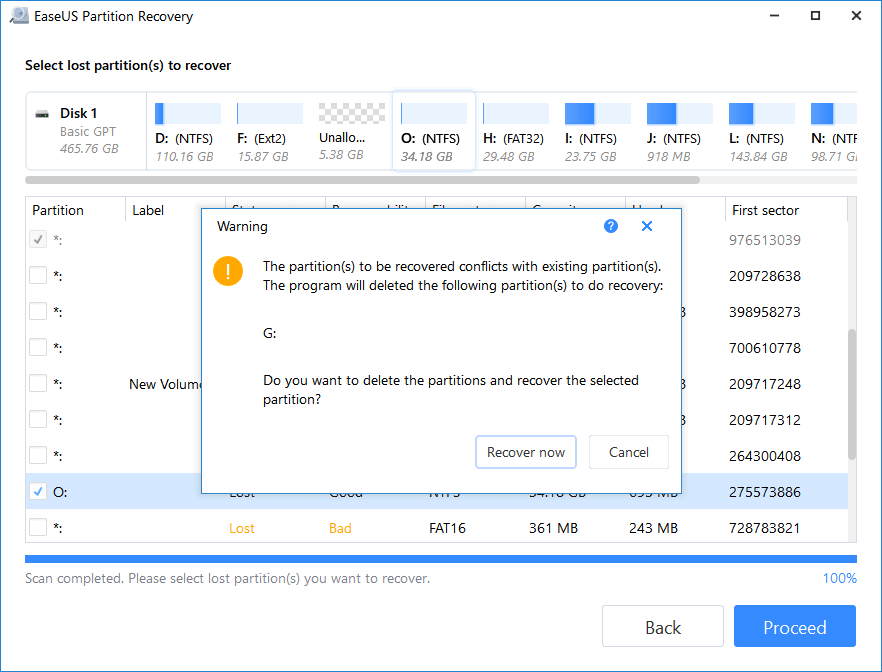
Step 4. Click "Recover Now" to finish the partition recovery process.
Note: If the program warns you that there is a conflict, back up the listed partition with essential data to an external hard drive first. Then execute the final operation to restore your lost partition.
People Also Ask About GetDataBack for NTFS
To help you gain a better understanding of NTFS data recovery and EaseUS Data Recovery Wizard, I have listed some related questions.
1. Can you get data back from a formatted drive?
Yes, you can. When you accidentally or intentionally format a drive in Windows Explorer, Windows Disk Management or Command Prompt DiskPart before creating a backup, take it easy, EaseUS data recovery software comes in handy.
2. Can you recover a deleted partition?
Yes, you can. You can recover deleted partition with EaseUS Partition Recovery. This software recovers deleted or lost partition. It supports all kinds of partitions including FAT, NTFS, Ext2 and Ext3 volumes in Windows.
3. What if the partition becomes RAW?
If you have tried to recover data from the partition, you can then ask for manual repair help to solve your problem.
Consult with EaseUS Data Recovery Experts for one-on-one manual recovery service. We could offer the following services after FREE diagnosis:
- Repair corrupted RAID structure, unbootable Windows OS and corrupted virtual disk file (.vmdk, .vhd, .vhdx, etc.)
- Recover/repair lost partition and re-partitioned drive
- Unformat hard drive and repair raw drive (BitLocker encrypted drive)
- Fix disks that become GPT protected partitions
4. How to fix a corrupted partition table?
When the table on a disk corrupted, you can't use or access the saved data in partition anymore. To fix it, you should do the following things.
- Initialize disk in Disk Management.
- Recover data from unallocated space
- Create partitions on the unallocated disk
- Rebuild MBR
5. What is NTFS and its new features?
NTFS is the abbreviation of New Technology File System. NTFS has several improvements over FAT and HPFS (High-Performance File System) such as improved support for metadata and the use of advanced data structures to improve performance, reliability, and disk space utilization, plus additional extensions such as security access control lists (ACL) and file system journaling.
6. What is GetDataBack and how to use GetDataBack?
If you search for "get data back", the search engine will show you a couple of answers including data recovery software - name called GetDataBack. GetDataBack is a useful data recovery software available for Windows, Mac, and Linux. It supports Windows NTFS, FAT12, FAT16, FAT32, exFAT, among others.
If you want to learn more details about this data recovery software, click to visit.
Simple steps to use GetDataBack:
- Launch GetDataBack.
- Choose the drive which you want to recover data by using GetDataBack.
- Click the file system. Choose folder and then select file. Click Copy.
- Choose save path and click OK.
Conclusion
If you lost data on an NTFS partition and your NTFS still existing, you can refer to Part 1. If you lost the NTFS partition itself, you can refer to Part 2. EaseUS provides reliable solutions whenever you encounter a problem. By the way, it's important to create a backup to protect your data in advance.
If you have any questions about our product, please contact us via online chat: https://secure.livechatinc.com/licence/1389892/open_chat.cgi?groups=3 or send an email to us: [email protected]
Was this page helpful?
-
![]()
Approved by
Evan Galasso is a digital forensics and data recovery engineer with over 10 years of experience in the field. He presents opinions on the current state of storage media, reverse engineering of storage systems and firmware, and electro-mechanical systems of SSDs and HDDs.…

 Why Trust EaseUS
 Editor Reviews

20+
Years of experience

160+
Countries and regions

72 Million+
Downloads

4.9 +
Trustpilot Score





Free Data
Recovery Software
Recover data up to 2GB for free!


